remote-assist-tool
Health Uyari
- License — License: MIT
- Description — Repository has a description
- Active repo — Last push 0 days ago
- Low visibility — Only 5 GitHub stars
Code Uyari
- network request — Outbound network request in internal/gui/assets/pty/pty_term.js
Permissions Gecti
- Permissions — No dangerous permissions requested
Bu listing icin henuz AI raporu yok.
Remote assistance with a one-time code: let your AI agent (Claude Code, Codex…) debug a remote machine via MCP, or open an SSH tunnel. Relay / LAN / P2P, no public IP needed.
Remote Assist Tool
English | 简体中文
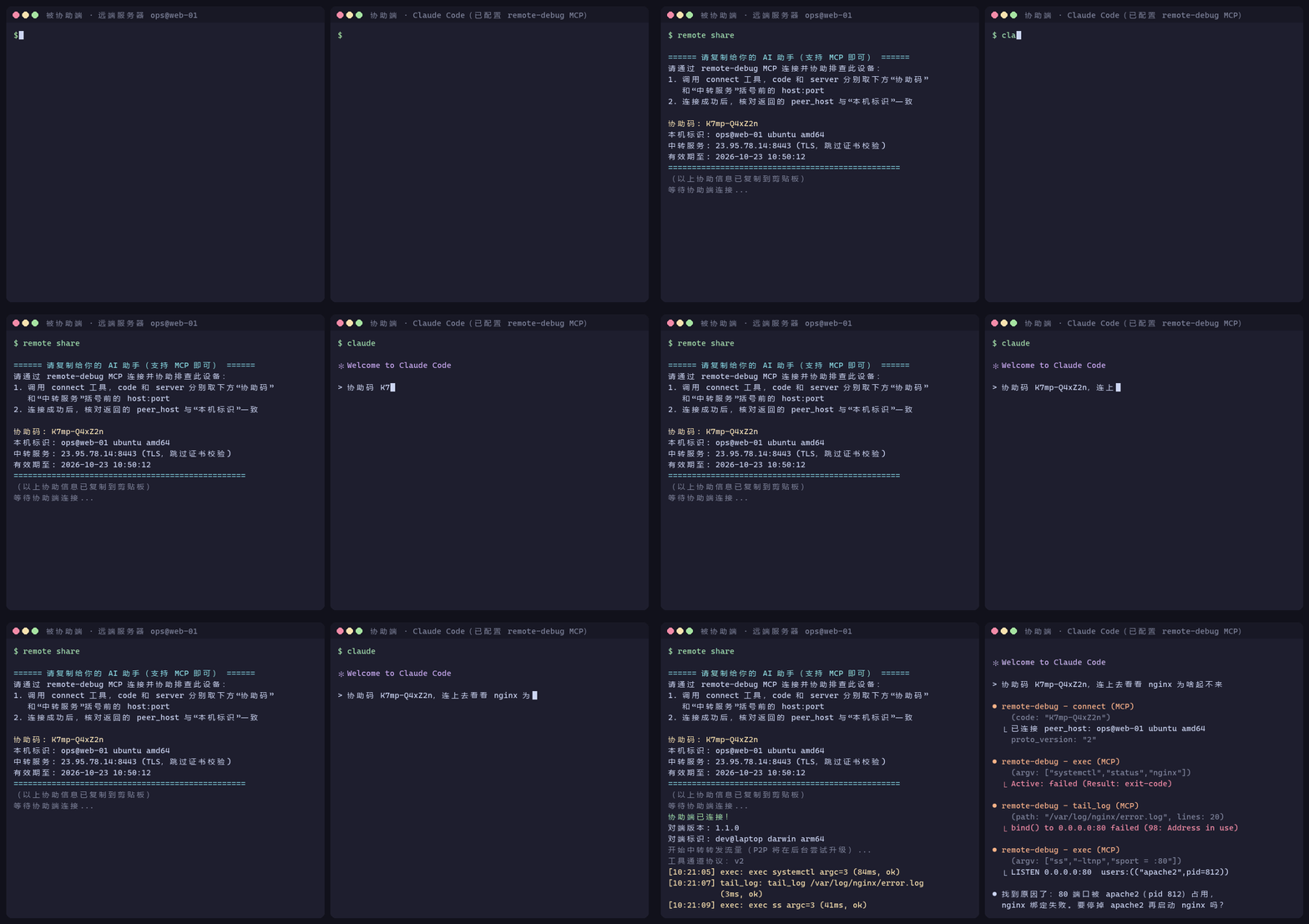
A command-line remote assistance tool: it sets up a secure tunnel through a relay server (or LAN direct connection / NAT-traversing P2P). It supports classic SSH remote assistance, and also lets a local AI agent debug a remote machine directly through an MCP tool channel — Claude Code, Codex, Doubao, or any other agent that supports MCP.
Features
- Two assistance channels: a classic SSH tunnel; and an MCP tool channel (12 remote tools, including file upload/download) that works with any MCP-capable AI agent.
- Three connection modes: public relay; LAN direct connection via an in-process relay (
--standalone); NAT-traversing P2P direct connection (STUN hole punching, automatically falling back to the relay on failure). - Layered encryption: TLS on the relay link; the MCP tool channel additionally uses XChaCha20-Poly1305 AEAD with a key derived from the assist code, protecting against network paths outside the relay. The relay itself is a trust boundary (the assist code is generated by it, see Security Features below), so use a relay you deploy yourself.
- Guardrails: exec command deny/allow lists; an optional
--rootthat confines the file tools to a subtree (protection against slips, not a security boundary — exec is not bound by it). - Relay hardening: connection rate limiting (global + per IP), read/write timeouts, and a per-message size cap, to resist resource-exhaustion DoS / slowloris.
Quick Start
One-line install of remote
The script downloads the client for your current OS and architecture from the latest official GitHub Release and installs it as~/.local/bin/remote (remote.exe in Git Bash / MSYS2 / Cygwin on Windows):
curl -fsSL https://raw.githubusercontent.com/kegechen/remote-assist-tool/master/install.sh | sh
You can also use wget, or set the install directory with REMOTE_INSTALL_DIR:
wget -qO- https://raw.githubusercontent.com/kegechen/remote-assist-tool/master/install.sh | sh
REMOTE_INSTALL_DIR=/usr/local/bin sh install.sh
If remote is already installed, the script compares its remote --version with the latest Release tag: it skips the
download when they match and updates in place otherwise. Either way it then starts remote (no arguments = share mode).
Arguments after sh -s -- are passed through, and REMOTE_INSTALL_NO_RUN=1 installs/updates without starting it:
curl -fsSL https://raw.githubusercontent.com/kegechen/remote-assist-tool/master/install.sh | sh -s -- share --standalone
curl -fsSL https://raw.githubusercontent.com/kegechen/remote-assist-tool/master/install.sh | REMOTE_INSTALL_NO_RUN=1 sh
When there is no terminal (CI, unattended provisioning) the script only installs and does not start remote.
Supports amd64 and arm64 on Linux, macOS and Windows (Git Bash / MSYS2 / Cygwin);
on Linux/macOS the downloaded file is made executable automatically; on Windows, if the curl / wget download fails, the script falls back to
the system PowerShell.
Before installing, the script fetches the SHA256SUMS of the same Release and verifies the downloaded binary; on mismatch it aborts and leaves
no files behind. If the checksum list cannot be fetched it likewise aborts — to bypass this, explicitly set REMOTE_INSTALL_SKIP_CHECKSUM=1.
If you download manually, you can verify it yourself:
curl -fLO https://github.com/kegechen/remote-assist-tool/releases/latest/download/SHA256SUMS
sha256sum -c SHA256SUMS --ignore-missing   # macOS: shasum -a 256 -c SHA256SUMS --ignore-missing
Note that SHA256SUMS and the binary come from the same Release over the same HTTPS connection, so it protects against "what you downloaded is incomplete or was swapped in transit",
not "the Release itself was replaced" — the latter requires signatures, which this project does not provide yet.
Build
Use the scripts in the repository; artifacts go to bin/ (.exe on Windows):
# Windows
scripts\build.bat
# Linux / macOS
./scripts/build.sh
# Cross-compile Linux artifacts on Windows
scripts\build-linux.bat
All artifacts carry a platform suffix (<component>-<os>-<arch>), so you can tell at a glance which platform a binary is for, and it will not
collide with anything else on your PATH:
| Artifact | Description |
|---|---|
bin/remote-assist-cli-windows-amd64.exe |
The client: both the share and help roles, and also the MCP entry point |
bin/remote-assist-webui-windows-amd64.exe |
Browser console (looks for the cli above in the same directory / bin/) |
bin/remote-assist-relay-windows-amd64.exe |
Relay server |
bin/remote-assist-{cli,relay}-linux-{amd64,arm64} |
Produced by cross-compiling with scripts/build-linux.bat |
Windows artifacts embed product information (product name / description / version are visible in the file's Properties), generated by goversioninfo fromgit describe. The tool is pinned into go.mod via tools.go: after one go mod download, you
can build offline and don't need network access every time.
Tip: for a pure compile check use
go build ./...(produces no files); to get artifacts, always pass-o bin/or use the scripts above, so executables don't end up scattered in the repository root.
Upgrading share from the Web UI
After connecting, the Web UI compares the versions of help and share; when share is confirmed to be older, an upgrade prompt appears at the top. After you pick the CLI binary matching the
remote OS and architecture, the backend performs a "make before break" handover:
- Through the old channel it probes the PID, the original executable path, the OS and the architecture. Before uploading it checks the candidate file's ELF/PE
machine; only after confirming that Linux/Windows and amd64/arm64 both match does it upload in chunks, and then it runs--versionremotely to verify. - It reuses the old share's parameters and starts new with an isolated
HOME(a separate ClientID) and a fixed--code-file.
When upgrading the default instance, the isolatedHOMEdoes not change its single-instance lock: while old holds the lock, new queues up to take over, so
starting the default share again during the handover still fails immediately. - Still through the old channel, it reads the new code, actively connects to new and checks the version.
- On Linux, after new is verified, the original file is atomically replaced and old is then terminated by PID. On Windows, the running old is first
renamed to a backup name so the candidate file can take over the original path, and then new is started; after new is verified, old is terminated by PID and the
backup is deleted; if the switch fails, the original file is restored through the old channel.
If any step before the switch fails, old is not terminated; if connecting to new fails, it tries to reconnect to old automatically. Currently only Linux/Windows amd64/arm64 shares
using an external relay are supported; --standalone / --no-auth are rejected.
If --allow-exec is configured, the sh/powershell.exe, mkdir, chmod, kill needed for the upgrade, as well as the candidate binary, must also be
allowed to run. After the original path is replaced, existing systemd / startup configurations need no file-name changes; the temporary takeover process keeps
using the isolated ClientID, and the next normal start from the original path restores the standard HOME/ClientID.
A share upgraded from a release that predates the node list (v1.2.3 and earlier) still has the old
--server <address>in its
command line, so it stays in explicit mode: it does not select a node from the list and does not migrate when a node drains or
goes away; later in-channel upgrades keep the explicit mode too. Restart the share once (or let the autostart entry relaunch it
from the original command line after a machine reboot) to enter automatic mode. Upgrades between recent releases are unaffected.
Usage 1: Classic SSH remote assistance (via relay)
On the machine being assisted (sharing its local SSH):
remote share --server relay.example.com:8443
--serveris not required: if omitted, the client picks a relay from the official signed node list (falling back to the built-in public relay23.95.78.14:8443if no list is available); see "Default relay, node list and self-hosting" below. Only fill in your own address when connecting to a self-hosted relay.
The program displays an assist code, for example:
协助码已生成: ABCD-EFGHIJ
有效期至: 2026-02-28 18:30:00
等待协助端连接...
By default only one share is allowed per user. To additionally share a different SSH service or use a different tool policy, explicitly create
a separate instance:
remote share --ssh 127.0.0.1:22 --server relay.example.com:8443
remote share --new-instance --ssh 127.0.0.1:2222 --server relay.example.com:8443
Starting the default instance a second time fails immediately and does not disconnect the instance that is already running. Each use of --new-instance creates
an independent assist code; while the code is valid, that process keeps the same code when its network drops and reconnects, but after the process exits, starting it again
generates a new code. When connecting to an external relay, share only makes outbound connections and does not need a local listening port per instance;
the --ssh port is just the local SSH service being proxied. In standalone mode each instance embeds a relay, so
you must also set a different --standalone-listen port for each one.
On the helper side (connect with the assist code; MCP mode is the default, add --legacy-ssh for a traditional SSH tunnel):
remote help --server relay.example.com:8443 --code ABCD-EFGHIJ --legacy-ssh
# You can also omit --server: the first character of the assist code selects the relay that issued it from the node list
# Then in another terminal:
ssh -p 2222 [email protected]
--insecuredefaults to true: the built-in / standalone relays use self-signed certificates, so it works out of the box. When connecting to a relay with a certificate from a trusted CA, explicitly pass--insecure=falseto enable certificate verification.Skipping verification does not mean there is no authentication: the first time you connect to a relay address, its certificate fingerprint is recorded in
~/.remote_assist_known_hosts(TOFU, like SSH's known_hosts), and a later fingerprint change is refused. If the relay really did change its certificate, add--trust-new-certto trust it again, or delete the corresponding line in that file. Connections tolocalhost/127.0.0.1are not pinned (loopback has no man-in-the-middle to defend against, and multiple relays on one machine would share the same address key).
Usage 2: LAN direct connection (standalone, no external server)
The machine being assisted starts a self-signed TLS relay inside its own process and listens on the LAN; the help side connects directly to that machine, with no dependence on any external server:
remote share --standalone --standalone-listen :8443
The console prints the command for the help side (the LAN IP is detected automatically):
================ standalone (LAN) mode ================
Relay (TLS, self-signed) listening at: 192.168.1.23:8443 (LAN reachable)
Help side connects exactly like a normal relay (no --plain needed):
    remote help --server 192.168.1.23:8443 --code <code> --p2p disabled
=======================================================
The standalone self-signed certificate only covers
localhost; in LAN scenarios keep the default--insecure=true(do not use--insecure=false, which fails because the certificate's SAN does not include the LAN IP).The certificate is stored in
~/.remote_assist_standalone_certs/and reused across launches (regenerated only when close to expiry), so that the help side's fingerprint pinning keeps matching. Deleting this directory switches to a new certificate, after which existing help sides need--trust-new-cert.
Usage 3: AI agent remote debugging via MCP
Let a local AI agent debug the remote machine directly, with no openssh-server needed on the remote side. remote help --mcp-stdio
is a standard stdio MCP server, and any MCP-capable agent such as Claude Code, Codex or Doubao can plug into it.
For first-time setup, you can simply hand MCP_SETUP.md (Chinese) to your AI assistant and let it complete theremote download and the remote-debug MCP configuration automatically.
Start share on the remote side (with the sandbox):
remote share --server relay.example.com:8443
Configure it locally as an MCP server. Taking Claude Code as an example (.mcp.json in the project root or ~/.claude/mcp.json):
{
  "mcpServers": {
    "remote-debug": {
      "command": "remote",
      "args": ["help", "--server", "relay.example.com:8443", "--mcp-stdio"]
    }
  }
}
--server in the configuration can also be omitted; the MCP server then uses the server passed to connect (the "Relay" line of the assist message). If only an assist code is given, its first character selects the relay from the node list. Only a self-hosted relay needs --server <host>:<port>.
For other agents, fill in the same thing in their own configuration format: command remote, arguments help --server <relay> --mcp-stdio,
and we recommend naming the MCP server remote-debug.
Note that there is no --code — this is bootstrap mode, where the MCP server does not yet know the assist code when it starts.
For each debugging session:
- Run
remote shareon the remote side and get the assist codeABCD-EFGHIJ; - Tell your AI assistant directly: "The assist code is ABCD-EFGHIJ, connect to it" (when
remote sharestarts it has already copied the whole assist message to the clipboard, so pasting it works too); - The agent calls
remote-debug:connect("ABCD-EFGHIJ")to complete the handshake; for standalone/LAN you can add the address:connect("ABCD-EFGHIJ", server="192.168.1.23:8443"); - After that, all calls go straight to the real tools, with no need to restart the agent.
If the peer is an old 0.0.x version, connect is refused with an explanation; with the user's consent, call connect("ABCD-EFGHIJ", min_proto="1") in the same session to connect in compatibility mode, without restarting the agent or MCP (see "Compatibility" below for the risks). The old usage with a hard-coded --code has no connect step, so you still need to add --min-proto=1 to the startup arguments.
The old usage (hard-coding the assist code) is still supported: add "--code", "ABCD-EFGHIJ" to args to skip bootstrap.
If
connectfails immediately withTransport closedand returns nosession_id/peer_host, the request usually
never reached theremoteCLI. Do not conclude from this that the assist code is invalid or the relay is down; first restart the affected agent
process (Claude Code, Codex, etc.), then retry with the same code. Once the host has cancelled the old stdio handle, callingconnectrepeatedly
cannot recover it. For detailed evidence and troubleshooting steps seeMCP_SETUP.md(Chinese)
and theremote-debugMCP integration reference (Chinese).
Architecture
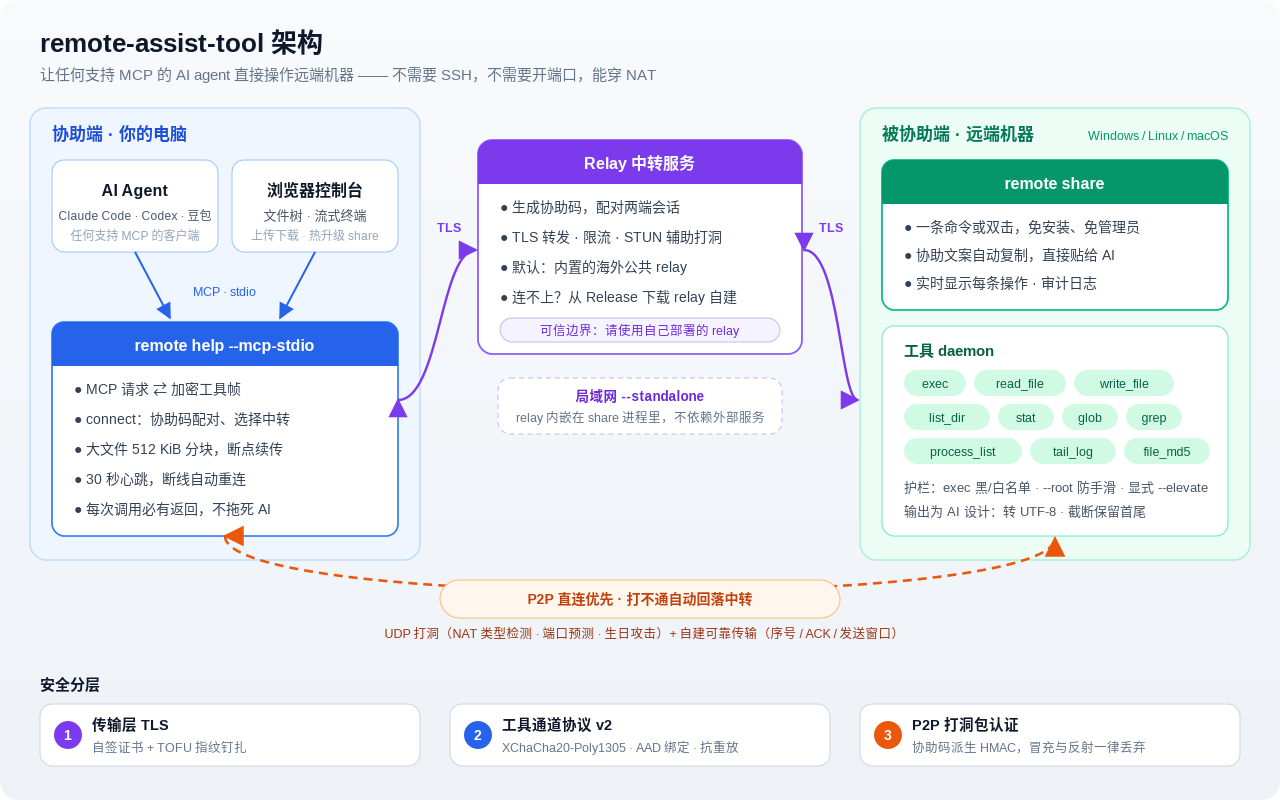
- Helper side: the AI agent (or the browser console) calls the local
remote helpvia MCP stdio, which wraps requests into encrypted tool frames; - relay: issues assist codes, pairs sessions, forwards messages, and assists hole punching. It is a trust boundary, see Security Features;
- Assisted side:
remote shareonly connects outward; the tool daemon executes commands and file operations, and every call is displayed in the terminal in real time; - P2P first: if NAT traversal succeeds the connection is direct, otherwise it automatically falls back to the relay; the classic SSH tunnel mode uses the same connection.
Command-Line Reference
Default relay, node list and self-hosting
Without --server (and without REMOTE_RELAY_SERVER), remote share / remote help are in automatic mode and select a relay from a signed node list:
- The list is signed by the official root keys; the client verifies it with built-in public keys and ignores anything that fails verification. It is fetched from
https://relay-list.ifly.qzz.io/v1/directory
(3-second timeout); connected relays also forward an updated list in their response. Verified lists are cached in~/.remote_assist_relays.jsonand the cache is used when the network is unavailable. - share follows the list policy: prefer the default node, or dial several candidates at once and use the first one to finish the handshake. The certificate must match the fingerprint listed for that node, otherwise the address is skipped (no TOFU).
The assist code starts with the prefix of the node that issued it, and the "Relay" line in the assist message names the actual node, so older help clients can connect directly to that address. - help given only an assist code uses the code's first character to find the issuing node in the list; if the prefix is unknown, it connects to the default node.
- When a node drains, is disabled, or is removed from the list, a share with no connected helper automatically switches to another node (the assist code changes, and the clipboard and
--code-fileare updated). - When no list is available (first run without network access), the built-in default node
23.95.78.14:8443(overseas) is used, as in previous releases. REMOTE_RELAY_DIRECTORY=offdisables network fetches; only cached and relay-forwarded lists are used. The variable can also be set to another https URL.
Passing --server (or REMOTE_RELAY_SERVER) means explicit mode: only that relay is used, no node selection or migration, even if it is the built-in address.
It works out of the box, but self-hosting is recommended in two cases:
- Cannot connect or it is slow: access to overseas servers is unstable from some networks;
- You want to control the trust boundary yourself: the relay can derive the session key of the tool channel (see Security Features), so sensitive environments should use only their own relay.
Self-hosting is simple: download the remote-assist-relay-<os>-<arch> for your platform from the GitHub Release
(amd64 and arm64 for Windows / Linux / macOS are available), run it on a machine reachable from both ends,
and open TCP 8443; on both ends use --server <host>:8443, or set the environment variable REMOTE_RELAY_SERVER=<host>:8443 to point to it.
When both ends are on the same LAN, it is easier to just use remote share --standalone, which needs no separate relay.
To join the official node list so that automatic mode can select your relay, follow the deployment guide (Chinese).
relay — relay server
| Option | Default | Description |
|---|---|---|
--listen |
:8443 |
Listen address |
--cert / --key |
- | TLS certificate / private key files |
--ttl |
30m |
Assist code lifetime |
--code-max-age |
24h |
Absolute lifetime of an assist code, counted from first issue and never reset by reconnects/reuse, even while its share stays online. 0 disables the cap (a leaked code then stays valid as long as its share runs) |
--state-dir |
empty | Persist the code-reuse signing key (reuse-secret, mode 0600), and in node mode the directory list (directory.json). Empty = key kept in memory only: after a relay restart every share receives a new assist code and nobody can reclaim an old one (so a leaked code cannot be grabbed by a third party). Set it if shares should keep their code across relay restarts; only the original share (holding its reuse token) can reclaim it. The Windows service enables it by default. Node mode requires it |
--length |
12 |
Assist code length (node mode requires 12) |
--audit |
audit.log |
Audit log file |
--stun |
empty | STUN/UDP relay listen address; e.g. :3478, empty disables it |
--advertise-stun |
empty | Comma-separated STUN servers (host:port, unicast IPv4 or domain, at most 4) sent to new clients for public-address discovery, e.g. when this host's UDP 3478 is blocked by a cloud security group |
--trust-source-ip |
true |
Whether the relay can see the real source IP from the TCP connection; set to false for SNAT backends |
--limits-file |
$REMOTE_RELAY_LIMITS_FILE |
JSON rate-limit configuration file; if unset, safe defaults are used |
--latest-version |
relay's own version | Latest version announced to clients; older clients print an upgrade hint (hint only, never rejects). Must be a release tag like v1.2.3; a non-release relay build announces nothing. none disables |
--download-url |
GitHub asset of that version | HTTPS URL template for the hint; put the published tag directly in the URL (for example v1.1.0) and keep only {os}/{arch}/{ext} for client-side expansion. The operator must verify the final URL. Verify links with go test -tags network ./internal/update -run TestReleaseURLsExist |
--release-page |
GitHub release page of that version | Fallback link when the platform is unknown or has no released asset |
--update-info-file |
empty | Reloadable JSON announcement file; the relay polls metadata every 5 seconds and reparses only when it changes, without restarting the service |
--print-default-limits |
false |
Print the complete default rate-limit JSON and exit |
--directory-url |
empty | Node mode: https URL of the signed node list (the official list is https://relay-list.ifly.qzz.io/v1/directory). The relay identifies itself in the list by its TLS certificate fingerprint, issues codes with its node prefix, applies the status assigned by the directory admin and forwards the list to new clients. Requires TLS and --state-dir; incompatible with --no-auth. See the deployment guide (Chinese) for enrollment |
--directory-refresh |
5m |
Node mode: directory polling interval (minimum 1m); when a fetch fails the last verified list remains usable until it expires |
--no-auth |
false |
Fixed-code mode without authentication, only for fully trusted private networks |
--plain |
false |
Non-TLS mode (development and testing only) |
--gen-certs |
false |
Generate self-signed certificates and exit |
--certs-dir |
./certs |
Certificate directory (a self-signed certificate is generated here automatically when cert/key are not specified) |
--version |
false |
Show version |
New clients advertise support for the structured notice and render it cleanly. Clients before 1.0.0 receive a compatibility hint appended to the existing peer identity field (SessionReady.PeerHost for share and JoinResponse.PeerHost for help), which the 0.0.7 CLI already prints. The hint is sent only to pre-1.0.0 clients (or clients without a version); released 1.x clients keep the original peer identity even if they do not send the newer capability bit.
For how the relay determines source IPs, the full rate-limit parameters, the rationale for the defaults, public STUN behavior, and deployment monitoring, see the Relay Source IP, Rate Limiting and Monitoring Guide (Chinese).
IP blocklist
The relay has a built-in IP blocklist that is on by default and needs no configuration. It scores abnormal behavior only; normal connections, reconnects and rate-limit rejections never count:
| Abnormal behavior | Points |
|---|---|
| Non-TLS data or a malformed TLS record sent to the TLS port | 1 |
| Frame is not valid JSON, register/join payload fails to decode, or a line is too long | 2 |
| Protocol state violation (registering twice, business messages before registering) | 2 |
| Unknown message type before registering/joining | 1 |
| Join fails because the assist code is wrong, expired or has no session | 1 |
| A connection is closed for too many failed joins | 5 |
Reaching 20 points within 10 minutes triggers an automatic ban: 1 hour the first time, doubling on each repeat up to 24 hours; the repeat count resets after 7 days without a new ban. IPv4 is tracked per address, IPv6 per /64. An automatic ban does not drop existing connections, it only rejects new ones; newer clients that are rejected show "访问受限,请联系管理员。" ("Access restricted, please contact the administrator."). Everyone behind the same egress IP is rejected together, so add shared egress addresses such as an office NAT to the allow list.
Per-device scoring: the last two rows of the table above (joins failing on a wrong assist code, and a connection closed for too many failed joins) are charged to the device when the relay can tell which device it is; that one device is banned with the same threshold and durations, while other devices behind the same egress keep working. New help clients send a device identifier when joining, a one-way hash of their persistent local ClientID and the relay's certificate fingerprint (never the ClientID itself, which could be used to take over the share session on the same machine; each relay sees a different value); older help clients do not, so their identity string plus source address counts as one device; with neither, the failure is charged to the IP as before. A banned device that joins again gets "访问受限,请联系管理员。" and is disconnected; registering as a share is not affected. Device identifiers are self-reported and can be forged, so every 5 failures from identified devices still add 1 point to the source IP: brute force that keeps rotating identifiers still gets its source IP banned after about 100 attempts. Sources on the allow list are neither scored nor rejected per device either. The device list shares the switch and parameters of the IP list; its file is derived from --blocklist-db (blocklist.json → blocklist-devices.json) and only stores derived keys starting with dev-, never the raw ClientID.
| Option | Default | Description |
|---|---|---|
--blocklist-enabled |
true |
Master switch; forced off with --trust-source-ip=false (the source IP cannot be trusted, so banning one address would ban everyone) |
--blocklist-db |
~/.remote_assist_relay_default_blocklist.json |
Ban list file (mode 0600), so bans survive restarts; the device list and a record of each ban are kept in the siblings *-devices.json and *-records.json (e.g. blocklist.json → blocklist-devices.json, blocklist-records.json). Pass it explicitly empty (--blocklist-db=) for memory-only mode. Give each instance its own file when running several relays on one host |
--blocklist-allow |
empty | Allow list: comma-separated IPs or CIDRs (e.g. 203.0.113.7,198.51.100.0/24,2001:db8::/48); matching sources are never scored or rejected, and existing bans inside the range are lifted at startup. At most 256 entries, /0 is rejected. Changes take effect after a relay restart |
--blocklist-threshold |
20 |
Points within the window that trigger an automatic ban |
--blocklist-window |
10m |
Sliding scoring window |
--blocklist-ban-base |
1h |
First automatic ban duration, doubled on each repeat |
--blocklist-ban-max |
24h |
Maximum automatic ban duration |
--blocklist-offense-decay |
168h |
Reset the repeat count after this long without a new ban |
--blocklist-unban-grace |
24h |
No automatic ban for this long after an unban |
--blocklist-max-tracked |
4096 |
Maximum number of sources tracked in memory (64–8192) |
Duration options must be at least 1m. Bans, expirations and allow-list releases are written to the --audit log (events ip_banned, ip_ban_expired, ip_unbanned, …, with IP, duration, points and actor; for devices device_banned, device_ban_expired, …, with the device key; automatic device_banned also carries the source address that triggered it as via); the start, end and trigger of every ban are also kept in the records file.
To undo a wrong ban, add the address to --blocklist-allow and restart the relay: the ban is lifted at startup and audited with actor config. For a wrongly banned device, either add its source address (via in the audit log) to the allow list as well, or wait for the ban to expire. A restart disconnects online shares, which reconnect on their own and get a new assist code unless --state-dir is set. The Windows service keeps the ban list at C:\ProgramData\RemoteAssistRelay\blocklist.json by default; adjust it with blocklist_enabled and blocklist_db in config.json.
On Windows, double-clicking a relay with no arguments opens a service management menu. You can also install and manage the native Windows service with non-interactive commands:
remote-assist-relay-windows-amd64.exe service install
remote-assist-relay-windows-amd64.exe service start
remote-assist-relay-windows-amd64.exe service status
remote-assist-relay-windows-amd64.exe service stop
remote-assist-relay-windows-amd64.exe service uninstall
The service program is installed to C:\Program Files\RemoteAssistRelay, the configuration, certificates and audit files are in C:\ProgramData\RemoteAssistRelay, and runtime logs are written to the Windows Application Event Log. For service mode, configuration format, permissions and uninstall behavior see Windows Relay Service Deployment (Chinese). The original foreground arguments remain compatible; using run explicitly avoids confusion with the service management commands:
remote-assist-relay-windows-amd64.exe run --listen :8443 --ttl 1h
remote share — assisted mode
| Option | Default | Description |
|---|---|---|
--server |
selected from the node list | Relay server address (can also be overridden by the environment variable REMOTE_RELAY_SERVER). Set it to connect only to that relay; when omitted, a node is selected from the node list, see "Default relay, node list and self-hosting" above |
--insecure |
true |
Skip TLS verification (for self-signed relays; set to false when connecting to a relay with a trusted CA) |
--ca |
- | CA certificate file |
--trust-new-cert |
false |
Accept a relay certificate fingerprint that differs from the one recorded on first connection and record it again (use when the relay really changed its certificate) |
--ssh |
127.0.0.1:22 |
Local SSH address (SSH tunnel mode) |
--new-instance |
false |
Start an additional independent share; generates a new assist code and does not affect the default instance |
--p2p |
auto |
P2P mode: disabled / auto / required |
--stun |
- | STUN server for P2P and the UDP relay fallback (defaults to the relay's :3478); relay-advertised and built-in public STUN servers are queried in parallel, the first answer wins |
--bind-ip |
- | Specify the UDP bind IP (bypasses TUN proxy auto-detection) |
--standalone |
false |
Start a relay in-process and listen on --standalone-listen, for LAN direct-connection scenarios |
--standalone-listen |
:8443 |
standalone relay listen address |
--code-file |
- | After registration, atomically write the assist code + expiry as JSON to this file (for a host program to read) |
--log-file |
auto |
Also write status output and logs to a file with the assist code redacted as ********: auto writes <temp>/remote-assist-<user>/share-<pid>.log (5 MB rotation, files older than 7 days removed at startup), off disables it, or pass a file path. Can also be set via REMOTE_ASSIST_LOG; the command line takes precedence |
--root |
- | Optional: confine the file tools to this subtree (unset = unrestricted). Protection against slips, not a security boundary |
--allow-exec |
- | exec command allow list (comma-separated; empty = bound only by the deny list) |
--allow-pty |
false | enable the real terminal (PTY); off by default because a shell bypasses --allow-exec, --deny-exec and --root |
--deny-exec |
rm,shutdown,reboot,mkfs,dd |
exec command deny list |
--elevate |
false |
Windows: request administrator privileges via UAC at startup |
--unsafe-exec |
false |
Dangerous: disables the exec deny/allow lists so any command can run (startup shows a 5-second red confirmation countdown). Does not affect --root |
--plain |
false |
Non-TLS (development only) |
remote help — assistance mode
| Option | Default | Description |
|---|---|---|
--server |
derived from the assist code | Relay server address (can be overridden by REMOTE_RELAY_SERVER). Set it to connect only to that relay; when omitted, the first character of the assist code selects the node from the node list |
--code |
- | Assist code (required for SSH / direct mode; leave empty in MCP bootstrap mode, where the connect tool supplies it) |
--insecure |
true |
Skip TLS verification (same as share) |
--ca |
- | CA certificate file |
--trust-new-cert |
false |
Same as share |
--listen |
127.0.0.1:2222 |
Local listen address (SSH tunnel mode) |
--p2p |
auto |
P2P mode: disabled / auto / required |
--stun |
- | Same as share |
--bind-ip |
- | Specify the UDP bind IP |
--mcp-stdio |
false |
Run as an MCP stdio server (for any MCP-capable AI agent) |
--legacy-ssh |
false |
Force the traditional SSH tunnel mode (this is the mode when --mcp-stdio is not given) |
--log-file |
auto |
Same as share (file name help-<pid>.log); with --mcp-stdio only the log path goes to stderr, tool responses are never written to the file |
--plain |
false |
Non-TLS (development only) |
MCP Tools Overview (12)
| Tool | Description |
|---|---|
connect |
Pair with the remote side using the assist code; must be called first; optional server= overrides the relay address (for standalone/LAN) |
exec |
Run a command on the remote side by argv (not through a shell) |
read_file / write_file |
Read / write remote files (limited to the --root subtree if set; at most 1 MiB per call) |
list_dir / stat / glob / grep |
Explore the remote file system |
process_list |
List remote processes |
tail_log |
Read the last N lines of a remote log |
upload_file |
Push a local file to the remote side in chunks (512 KiB) — binaries such as DLL/EXE/zip |
download_file |
Pull a remote file to the local machine in chunks — crash dumps / log archives, etc. |
upload_file / download_file are host-side composite tools that loop over write_file / read_file internally, with zero changes on the share side.
Security Features
- TLS on the relay link (self-signed or trusted CA);
--insecurecontrols whether it is verified. When verification is skipped it degrades to TOFU fingerprint pinning (~/.remote_assist_known_hosts), shrinking the man-in-the-middle window from "forever" to "only the first connection"; loopback addresses are not pinned. - The MCP tool channel derives a session key from the assist code (HKDF-SHA256) and uses XChaCha20-Poly1305 AEAD: network paths outside the relay can neither see nor modify the tool content.
- The relay is a trust boundary, not an untrusted pipe. The assist code is generated by the relay, and the nonces of both sides of the handshake are also forwarded through it — all inputs used to derive the session key are visible on the relay side. So whoever controls the relay process can derive the key themselves, and decrypt or forge the tool data of active sessions. AEAD defends against the relay's ordinary forwarding logic misreading or mis-modifying data, but not against a compromised relay. Conclusion: use only a relay that you deployed yourself and trust; when using
--standaloneon a LAN the relay runs inside the share process, so there is no third party. See docs/security/SECURITY_SR005_TRUST_MODEL.md (Chinese) for details. - Tool channel protocol v2 adds three things on top of AEAD (incompatible with v1, see below):
- AAD binds the plaintext fields:
tool/id/deadline_ms, the response'sok/error_code/error_msg, and the stream frame'sseq/streamare all outer plaintext. Once they are in the AAD, re-attaching a captured ciphertext to a different tool (e.g. attaching the arguments ofread_filetowrite_fileso the remote side truncates a file to 0 bytes), changing the ID, changing the timeout, flipping success to failure, reordering stream frames or delivering them across streams all fail to decrypt. - Every response is sealed (including error responses with an empty result), and the receiving side authenticates before looking at
ok. Otherwise a man-in-the-middle could simply clear theresultof a successfulread_file, and the caller would get "empty result + success" — the AI would conclude "this file is empty", with no other way to notice. - After the handshake, args must be ciphertext: including calls with "no arguments", for which the host also seals a
{}. The earlier criterion was "decrypt only if args are present", which amounted to a backdoor — sending atool_req{tool:"process_list"}without args would bypass all decryption and trigger remote execution directly. Now anything without valid ciphertext is rejected before Dispatch. - Replay protection: the nonce is chosen by the sender; AAD can stop field tampering but not verbatim replay. The receiving side deduplicates by call ID with a 1024-bit sliding window (same semantics as IPsec), and a replay returns
replayed. There is one window per key; it is reset on re-handshake and kept across a P2P hot upgrade (which does not change the key).
- AAD binds the plaintext fields:
- P2P hole-punching packets carry an HMAC derived from the assist code and bound to the sender's identity: knowing only the sessionID (which is not a secret anyway, since during hole punching it is actively sprayed to a batch of ports on the peer's public IP) is not enough to forge a hole-punching packet or to impersonate the peer.
- Compatibility: by default there is no interoperation with old versions (0.0.x); when needed, relax it explicitly with
--min-proto=1.- The tool channel version is negotiated in ToolHello/ToolHelloAck: each side advertises the set of versions it supports, and the highest one in the intersection is chosen.
0.0.1~`0.0.9are v1, and1.0.0` onward are v2. - Downgrades are refused by default. If automatic downgrade were allowed, an untrusted relay could just delete the
versionsfield from Hello and silently push two v2 peers back to v1, getting a channel with no AAD and no replay protection for free, and with no way to detect it afterwards. So relaxing must be an explicit user decision. - When an old version is encountered, the handshake fails with an actionable hint (rather than a bare
unsupported tool protocol version). The parameter always goes on the newer side — the old version simply does not have this flag:- New help connecting to old share → relax on the help side, using any one of three entry points:
- Command line: restart with
--min-proto=1(in command-line mode, hitting an old version aborts directly and does not downgrade automatically); - MCP (AI agent): no need to restart MCP or change the configuration. When
connectis refused, the error message prompts the AI to first explain the risk to the user and get consent, then retry by callingconnect(code, min_proto="1")in the current session. This parameter applies only to that one connection (including automatic reconnection after a transport interruption), and overrides the startup flag--min-proto. It is only a lower bound: an existing v2 session satisfies it, and passing it again does not cause a disconnect and reconnect; - GUI: tick "Compatibility with old versions" in the connection bar and reconnect. Automatic reconnection after a drop keeps this setting; after the peer is successfully upgraded through the GUI it is unticked automatically, restoring the default of no downgrade.
- Command line: restart with
- Old help connecting to new share → add
--min-proto=1on the share side (the hint is printed both on the local share machine and in the old help's terminal).
- New help connecting to old share → relax on the help side, using any one of three entry points:
- After downgrading to v1, the result of MCP
connectcarriesproto_version:"1"and awarning, the GUI terminal prints a warning, and the "Tool protocol" field in the connection details also indicates compatibility mode. On a normal connectionproto_versionis"2". - Relaxing only lowers the floor; it does not force a downgrade: when both sides support v2, v2 is still negotiated. When it really drops to v1, both sides print a conspicuous warning, because that means AAD binding, mandatory ciphertext arguments and replay protection are all turned off together.
- When interoperating with 0.0.x there is no P2P direct connection; everything goes through the relay: once v1 is negotiated, the new side no longer sends any hole-punching packets and does not switch traffic to a tunnel. The reason is that hole-punching authentication can only take effect in one direction — we reject the old version's packets that lack a MAC, but the old version only compares
session_id, does not know themacfield at all, and will accept our packets as they are and unilaterally conclude that P2P is up, then send traffic into a tunnel that we never established on our side. Not sending packets is the only way to keep the state of both ends consistent.- To be clear: the share side's address advertisement may already be sent before the tool handshake (
advertiseAddris insidemgr.Start(), while the handshake only arrives afterSessionReady), so the old peer may still punch by itself and wait idly until its own timeout. That waste is on the peer's side and we cannot change its code; avoiding it entirely would require deferring the P2P start, but before the handshake arrives it is impossible to tell whether this is a tool session or an SSH session, and deferring would disable P2P for SSH as well. This does not create a black hole: the new side never replies and never switches to the tunnel. - With
--p2p=required, both sides immediately report an error explaining the reason (instead of waiting idly for the hole-punching timeout). The share side replies with a refusal carrying the reason already in the handshake phase — "peer too old" is also a kind of P2P failure, and the user has explicitly said they do not accept relaying, so this session was never viable; if it accepted first and cut the connection afterwards, the peer would only see an unexplained loop of "handshake succeeded → tunnel_lost → reconnect". 0.0.x prints the refusal reason verbatim.
- To be clear: the share side's address advertisement may already be sent before the tool handshake (
- Even with
--min-proto=1, two new peers that both support v2 are still never downgraded: the responder'sversionsis its testimony of "what I support", and if both sides could use a higher version but a lower one was negotiated, the proposal was modified in transit, and the initiator refuses the handshake on that basis. A real 0.0.x does not send this field and is unaffected. - The hole-punching verification itself is not relaxed by
--min-proto=1— if authentication could be bypassed by "claiming to be an old version", it would effectively not exist. Compatibility mode is a feature downgrade, not an authentication downgrade.
- The tool channel version is negotiated in ToolHello/ToolHelloAck: each side advertises the set of versions it supports, and the highest one in the intersection is chosen.
- Assist code: securely randomly generated (a 54-character set × 10 characters, with easily confused characters removed), expiring after 30 minutes by default.
- The trust boundary is the assist code: share is actively started by the local user, and whoever is given the code is effectively given the machine.
--root/ the exec lists are guardrails against slips, not a boundary against a malicious party — exec can run any program, and a singlesh -c 'cp /etc/passwd <root>/'bypasses--root. If you need real isolation, wrap the process externally (container / dedicated low-privilege account). - Relay server hardening: global + per-IP connection limits, read/write timeouts, and a per-message size cap.
- Full audit log.
Comparison with Similar Tools
| Feature | This tool | frp | ZeroTier | ngrok |
|---|---|---|---|---|
| Core function | SSH/MCP remote assistance | Reverse proxy | Virtual LAN | NAT traversal |
| Use case | Ad-hoc assistance / remote debugging | Long-term service exposure | Building a virtual network | Temporary public access |
| Setup complexity | Very low (one assist code) | Medium | Medium | Low |
| Self-hosting | ✅ Supported | ✅ Supported | ❌ (a self-hosted edition exists) | ❌ Depends on the official service |
| Connection modes | Relay / P2P / LAN direct | Relay only | P2P first | Relay only |
| One-off use | ✅ Designed for ad-hoc use | ❌ Leans long-term | ❌ Leans long-term | ✅ Ad-hoc |
| AI integration | ✅ MCP (any MCP-capable agent) | ❌ | ❌ | ❌ |
Advantages of This Tool
- Minimal —
sharegenerates a code,help/ the AI agent connects with it: two steps and you're done. - Assist codes expire — they automatically become invalid after 30 minutes by default.
- Three connection modes — public relay, LAN direct, and P2P direct are chosen automatically by scenario.
- Fully self-hosted — your data stays under your control.
- AI-native — a standard MCP server that you can attach to Claude Code, Codex, Doubao or any other MCP-capable agent as a remote debugging tool.
License
Yorumlar (0)
Yorum birakmak icin giris yap.
Yorum birakSonuc bulunamadi