leanstudio
Health Uyari
- License — License: MIT
- Description — Repository has a description
- Active repo — Last push 0 days ago
- Low visibility — Only 5 GitHub stars
Code Basarisiz
- rm -rf — Recursive force deletion command in packaging/linux/build-appimage.sh
- network request — Outbound network request in packaging/linux/build-appimage.sh
- rm -rf — Recursive force deletion command in packaging/macos/notarize.sh
- rm -rf — Recursive force deletion command in packaging/publish.sh
Permissions Gecti
- Permissions — No dangerous permissions requested
Bu listing icin henuz AI raporu yok.
A native desktop IDE for Lean 4 on macOS, Windows and Linux. Every proof re-checked by Tenet, an independent Lean 4 kernel. An MCP server for AI assistants, with Git and GitHub built in.

Lean Studio
A desktop IDE for Lean 4, on macOS, Windows and Linux.
Lean elaborates your proofs as you type. Tenet then re-checks each one it built.
Created by Keith Adler, @keithadler on X.
Install · Compared with VS Code · New to Lean? · Features · AI · AI assistants · How it works · Build from source · Shortcuts · Docs
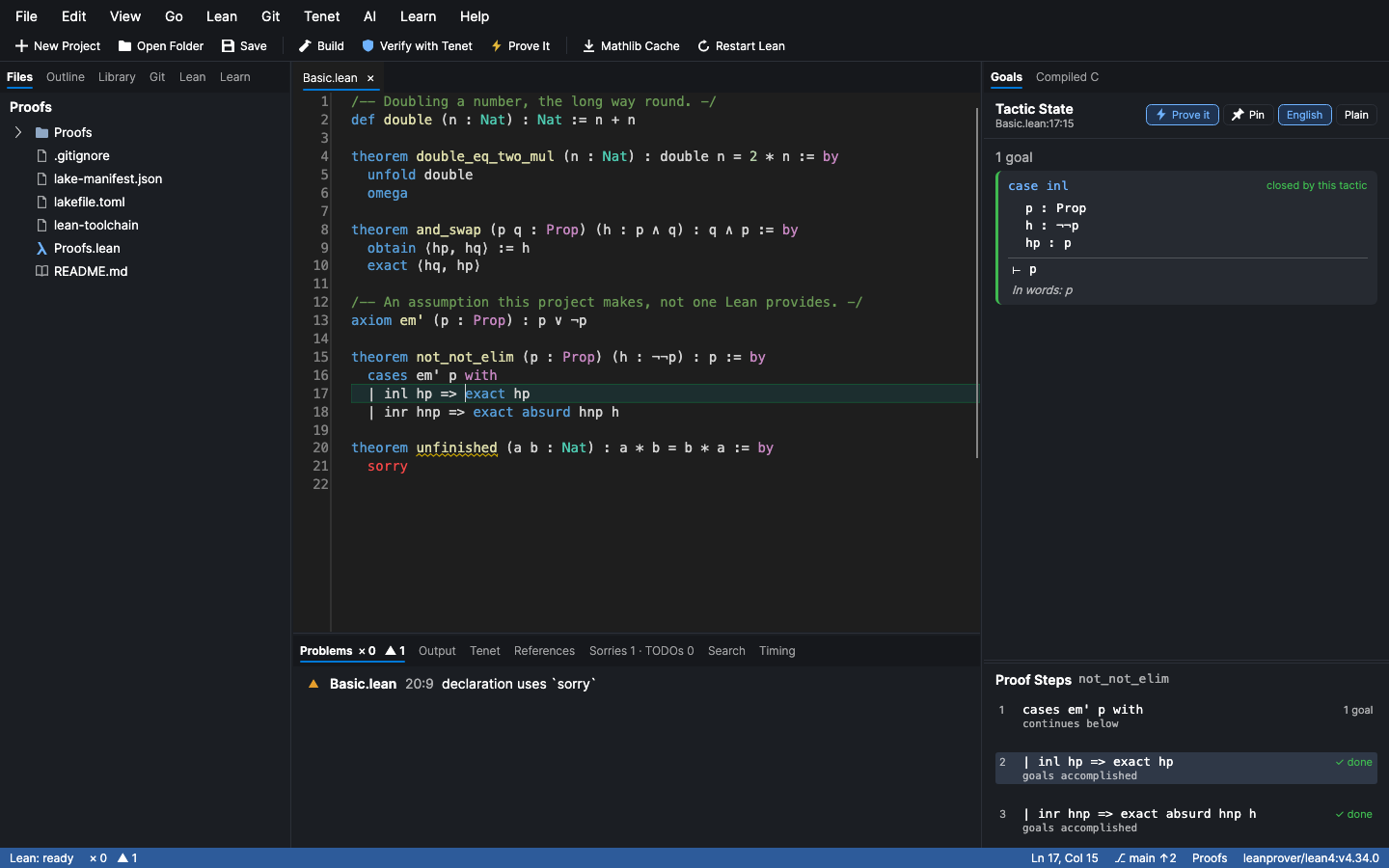
Lean Studio is a native desktop app built only for Lean. It is not a plugin or a web view inside another editor. The tactic state gets a full panel. Every tactic in a proof is listed with what it changed. Each declaration you build gets a second, independent check from Tenet, a separate implementation of Lean's kernel.
How it compares
Most people write Lean in VS Code with the official lean4 extension, and it's very good. Here's what Lean Studio has, side by side:
| VS Code + lean4 | Lean Studio | |
|---|---|---|
| Goals and messages as you type, go to definition, hover, completion, rename, references | ✓ | ✓ |
Unicode input (\alpha), semantic highlighting, inlay hints, call hierarchy, trace trees |
✓ | ✓ |
| Every step of a proof listed with what it changed | ✓ | |
Prove It: a portfolio of tactics tried on each sorry, with counterexamples when the goal is false |
✓ | |
| Extract a goal as a lemma, with the hypotheses it needs | ✓ | |
| Independent re-checking of every declaration by a second kernel (Tenet) | ✓ | |
Why a theorem isn't fully proved, and a map of what rests on sorry |
✓ | |
| Per-declaration timing from Lean's profiler | ✓ | |
| Search Mathlib in plain English, and Loogle, built in | ✓ | |
| Proof walkthroughs as web pages; share links to the web editor | ✓ | |
| A tutorial, goals read in English, errors explained, for people new to Lean | ✓ | |
C FFI: @[extern] checked against the C code, stubs, clangd |
✓ | |
| Built-in AI that prefers a model on your computer (Apple's on-device model on macOS 27, Ollama, LM Studio, llama.cpp, MLX), with every proof it suggests checked by Lean before you see it | ✓ | |
| An MCP server so AI assistants can use Lean | ✓ | |
| ProofWidgets and other JavaScript widgets in the infoview | ✓ | ✓ (Lean's own infoview, in the window or a browser) |
| Vim mode | ✓ (an extension) | ✓ built in |
| The VS Code ecosystem: its other extensions, remote development | ✓ |
Lean Studio is tested against real Lean on macOS, Windows and Linux on every change, and against a real Mathlib project every week.
New to Lean?
Lean Studio is built to be the place to start, whether you're curious about theorems or you write code:
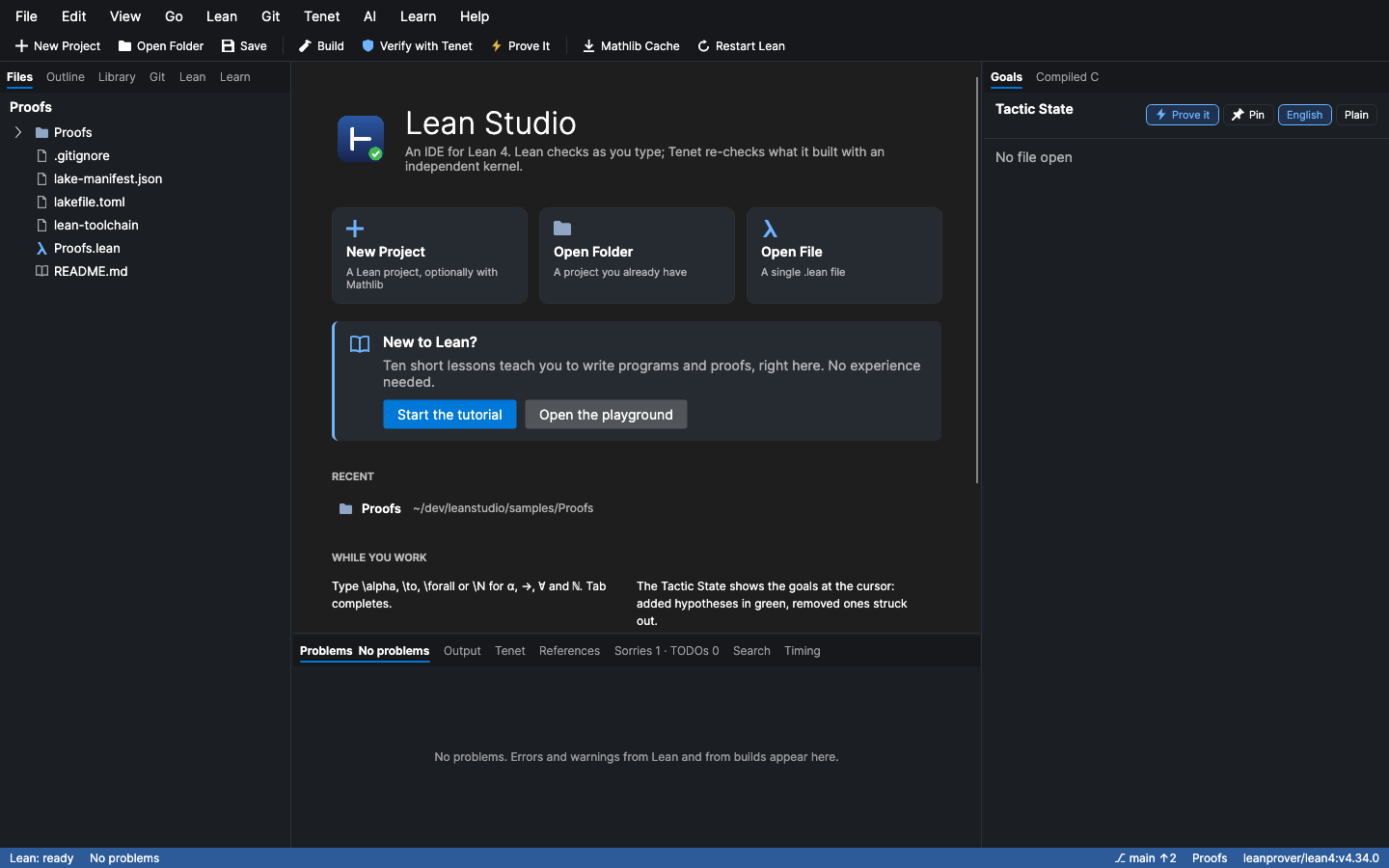
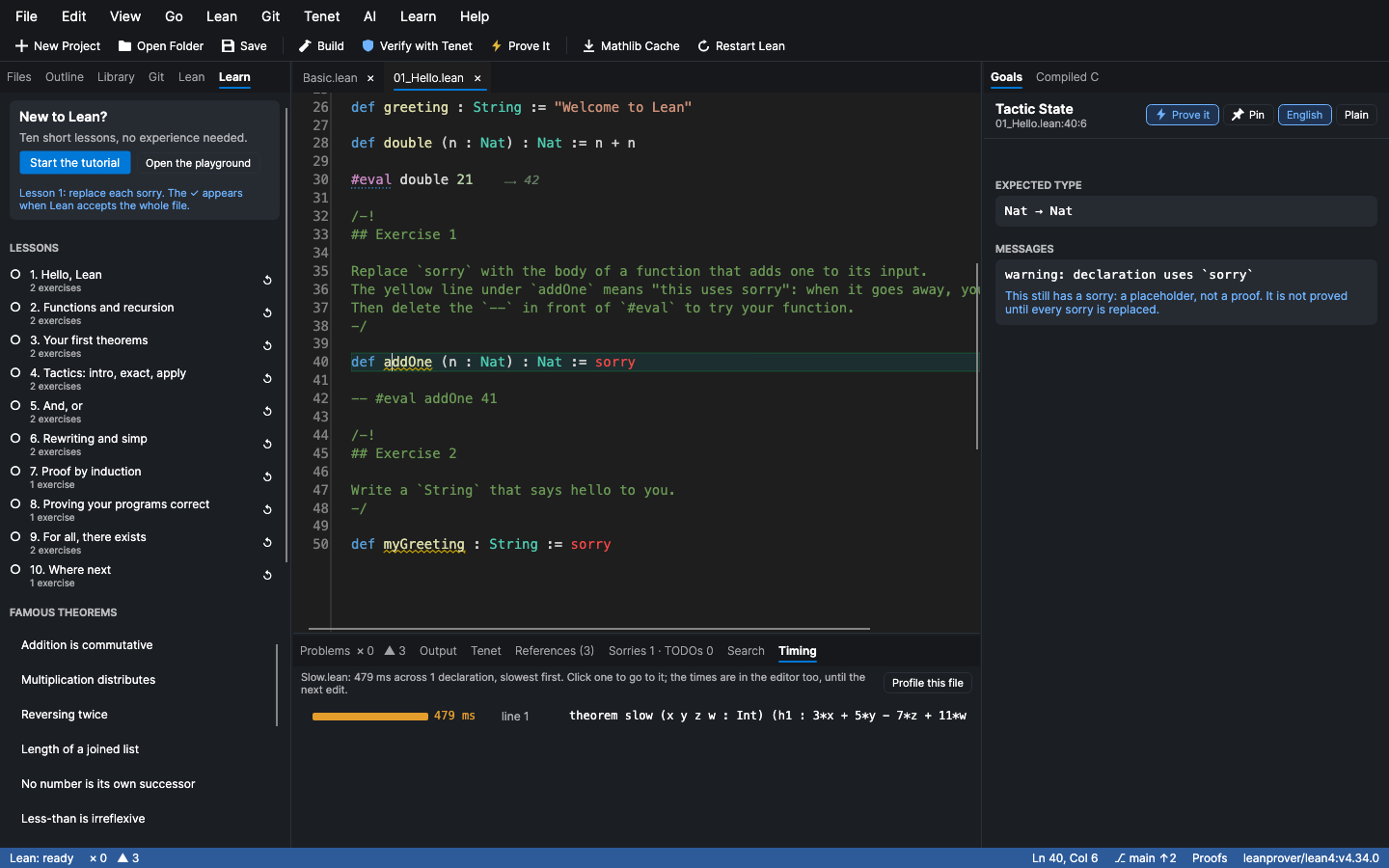
- A tutorial inside the editor. Ten short lessons, in Lean files, from
#eval 2 + 2to proofs by induction and proving your own programs correct. Each ends in exercises (sorrys to replace), and the Learn tab ticks a lesson off when Lean accepts it. Every exercise is checked against real Lean by the tests, so none is impossible. - Every tactic and keyword explained. Hover
intro,simp,omegaortheoremfor what it does, in plain words, with an example. The Proof Steps list explains each step's tactic too. - Errors in plain words. Under Lean's message, "What this means" gives the gist of "unsolved goals", "type mismatch", "unknown identifier" and more than twenty others, and what to try.
- Goals read aloud. Under each goal: "In words: For all propositions p and q: if p and q, then q and p."
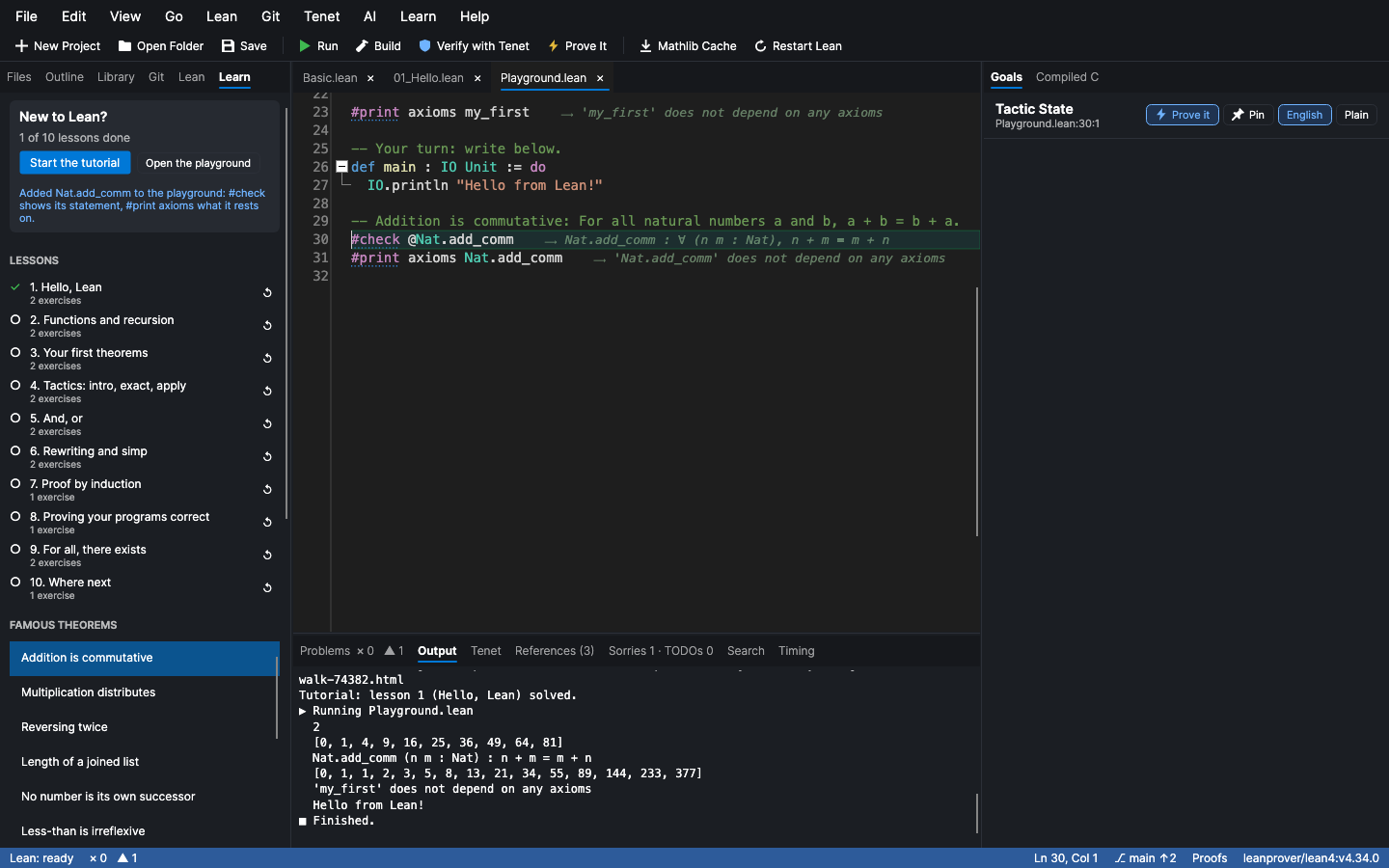
- A playground. One click opens a Lean file to experiment in, with no project to set up.
- Famous theorems. Addition is commutative, reversing a list twice, the law of excluded middle, and, with Mathlib, infinitely many primes and √2 is irrational. Each comes with a plain English statement, and "Try it in Lean" shows its exact statement and the axioms it rests on.
- Results inline.
#eval,#checkand#printresults appear at the end of their line, like a notebook. - ▶ Run. A file with a
maingets a Run button; the program's output shows in Output. - Snippets. Insert a function, a structure, a pattern match, a proof by induction, a
calcchain or a program'smain, indented and ready to fill in. - A symbol palette. Click ∀ ∃ → ℕ ⟨⟩ and the rest to insert them, and see how to type each one. Hover any symbol in your code for the same.
The Outline also shows, live, which theorems Lean accepts (✓), which still use sorry (◐) and which have errors (✗).
Features
Five things other Lean editors don't do
⚡ Prove It. Put the cursor on a
sorryand press ⌘⌥P (Ctrl+Alt+P), or click ⚡ Prove it in the Tactic State. Lean Studio triesrfl,decide,simp,omega,norm_num,ring,linarith,nlinarith,positivity,aesop,grind,exact?and more on that goal. Each tactic runs separately from the same state, with its own time budget, in a single pass of Lean. You see every one that closes the goal and how long it took; one click puts it in place of thesorry. Every sorry in the file does the whole file at once, and Fill in every sorry it proved applies them all. A search tactic likeexact?is replaced by what it found (exact Nat.mul_comm a b), so the proof doesn't search again on every check. Tactics that your imports don't provide (Mathlib's, in a file without Mathlib) are skipped rather than breaking anything.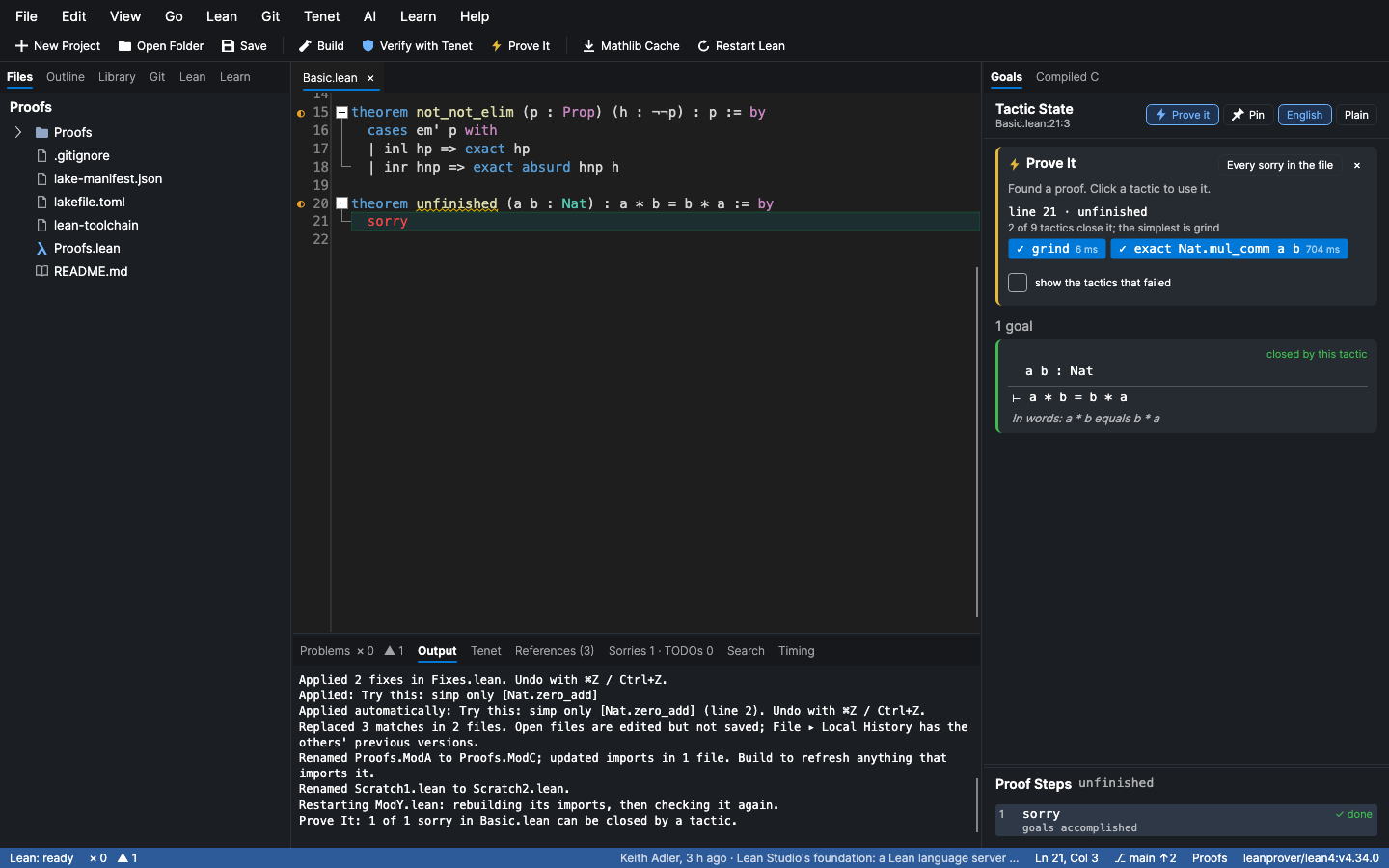
Why isn't this proved? When Tenet says a theorem rests on
sorryor on an axiom, Why? (in the Tenet panel, from the ◐ badge in the gutter, or from Tenet ▸ Why Isn't This Proved?) shows the chain of lemmas from that theorem down to thesorry. It finds the shortest chain through what each declaration uses, and marks the lemma that uses thesorryitself. Every link opens its source. In a big project, it answers "which lemma, three files away, is still unfinished?" in one click.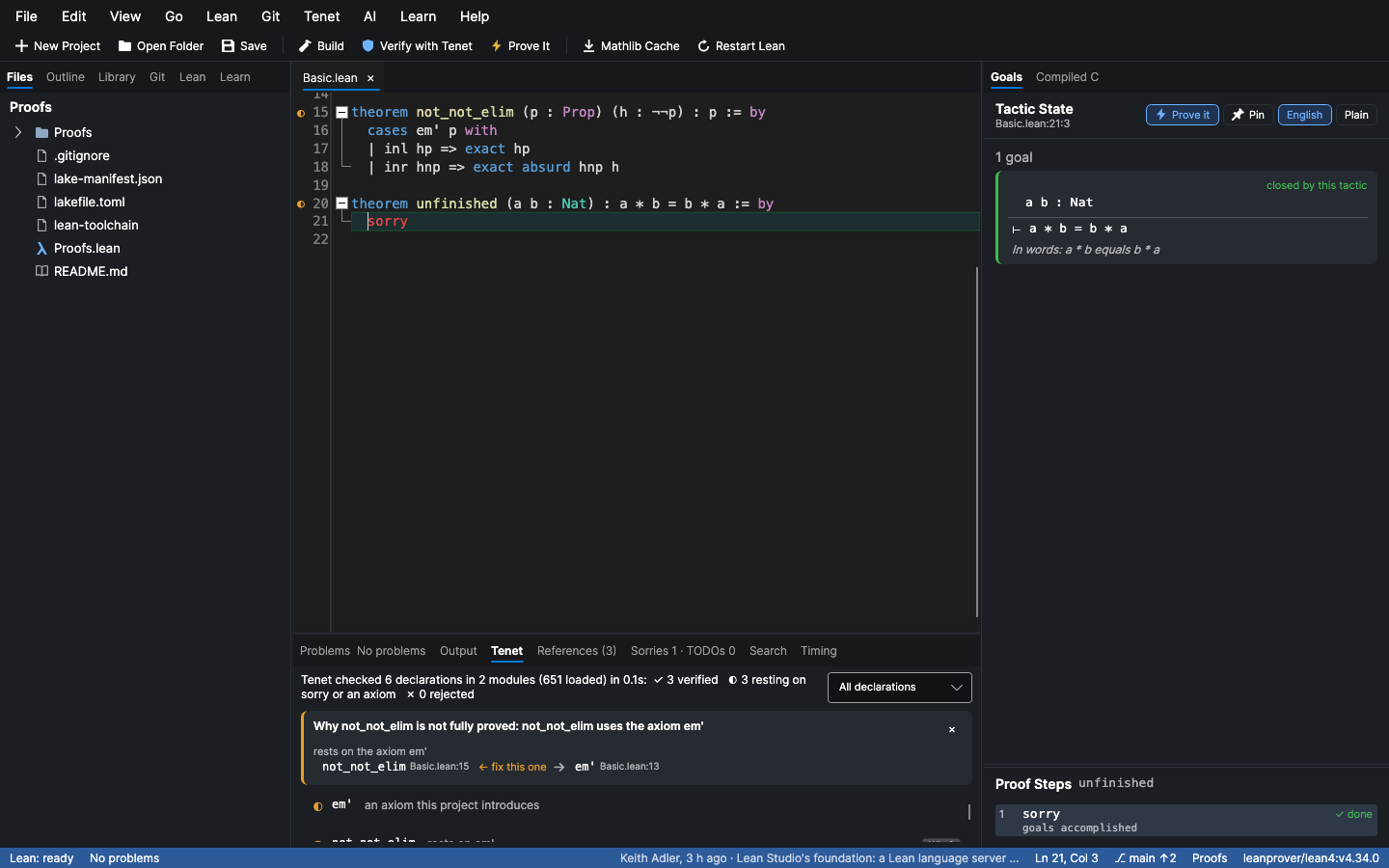
A performance heat map. Lean ▸ Profile File runs Lean's own profiler over the file and lists every declaration by how long it takes to check, slowest first. For each one it names the step inside that costs the most (
omega, asimpcall, the kernel). The times are also shown in the editor on each declaration, tinted warmer the slower it is. It profiles unsaved text, and your file is never modified.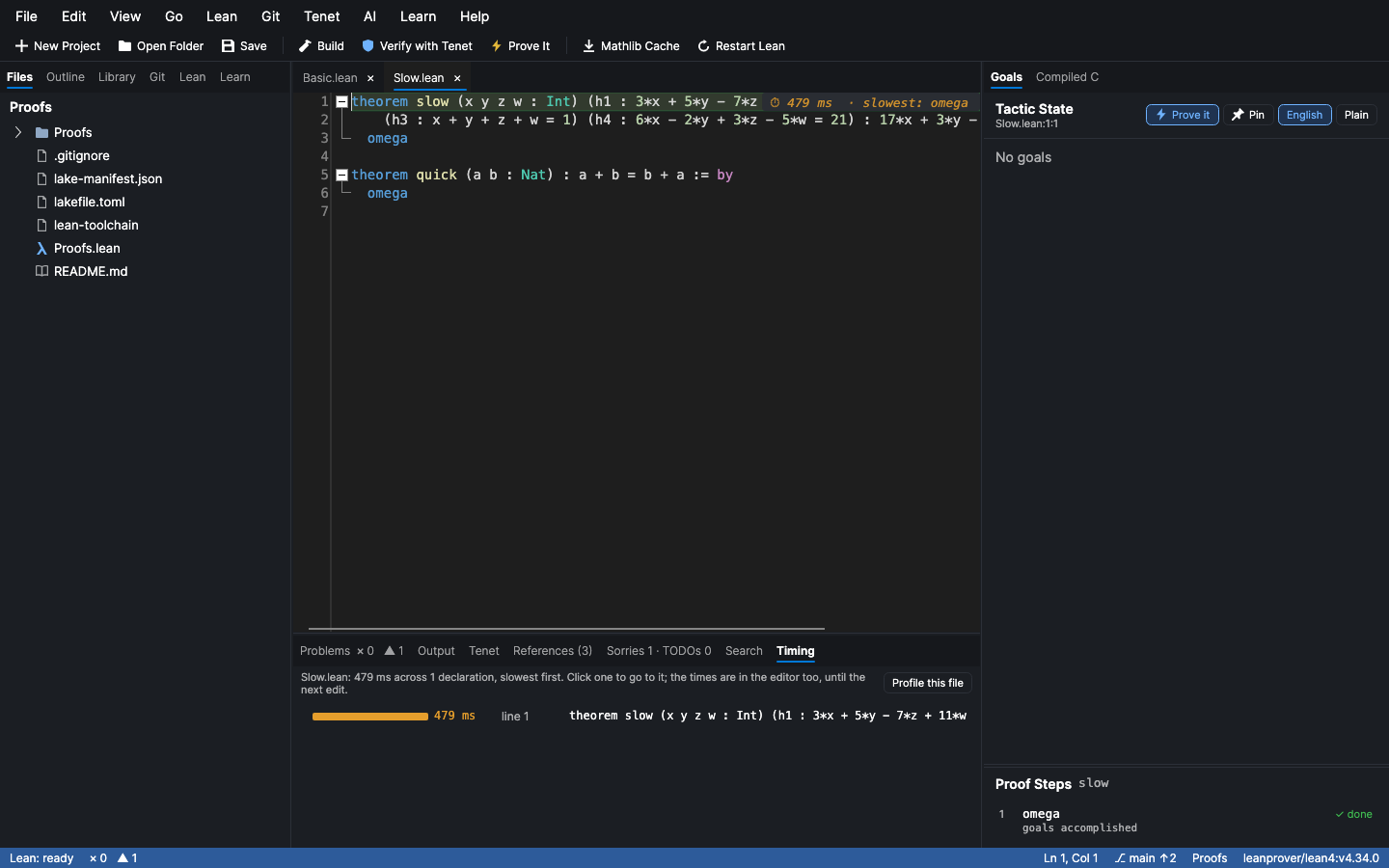
Proof walkthroughs and share links. File ▸ Export Proof Walkthrough… writes every tactic proof in the file to one self-contained web page, step by step. Each step shows the tactic, what it does in plain words, and the goals before and after, exactly as Lean reported them. You can step through with ← and →. It works for a class handout, a blog post or a code review, and readers don't need Lean installed. Open in the Lean 4 Web Editor and Copy Share Link give a link that runs the file at live.lean-lang.org, which has Mathlib.
Ask Mathlib in plain English. The Library panel takes a description, such as "the sum of the first n odd numbers is n squared" or "a continuous function on a closed interval attains its maximum". It returns the Mathlib results that say that, with their informal statements, using LeanSearch. Loogle (below it) finds what you can name or write the shape of. This finds what you can only describe.
AI assistants get all five too: the prove, why_not_proved, profile, export_walkthrough and search_mathlib tools.
And five more for real proof work
"Is this even true?" When no tactic closes a goal, Prove It looks for a counterexample. It tries small values of the goal's
Nat,IntandBoolvariables (and runs Plausible where the project has it). If it finds values that satisfy every hypothesis and make the goal false, it says so ("✗ False when n = 4"). You find out the statement is wrong before spending an afternoon trying to prove it.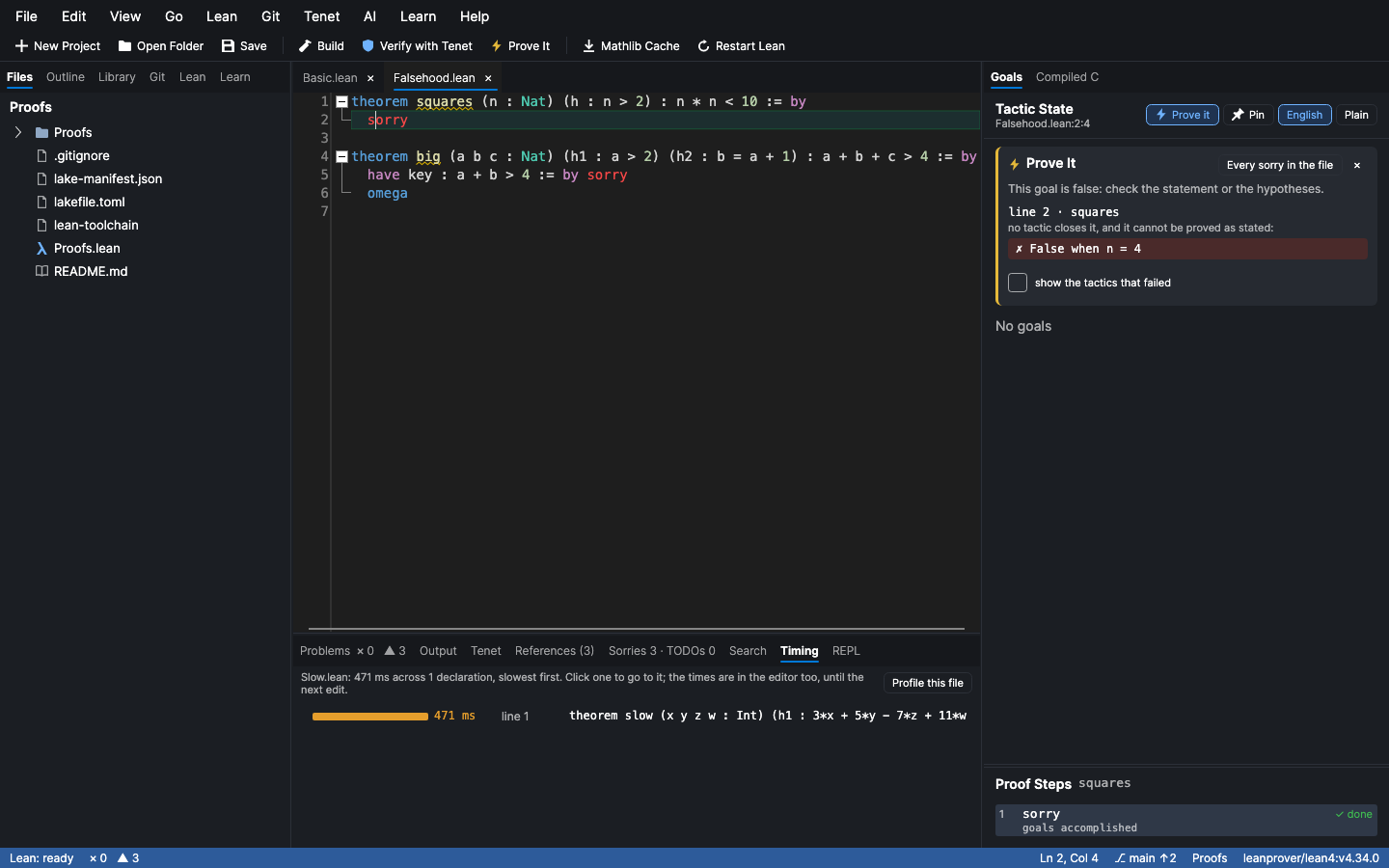
Extract Goal as Lemma (Lean ▸ Extract Goal as Lemma…, or from Prove It). Put the cursor on a
sorryand its goal becomes a lemma of its own above the declaration, and thesorrybecomes a use of it. Lean works out which hypotheses the goal needs, and prints the signature the way a person would write it:theorem key_step {a b : Nat} (h1 : a > 2) (h2 : b = a + 1) : a + b > 4 := by sorryIt's the way to break up a long proof, or to set a hard step aside and come back to it. One undo takes it back.
A REPL (⌘⌥R / Ctrl+Alt+R). Type an expression or a command and Lean evaluates it in the file at the cursor, with everything above it in scope: your definitions, imports, namespaces and variables. Bare expressions are
#evaled, and ↑ / ↓ recall earlier inputs. It keeps one document open in Lean, so only the new input is checked each time.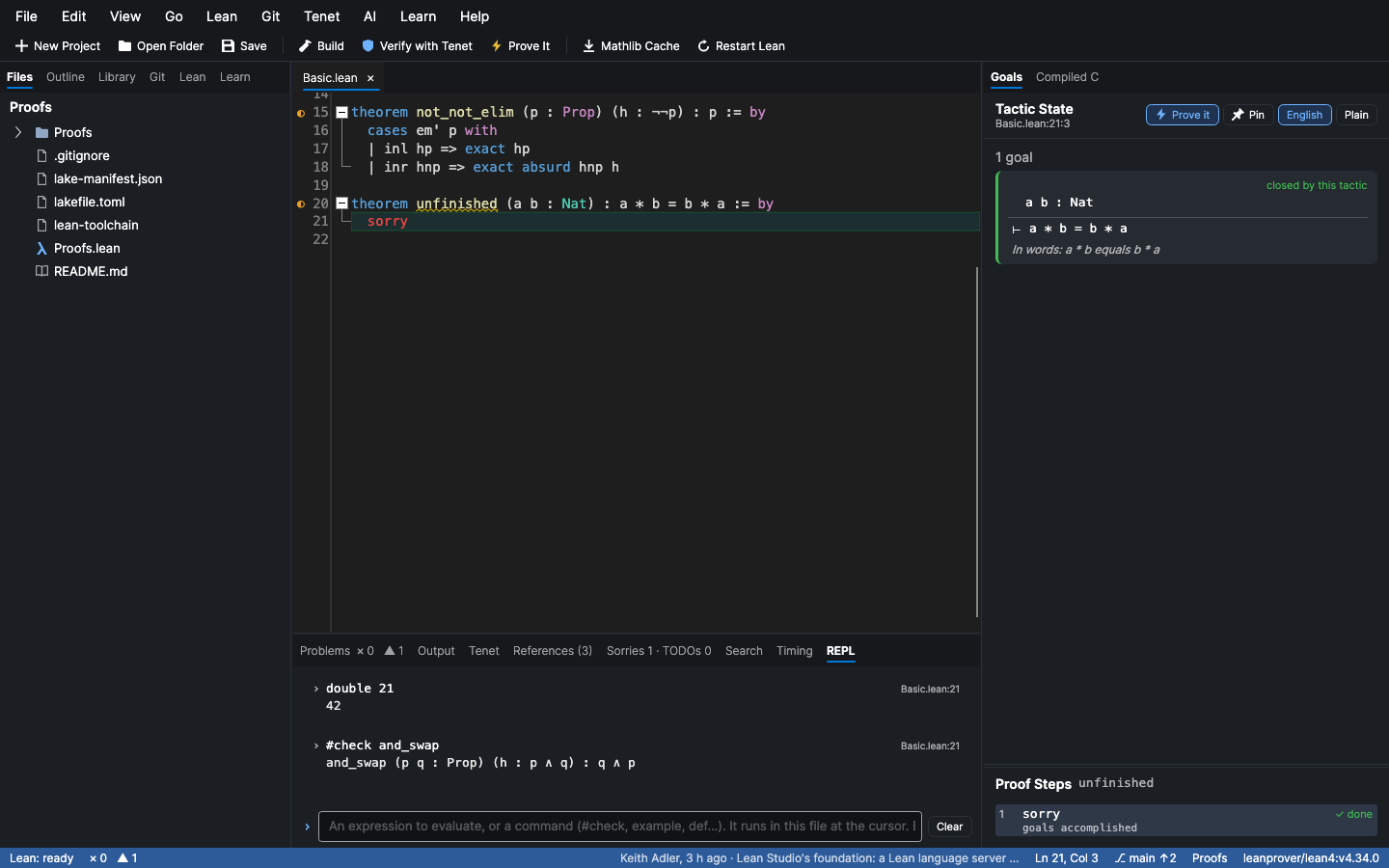
Project Map (Tenet ▸ Project Map…). The whole project as a graph: every declaration, what it uses, and whether it's fully proved (green), rests on
sorry(amber), or rests on an axiom (purple). Columns run from foundations on the left to what builds on them. Fix these first lists the sorries and axioms that the most declarations depend on. Hover shows details, and a click opens the declaration.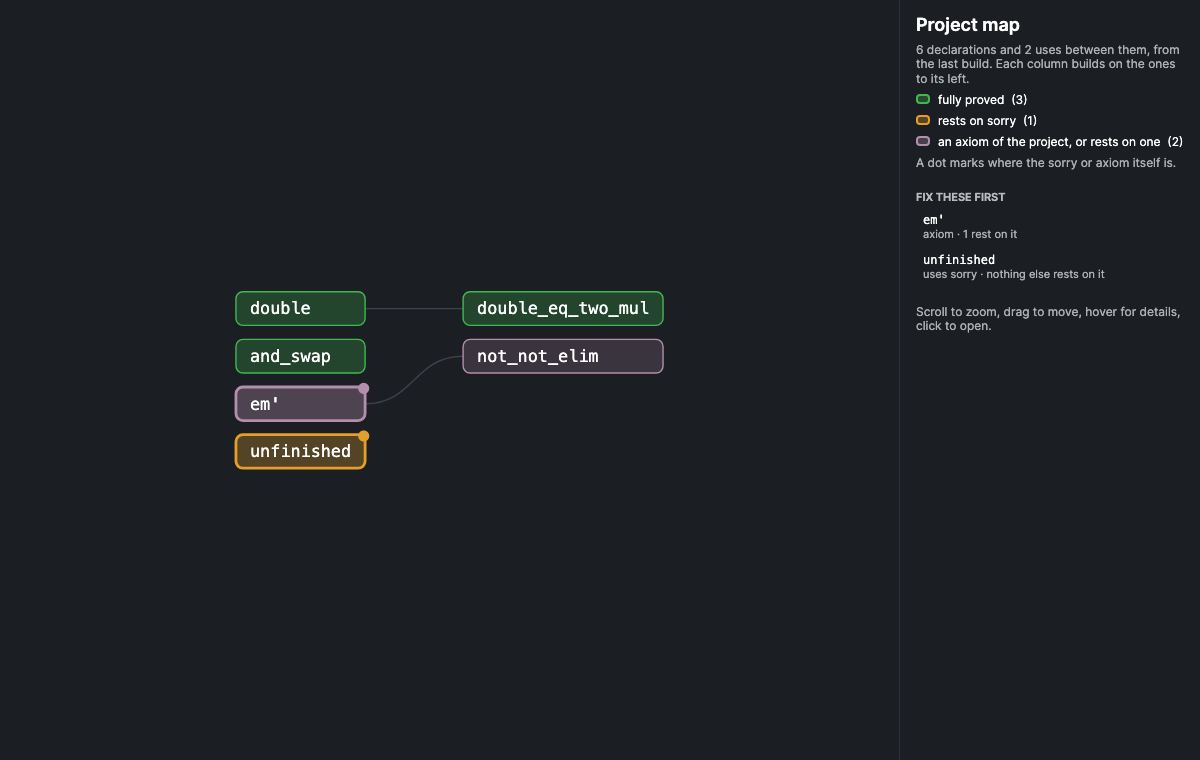
Proof-State Map (Lean ▸ Proof-State Map ▸ This File, or Whole Project). Every state your tactic proofs pass through, the goals Lean shows between one tactic and the next, merged across proofs: where two proofs reach the same state, they share it. On the right, the states two or more proofs reach, most shared first, each with the proofs to jump to and Extract as Lemma…: a state several proofs pass through is a lemma nobody has written yet. On the left, the same states in 3D, a point per state and a line per tactic, to turn and zoom; picking a state in either selects it in the other. You choose what counts as the same state: Exact (same hypotheses and goals, whatever the local names are called), Same goal (hypotheses ignored) or Same shape (numbers and names ignored too, so
n + 2 ≤ n * 5meetsk + 3 ≤ k * 7). Trivial goals likeFalseanda = aare left out of the list.
Assistants get these through the extract_lemma and project_map tools, and through prove, which now reports counterexamples.
C and Lean's FFI
For Lean code that calls C (@[extern "c_name"]):
Go to definition crosses the boundary. F12 on an
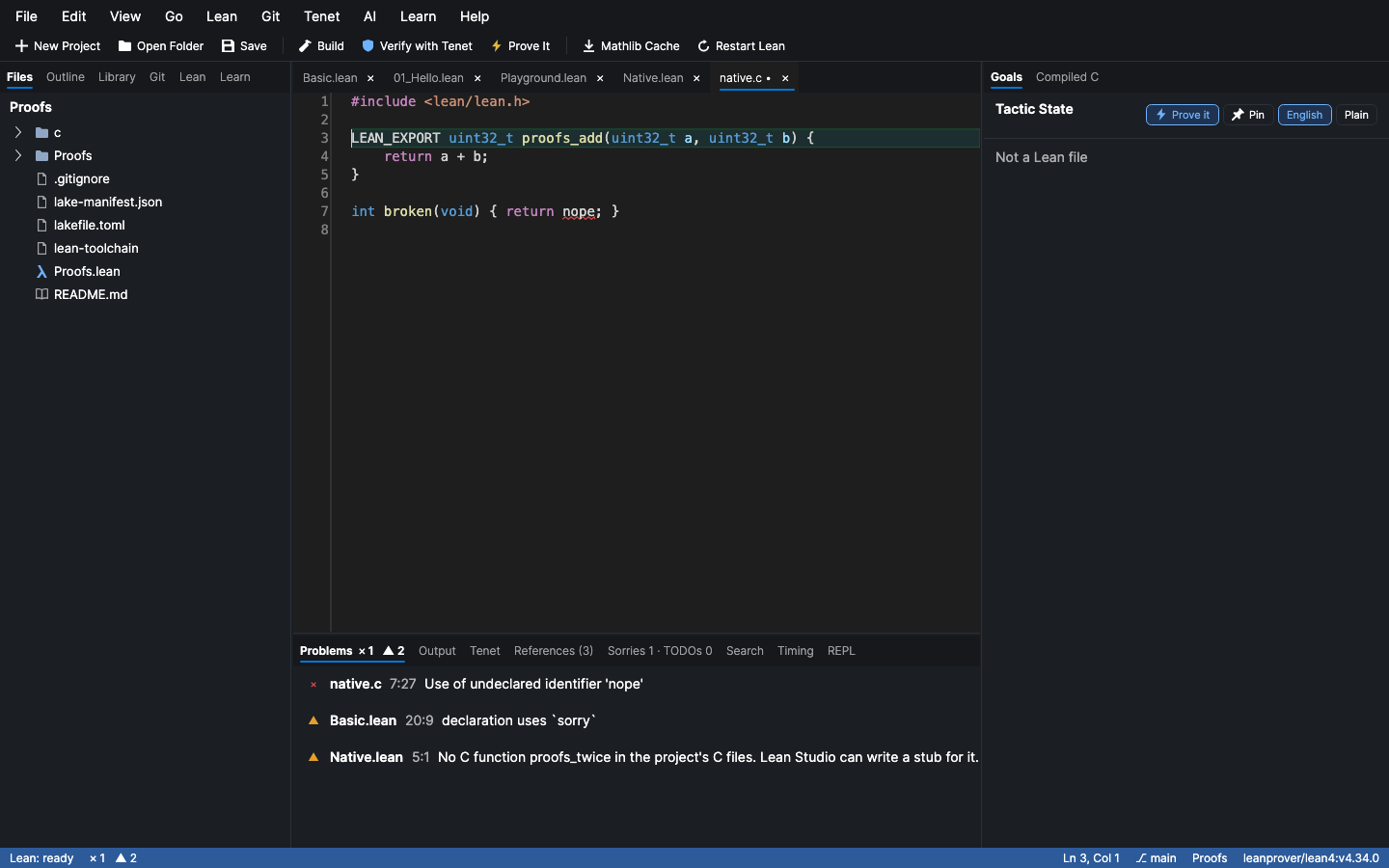
@[extern]declaration opens its C function. F12 on that C function opens the Lean declaration it implements.Bindings are checked. Problems flags an
@[extern]whose C function the project doesn't have. It also flags a C function that takes a different number of arguments than Lean passes, which is easy to get wrong withIOfunctions and their extra world argument. Lean's own runtime functions (lean_*) are left alone.C stubs with the right signature. Lean ▸ C and FFI ▸ Write C Stub for This Extern writes the C function Lean expects:
- scalar types (
UInt32,UInt64,Float,Bool…) unboxed; - objects as
lean_obj_arg, orb_lean_obj_argwhen borrowed with@&; - the world argument and
lean_io_result_mk_okforIO.
New C Binding… writes both sides from a name and a type. The tests compile these stubs with Lean's own C compiler, with
-Wall -Werror.- scalar types (
clangd for the C files, when it's installed. It adds errors as you type, hover, completion and go to definition. Lean's headers are on its include path, so
#include <lean/lean.h>just works, and nothing is written into your project.
A tactic state that follows every step
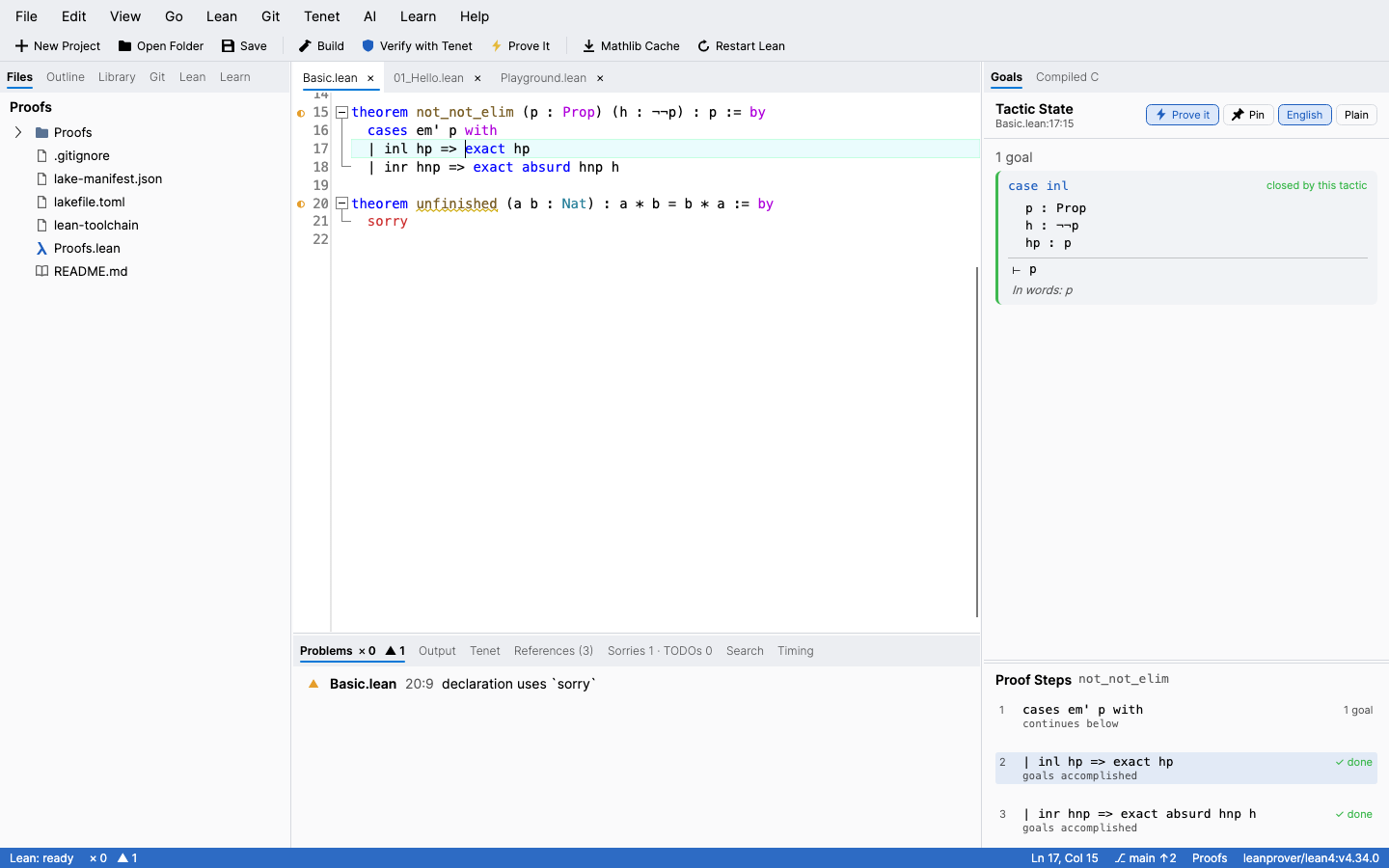
The panel on the right always shows the goals at the cursor, with Lean's own diff of the tactic you're on:
- Hypotheses the tactic added have a green background.
- Hypotheses it removed are struck through.
- Goals it closes or opens are marked on the goal's card.
Below the goals, Proof Steps lists every tactic in the proof around the cursor. Each step shows how many goals are left after it and what it did, e.g. +hp, −h, ~hx, +1 goal, goals accomplished. Steps that fail are shown in red. Click a step to jump to it. The step list is computed once per version of the proof, so moving the cursor through it is instant.
The panel also shows the expected type of the term under the cursor and the messages on the current line. A Plain toggle switches to the text Lean prints.
Independent verification with Tenet
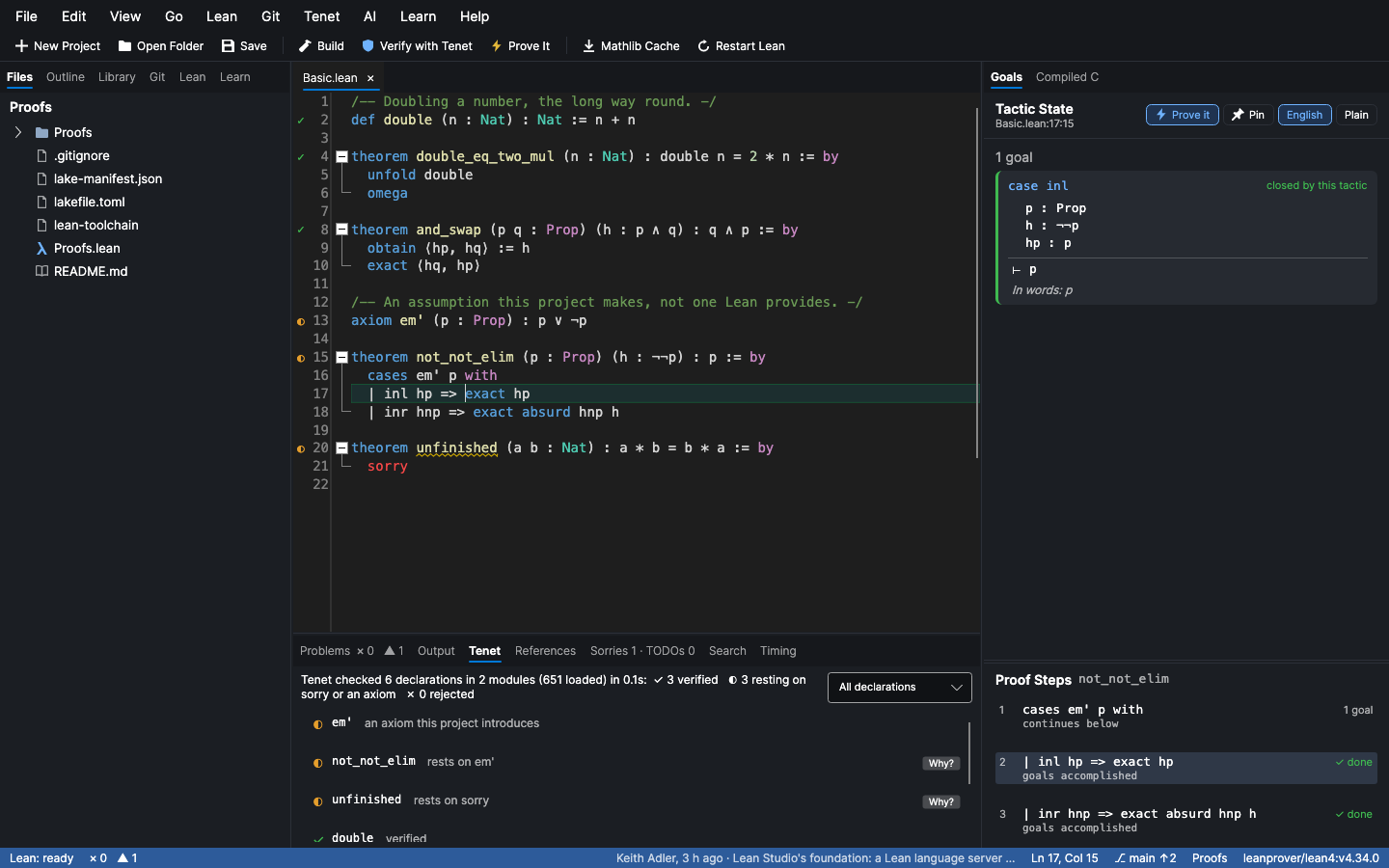
Build (⌘B / Ctrl+B) runs lake build. Tenet then re-checks every declaration Lean just compiled, using a kernel written separately from Lean's. Each declaration gets a badge in the gutter:
| Badge | Meaning |
|---|---|
| ✓ | Verified. It depends on nothing beyond propext, Classical.choice and Quot.sound. |
| ◐ | Rests on sorry or on an axiom your project introduces, and the panel names which one. |
| ✗ | Rejected by Tenet's kernel, with the kernel's reason. |
A green build tells you Lean accepted the file. These badges tell you whether each theorem is actually proved, and whether a second kernel agrees.
A declaration navigator that reads the compiled library
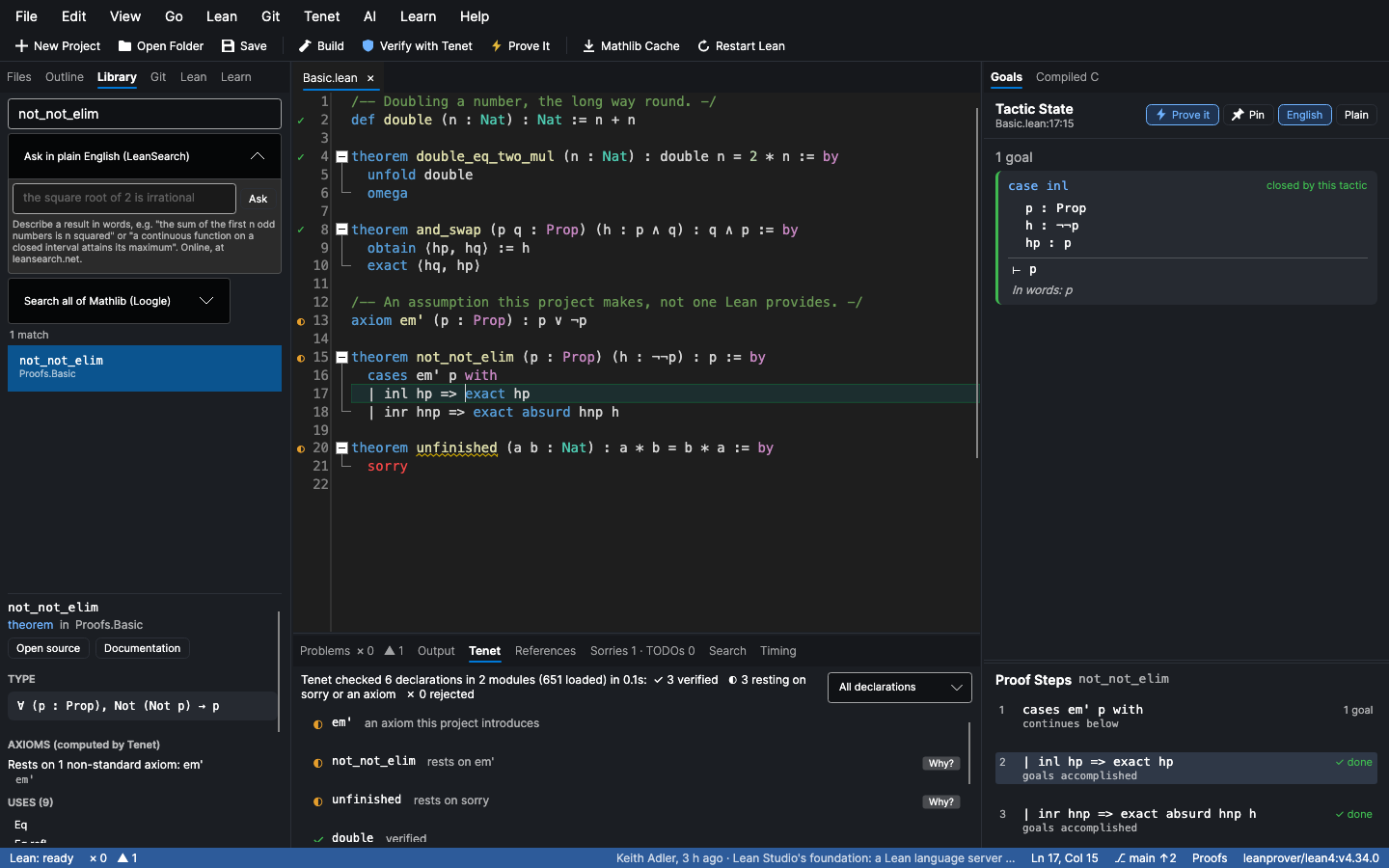
The Library tab searches everything the project can see: your code, its dependencies (Mathlib included), and Lean's core library. It reads straight from the .olean files through Tenet, so it needs no language server and no re-elaboration. For each declaration it shows:
- the statement and docstring
- where it is defined, with a link to open the source
- every axiom it rests on, computed by Tenet (the same answer as
#print axioms) - what it uses, and what uses it
Press ⌘⇧D / Ctrl+Shift+D on any name in the editor to open it here.
Try this, with one click
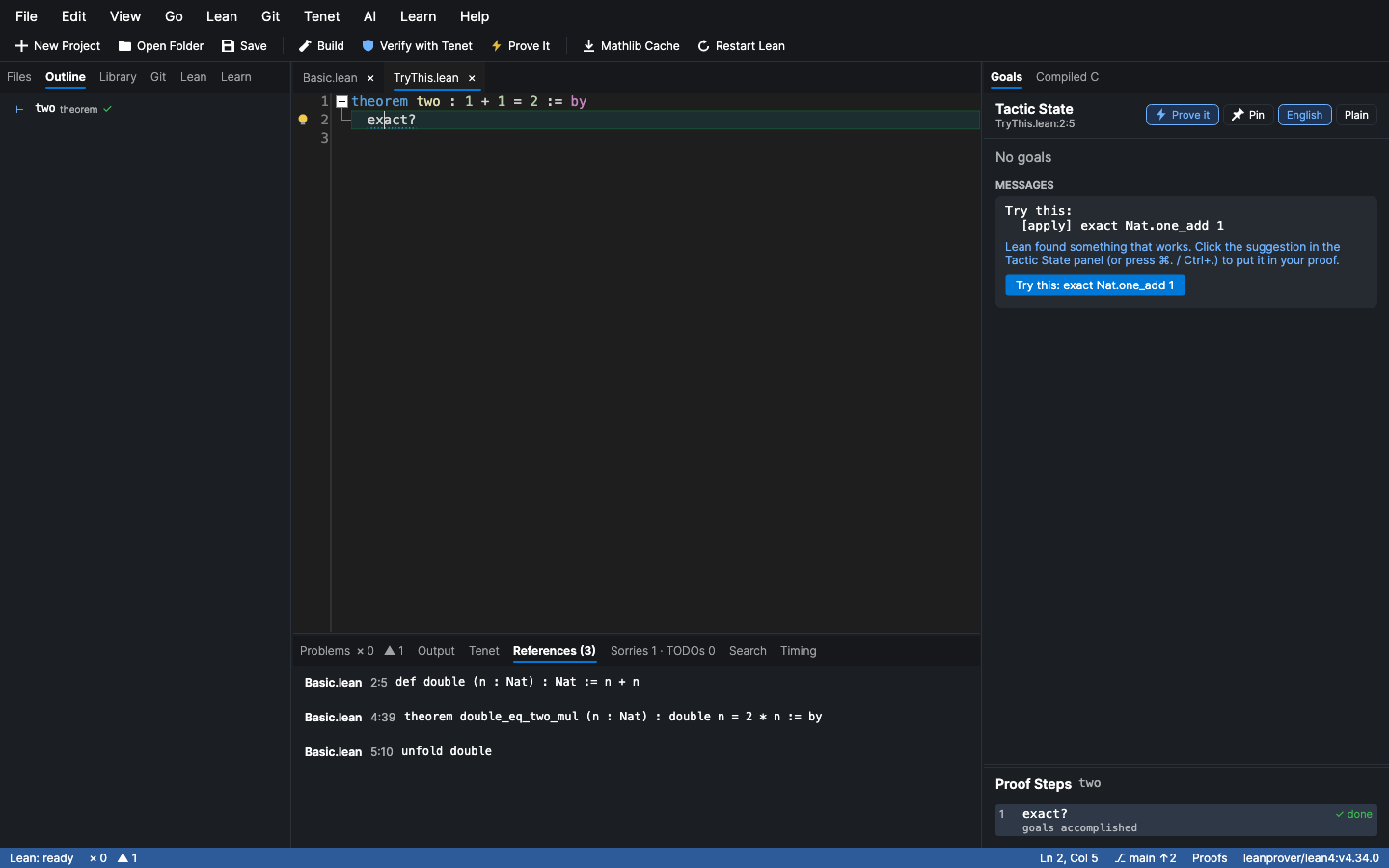
Write exact?, apply?, simp? or rw? where a proof is stuck. When Lean finds something, its "Try this" suggestion appears in the tactic state as a button, and clicking it puts the suggestion into your proof. ⌘. / Ctrl+. lists every suggestion and quick fix at the cursor.
Git and GitHub
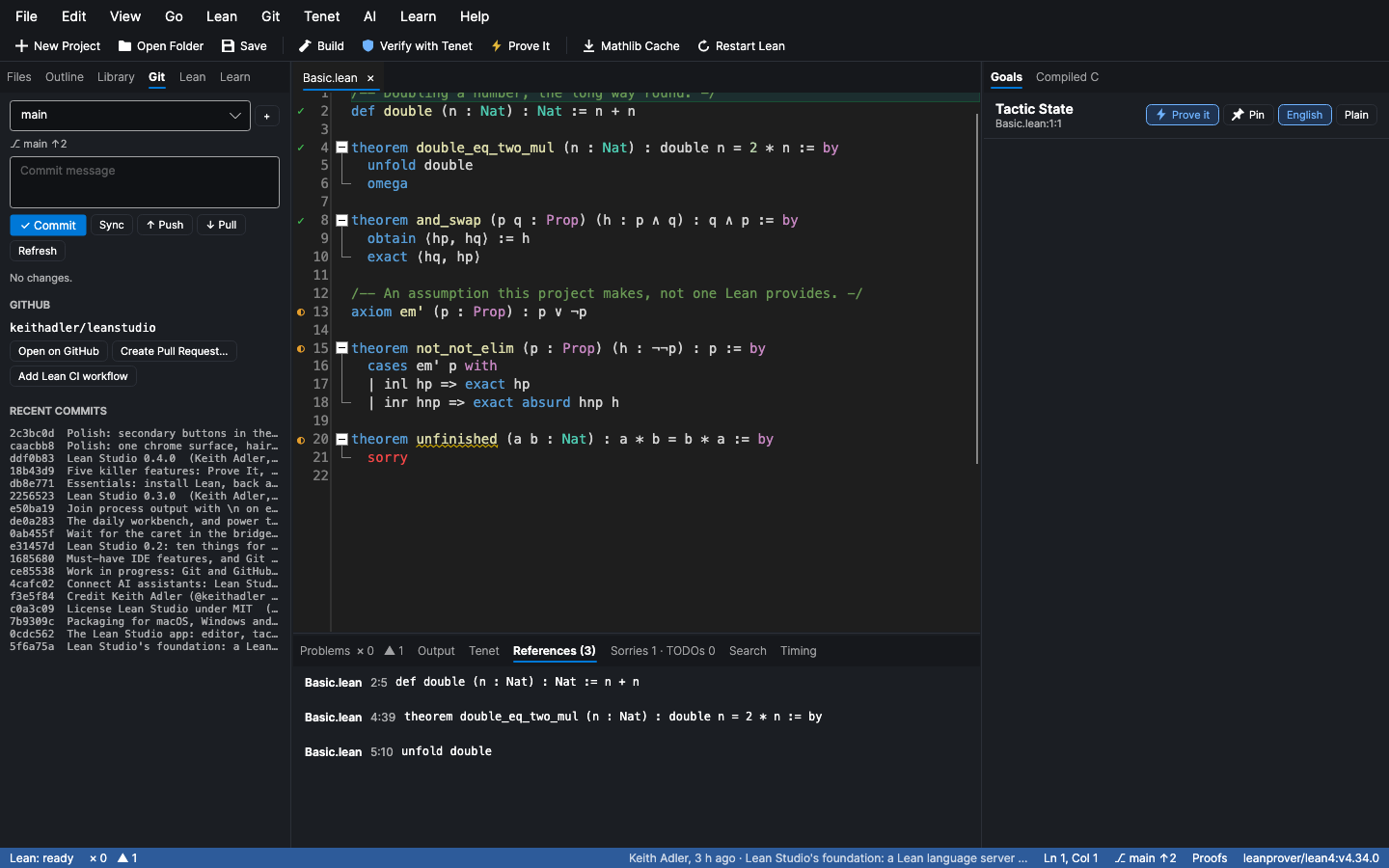
The Git tab is built on your own git, so your config, hooks, credentials and commit signing all apply:
- Branch and changes: the current branch, with how far it is ahead of or behind upstream, and the changed files. Click a file for its diff; stage, unstage or discard each one.
- Commit and sync: commit (with nothing staged, everything is committed), push, pull and sync. Switch or create branches, and see recent history.
- Gutter: a bar marks the lines you've changed since the last commit, green for added, blue for modified and red for deleted.
- Status bar: shows the branch; click it to open the panel.
GitHub works through the GitHub CLI (gh), so your login is used and Lean Studio never sees a token:
- Clone: File ▸ Clone Repository… takes
owner/repoor a URL. For a Mathlib project, it offers to download Mathlib's prebuilt files. - Publish to GitHub: creates a private repository and pushes to it.
- Create Pull Request: pushes the branch first if it needs to, then shows the PR's link in the panel.
- Open on GitHub: jumps to the current file and line on github.com.
- Add Lean CI Workflow: writes the standard
leanprover/lean-actionworkflow, so every push is built.
See the C, look inside goals
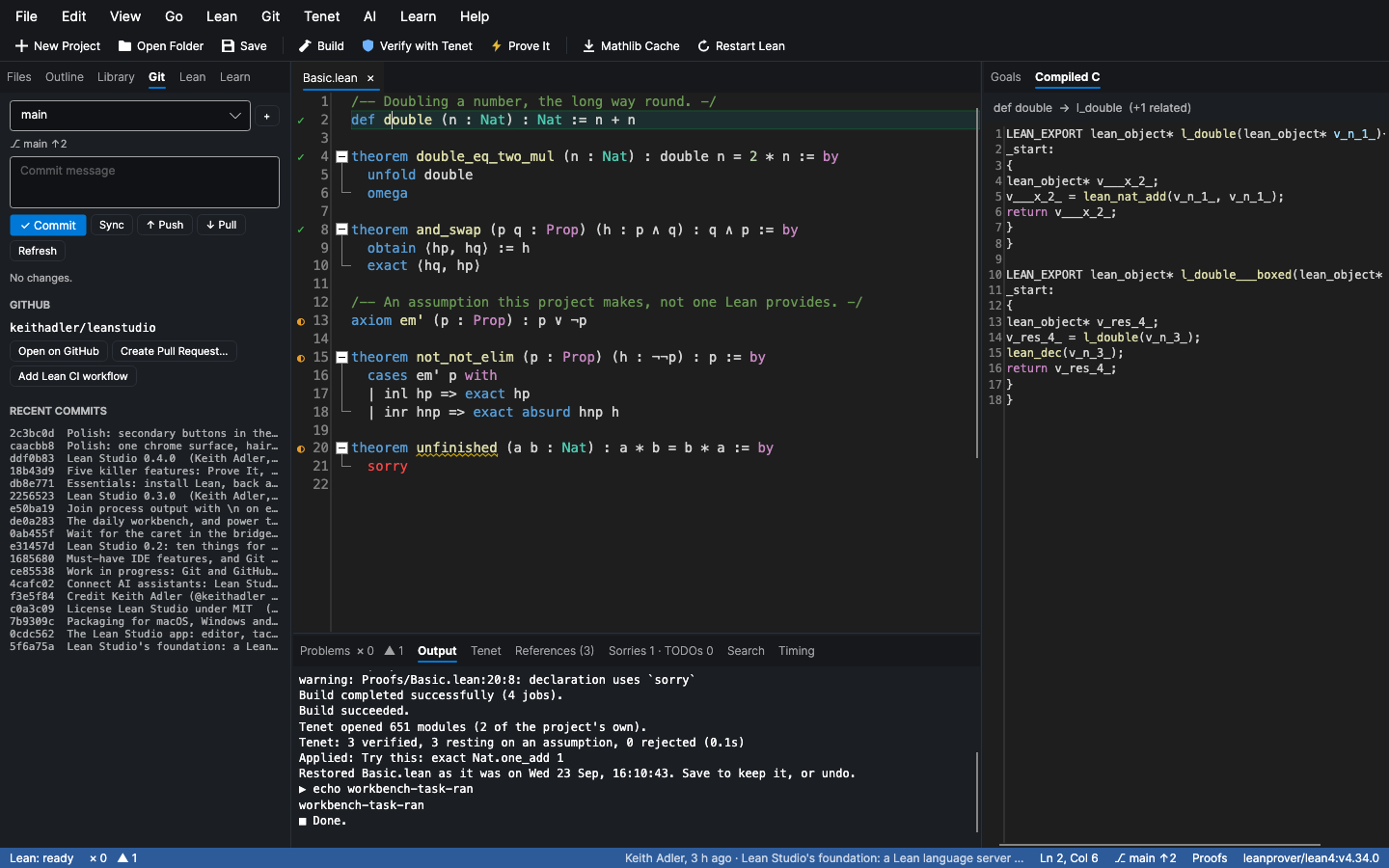
- Compiled C, side by side. The Compiled C tab, beside the editor, shows the C that Lean's compiler emits for the definition under the cursor: its function (
Foo.barbecomesl_Foo_bar), its boxed wrapper and any helpers split off it. It follows the cursor, and compiles the text as it is in the editor, saved or not. Theorems say they have no code, since proofs are erased. - Subterms you can inspect. Move the pointer over a goal and the smallest subterm under it lights up. Rest there, and Lean says what it is: its type, the term written out in full, and its documentation.
- Pinned goals. 📌 keeps a goal state on screen while you work elsewhere, so you can compare.
Fixes, one at a time or all at once
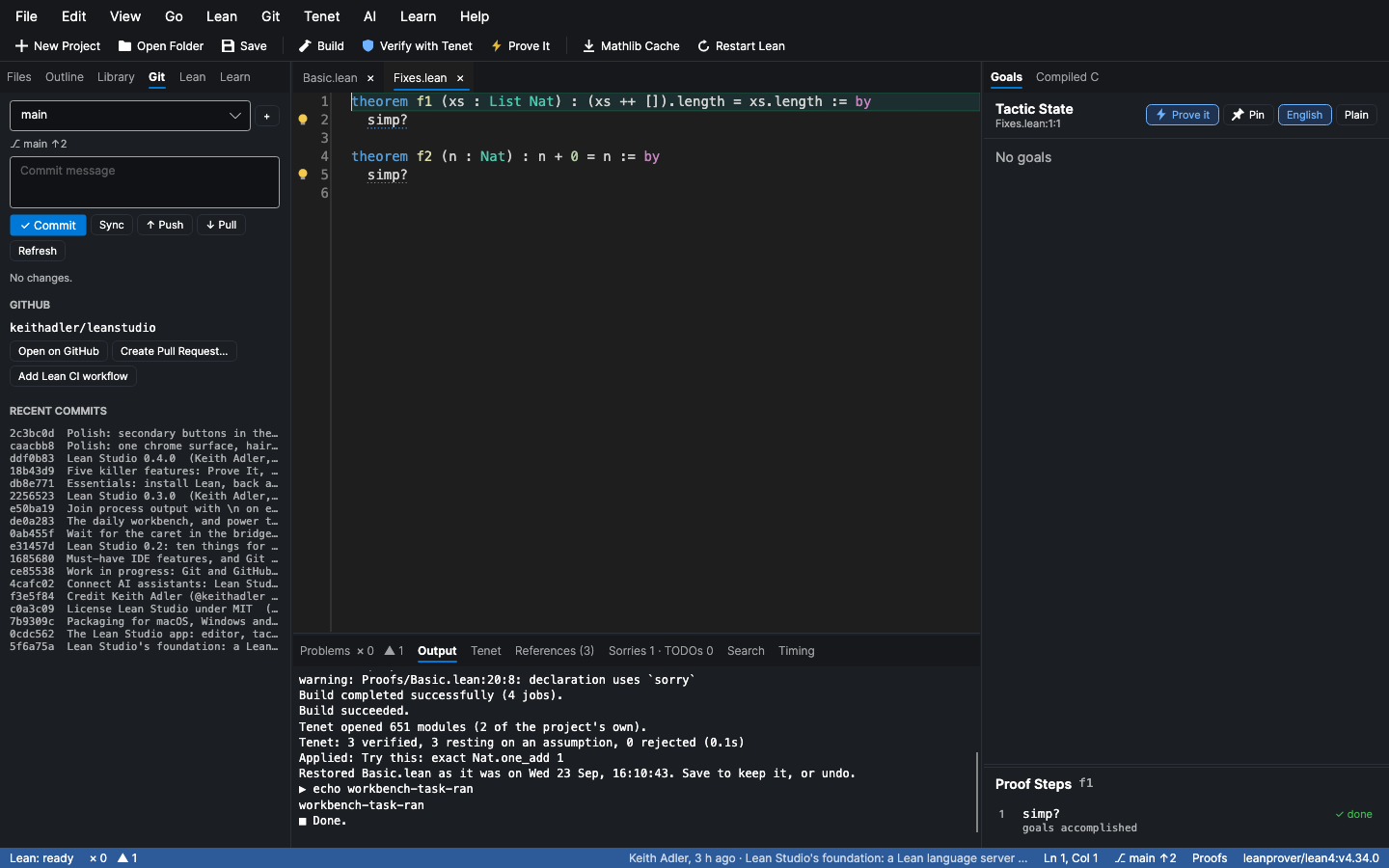
- Lightbulbs. A bulb marks each line where Lean offers a fix: a "Try this", or a hint marked [apply], such as an unused
simpargument. Click it for the fixes. - Fix All in File (⌘⌥. / Ctrl+Alt+.) applies one fix for every message that has one, as a single undoable edit.
- Automatic fixes (Lean ▸ Apply Lean's Suggestions Automatically) is off by default. When on, it puts the answer in as soon as an
exact?,simp?orapply?you wrote finds exactly one.
Built for daily work
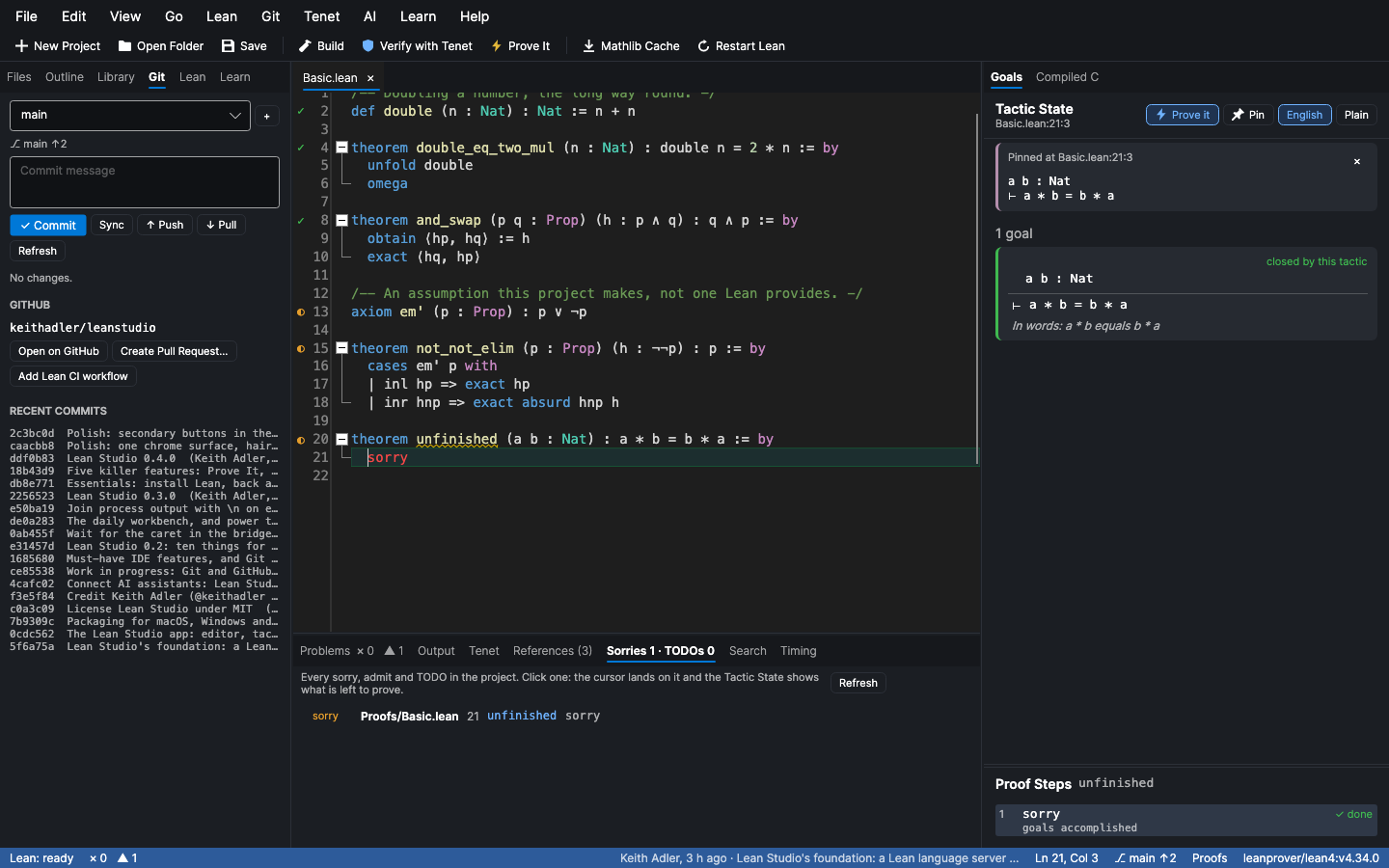
- Sorries & TODOs. A panel lists every
sorry,admitand TODO in the project, with its declaration, including files you haven't opened. Click one: the cursor lands on it, and the tactic state shows what's left to prove there. - Whole-project problems. After a build, errors and warnings from every file appear in Problems, not just from open files.
- Auto-save and local history. With File ▸ Auto Save on, files save a moment after you stop typing and when the window loses focus. Every save keeps a version (the last 40 per file), and File ▸ Local History brings one back as an edit you can undo.
- Search and replace across files, with regex groups (
$1). Open files are changed in the editor, unsaved, for review; other files keep their previous version in local history. - Refactoring. Rename a symbol across the project (F2, through Lean). Rename a module, which moves the file and rewrites every
importof it. - Loogle. Search all of Mathlib by name or by the shape of a type (
_ * (_ ^ _),|- tsum _ = _) from the Library tab. The Library also links any declaration to its documentation page. - Blame. The status bar says who last changed the current line, when, and in which commit.
- Tasks. ⌘⇧B / Ctrl+Shift+B runs
lake build,lake test,lake lint, any executable or Lake script; Lean ▸ Run Shell Command runs anything else in the project. - Getting around. Back and Forward after any jump (⌃- / ⌃⇧- on macOS, Alt+← / Alt+→ elsewhere). F8 and ⇧F8 go to the next and previous problem.
- Imports that changed. When a file you import changes, a banner offers to rebuild the imports and check the file again (what other editors call Restart File).
- Add import. On an "unknown identifier", the lightbulb looks the name up on Loogle and offers
importof the module that defines it. - Files. Right-click in Files to create a file or folder, rename (a Lean file is renamed as a module, imports and all), move to the trash, reveal it, open a terminal there, or copy its path. Drop files or a folder on the window to open them.
- Settings, windows, resilience. Preferences (⌘, / Ctrl+,) has every setting in one place. File ▸ New Window opens a second project. If Lean crashes it is started again, and an unexpected error is logged instead of closing the app.
- Your layout. Hide the sidebar (⌘⌥B), the bottom panel (⌘J) or the goals (⌘⌥I), or use zen mode (⌘⌥Z) for just the editor and the goals. There's also word wrap (⌥Z). Each file reopens with the cursor where you left it, and the file you were on comes back when the app starts.
The editor knows what Lean knows
- Semantic highlighting. Bound variables and fields are coloured as Lean classifies them, which a grammar can't do. Deprecated names are struck through.
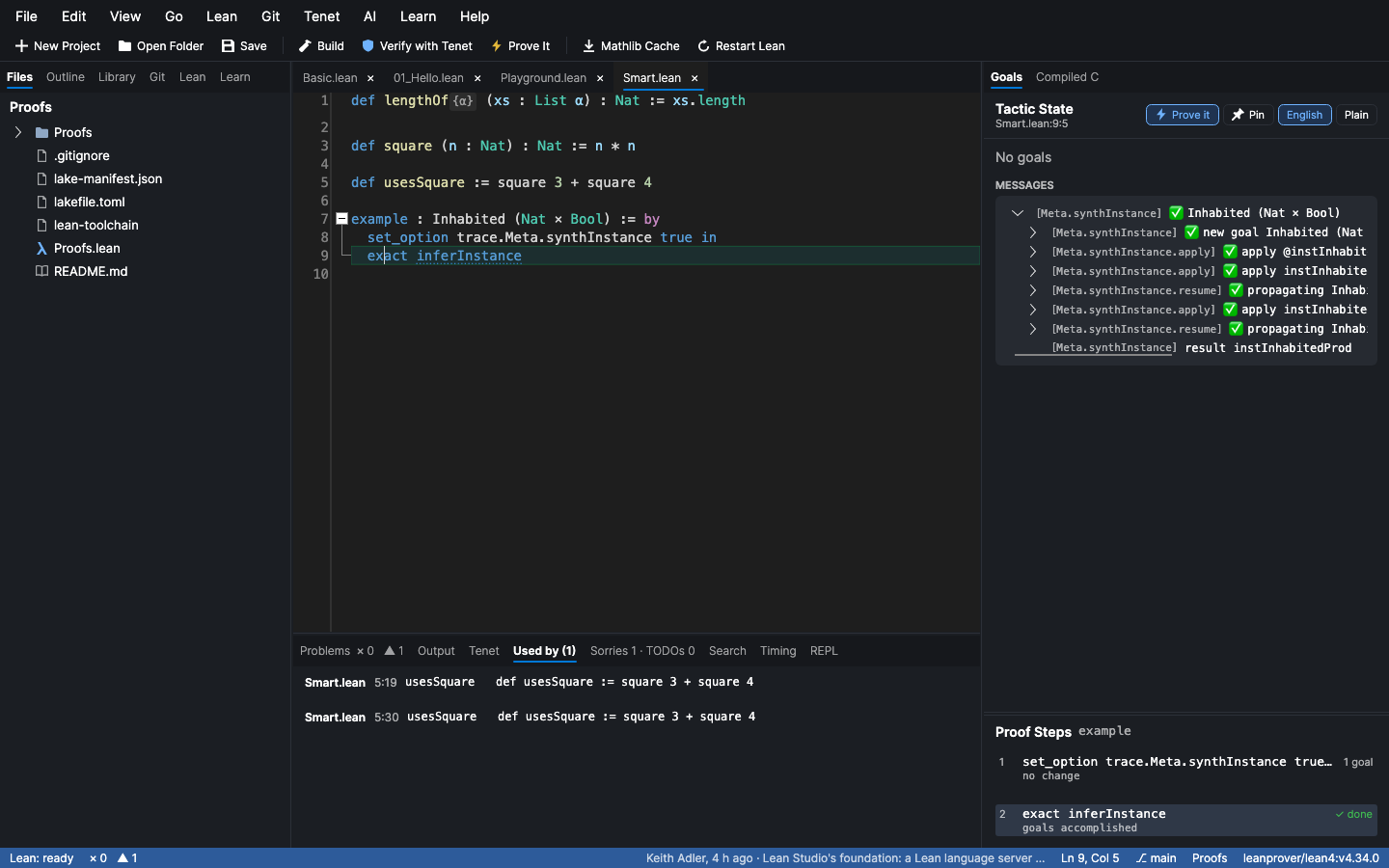
- Inlay hints. What Lean fills in for you shows in the text, dimmed and boxed, such as
{α}for a type variable it binds automatically. - Every use of the name under the cursor is highlighted, by Lean's own resolution rather than a text search.
- Who Uses This / What This Uses (⌘⌥H / Ctrl+Alt+H). Lean's call hierarchy lists every declaration that uses the one at the cursor, at the place it uses it, and everything it uses.
- Trace trees. A message from
set_option trace.… trueis a tree you expand one step at a time in the Tactic State. Lean sends each level only when you open it, so even huge traces (instance search,simp) stay fast. Failed steps are marked in red.
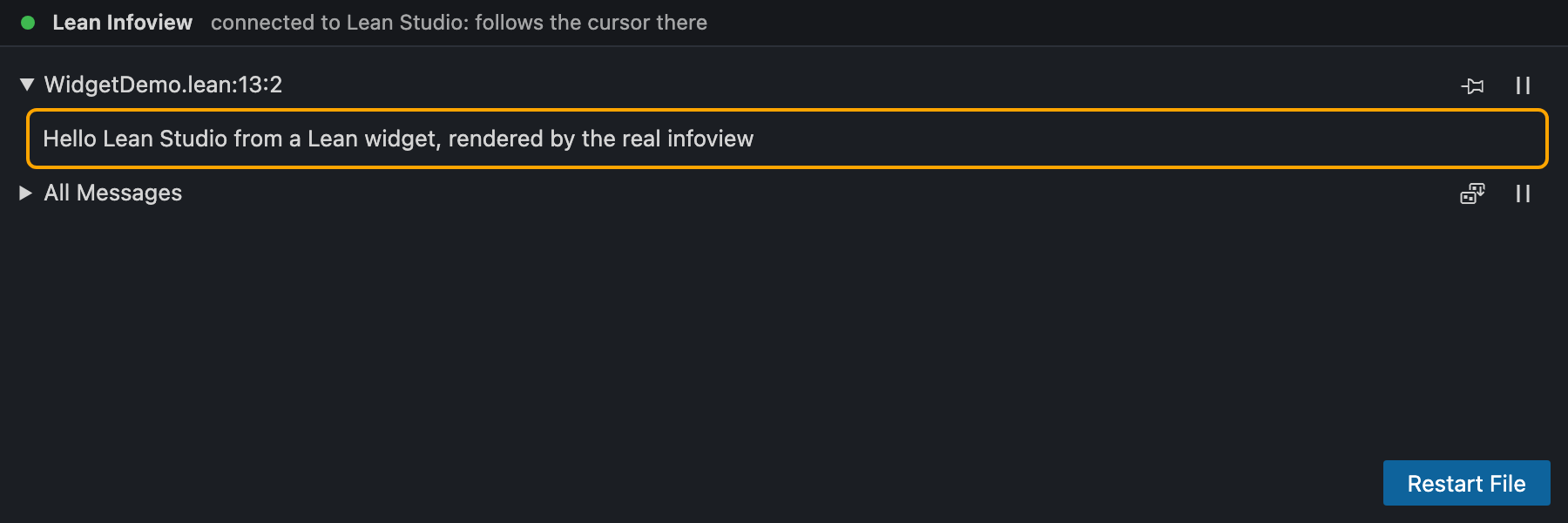
Lean's own infoview, widgets and all
The Infoview tab, next to Goals, is the infoview VS Code uses (the official @leanprover/infoview), inside Lean Studio's window. It follows the cursor and renders what that infoview renders. That includes user widgets such as those from ProofWidgets, because it's the same infoview loading them the same way. When Lean shows a widget at the cursor, the Tactic State says so with a Widget button that opens the tab. The tests check a widget defined in a Lean file, rendered in the window.
The tab uses the system's own web view: WebKit on macOS, WebView2 on Windows (built into Windows 10 and 11), WebKitGTK on Linux. On a Linux without WebKitGTK (libwebkit2gtk-4.1), the tab says so and offers the browser. View ▸ Lean Infoview in Browser opens the same infoview in a browser tab, on any system.
The infoview shares Lean Studio's Lean server, so nothing starts twice. "Try this", "go to definition" and "insert" from it act on Lean Studio's editor, and links in it open in your browser. It only accepts connections from this machine, with a secret token in the page's address. The Tactic State panel stays the everyday view.
For Mathlib contributors
What CI and reviewers check, before you push:
- Remove Unused Imports (Lean ▸ Remove Unused Imports) takes out the imports a file doesn't need, as one undoable edit, and says why for each: nothing uses it, or another import already brings it in. Lean elaborates the file, and every constant, tactic, macro and notation it uses is traced to its module, so an import needed only for
ringor a notation stays. It works on any file, not onlymodulefiles likelake shake. It takes seconds on Mathlib files. - Lint File runs the linters CI runs and lists what they find in Problems. In a Mathlib project that's Mathlib's standard set, its style linters among them. Wherever Batteries is available it also runs Batteries' environment linters: missing docstrings,
simpnormal form, unused arguments. Elsewhere it runs every linter Lean has. - Renames keep the old name working. After Rename Symbol on a declaration, Lean Studio offers to add
@[deprecated (since := "…")] alias old := newafter it, as Mathlib asks. Without Batteries it writes the core Lean equivalent. - The library root stays complete. A new file is added to its library's root file when that imports every module (as
Mathlib.leandoes), and a deleted one is taken out. Import Every Module in the Library Root adds any that are missing, likelake exe mk_all. - In the Mathlib repository, Get Mathlib Cache for Open Files fetches only what the open files need.
Editing like a pro
- Split editor. View ▸ Split Editor (⌘\ / Ctrl+\) shows two files, or two places in one, side by side. The side you're typing in is the one the Tactic State and every command follow.
- Several cursors. ⌘D (Ctrl+D) adds the next occurrence of the selection, ⌘⇧L (Ctrl+Shift+L) selects every occurrence, ⌘⌥↑/↓ (Ctrl+Alt+↑/↓) add a cursor above or below, and ⌥-click (Alt+click) adds one anywhere. Typing, Backspace and Delete happen at every cursor, as one undo step. ⌥-drag (Alt+drag) selects a column.
- Your own shortcuts. View ▸ Keyboard Shortcuts File opens
keybindings.json, which binds any command in the command palette to any key:{ "key": "Cmd+Alt+L", "command": "Lean: Lint File (the linters CI runs)" }.Cmdmeans ⌘ on a Mac and Ctrl elsewhere. It starts with every command listed, and applies when you save it. - A project's own commands.
.leanstudio/commands.jsonin a project lists commands that belong to it: a program and its arguments, with${file},${module},${line},${word},${selection}and${root}filled in from where you are. Each shows in the command palette as Project: …, runs in the project folder with its output in Output, and can be bound to a key. Project: Edit This Project's Commands starts the file with an example. - Projects on another machine. For a project that lives on a bigger machine (a workstation, a cluster node, a cloud box), Remote: Open a Project on Another Machine (SSH) runs Lean's server, Lake and elan there over SSH while you edit the files through a local mount of the folder (sshfs, or a network drive). Every path is rewritten both ways, so the editor, goals, Problems, go-to-definition and build output all name local files. Lean Studio runs
lake --versionthere first, and remembers the project; the status bar says where Lean runs. SSH must log in without a password (a key or an agent), and elan must be installed on the remote machine. Tenet reads the build through the mount. - Plugins. A plugin is a .NET class library built against
LeanStudio.Plugins(which depends on nothing else). Lean Studio loads plugins from thepluginsfolder in its settings folder at start, each in a load context of its own, and says in Output which loaded and why any didn't. A plugin adds commands to the palette (which keybindings.json can bind), reads and edits the file in the editor, reads Lean's messages, checks Lean with the project's Lean and dependencies, runs programs in the project folder, and hears when files open and save. samples/Plugins/HelloLean is a small, complete one, with how to build and install it. Plugins run with Lean Studio's permissions, like editor extensions: install only ones you trust. - Screen readers. The editor is announced as an edit field named after its file, with its text readable, and every button, box and list has a spoken name. The tests check this through the accessibility API VoiceOver and Windows' UI Automation use.
- Emacs keys. View ▸ Emacs Keys turns on C-f/b/n/p/a/e, M-f/b, C-k and C-y (kills in a row add up, and go to the clipboard), the mark and region (C-SPC, C-w, M-w, C-x C-x), C-/ to undo, C-s to search, and C-x C-s to save.
Vim mode
View ▸ Vim Mode (or Preferences) makes the editor modal:
- Modes: normal, insert, visual and linewise visual. The current mode is in the status bar, with a block cursor in normal mode.
- Motions:
h j k l w b e W B E 0 ^ $ gg G f t F T ; , % { }, with counts. - Operators:
d c y > <, with any motion or text object:iw aw ip, and every bracket and quote pair, including Lean's⟨⟩, soci⟨rewrites an anonymous constructor. - Editing commands:
x X D C Y s S r J ~ p P o O i a I A. - Undo, repeat and search:
uand Ctrl-R through the editor's own undo,.to repeat, and/ ? n N * #. - Ex commands:
:w :q :wq :x :N.
⌘ and other Ctrl shortcuts stay the app's, and Unicode input (\alpha) works in insert mode as usual.
Everything else a Lean IDE needs
Lean-aware editor:
- Lean 4 syntax highlighting, with
sorryflagged. - Squiggles under errors and warnings.
- An amber gutter bar while Lean elaborates.
- Hovers with type signatures and docstrings, and for any symbol, how to type it (hover
⊢: "Type ⊢ with \|- or \vdash"). - Completion (Ctrl+Space, or after
.). - Brackets, including
⟨⟩,⦃⦄and⟦⟧, close themselves; typing the closer steps over it, and backspace removes an empty pair. The bracket matching the one at the cursor is highlighted. - Enter indents the next line, two spaces deeper after
:= by,where,=>ordo. - Folding for declarations, namespaces and comments.
- Toggle comments (⌘/ / Ctrl+/), find and replace, and go to line.
- Lean 4 syntax highlighting, with
Navigation:
- Go to definition (F12 or ⌘/Ctrl-click).
- Find references (⇧F12) and rename a symbol across the project (F2).
- An Outline of the file's declarations.
- Go to File (⌘P / Ctrl+P), Go to Symbol across the project and its dependencies (⌘T / Ctrl+T), and Find in Files with regex (⌘⇧F / Ctrl+Shift+F).
Command palette (⌘⇧P / Ctrl+Shift+P): every command, by name.
Unicode input: type
\alpha,\to,\forall,\N,\<,\_1and getα → ∀ ℕ ⟨⟩ ₁.- About 430 abbreviations, with a pop-up list of matches as you type.
- An abbreviation converts as soon as it can't be extended any further. Space or Tab converts it immediately.
Projects:
- Create a Lake project from a template: library, library plus executable, executable, or Mathlib library.
- Open any folder or file.
- Build, clean, update dependencies, and fetch Mathlib's prebuilt cache without leaving the app.
Toolchains:
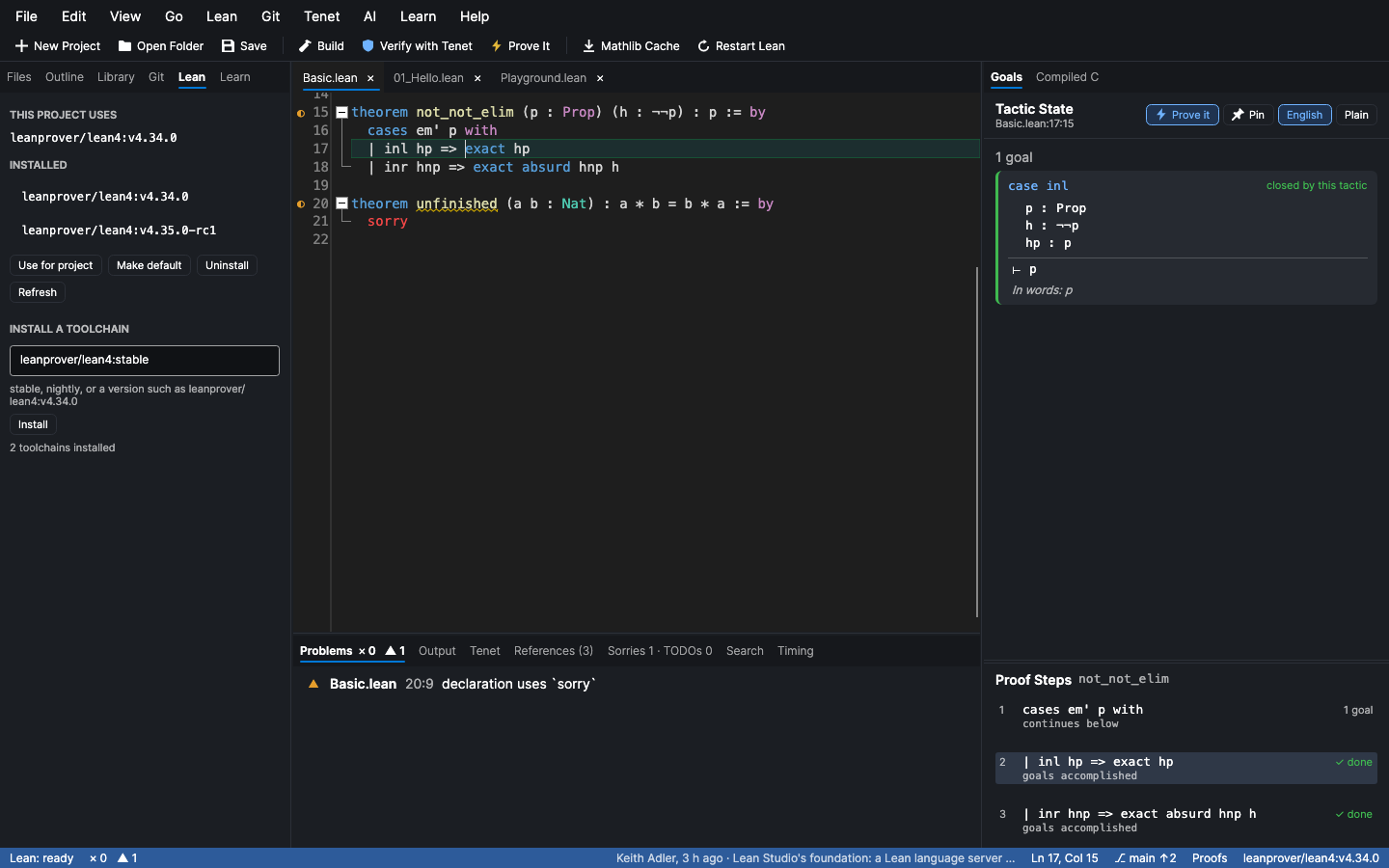
- See what elan has installed, and install
stable,nightlyor any version. - Hear when a newer stable Lean is out, and move the project to it in one click: install, pin in
lean-toolchain, restart Lean. Only for a project that depends on nothing; one that requires Mathlib or another package has to keep the Lean its dependencies were built for. It checks GitHub once per run, and not at all when update checks are off. - Pin a toolchain to the project, which writes
lean-toolchainand restarts Lean on it. - Set elan's default.
- See what elan has installed, and install
Problems and Output panels, recent projects, and dark and light themes. Open files are restored the next time the app starts.
AI in the editor, on your own computer
Lean Studio has an AI of its own, and it prefers one that runs on your computer, so your code stays there:
- Apple's on-device model on macOS 27 with Apple Intelligence on. Lean Studio reaches it through the
fmcommand macOS 27 ships (fm serve, orfm respond), with nothing to install and nothing sent anywhere. - Ollama, LM Studio, llama.cpp's
llama-server, or MLX'smlx_lm.server, found at their usual addresses when one is running. With several models, one trained for Lean (DeepSeek-Prover, Kimina, Goedel) comes first, then ones trained for code or maths. - A cloud model only if you choose one: Claude with your Anthropic API key, or any OpenAI-compatible service (OpenAI, Gemini, OpenRouter, a vLLM box) at an address you give. Keys go in the macOS Keychain (the keyring on Linux), never in settings.json. The automatic choice never falls back to the cloud unless you allow it.
AI ▸ Choose a Model… shows what it found and lets you pick. What the AI does:
- Suggests proofs, and Lean checks them. AI ▸ Ask AI to Prove This Sorry (⌘⌥A / Ctrl+Alt+A) sends the goal and the declaration, asks for several proofs, and runs every one in Lean from the sorry's own state, the way Prove It runs its portfolio. Only proofs Lean accepts with no
sorryleft are offered, ✦-marked, shortest first; a click puts one in the file, laid out on its own lines if it has several. An invented lemma costs a failed trial, never a wrong proof. If nothing works, it asks once more with the rejected attempts listed. - Steps in when Prove It is stuck. When no tactic in Prove It's portfolio closes a goal, the card asks the AI too (turn this off in the AI menu), or offers ✦ Ask AI for a proof on any goal it couldn't close.
- Explains. AI ▸ Explain This explains Lean's error at the cursor (what it means, why, and the fix), or else the goal.
- Answers questions. AI ▸ Ask AI… (⌘⌥K / Ctrl+Alt+K) opens a conversation that starts with the code around the cursor, the goal and Lean's messages there. Code in an answer has Insert at Cursor, and Lean checks it the moment it lands.
Prompts are sized to the model: Apple's on-device model sees 4096 tokens, so it gets the goal and the declaration; a large model gets more of the file.
Use it with AI assistants
Lean Studio is also an MCP server, so Claude Code, Gemini CLI, Codex, Grok CLI, Cursor, or any other assistant that speaks the Model Context Protocol can use Lean itself while it works, instead of guessing whether its Lean is right. The same binary does both: LeanStudio --mcp runs the server with no window.
Connect one: open AI ▸ Connect an AI Assistant… in Lean Studio.
- Claude Code, Gemini CLI and Codex have a one-click Set up button.
- Every assistant gets a snippet to copy, including ones not listed.
Or do it by hand:
claude mcp add --scope user leanstudio -- /path/to/LeanStudio --mcp
For Gemini CLI (~/.gemini/settings.json), Grok CLI, Cursor and most others, add the server to the tool's MCP configuration:
{ "mcpServers": { "leanstudio": { "command": "/path/to/LeanStudio", "args": ["--mcp"] } } }
For Codex (~/.codex/config.toml):
[mcp_servers.leanstudio]
command = "/path/to/LeanStudio"
args = ["--mcp"]
On macOS the path is /Applications/Lean Studio.app/Contents/MacOS/LeanStudio. From source, the command is dotnet and the arguments are ["path/to/LeanStudio.dll", "--mcp"].
What the assistant gets:
| Tool | What it does |
|---|---|
check_file |
Elaborates a file and waits for Lean. Returns every error, warning and #eval result with its line and column. Can check unsaved text. |
goals |
The goals and hypotheses at a line and column, marking what the tactic there added or removed. |
proof_steps |
Every step of a tactic proof, with the state after it and what it changed. |
hover |
The type and documentation at a position. |
suggestions |
Lean's "Try this" results for exact?, apply?, simp? and rw? on a line. It can apply the one chosen and re-check the file. |
references |
Every use of a name across the project. |
run_lean |
Runs a snippet (#eval, #check, #print axioms) inside the project, so its imports work. |
build, verify |
lake build, then Tenet's independent check of every declaration: verified, rests on sorry or an axiom, or rejected. |
search_declarations, declaration, axioms |
Read the compiled library, Mathlib included. |
prove |
Tries a portfolio of tactics on each sorry in a file and reports which ones close it. It can write the first that works in place of each sorry. When nothing works, it looks for a counterexample. |
why_not_proved |
For a theorem that rests on sorry or an axiom, the chain of lemmas down to it, with file and line. |
profile |
How long each declaration takes Lean, slowest first, with the costliest step in each. |
search_mathlib |
Finds Mathlib results from a plain-English description (LeanSearch). |
export_walkthrough |
Writes a step-by-step proof walkthrough web page, and returns a Lean 4 web editor link. |
extract_lemma |
Turns the goal at a sorry into a lemma of its own, with the hypotheses it needs, and uses it there. |
project_map |
The project's proof state, and the sorries and axioms the most declarations depend on. |
ffi_bindings |
Every @[extern] and the C function behind it, what doesn't match, and C stubs for the missing ones. |
project_info, toolchains |
The project's layout, toolchain and build state. |
studio_context |
What you are looking at in Lean Studio: file, cursor, selection, goals, messages. |
studio_show |
Opens a file at a line in your Lean Studio window, so you can review what it did. |
The assistant edits files on disk the way it always does. Open files in Lean Studio reload when it changes them; files with your own unsaved edits are left alone. The server also tells the assistant how to work: check after every edit, and don't call anything proved while sorry remains.
This is tested with a real assistant. Claude Code, given the sample project and only these tools, proved unfinished by induction. It confirmed the proof with check_file, built the project, and got Tenet's verdict: verified.
Install
Lean Studio needs elan, Lean's toolchain manager. elan is the standard way to install Lean, so you may have it already. If not, Lean Studio offers to install it for you with the official installer, together with the latest stable Lean. Lean Studio has the right Lean version for each project installed through it.
Every build is self-contained, so nothing else needs installing. Pick whichever way suits you:
| macOS | Windows | Linux | |
|---|---|---|---|
| Package manager | Homebrew | winget | AppImage |
| Download | .zip with Lean Studio.app |
.zip |
.tar.gz |
Homebrew (macOS)
brew install --cask keithadler/tap/lean-studio
This installs Lean Studio.app for Apple silicon or Intel, and puts leanstudio on your PATH (for leanstudio --mcp in AI assistants' settings; leanstudio --help lists the options). brew upgrade keeps it current. The cask lives in keithadler/homebrew-tap (docs/packaging/homebrew.md). Until releases are notarized, macOS asks you to allow the app on first launch (see Unsigned builds).
winget (Windows)
winget install KeithAdler.LeanStudio
This installs the x64 or ARM64 build and puts leanstudio on your PATH; winget upgrade keeps it current. It works once the package is accepted into the winget repository (docs/packaging/winget.md).
AppImage (Linux)
One file that runs on most distributions, for x86_64 and aarch64. Download LeanStudio-<version>-x86_64.AppImage (or -aarch64.AppImage) from the Releases page, then:
chmod +x LeanStudio-*.AppImage && ./LeanStudio-*.AppImage
It doesn't need FUSE 2 on the host. AppImages are attached to releases after 0.5.0 (docs/packaging/appimage.md).
Download
Every release on the Releases page has:
| Platform | File |
|---|---|
| macOS (Apple silicon / Intel) | LeanStudio-<version>-osx-arm64.zip / -osx-x64.zip contains Lean Studio.app |
| Windows (x64 / ARM64) | LeanStudio-<version>-win-x64.zip / -win-arm64.zip: run LeanStudio.exe |
| Linux (x64 / ARM64) | LeanStudio-<version>-linux-x64.tar.gz / -linux-arm64.tar.gz: run LeanStudio |
Lean Studio checks GitHub for a newer release once a day and offers to download it (Help ▸ Check for Updates…; you can turn the automatic check off there).
Unsigned builds
Until releases are code-signed (docs/packaging/signing.md), your system asks you to confirm the first launch:
- macOS: if macOS says it can't check the app, open System Settings ▸ Privacy & Security and click Open Anyway for Lean Studio. On macOS 14 and earlier, you can also right-click the app and choose Open.
- Windows: choose More info → Run anyway in SmartScreen.
How it works
flowchart LR
    subgraph Studio["Lean Studio (.NET, Avalonia)"]
        Editor["Editor<br/>highlighting · Unicode input · hovers"]
        Info["Tactic state<br/>goals · diff · proof steps"]
        Nav["Declaration navigator"]
        Verify["Tenet panel<br/>gutter verdicts"]
    end
    Server["Lean's language server<br/>lake serve / lean --server"]
    Lake["Lake<br/>lake build"]
    Olean[(".olean files")]
    Tenet["Tenet kernel<br/>(in process)"]

    Editor <-- "LSP + Lean RPC" --> Server
    Info <-- "getInteractiveGoals" --> Server
    Verify --> Lake --> Olean
    Olean --> Tenet
    Tenet --> Verify
    Tenet --> Nav
Lean Studio divides the work so it never has to trust itself about Lean:
- Elaboration is Lean's. Lean Studio talks to Lean's own language server (
lake servein a Lake project,lean --serverelsewhere) over LSP and Lean's RPC protocol. Goals come fromLean.Widget.getInteractiveGoals, which is where the before/after diff flags come from. So tactics, macros, notation and Mathlib behave exactly as they do underlake build. - Checking is Tenet's. Tenet is an independent implementation of the Lean 4 kernel in C#, and it runs in the same process. It memory-maps the
.oleanfiles Lake produced and type-checks every declaration again. It also computes each declaration's axioms without relying on Lean's own#print axioms.
Building from source
You need the .NET 10 SDK and elan. CONTRIBUTING.md has the full setup, and docs/ARCHITECTURE.md explains how the code is organized.
git clone --recurse-submodules https://github.com/keithadler/leanstudio
Tenet is a git submodule. If you cloned without --recurse-submodules, run git submodule update --init --recursive before building.
cd leanstudio && dotnet run --project src/LeanStudio.App
You can pass a folder or a .lean file as an argument to open it on start: dotnet run --project src/LeanStudio.App -- path/to/project.
To build a self-contained release for one platform:
packaging/publish.sh osx-arm64
The runtime IDs are osx-arm64, osx-x64, win-x64, win-arm64, linux-x64 and linux-arm64. The zip or tarball lands in artifacts/; on macOS the script also assembles Lean Studio.app.
Tests
dotnet test --project tests/LeanStudio.Tests
The tests run against a real Lean server and a real Lake build, on the toolchain leanprover/lean4:v4.34.0 (elan toolchain install leanprover/lean4:v4.34.0). They also speak MCP to the server, carry a request across the bridge, and check that the Gemini and Codex setup keeps everything else in those config files. They start lean --server, check the goals, hypotheses and diff flags at known positions, build samples/Proofs, and confirm Tenet's verdicts on it. When Lean isn't installed, the tests that need it are skipped.
dotnet run --project tools/LeanStudio.Snapshot -- . snapshots
This drives the whole app without a display, against a live Lean server. It opens a project, waits for elaboration, and reads the goals. It then plays an AI assistant: it asks the window for your context, moves your cursor, and edits the file on disk to check that the editor reloads. Finally it builds, verifies with Tenet, searches the navigator and types Unicode abbreviations. It saves a screenshot at each stage (the images in this README come from it) and fails if anything doesn't behave. CI runs it on macOS and Linux.
Layout
| Path | What it is |
|---|---|
src/LeanStudio.Lsp |
JSON-RPC and LSP client for Lean's server, including Lean's goal and RPC extensions |
src/LeanStudio.Core |
Projects, Lake, elan, proof-step analysis, Unicode abbreviations, Tenet verification and navigation, and the workbench and bridge that AI assistants drive |
src/LeanStudio.Mcp |
The MCP server and its tools (LeanStudio --mcp) |
src/LeanStudio.Plugins |
The plugin API: what a compiled plugin implements and the host it talks to |
src/LeanStudio.App |
The Avalonia desktop app |
tests/LeanStudio.Tests |
Unit tests and integration tests against real Lean |
tools/LeanStudio.Snapshot |
Headless end-to-end run with screenshots |
external/tenet |
Tenet, as a git submodule |
samples/ |
Small Lean projects the tests and snapshots use, and an example plugin |
docs/ |
The architecture guide, and the screenshots in this README |
packaging/ |
Release scripts, the macOS bundle template, icons, the Linux desktop entry |
The build generates XML documentation for every project in src/, and a public type or member without a /// comment fails it, so hovering anything in an IDE gives its documentation.
Keyboard shortcuts
| Action | macOS | Windows / Linux |
|---|---|---|
| Build | ⌘B | Ctrl+B |
| Verify with Tenet | ⌘⇧V | Ctrl+Shift+V |
| Go to definition | F12 or ⌘-click | F12 or Ctrl-click |
| Show declaration in the Library | ⌘⇧D | Ctrl+Shift+D |
| Command palette | ⌘⇧P | Ctrl+Shift+P |
| Go to file / Go to symbol | ⌘P / ⌘T | Ctrl+P / Ctrl+T |
| Find in files | ⌘⇧F | Ctrl+Shift+F |
| Quick fix / Try this | ⌘. | Ctrl+. |
| Prove It (tactics on the sorry at the cursor) | ⌘⌥P | Ctrl+Alt+P |
| Ask AI to prove the sorry at the cursor (Lean checks it) | ⌘⌥A | Ctrl+Alt+A |
| Ask AI about the code at the cursor | ⌘⌥K | Ctrl+Alt+K |
| REPL at the cursor | ⌘⌥R | Ctrl+Alt+R |
| Who uses this (callers) | ⌘⌥H | Ctrl+Alt+H |
| Find references / Rename | ⇧F12 / F2 | Shift+F12 / F2 |
| Insert a snippet | Learn ▸ Insert a Snippet… | Learn ▸ Insert a Snippet… |
| Fix all in file | ⌘⌥. | Ctrl+Alt+. |
| Run a task | ⌘⇧B | Ctrl+Shift+B |
| Toggle sidebar / panel / goals | ⌘⌥B / ⌘J / ⌘⌥I | Ctrl+Alt+B / Ctrl+J / Ctrl+Alt+I |
| Zen mode / word wrap | ⌘⌥Z / ⌥Z | Ctrl+Alt+Z / Alt+Z |
| Completion | Ctrl+Space | Ctrl+Space |
| Toggle comment | ⌘/ | Ctrl+/ |
| Restart Lean | ⌘⇧R | Ctrl+Shift+R |
| Save / Save all | ⌘S / ⌘⇧S | Ctrl+S / Ctrl+Shift+S |
| Open file / New file / Close | ⌘O / ⌘N / ⌘W | Ctrl+O / Ctrl+N / Ctrl+W |
| Find / Go to line | ⌘F / ⌘L | Ctrl+F / Ctrl+G |
Status
Lean Studio is at 0.9, and the changelog lists what's new since then. The whole workflow works end to end and is tested against real Lean 4.34. It has been used by hand on macOS; on Windows and Linux it is built and tested by CI. Known gaps:
- User widgets render in the Infoview tab, not in the Tactic State panel, which shows Lean's interactive text. On Linux the tab needs WebKitGTK; without it, widgets open in the browser.
- Tenet's badges describe the last build. After you edit a file, rebuild to refresh them.
- Release builds aren't signed or notarized.
Documentation
| Document | What it covers |
|---|---|
| README (this page) | What Lean Studio does, installing it, connecting AI assistants |
| docs/ARCHITECTURE.md | How the code is organized: the projects, how each feature talks to Lean, Lake and Tenet, settings and environment variables, and the conventions the code follows |
| CONTRIBUTING.md | Building, running the tests and the headless snapshot run, and what a good change looks like |
| CHANGELOG.md | What changed in each release |
| samples/Proofs | The small Lake project the tests, the snapshot run and the screenshots use |
XML doc comments in src/ |
Every public type and member, documented where it is defined |
Author
Lean Studio is created and maintained by Keith Adler, @keithadler on X, who also wrote Tenet. Follow him there for updates.
License
MIT. Tenet, included as a submodule, is MIT OR Apache-2.0.
Yorumlar (0)
Yorum birakmak icin giris yap.
Yorum birakSonuc bulunamadi