Diariz
Health Warn
- License — License: AGPL-3.0
- Description — Repository has a description
- Active repo — Last push 0 days ago
- Low visibility — Only 5 GitHub stars
Code Warn
- process.env — Environment variable access in .github/workflows/coverage.yml
- fs module — File system access in .github/workflows/coverage.yml
- fs module — File system access in apps/desktop/build/make-app-icon.js
- fs module — File system access in apps/desktop/build/make-tray-icon.js
- process.env — Environment variable access in apps/desktop/electron-builder.config.js
Permissions Pass
- Permissions — No dangerous permissions requested
No AI report is available for this listing yet.
Self-hosted, multi-user transcription platform: record or upload audio. Speaker-labeled, timestamped transcripts, Recognize speakers across recordings, Summarize, extract action items and chat over your transcripts with your own OpenAI-compatible LLM. Your Audio, your Server, your Model. Tested: Laptop RTX4070, RTX3090, RTX5090 and ROCM Strix Halo
Diariz
Overall Synopsis of Platform Architecture Navigator
Smart Meeting Transcription. Personal, multi-user voice/meeting transcription platform: record audio
(mic or system audio), transcribe it server-side with speaker diarization and word-level timestamps,
identify known speakers across recordings, summarize, and chat across transcripts.
See diariz.app for more details, videos and screenshots.
docs/Overall_Synopsis_of_Platform.md has the original brief and the
architecture plan for the full design.
docs/Runtime_Architecture.html has a live visual navigation of how Diariz fits together.
Versioned per the rule in CLAUDE.md; the current version and per-release notes live inapps/web/src/lib/releaseNotes/ (and /version.json) and on
the in-app Release Notes page (/release-notes), reachable from About in the account menu. That page
opens on named epochs - a chapter per arc of work - with every individual release listed verbatim one
click in.
Features
At a glance - see docs/features.md for the full detail on each.
| Feature | Description |
|---|---|
| Capture | Record from the browser mic (device picker, DSP tuning, live level meter, pause/resume), system audio, or both mixed on one device. Recording is streamed to the server as you go: the recording appears the moment you press Record and fills in while you talk, so a crashed tab or a sleeping laptop costs at most the last few seconds rather than the whole meeting, and a capture whose window disappears is finalised automatically from whatever arrived. Stopping is quick even after a long meeting, and a long meeting no longer accumulates in the browser tab. Schedule a recording to auto-stop at a set time or after 15/30/60 minutes; system audio works in Chromium browsers ("Share audio", though on Linux only when sharing a browser tab) and seamlessly in the desktop app; upload files (WAV/MP3/FLAC/Ogg/Oga/Opus/WebM/M4A/M4B/AAC) or drop a video (MP4/M4V/MOV/MKV/WebM/TS/M2TS/3GP) and its audio is extracted in the browser so the video is never uploaded; drag-drop several at once, landing in the folder you drop them on. |
| Record a calendar meeting | Join a meeting from your calendar and it records in one click, named after the invite and linked to that meeting from the start (bringing any prep notes with it) rather than matched by time afterwards. Optionally let it end itself - a set number of minutes after the meeting was due to finish, or after a run of silence when everyone has left; if people are still talking when the meeting's scheduled end arrives it asks whether to keep going before cutting you off, and a recording that stops on its own always says why. Joining a second meeting finishes and files the first automatically. It knows the major services by name - Teams (including the short teams.microsoft.com/meet links), Zoom, Google Meet, Webex, Whereby and GoToMeeting - so it opens the link that joins the meeting rather than a help page, a dial-in list or whatever the organiser pasted above them, and finds it even when the invite hides it in the body. |
| Recurring meetings | Events that repeat are marked, and show your earlier recordings of the same meeting. |
| Transcribe & diarize | Server-side WhisperX (large-v3, word-level timestamps) + pyannote speaker diarization; speaker-labelled, editable, playable segments; re-transcribe any time, with an original/revised toggle. Pin the spoken language per recording or as a default, rather than letting the model guess it from a quiet opening. Optionally merge each speaker's consecutive rows automatically as soon as a recording finishes transcribing, rather than pressing Merge on every one. A segment two people share can be split at an exact word and the new part reassigned to whoever actually said it - the silence between the two words goes to neither side. Recordings transcribed before word timings were kept cannot be split until they are re-transcribed. |
| Live transcript | While you are still recording, the transcript fills in on the notes panel's single timeline as the meeting runs - every line stamped with the moment it was said - so you can check what was said twenty minutes ago without waiting for the meeting to end - and the assistant can be asked about a meeting that is still going, and is told the conversation is unfinished so it does not report an argument still in progress as settled. The live text is provisional and says so: a status line shows how far behind it is, and the full transcript replaces it when you press Stop. A speaker now keeps one identity for the whole meeting rather than being renumbered every half minute, and a voice already enrolled is named while the meeting runs, using the same recognition as a finished recording. Where two live speakers turn out to be one person, the earlier lines are rejoined in front of you; where Diariz is unsure who someone is, the name is shown as a question rather than stated. Recognising a voice live never trains that voice - recognition is shared platform-wide, so it still only learns when a person confirms who somebody is. If the server falls too far behind it stops writing the live text and tells you, which never affects the recording itself. |
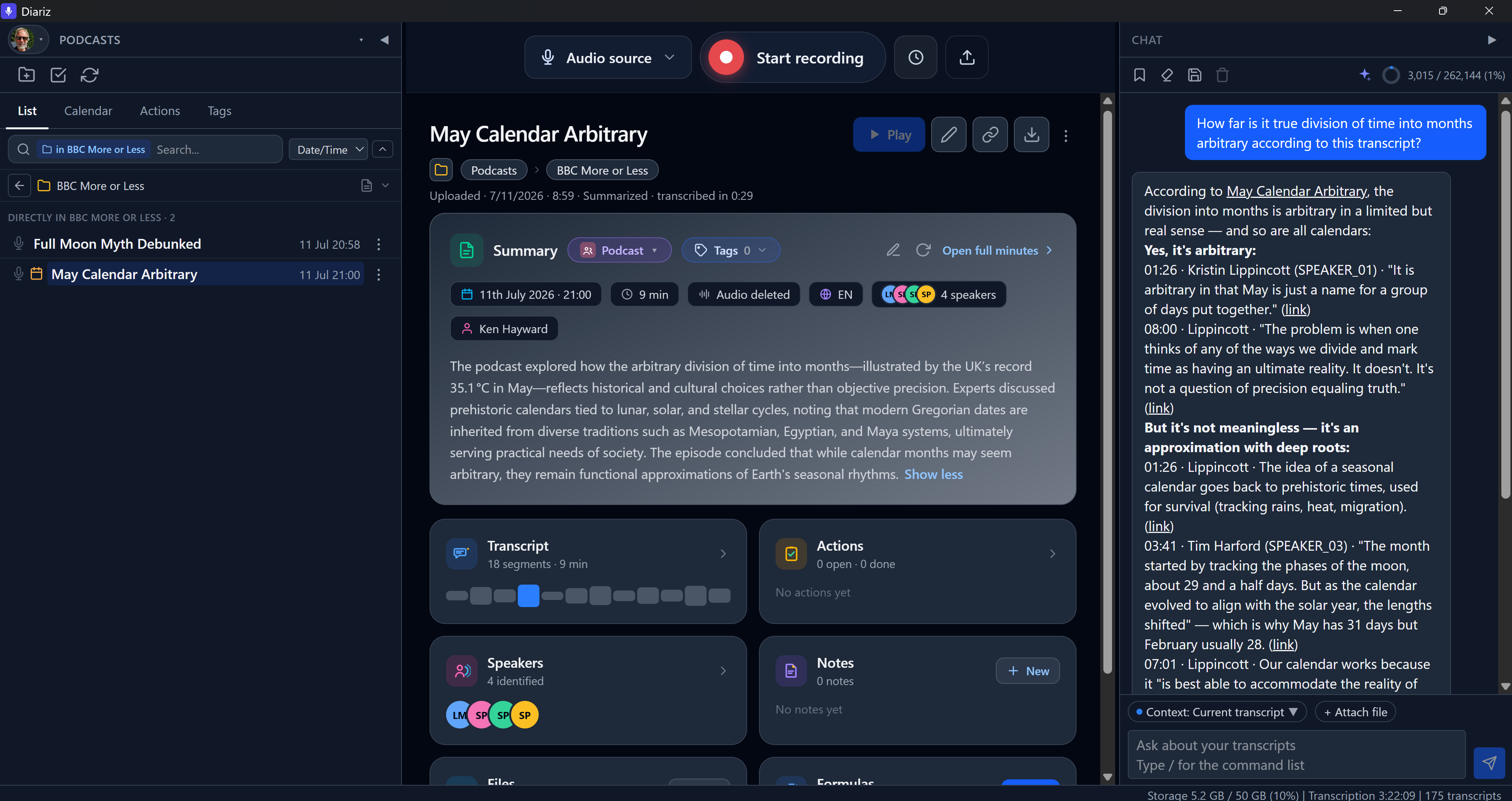
| Recording hub | Every meeting opens on a hub: a summary card (meeting type, key facts, the summary inline) over tiles for transcript, actions, speakers, notes, files, and formulas - each with its count and a preview, and new-note / add-file / run-formula in place. The transcript embeds a conversation-flow player showing who spoke when, which doubles as the scrubber. |
| People and speaker identification | One shared, platform-wide directory of the people who appear in your meetings. A voiceprint is optional: someone can be in the directory with no biometric held for them, or opt out entirely - which erases theirs and stops them being matched. Enrol a voice once (SpeechBrain ECAPA voiceprints) and Diariz recognises it across later recordings; assign speakers from the Speakers tab or from any transcript row; rename, merge, and erase (GDPR). A People directory opens over whatever you are reading, so you keep your place in a transcript; it lists everyone one to a line, with a search box matching name, email or company, and filters; a person carries a job title, company, email address, phone number and an internal/external marker, and likely duplicates are pointed out for you to merge. The Speakers tab shows an identified speaker's title, company and internal/external marker inline, with the rest of their details on hovering that marker, a contact card - email and phone as live links - above their segments, and a pencil to correct that person's record without leaving the transcript. Browsing the directory and editing other people needs the Manage people permission - opting yourself out, and finding someone to name a speaker, never do. Your own entry is shown read-only on Preferences -> Profile ("You in transcripts") - the name you appear under and whether a voiceprint is held for you - since the directory itself is gated. Each person's card carries a Voiceprint tab listing every recording they appear in - not only the ones enrolled by hand - with how each was attributed, how much they speak in it, and tick boxes to add or drop a whole recording from training or to keep only certain segments and re-embed from exactly what is left. Play any segment to hear the voice behind the print; clips are cut on the server, and audio from a recording you do not own needs the Manage voiceprints permission, which plays only what that person actually said and logs every use. Where two people share a name, the directory, the duplicates banner and the merge dialog all show which Diariz account each one is - or say plainly that there is none. A match that is close but not certain is offered for confirmation rather than applied or discarded - inline on the transcript speaker and gathered under Review Voice Matches, a two-panel window under Preferences in the account menu: the waiting voices on the left, and on the right what the open voice said, a line per segment with a play/stop button, so you can hear it before answering with the tick or the cross. Every segment can be removed on its own, because a diarization label is not always one human - taking one out drops it from the list, and the voiceprint is trained from only what is left, with a Restore for a misclick. There is no matching tick: a segment trains unless you remove it, so the panel states what confirming will train from rather than offering a control that changes nothing. Play all runs through the kept segments in turn, highlighting each and scrolling it into view. Excluding shapes the voiceprint, not the transcript. It needs no permission and is deliberately separate from the gated People directory. Voices whose recording audio has already been deleted are not offered at all, in either place - there is nothing left to listen to. Every answer is kept as calibration evidence. A Platform Administrator tunes the acceptance and ask-about distances, the margin over the runner-up and the minimum speech, and can re-scan recordings transcribed before someone was enrolled (previewed first; it only ever adds a name). Each recording on the Voiceprint tab carries its own verdict - matches the others, a different recording condition, or resembles nothing at all, which is either a microphone nothing else covers or a different person enrolled under that name. The ones worth a listen sort to the top, a tick box narrows a long list to just those, and the figures are stated as similarity, so a high number means a good match. Every recording is also compared against everybody else's, so one that sits closer to a different person is flagged as sounding more like them, by name - the comparison that tells a second microphone apart from a second person enrolled under one name. Confirming a recording once you have listened takes it out of the review queue, and is deliberately separate from whether it trains. Where one turns out to be somebody else, the same row reassigns it to the right person - or creates them, marks the speaker as overlapping speech, or unlinks it - for recordings you own, so a misattribution is fixed where it is found rather than back in the transcript. In the directory a person with a shaky voiceprint or a likely duplicate carries a short warning on their own row rather than a panel over the list, a Needs review filter narrows to them, and the merge prompt appears beside the person you open. |
| Summaries & minutes | Auto summary plus full professional meeting minutes (WYSIWYG-editable, emailable). A meeting type is presentation and selection - name, icon, colour, and the framing you give the model - and it points at the formula that generates its minutes, plus any others to run at the same time (their documents land in the recording's Formulas tab). So minutes and formulas are the same machinery: any formula you can use can produce your minutes. Templates are built from blocks (H1-H3 headings, literal text, substituted details, model prompts, rules, drag-to-reorder) with JSON import/export. |
| Notes | Jot your own note lines during or before a meeting (live, timestamped, crash-safe). While recording they share one stream with your screen captures and the live transcript, in the order everything happened, and a note can be pinned to a transcript line said earlier so a thought you have late is filed where it belongs. They appear inline in the transcript at the moment you wrote them, steer the minutes, and can be woven into an "enhanced notes" section that links to the exact transcript moments. In the desktop app the live panel pops out into its own always-on-top window, so it stays readable over a full-screen call on a single monitor. |
| Meeting screenshots | Capture the screen during a recording from the desktop app - a configurable hotkey, the tray menu, or the app itself; choose a screen or a rectangle on the first capture and reuse it for the rest of the meeting, with each re-choosing of the area taking a shot as soon as you finish drawing it. Or turn on Auto-capture and let it take one for you every time the screen settles on something new, which captures a presentation slide by slide without touching the keyboard. Captures appear inline in the transcript at the moment they were taken, open in a full-size viewer with zoom and pan to read a capture at native resolution, and list in a collapsed Notes-tab section. A capture goes to the chat prompt either from the viewer's own Add to chat context button or by dragging its thumbnail there, to ask a vision-capable model about it. Where an administrator has routed an OCR model, two further buttons read the text off a capture - into the chat prompt, or saved as a Markdown attachment on the meeting - cached after the first read, with HTML tables converted to Markdown, and always stamped with the model that read it and marked unverified. |
| Action items | Auto-extracted with owner and deadline into an editable table on each meeting. Pin the ones you intend to track and they appear in a cross-meeting Actions list with completion, a person filter, and links back to the transcript; everything else stays on the meeting it came from. |
| Tag cloud | Tags are added by hand, with automatic topic suggestions offered per meeting; a Tags tab shows a weighted cloud of adopted tags and lists the meetings behind each, with an expanded modal view. |
| Chat over transcripts | Stream answers over one meeting, a folder (its summary/minutes/actions), several selected, or all meetings (context inferred from what you're viewing) via the platform's OpenAI-compatible LLM; pick which of the offered models answers, changing it mid-conversation without losing the thread; send a meeting screenshot into the prompt - from the capture's viewer or by dragging its thumbnail - for a vision-capable model to read; context dial, file attachments, saved conversations, and slash commands. |
| Formulas | Build a document from headings, literal text, substituted meeting details (date, attendees, the action-items table, the full timestamped transcript...) and instructions to the model, choose what it may see (transcript, notes, summary, minutes, actions), and run it over any recording - or a whole folder and its sub-folders (every meeting in it) - to generate a named Markdown document you can edit, download, or email. Runs happen in the background ("Generating..." then fills in), and re-running one replaces its previous document rather than piling up copies (a document you have edited by hand is left alone). Built-in, platform-wide, and personal; share a personal one so others can find and add it (a live link) and run it; run one with /formula <name> in chat or ask Claude via MCP; admins manage the platform-wide and built-in formulas from a Manage Formulas window. Write $USERNAME anywhere in a formula and it becomes the name the person running it appears under on their transcripts, so one shared formula can ask "What role did $USERNAME play in this meeting?" and be right for everyone. |
| Search | A search box above the meetings list, scoped to the folder you are browsing: hits show the matching words in context and open the transcript at that moment. Search everywhere widens it to every room you can see, grouped by folder with Folder / Date / Speaker chips. Keyword search across your library, upgraded to semantic (RAG - hybrid vector + trigram) when an embeddings endpoint is configured. |
| Chat tools | The assistant calls built-in tools (who-said-what, search, attendees, talk time, summaries, email-to-self, and more) and links answers to the exact segment. |
| Voice dictation in chat | Dictate chat questions by voice - browser speech recognition, or a server STT endpoint on the desktop app. |
| Connect Claude (MCP) | An in-process MCP server lets Claude connect to your own meetings via OAuth (claude.ai) or a personal token (Claude Desktop/Code), when the platform's Claude/MCP toggle is on, including a run_formula tool to trigger your saved Formulas. |
| LLM usage log (admin) | Every model call recorded - who it was for, which model, how long, how many tokens, and the reason the model stopped. A Cut off badge flags a reply that hit its token cap, which otherwise looks identical to a model that answered nothing. Three views (Operations, Calls, Summary) with filters and a totals row over the whole filter. |
| AI models (admin) | A Platform Administrator configures every model the platform calls - endpoint, key, context window, and a one-line description people see when picking a chat model - and every sampling parameter (temperature, top P/K, penalties, token caps, reasoning effort, timeout, tool and image support), each of which can be inherited, set, or omitted from the request entirely. Routing is a grid: models down the side, call types across the top, one selection per column, with a No model row for the call types that follow the default, and an In chat column marking which models people may pick between for chat. Add all points at a server and adds every chat model on it in one pass, skipping embeddings and speech models and flagging any whose context window the server did not report. Parameters sit in a drawer with a tab per call type, beside a live preview of the exact request body it would send, and a whole set can be copied between models. Run test makes a real call with whatever is on screen and reports first-token time, duration, tokens per second and the reply - on a failure offering the one change that would fix it, and on any result a cURL command, the raw JSON, or a link into the usage log. For Tags, Actions and Summaries the test runs the real prompt against one of your own recordings, chosen in the panel and remembered, and shows the parsed result the platform would have stored - saying so plainly when a reply would have yielded nothing. |
| User API access | When a Platform Administrator enables it, generate a personal API token, read-only or read-write, with an optional expiry date, to call the REST API as yourself - including the people directory at /api/people - with a built-in API reference that documents every endpoint. |
| Automations (webhooks) | When a Platform Administrator enables it, register outbound webhooks (Preferences -> Integrations) that fire when a recording is created, finishes or fails transcription, a summary / meeting minutes / action items / tags become ready (each carrying its output), or a formula finishes or fails. Every recording event also carries an attendees list - who spoke, the person they are, their title, company, and internal or external - so a workflow can route without calling back; attendees' email addresses and phone numbers are included only when that automation opts in. Signed deliveries with automatic retries (paced to a per-automation rate cap and honoring a 429 Retry-After), a send-test-event button, auto-pause after repeated failure, and a Pause / Resume button so deliveries can be stopped reversibly - deleting an automation discards its signing secret, pausing one keeps it. Admins can also define named Workflow Signals and wire one platform automation to each, so a formula author picks "When this finishes, trigger: ..." in the formula editor - no URL or per-user setup - and the formula's output is delivered inline to everyone routed through that signal. |
| n8n community node | A published node package (n8n-nodes-diariz, installable from n8n's Community Nodes): a Diariz Trigger that registers its own automation on activation, removes it on deactivation, and verifies every signed delivery - with a Platform scope for administrators covering events across every user, including Feedback Received - plus a Diariz action node covering the whole REST API - dropdowns listing your real recordings, folders and formulas, files in and out as binary data, Return All on lists, and a Run Formula step that waits for the document to finish. See integrations/n8n-nodes-diariz. |
| Translate | Translate a whole transcript (segments, summary, actions) or a single segment; stored as revisions you can flip back. |
| Attachments | Attach files or URLs (PDF, Office, email, calendar, images) to a recording or directly to a folder, edit Markdown attachments in place, save a chat conversation with /attach, and optionally feed them to chat. Drag any attachment's handle onto the chat box to read just that document into the conversation, and click the pill to see exactly what the model was given. |
| Rooms | A private Personal Room per account plus shareable Rooms: invite users and groups with per-member permissions. Each Shared Room has its own folder structure (folders nested up to 8 levels, drag-and-drop, per-room order) and its own List/Calendar/Actions/Tags scoped to it; record or upload files straight into a room (your Personal Room keeps the original), and search + chat over every room you belong to. A member who can read a shared recording sees its notes and screenshots too - only the owner can add, edit, or delete them. Your Google Calendar and its linking stay personal. The switcher shows each room's folder and meeting counts (shared ones labelled), ticks the one you are in, and remembers where you were. Manage rooms from the switcher. |
| Organise & merge | Folders nested up to 8 levels deep with drag-and-drop (dragging one of several selected recordings moves them all); the list drills in one folder at a time with a breadcrumb collapsing the middle when it does not fit, each folder above the current one clickable to jump straight there, so it stays readable however many recordings you have; an open recording shows its folder path as clickable chips under its name, taking the list straight to any folder in it; choose where a new recording is filed; sort the list by date/time, name or duration (ascending or descending) or keep your manual order, remembered between visits, with each row showing when the recording was made; cut recordings or a folder and paste them into another folder in one move, with the Paste control showing why it's disabled when a move isn't allowed yet; browse as a list, calendar, cross-meeting actions, or tag cloud; merge recordings into one. |
| Folder pages | Open a folder as a page with a roll-up LLM summary and consolidated minutes across it and its sub-folders, plus aggregated actions, notes, and attachments tagged with their source meeting. |
| Google sign-in & Calendar | Optional Google OAuth sign-in; opt-in read-only Calendar linking, invite details, and a month overlay. Every calendar source - Google, .ics feeds and desktop Outlook - is set up in one Calendars tab in Preferences, a card per source whose day view is an hour-by-hour timeline - meetings and recordings placed and sized by when they ran, clashes side by side, all-day entries above the axis, and a line marking the current time. A Go to today button on the panel toolbar brings both the day and the month grid back to today after you have browsed ahead. Two toolbar buttons keep it current: Sync calendar refreshes every source you have connected, Sync today does the current day only in a couple of seconds, and the status bar counts up while either runs. |
| External calendar feeds | Subscribe to public iCalendar (.ics) URLs; their meetings appear on the Calendar tab, can be matched to a recording, and open with their full invite details. |
| Desktop Outlook calendar | Opt in (Preferences -> Calendars) to mirror the calendar from classic Outlook on your Windows PC - synced by the desktop app on launch, from the tray, or on demand - per machine, with the date window and privacy choices you pick. A PC without classic Outlook is detected from the registry rather than by starting it, so Windows never offers to install Outlook; Check again re-tests once you have. Disconnecting a machine, or turning the opt-in off, deletes what was stored. |
| Multi-user & groups | A Users & access console - search and filter accounts, and see at a glance what a person's groups let them do; groups grant the five platform permissions, each explained in a sentence; access requests get their own tab with a waiting count, then an approval lifecycle; per-user data isolation; Light/Dark/Auto themes. |
| Preferences & profile | Per-user AI endpoint/model/key, reasoning, profile fields, native/app language, and a device-synced theme. |
| Model settings | Platform-wide LLM controls: minutes-generation mode, a default AI request timeout (120s) covering every AI call including chat and Formula runs (any user can override it for their own account), and LLM usage logging - a master switch, a retention window in days, and a streaming-token-count toggle - with an admin-only usage viewer (Operations/Calls/Summary views, filtering, whole-filter totals, per-line tokens/second, sorting, filtered deletion) at /admin/llm-usage. |
| Integration toggles | A Platform Administrator independently enables or disables API access, Claude/MCP, and Automations (webhooks) - each is off by default except Claude/MCP, which is on to protect an existing connector. |
| Storage quotas & retention | Per-user audio quotas plus an optional nightly auto-deletion of old audio (transcripts kept) with per-recording protection. |
| Backup & restore | A Platform Administrator can export the whole platform (database + files) as one archive and restore it, with live progress while the archive is built, downloaded, or applied. |
| Provide Feedback | Any signed-in user can describe something that looks or behaves wrong from the account menu, with a scrubbed technical trail of recent app activity attached automatically. Readable and deletable only by a Platform Administrator (Settings → Feedback), and can raise a feedback.submitted event for a platform automation - the submitter's own words are included only when that automation opts in (Settings -> Integration -> Platform Automations). |
| Desktop apps | Electron thin shell for Windows (tray) and macOS (menu-bar, beta): system audio, tray recording, Google sign-in, auto-update on Windows. Right-click any text box for spelling suggestions and Add to dictionary, plus cut/copy/paste. |
| Install as an app | Install from a Chromium browser (Chrome, Edge) for a launcher entry, an icon, and a chromeless window; offered from the account menu. The route to an app-like Diariz on Linux, where there is no installer. |
| Status bar | Live pipeline progress plus storage, transcription, and transcript counts along the bottom. |
| Help & documentation | A browsable help section at /help with a grouped article tree and instant search, plus a ? beside features that opens a short explanation linking to the full article. Includes an Advanced and admin section covering formulas, meeting types, automations, permissions, MCP, n8n, Zapier, and the API. |
See docs/features.md for the full prose description of each feature.
Architecture
docs/Runtime_Architecture.html has a live visual navigation of how Diariz fits together.
| Component | Tech | Path |
|---|---|---|
| API / auth / orchestration | ASP.NET Core (C#) + EF Core + SignalR | src/Diariz.Api |
| Domain model + migrations | EF Core + Postgres/pgvector | src/Diariz.Domain |
| Transcription + diarization + voiceprints | Python: WhisperX (large-v3) + pyannote 4 + SpeechBrain ECAPA (GPU) | src/Diariz.Worker |
| Web UI | React + TypeScript + Vite + Tailwind | apps/web |
| Desktop app | Electron thin shell — Windows system-tray + macOS (beta) menu-bar (first-run server config, mic + system audio, tray recording; auto-update on Windows, manual update check on macOS) | apps/desktop |
| Orchestration | docker-compose (postgres/pgvector, redis, minio) | deploy |
| Observability (optional) | Self-hosted GlitchTip: error tracking + transaction timings for the worker, API and SPA, each behind a scrubber that redacts credentials and meeting content. Opt-in compose overlay with its own Postgres and MinIO bucket; entirely inert unless a DSN is set | overlay, deployment runbook |
Summaries and chat use any OpenAI-compatible LLM endpoint you configure (OpenAI, or a local server such
as Ollama / LM Studio / vLLM) — see the Settings modal and deploy/.env.example. The API also hosts an
in-process MCP server at /mcp (Streamable HTTP) so Claude can connect to a user's own transcripts
using the same built-in tools — authenticated with either a personal access token (Desktop/Code) or an
OAuth 2.1 sign-in (the claude.ai web connector; the API is also a spec-compliant OAuth authorization server,
built on OpenIddict).
Flow: client records → uploads to API → audio stored in MinIO, metadata in Postgres →
job enqueued on a Redis Stream → Python worker transcribes + diarizes + extracts per-speaker voiceprints →
posts segments back → API stores them, auto-identifies enrolled speakers, and notifies the client over
SignalR → note view shows speaker-labelled, timestamped segments.
Quick start
Prerequisites: Docker (+ NVIDIA Container Toolkit for the GPU worker), .NET 10 SDK, Node 20+.
For diarization you need a Hugging Face token with the pyannote/speaker-diarization-3.1
terms accepted — see src/Diariz.Worker/README.md. For GPU/VRAM
requirements, tuning for smaller cards, and known-working GPUs, see the worker's
GPU and hardware requirements.
On AMD ROCm (experimental) run docker compose -f docker-compose.rocm.yml up --build instead — the
worker transcribes with openai-whisper since CTranslate2 has no AMD GPU support; see the worker README's
AMD ROCm section.
# 1. Whole stack — web UI, API, Postgres, Redis, MinIO, GPU worker.
#    Runs as a single Compose project named "diariz".
cd deploy
cp .env.example .env        # fill in JWT_KEY, CALLBACK_SECRET, HF_TOKEN, seed user
docker compose up --build   # web UI at http://localhost:8081, API at http://localhost:8080

# 2. (dev alternative to the bundled UI) Vite dev server with hot reload,
#    proxying /api and /hubs to the API.
cd ../apps/web
npm install && npm run dev  # http://localhost:5173

# 3. (optional) Desktop shell for system-audio capture
cd ../desktop
npm install && npm run dev
Sign in with the seeded user (SEED_EMAIL / SEED_PASSWORD), record a clip, and the
transcript appears automatically when the worker finishes.
Translations
Users pick their interface language at signup or in
Preferences, and ?lang=es forces it to Spanish for example. The initial release includes English, French, German and Spanish translations. Languages catalogues are auto discovered so developers can extend or improve these translations with a data only pull request (No code changes needed). Make sure you translate both the Web UX and Server side strings (See below)
Web User Interface
The web UI is localized with react-i18next. Strings live in JSON catalogues underapps/web/src/locales/, one folder per language (English is the authoritative
base; Spanish, French, and German ship by default). As catalogues are auto-discovered, adding or improving a
language is a data-only PR - no code changes. Seeapps/web/src/locales/README.md for the contributor guide (CI checks
that every catalogue mirrors English and limits a translation PR to one language).
Server Side
The headings in
downloaded and emailed transcripts are localized too, from server-side catalogues undersrc/Diariz.Api/locales/. Follow the same rules to change or extend them.
Roadmap
- M1 — done: capture → transcribe (timestamps + diarization) → view.
- M2 — done: multi-user auth + RBAC, LLM summaries, transcript export, re-transcribe with model choice.
- M3 — done: chat across transcripts, including semantic (RAG) search over an embedded transcript
index (pgvector) fused with keyword search, and an "All meetings" chat mode that answers across your whole
library; speaker identification via enrolled voiceprints (pgvector). - M4 — in progress: Windows desktop app (done), macOS desktop app (beta - unsigned), mobile,
packaging, live streaming. - Integrations — done: a hardened REST API (scoped, expiring personal tokens) and the MCP server for
inbound access; outbound webhooks ("Automations") that fire on recording and formula events with
signed, rate-limited, auto-retrying delivery; and Workflow Signals that let an author tag a formula and
a Platform Administrator route its output to one platform automation for everyone. Diariz now connects to
Zapier / n8n / Make and the like in both directions.
For the next major arc - note enhancement, an internal workflow rules engine (conditions and non-webhook
actions layered on the automation triggers already shipped), collaborative shared spaces, and optional
ambient capture - see the long-term roadmap.
Keep this README current. When a PR changes what the app does (a new feature, a stack change, or a
shipped roadmap item), update the Features table (one concise row) and docs/features.md
(the full prose), plus the Architecture and Roadmap sections and the in-app About-boxCAPABILITIES
table - all in the same PR, alongside thereleaseNotes/current.tsentry required by
CLAUDE.md. (The version isn't repeated here on purpose - it lives inversion.json/releaseNotes/current.tsso it can't drift.)
Licensing & commercial use
This software is dual-licensed. Depending on your use case, you may use it under one of two options:
1. Open Source (GNU AGPLv3)
This project is completely free for personal, academic, or non-profit use under the terms of the GNU Affero General Public License v3.0.
- Anyone using, modifying, or hosting this code under this license must also make their entire project's source code publicly available under the same AGPLv3 terms.
2. Commercial License
For-profit companies or commercial projects that wish to use, integrate, or build upon this software without being bound by the AGPLv3 open-source requirements must secure a private commercial agreement.
To discuss commercial licensing, custom terms, or to obtain an exception, please contact me directly at: [email protected]
A few parts of the ML/storage stack carry caveats worth understanding before a commercial
license is requested. This is a summary for orientation, not legal advice.
- Transcription & diarization — clear for commercial use. Whisper large-v3 (MIT) and the pyannote
models (speaker-diarization-3.1,segmentation-3.0) are MIT-licensed. They are gated — you must
accept their terms on Hugging Face and supply anHF_TOKEN— but gating is an access step, not a licence
restriction. - Speaker identification / voiceprints — the main caveat. Recognising known speakers across recordings
uses SpeechBrain ECAPA embeddings. The model code is Apache-2.0, but the weights are trained on the
VoxCeleb dataset, which is published for research / non-commercial use. Whether a dataset's terms bind
the trained weights is legally unsettled; for a commercial deployment, get your own legal read, or swap
the embedder for one trained on commercially-cleared data (e.g. NVIDIA NeMo TitaNet, WeSpeaker), or
simply disable the feature withENABLE_SPEAKER_EMBEDDINGS=falseon the worker — transcription and
diarization still work, you just lose cross-recording speaker identification. Voiceprints are biometric
data: only enrol people with their consent, and use the Voice Prints tab to erase them on request. - Object storage (MinIO) is AGPL-3.0. Used unmodified as a separate container it does not impose
copyleft on Diariz's own code, but if AGPL is a concern, point storage at any S3-compatible store (AWS
S3, Cloudflare R2, …) and drop MinIO entirely. - Summaries & chat send transcript text to whatever OpenAI-compatible LLM endpoint you configure;
that provider's terms and privacy policy govern the text you send. - Uploaded audio formats. Decoding is done by ffmpeg in the worker (Diariz ships no codec). The
royalty-free formats — WAV, FLAC, Ogg Vorbis, Opus, WebM — plus MP3 (its patents expired in 2017)
are always accepted. M4A/AAC is accepted by default but AAC still carries active patents, so it can be
disabled (UPLOAD_ALLOW_AAC=false) for maximum commercial caution. Operators are responsible for their
ffmpeg build's codec licensing.
Reviews (0)
Sign in to leave a review.
Leave a reviewNo results found