snotra
Health Uyari
- License — License: Apache-2.0
- Description — Repository has a description
- Active repo — Last push 0 days ago
- Low visibility — Only 5 GitHub stars
Code Gecti
- Code scan — Scanned 12 files during light audit, no dangerous patterns found
Permissions Gecti
- Permissions — No dangerous permissions requested
Bu listing icin henuz AI raporu yok.
Open-source desktop agent built around your folder — asks before it acts. Cloud or local models.
Snotra Agent
An open-source desktop agent built around your folder: always in view, and
nothing happens in it without asking. Cloud or local models, no account, no
telemetry.
Download ·
User manual ·
Website ·
Why Snotra? ·
Build from source ·
Deutsch
Snotra Agent is the desktop app of the Snotra AI platform. Until October 2026
the app itself was called Snotra AI — see
Old versions in the manual.
Works with OpenAI · Anthropic · Google Gemini · Ollama · any
OpenAI-compatible API (LM Studio, MLX-LM, llama.cpp, vLLM, OpenRouter …)
Extensible with Agent Skills (SKILL.md) · MCP servers (stdio) · built-in
workspace tools · any CLI on your machine
Runs on macOS (Apple Silicon) · Windows (x64) · Linux (x64)
Status: a personal open-source project — no company behind it, no paid tier.
Interfaces and configuration may still change.
Using Snotra? The user manual explains how
to install it, connect a model, chat, stay in control of what it may do, and
adapt it — step by step, with screenshots. This page is the overview and the
developer part.
How it behaves
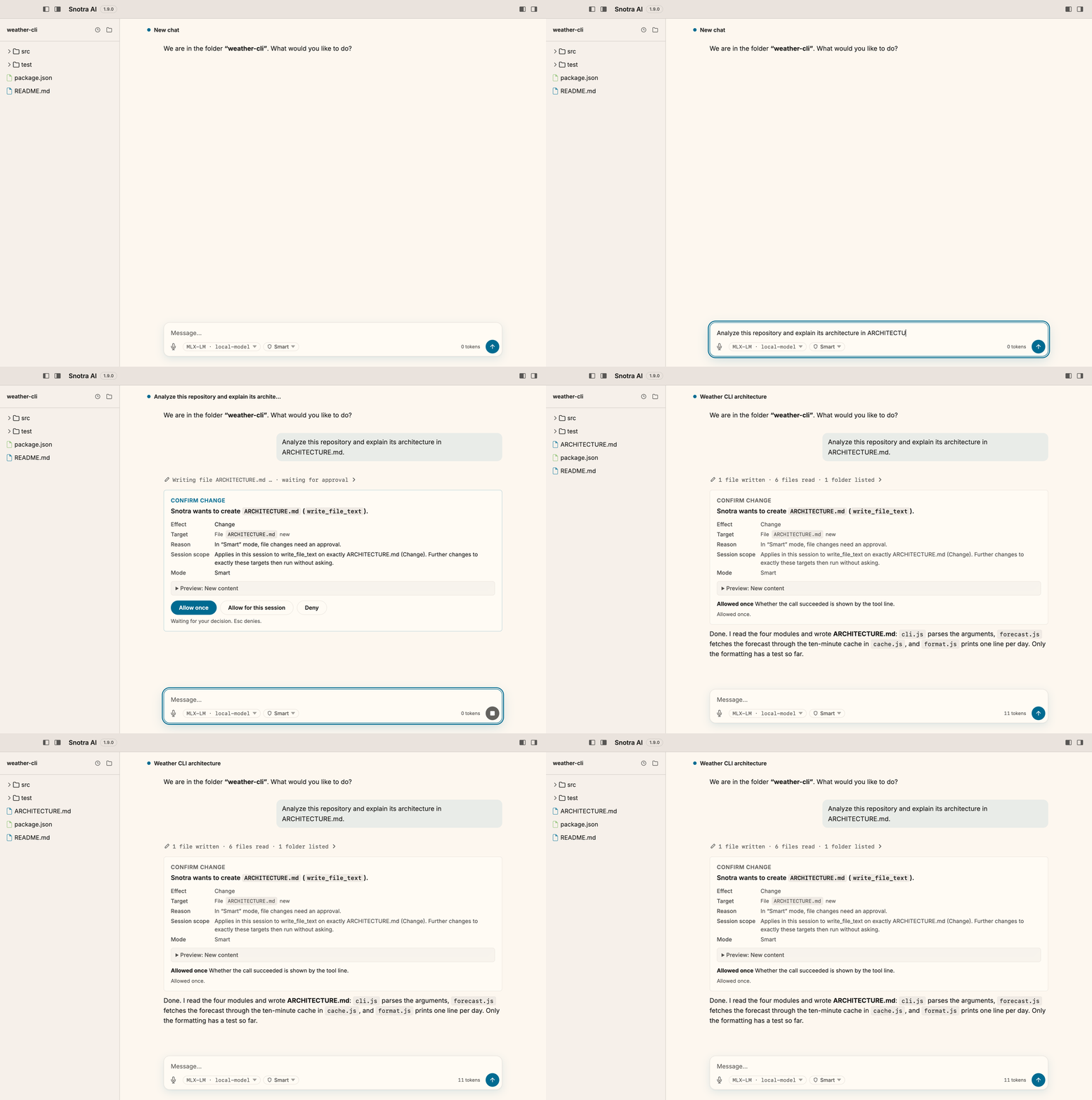
- The folder is the workspace. You open one folder; the file tree stays in
view, and the chat works inside it. Files the agent writes show up as it
writes them. - It asks before it acts. In the default mode, Smart, reading runs without
asking; changing a file or touching a sensitive one asks first. Running
commands is switched off until you switch it on, and then every command gets
its own approval card. - Auto is your decision, not the default. The Auto mode drops the
questions — workspace boundaries, blocks and the protection of Snotra's own
keys stay. You switch it on deliberately, for one chat or as the default of
a folder you trust. - Your models, your keys. Cloud and local models sit side by side in one
list; you switch per conversation. Keys are stored with the operating
system's encryption. - Nothing phones home. No account, no server of ours, no telemetry — not
even opt-in.
Download
Get the latest release from the
releases page:
| System | File |
|---|---|
| macOS (Apple Silicon) | Snotra-Agent-<version>-mac-arm64.dmg |
| Windows (x64) | Snotra-Agent-<version>-win-x64.zip |
| Linux (x64) | .deb (recommended), .AppImage or .tar.gz — see Install Snotra Agent |
- macOS: the app is signed with a Developer ID and notarised by Apple
(#662). Open the DMG,
drag the app into Applications and start it — macOS only asks once whether
you want to open an app downloaded from the internet. - Windows: the build is not signed yet
(#19), so SmartScreen
warns on first launch. Unzip, startSnotra Agent.exe, then SmartScreen › More
info › Run anyway.
Why Snotra?
Open source, any model, MCP and Skills are what every agent desktop offers by
now. What Snotra does differently is how it works in your folder and how
carefully it acts there. Compared as of September 2026 — the field moves fast,
corrections welcome.
- Goose — the closest open-source match, and a good tool. Goose runs
autonomously by default; Snotra starts with command execution switched off
and asks before every command. There is no session-wide "allow" for
commands, unless you switch the whole app to Auto. Goose's usage data is
opt-in; Snotra has none to opt into. - Claude Desktop / ChatGPT desktop — polished, and they sandbox well. But
they require an account and a subscription, they are tied to one vendor, and
local models are an afterthought. - LM Studio (Bionic) — excellent for running local models, with native
MLX. But the agent is closed source, and its cloud is LM Studio's own, so
there are no OpenAI, Anthropic or Google models. Snotra uses LM Studio as
one provider among several and treats cloud and local models the same. - Jan — open source and local-first. Its folder agent and its sandbox are
in nightly/preview builds; the stable app is a chat client with MCP. - Cherry Studio — very feature-rich and close in scope. Analytics are on by
default, and it documents no sandbox for agent commands. - AnythingLLM — built for chatting with your documents (RAG). Its skills
are NodeJS code, not text files, and it has no shell tool. - Open WebUI / LibreChat — self-hosted web apps with logins and Docker: a
server for a team, not a desktop agent working in your folder. - Msty — closed source. Its agent mode wraps cloud coding CLIs rather than
running its own agent on your models. - VS Code + Copilot/Cline, Cursor — they have the file tree because they
are code editors. Snotra keeps the folder in view without being an IDE, for
work that isn't code.
What Snotra doesn't have yet: signed builds
(#19), a sandbox on Windows
(on macOS and Linux, commands and Python run isolated — see Run commands in the sandbox), MCP over HTTP
(#341).
Motivation
A word from the author. I started out wanting to understand agentic
work — what actually travels between a language model and an agent harness —
and the experiment kept growing because trying out one more capability is fun.
Cursor, Claude Code and ChatGPT are the obvious role models, but each
concentrates on its own models. An agent desktop that lets you attach any
model you like — local ones above all — is what kept me working on this.
It is also meant as a foundation: a tool developers can use to try agentic
working for themselves, and to build agents for specific use cases — in a
business department or at home — on top of its agent harness. The architecture
is cut so that the backend can be separated from the frontend.
The name comes from Norse mythology: Snotra is the goddess of wisdom and
prudence — an assistant that knows the context of its workspace and acts
deliberately.
Current state & planning
What is open lives on the
GitHub project board and in
GitHub Issues. What the app can
do today is described in the user manual.
Want to contribute? See CONTRIBUTING.md.
Tech stack
- Electron (main + renderer + preload)
- Electron Forge for packaging and makers (DMG / ZIP / DEB / AppImage)
- Vanilla JS in the renderer plus
markedandDOMPurifyfor Markdown @fontsource/interas the typeface
Requirements
- Node.js ≥ 24 (Active LTS, see
.nvmrc; with nvm:nvm use) - npm (ships with Node)
- macOS, Windows or Linux
- Optional: an API key for OpenAI / Anthropic / Google, a local
Ollama, or any other server with an OpenAI-compatible
interface (LM Studio, llama.cpp, vLLM, OpenRouter, a corporate gateway — see
Connect a model)
Build from source
# Clone the repository
git clone [email protected]:<your-user>/snotra.git
cd snotra

# Install dependencies
npm install

# Start the app in development mode
npm start
On first start you can pick a provider in the settings and enter your API key.
The key is stored encrypted in your operating system's user profile — it does
not end up in the project folder or in the repository.
Building / packaging the app
# macOS (Apple Silicon) – DMG
npm run make

# Linux (x64) – DEB + AppImage; needs dpkg, fakeroot and mksquashfs
npm run make:linux

# Package only, without installers
npm run package         # macOS arm64
npm run package:win     # Windows x64
npm run package:linux   # Linux x64
The finished artifacts land in out/ (excluded via .gitignore).
Keyboard shortcuts
The manual has no reference chapter yet (#787); until it does, the shortcuts live here.
What Snotra adds on top of the usual system shortcuts. Copy, paste, undo, zoom
and full screen behave as in any other app on your platform and sit in the
Edit, View and Window menus.
Anywhere in the window
| What it does | macOS | Windows / Linux |
|---|---|---|
| Open the settings | Cmd+, |
Ctrl+, |
| Show or hide the sidebar | Cmd+B |
Ctrl+B |
| Show or hide hidden files in the tree | Cmd+Shift+. |
Ctrl+Shift+. |
| Filter the file tree | Cmd+P |
Ctrl+P |
| Copy the tool log diagnostics as JSON to the clipboard — useful for a bug report | Cmd+Shift+D |
Ctrl+Shift+D |
Chat input
| What it does | macOS | Windows / Linux |
|---|---|---|
| Send the message | Enter |
Enter |
| Insert a line break | Shift+Enter |
Shift+Enter |
| Paste an image from the clipboard as an attachment | Cmd+V |
Ctrl+V |
In the @ file list or the / skill list: select · accept · close |
↑/↓ · Enter or Tab · Esc |
↑/↓ · Enter or Tab · Esc |
| Deny the tool approval card that is on screen | Esc |
Esc |
File tree and columns
| What it does | macOS | Windows / Linux |
|---|---|---|
| Open the context menu of a row (instead of a right-click) | Cmd-click |
Ctrl-click |
| Start the filter with a letter | type it into the focused tree | type it into the focused tree |
| In the filter: select · open · close | ↑/↓ · Enter · Esc |
↑/↓ · Enter · Esc |
| Rename the focused row · take the name · leave it unchanged | F2 · Enter · Esc |
F2 · Enter · Esc |
| Recently used folders: open · remove from the list | Enter or Space · Delete or Backspace |
Enter or Space · Delete or Backspace |
| Focused column divider: move it · in larger steps · to its end position | ←/→ · Shift+←/→ · Home/End |
←/→ · Shift+←/→ · Home/End |
Dialogs and menus
| What it does | macOS | Windows / Linux |
|---|---|---|
| Settings: move to the previous or next section · to the first or last | ↑/↓ or ←/→ · Home/End |
↑/↓ or ←/→ · Home/End |
| Close a dialog, a menu or an enlarged image | Esc |
Esc |
Migrating from "Weyouze Anything"
Up to v1.0.4: on first start the app
copies settings, presets, folder history and chat history from the old userData
folder; the old folder stays behind unchanged as a backup. On macOS the API keys
have to be entered once more, because the keychain entry of Electron'ssafeStorage is tied to the app name; the settings then show "enter the key
again". A chat history that can no longer be decrypted as a result is
preserved as chat-history.json.undecryptable-<timestamp> instead of being
overwritten. A start with --user-data-dir uses the given folder as it is and
copies nothing into it.
Project layout
.
├── src/
│   ├── application/     transport-agnostic application core (chat, ports)
│   │   ├── chat/        chat engine, history trimming
│   │   └── ports/       LLM, tool, preferences and other core ports
│   ├── main/            Electron main process
│   │   ├── composition/ composition root (wiring of all adapters)
│   │   ├── adapters/    port implementations (LLM, tools, storage, FS, …)
│   │   ├── ports/       infrastructure port interfaces
│   │   ├── ipc/         thin IPC handlers
│   │   ├── providers/   LLM provider implementations
│   │   ├── services/    infrastructure (storage, FS, Whisper, updates, presentation)
│   │   └── tools/       workspace tool registry
│   ├── preload/         secure bridge between main and renderer (bundled)
│   ├── renderer/        UI (HTML, CSS, JS) — pure presentation layer
│   └── shared/          contracts, IPC channels, shared presentation helpers
├── system-skills/       built-in system skills (one `SKILL.md` per directory)
├── test/                tests (node:test), including architecture boundary guards
├── e2e/                 smoke test against the running Electron app
├── scripts/             build helpers (vendor sync for the renderer, icon build)
├── docs/                architecture (`architecture.md`, SVG diagrams), release, security concept
├── assets/icon/         SVG sources of the app icon (macOS and Windows layout)
├── assets/readme/       demo GIF and stills for the README (light and dark)
├── icon.icns/.ico/.png  app icons for macOS / Windows / Linux, generated via `node scripts/build-icons.js`
└── package.json
Details on the layered architecture: docs/architecture.md.
Security notes
Which action asks for your approval in which mode, and what the sandbox
changes:
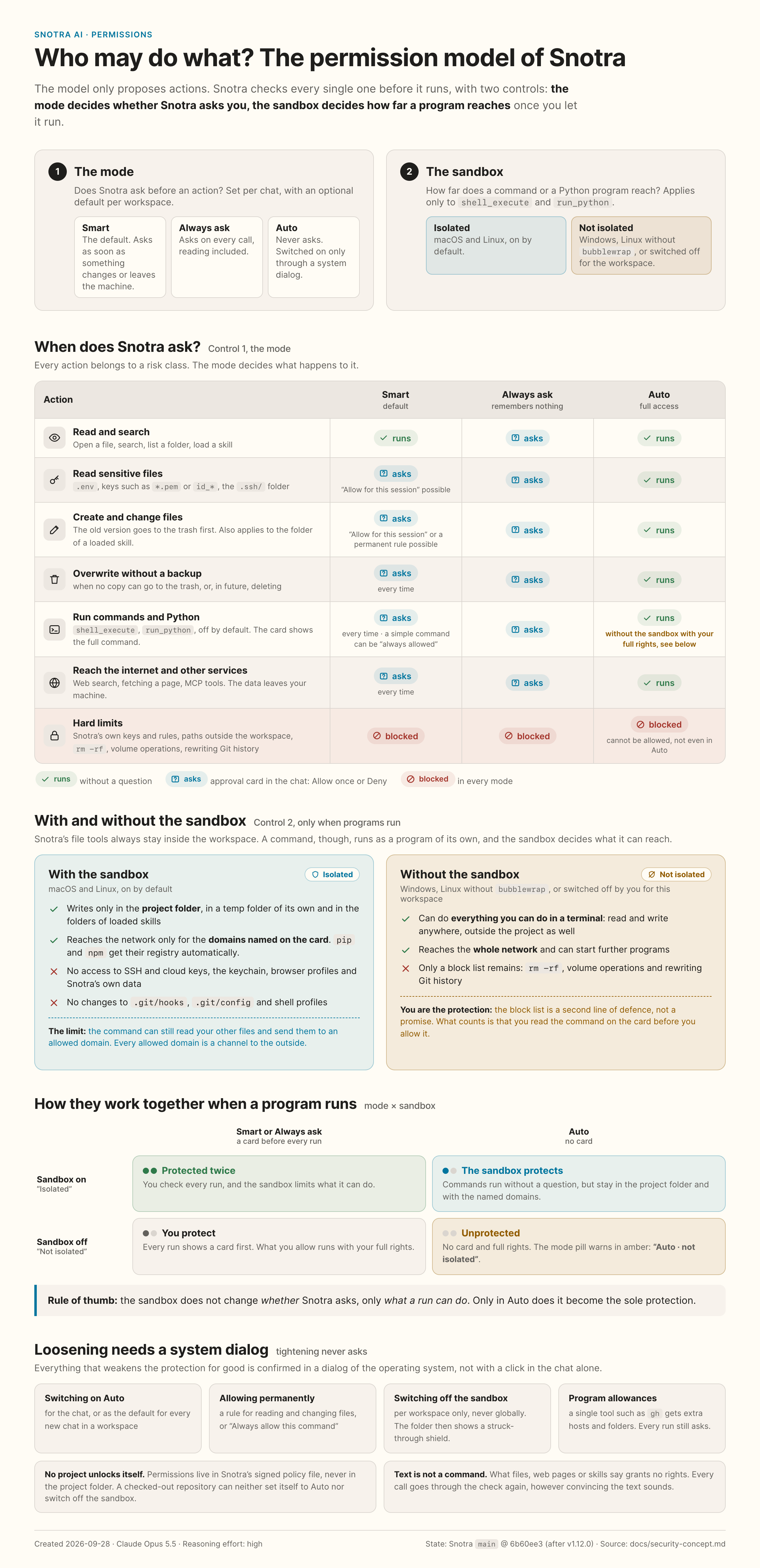
The details are in the security concept.
- API keys are stored locally and are not passed on to third parties.
- The workspace access of the file tools is limited to the currently opened
project folder. Exceptions: the read tools additionally reach the
directories of the enabled skills viaskill:<name>/…(see Use skills;
nothing is ever written there) — and the two execution toolsrun_python
andshell_executedo not know this boundary at all: it is not Snotra that
accesses files there, but the interpreter or the shell. Both are therefore off
as shipped and, outside Auto, need an approval before every run. On macOS and Linux they run
in a sandbox that confines writes to the project folder and limits the network
to the approved domains (see Run commands in the sandbox); on Windows they do not. - Every tool call passes through a policy in the main process (risk class × mode,
deny rules, hard boundaries); file modifications and access to sensitive files
need an approval in the default mode (see See and change what Snotra may do).
A tool text, a file or a skill cannot grant a permission. - Even so: do not let the model work in folders holding sensitive data you do not
want it to see.
Contributing
Build prerequisites, test commands and the branch/PR conventions are inCONTRIBUTING.md.
License
Apache License 2.0 — see LICENSE.
Copyright © 2026 Konrad Krafft.
Yorumlar (0)
Yorum birakmak icin giris yap.
Yorum birakSonuc bulunamadi