claude-meter
Health Uyari
- License — License: MIT
- Description — Repository has a description
- Active repo — Last push 0 days ago
- Low visibility — Only 5 GitHub stars
Code Gecti
- Code scan — Scanned 12 files during light audit, no dangerous patterns found
Permissions Gecti
- Permissions — No dangerous permissions requested
Bu listing icin henuz AI raporu yok.
Real-time Claude AI subscription usage monitor for Windows — ultra-lightweight Rust system tray app (~3 MB RAM)

⚡ ClaudeMeter

Real-time Claude AI usage monitor for Windows and macOS — track your subscription limits from the tray or menu bar
Ultra-lightweight Rust app that monitors Claude Pro & Max usage caps in real time.
See your 5-hour session, weekly limits, Sonnet & Opus quotas — without opening a browser.
🦀 Purposefully built in Rust — uses under 10 MB RAM. Less than Notepad.






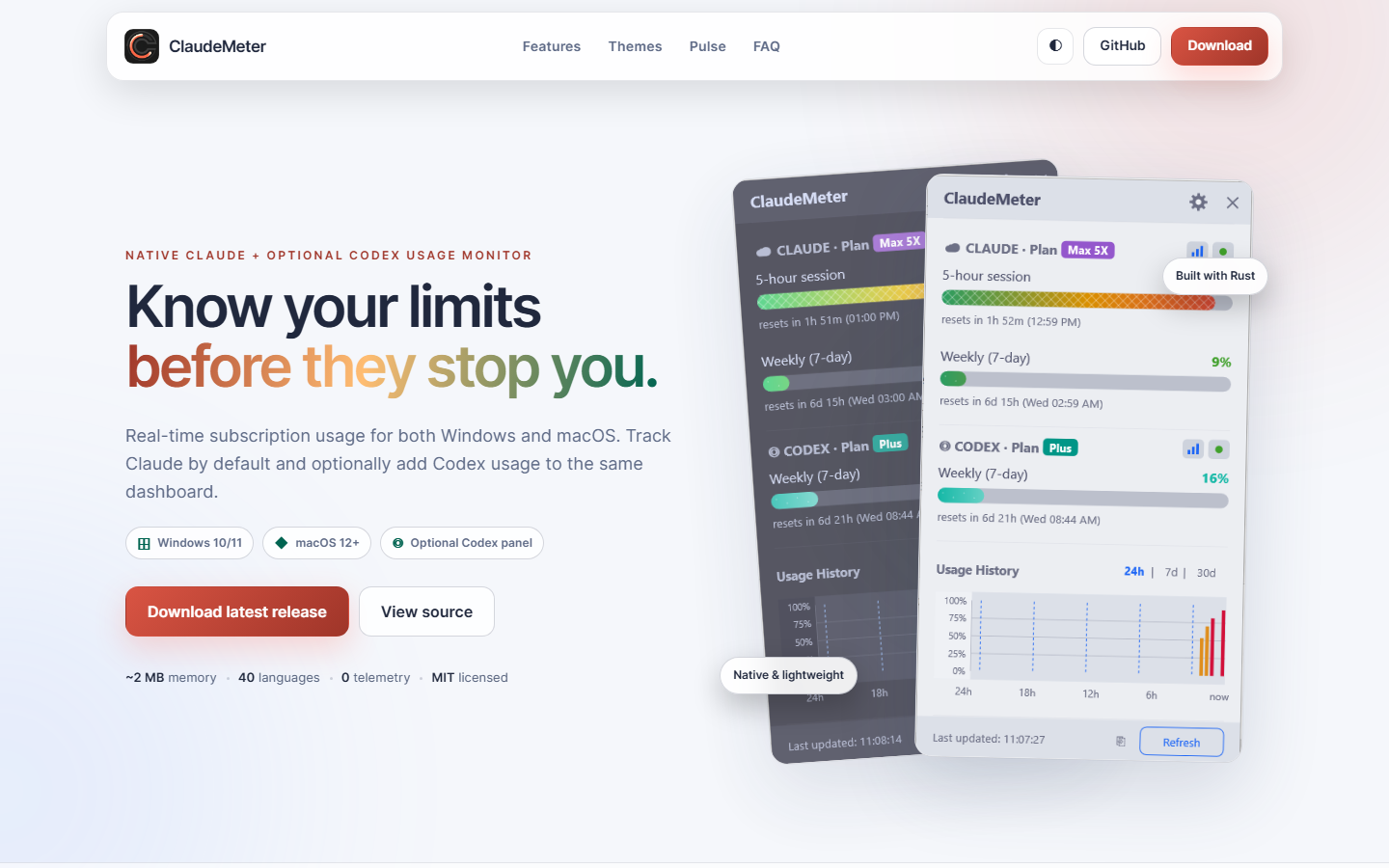
🌐 Open the ClaudeMeter project website →
Explore the dashboard, downloads, themes, Codex support, and live project metrics.
Website · Download · Features · Usage · FAQ
🎬 See it in action — 56 seconds
https://github.com/user-attachments/assets/6961e5ca-47b8-4395-bb64-b1949adead98
▶ Watch the promo video — if the player above doesn't render in your Markdown viewer
📊 Project Pulse
 Approximate page loads |
 Community stars |
 Current stable version |
 Repository forks |
 Reported issues |
 Complete localizations |
⭐ Finding ClaudeMeter useful? Star the repository — it helps more people discover it.
README loads count badge requests since this counter was added, not unique visitors. Caching, bots, repeat visits, and service checks can affect the number. The separate project website keeps its own long-term page-load history.
🌐 Project Website
Visit klivak.github.io/claude-meter for a polished, responsive overview of ClaudeMeter:
- Clear Windows 10/11 and macOS 12+ support with direct release downloads
- Claude usage by default plus the optional Codex panel in the same dashboard
- Interactive Light/Dark website appearance and previews of all four app themes
- Live GitHub stars, latest release, open issues, and a separate privacy-friendly page-load history
- Automatic GitHub Pages deployment and daily public-metric refreshes through GitHub Actions

☕ Buy me a coffee if this project helped you
🤔 Why ClaudeMeter?
Tired of hitting Claude AI rate limits mid-conversation? ClaudeMeter sits quietly in your Windows system tray or macOS menu bar and shows you exactly how much of your Anthropic subscription quota remains — 5-hour session utilization, weekly usage caps, Sonnet and Opus limits — all without opening a browser tab or checking the Claude dashboard manually.
🦀 Why Rust?
ClaudeMeter is purposefully built in Rust to be as lightweight as physically possible. While most similar tools use Electron (which bundles an entire Chromium browser) or Python (which needs a runtime), ClaudeMeter compiles to native Windows and macOS binaries with no bundled browser runtime.
| App | RAM Usage | Binary Size | Dependencies |
|---|---|---|---|
| ClaudeMeter (Rust) | ~2 MB | ~3 MB | None |
| Windows Notepad | ~10 MB | built-in | — |
| Electron-based tray apps | 80–150 MB | ~80 MB | Chromium |
| Python-based monitors | 25–45 MB | ~15 MB | Python runtime |
| .NET-based monitors | 15–25 MB | ~1 MB | .NET runtime |
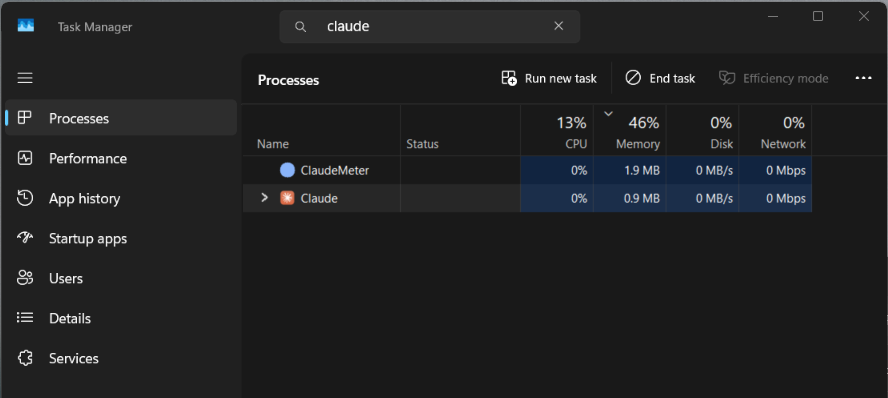
Single portable .exe on Windows and a native .app bundle on macOS — no Electron, no .NET, no Java, no Python, no Node.js. Download → run → done.
⬇ Quick Start
Step 1: Install Claude Code (one-time)
ClaudeMeter reads your Claude credentials automatically. You need Claude Code installed and logged in:
# Install Claude Code (if not already)
# Download from https://claude.ai/download

# Log in (creates OAuth token that ClaudeMeter will use)
claude
Step 2: Download & Run ClaudeMeter
Windows
- Download
claudemeter.exefrom Releases - Place it anywhere — Desktop, tools folder, USB drive (it's portable)
- Double-click to run
- Look for the colored circle icon in your system tray (bottom-right near the clock)
That's it! No configuration needed. ClaudeMeter auto-detects your plan and starts monitoring.
⚠️ Windows Defender flagged it? That's a known machine-learning false positive on unsigned Rust binaries — see Antivirus false positives for why it happens and how to verify your download is genuine in 10 seconds.
macOS
- Download
ClaudeMeter-macos-arm64.app.zipfrom Releases - Unzip it and move
ClaudeMeter.appto/Applications - Open the app; it appears as a native menu bar item
- Use the menu for Refresh Now, Open Claude Usage, Settings/config, Import/Export Config, Autostart, and Open Logs
The raw claudemeter-macos-arm64 binary is also published for CLI/agent use, but the .app.zip is the recommended macOS download.
Step 3 (Optional): Enable Auto-Start
Right-click the tray icon → check ✅ "Start with Windows"
On macOS, use the menu bar item → Enable Autostart. The app uses a LaunchAgent and starts ClaudeMeter.app from /Applications when available.
✨ Features
Claude AI Monitoring (Automatic)
| Metric | Description |
|---|---|
| 5-hour session | Rolling session utilization with countdown timer |
| 7-day weekly | Weekly usage cap with reset timer |
| 7-day Sonnet | Sonnet-specific limit (shown if applicable) |
| 7-day Opus | Opus-specific limit (Max plans only) |
| Plan badge | Color-coded badge (Pro/Max/5X/20X) with automatic detection |
| Future metrics | Any new API fields are auto-displayed |
Codex (Optional)
OpenAI does not provide a public API for checking Codex subscription usage. Instead, ClaudeMeter reads your local ~/.codex logs to show live Codex usage directly in the dashboard — a "CODEX · Plan" header with rolling-window progress bars, rendered in a distinct teal hue so they read as a different provider from Claude's bars. Codex also appears in compact mode, where every row is prefixed with CLAUDE · or CODEX · for clarity. If no Codex limit window is currently active, the panel says so and explains that usage is read from local session logs — start or continue a Codex session and it appears — alongside a direct Codex usage link. Enable the panel in Settings; a small hint reminds you to reopen the tray popup so its size refreshes.
System Tray
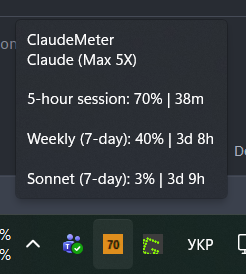
- 🔢 Dynamic % icon — shows actual utilization number (e.g. "42") with color-coded background
- ⭕ Icon styles — choose between Number (default), Ring (circular progress), Bar (vertical fill), or Pie (multi-metric pie chart) in Settings
- 🟢🟡🔴 Color coding — green (<50%), yellow (50-79%), red (>=80%), gray (no data) with transparent icon backgrounds
- ⚪ Gray when cached — if the token expired or no live poll has succeeded, the icon turns gray so a stale percentage is never shown as if it were current
- 💬 Rich tooltip — hover to see all metrics, reset times, and plan info; cached data adds a line explaining why (e.g. "Cached — token expired, run: claude login")
- 📋 Context menu — right-click for refresh, export CSV, settings, links
- 📊 Dashboard — left-click to open the detailed popup
- ⚠ Blink on critical — tray icon blinks when usage exceeds 90%
- Branded application icon — the executable, File Explorer entry, and Windows balloon notifications use the ClaudeMeter usage-gauge mark
macOS Menu Bar
- Native
NSStatusItem— shows current Claude usage directly in the macOS menu bar - Fully localized — the menu is translated into all 40 languages;
autofollows the macOS system language (AppleLocale), or pick one under Settings → Language - Settings submenu — toggle the Codex panel, model limits, extra usage, notification sound, startup notification, and login-expiry warning; cycle alert thresholds; switch language — all without editing
config.json - Threshold alerts — notifications fire once per configured threshold (50/75/90% by default) per limit and re-arm after usage drops, instead of repeating every poll
- Optional Codex panel — the same local
~/.codexsession-log source as Windows; shown after the Claude limits and still available when the Claude API is down - Weekly pace projection — where the weekly limit lands at reset if the current rate holds, with a 🔥 menu bar indicator when on track to overshoot
- Freshness state — displays whether data is live, refreshing, cached, stale, or blocked by an API error
- Manual refresh —
Refresh Nowforces a new poll instead of relying on cached data - History export — export the collected usage history to CSV or JSON straight from the menu
- Quick actions — open Claude usage, check for updates, open config, import/export config, toggle autostart, and open logs
- Portable logs — writes
claudemeter.logunder~/Library/Application Support/ClaudeMeter - Agent status file — writes
status.jsonfor the menu bar UI under~/Library/Application Support/ClaudeMeter
📊 Dashboard
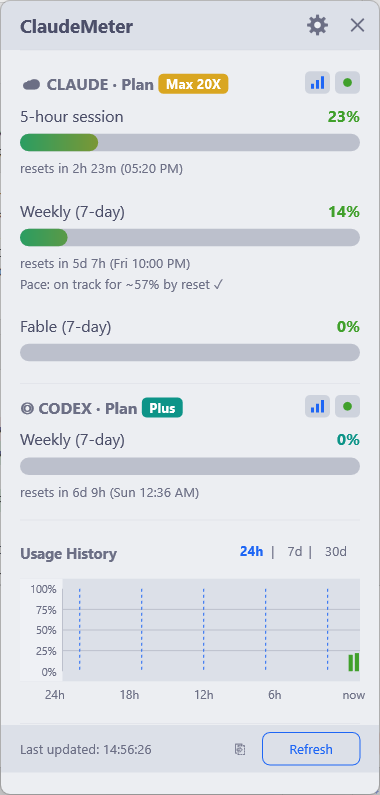
- Dashboard layouts — three modes: Minimal (single largest metric), Standard (all bars), Detailed (metrics with inline sparkline charts)
- Weekly pace projection — a line under the weekly bar showing where usage lands at reset at the current rate (✓ within budget, ⚠ at the limit, 🔥 overshooting)
- Gradient progress bars — full-spectrum green→amber→coral gradient with rate-of-change trend arrows (↑↗→↘↓)
- Easing animations — smooth ease-out progress bars with cascading staggered appearance (~60fps)
- Fade-in animation — popup appears with accelerating opacity transition
- Slide animation — smooth horizontal slide between Dashboard and Settings views
- 24-hour / 7-day / 30-day chart — usage history with toggleable time ranges, evenly spaced 0–100% Y-axis labels, session reset lines, and hover tooltips
- Provider-aware compact mode — compact rows include both Claude and enabled Codex limits with explicit provider prefixes
- Clickable plan name — click the plan name in the header to open claude.ai/settings/usage
- D2D-rendered UI — custom-drawn gear icon, close button, and checkboxes using Direct2D primitives
- Keyboard shortcuts — ESC to close, F5 to refresh
- Auto-refresh — automatically polls when data is older than 60 seconds
- Acrylic backdrop — Windows 11 translucent blur effect (falls back gracefully on Win10)
- Segoe UI Variable — uses Windows 11's variable font with automatic fallback to Segoe UI
- Show extra usage — toggle in Settings to show the extra_usage metric in the dashboard (off by default)
- Show model limits — toggle in Settings to show per-model weekly quotas (Opus, Sonnet, Fable, …) in the dashboard (on by default)
- Usage & status icon buttons — each section header shows compact "open usage" and "service status" icon buttons; toggle them with the "Usage link icons" setting
- Notification toggles — Settings exposes "Show startup notification" (silence the "Running in tray" balloon on launch) and "Show login expiry warning" (silence the
claude loginreminder) - One-click updates — clicking the "Update available" tray balloon downloads the verified Windows release, checks its SHA-256 checksum, and installs it safely after ClaudeMeter exits
- Actionable error recovery — expired or missing Claude credentials offer a one-click
claude logincopy action, while transient errors can be retried directly from the dashboard
🎨 Themes
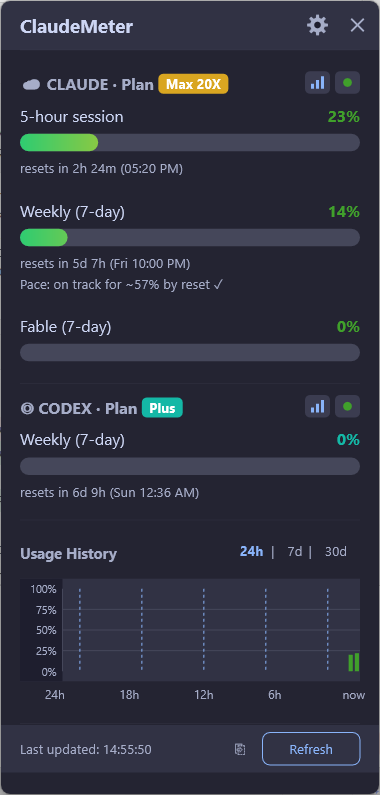
- Dark — easy on the eyes (Catppuccin Mocha palette)
- Light — for bright environments (Catppuccin Latte palette)
- Midnight — deep navy surfaces with indigo, teal, and rose accents
- Sunset — warm charcoal surfaces with coral and peach accents
- Auto (default) — follows your Windows system theme automatically
- Extensible palettes — surfaces, accents, thresholds, gradients, DWM chrome, and the mini widget stay synchronized per theme
| Light |
Dark |
Sunset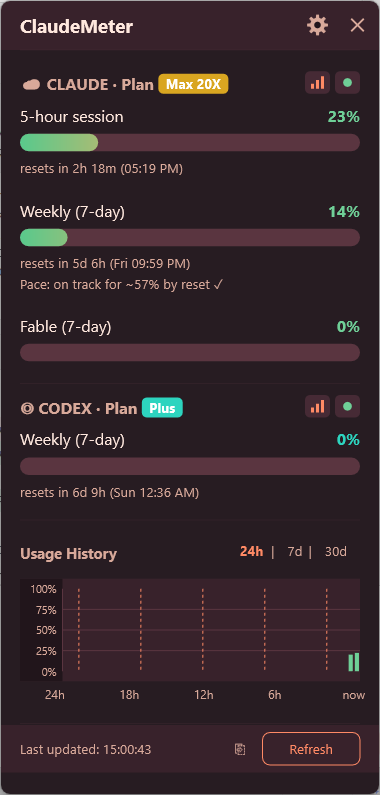 |
Midnight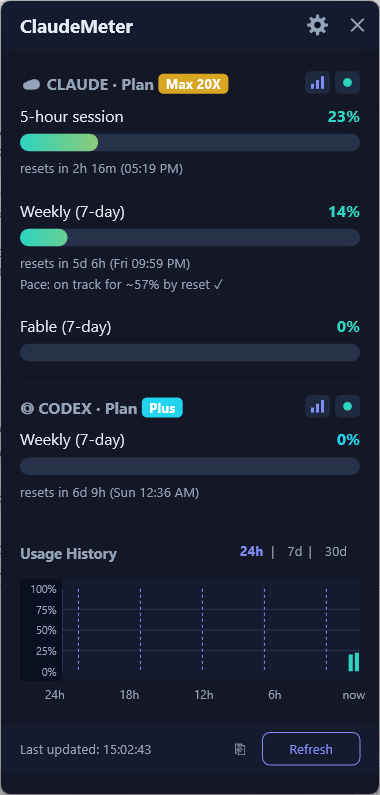 |
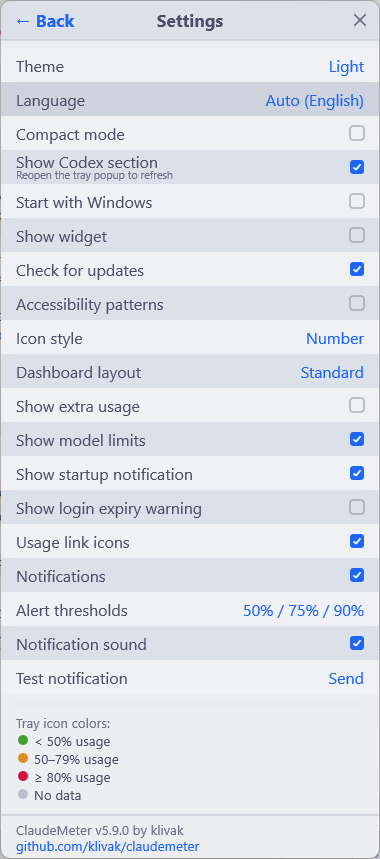
Settings
🌐 Languages (40)
- 🇬🇧 English (default)
- 🇺🇦 Українська
- 🇪🇸 Español
- 🇩🇪 Deutsch
- 🇫🇷 Français
- 🇵🇹 Português
- 🇮🇹 Italiano
- 🇮🇳 हिन्दी
- 🇹🇷 Türkçe
- 🇳🇱 Nederlands
- 🇵🇱 Polski
- 🇻🇳 Tiếng Việt
- 🇷🇺 Русский
- 🇹🇭 ภาษาไทย
- 🇮🇩 Bahasa Indonesia
- 🇸🇪 Svenska
- 🇨🇿 Čeština
- 🇯🇵 日本語
- 🇰🇷 한국어
- 🇨🇳 简体中文
- 🇧🇬 Български
- 🇬🇷 Ελληνικά
- 🇮🇱 עברית
- 🇲🇾 Bahasa Melayu
- 🇳🇴 Norsk
- 🇸🇦 العربية
- 🇷🇴 Română
- 🇩🇰 Dansk
- 🇫🇮 Suomi
- 🇭🇺 Magyar
- 🇵🇭 Filipino
- 🇧🇩 বাংলা
- 🇮🇷 فارسی
- 🇸🇰 Slovenčina
- 🇷🇸 Српски
- 🇪🇸 Català
- 🇭🇷 Hrvatski
- 🇪🇪 Eesti
- 🇱🇻 Latviešu
- 🇱🇹 Lietuvių
🧩 Mini Widget
- Floating PiP window — always-on-top 52x28px window showing current usage %
- Theme-aware colors — threshold colors follow the selected theme palette and custom color overrides
- Draggable — drag anywhere on screen
- Click to open — click the widget to open the full dashboard
- Disabled by default — enable in Settings → "Show widget"
♿ Accessibility
- Colorblind patterns — progress bars show pattern overlays: dots (green), diagonal stripes (yellow), cross-hatch (red)
- Disabled by default — enable in Settings → "Accessibility patterns"
🔄 Auto-Update
- Checks GitHub Releases on startup for newer versions
- Balloon notification — shows a tray balloon if a new version is available
- Enabled by default — toggle in Settings → "Check for updates"
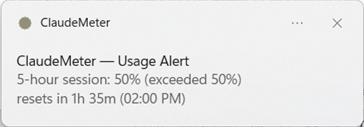
🔔 Smart Notifications
- Windows toast notifications at configurable thresholds (50%, 75%, 90% by default)
- Claude and Codex coverage — threshold alerts fire for both Claude usage limits and the Codex rolling 5-hour and weekly windows (when the Codex panel is enabled), each tracked independently. Codex alerts refresh from local logs on every poll, so they fire even when the Claude API is offline
- Localized alerts — the metric label in each alert is translated to the selected language, not just the alert wording
- Aggregated alerts — when multiple thresholds are crossed simultaneously, a single batched notification is shown instead of separate alerts
- Informative alerts — shows metric name, current %, exceeded threshold, and reset countdown
- Sound alerts — system notification sound (configurable on/off)
- Notification settings — enable/disable alerts, sound, and cycle alert presets such as 75% / 90% / 100% in Settings
- Test notification — use Settings → "Test notification" to verify the Windows balloon and optional sound
- Startup notification — confirmation that ClaudeMeter is running in the tray
- Branded notification icon — Windows balloons use the embedded ClaudeMeter app icon instead of a generic placeholder
- Deduplication — won't spam; resets when usage drops below threshold
📤 Data Export
- CSV export — right-click tray → "Export History (CSV)" to save full usage history
- JSON export — right-click tray → "Export History (JSON)" to save full usage history as JSON
- SQLite database — 30-day rolling history stored next to the .exe
⚙ Smart Polling
- Adaptive interval — polls every 120–300s normally; tightens to 120–180s in the last 15 minutes before each hour (when limits are about to reset)
- Randomized timing — each poll interval is randomly chosen to avoid predictable patterns
- Idle detection — pauses API polling when PC is idle for 5+ minutes
- Exponential backoff — on API errors, interval doubles (2x, 4x, 8x) up to 10 min cap
- Rate-limit handling — graceful 429 response parsing with retry-after
- Sleep/wake progressive retry — after resuming from sleep/hibernate, retries at 2s, 5s, 15s, 30s intervals until a successful response
- Network change detection — detects when network connectivity is restored and triggers an immediate poll
- Credential file watcher — monitors
~/.claude/for changes and re-polls immediately when credentials are updated - Web API fallback — optional fallback to claude.ai web API when OAuth is unavailable (configure
web_api_session_keyandweb_api_org_id) - Config validation — sanitizes all values on load (polling interval 30-600s, thresholds 1-100%)
⚙ Configuration
config.json is auto-created on first launch:
| Platform | Default location |
|---|---|
| Windows | Next to claudemeter.exe |
| macOS | ~/Library/Application Support/ClaudeMeter/config.json |
{
  "version": "1.0.0",
  "polling_interval_seconds": 120,
  "notifications": {
    "enabled": true,
    "thresholds": [50, 75, 90],
    "sound": true
  },
  "autostart": false,
  "compact_mode": false,
  "theme": "auto",
  "language": "auto",
  "show_chatgpt_section": false,
  "show_widget": false,
  "check_updates": true,
  "accessibility_patterns": false,
  "tray_icon_style": "number",
  "dashboard_layout": "standard",
  "show_extra_usage": false,
  "show_model_limits": true,
  "show_usage_links": true,
  "custom_colors": {},
  "quiet_hours": {
    "enabled": false,
    "start": "22:00",
    "end": "08:00"
  },
  "web_api_session_key": null,
  "web_api_org_id": null
}
| Field | Default | Range | Description |
|---|---|---|---|
polling_interval_seconds |
120 |
30–600 | How often to check usage (validated on load) |
notifications.enabled |
true |
— | Enable/disable toast notifications |
notifications.thresholds |
[50,75,90] |
1–100 | Usage % levels that trigger alerts; cycle presets in Settings |
notifications.sound |
true |
— | Play system sound with notifications |
theme |
"auto" |
auto/dark/light/midnight/sunset | Color theme |
language |
"auto" |
auto/en/uk/.../lt | UI language (40 languages) |
compact_mode |
false |
— | Compact dashboard layout |
show_chatgpt_section |
false |
— | Show the Codex usage panel (legacy config key retained for compatibility) |
autostart |
false |
— | Start with Windows or macOS LaunchAgent |
show_widget |
false |
— | Show floating mini-widget |
check_updates |
true |
— | Check for updates on startup and offer verified one-click installation |
tray_icon_style |
"number" |
number/ring/bar/pie | Tray icon style: number (%), ring (circular), bar (vertical), pie (multi-metric) |
accessibility_patterns |
false |
— | Colorblind overlay patterns on progress bars |
dashboard_layout |
"standard" |
minimal/standard/detailed | Dashboard layout mode |
show_extra_usage |
false |
— | Show extra_usage metric in dashboard |
show_model_limits |
true |
— | Show per-model weekly quotas (Opus, Sonnet, Fable, …) |
show_usage_links |
true |
— | Show usage/status icon buttons in section headers |
custom_colors |
{} |
hex strings | Override theme colors (e.g. {"green": "#00ff00"}) |
quiet_hours.enabled |
false |
— | Suppress notifications during quiet hours |
quiet_hours.start |
"22:00" |
HH:MM | Quiet hours start time |
quiet_hours.end |
"08:00" |
HH:MM | Quiet hours end time |
web_api_session_key |
null |
string | Session key for claude.ai web API fallback |
web_api_org_id |
null |
string | Organization ID for claude.ai web API fallback |
⌨ Keyboard Shortcuts
| Key | Action |
|---|---|
| ESC | Close dashboard popup |
| F5 | Refresh usage data |
🔨 Building from Source
Windows
git clone https://github.com/klivak/claudemeter.git
cd claudemeter
cargo build --release
# Output: target/release/claudemeter.exe (~3 MB)
Requirements: Rust 1.75+ and Windows SDK (included with Visual Studio Build Tools).
Enable the repository pre-commit hook to format Rust sources automatically:
scripts\install-git-hooks.cmd
macOS
git clone https://github.com/klivak/claudemeter.git
cd claudemeter
sh scripts/build-macos-app.sh
# Output:
# target/aarch64-apple-darwin/release/ClaudeMeter.app
# target/aarch64-apple-darwin/release/ClaudeMeter-macos-arm64.app.zip
# target/aarch64-apple-darwin/release/claudemeter-macos-arm64
Requirements: Rust stable, Xcode Command Line Tools, Swift compiler, and macOS 12+.
🔑 How Authentication Works
ClaudeMeter does not ask for your password or API key. It reuses the OAuth token that Claude Code already stores on your machine.
Token lookup order:
| # | Location | Used by |
|---|---|---|
| 1 | ~/.claude/.credentials.json |
Claude Code v2.x+ on Windows and Linux |
| 2 | Windows Credential Manager (Claude Code-credentials) |
Claude Code v1.x on Windows (legacy) |
| 3 | macOS Keychain (Claude Code-credentials) |
Claude Code on macOS |
When you run claude and log in via the browser, Claude Code saves an OAuth token to ~/.claude/.credentials.json (or the platform credential store on Windows/macOS). ClaudeMeter reads it to authenticate with the Anthropic Usage API — no extra setup needed. On macOS the first read may show a Keychain access prompt — click Always Allow.
What's stored in the file:
{
  "claudeAiOauth": {
    "accessToken": "sk-ant-oat01-...",
    "refreshToken": "sk-ant-ort01-...",
    "expiresAt": 1772467364905,
    "subscriptionType": "max"
  }
}
ClaudeMeter uses accessToken to fetch your usage data and subscriptionType to display your plan (Pro/Max). It never modifies this file.
Troubleshooting: If ClaudeMeter shows "Credentials not found", run
claudein a terminal and log in. Then click Refresh in ClaudeMeter. On macOS, use Refresh Now from the menu bar item and check Open Logs if the status remains cached or stale.
🛡 Antivirus False Positives & Verifying Your Download
Occasionally Windows Defender (or another antivirus) may quarantine claudemeter.exe with a
machine-learning verdict such as Trojan:Win32/Bearfoos.B!ml. This is a false positive. The!ml suffix means the verdict comes from a machine-learning heuristic, not from an actual malware
signature match — and heuristic models change with definition updates, which is why a binary that
ran fine for days can suddenly get flagged.
Why it happens
ClaudeMeter is a small, unsigned native binary that legitimately does several things ML
classifiers associate with malware:
- Reads the Windows Credential Manager (to find your existing Claude Code OAuth token)
- Makes HTTPS requests (to
api.anthropic.com— nowhere else) - Writes a registry auto-start entry (only if you enable "Start with Windows")
- Launches PowerShell (to show toast notifications)
- Can download and replace its own
.exe(the one-click updater, with SHA-256 verification)
Each action is a documented feature with open source behind it, but the combination matches a
"trojan-like" profile for heuristics. Code signing would largely fix this and is being evaluated;
until then, verify your download as below.
Verify your download (10 seconds)
Every release ships a claudemeter.exe.sha256 checksum file generated on GitHub's CI servers
from the same build — the binary never touches a developer machine. Compare hashes:
Windows (PowerShell):
# Hash of the file you downloaded
Get-FileHash .\claudemeter.exe -Algorithm SHA256

# Expected hash — from the same GitHub release page
Get-Content .\claudemeter.exe.sha256
macOS / Linux:
shasum -a 256 -c claudemeter.exe.sha256
If the hashes match, your file is byte-for-byte the one built publicly by
GitHub Actions from the
open source code. If they don't match — delete the
file and re-download from the official Releases
page only.
You can also paste the hash into VirusTotal to see the full
multi-engine scan for that exact build.
If Defender quarantined it
- Open Windows Security → Virus & threat protection → Protection history
- Find the ClaudeMeter entry → Actions → Restore (or Allow)
- Optionally add the ClaudeMeter folder under Manage settings → Exclusions so future updates
aren't re-flagged - (Helps everyone!) Report the false positive to Microsoft at
microsoft.com/wdsi/filesubmission —
verdicts are usually corrected within 1–3 days and the fix reaches all users via the cloud
❓ FAQ
Q: Does it work without Claude Code installed?
A: ClaudeMeter launches but shows a "Credentials not found" message with a link to claude.ai. You need Claude Code logged in so ClaudeMeter can read the OAuth token from ~/.claude/.credentials.json (or the Windows Credential Manager / macOS Keychain).
Q: How much RAM does it really use?
A: Typically 3–8 MB. Built in Rust with native Win32 API — no Electron, no browser engine.
Q: Is it safe? Does it send my data anywhere?
A: ClaudeMeter is fully open source. It only communicates with api.anthropic.com to fetch YOUR usage data using YOUR existing OAuth token. Zero telemetry. Every release binary is automatically scanned by VirusTotal (60+ antivirus engines) — check the scan link in each release.
Q: My antivirus says it's a trojan — is it?
A: No — it's a machine-learning false positive common for small unsigned Rust binaries. See Antivirus false positives & verifying your download for the explanation, a 10-second SHA-256 verification, and how to restore the file from quarantine.
Q: How does Codex tracking work?
A: ClaudeMeter reads Codex CLI session logs from ~/.codex; OpenAI does not expose subscription usage through a public API.
Q: How do I check my Claude usage limits?
A: Just run ClaudeMeter — it reads your Claude Code OAuth token and shows all your limits (5-hour session, weekly cap, Sonnet/Opus quotas) in a system tray popup. No manual checking needed.
Q: Does it work with Claude Pro, Max 5x, and Max 20x plans?
A: Yes. ClaudeMeter auto-detects your plan tier and displays the correct limits for Pro, Max, Max 5x, and Max 20x subscriptions.
Q: What is the Claude 5-hour session limit?
A: Claude enforces a rolling 5-hour usage window. ClaudeMeter shows your current utilization percentage and a countdown to when it resets.
Q: Can I run ClaudeMeter from a USB drive?
A: On Windows, yes. It's a single portable .exe with zero dependencies. On macOS, use the .app bundle for the menu bar UI or the raw claudemeter-macos-arm64 binary for CLI/agent use.
Q: Does the macOS version have a real menu bar UI?
A: Yes. Starting with v4.0.1, ClaudeMeter ships a native AppKit menu bar app with usage %, freshness status, force refresh, Claude link, config import/export, autostart toggle, update check, and log access.
Q: How do I know if the value is cached?
A: On macOS, the menu shows freshness state such as Live, seconds/minutes old, cached/no data, refreshing, or API error. On Windows, use the tray refresh/dashboard behavior and settings to force a refresh.
Q: Does it support multiple languages?
A: Yes — 40 languages: English, Ukrainian, Spanish, German, French, Portuguese, Italian, Hindi, Turkish, Dutch, Polish, Vietnamese, Russian, Thai, Indonesian, Swedish, Czech, Japanese, Korean, Chinese (Simplified), Bulgarian, Greek, Hebrew, Malay, Norwegian, Arabic, Romanian, Danish, Finnish, Hungarian, Filipino, Bengali, Persian, Slovak, Serbian, Catalan, Croatian, Estonian, Latvian, and Lithuanian.
📄 License
MIT — free for personal and commercial use.
🦀 Purposefully built in Rust for minimal footprint and maximum reliability
3–8 MB RAM · Single .exe · Zero dependencies · Open source
Made by klivak
Claude is a trademark of Anthropic. ChatGPT is a trademark of OpenAI.
ClaudeMeter is an independent open-source project with no official affiliation.
Yorumlar (0)
Yorum birakmak icin giris yap.
Yorum birakSonuc bulunamadi