Graphium
Health Warn
- License — License: Apache-2.0
- Description — Repository has a description
- Active repo — Last push 0 days ago
- Low visibility — Only 5 GitHub stars
Code Warn
- process.env — Environment variable access in .github/scripts/security-scan.mjs
- network request — Outbound network request in .github/scripts/security-scan.mjs
Permissions Pass
- Permissions — No dangerous permissions requested
No AI report is available for this listing yet.
Your memory, for every AI. A local-first notebook that Claude, ChatGPT and other MCP clients can read and write, with every line traceable to its source (PROV-DM).

Graphium
Graphium · Your records in one place, readable by AI
Wake your sleeping records. Make them ready for AI.
Photos of paper notes, recordings of meetings, pages you read on the web, old files. Put them in one place and they become text you can search later. What you record from now on goes into the same place, so it never has to fall asleep. Up to here, it works without AI. When you start using AI, it reads the same records as they are and answers with the source attached.
English | 日本語


Prefer to watch first? One-minute video (no sound): a folder of records goes in, topics come out, and the AI answers from your own notes.
Or open the sample notebook in your browser. Twelve bread-baking notes, the topics an AI built from them, and a recorded chat. No AI connection needed.






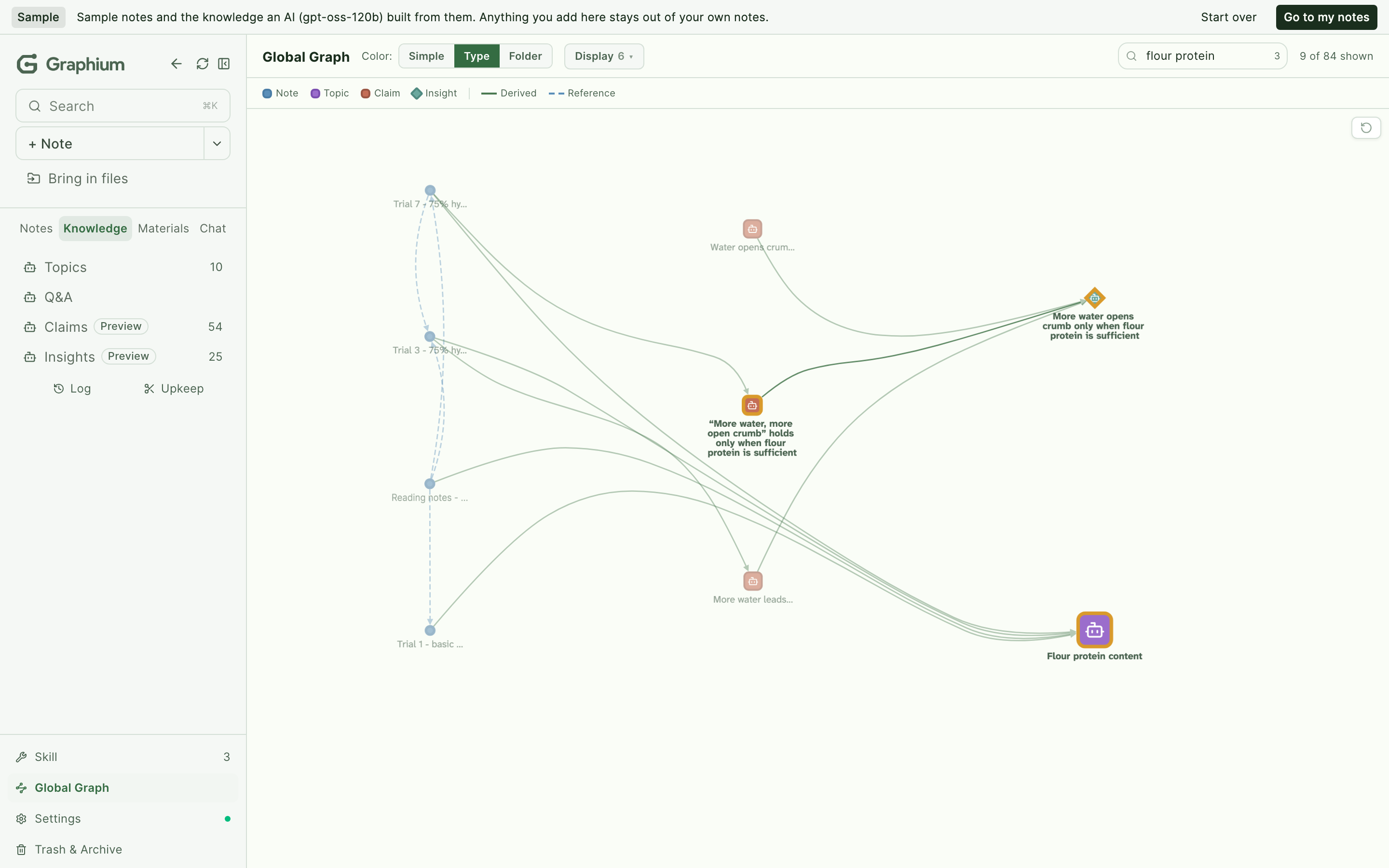
Graphium is a personal open-source project that puts scattered records in one place, turns them into text, and makes them searchable. It combines Zettelkasten-style atomic note-taking with PROV-DM, a W3C provenance standard. The aim is a notebook where every claim, including the ones an AI hands you, can be traced back to the notes and sources that justify it.
How it works — put in, find, connect to AI
1. Put in
Web clips, transcribed recordings, text read from photos and PDFs, quick memos, photos and voice memos from your phone, and bulk import of old files. With that many ways in, old records and today's records land in the same place. Web clips, transcribing recordings, and receiving what you captured on your phone run in the desktop app.
2. Find
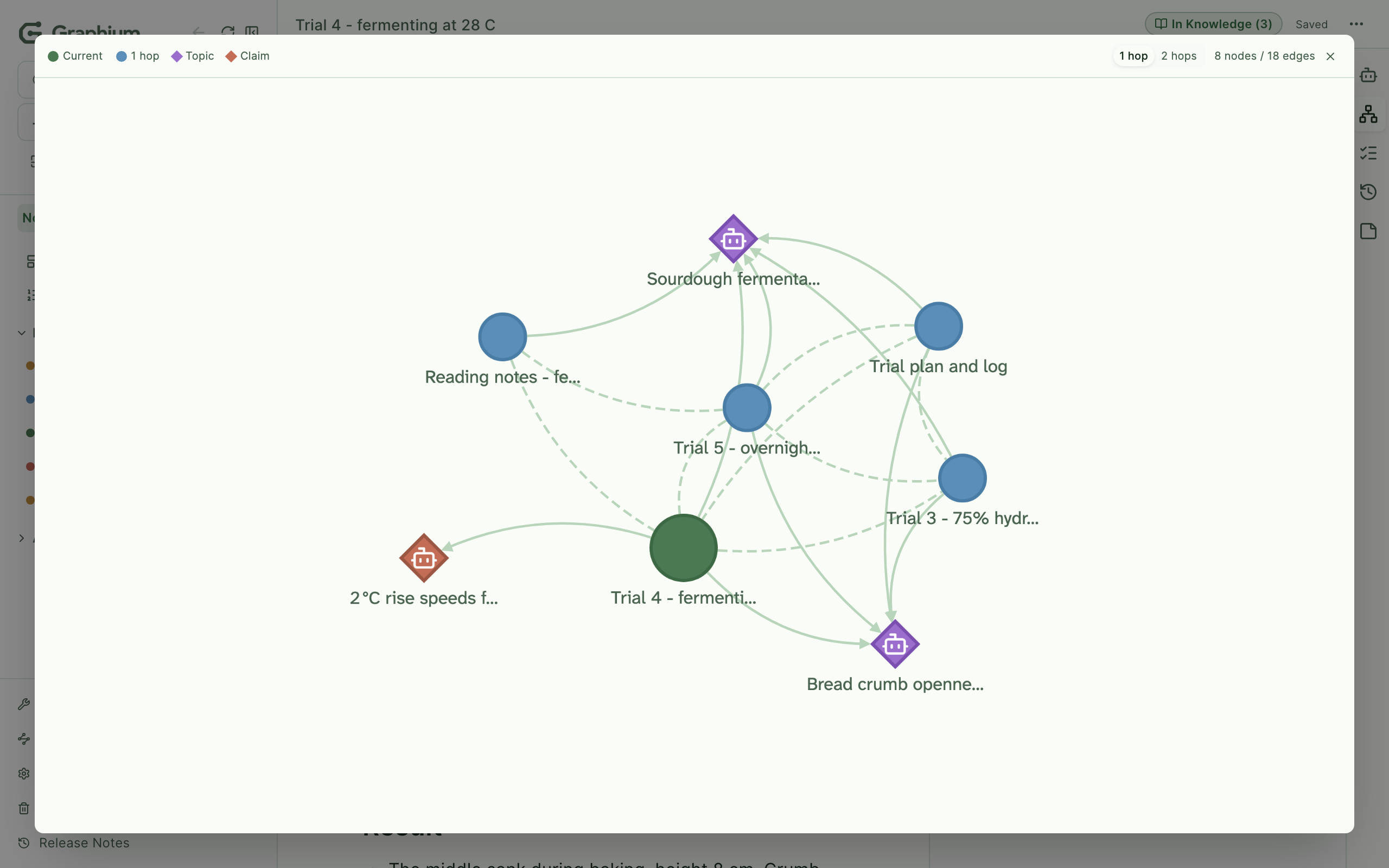
What you put in is already text, so you can search it by words. Link notes to each other with @ and see the connections as a graph. Up to here, it works without AI.
3. Connect to AI
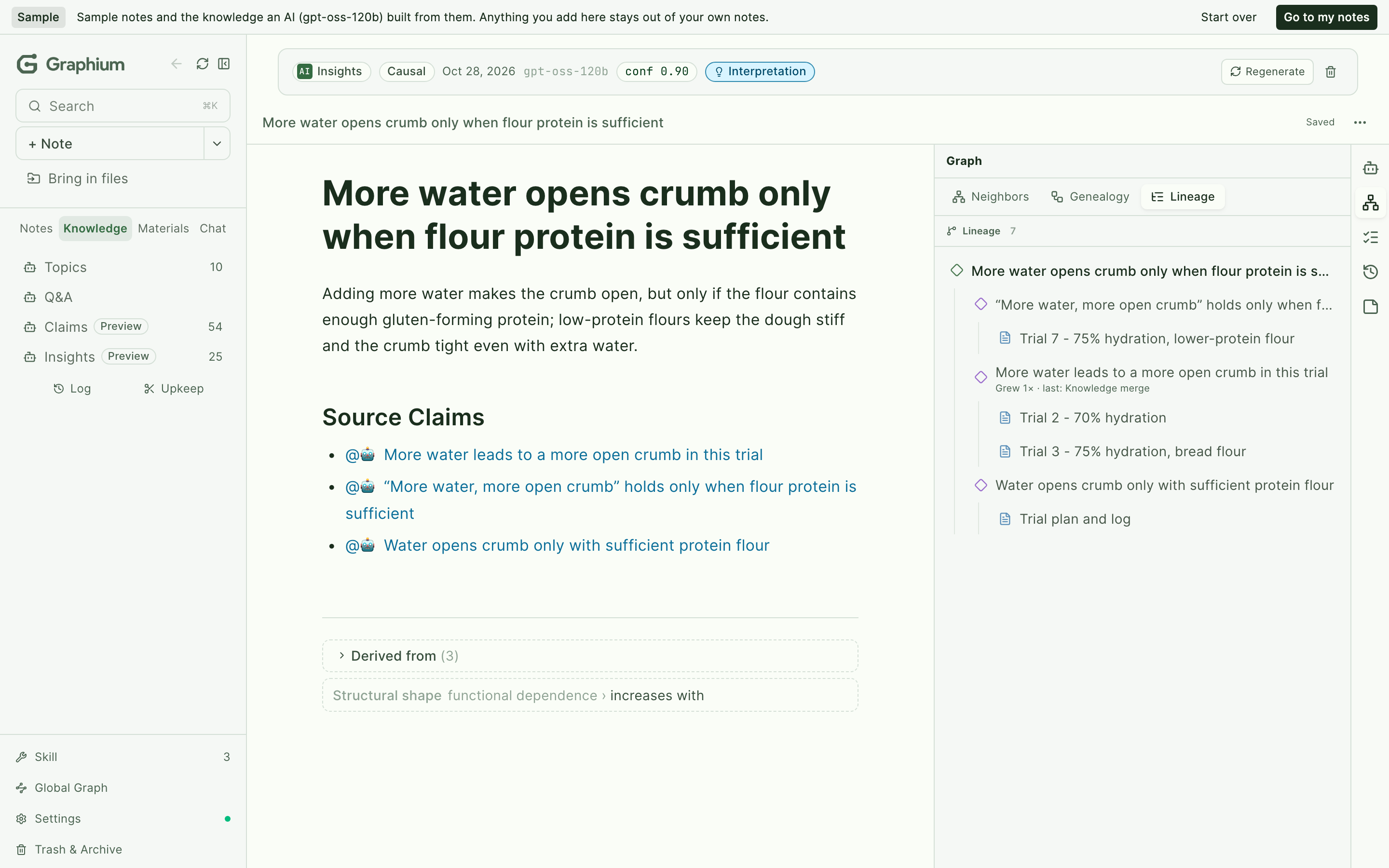
When you start using AI, the same records are what the AI reads. Graphium's built-in AI (an API key, your GitHub Copilot subscription, or your ChatGPT Plus / Pro plan) gathers your records into topics and lifts claims and insights out of them. The Claude and ChatGPT desktop apps, Codex and other MCP clients connect with one button in Settings (desktop app). You don't have to explain yourself again each time, because the AI answers from the same records. Any answer walks back to its source note in one click, and notes an outside AI writes carry a mark saying so.
For everyone who tinkers
The vocabulary is generic: labs, kitchens, workshops, codebases, classrooms.
- Researchers — experiment logs with provenance: steps, materials, results, all linked.
- Cooks & makers — recipes that remember why this loaf worked, and the four that didn't.
- Engineers — investigation notes that survive the next post-mortem.
- Students & writers — a second brain that links courses, books, and conversations — and explains itself.
Dig deeper (optional)
Not needed to get started — these are for the curious and for contributors:
- 📘 CONCEPT (日本語) — the thinking behind Graphium: why provenance matters, the two brains, the hourglass.
- 🏗️ ARCHITECTURE — layers, distribution targets, the Wiki pipeline, known seams.
- 🗂️ DATA_MODEL — the on-disk JSON shapes, schemas, and compatibility rules.
- 🔒 How Graphium keeps your notes safe (日本語) — what protects your notes, what it cannot protect, and what you can do, with diagrams. To report a vulnerability, see SECURITY.md.
Label as much, or as little, as you want
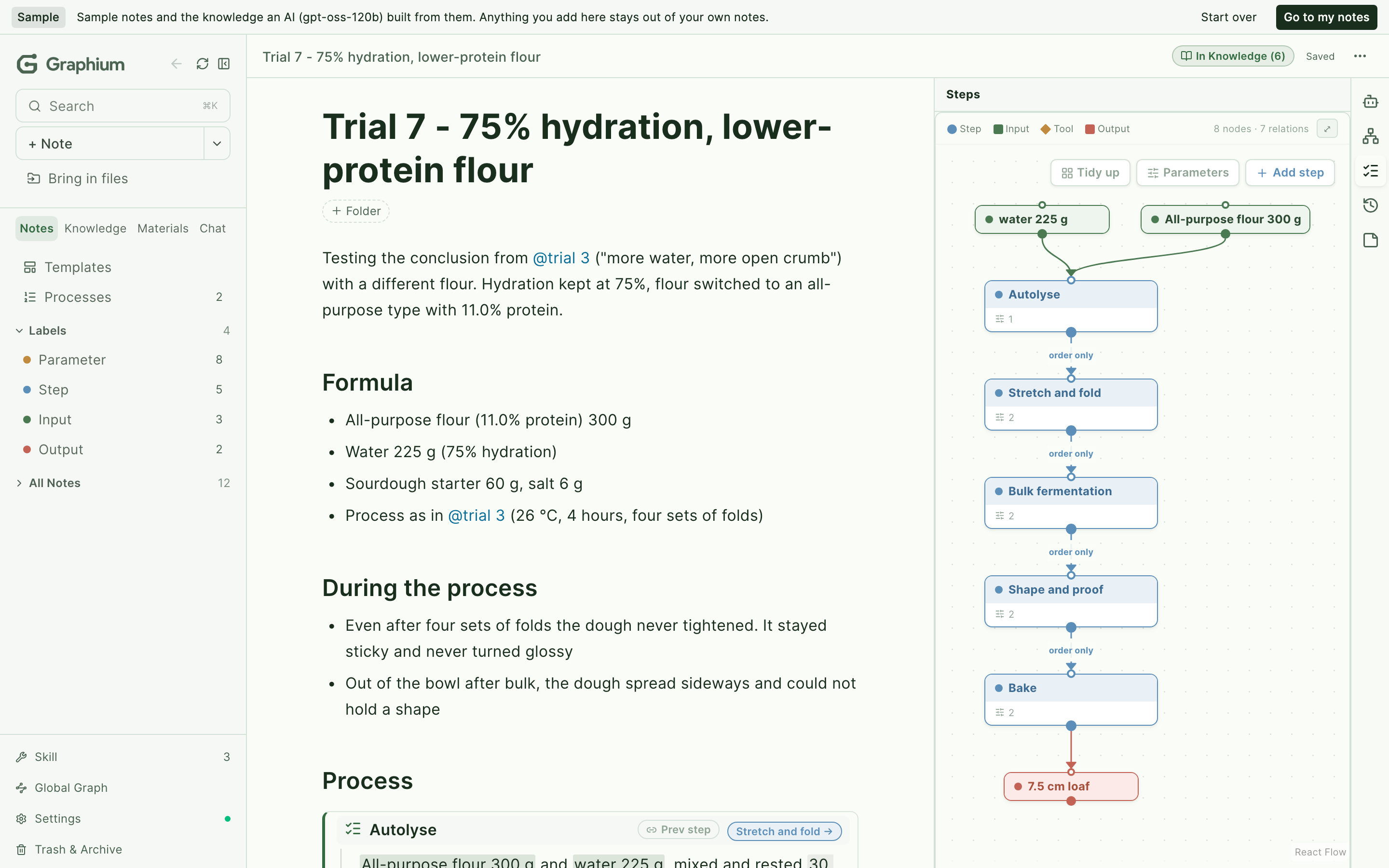
You can use Graphium as a plain linked-note app and never touch a label. When a note is worth the structure, mark heading blocks as [Step] and highlight spans inside them as [Input] / [Tool] / [Output] — and a provenance graph builds up, but only where you choose. Notes, block labels, and inline detail are independent passes over the same text; nothing is all-or-nothing.
See PROV-DM compliance for what each label maps to, or CONCEPT §6 for the rationale.
Try it now
→ Preview in your browser (GitHub Pages)
The browser version is a preview to try the editor and PROV-DM labeling. Notes are stored in this browser's IndexedDB — fine for kicking the tires, but the desktop app or self-hosted Docker is what you want for the full experience: AI features (Knowledge Layer, AI chat), durable storage, and cross-device sync.
Desktop app
Download the desktop app to save notes as plain JSON files on your filesystem. Point the save folder at a Google Drive / iCloud / Dropbox synced folder if you want cloud sync — no extra OAuth setup needed.
| Platform | File | How to check |
|---|---|---|
| macOS (Apple Silicon — M1/M2/M3/M4) | Graphium_x.x.x_aarch64.dmg |
Apple menu → About This Mac → "Apple M..." |
| Windows (x64) | Graphium_x.x.x_x64-setup.exe (or Graphium_x.x.x_x64_en-US.msi) |
Settings → System → About → System type "x64-based" |
First-run warning on Windows
The Windows build is not code-signed yet, so Windows SmartScreen shows "Windows protected your PC" on first launch. Click More info → Run anyway to proceed. Code signing is on the roadmap.
Other platforms
Linux and Intel macOS desktop builds are not provided. Please use the browser version on GitHub Pages (no install) or self-host with the Docker setup described below. Bringing the desktop app to those platforms is on the roadmap; see issues if you'd like to help test.
Phone (capture only)
On a phone, the browser version opens as a capture screen: write a memo, save a link, take a photo or video, or record a voice memo. It installs to the iOS / Android home screen as a PWA. What you capture is sent through your own cloud storage to the inbox of the desktop app, where the organizing happens. The phone is not a standalone note app, and that is intended. See Mobile capture in the manual.
Knowledge layer
When you connect an LLM, Graphium builds a second layer on top of your notes — an editable Knowledge layer auto-generated from what you've written. Think of it as Zettelkasten extended by an LLM: the AI reads your notes, extracts stable ideas, keeps them cross-linked, and cites back to the source blocks — all while carrying the same PROV-DM provenance as the rest of the editor.
The mapping to Zettelkasten is deliberate: Insights play the role of permanent notes (one context-free claim per page, cited back to its sources), memos play fleeting notes, and the citation note you weave in Cmd-K Composer plays the structure note — except here the map doubles as the AI's search space. The AI drafts candidates, you curate what stays, and the weaving of Insights into Ideas stays a human move. See CONCEPT — The hourglass, read as a Zettelkasten for the full correspondence.
The layer has four document kinds, each with a distinct role:
| Kind | Role |
|---|---|
| Summaries | Internal-facing summary of one note. |
| Claims | Cross-note findings with key elements extracted. Claims qualify by level (principle / finding / bridge) and status (candidate / verified). |
| Insights | One context-free claim with citations back to the source notes — the unit that travels across projects. |
| Ideas | New idea built by weaving Insights together. Authored through the Cmd-K Composer flow: select the Insights you want to weave, build a citation note, and invoke the LLM with that as the search-space constraint. |
| Capability | What it does |
|---|---|
| Pipeline | Ingest → Atomize → Cross-update → Lint, running on the companion server when you save a note. Ideas are authored separately through Cmd-K Composer rather than as a pipeline stage. |
| Ingest from notes | The AI extracts knowledge-worthy sections and writes them into Knowledge pages, citing back to source blocks. |
| Ingest from URL & chat | Drop a URL or save an AI chat response — it becomes a Knowledge page with the same provenance chain. |
| Cross-update | When one Knowledge page changes, dependent pages are flagged or rewritten so the layer stays consistent. |
| Lint | Detects orphan Insights, broken citations, and redundant Claims. |
| Edit protection | Sections you manually edited are skipped during re-ingest, so your corrections survive. |
| Retriever for AI chat | Knowledge context is injected into AI responses — the assistant remembers what you wrote last week without re-reading every note. |
| Grounding scopes | Every AI conversation carries a three-way scope: External (adds a fresh web search on top of Internal, told to cite only what it actually found), Internal (cross-search of your distilled knowledge; the default), This note (only what the note cites, originals first — so quotes come from the source text, not a summary). |
| Auto-labeled answers | AI replies are inserted with PROV-DM structure already attached: [Step] labels on activity headings, inline highlights for [Input] / [Tool] / [Parameter] / [Output], and informed_by links between consecutive steps. A provenance graph emerges from the chat itself, no manual labeling required. |
Knowledge pages live in the same storage as your notes (IndexedDB on web, filesystem on Tauri / Docker) and are fully editable by hand. Every Knowledge edit is recorded as a PROV-DM revision so you can always see when a page was generated, which agent (human or AI) wrote it, and from which source.
The Knowledge layer is opt-in: configure an LLM in ⚙ Settings → AI to activate it. Without an LLM, you can still put records in, search them by words, and link them with @.
Composer (⌘K)
A single palette for finding what you've written and asking what's next. Hit ⌘K (or Ctrl+K) anywhere in Graphium and start typing.
| Input | Result |
|---|---|
| Words from a title or heading | Jump straight to that note (Wiki entries are surfaced too) |
#label |
Filter by context label — #procedure, #step, #手順 all map to the same thing |
@author |
Filter by who wrote it — humans by username, AI by model name |
| Empty | Recent notes plus discovery cards — quick prompts derived from your active note and the last week of Wiki activity (ingest / cross-update / regenerate / merge) |
Cmd+Enter |
Send the input to the AI assistant instead of jumping |
The Composer is the entry point that ties the editor, the AI Knowledge Layer, and your own past work into one motion.
Templates
The /template slash command opens a picker with reusable scaffolds:
- Plan template — H1 title, Background / Goals, a reference table (Item × Conditions), and Expected Outcomes. Each row of the table becomes a child note when you derive it.
- Run template — a per-item record where blocks are pre-labeled (
[Step]for activities; inline[Input]/[Tool]/[Parameter]/[Output]for entities) and consecutive steps are pre-linked withinformed_by. Use it as a working example of "what a fully labeled note looks like."
The vocabulary is generic: it fits lab experiments, cooking, manufacturing runs, or any project workflow. User-defined templates can be registered programmatically (registerUserTemplate()).
Reading comfort
Some people read more comfortably with letterforms designed for dyslexia. Graphium ships with Atkinson Hyperlegible Next and Lexend as built-in choices alongside Inter, switchable from ⚙ Settings → Display & Language. Pick what works for your eyes — the rest of the editor stays the same.
Interoperability
Graphium exports provenance as PROV-JSON-LD — a W3C standard built on Linked Data. This is not a proprietary format: any tool that understands PROV-DM or JSON-LD can consume Graphium's output. Provenance data is portable by design.
Graphium also runs as an MCP server. The desktop app registers it with Claude Desktop, Claude Code, Codex and the ChatGPT desktop app in one click (⚙ Settings → AI → Use your notes from other AI assistants; in ChatGPT it works from Work-mode conversations). Claude Desktop, Claude Code, or any MCP client can search your notes, read a procedure step by step with the materials and conditions of each step, find every note that used a given material or instrument, trace what a note was derived from, add new notes, and help maintain the knowledge layer — merge duplicate topics, rewrite or archive a topic, all recorded and undoable from Graphium (quit Graphium first). Your vault stays on your machine. Reading and adding notes do not need Graphium to be running; maintaining knowledge pages does need it quit.
Connecting an MCP clientBuild the server once:
pnpm install
pnpm bundle:mcp
Then point your client at the bundle. For Claude Desktop, in claude_desktop_config.json:
{
  "mcpServers": {
    "graphium": {
      "command": "node",
      "args": ["/absolute/path/to/Graphium/dist-mcp/graphium-mcp.mjs"]
    }
  }
}
It reads ~/Documents/Graphium by default. If your notes live elsewhere, set GRAPHIUM_ROOT in the server's env.
Nothing here is Claude-specific — it is a plain stdio MCP server, so Cursor, VS Code, Zed, Cline and other MCP clients work the same way; only the location of the config differs. For Claude Code: claude mcp add --scope user graphium -- node /absolute/path/to/dist-mcp/graphium-mcp.mjs (--scope user makes it available from any folder). The client must run on the same machine as your vault, and needs Node.js 20.16+.
Ten tools are exposed: search_notes, list_topics, get_topic, get_note, get_note_steps, find_notes_using, list_entities, trace_lineage, create_note, and save_answer. Everything they return carries the note and block id — or, for an imported source, its name and id — so the agent can cite exactly what it read and you can open it in Graphium. Only create_note and save_answer write, and they only ever add a new page — existing notes are never modified. Setup, troubleshooting and example questions are in the user manual. See ARCHITECTURE.md §4.4 for the details.
How to use
Option 1: Use online (no setup)
Visit https://kumagallium.github.io/Graphium/ and start writing. Your notes are saved in your browser's IndexedDB.
Want the same notes on multiple machines? Use the desktop app and point its save folder at a Google Drive / iCloud / Dropbox synced folder.
Option 2: Run with Docker — editor only
Run Graphium as a standalone editor — no AI, no external services. Just the note editor.
git clone https://github.com/kumagallium/Graphium.git
cd Graphium
docker compose -f docker-compose.standalone.yml up -d
Open http://localhost:5174/Graphium/ and start writing.
Option 3: Run with Docker — with the AI backend
Run Graphium with the built-in AI backend. The AI assistant, the Knowledge Layer, and direct MCP server connections all work on their own — no external services required.
git clone https://github.com/kumagallium/Graphium.git
cd Graphium
docker compose up -d
| URL | What it is |
|---|---|
| http://localhost:5174/Graphium/ | Graphium editor (includes AI setup) |
Advanced: this compose file also bundles an optional Crucible Registry (UI) for managing many MCP servers in one place. It is not required — see Add MCP tools below.
Set up your AI model
- Open http://localhost:5174/Graphium/
- Go to ⚙ Settings → AI, add your LLM model and API key
- Start using the AI assistant
Where your API key is stored: macOS desktop keeps it in the Keychain; Windows/Linux desktop and the web/self-hosted build keep it in plaintext (
models.json/ browserlocalStorage). Prefer a scoped, spending-capped key. See SECURITY.md.
Add MCP tools (optional)
Graphium connects to MCP servers directly — no registry required. Open ⚙ Settings → AI → MCP Servers and add a source. Everything lives in one list, where each entry can be toggled on/off, edited, or removed:
- Local — Graphium launches and manages the server for you, the same way Claude Desktop does. Enter a command and arguments (e.g.
npx/-y @modelcontextprotocol/server-filesystem ~/notes) and Graphium spawns it over stdio; you never start or stop a process yourself. Requires the desktop app or a self-hosted backend (a browser can't launch local processes). - Remote — connect to an already-running server by its endpoint URL (e.g.
http://localhost:8100/sse), optionally with an API key. - From registry — enter a Crucible Registry URL, fetch its list of MCP servers, and pick the ones you want — each becomes its own Remote entry. The registry URL is remembered so you can re-browse later. Optional; Crucible is just a discovery source, not a dependency.
The fastest way to add a server is Paste JSON: copy the mcpServers block straight from a server's README (the Claude Desktop / Cursor format) and Graphium imports it — local (command/args/env) and remote (url/type/headers) entries, one or many at a time.
No .env editing required — everything is configured from the browser.
Self-hosting and storage
When running under Docker (or any self-hosted Node.js backend), notes are saved to the server filesystem at/app/databy default — visit the same URL from any browser or device and you see the same notes. The frontend auto-detects this on first load.
- Cloud backup: mount a Google Drive / iCloud / Dropbox synced folder to
/app/data(volumes: - "~/Google Drive/Graphium:/app/data") and the OS handles replication.- Not running as root: the container drops to a non-root user before starting the server. A named volume written by earlier versions (which ran as root) gets its owner fixed to the
nodeuser once, on the first start after updating. A host folder bind-mounted onto/app/datakeeps its owner on your computer: on Linux the server runs as the folder's owner — unless files inside were created by an earlier (root) version, in which case it keeps starting as root so your notes stay writable, and the log tells you to runchown -R <uid>:<gid> <folder>once to switch; on Docker Desktop (macOS / Windows) ownership inside the container is virtual, so the first start marks the folder fornodewithout changing the owner on your computer. With rootless Docker / Podman the container's root is already an unprivileged user on the host, so nothing is changed. If the owner cannot be fixed (read-only mount, NFSroot_squash, ...) the server starts as root with a warning, as before. Auser:set in compose is respected as is, andGRAPHIUM_RUN_AS_ROOT=1keeps the old behaviour. If you drop capabilities (cap_drop: [ALL]), keepSETUIDandSETGIDso the container can switch user, or setuser:yourself.- Remote VPS: use rclone or similar to back up
/app/datato S3 / B2 / etc.- Authentication: set
GRAPHIUM_AUTH_TOKEN=<your-secret>(a long random value, e.g.openssl rand -hex 32) to require anX-Graphium-Tokenheader on every/apirequest — storage, models, tools, MCP, AI — not only storage. Only the health check, the "does this server need a token" probe, and the Chrome extension's own endpoints (guarded by their own token) are open. The first time you open the UI it asks for the token; you can change it later in ⚙ Settings → Storage. Without it, anyone who can reach the URL can read/write notes and run commands inside the container (the MCP connection test starts a local command) — fine onlocalhost, never on a LAN. The server prints a warning at start-up when it listens beyond loopback without a token.- Reaching it from another device: the compose files publish on
127.0.0.1only, so by default nothing outside the host machine can connect. To open it up, drop the127.0.0.1:prefix from theportsentry and set bothGRAPHIUM_AUTH_TOKEN(every API route then requires the token, so nothing is anonymous) andGRAPHIUM_ALLOWED_HOSTS=<host or host:port>(the server rejects anyHostit does not recognise). Both are required on purpose: widening the bind address alone is not enough to open the door.
Note: In Docker mode, all services run without API key authentication and are only accessible from your local machine (
localhost).
Updating to the latest version
./update.sh
Or manually:
git pull                      # Get latest Graphium code
docker compose pull           # Pull latest backend images
docker compose up -d --build  # Rebuild Graphium and restart all services
Option 4: Run for development
git clone https://github.com/kumagallium/Graphium.git
cd Graphium
pnpm install
pnpm dev --port 5174   # → http://localhost:5174/Graphium/
Notes are saved to your browser's IndexedDB by default. AI features require the backend server — run pnpm dev which starts both the frontend and backend together. Go to ⚙ Settings → AI to add your LLM model.
Features
- Block-level context labels —
[Step](PROV Activity), plus[Plan]/[Result]for phases - Inline entity highlights — highlight spans inside a block as
[Input]/[Tool]/[Parameter]/[Output]. The first three become PROV-DM Entity nodes (withmaterial/toolsubtypes internally), and[Parameter]attaches as a Property on the parent. Identical referents share anentityIdso they collapse into one node in the graph - Media inline labels — image / video / audio / PDF blocks can carry the same
[Input]/[Tool]/[Parameter]/[Output]labels via a side-store (BlockNote inline styles don't apply to media) - Block-to-block linking with provenance semantics (
informed_by,derived_from,used) - Multi-page tabbed editor with scope derivation
- Reference table — manage related notes in a tabular view with side-peek preview
- PROV-JSON-LD export — W3C-compliant provenance export in two forms: a single note (procedure graph, note record, body text, memos, materials, tables) or a plan note together with its operation notes (P-Plan steps and the actual hand-offs)
- Provenance graph visualization (Cytoscape.js + ELK layout)
- Inter-note network graph (Cytoscape.js + fcose layout)
- AI assistant — derive notes from AI responses with full provenance metadata
- AI auto-labeling — AI answers are inserted with PROV-DM context labels and
informed_bychains already attached - Knowledge layer — editable AI-curated layer with four document kinds (Summaries / Claims / Insights / Ideas), a pipeline (ingest → atomize → cross-update → lint) with edit protection on re-ingest. Ideas are authored through the Cmd-K Composer flow
- Composer (⌘K) — unified palette for note search (
#label/@authorfilters), discovery cards, and AI ask - Skills — reusable prompt templates stored as Graphium documents (
source: "skill"); apply during ingest or chat - Sharing & Library — share a note to a content-addressed shared store; others can browse the Library and Fork. Embedded media is materialized as
shared-blob:references on share - Templates —
/templateslash command with Plan and Run scaffolds (extensible) - Reading-font setting — pick between Inter (default), Atkinson Hyperlegible Next, and Lexend; opt-in for dyslexia-aware reading
- Local-first storage — plain JSON files on your filesystem (desktop / Docker) or IndexedDB (browser)
- Markdown export & backup — export any note as Markdown from the note menu; Settings → Storage can export all notes as a Markdown zip or download a raw .graphium.json backup (the data exit for browser/IndexedDB users)
- Desktop app — Tauri v2 native app with local file storage; point the save folder at a synced cloud folder (Drive / iCloud / Dropbox) for cross-device sync without OAuth
Screenshots
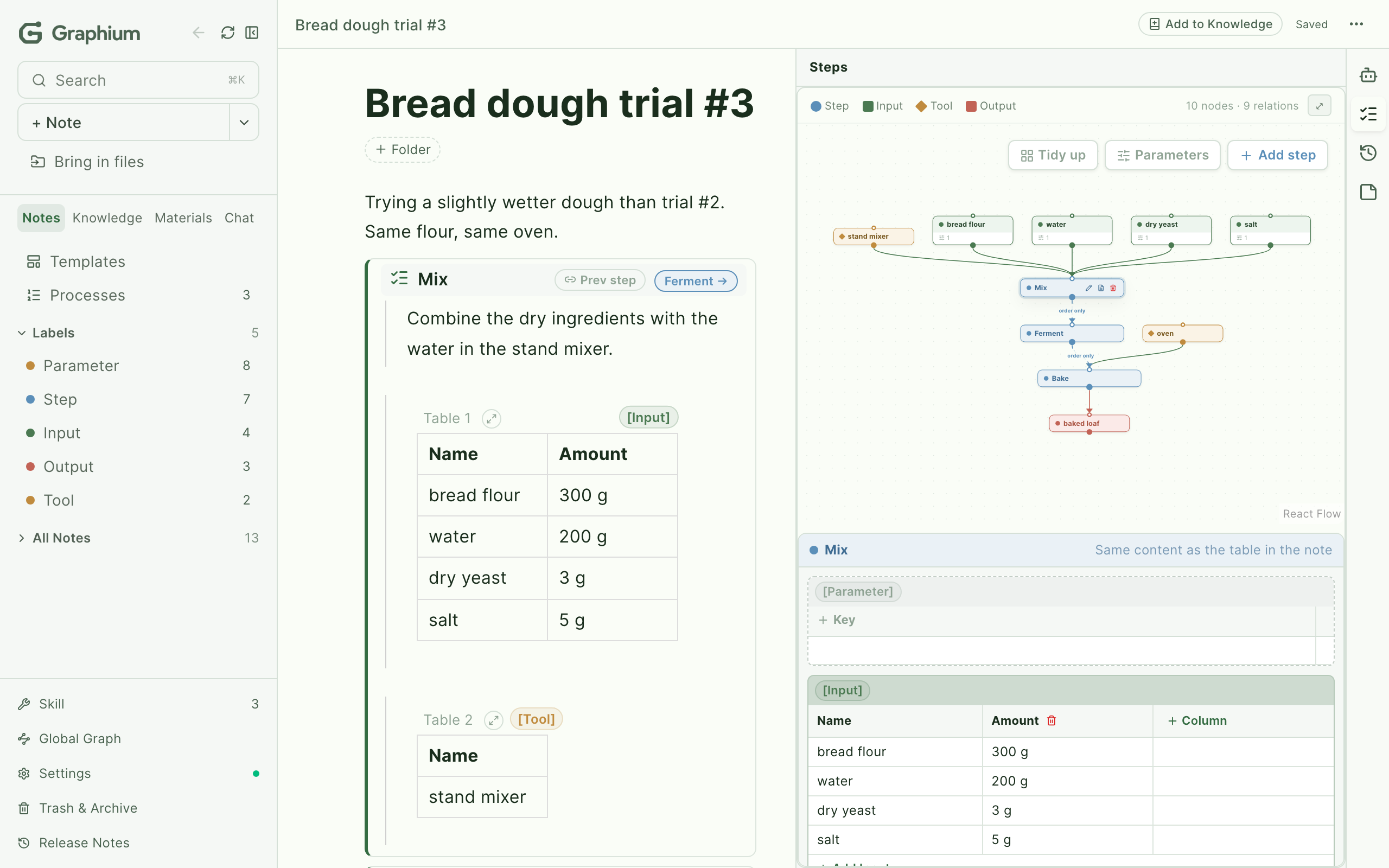
| Editor with context labels and the provenance graph that builds up as you write | |
 |
|
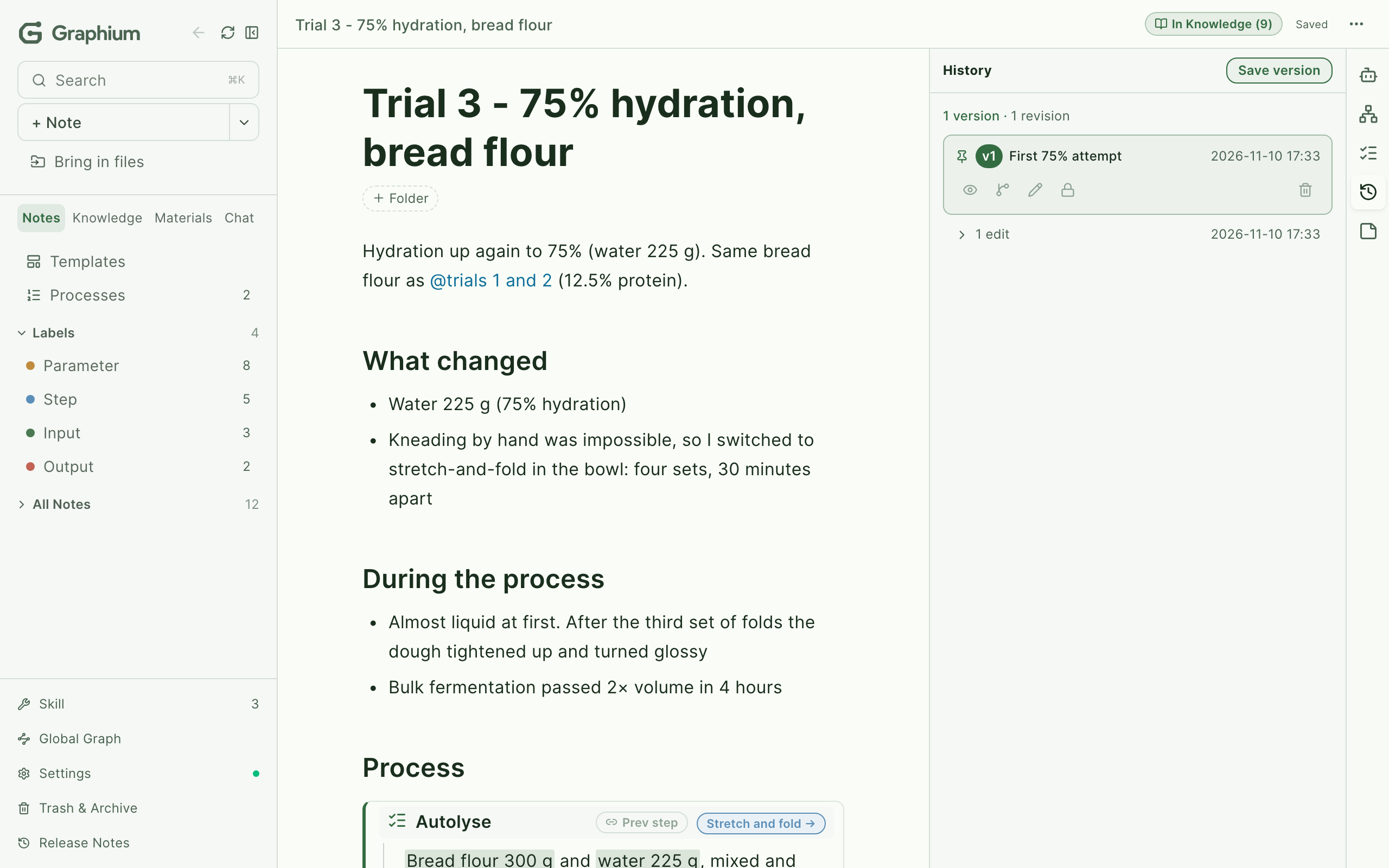
| Document provenance history | Note network graph |
 |
|
PROV-DM compliance
Graphium implements a two-layer provenance model, both conforming to the W3C PROV Data Model (PROV-DM).
Layer 1: World provenance — what the note is about
Labels attach to content in two independent passes that compose into one PROV-DM graph:
Step blocks — the skeleton
A procedure is written as a step container block (insert with /step).
The block itself is the prov:Activity: its title is the activity name,
its children are the activity's contents, and every entity highlighted
inside is bound to it by containment — no separate tagging needed. The
card's header carries the chain: a "prev step" chip sets informed_by
to an earlier step, and "next step" creates a new step with that link
already in place. Notes written with the older heading-plus-label style
are converted to step blocks automatically on load.
Inline highlights — the detail
Spans inside a step can be highlighted as one of:
| UI label | Internal key | PROV-DM mapping |
|---|---|---|
[Input] |
material |
prov:Entity with material subtype (substance / input transformed in a process) |
[Tool] |
tool |
prov:Entity with tool subtype (equipment / instrument) |
[Parameter] |
attribute |
A Property attached to the parent Activity or Entity (condition / setting) |
[Output] |
output |
prov:Entity (artifact the activity generated) |
Highlights inside the same block can carry the same entityId, in which case they collapse to one PROV Entity node — the deduplication key for repeated references to the same referent. Image / video / audio / PDF blocks carry the same labels via a mediaInlineLabels side-store, since BlockNote inline styles don't apply to media.
Relationships emitted: prov:used (Usage), prov:wasGeneratedBy (Generation), prov:wasInformedBy (via prior-step links).
The two passes are independent. A note can have only block-level labels, only inline highlights, both, or neither — and you only get the parts of the graph you've labeled.
Layer 2: Document Provenance — edit history
Every save creates a revision chain tracked as PROV-DM:
| Concept | PROV-DM mapping |
|---|---|
| Editor (human or AI) | prov:Agent |
| Edit operation | prov:Activity with startTime / endTime |
| Document revision | prov:Entity with prov:generatedAtTime |
| Editor → edit | prov:Association |
| Edit → revision | prov:Generation |
| Revision → previous | prov:Derivation |
Document provenance is exported as a prov:Bundle, separate from content provenance.
PROV-JSON-LD export
The export conforms to the W3C PROV-JSON-LD specification:
- Uses the openprovenance context
- Unprefixed
@typevalues (Entity,Activity,Agent) - Relationships as separate objects (
Usage,Generation,Derivation,Association) - Standard property names (
startTime,endTime,entity,activity,agent) - Note and plan exports add three vocabularies to the
@context(appended at the end, existing keys untouched):p-plan(P-Plan),oa(Web Annotation) anddc(Dublin Core elements)
There are two forms. A single-note export carries the procedure graph, a note Entity (folders, sources, derivations, influences), the body text, memos (as oa:Annotation), materials and named tables. A plan export (the plan note's overflow menu, or the MCP export_prov with scope: "plan") carries the plan note and every operation note it links to, with P-Plan Step / Variable for the planned lines and Usage for the lines that were actually run. AI chats are left out unless explicitly requested. See docs/ARCHITECTURE.md §3.2 for the contract.
Graphium-specific extensions use the graphium: namespace (https://kumagallium.github.io/Graphium/ns#), including graphium:entityType, graphium:attributes, graphium:editType, graphium:summary, and graphium:contentHash.
Architecture (at a glance)
Graphium is a TypeScript / React app on top of BlockNote.js, shipped three ways: as a web PWA (notes in IndexedDB), as a Tauri v2 desktop app (notes as JSON files on the filesystem), and as a Docker self-host with a Node.js companion server. The companion server is built on Hono and runs the Knowledge layer pipeline (ingest → atomize → synthesize → cross-update → lint).
| Component | Technology |
|---|---|
| Editor | TypeScript / React / BlockNote.js |
| AI runtime | Vercel AI SDK |
| Default LLM | gpt-oss-120b via Sakura AI Engine (OpenAI-compatible) |
| Opt-in LLMs | Anthropic Claude / OpenAI / Google / any OpenAI-compatible endpoint |
| Companion server | Node.js / Hono |
| Storage | IndexedDB (web) / filesystem (Tauri / Docker) |
| Desktop | Tauri v2 (macOS Apple Silicon + Windows x64; Linux / Intel macOS on roadmap) |
| Graph visualization | Cytoscape.js |
| Build / pkg manager | Vite / pnpm |
For the layered breakdown, the Wiki pipeline trigger flow, distribution targets, the auth model, and known seams, read docs/ARCHITECTURE.md. For on-disk JSON shapes and compatibility rules, read docs/DATA_MODEL.md.
MCP tools
The AI assistant can call MCP tools. Manage them all in one list under ⚙ Settings → AI → MCP Servers. Add a Local server (launched by Graphium over stdio, the Claude Desktop model; needs the desktop app or a self-hosted backend) or a Remote one (reached by URL) — by pasting its README JSON, filling the form, or browsing a Crucible Registry and picking servers from it. Crucible is just a discovery source, not a dependency.
Beyond the editor
Graphium notes don't have to be written inside Graphium. The bundled save-to-graphium skill lets Claude Code (CLI or VS Code extension) save the gist of any conversation as a Graphium note. The note carries agent: "claude-code", the model name, and the OS user as PROV-DM agent metadata, so AI-driven discussions get the same provenance trail as anything you wrote by hand.
ln -s "$(pwd)/scripts/claude-code-skill/save-to-graphium" ~/.claude/skills/save-to-graphium
After the symlink is in place, just ask Claude Code "save this to Graphium" — the note appears in your sidebar on next launch, ready to be linked, labeled, or pushed into the Knowledge Layer.
Language & Internationalization
Graphium supports English (default) and Japanese. The language can be switched from ⚙ Settings in the sidebar.
All user-facing text — context labels, menus, tooltips, and panel UI — is fully internationalized. Context labels are displayed in the active locale (e.g. [Step] in English, [ステップ] in Japanese) while the internal data format remains stable for backward compatibility.
| Element | Status |
|---|---|
| Context labels | Fully localized (English / Japanese) |
| UI chrome | Fully localized |
| Label input | Both languages accepted as aliases (e.g. [step], [材料]) |
| README / docs | English / Japanese |
Contributions for additional languages are welcome.
Development
pnpm install        # Install dependencies
pnpm dev            # Start frontend + backend dev server
pnpm dev:client     # Start frontend only
pnpm dev:server     # Start backend only
pnpm test           # Run tests (vitest)
pnpm storybook      # Component catalog (http://localhost:6006)
pnpm build          # Production build (frontend)
Knowledge Layer benchmark (pnpm bench:*)
The Wiki pipeline (ingest → atomize → synthesize) is regression-tested by an
empirical benchmark under bench/. The corpus, ground-truth, and probes are
checked in; each phase of the discovery-mode roadmap declares which metrics it
must improve, and merges are gated on the delta.
pnpm bench:run                     # Run the benchmark, write bench/baseline.json
pnpm bench:report                  # Render bench/baseline.json as a Markdown table
pnpm bench:compare main            # Diff metrics against main's baseline.json
| Env var | Default | Purpose |
|---|---|---|
BENCH_API_KEY / SAKURA_AI_API_KEY |
"" |
API key for the bench LLM (production default: gpt-oss-120b on Sakura AI Engine). When unset the runner falls back to dry-run mode that uses deterministic heuristics — fine for CI smoke tests, but real merge decisions need live mode. |
BENCH_MODEL_ID |
gpt-oss-120b |
Override the bench model. |
BENCH_API_BASE |
https://api.ai.sakura.ad.jp/v1 |
Override the API endpoint (any OpenAI-compatible endpoint works). |
BENCH_PROFILE |
baseline |
Profile name written into the output (baseline, with-alpha, etc.). |
BENCH_MODE |
auto | Force live or dry-run regardless of API-key detection. |
BENCH_N |
3 in live, 1 in dry-run | Independent samples per run. Median per metric is reported as the headline; per-sample distribution is kept in aggregate.distribution and runs[] so PRs can show the noise floor. |
Metric definitions, corpus structure, probe list, and CI integration are
documented in docs/BENCHMARK.md.
Project structure
The tree below is a curated view of the most-touched directories. For
the full source map (where every feature lives, and which file to look
at first when you want to change something), see
ARCHITECTURE.md §8.
src/
├── base/              # Editor core (BlockNote wrapper, multi-page)
├── features/
│   ├── context-label/ # PROV-DM context labels for blocks
│   ├── block-link/    # Block-to-block provenance links
│   ├── prov-generator/# PROV-JSON-LD generation & graph visualization
│   ├── prov-export/   # W3C PROV-JSON-LD file export
│   ├── index-table/   # Index table for related notes
│   ├── network-graph/ # Inter-note derivation network (Cytoscape + fcose)
│   ├── ai-assistant/  # AI chat & note derivation, marker-based auto-labeling
│   ├── composer/      # ⌘K palette: note search + discovery cards + AI ask
│   ├── template/      # /template slash command (Plan / Run)
│   ├── wiki/          # Knowledge layer (Summaries / Claims / Insights / Ideas)
│   ├── settings/      # Settings modal (General + AI Setup + reading font)
│   └── release-notes/ # Release notes display
├── server/            # Built-in AI backend (Hono + Vercel AI SDK)
│   ├── routes/        # API endpoints (/api/agent, /api/models, etc.)
│   ├── services/      # LLM, MCP, Registry, agent loop
│   └── config/        # Model & profile persistence (JSON files)
├── lib/               # Utilities (Google Auth, Drive API, Cytoscape setup)
└── blocks/            # Custom BlockNote blocks
Code of Conduct
This project follows the Contributor Covenant Code of Conduct. By participating, you are expected to uphold it.
License
Reviews (0)
Sign in to leave a review.
Leave a reviewNo results found