webclaw
Health Gecti
- License — License: MIT
- Description — Repository has a description
- Active repo — Last push 0 days ago
- Community trust — 23 GitHub stars
Code Basarisiz
- rm -rf — Recursive force deletion command in packages/extension/package.json
- execSync — Synchronous shell command execution in packages/extension/src/__tests__/build-validation-integration.test.ts
Permissions Gecti
- Permissions — No dangerous permissions requested
Bu listing icin henuz AI raporu yok.
A WebMCP-native browser agent that runs inside your real Chrome — control it from Claude, Cursor, and any MCP client
WebClaw


A WebMCP-native browser agent that runs inside your real Chrome — control it from Claude, Cursor, and any MCP client.
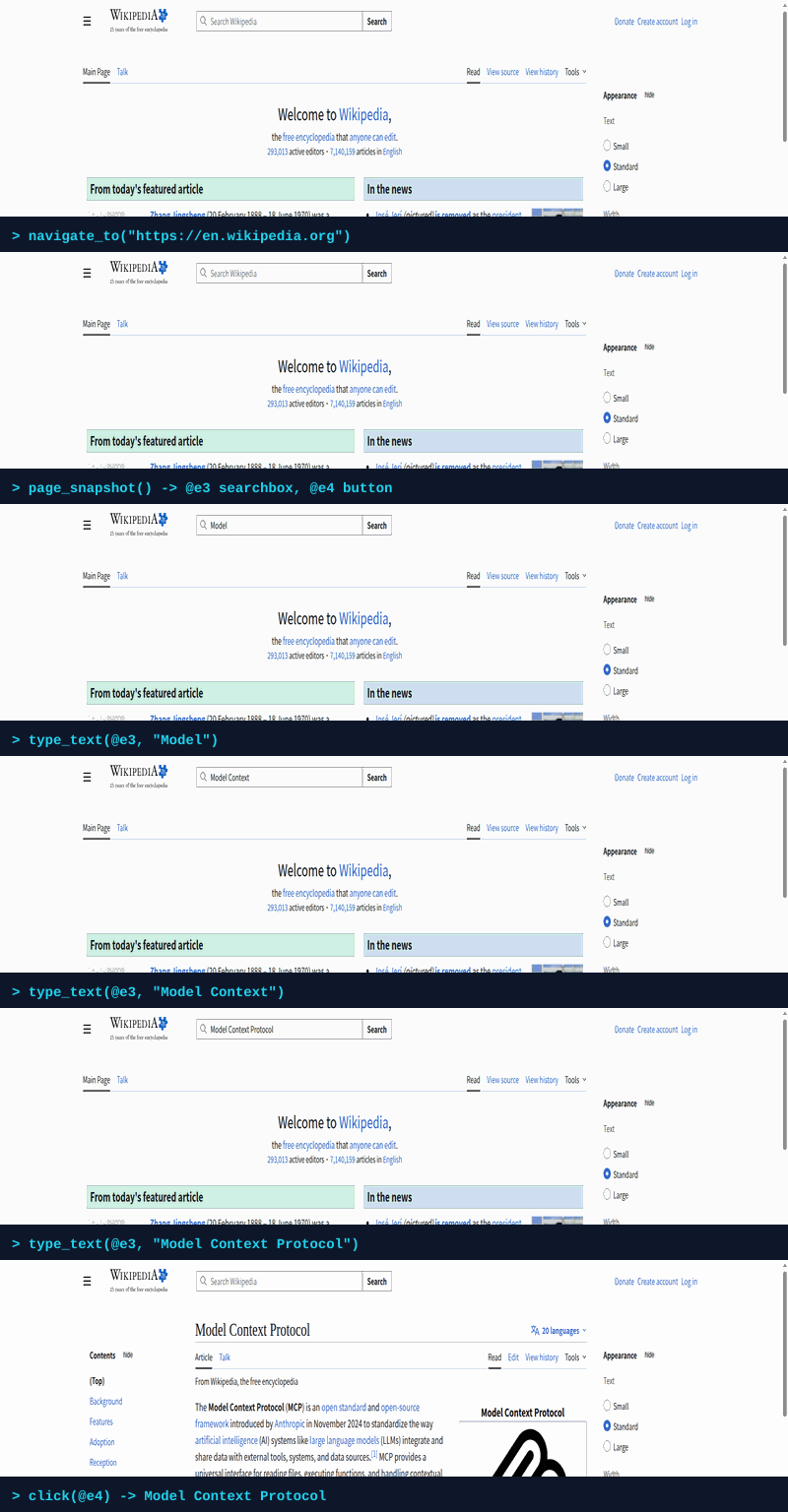
Why WebClaw?
| WebClaw | browser-use | Playwright MCP | |
|---|---|---|---|
| Runs in real Chrome | Yes (extension) | No (CDP) | No (Playwright) |
| User's logged-in sessions | Yes | No | No |
| Bot detection | Resistant | Vulnerable | Vulnerable |
| WebMCP native tools | Yes | No | No |
| Page understanding | @ref a11y tree |
Screenshots | DOM / Screenshots |
WebClaw runs as a Chrome extension, so it sees exactly what you see — cookies, logins, extensions, and all. No headless browser, no CDP injection, no bot flags.
Quick Start
1. Configure your MCP client
Claude DesktopAdd to claude_desktop_config.json:
{
  "mcpServers": {
    "webclaw": {
      "command": "npx",
      "args": ["-y", "webclaw-mcp"]
    }
  }
}
Config file locations:
- macOS:
~/Library/Application Support/Claude/claude_desktop_config.json - Linux:
~/.config/Claude/claude_desktop_config.json - Windows:
%APPDATA%\Claude\claude_desktop_config.json
claude mcp add webclaw -- npx -y webclaw-mcp
Add to .cursor/mcp.json in your project root:
{
  "mcpServers": {
    "webclaw": {
      "command": "npx",
      "args": ["-y", "webclaw-mcp"]
    }
  }
}
Add to .vscode/mcp.json in your project root:
{
  "servers": {
    "webclaw": {
      "type": "stdio",
      "command": "npx",
      "args": ["-y", "webclaw-mcp"]
    }
  }
}
Add to ~/.codeium/windsurf/mcp_config.json:
{
  "mcpServers": {
    "webclaw": {
      "command": "npx",
      "args": ["-y", "webclaw-mcp"]
    }
  }
}
2. Load the Chrome extension
- Download the latest
webclaw-extension-vX.Y.Z.zipfrom the Releases page and unzip it into a folder - Open
chrome://extensions/→ enable Developer mode - Click Load unpacked → select the unzipped folder (the one that contains
manifest.json)
git clone https://github.com/kuroko1t/webclaw.git && cd webclaw && pnpm install && pnpm build
Then load packages/extension/dist/ as above.
3. Try it
Restart your MCP client and ask:
"Go to wikipedia.org and search for Model Context Protocol"
Chrome launches automatically on the first tool call. The Side Panel shows all activity in real-time.
How It Works
flowchart LR
    LLM["AI Assistant"]
    MCP["MCP Server"]
    EXT["Chrome Extension"]
    CS["Content Script"]

    LLM -- "stdio" --> MCP -- "WebSocket" --> EXT --> CS

    style LLM fill:#7b2d8b,stroke:#333,color:#fff
    style MCP fill:#1a5276,stroke:#333,color:#fff
    style EXT fill:#1e8449,stroke:#333,color:#fff
    style CS fill:#b7950b,stroke:#333,color:#fff
- The AI calls MCP tools (
navigate_to,page_snapshot,click, ...) - The MCP server forwards requests to the Chrome extension via WebSocket
- The content script reads the page as a compact accessibility tree with
@reflabels - The AI picks the right
@refand acts — no pixel coordinates, no CSS selectors
page_snapshot output
[page "Wikipedia, the free encyclopedia"]
  [search]
    [form]
      [@e3 searchbox "Search Wikipedia"]    ← AI targets this
      [@e4 button "Search"]                 ← and clicks this
  [main]
    [heading[1] "Welcome to Wikipedia"]
    [group]
      [heading[2] "From today's featured article"]
      ...
Every interactive element gets a stable @ref label. The AI reads the tree, picks the right @ref, and calls click / type_text / select_option.
MCP Tools (21)
Page Interaction — navigate, snapshot, click, hover, type, select, drop files, screenshot, dialog, evaluate| Tool | Parameters | Description |
|---|---|---|
navigate_to |
url, tabId? |
Navigate to a URL |
page_snapshot |
focusRegion?, interactiveOnly?, tabId? |
Get a compact accessibility tree with @ref labels |
click |
ref, snapshotId, tabId? |
Click an element by its @ref label |
hover |
ref, snapshotId, tabId? |
Hover over an element to reveal hidden UI (dropdowns, tooltips) |
type_text |
ref, text, snapshotId, clearFirst?, tabId? |
Type text into an input/textarea by @ref |
select_option |
ref, value, snapshotId, tabId? |
Select a dropdown option by @ref |
drop_files |
ref, snapshotId, files, tabId? |
Drop files onto an element (e.g., upload images to GitHub issues) |
screenshot |
tabId?, savePath? |
Capture the visible area of the active tab. With savePath, the PNG is saved to that file instead of being returned inline |
handle_dialog |
action, promptText?, tabId? |
Handle a native browser dialog (alert/confirm/prompt) |
evaluate |
expression, tabId? |
Evaluate JavaScript in the page context (e.g., localStorage, cookies, computed styles) |
| Tool | Parameters | Description |
|---|---|---|
new_tab |
url? |
Open a new tab (optionally with a URL) |
list_tabs |
List all open tabs with tabId, URL, title, and active state | |
switch_tab |
tabId |
Switch to a specific tab |
close_tab |
tabId |
Close a specific tab |
| Tool | Parameters | Description |
|---|---|---|
go_back |
tabId? |
Go back to the previous page |
go_forward |
tabId? |
Go forward to the next page |
reload |
tabId?, bypassCache? |
Reload the current page |
wait_for_navigation |
tabId?, timeoutMs? |
Wait for the page to finish loading |
scroll_page |
direction?, amount?, ref?, snapshotId?, tabId? |
Scroll the page or scroll to a specific element |
| Tool | Parameters | Description |
|---|---|---|
list_webmcp_tools |
tabId? |
Discover tools on the page (native WebMCP + auto-synthesized from buttons/forms) |
invoke_webmcp_tool |
toolName, args?, tabId? |
Invoke a discovered tool (native or synthesized) |
Development
git clone https://github.com/kuroko1t/webclaw.git
cd webclaw
pnpm install
pnpm build        # Build all packages
pnpm test         # Run all tests
pnpm dev          # Watch mode
Project Structure
packages/
  shared/          Type definitions, Zod schemas, utilities
  mcp-server/      MCP server with 21 tools, WebSocket bridge
  extension/       Chrome MV3 extension (service worker, content scripts, side panel)
examples/
  webmcp-demo-site/  WebMCP-enabled Todo app for testing native tool discovery
Multi-Session Support
WebClaw automatically scans ports 18080–18089, so you can run up to 10 MCP server instances simultaneously (e.g., multiple Claude Code sessions). Each instance binds to the first available port, and the Chrome extension connects to all of them.
Environment Variables
| Variable | Default | Description |
|---|---|---|
WEBCLAW_PORT |
18080 |
WebSocket port for MCP server ↔ extension communication. When set, disables auto-scanning and uses only this port. The extension only connects to 18080–18089, so the port must be within that range. |
WEBCLAW_CHROME_PROFILE |
(unset) | Chrome profile directory to open when Chrome is auto-launched (--profile-directory, e.g. Default or Profile 1). When unset, Chrome chooses the profile as usual. On macOS it only takes effect if Chrome is not already running. |
Chrome extension not connected
- Chrome is auto-launched when a tool is called. If it fails, start Chrome manually with the extension loaded
- If the auto-launched Chrome stops at the profile picker, set
WEBCLAW_CHROME_PROFILEto the profile directory to open (e.g.DefaultorProfile 1, as shown inchrome://version→ Profile Path) - Check the Service Worker console (
chrome://extensions/→ Details → Service Worker) forConnected to MCP server - Verify the MCP server is running (look for
WebSocket server listening on 127.0.0.1:<port>in stderr)
MCP client cannot connect
- Ensure
npx webclaw-mcpruns successfully from your terminal - Check for port conflicts: WebClaw auto-scans 18080–18089. If one of them is taken by another program, set
WEBCLAW_PORTto a free port within that range (the extension does not connect to ports outside it). If all ten are used by WebClaw instances, stop an unused instance - Restart your MCP client after updating the config
Content script not injecting
- Content scripts only inject into
http://andhttps://pages (notchrome://,file://, etc.) - Try refreshing the page after loading the extension
WebMCP tools not discovered
- Native WebMCP requires Chrome 146+ with the
navigator.modelContextAPI - Verify the page declares tools via
navigator.modelContext.addTool()or<link rel="webmcp-manifest">
Contributing
Contributions are welcome! Please open an issue to discuss your idea before submitting a pull request.
Disclaimer
WebClaw is a browser automation tool intended for legitimate use cases such as personal productivity, development, testing, and accessibility. Users are responsible for complying with the terms of service of any website they interact with. The authors are not responsible for any misuse of this tool.
License
Yorumlar (0)
Yorum birakmak icin giris yap.
Yorum birakSonuc bulunamadi