agent-history
Health Uyari
- License — License: MIT
- Description — Repository has a description
- Active repo — Last push 0 days ago
- Low visibility — Only 7 GitHub stars
Code Gecti
- Code scan — Scanned 12 files during light audit, no dangerous patterns found
Permissions Gecti
- Permissions — No dangerous permissions requested
This is a CLI tool that browses, extracts, and exports AI coding assistant conversation history (from Claude Code, Codex CLI, and Gemini CLI) into unified, readable formats like Markdown. It organizes fragmented session data by workspace and provides usage metrics.
Security Assessment
Overall risk: Low. The tool naturally accesses sensitive conversation history and local workspace data left behind by AI coding assistants, but this is its core function. The automated code scan found no dangerous patterns, no hardcoded secrets, and no dangerous permission requests. Since it is a standard CLI utility (not an MCP server or background daemon), it does not unexpectedly execute shell commands or make silent network requests.
Quality Assessment
The project is actively maintained and uses the permissive MIT license. The documentation is thorough, featuring detailed explanations of supported formats and multi-environment setups. However, community trust and visibility are currently very low. With only 7 GitHub stars, the tool has not been widely peer-reviewed by the open-source community yet.
Verdict
Safe to use, as the code is clean, transparent, and restricts its access strictly to reading local session files.
Extract and convert Claude Code conversation history by workspace
agent-history
A CLI tool to browse and export AI coding assistant conversation history with multi-environment support.
Note: This tool was previously named
claude-history. A wrapper scriptclaude-historyis provided for backward compatibility.
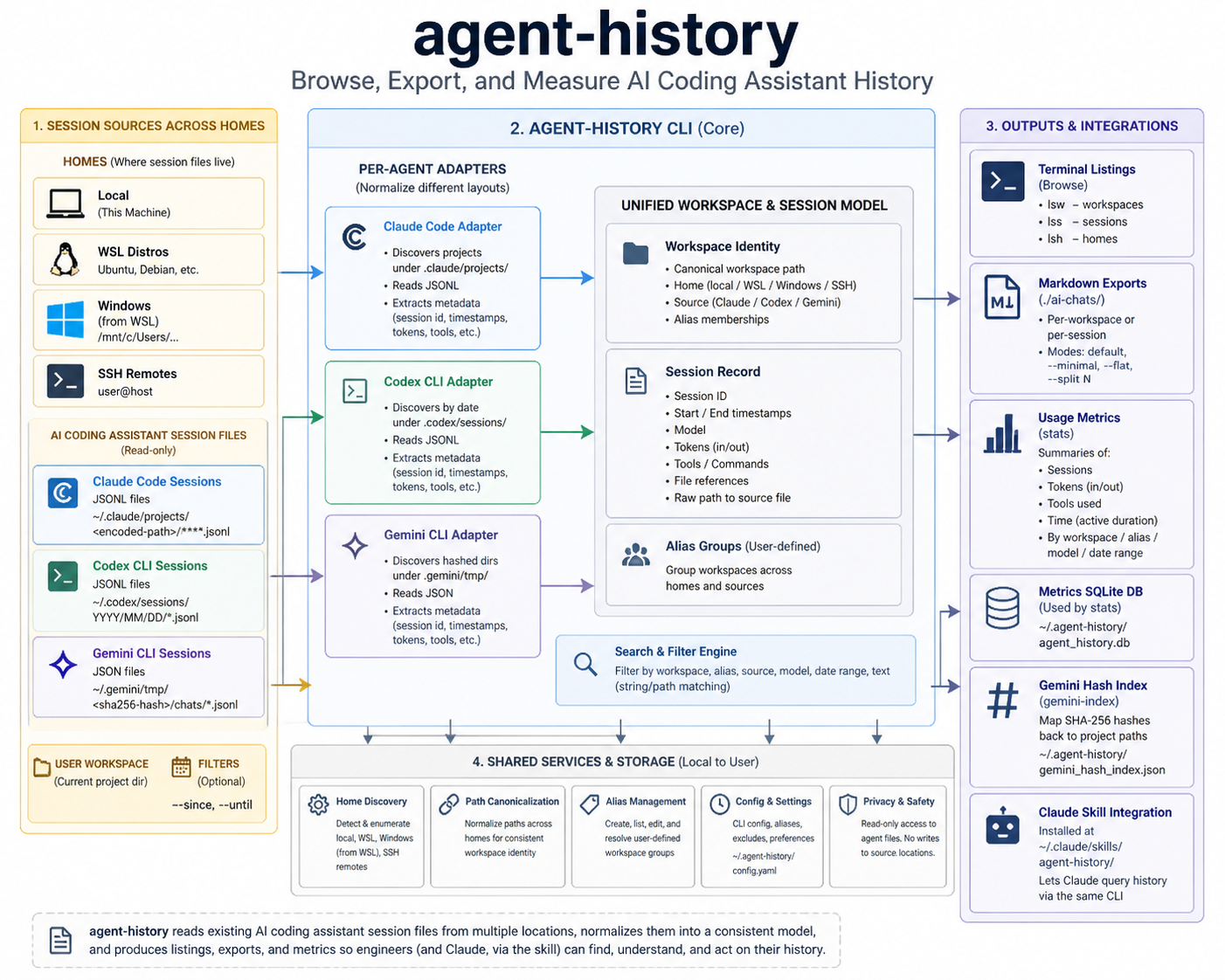
How agent-history collects fragmented Claude Code, Codex CLI, and Gemini CLI session files across local, WSL, Windows, and SSH homes, normalizes them into a unified workspace/session model, and produces listings, markdown exports, and usage metrics. See docs/agent-history-process-image.md for the diagram brief.
Supported Agents
| Agent | Status | Format | Documentation |
|---|---|---|---|
| Claude Code | ✅ Full support | JSONL | claude-format.md |
| Codex CLI | ✅ Full support | JSONL | codex-format.md |
| Gemini CLI | ✅ Full support | JSON | gemini-format.md |
Use --agent claude, --agent codex, --agent gemini, or --agent auto (default) to select which agent's sessions to query. The --agent flag can appear anywhere in the command.
See AGENTS.md for a detailed comparison of storage locations, features, and behaviors.
Why This Tool?
Claude Code, Codex CLI, and Gemini CLI leave conversation data fragmented across session files. This tool solves the pain points:
- Finding past work by project, not by opaque session IDs.
- Getting readable exports for sharing, backup, or audits.
- Seeing where and how you code across homes (local/WSL/Windows/SSH) with session/token/tool/time metrics.
- Surviving moves/renames with aliasing and “closest match”
[missing]hints. - Staying lightweight: one stdlib-only CLI plus a small SQLite db for metrics—no extra installs.
Features
- Markdown export (flexible) – Export whole workspaces or single sessions; minimal/flat/split modes; size and path control.
- Workspace-aware filtering – Target workspaces by name or path (slashes ok); matches encoded names automatically.
- Multi-environment reach – Local, WSL (UNC or Linux paths), Windows from WSL, and SSH remotes;
[missing]marker shows closest match for renamed workspaces. - Aliases – Group related workspaces across homes/sources; apply aliases to
lss,lsw,export, andstats. - Usage metrics – Summaries, homes/workspaces breakdown, token/tool stats, time tracking (with daily breakdown via
--time), top workspaces limit via--top-ws. - Cross-home sync – Sync metrics from all homes (
--ah), all workspaces (--aw), or current workspace only (--this). - WSL/Windows helpers – Auto-detect WSL distros/Windows users; UNC path inference for
lsswithout--wsl; converts path separators safely. - Claude Code skill – Enables Claude to search your history (SKILL.md).
- Stdlib only – Single Python file; no pip installs needed.
Quick Start
# Make executable
chmod +x /path/to/agent-history

# Go to your project directory
cd /path/to/project

# List sessions from current project
/path/to/agent-history lss

# Export to markdown
/path/to/agent-history export

# Output goes to ./ai-chats/
Windows:
cd \path\to\project
python \path\to\agent-history lss
python \path\to\agent-history export
Installation
# Download
curl -O https://raw.githubusercontent.com/kvsankar/agent-history/main/agent-history

# Install (cli + skill + retention settings)
python agent-history install
By default the installer:
- Copies the CLI to
~/.local/bin/agent-history(no sudo needed). - Installs the Claude skill into
~/.claude/skills/agent-history(CLI + SKILL.md). - Ensures
~/.claude/settings.jsonhascleanupPeriodDaysset to99999so conversations aren’t purged.- If the existing
settings.jsoncontains additional preferences, they are preserved; onlycleanupPeriodDaysis adjusted. - If the installer encounters malformed JSON, it first renames the original file to
settings.json.<timestamp>.bakbefore writing the corrected copy.
- If the existing
Pass --bin-dir, --skill-dir, --skip-cli, --skip-skill, or --skip-settings for custom setups.
Requirements: Python 3.6+ (stdlib only, no pip install needed)
Note: Examples below assume
agent-historyis in your PATH.
Help
usage: agent-history [-h] [--version] [--agent {auto,claude,codex,gemini}]
                     {lsw,lss,lsh,export,alias,stats,reset,install,gemini-index} ...

Browse and export AI coding assistant conversation history (Claude Code, Codex CLI)

positional arguments:
  {lsw,lss,lsh,export,alias,stats,reset,install,gemini-index}
                        Command to execute
    lsw                 List workspaces
    lss                 List sessions
    lsh                 List homes and manage SSH remotes
    export              Export to markdown
    alias               Manage workspace aliases
    stats               Show usage statistics and metrics
    reset               Reset stored data (database, settings, aliases)
    install             Install CLI and Claude skill
    gemini-index        Manage Gemini hash→path index

options:
  -h, --help            show this help message and exit
  --version             show program's version number and exit
  --agent {auto,claude,codex,gemini}
                        Agent backend to use (default: auto-detect based on available data)

EXAMPLES:

  List workspaces:
    agent-history lsw                        # all local workspaces
    agent-history lsw myproject              # filter by pattern
    agent-history lsw -r user@server         # remote workspaces

  List sessions:
    agent-history lss                        # current workspace
    agent-history lss myproject              # specific workspace
    agent-history lss myproject -r user@server    # remote sessions

  Export (unified interface with orthogonal flags):
    agent-history export                     # current workspace, local home
    agent-history export --ah                # current workspace, all homes
    agent-history export --aw                # all workspaces, local home
    agent-history export --ah --aw           # all workspaces, all homes

    agent-history export myproject           # specific workspace, local
    agent-history export myproject --ah      # specific workspace, all homes
    agent-history export file.jsonl         # export single file

    agent-history export -o /tmp/backup      # current workspace, custom output
    agent-history export myproject -o ./out  # specific workspace, custom output

    agent-history export -r user@server      # current workspace, specific remote
    agent-history export --ah -r user@vm01   # current workspace, all homes + SSH

  Date filtering:
    agent-history lss myproject --since 2025-11-01
    agent-history export myproject --since 2025-11-01 --until 2025-11-30

  Export options:
    agent-history export myproject --minimal       # minimal mode
    agent-history export myproject --split 500     # split long conversations
    agent-history export myproject --flat          # flat structure (no subdirs)

  WSL access (Windows):
    agent-history lsh --wsl                        # list WSL distributions
    agent-history lsw --wsl                        # list WSL workspaces
    agent-history lsw --wsl Ubuntu                 # list from specific distro
    agent-history lss myproject --wsl              # list WSL sessions
    agent-history export myproject --wsl           # export from WSL

  Windows access (from WSL):
    agent-history lsh --windows                    # list Windows users with Claude
    agent-history lsw --windows                    # list Windows workspaces
    agent-history lss myproject --windows          # list Windows sessions
    agent-history export myproject --windows       # export from Windows

  Notes:
    - Outputs may show '[missing]' when a workspace directory no longer exists; the path
      is the closest match based on the stored workspace name.
Scope Defaults by Command
| Command | Remote/Home Options | Workspace Options | Default Scope |
|---|---|---|---|
lss |
--wsl, --windows, --no-wsl, --no-windows, -r HOST, --ah, --local, --counts, --wsl-counts |
Patterns, aliases (@name / --alias), --aw, --this |
Uses the current workspace (or its alias) even when you target other homes. Pass --aw or explicit patterns to broaden results; --ah fans out to every saved home. |
lsw |
Same as lss (--wsl, --windows, -r, --ah, --local) |
Optional patterns | Lists every workspace in the selected homes that matches your patterns (default pattern = "", so you see all). |
export |
--wsl, --windows, -r, --ah, --local |
Targets (export <pattern>), aliases, --aw, --this |
Exports the current workspace (or alias) unless you pass --aw or explicit targets. Running outside a workspace requires --aw/patterns. |
stats |
--wsl, --windows, -r, --ah (to sync), --source |
Workspace patterns/aliases, --aw, --this |
Defaults to the current workspace (or alias). If not in a workspace, pass a pattern or use --aw. Use --aw for every workspace in the metrics DB, or pass patterns/aliases to filter. --source limits results to a specific home and defaults to all workspaces for that source unless --this is set. |
When in doubt: --aw means “all workspaces”; --ah means “all homes.” Without those switches the CLI sticks to the current workspace/alias, even if you add Windows/WSL/remote flags, so you get predictable, scoped results.
Testing
Use pytest to run unit and integration tests. By default, pytest runs everything.
Quick commands:
# All tests
uv run pytest

# Unit only
uv run pytest -m "not integration"

# Integration only
uv run pytest -m integration tests/integration

# Makefile shortcuts
make test
make test-unit
make test-integration

# Windows PowerShell helper
scripts\run-tests.ps1              # all
scripts\run-tests.ps1 -Unit        # unit
scripts\run-tests.ps1 -Integration # integration

Notes:
- Full suite runtime can exceed 5 minutes on Windows; set CI timeouts accordingly.
Cross-boundary flows (optional overrides):
# Windows simulating WSL (for tests)
set CLAUDE_WSL_TEST_DISTRO=TestWSL
set CLAUDE_WSL_PROJECTS_DIR=C:\path\to\synthetic\projects

# WSL simulating Windows
export CLAUDE_WINDOWS_PROJECTS_DIR=/mnt/c/path/to/synthetic/projects

# Isolate config/DB during tests
set USERPROFILE=C:\temp\cfg       # Windows
export HOME=/tmp/cfg               # WSL/Linux
Docker E2E Tests
For testing real SSH remote operations, use the Docker-based E2E test suite:
cd docker
docker-compose up -d --build      # Start 2 SSH nodes + test runner
docker-compose run test-runner    # Run E2E tests
docker-compose down -v            # Cleanup
This creates containers with:
- node-alpha: Users alice, bob with synthetic Claude/Codex/Gemini sessions
- node-beta: Users charlie, dave with synthetic sessions
- test-runner: Executes tests with real SSH connections between nodes
See docker/README.md for details.
CI: GitHub Actions runs unit and integration tests on ubuntu-latest and windows-latest.
Hosted Windows runners do not include WSL; WSL flows are exercised via env overrides.
Contributing
Thanks for considering a contribution! A few quick notes to get you productive:
- Discuss: Open an issue for feature ideas or larger changes.
- Scope: Keep PRs focused; add tests that demonstrate behavior.
- Tests: Ensure both unit and integration suites pass.
- All tests:
uv run pytest - Unit only:
uv run pytest -m "not integration" - Integration only:
uv run pytest -m integration tests/integration - Make targets:
make test,make test-unit,make test-integration - Windows helper:
scripts\\run-tests.ps1 [-Unit | -Integration]
- All tests:
- Cross‑boundary flows (optional):
- On Windows, simulate WSL: set
CLAUDE_WSL_TEST_DISTRO,CLAUDE_WSL_PROJECTS_DIR - On WSL, simulate Windows: set
CLAUDE_WINDOWS_PROJECTS_DIR - Isolate config/DB during tests: set
USERPROFILE(Windows) orHOME(WSL/Linux)
- On Windows, simulate WSL: set
- Style: Match existing patterns (stdlib only, explicit errors, platform‑safe paths).
- Commits: Use descriptive messages; include a brief rationale. Example:
fix(wsl): tolerate UTF-16 BOM in distro list
We run CI on GitHub Actions for Linux and Windows. Hosted Windows machines do not include WSL, so WSL flows are validated via the environment overrides described above.
Additional Resources
- Claude Collaboration Playbook – distilled lessons from hundreds of Claude Code sessions. Great to drop into your repo's
CLAUDE.mdor share with new collaborators.
Commands
| Command | Description |
|---|---|
lsh |
List homes and manage SSH remotes |
lsw |
List workspaces |
lss |
List sessions |
export |
Export to markdown |
alias |
Manage workspace aliases |
stats |
Usage statistics |
reset |
Reset stored data |
install |
Install CLI + Claude skill and update retention settings |
Common Examples
# List all workspaces
agent-history lsw

# Export specific project
agent-history export myproject

# Export from all homes (local + WSL + Windows + remotes)
agent-history export myproject --ah

# Date filtering
agent-history lss --since 2025-11-01

# Minimal export (no metadata, for sharing)
agent-history export myproject --minimal

# Faster sync/export
agent-history stats --sync --ah --jobs 4
agent-history export myproject --jobs 4 --quiet

# Time tracking
agent-history stats --time
Multi-Environment Access
# Discover all Claude installations and SSH remotes
agent-history lsh

# Add/remove SSH remotes
agent-history lsh add user@server
agent-history lsh remove user@server

# Access WSL (from Windows)
agent-history lss --wsl

# Access Windows (from WSL)
agent-history lss --windows

# Access SSH remote
agent-history lss -r user@server

# All homes at once (includes saved SSH remotes)
agent-history export --ah
Workspace Aliases
Group related workspaces across environments:
# Create alias
agent-history alias create myproject

# Add workspaces
agent-history alias add myproject myproject
agent-history alias add myproject --windows myproject
agent-history alias add myproject -r user@vm myproject

# Use with @ prefix
agent-history lss @myproject
agent-history export @myproject

# Remove entries using paths from any home
agent-history alias remove myproject -r user@vm /home/user/myproject
agent-history alias remove myproject --windows /mnt/c/Users/me/projects/myproject
Important: Preserve Your History
By default, Claude Code deletes conversation history after 30 days. Add this to ~/.claude/settings.json:
{
  "cleanupPeriodDays": 99999
}
Environment Overrides
Set CLAUDE_PROJECTS_DIR to point the CLI at a different .claude/projects root. This is handy when running inside containers, CI pipelines, or when your Claude data lives on another drive:
CLAUDE_PROJECTS_DIR=/mnt/windows/Users/me/.claude/projects agent-history lsw
The directory must mirror Claude's standard layout (<root>/<encoded-workspace>/*.jsonl).
Documentation
- Command Reference - Detailed options for all commands
- Cookbook - Recipes and workflows
- Troubleshooting - FAQ and common issues
- CLAUDE.md - Development guidelines
License
MIT License - See LICENSE file.
Acknowledgments
- Inspired by Simon Willison's writing on Claude conversation extraction
- Built with Claude Code
- Maintained with Codex (GPT-5) tooling
Related projects worth exploring:
- ZeroSumQuant/claude-conversation-extractor – JSON→Markdown converter with a UI and filtering.
- thejud/claude-history – simple CLI to extract/format session files.
- raine/claude-history – fuzzy-search across Claude history from the terminal.
Yorumlar (0)
Yorum birakmak icin giris yap.
Yorum birakSonuc bulunamadi