kyde
Health Gecti
- License — License: Apache-2.0
- Description — Repository has a description
- Active repo — Last push 0 days ago
- Community trust — 80 GitHub stars
Code Gecti
- Code scan — Scanned 12 files during light audit, no dangerous patterns found
Permissions Gecti
- Permissions — No dangerous permissions requested
Bu listing icin henuz AI raporu yok.
Fast native Git client and side-by-side diff editor for macOS and Linux — hunk staging, 3-way merge, commit graph, and a Claude Code agents view across git worktrees. GPU-rendered, written in Rust.
Kyde
A fast, native Git client and side-by-side diff editor for macOS and Linux.
Stage hunks, resolve merge conflicts, browse history and run Claude Code agents across git worktrees — GPU-rendered, written in Rust, no Electron.



I don't know Rust.
These days I barely open my full IDE — pre-AI I was doing thousands of commits a year, and now I mostly live in its commit and diff view, one of the few things heavy enough to make me wait for a JVM to start.
So Kyde is just that. A fast native commit and diff code editor — a Git GUI that opens instantly, with the commit view, side-by-side diff, merge tool and git log I used to start a whole IDE for. Prebuilt for macOS and Linux; Windows builds from source.
Why Kyde
- Fast. Native GPU rendering, low latency. 120fps even on large files.
- Familiar. A tuned dark theme so it feels at home to anyone who's lived in a modern IDE.
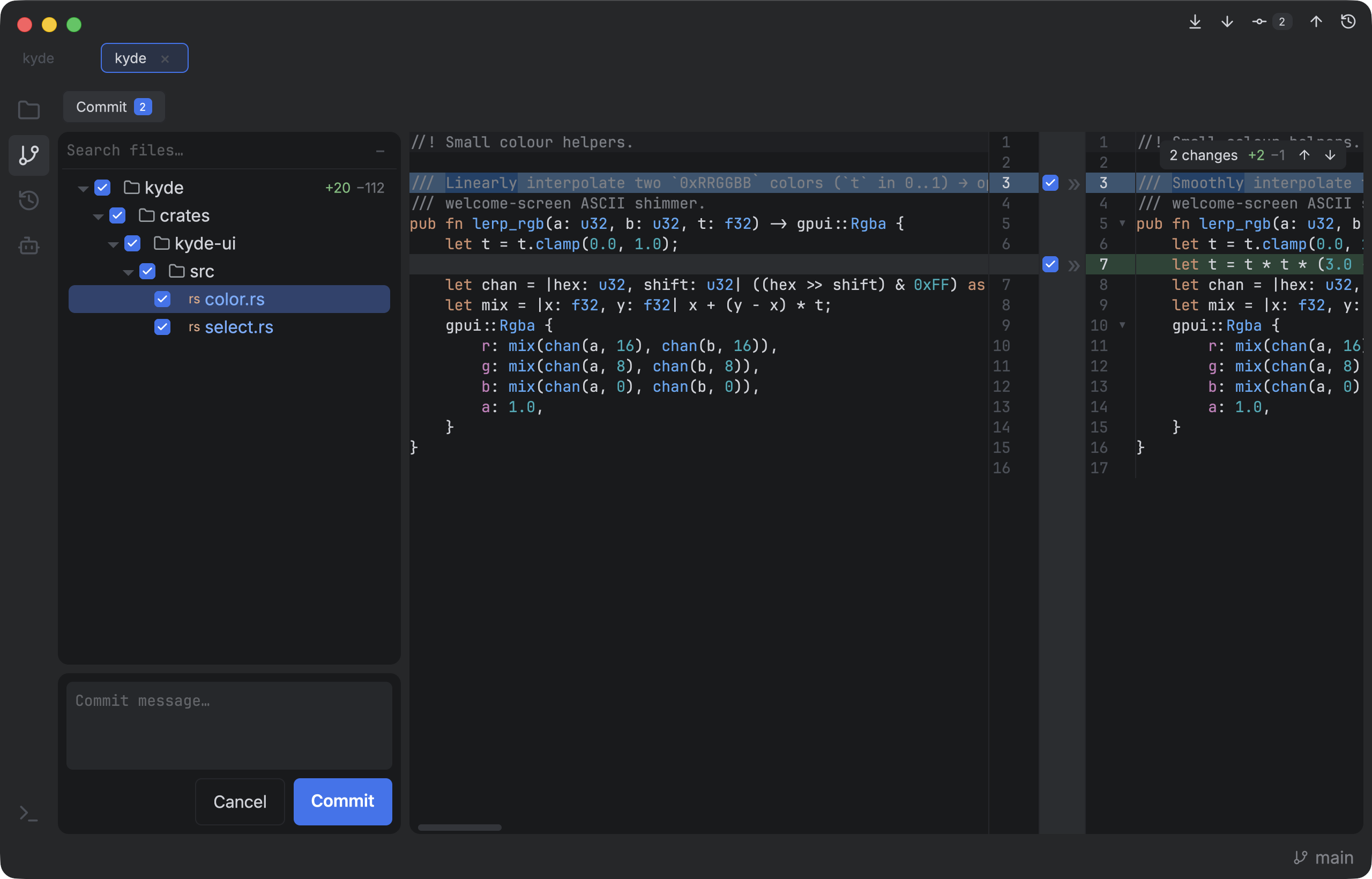
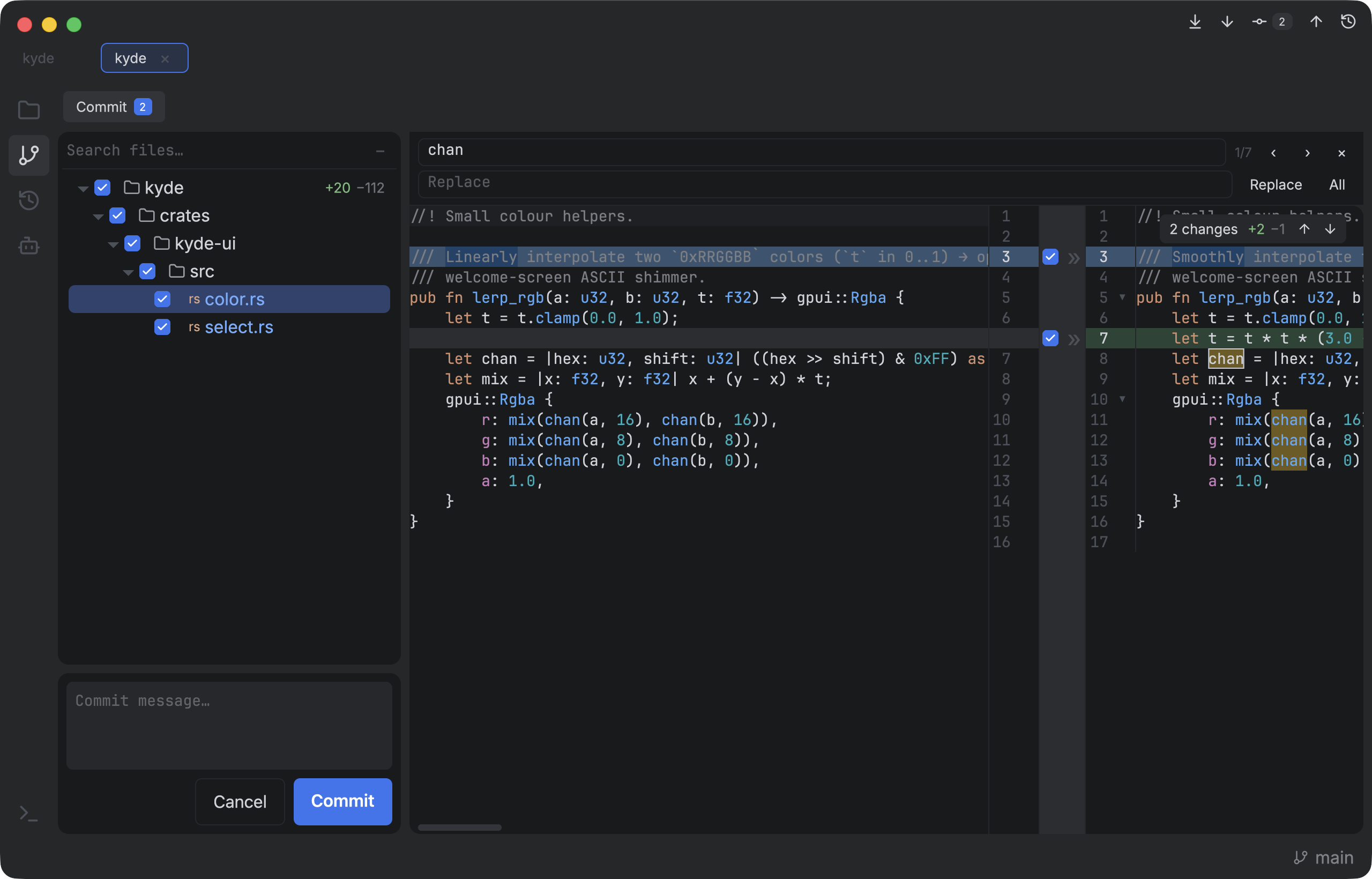
- Side-by-side diff with word-level highlighting and a center gutter to stage/revert hunks —
git add -p, made visual. - Open a folder and edit with tree-sitter highlighting.
- Run AI agents. An Agents view for driving many Claude Code agents across projects and worktrees — with everything around them in the same window: GitHub issues and pull requests, reviews, diffs, commits and cleanup.
Stack
- gpui (Apache-2.0) — Zed's native, GPU-rendered GUI framework. No web, no Electron.
- git, shelled out. No libgit2.
- similar (Apache-2.0) — line and word diffing.
Built from scratch on gpui, borrowing patterns from existing editors but not their code.
Theme
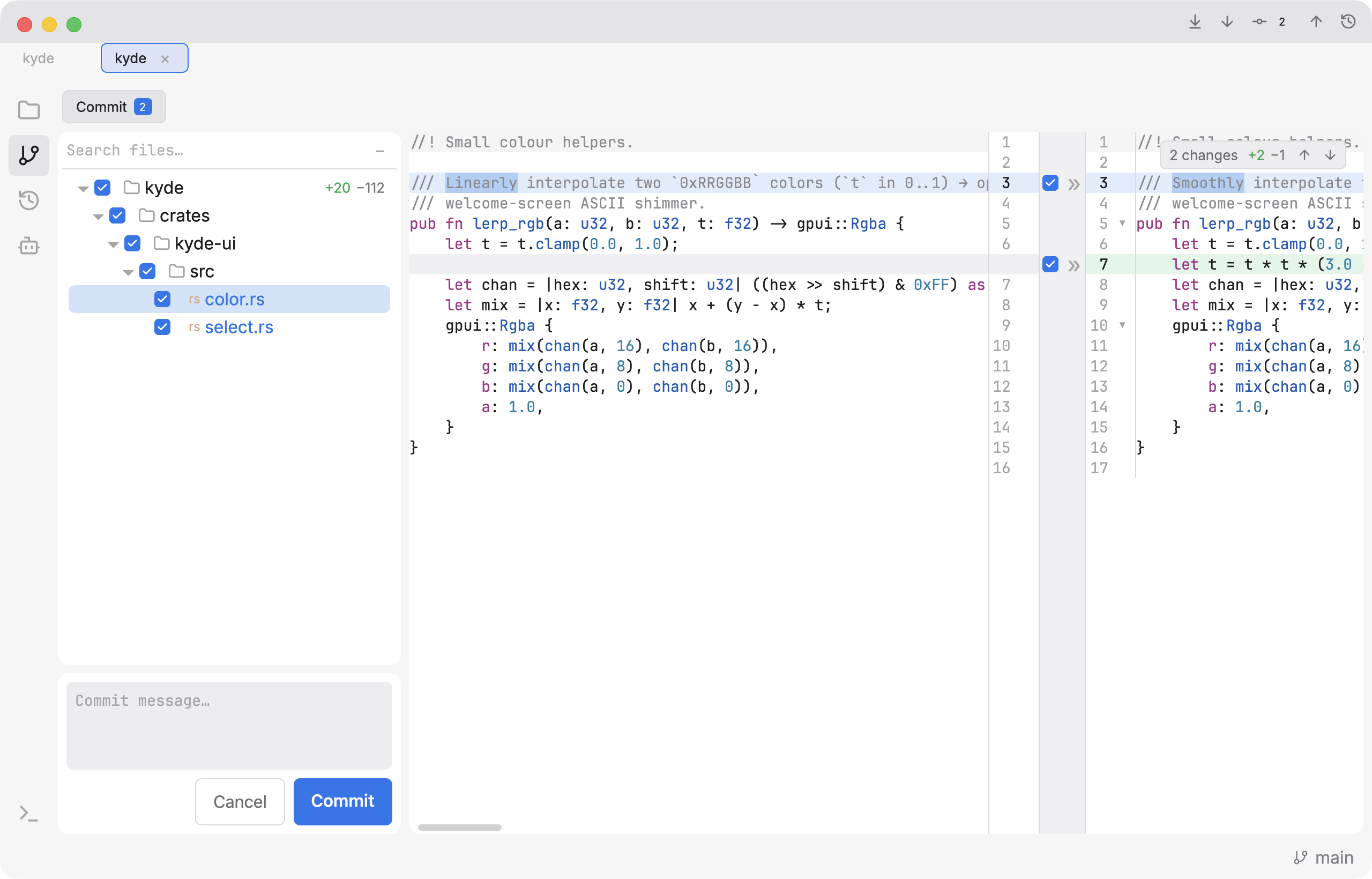
A hand-tuned dark palette, configurable at runtime via ~/.config/kyde/theme.json.
Six built-in palettes ship — Kyde Dark, Kyde Light, and colour-vision-deficiency
variants of each (Red–Green and Blue–Yellow, which separate the diff/syntax poles
by lightness instead of hue) — switch in Settings.
Features
Git client — commit, diff, merge, history
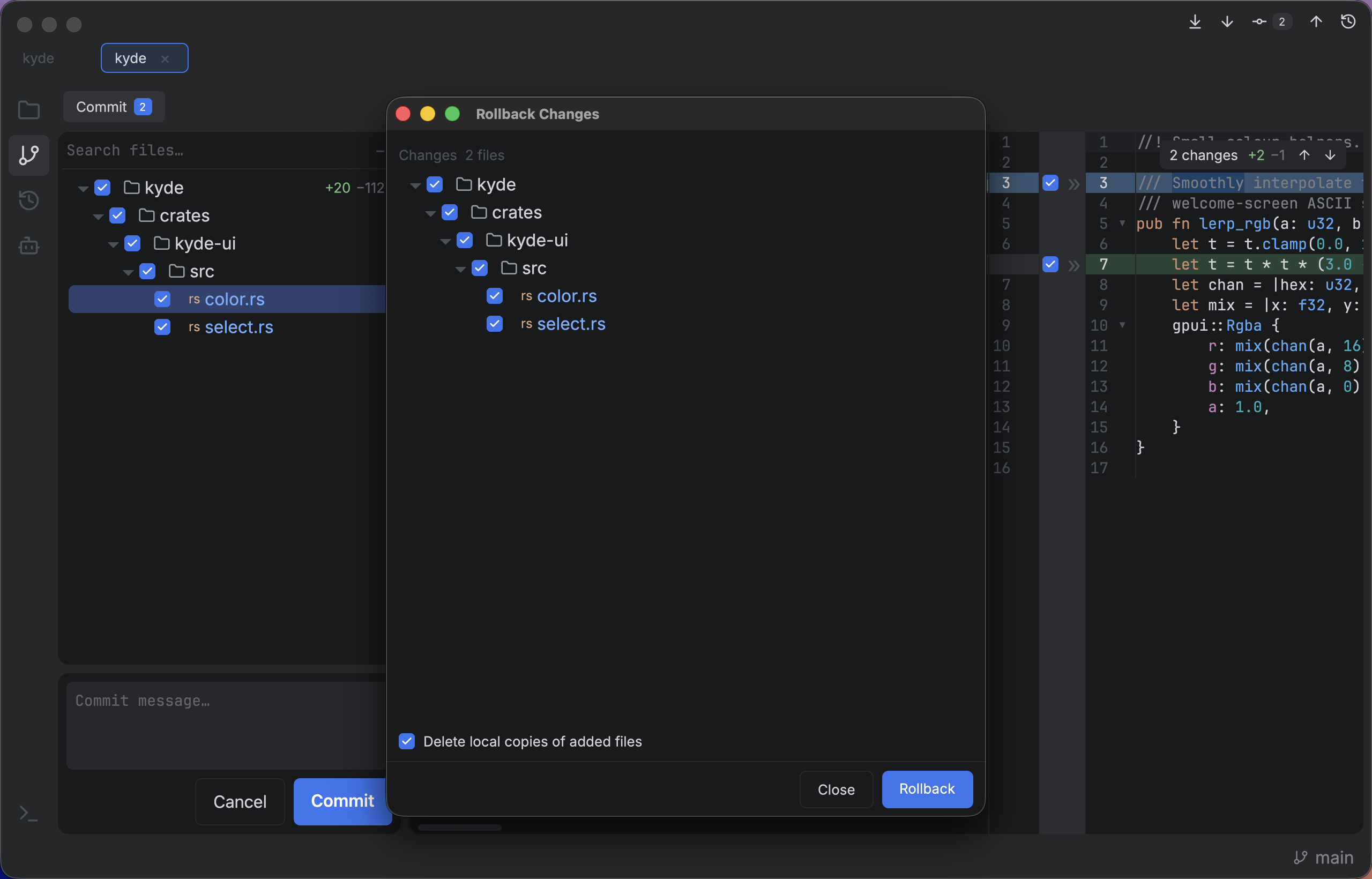
- Commit view: changed-files list + an editable side-by-side diff — base on the left, live working copy on the right, both highlighted.
- Stage / revert per hunk from the center gutter, or whole files; commit via the message box.
- Rollback in a native window — checkbox tree, optional deletion of added files, right-click for diff.
- Git toolbar — Fetch, Pull, Commit, Push and History one click away in the title bar, with the behind / changed-file / ahead counts on their buttons.
- Push / Pull / Fetch — from the toolbar, the status-bar chips that appear when you're ahead or behind upstream, or the context menu. Push lists the outgoing files as a folder tree before anything leaves.
- Branch switcher — searchable tree,
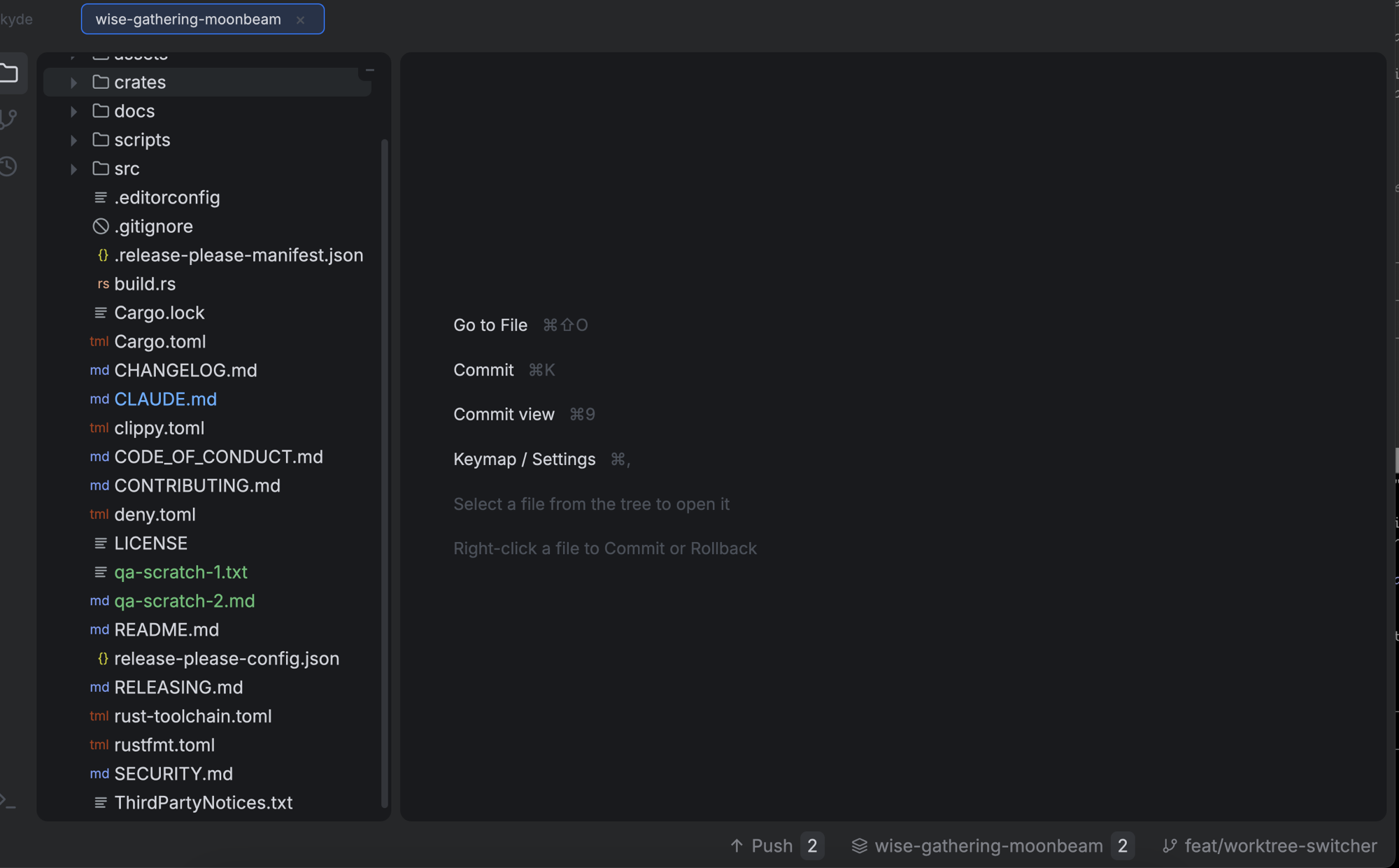
/as folders, Recent / Local roots, ahead/behind counts per branch. - Worktree switcher — a chip listing every linked worktree with its branch and changed-file count; switching restores that worktree's UI state, and the branch popup jumps to a worktree rather than failing a checkout that's already checked out elsewhere.
- Compare two files — ⌘-click two files in the tree → right-click → Compare Selected (or right-click a tab → Compare with Current Tab) for a side-by-side compare in a native window, with a
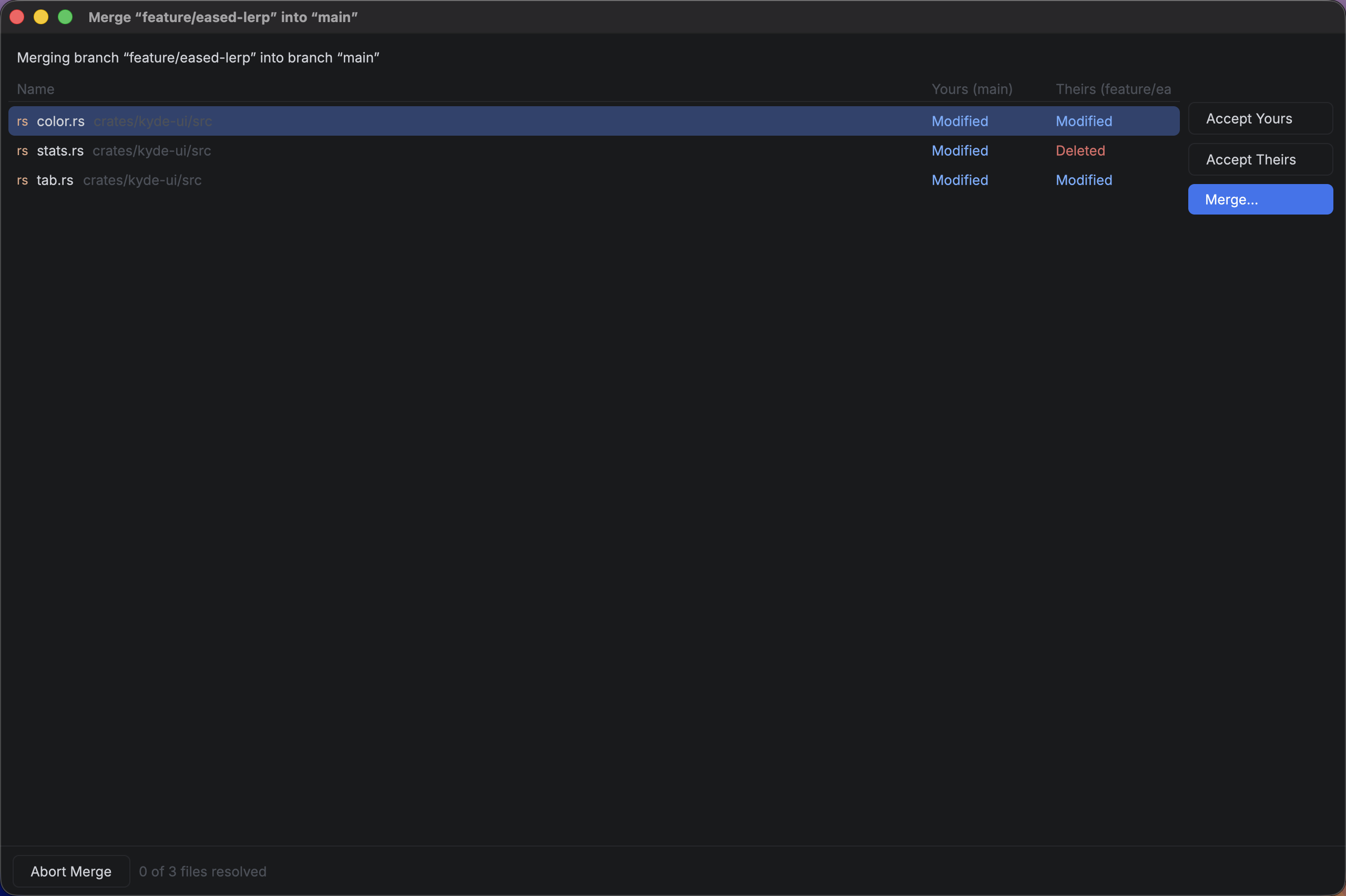
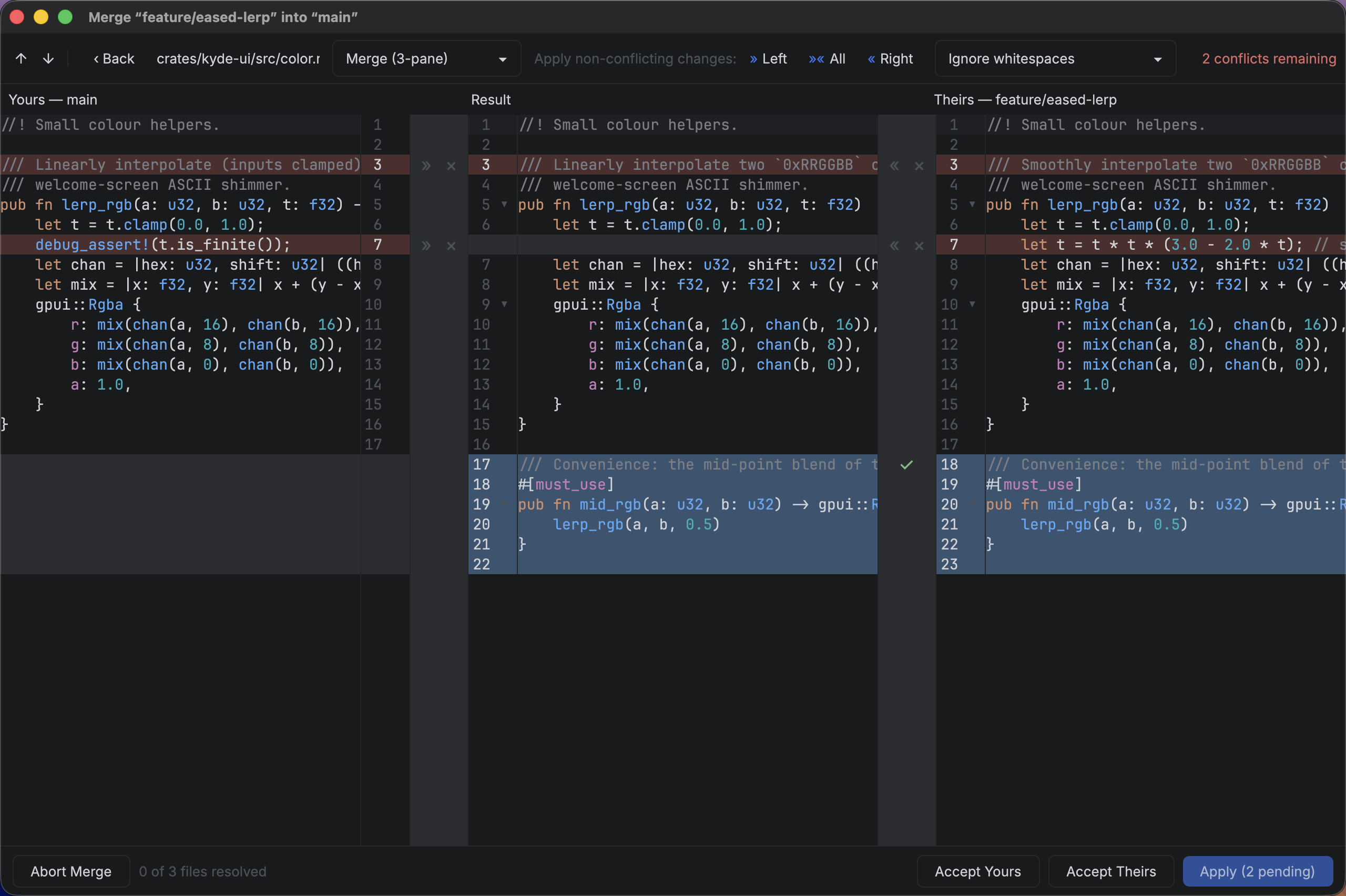
«»gutter that applies a hunk in either direction. - Merge — right-click a branch to merge it into the current one. Conflicts open a native two-stage resolver: a conflicts list (what each side did, Accept Yours / Accept Theirs / Merge…), then a 3-pane merge view — yours | result | theirs — with per-change apply/ignore gutters, "apply non-conflicting changes", Compare Contents pairs, and whitespace-ignoring diffs.
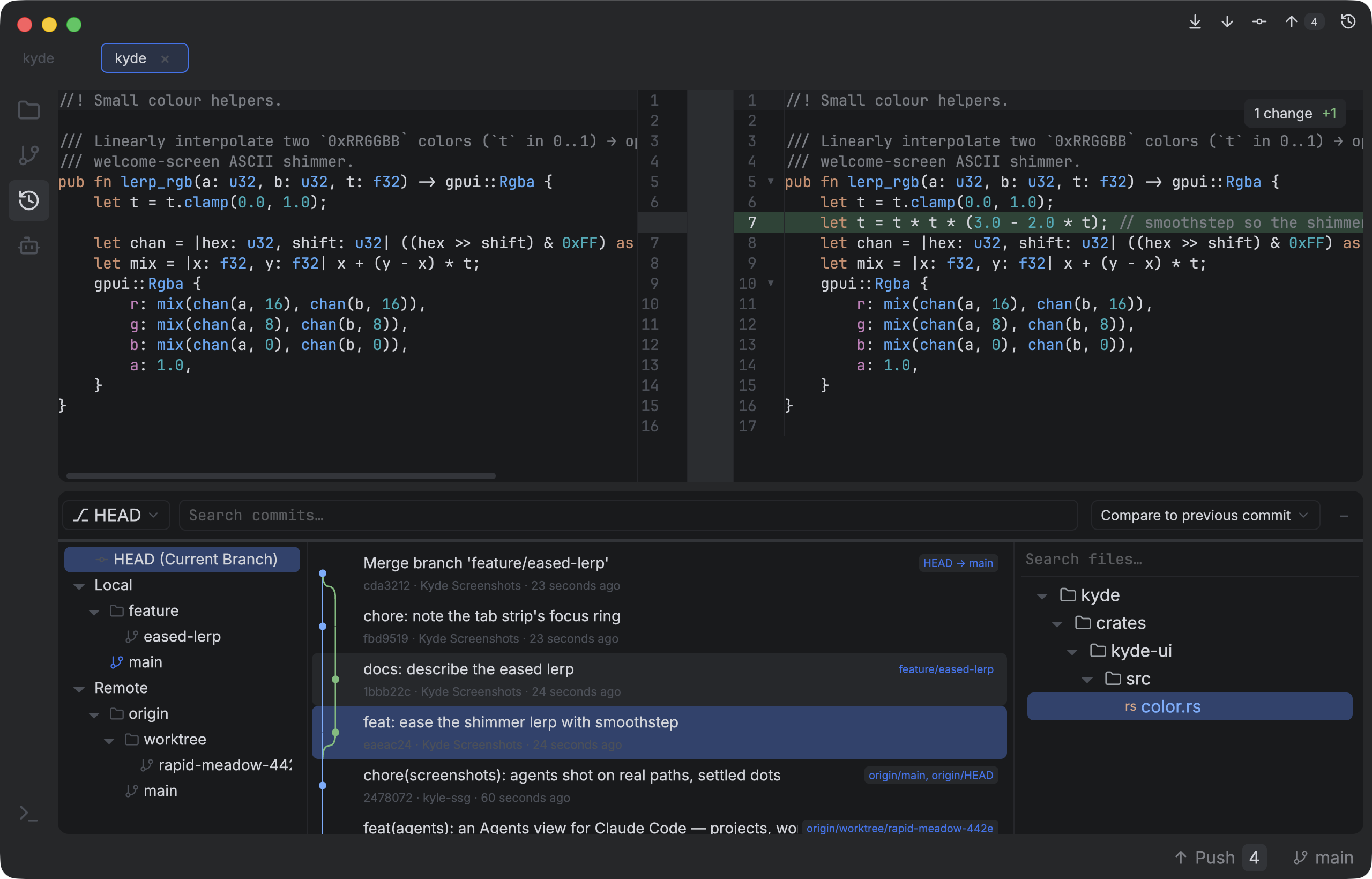
- History — an IntelliJ-style log: a branches sidebar (HEAD, Local, Remote,
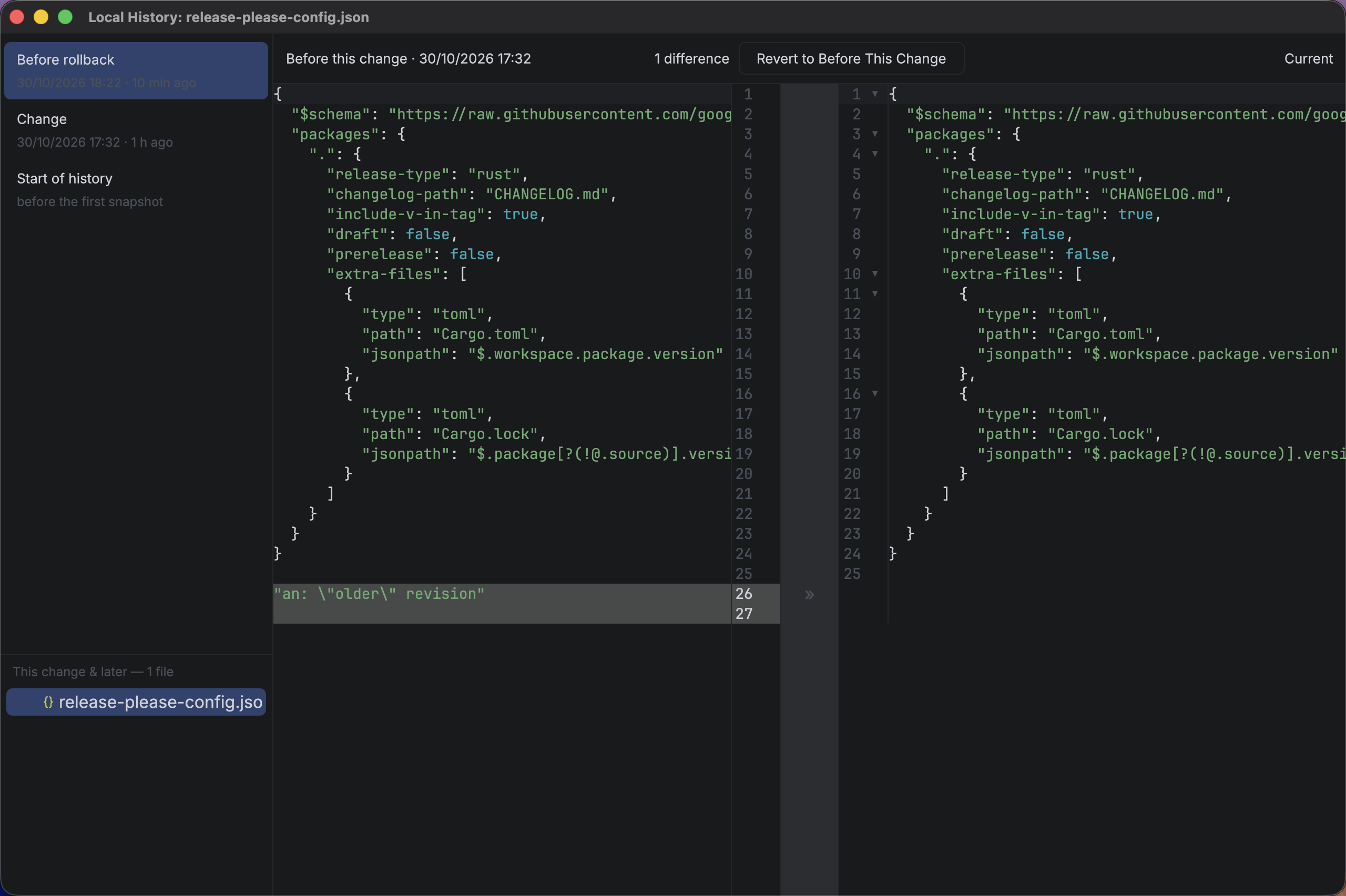
/as folders) picks what's logged, the commit list draws the branch / merge graph, and the selected commit's changed files open in a read-only diff that compares vs the parent, latest, or your local working tree. - Local History — per-file snapshots independent of git (saves, external changes, and markers before every destructive op). A timeline + snapshot ↔ current diff per file or folder, a changed-since files panel, per-hunk restore, and revert for one file, a folder, or everything since a snapshot — every revert is itself recorded. Configurable retention, clearable, or off entirely.
- File management from the tree — New File / Directory / Scratch, Rename (files and folders, repointing open tabs across the moved subtree), Delete (with confirm), Cut / Copy / Paste (
⌘X/⌘C/⌘V, including files copied in Finder and clipboard image data), drag & drop within the tree or in from Finder, and Reveal in Finder. - Non-git folders work too — file management and editing are plain filesystem ops; git actions hide themselves and offer an Initialize Git Repository button instead.
- Live — a filesystem watcher (
notify/FSEvents) refreshes git status and local history when files change outside Kyde, on top of the window-refocus refresh..git-internal churn is filtered so Kyde's own git commands don't spin it.
Projects
- Landing view when no project is open: searchable recents with branch + path, persisted to
~/.config/kyde/projects.json. - Open / New Project via the native folder picker.
Code editor — browse & edit
- Folder tree — expandable, resizable, file-type icons, git-status colors.
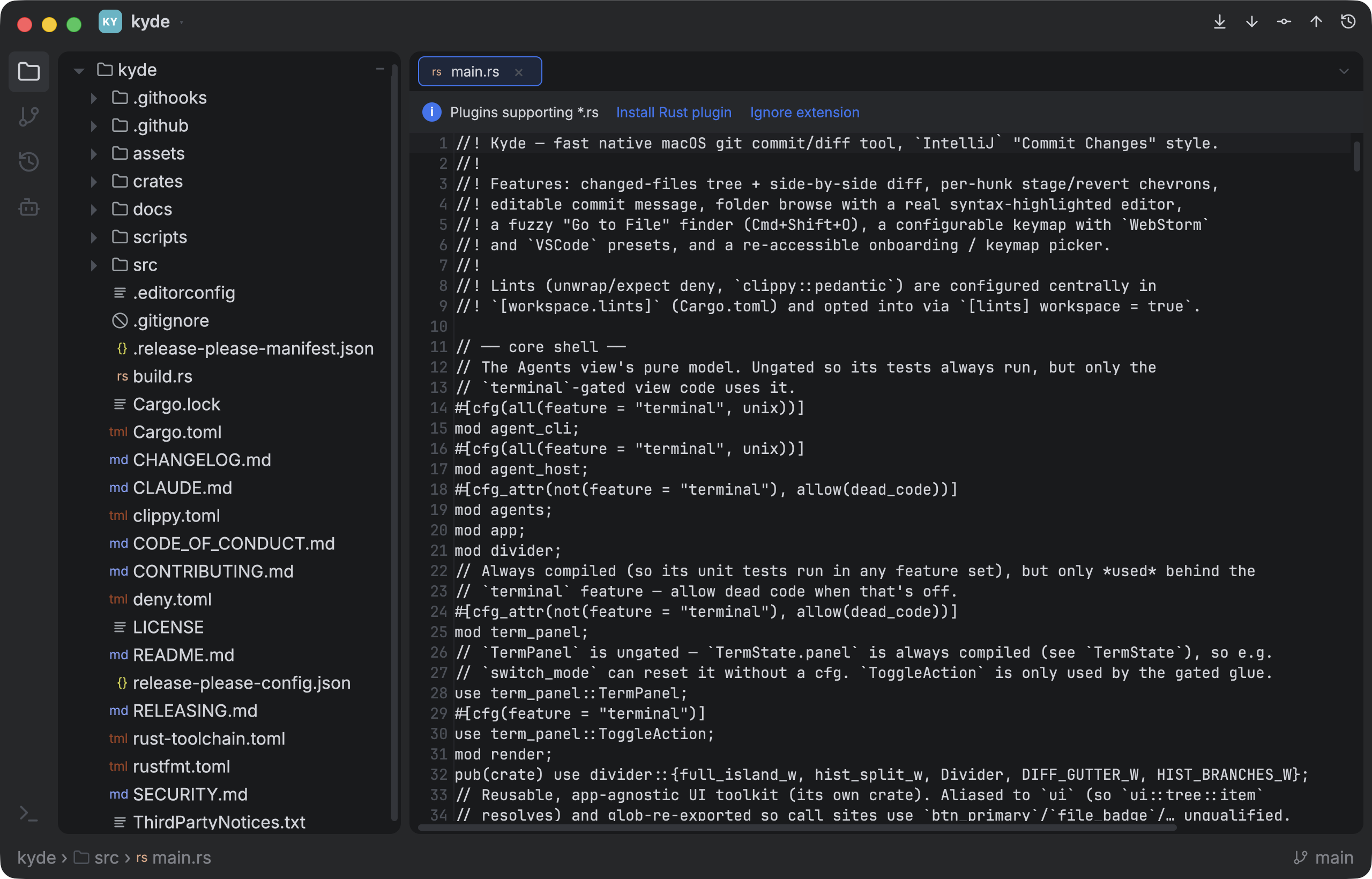
- Text editor — selection, undo/redo, copy/cut/paste, Tab/Shift-Tab indent, ⌘-backspace, line numbers, current-line highlight, IME, auto-save.
- Find & replace —
⌘Ffind (⌘G/⇧⌘Gto cycle),⌘Rreplace — in the editor and in every diff (Commit, History, Push, View Diff, Compare, Merge, Local History), with every match highlighted and the current one outlined. - Editor tabs that scroll and follow the active file.
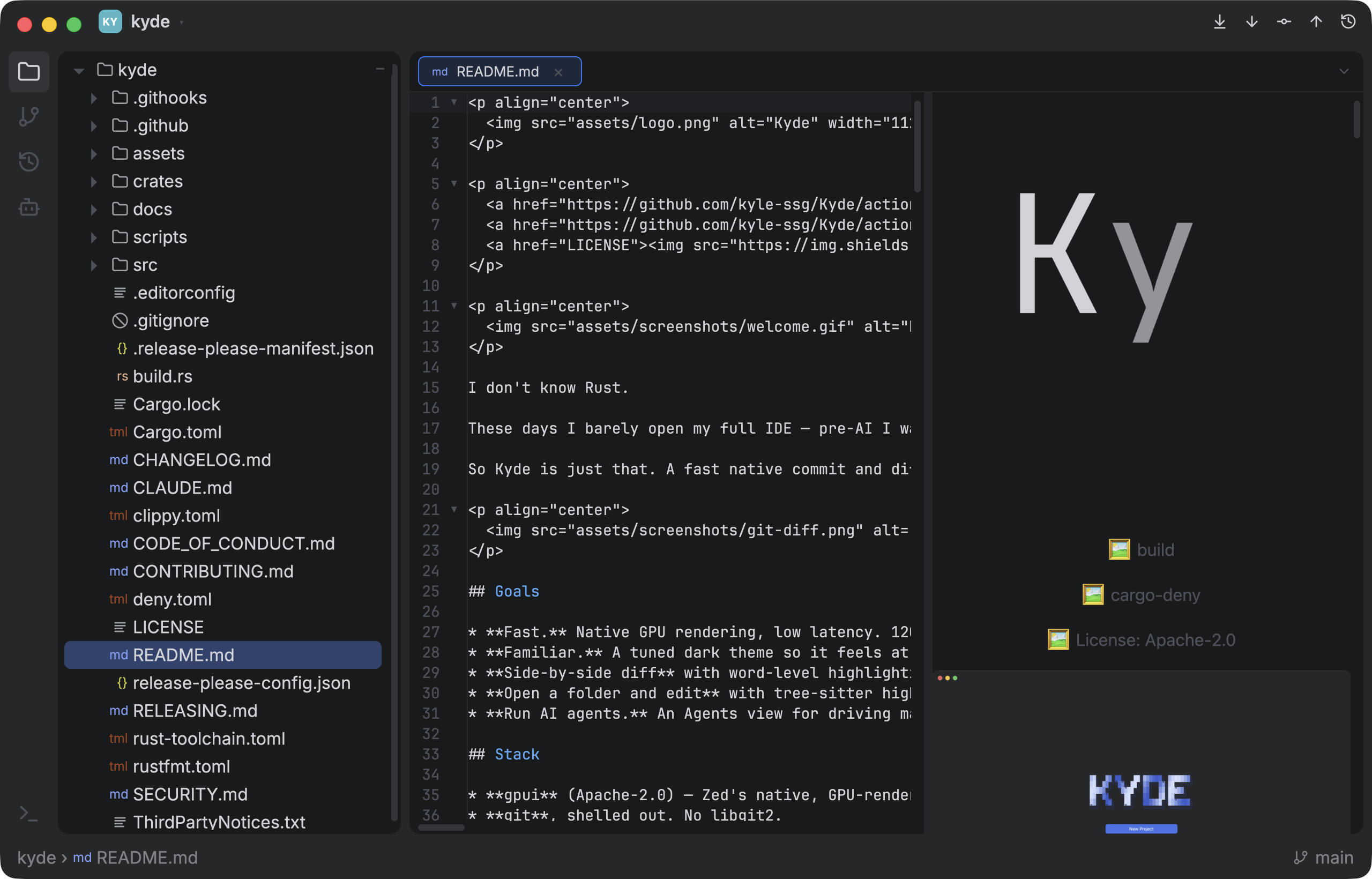
- Image preview for PNG/JPG/GIF/WebP/BMP/ICO/AVIF/TIFF.
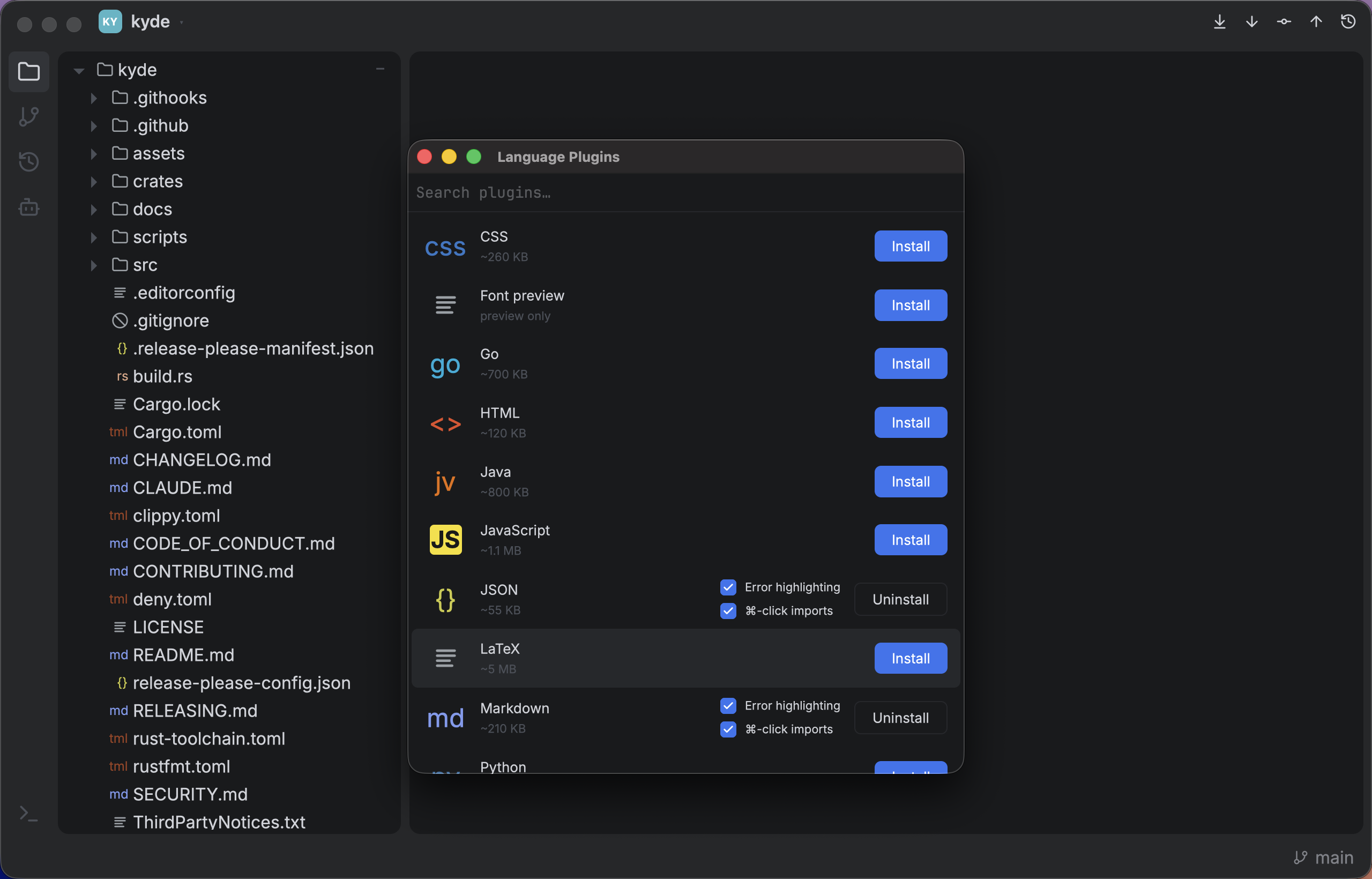
- Syntax highlighting via tree-sitter, installed on demand from a built-in Language Plugins manager. Packs: TypeScript/TSX, JavaScript, Rust, JSON, Markdown, Shell, CSS, SCSS, YAML, TOML, Python, HTML, Go, Java, R, LaTeX — plus always-on
.envand.gitignorehighlighters, and a Font preview plugin. Each pack is also a Cargo feature, so a build can ship only the grammars it wants (details). - Code folding for grammar-backed languages.
- Error highlighting — wavy red squiggles under parse errors, on by default for every installed pack, opt-out per pack.
- ⌘-click navigation — ⌘-click an import to open the file it points at, a symbol to jump to its definition (same file, or the file it was imported from). Rust, TypeScript/TSX, JavaScript, Python, Java.
- Sort Lines (
⌥⌘L) and Sort Object Keys (⌥⌘S) — a line sort inside a JSON/JS/TS object delegates to the key sort, so entries move with their commas. - Markdown preview — a live rendered pane alongside the editor.
Built-in terminal
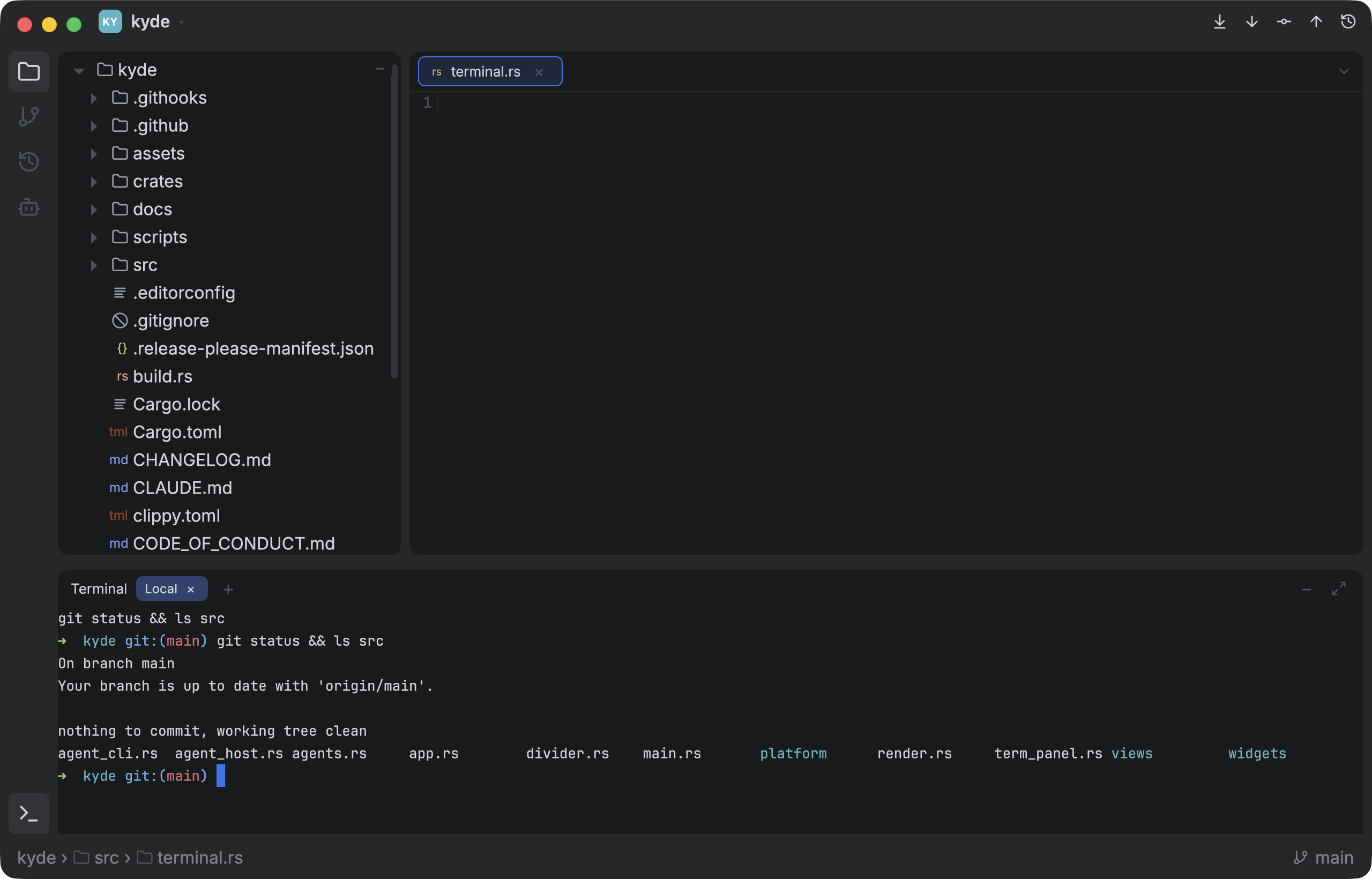
- Embedded multi-tab terminal — a real PTY-backed shell (alacritty's VTE engine),
bottom-docked, toggled with⌃`. Full color, scrollback, resize, multiple tabs. - Mouse select + copy (
⌘C), paste (⌘V, bracketed-paste aware),⌘-click URLs. - History (
↑), tab-completion, line-editing all work — it's your real shell. - Optional: drop it entirely with
--no-default-features(theterminalCargo feature)
for a ~2MB-lighter binary.
Claude Code agents & git worktrees
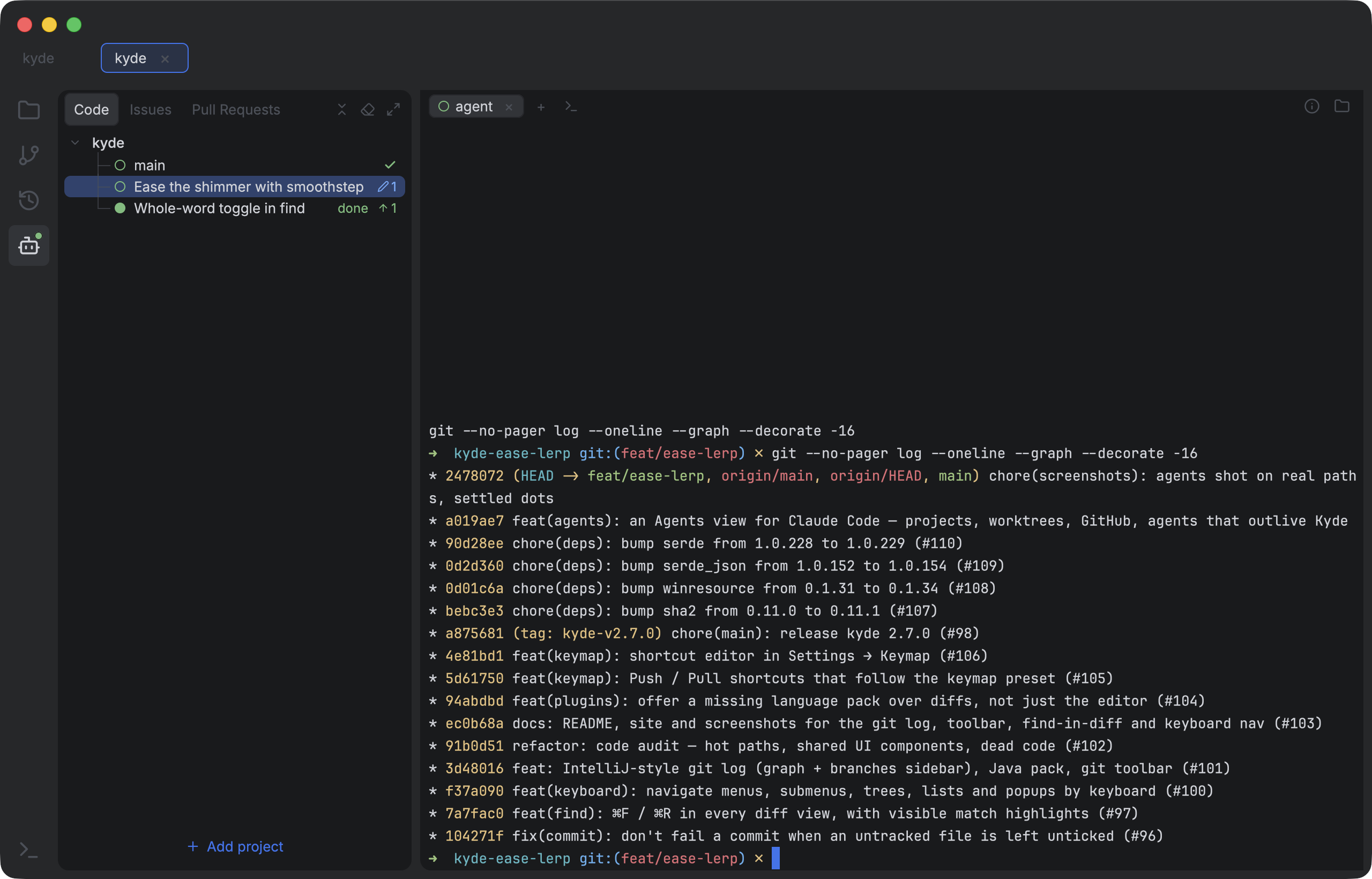
A home for AI coding agents — Claude Code by default (the start command is configurable). Projects → worktrees → tabs, each tab an agent.
- Projects → worktrees → tabs. Every project's own checkout plus all of its git worktrees, whoever made them. New worktrees check out from a fresh
origin/mainin seconds, and each one runs one or more agent tabs. Drag to reorder, double-click to rename. - Live status. A dot per agent — working (blue), finished while you were away (green, "done"), needs input (red — a permission prompt, a question, a plan to approve). It comes from a small Claude Code hook Kyde installs (and can remove) in
~/.claude/settings.json. A sound and a Dock bounce (on Linux, a desktop notification) when an agent finishes or needs you,⌘⌥Jto jump to it, and an optional "needs you first" ordering. - Agents outlive the window. Each agent runs in its own background host process: quit Kyde and they keep working; reopen it and they're back, scrollback and all. After a reboot, each tab resumes its exact Claude session.
- AI titles and context. Rows are titled by what the agent is doing (Claude Code's own session title), with its task, latest prompt and git state one click away.
- GitHub built in (via
gh). Issues and Pull Requests tabs per project — filter (Mine / All / Unassigned; Review requested / Mine / All) and search. Start an issue: a worktree on afeat/123-short-slugbranch with an agent already briefed. Review a PR: it's checked out in its own worktree with a review agent, and Kyde remembers, offering Re-review next time. Issues and PRs render like GitHub — the conversation, reviews with their inline threads (reply in place), commits, checks and files changed — and you can comment, close or reopen. - Cleans up after itself. It spots finished work — the PR merged, its changes already on main (squash-merged included), the agent quit, never used, idle, or a quick AI "is this done?" — and, as you choose (Off / Suggest / Auto), closes the tabs or lists them in a Clean Up window that removes finished worktrees, pre-ticking the ones where nothing would be lost.
- Main stays fresh. Each project's own checkout fast-forwards to
origin/mainin the background (only on its default branch, only when clean), and agents resuming there start from it. - Scriptable.
ky agent list | read | prompt | send | keys | wait | new | kill— see and drive agents from the command line, with or without the window open, so agents can watch and drive each other (ky agent help). - Agents-only mode hides the IDE around it, for when Kyde is just your agent cockpit. Keyboard shortcuts for all of it (below), scrollback in an editor window (
⌘⌥E), and per-row display options.
Why it replaced herdr for me
I was running my agents in herdr, and it's very good at what it does: a terminal workspace built for agents. But my day isn't just terminals. Work starts in a GitHub issue or a review request, an agent's output ends up as a diff I read and commit, and finished worktrees pile up. Next to herdr that meant a browser, an IDE and a git tool open too — and remembering to tidy up.
Kyde puts that whole loop in one native window. Pick an issue or a pull request; one click gives it a fresh worktree and an agent that already knows the job. See at a glance which agents are working, done or waiting on me — and hear about it. Read the diff, commit, push. The finished worktree gets cleared away. Fewer windows, nothing to remember.
herdr still does things Kyde doesn't: it runs anywhere a terminal does (including on remote machines over SSH), splits panes, and works with many agent CLIs. Kyde's Agents view is macOS-first and built around Claude Code.
Search & navigation
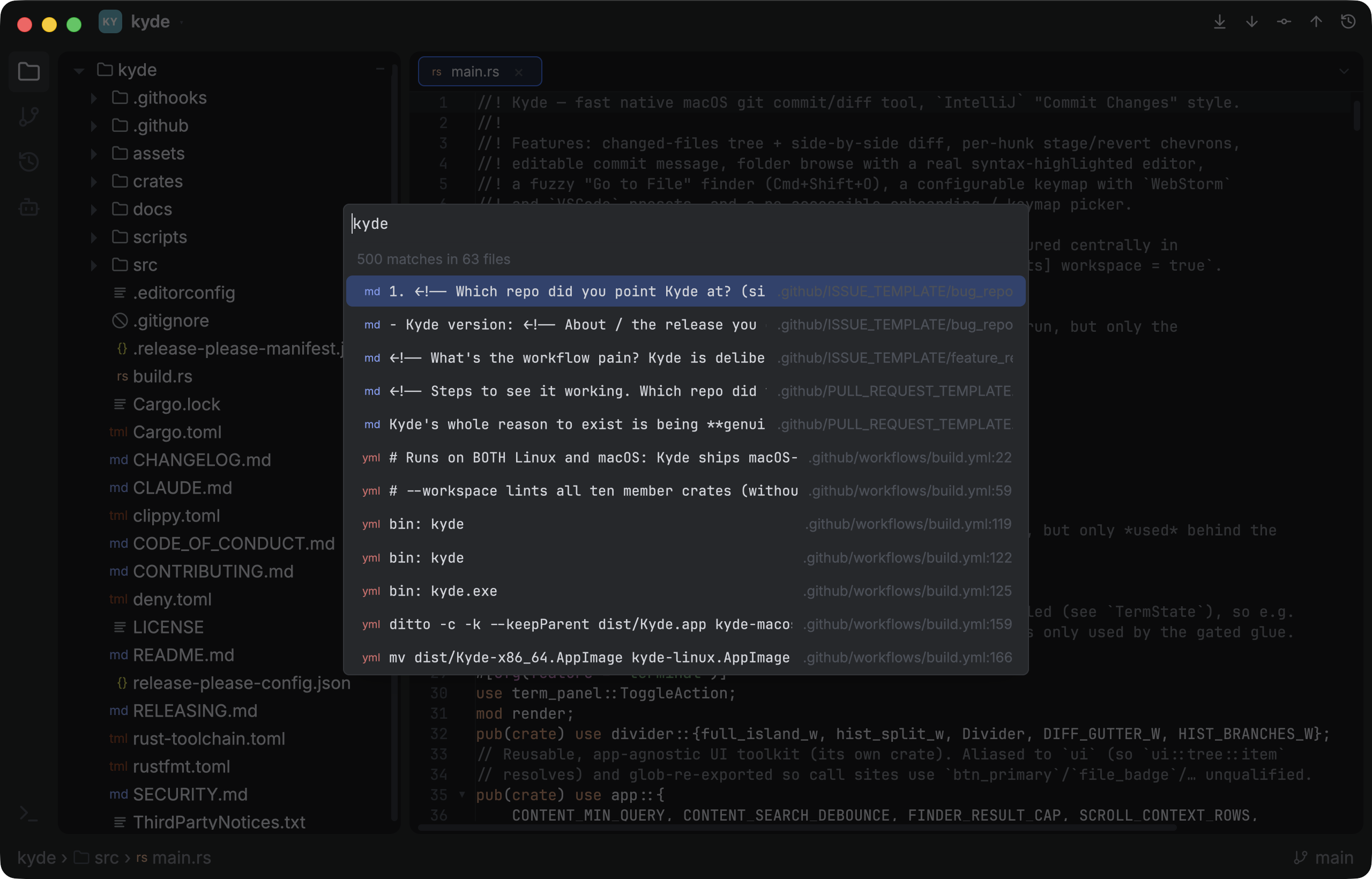
- Go to File (
⌘⇧O/⌘P) and Find Action (⌘⇧A) fuzzy finders. - Find in Files (
⌘⇧F) — full-text content search across the repo (git grep), jump straight to a match. - Back / Forward (
⌘⌥←/⌘⌥→) through visited files, IDE-style. - Scratch files — throwaway buffers under a "Scratches" folder.
- Breadcrumbs in the status bar.
Look & feel
- Islands layout — rounded panels, draggable dividers, activity rail, native title bar (double-click to zoom), status bar.
- Native menu bar — Settings, Plugins, What's New, FPS monitor toggle, Clear Data & Restart, Quit, plus a File menu with Open and Recent Projects (also on the Dock icon's right-click menu). Linux has no app menu bar, so there the same items sit behind a ☰ button: at the right end of the toolbar under the window manager's title bar (X11), at the left of Kyde's own title bar on Wayland.
- What's New — the project's GitHub releases mirrored in-app: version list on the left, that release's notes rendered on the right.
- In-app updates — a banner when a newer release exists; Update & Relaunch downloads and swaps the running
.appin place (or opens the release page when not running from a bundle). - Single instance — a second
ky <path>hands the project to the running app as another tab and brings it forward instead of starting a second process (KYDE_SINGLE_INSTANCE=0opts out). - App icon from the bundled logo.
Keymap & configuration
- WebStorm / VSCode presets, and a shortcut editor in Settings → Keymap: click a shortcut and press the new keys (a key already in use moves over, and the action it came from is named), reset one action, or Reset to WebStorm / IntelliJ defaults. Saved to
~/.config/kyde/keymap.json. - Onboarding keymap picker on first launch, reopenable via Settings.
- Keyboard navigation everywhere — context menus and their submenus, the file trees, lists and popups:
↑/↓move,←/→fold folders or step in and out of submenus,⏎activates, space ticks a checkbox,⇧F10opens a row's context menu,Esccloses. - Install shell command — optionally symlinks
kyinto~/.local/bin. No shell-rc editing, no sudo.
Install
Grab the latest build for your platform from the Releases page.
macOS — download kyde-macos.zip (Apple Silicon) or kyde-macos-x86_64.zip (Intel), unzip, and drag Kyde.app to /Applications.
Linux — download kyde-linux-x86_64.AppImage, chmod +x it, and run it. It needs glibc 2.39+ (Ubuntu 24.04, Linux Mint 22 or newer) and a Vulkan driver; a stock Ubuntu desktop already has the rest. On a minimal install: sudo apt install libvulkan1 mesa-vulkan-drivers libxkbcommon-x11-0 libwayland-client0 fuse3 (NVIDIA's driver brings its own Vulkan).
On X11 the window manager draws Kyde's title bar; on a Wayland desktop that leaves that to the app (GNOME), Kyde draws its own — drag it to move, double-click to maximize, minimize / maximize / close at its right. On X11 Kyde follows the desktop's scale (Xft.dpi, which GNOME, Cinnamon and KDE set); to override it, start Kyde with GPUI_X11_SCALE_FACTOR=1.5 (any factor), or GPUI_X11_SCALE_FACTOR=randr to use the monitor's physical DPI. Wayland uses each monitor's own scale.
Usage
Launch with no arguments for the Projects view, or point it at a repo:
cargo run -- /path/to/repo
First-run setup offers to install a ky shell command (a symlink into ~/.local/bin — no shell-rc editing, no sudo; from the AppImage it links the .AppImage file, so keep that where it is); leave it ticked and you can open Kyde from any terminal. On Ubuntu, ~/.local/bin only joins your PATH at login if it already existed, so if Kyde had to create it, log out and back in once.
ky                 # Projects view
ky /path/to/repo   # open a repo directly
Default shortcuts (WebStorm → VSCode):
- Go to File:
⌘⇧O→⌘P - Find Action:
⌘⇧A - Find in Files:
⌘⇧F - Find / Replace (file or diff):
⌘F/⌘R(⌘G/⇧⌘Gto cycle) - Save:
⌘S - Commit:
⌘K→⌘⏎ - Commit view:
⌘9→⌃⇧G - Push / Pull:
⌘⇧K/⌘T→ unbound (VSCode has no defaults; set them in Settings → Keymap) - Browse view:
⌘1→⌘⇧E - Back / Forward:
⌘⌥←/⌘⌥→ - Sort Lines / Sort Object Keys:
⌥⌘L/⌥⌘S - New Scratch:
⌘⇧N - Toggle terminal:
⌃` - Settings:
⌘, - Agents: next / previous agent
⌘⌥↓/⌘⌥↑, the one that needs you⌘⌥J, the Nth⌃1–⌃9, next / previous tab⌘⇧]/⌘⇧[, new worktree⌘⌥N, rename tabF2, scrollback in an editor⌘⌥E, hide the sidebar⌘⌥B
On Linux (and Windows) ⌘ is Ctrl and ⌥ is Alt: Save is Ctrl+S, Go to File Ctrl+Shift+O, Settings Ctrl+,, ⌘-click is Ctrl+click, and Settings → Keymap shows every key that way. A few keys differ there:
Find next / previous:
F3/Shift+F3Editor:
Ctrl+←/Ctrl+→move by word andCtrl+Backspacedeletes one (Home / End go to the line ends)The Nth agent:
Alt+1–Alt+9Terminal: Ctrl + a letter goes to the shell (
Ctrl+Cinterrupts,Ctrl+Wdeletes a word), so the terminal's own keys take Shift: copy / pasteCtrl+Shift+C/Ctrl+Shift+V, new / close tabCtrl+Shift+T/Ctrl+Shift+W(the shell's ownCtrl+L/Ctrl+Uclear)Keys the desktop keeps (Cinnamon and GNOME switch workspaces on
Ctrl+Alt+←/→/↑/↓, Cinnamon locks the screen onCtrl+Alt+L) and keys that need a US layout move: Back / ForwardAlt+←/Alt+→, next / previous agentCtrl+Alt+PageDown/Ctrl+Alt+PageUp, next / previous agent tabCtrl+PageDown/Ctrl+PageUp, Sort LinesF9
A shortcut written with Shift and a symbol binds to what that key types on your keyboard layout, read from the active layout and again whenever you switch.
Build
Needs Rust 1.96+ and (on macOS) Apple's Metal Toolchain, which gpui uses to compile its shaders — if a clean machine errors with "missing Metal Toolchain", run xcodebuild -downloadComponent MetalToolchain.
On Linux, gpui needs its backend's dev libraries first (Ubuntu/Debian — the same list CI installs):
sudo apt install pkg-config libssl-dev libzstd-dev libwayland-dev libxkbcommon-dev \
  libxkbcommon-x11-dev libfontconfig-dev libfreetype-dev libx11-dev libxcb1-dev \
  libvulkan-dev clang cmake
cargo build --release             # full — every language grammar baked in (default)
cargo test --workspace            # logic, perf guards, and headless-gpui smoke tests
--workspace matters: the root package is the binary, so a bare cargo test skips the
library crates under crates/ where most of the logic tests live.
Each language pack is a Cargo feature, so unused grammars can be dropped from the binary entirely (smaller image + resident RAM):
cargo build --release --no-default-features --features rust,json,toml
./scripts/bundle-linux.sh wraps the release build in an AppImage (dist/Kyde-x86_64.AppImage), the same way ./scripts/bundle-macos.sh makes dist/Kyde.app.
Performance
Large files stay smooth via viewport virtualization (only on-screen rows are shaped each frame) and async highlighting (big files open instantly as plain text, then highlight off-thread). A 37k-line package-lock.json scrolls at ~120fps.
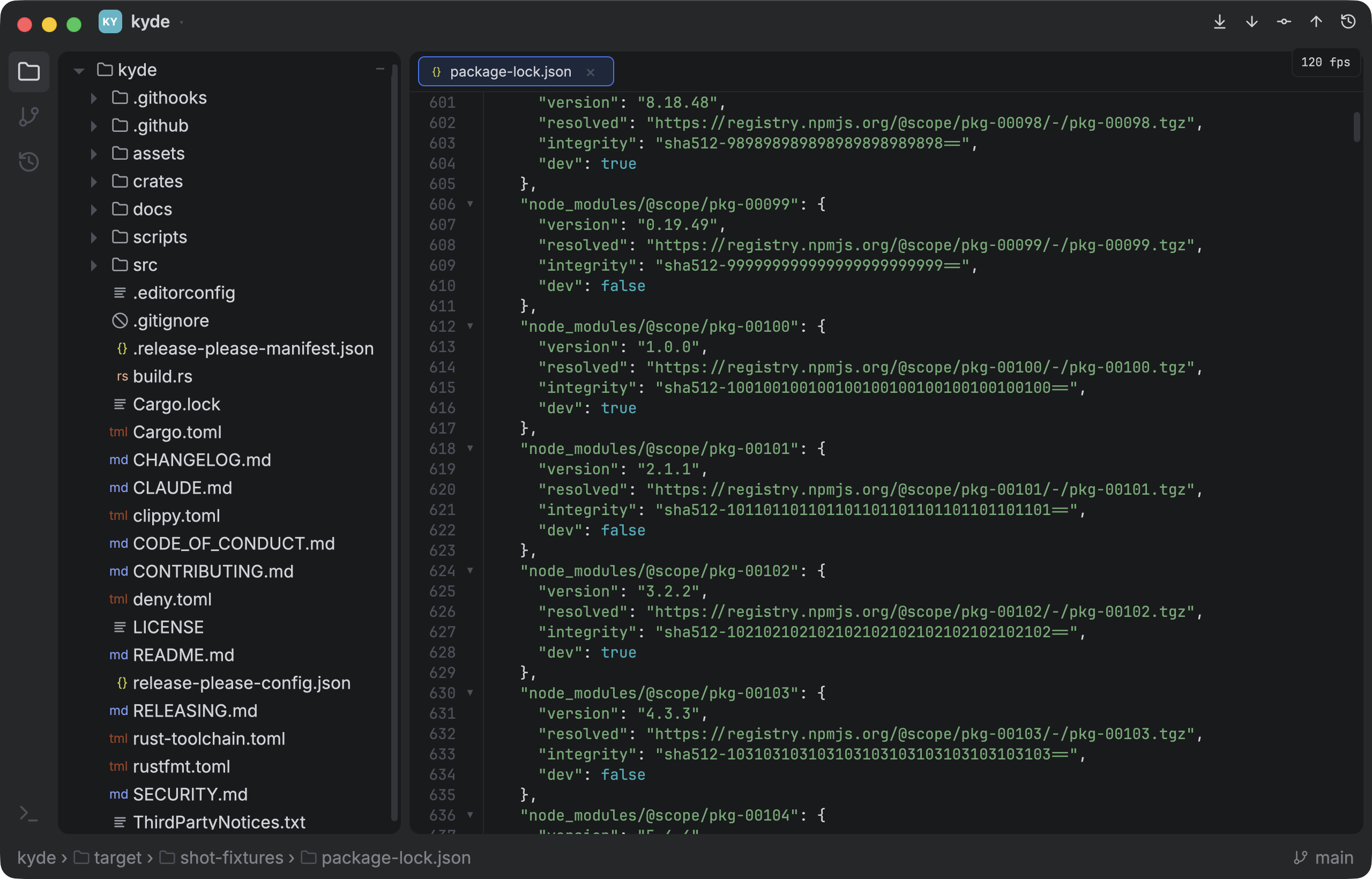
Guarded by perf_* time-budget tests, headless-gpui smoke tests (render every screen, fail on any panic), and a toggleable on-screen FPS monitor.
Known limitations / next
- Prebuilt releases are macOS + Linux. I develop on macOS, so the signed + notarized macOS build is the one I test myself; the Linux AppImage (x86_64) was revived and tested by a contributor on Ubuntu — Linux bug reports are welcome. It doesn't self-update: the update banner's Download opens the release page. Windows packaging still isn't wired into the release — re-enabling it is a good first issue for a contributor who runs Windows. Until then, Windows users can
cargo build --release. - No soft-wrap in the file editor (long lines scroll horizontally; the commit box does wrap). The editor holds a flat
Stringand undo is whole-buffer snapshots — a rope-based buffer comes later for very large edits. - No scrollback search in the terminal (open it in an editor with
⌘⌥Eand⌘Fthere). - Agents' needs-input / done states come from a Claude Code hook; other agent CLIs get a simpler dot based on their output.
FAQ
Is Kyde free and open source?
Yes — Apache-2.0. Free to use, modify and redistribute.
Is it an Electron or web app?
No. It's native and GPU-rendered on gpui, the Rust UI framework behind Zed, and it drives the real git binary — no libgit2, no bundled browser.
Does it run on Windows?
Not as a prebuilt download yet. cargo build --release works; packaging it is a good first issue (see Known limitations).
Does it replace my IDE?
It replaces the part I kept opening one for: commit, diff, merge, history and quick edits — with tree-sitter highlighting, folding, error squiggles and ⌘-click navigation. There's no language server, so no autocomplete or refactoring.
Which AI coding agents does it work with?
Claude Code by default, with live working / done / needs-input status from a hook Kyde installs. The start command is configurable, so other agent CLIs run too, with a simpler status dot.
Contributing
If you open a PR, please be kind — explain the idiomatic way, don't just dunk on my .clone()s. I'll read every comment and quietly Google what a lifetime is.
If the feature adds a lot of bloat, it should be a plugin.
Yorumlar (0)
Yorum birakmak icin giris yap.
Yorum birakSonuc bulunamadi