VibeForge
Health Warn
- License — License: MIT
- Description — Repository has a description
- Active repo — Last push 0 days ago
- Low visibility — Only 5 GitHub stars
Code Fail
- exec() — Shell command execution in companion/js/address.js
- network request — Outbound network request in companion/js/api.js
Permissions Pass
- Permissions — No dangerous permissions requested
No AI report is available for this listing yet.
Your coding agents, forged into one desk. An open-source desktop for Omarchy that runs Claude Code, Codex, Grok and every coding CLI you use — agents, routines, tasks and real terminals.

VibeForge
Your coding agents, forged into one desk.
An open-source desktop for Omarchy that runs Claude Code, Codex, Grok and the other coding CLIs you already use, side by side in real terminals.



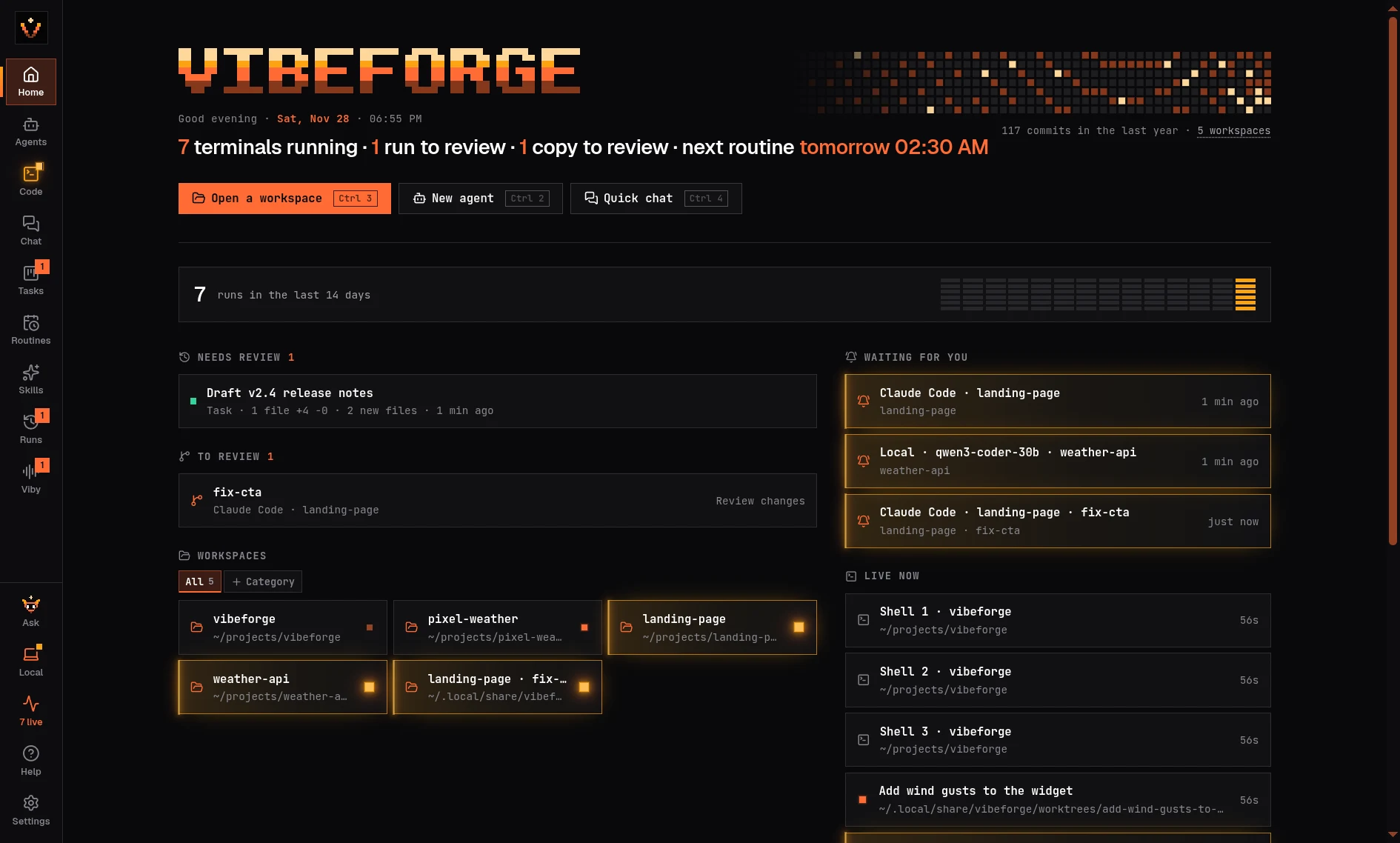
VibeForge never calls a cloud model API and never holds a key. Every engine is a CLI you are already signed in to (unless you opt in to Local AI for your own self-hosted server); VibeForge gives them a home. It remembers who does the work (agents with a brief, memory and skills), where they may work (allowed folders), when work starts (routines), and what to review when it ends (every run keeps its final screen, a transcript and the git diff since it began). No accounts. No telemetry. Everything on disk is plain YAML and Markdown. What it will and won't do is in the principles.
Install
On Omarchy (or any Arch + Hyprland setup):
curl -fsSL https://vibe-forge.net/install | bash
Then open VibeForge from the app launcher (Super + Space) or run vibeforge. On a distribution other than Arch, the installer names what to install with its own package manager (apt-get, dnf or zypper), and packaging/aur/PKGBUILD is the start of a vibeforge-bin package.
Uninstalling. vibeforge --uninstall removes the command, the launcher entry and Start at login, and lists what stays (your data, the app's folder, its browser profile) so you can delete those too. vibeforge --purge-app does the same and removes the app's folder as well; your data still stays. Without the command, run the installed copy's installer, ~/.local/share/vibeforge-app/current/scripts/install.sh --uninstall, or the one from the site: curl -fsSL https://vibe-forge.net/install | bash -s -- --uninstall (piped to bash, the options go after bash -s --). To remove everything, delete these five folders afterwards: rm -rf ~/.local/share/vibeforge-app ~/.config/vibeforge ~/.local/share/vibeforge ~/.config/VibeForge ~/.cache/vibeforge (the app; your agents, routines and settings; runs and other data; the window's browser profile; the cache).
The installer downloads the newest release's ready-made build (about 110 MB the first time), checks each file against the release's SHA256SUMS, unpacks it into ~/.local/share/vibeforge-app, and adds ~/.local/bin/vibeforge and a desktop entry. Nothing is compiled: it needs curl, tar, zstd and sha256sum, which every Arch install has, and no Node, since the terminals run on Electron's own. Each version goes in a folder of its own, versions/<version>, and current links to the one that starts; Electron and Syncthing go in runtime/, shared by the versions that use the same ones. A release is split the same way, into the app (about 2 MB), Electron (about 96 MB) and Syncthing (about 12 MB), so an update downloads only the app unless the release moved to another Electron or Syncthing; one already on your computer is used only when its files are the same as the ones the new version was built with. An update is unpacked beside the installed version and current switches to it only once it is whole and written to disk, so a dropped connection, a bad download, Ctrl+C or a power cut leaves VibeForge as it was, and a VibeForge that is open keeps running from its own folder until it restarts. The version before stays, for Go back; older ones are removed. If GitHub answers with an error, it stops and says so. Run it again with the newest release already installed and it downloads nothing (VIBEFORGE_FORCE=1 installs it again). An install from before this layout (3.7.2 and earlier) is moved into it on the first update without copying anything, and keeps your settings, data, command and launcher entry.
It builds from source instead (a clone, npm ci and a build, which need git, base-devel, python and Node 20.19+ or 22.12+) when the release has no ready-made build or none for your CPU (there is one for x86-64 and one for ARM64), when the ready-made terminal engine won't load on your system (an older glibc), when you set VIBEFORGE_FROM_SOURCE=1, or with VIBEFORGE_BRANCH=main to follow the main branch. It says which way it went. VIBEFORGE_VERSION=vX.Y.Z installs that release instead of the newest.
Updating. VibeForge asks GitHub for the newest release number when it starts and every six hours (nothing else is sent; turn it off in Settings → Updates). When one is out, Help in the rail gets a dot: Update shows the release notes, with the releases in between listed below them, downloads that release's install.sh from GitHub, checks it against the SHA-256 GitHub lists for it, runs it in a terminal you can watch, then restarts and opens on Home, with every other view still where you left it. The restart waits while a CLI is in the middle of a turn, so no edit is cut off halfway: the button says how many it waits for, and Restart now doesn't wait. After the restart, each CLI whose exact session VibeForge knows reopens by itself in its own terminal. Running the install command again does the same. Go back to , in Settings → Updates and in the update dialog, switches back to the version installed before this one without downloading anything; vibeforge --rollback does the same from a terminal, and Update returns to the newest. Each release's files carry a signed build provenance attestation from the GitHub Actions run that built them: gh attestation verify <file> --repo L0nE-F0x/VibeForge checks one.
git clone https://github.com/L0nE-F0x/VibeForge.git
cd VibeForge
npm install
npm start           # development: Vite + Electron with hot reload
npm run build       # production build, when you want it now
./scripts/vibeforge # builds when this checkout is newer, then opens the window
First start
The first time VibeForge opens, a short tour shows the coding CLIs it found on your PATH, then Code, tasks, Viby and where your files are kept. Its last step asks for a project folder and starts the CLI you pick in a terminal there. Until you've opened a folder, run a CLI and opened its run, Home shows those three steps. Help → Take the tour replays it, and Help → Tour of every view goes through every view, one card each.
Which one do I use?
What you want, and where to do it. Help → Tour of every view shows the same list, and so does Help → Which one do I use? in the rail, where each place is a link.
| You want | Use |
|---|---|
| A quick question, no project | Chat |
Work in a project while you watch: type claude or any CLI in a terminal |
Code, where each CLI you type is kept as a run |
| An agent's work in its own copy, brought back for review | Tasks: Execute starts it, Apply brings its changes in |
| An agent's job on a schedule | Routines |
| A teammate with a brief, memory and skills | Agents · Skills |
| Say or type what to start, make or change, and have it done | Viby, or Ctrl+Shift+O from any view |
| Talk it through out loud, hands-free: Ask, then Call Viby (Ctrl+Shift+L) | Viby answers aloud and listens again until you hang up (how) |
One CLI asking another, or handing an agent a task: vibeforge tell, vibeforge task |
Settings → Agents together, which can also make one CLI the lead |
| Look back at a session, then Continue it or Hand it off to an agent | Runs |
| Start and steer CLIs from the couch, on your phone | Settings → Phone (how) |
| The same workspace on your other machine | Settings → Sync (how) |
| Dictate to an agent from any app: hold Super+Alt+V | Settings → Voice, which adds the key to Hyprland |
What's inside
| View | What it is for |
|---|---|
| Home | Who is waiting for you, by name, and what is waiting its turn; what's live, what finished and needs review, what fires next, Viby's copies waiting for you to review, your workspaces (sharing Code's category tabs and filtered to the selected tab), and a year of your commits drawn in pixels. Until you have opened a folder, run a CLI and opened a run, it shows those three steps, each marked done from what is on disk; Run a CLI names the CLIs found and starts one in a terminal in your folder. |
| Agents | Named teammates with a brief, memory, skills and allowed folders. Chats with an agent are real terminals. Switch its engine from Claude to Codex to Grok and the teammate stays the same. Each agent opens on the tab you left it on (and on Chats, the chat you had open). New agent can start from a template (Builder, Reviewer, Bug fixer or Test writer), each with a brief and a Good at to change. An agent's memory changes only when you change it: its terminal can propose a line with vibeforge remember, which waits on its Memory tab, counted on the agent, until you Keep it (it goes into memory.md as a dated line) or Drop it. |
| Code | A workspace with tiled terminals that you can split, drag to rearrange and maximize, a file tree that inserts paths, and a browser beside them: click an http(s) link in a terminal (your dev server's, say) and it opens there, each workspace keeping its own page. Type claude, codex or any CLI in a terminal: its title bar says so, and from the moment it starts until you're back at the prompt it is recorded as a run (transcript and git diff). A terminal you just opened lists the CLIs found above its prompt until you type; clicking one types its command and presses Enter. While a CLI runs, its title bar says Recording this session, which opens the run so far: the live terminal, the text at the end of its screen, and the diff since it started. If VibeForge quits, crashes or restarts while a CLI runs in a pane (one Code started, or claude you typed into a shell), that pane offers Continue its session, and a notice offers Continue all. VibeForge reads which exact session the CLI is in from its own session log (Claude Code, Codex, Grok Build and Copilot), so in a shell it types the CLI back in with the options you started it with and --resume <its session>, and two Claude Codes in one folder each get their own session back; where the exact session isn't known, the latest one in that folder opens. A terminal whose CLI goes quiet or finishes while you're looking elsewhere glows like an ember until you focus it, and so do its workspace and Code's icon in the rail. Looking at one terminal leaves the others glowing. Each title bar says which other coding CLIs are in the same folder. In a split, the terminals you aren't typing in dim a little; Ctrl+Shift+[ and ] step from one pane to the next, and splitting or closing one leaves the others' scrollback and selection where they were. Ctrl+Shift+F finds text in a terminal's scrollback, a live one or a run's replay. Drag workspaces to reorder them and jump between them with Alt+1…9. Category tabs right under the search bar (All plus tabs of your own — Work, Personal, Games, Clients — scrolled with side arrows) split workspaces into groups you can add, rename, reorder (by menu or dragging tabs left and right, shared with Home) and delete with Undo without removing any workspace; drag a workspace onto a tab, tick tabs in its menu, or assign several with Select. A long list can be searched (by name, folder or git branch), filtered (terminals open, CLI working, waiting for you, copy waiting for review, uncommitted changes, synced; the filters combine), sorted (your order, name, parent folder, recent activity, uncommitted changes) and grouped by parent folder, and Select removes several at once. Open another branch, on a workspace's menu, checks that branch out beside the project and opens it as its own workspace. The folder you already have stays on its branch, and removing the new workspace later leaves its folder on disk. Layouts are remembered per workspace, and so is the files and browser panel: open in one workspace, closed in the next, each on its own tab. |
| Chat | Throwaway conversations in an empty scratch folder. |
| Tasks | A board. Writing or assigning a task starts nothing; Execute does. A finished run lands in Review with its diff. A new task in a git workspace starts with Work in a separate copy on: the agent works in its own git worktree on a vibeforge/<task> branch, so it never touches the folder you or another agent are in. Review changes opens the copy's changes as a list of files, each with how many lines it adds and removes: a file folds (big and lock files start folded), has a Viewed tick that stays until the file changes again, and has light syntax colours, and a click on a line leaves a note, which Send to… passes to a CLI as one message naming the folder it is about. Apply brings in only the files you tick, as uncommitted edits (conflicts are marked, as a merge would) — or fast-forwards your branch if those commits are already merged on its remote. Files you leave unticked stay in the copy, which stays until they are applied or discarded; files already applied start unticked, marked applied, and a renamed file goes in only with both of its names ticked. Once everything is in, the copy is removed, unless the agent left files there that git ignores (notes, a config.local): those are named, and the copy stays until you discard it. A copy starts from your last commit, and When a copy is made… on a workspace's menu in Code says what else it gets, for tasks, Viby's copies, vibeforge task and routines that work in a copy alike: files to bring along (.env* unless you change it, plus what the project's .worktreeinclude names, which you can turn off), matched from the repository's top folder; folders you list to clone from the workspace's folder (node_modules or .venv, say; instant on btrfs, a full copy elsewhere), where a virtualenv keeps its links to the system's Python and links back into the project or your home are dropped; and an optional setup command that runs in the copy's terminal before the CLI starts. Only files that git ignores in the copy too are brought along, so a secret never shows up in its changes, and Apply leaves them out. A file or folder that can't be brought along is skipped with a note in the copy's terminal, and when the setup command fails the terminal says so and the CLI doesn't start. In the workspace itself, a task takes turns: while another coding CLI is busy in that folder, Execute waits and starts on its own once that CLI has been quiet for half a minute (or start it now, in a copy or anyway). Hand off, on a finished run, makes a To do task for another agent from it. |
| Routines | Cron or interval schedules that open a fresh agent run while VibeForge is running, in the tray too. A due routine takes turns like a task: it waits while another coding CLI is busy in its folder. Missed slots are shown, never replayed. A run ends by itself when the CLI's own log says its turn finished, and says how it ended: finished, stuck on a question, timed out, ended at its time limit, cut off or failed (a CLI quitting with an error code or a signal). A CLI whose log VibeForge can't read, such as Antigravity, stays open until the routine's time limit, and ending there isn't a failure. A run that asks you something about the work stays open for you until its time limit, then ends as stuck on a question, which isn't a failure either; a turn that ends on an offer once the work is done ("Want me to also open a PR?") counts as finished. New routines get a 2-hour time limit (or No limit); routines saved before 3.16.0 keep no limit until you set one. Slots that come while a run is still open are skipped and counted on the routine. Work in a separate copy runs it on a new branch in its own copy (the agent's folder has to be in a git repository), so its changes land in Review for you to apply. A routine whose last three runs failed glows here and on Home until one succeeds. Deleting a routine whose run is still going asks first. |
| Skills | Reusable SKILL.md procedures you install on agents. |
| Viby | VibeForge's orchestrator: tell it what to start, typed or spoken, and it sets it up. It can do the rest of what you'd click, too. See Viby. |
| Runs | Every CLI you typed into a terminal and every process VibeForge started, a day at a time: final screen, transcript, prompt, and the full diff since it began, saved the moment it ended so later edits stay out of it. Continue reopens the exact session. Search finds a run by what it said, not only its title: the words around the match are shown, and Ctrl+K lists those runs too. Copy as Markdown in its ⋯ menu gives you the prompt, how it ended and its patch, ready for an issue or a pull request. For a run that worked in a real folder, VibeForge keeps a snapshot of the folder's files at its start and end, and Put files back as before this run, in the same menu, lists every file it would put back before it does anything. It puts back only files under the run's folder that nobody changed since the run, leaves files git ignores, submodules and files under a git filter or line-ending rule alone, names any other run that was going in the same repository at the time (their changes in those files would go back too), and offers Undo. Anything changed in that folder while the run went, by you or another CLI, goes back with it. It is refused while another run is still going in that repository; a run that worked in a separate copy is undone with Discard instead. The run screen's Changes tab shows a task's whole copy, from all its runs, with the same Apply and Discard as the task. Review opens what finished and is waiting for you, one run after another (Next to review or J, Previous or K); Mark all reviewed clears the whole list without opening them. Review and Live search titles, prompts and folders too, and Select marks several reviewed (or not) or stops the live ones. |
The pulse at the bottom of the rail counts the terminals running and, underneath, six squares that follow whichever coding plan is closest to its limit. Click it for plan limits: each signed-in plan's windows (Claude's 5-hour and 7-day, Grok's credits by product, Gemini's 5-hour, 7-day and Gemini 4 Argon, Kimi's weekly and 5-hour, Codex's and Muse's 5-hour and weekly) with the time until they reset, the last day as a line, and when you'll run out at the current pace. A plan you aren't signed in to stays off the list, and one you sign in to appears on the next refresh. The Tokens tab has each CLI's tokens today, over the last 7 and 30 days, and all time, read from the logs Claude Code, Codex, Grok Build, Antigravity CLI, Gemini CLI, Kimi Code, Muse Code, OpenCode and Copilot CLI already keep on this machine; nothing is sent anywhere for those. Cursor Agent and Crush don't keep token counts that can be added up, so they don't appear. The CLIs clear their old logs, so VibeForge keeps each day's count (~/.local/share/vibeforge/usage-days.json) and all time keeps growing after they do.
Plan limits are off until you turn them on in Settings → Usage and activity. VibeForge then asks Anthropic, xAI, Google, Moonshot, OpenAI and Meta, at most every 3 minutes, with the sign-in each CLI already saved on this machine. It reads that sign-in for each request and never renews, rewrites or keeps it; when one has expired, the last numbers stay up until you next open that CLI. Codex's and Muse's limits also come from their own logs, with no network. Only the percentages are saved (~/.local/share/vibeforge/plans.json). Settings can also notify you as a window passes 80%, 95% and 100%, once per step until it resets; that's off, since Omarchy's own usage widget may already tell you.
The graph on Home is your commits in your workspaces, read with git. If you'd rather see your GitHub contribution graph, pick GitHub in Settings → Usage and activity: VibeForge then asks GitHub for it through the gh CLI you're signed in to, at most every 30 minutes, and keeps no token. That's off until you choose it.
It keeps your place. Each view reopens where you left it, the same agent, chat or task with its list scrolled where it was, including after a restart. A half-written message or an unsaved brief, task or skill waits for you until you send it, save it or press Discard. Ctrl+K (or the logo at the top of the rail) jumps to any agent, chat, workspace, task, routine or skill by typing part of its name, to a task, routine or skill by something it says, or to a run by something it said. Deleting a chat, task, skill or routine, discarding a task's copy, or removing a workspace from Code, happens at once, with Undo on the toast (or Ctrl+Z) for a few seconds; only one with something still running in it asks first.
When an agent or CLI goes quiet while you're looking elsewhere, or sits on a question when it starts (trust this folder? sign in?), it glows until you look: its terminal and workspace in Code, the agent and its chat in Agents, a row under Waiting for you on Home, and a dot on the rail. Short tones, made on your machine, say the same: two soft knocks when it's your turn, a rising chime when a task, routine or typed CLI finishes, a lower one when it fails, and a chirp when dictation starts and stops. By default they play only while VibeForge is in the background, never while Omarchy's Do Not Disturb is on (voice aside), and each one can be turned off or previewed in Settings → Sounds.
It lives in the tray, next to Steam and the rest in Omarchy's bar (right-click the tray's arrow to pin it to the bar itself). A click opens the window; right-click for sounds, notifications, Start at login, in the tray, and Quit. The icon wears your theme's colours, as the one in notifications and the app launcher does, and gets a corner in its accent while something is waiting for you, and the menu lists who, each opening right where it waits. Closing the window leaves VibeForge running there, so terminals keep going and routines keep firing; Settings → Tray and startup changes any of that. Start at login adds an entry to ~/.config/autostart, the same way Omarchy starts other tray apps, and is off until you turn it on.
It looks like the rest of Omarchy: square corners, JetBrains Mono with Geist headings, flat panels and pixel art, with light kept for what's alive: a working CLI is a slow ember, and one waiting for you glows. It wears your Omarchy theme: colours come from the active theme (colors.toml plus the ghostty palette for terminals) and change live when you switch themes, pixel wordmark included, and so does VibeForge's icon in the tray, in notifications and in the app launcher. Rather keep one? Settings → Appearance can pin any installed theme or any of Omarchy's stock themes, which VibeForge ships, so they work on other desktops too.
It speaks English, Deutsch, Español, Français, Português (Brasil), 日本語 and 简体中文, following your system language unless you pick one in Settings. The whole window is translated, errors included, and so are the tray menu, the quit question, desktop notifications, schedule descriptions and git's change summaries. Translations live in src/ui/i18n/, one file per language, and the typecheck fails if one is missing a line.
Works with
Anything with a command line, signed in to its own cloud as usual, or, for OpenCode, Claude Code and Codex, pointed at your own model server with Local AI. The defaults know how to hand a first prompt to Claude Code, Codex, Grok, Cursor Agent, Antigravity CLI, OpenCode, Copilot, Muse and Pi as an argument, and paste it into Kimi, Crush, Hermes or any other CLI once it's ready. Add your own in Settings or in ~/.config/vibeforge/engines.json:
{ "id": "claude", "label": "Claude Code", "bin": "claude", "args": [],
  "promptArgs": ["{prompt}"], "continueArgs": ["--continue"] }
args are always passed. promptArgs puts the first message on the command line ({prompt} is replaced); leave it out and VibeForge pastes the message once the CLI is ready. continueArgs reopens the CLI's latest session in a folder — and when a CLI prints its own resume line on exit (claude --resume <id>, grok --resume <id>, codex resume <id>, agy --conversation <id>), or VibeForge read its session from the CLI's own session log while it ran (Claude Code, Codex, Grok Build and Copilot), Continue and Continue its session use that exact session instead.
How it works
React UI ──IPC──▶ Electron main ──JSON lines──▶ PTY host (Electron's Node)
                  agents, chats, tasks,          node-pty + a headless xterm per
                  routines, runs, scheduler      terminal → your CLIs
- The PTY host owns every terminal. It mirrors each screen in a headless xterm, so a view that reattaches redraws exactly; it pastes prompts only once a CLI has gone quiet; and when a run ends it writes the final screen, a plain-text transcript and a capped raw scrollback. Stopping hangs up the terminal like closing its window (SIGHUP), then ends whatever is still running in it, a background job that ignores the hang-up included (SIGTERM, then SIGKILL); only a program that left with
setsidis left alone. - One writer for run state:
meta.jsonin each run folder plus a SQLite index, with change events pushed to the UI. - Login-shell PATH: VibeForge asks your login shell for
PATHat start, so CLIs installed with mise or into~/.local/binare found however it was launched. - Allowed folders are a policy, not a sandbox. Runs start inside them and the prompt tells the CLI to stay there, but a coding CLI has a shell.
Agents together
Two CLIs open side by side can work together. Every VibeForge terminal has a vibeforge command on its PATH, so a CLI can run it with its own shell tool:
vibeforge who                                   # the CLIs open now, and the agents you can hand tasks to (by id)
vibeforge tell codex "Can you check the migration in db/?"
vibeforge tell codex --wait "Is this regex safe?"   # prints Codex's answer
vibeforge task helper "Write tests for src/parse.ts"
vibeforge remember "Tests here use vitest"      # propose a line for this agent's memory; you keep or drop it
tell pastes the message into the other CLI once it is free, labelled with who sent it and how to answer. With --wait the answer comes back to the one who asked: from the CLI's own session log for Claude Code, Codex, Grok Build, Kimi Code, Copilot CLI and OpenCode, and from its screen for the rest. When several CLIs share a folder, the one whose log holds the prompt that was sent is the one read. If the answer takes longer than the wait (9 minutes unless --timeout says otherwise), it arrives later as a message. task hands a VibeForge agent a task that runs in its own git copy of the workspace, never in the folder of the CLI that asked. When the agent finishes its turn, the CLI that asked gets a report as a message: what the agent said, its changes as a patch file with the files listed, and where its copy is (or that it ended without answering). A person still applies the changes, and a task handed out this way can't hand out more. remember, in an agent's terminal, proposes a line for that agent's memory. Nothing an agent proposes reaches its runs until you keep it: the line waits on the agent's Memory tab, counted on the agent, until you Keep it (it goes at the end of memory.md as a dated line) or Drop it. A run can propose 10 lines and 50 can wait per agent; a secret, several lines, invisible characters and HTML comments are refused, and a line with a command, a link or an instruction in it is marked with why. Agents that VibeForge starts are told these commands exist, and so are Claude Code, Codex and Grok Build when a Code pane starts them (added to their own instructions: --append-system-prompt, developer_instructions unless your Codex config sets its own, --rules). Other CLIs, and one you type into a shell yourself, learn them from the first message they get, or from vibeforge help.
A lead. Settings → Agents together can make one CLI the lead in Code (Claude Code, say). A Code pane that starts it tells it your team: the agents allowed in that workspace, with the one-line Good at and the Cost (Cheap, Everyday, Strong) from each agent's Settings tab. It hands out parts of the work when another agent is better or cheaper for them, or when parts can run at once, and does the rest itself. Under Ask first (the default) a task any CLI hands out waits for you: its title bar shows "N to start". Under Go ahead tasks start at once, up to a number working at once and a number per message from you; past that they wait for you too. With Let it apply its helpers' changes on, the CLI that handed a task out can run vibeforge apply <task>, also after a restart once its session is continued; otherwise you apply them from the task. A helper that never got going because it stopped at a question for a person (Antigravity at its folder-trust question, say) is reported as maybe waiting for a person, not as finished with no changes, and its real answer still comes back when it finishes.
In Code, the send button on a terminal's title bar does the same by hand: Send to… puts that CLI's last answer, the text you selected or its changes into another CLI's prompt for you to read and send, and Ask … to review its changes has the other CLI review this one's diff when its turn ends and sends the review back (one round, or more in Settings). Two CLIs can trade 8 messages before the next one waits in the prompt for you to press Enter; typing in either terminal starts the count again. The title bar shows who a CLI is talking with, and its stop button ends it until you type there. Settings → Agents together turns it off or changes the limits.
Viby
Viby is VibeForge's orchestrator: you talk to VibeForge itself. Type or say something like "Start Claude Code in VibeForge on a new branch called fix-tray and make the tray icon pulse, and start Grok in Dune to write tests for the parser", in Viby in the rail, from any view with Ask at the foot of the rail or Ctrl+Shift+O (hold Ctrl+Shift+Space in its box to dictate), or from your phone. One of your own CLIs turns that into a plan: Grok Build, Claude Code, Codex or Antigravity CLI, whichever you pick (Settings → Viby; until you pick, Grok Build when it's installed, else the first of them that is, with a Model to plan with: its default, one from the list it gives, or a name you type, and an Effort). The same three sit at the top of Viby's tab and of the Ask bar: the planner and its model, and beside them its effort, offering only the levels that planner takes. It plans in one short turn that can't change anything (tools off, a read-only sandbox, or plan mode), on that CLI's own plan, so there is no API key and no model to download. If you'd rather plan on your own hardware, turn on Local AI and pick Local AI as the planner: Viby then sends each turn straight to your model server, and needs no CLI for it. VibeForge then does the work itself: each CLI starts in its own copy of the workspace on the new branch (a git worktree in VibeForge's data folder, opened as its own workspace), with the instruction written out for it, in a Code pane. Your folder stays on its branch. When a CLI is done, its plan card and Viby's To review list show its changes, on the same review screen as a task's: Apply brings the files you tick into your workspace as uncommitted edits (or fast-forwards your branch if the copy's PR is already merged on its remote), and once everything is in it tidies the copy, its branch and its workspace away; Discard drops them, with Undo. Applying only some of a copy's files needs its CLI stopped first.
Viby chooses between Ask for everything, Ask only for risky actions (the default in Settings → Viby), and Never ask. Low-risk actions — reading or inspecting, switching workspaces, telling running CLIs, isolated branch starts, and allowed screen actions — run straight away by default, with brief or silent spoken confirmations when Terse replies is on. Risky or destructive actions — deleting, stopping, applying or throwing away work, editing code in place, replacing or clearing an agent's or Viby's memory, giving a workspace's copies a setup command, files beyond .env* or folders other than package and build folders, a shell command other than tests/builds/git reads/folders, Ctrl+C, answering a CLI that asks to run a command or make an edit, opening a page from another site in the browser, starting tasks a CLI handed out, or a setting that changes behaviour broadly or loosens approvals — still show as a plan card with each step's CLI, workspace, branch, model, effort and instruction so you can edit or drop steps before Go (or switch to Never ask). While a card waits, a yes in your own words ("alright, do that") runs it as it stands when the plan is safe (or when Never ask is active); anything risky, or a non-screen plan Viby made from what it read, still waits for your own go. Typed, its answers are text; on a call Viby speaks them. The Running list beside the conversation has every coding CLI that's open, the ones it started marked, each with Open and Stop, and Stop all for its own. The conversation is kept across restarts. New starts a fresh one and keeps the old one in History, where conversations can be searched, reopened, renamed and deleted (with Undo); Ctrl+K finds them too. Copies waiting for your review show on Home and as a badge on Viby in the rail. It starts only the CLIs and saved agents you name; when you don't name one, it uses your Default engine (Settings), and the card shows which before Go.
What else it can do:
- Make a workspace. "Make a workspace called Star Ledger, as a git repository, and start Claude in it to set up a Vite app" makes
~/Projects/Star Ledger(or wherever Settings → Viby → New workspaces go in says; left empty, it's the folder most of your workspaces are in), runsgit initwhen you ask for it, adds it to Code under that name, and starts Claude Code there. A folder that is already there is only added: nothing in it is written or deleted. The card shows the full path before Go. - Model and effort. "…on Opus with high effort" starts that CLI with its own options:
--modeland--effortfor Claude Code,-mand--reasoning-effortfor Grok Build,-mandmodel_reasoning_effortfor Codex, and the same for Antigravity, Copilot, Muse and Pi. Antigravity's model names carry their own effort ("Gemini 4 Neon (XHigh)"), so a model you pick keeps its level, and a different effort picks that model's matching name. Kimi and Cursor Agent take a model only. The card offers only the effort levels that CLI takes. - Open it here. "Open Claude in VibeForge" starts it in the workspace's own folder with nothing to do yet; "…in the workspace itself" skips the copy for work too. A step that will work in a copy says when your workspace has edits not committed yet, as the copy starts from your last commit without them.
- Apply, Discard and Show. "Apply fix-tray", "throw away the parser copy" and "show me Grok" (which opens that terminal in Code). Apply and Discard always wait for Go.
- Your agents, tasks and routines. "Have Atlas review the README in VibeForge" starts that saved agent with its brief, memory and skills, only in one of its allowed folders, and in its own copy on a branch like any other CLI. "Run the fix-login task" runs it from the board the way Execute does, waiting its turn while another CLI is busy in that folder, and "make a task for Spark to tidy the docs in landing-page" adds one and starts it. "Run the nightly routine now", "pause it" and "turn it back on" work on routines.
- Everything else you can click. Viby can make, change and delete saved agents (their brief, folders, skills, tier and memory), skills, routines (cron, "every 2 hours" or "weekdays at 9am"), tasks, chats and workspaces; continue, stop, hand off or mark runs reviewed; start an agent-to-agent review; change the rail and custom CLIs; open a workspace's folder in your file manager, step to the next or previous pane in Code, check for updates, or copy a run as Markdown; and open any of them straight away ("show me Atlas's memory"). Something made earlier in a plan can be used by name later in the same plan. Deleting, clearing memory, removing a workspace or a CLI, stopping, applying, discarding and tidying runs still wait for Go, and "undo" puts the last thing deleted back.
- Show it a screenshot. Paste one into Viby's box (Ctrl+V), drop it there, or pick it with the image button, on the desktop or the phone: up to four PNG, JPEG, WebP or GIF images a message, 10 MB each, shown as thumbnails you can open. Claude Code and Codex, as the planner, look at the images themselves, and a CLI that Viby starts or tells something gets where they are saved on disk, so "fix what's wrong in this screenshot" reaches the CLI that does the work.
- It remembers. "Remember that tests here use vitest", or
/remember …, adds a line to Viby's memory,~/.config/vibeforge/viby.md, which every turn of every conversation reads. Viby memory on its tab (and on the phone) opens the file to read or change. Adding a line happens at once; replacing or clearing the memory waits for Go, with Undo. - It checks the work. "…and run the tests when it's done" adds a check: a test, build, typecheck or lint command, in a workspace or in the copy a CLI is working in, run once that CLI has finished. When it fails in a copy, Viby sends the end of the output back to that CLI to fix and runs the check again, up to a number of times you can change (
retries=2, timeout=180on the step), before the copy comes back for you to Apply. A command that isn't plainly a check waits for Go, and Apply always waits for you. - It looks before it plans. Viby can read what it needs first, up to three rounds a turn: a terminal's screen, a CLI's last answer, a search through a workspace's code, its file tree, lines of a file, what a copy changed and whether two copies touch the same files, and what needs attention (a CLI stuck on a question, a routine that keeps failing, runs that went wrong, copies waiting for review). It never reads
.git, a symlink or a file that holds secrets. - Quick commands.
/go,/cancel,/new,/undo,/review,/remember …,/open …,/stop-all,/diagnostics(how Viby's last turns went: how long each part took and what failed) and/trust(answers the folder-trust question of the CLI you're looking at, or of the only one asking) in Viby's box, and plain words like "go" (or "go, go", "I said go"), "cancel", "show me my tasks", "pause routine nightly" or "switch theme to tokyo night", typed or said on a call, happen at once, without waiting for the planner. Typing@offers your workspaces, agents and CLIs by name, and/the commands. Answers are shown as formatted Markdown. - Finding things. "Find the session where Antigravity built the Android widget" or "where's my old weather app?": Viby searches VibeForge's runs, your workspaces' git branches, and folder names three levels down in your projects folder and
~/Projects, then plans with what it found in the same answer. Only what matches goes to the planner. - The screen, where you allow it. With Settings → Computer use on, Viby can look at the screen and click, scroll or type there: in VibeForge's own window, in the browser in Code, or anywhere on the desktop. Each of those three places has its own switches for See, Click and scroll and Type and press keys. It's off until you turn it on, and then the desktop starts at See only. Only you change these switches: Viby can't, even if asked (in any approval mode, including Never ask), and it is told what is allowed so it doesn't plan the rest. Under the default Ask only for risky actions mode, allowed look-and-act chains (screenshot or window list, then click/scroll/type) run straight through in a single turn. What Viby sees only tells it where: after it has looked, typing runs straight away only when the text is something you said, and a Ctrl, Alt or Super shortcut only when you named it; text or shortcuts that came from the screen (a page saying "paste this into your terminal") wait for Go. Viby is also told that what it reads is information, never instructions. Under Never ask nothing waits; under Ask for everything, non-read actions still wait for Go, and a capability switch you turn off after a plan was made still stops it. What Viby sees goes to the CLI that plans for it, as a screenshot. On the desktop it needs Hyprland with
grimfor screenshots,wtypefor typing, andydotoolor write access to/dev/uinputfor the pointer (tesseract, when installed, adds the screen's text); on X11,xdotoolandimportorscrot. VibeForge's window and its browser need nothing extra. - It hears back. When a CLI it started finishes a turn after real work, or closes by itself, a line in the conversation says so, with what changed, Open in Code and Review. Asking "how's it going?" gets an answer from what each one was asked, where it works and what is waiting for review.
Planning runs at low effort unless you pick another (and Claude Code without your MCP servers), so answers come back sooner. With Claude Code planning, Viby keeps it running between messages, so a message sent within two minutes of the last doesn't wait for it to start again, and on a call the next sentence is made ready while the one before is spoken. A name speech-to-text got slightly wrong ("Grock", "Cloud Code", "Star Leger") still finds the CLI, workspace or agent you meant; when two could fit, Viby asks. When a CLI ends a step on a question (trust this folder?), a later step that waits for it waits for the answer too, and a planner answer that comes back garbled gets one quiet retry before Viby says it couldn't read it. Picking another model keeps the effort if that model takes it, and an Antigravity model that names its own level plans at that level. If the planner's saved session is gone, or you switch to another planner, Viby starts a new session and tells it what was said last.
Local AI
Off until you turn it on in Settings → Local AI. Connect to any OpenAI-compatible server on this computer (llama.cpp, Ollama, LM Studio) or another machine on your home network or Tailscale:
- Coding CLIs. VibeForge adds a
Localoption that points your installed OpenCode, Claude Code, or Codex at the configured server per launch using runtime flags and environment variables, leaving your cloud CLI configs untouched. - Viby has its own choice. Viby in Local mode says what Viby plans with while Local mode is on: Cloud (your normal Viby planner) keeps the planner, model and effort from Viby's settings — a good fit when your local model is small, like a 27B — or a local model (same as coding model, or one of its own) runs Viby on your server too. Switching Local mode on or off never changes this choice. New setups start on Cloud; if you were already in Local mode with Viby on Local before this choice existed, you stay there.
- Viby on Local, coding on the cloud. With Local mode off, pick
Local AIas Viby's planner (Settings → Viby, or the menu at the top of Viby). Viby then talks directly to your server's chat endpoint — even if no local coding CLI is installed yet — while your coding tools stay on their cloud CLIs. - Cloud / Local switch. Once enabled, a toggle at the foot of the rail and in Ctrl+K switches the coding tools between Cloud and Local mode without changing your saved cloud defaults; its tooltip (and the Ctrl+K line) says where Viby goes too. Viby's top bar shows its planner and model, marked
Cloudwhile Local mode is on and Viby stayed on the cloud. Saved Agents stay on their own cloud CLIs unless you explicitly turn on Also switch saved Agents to Local (which routes them temporarily without editing theiragent.yamlfiles). - Safe Continue. Cloud and Local sessions in the same project folder are tracked separately so Continue never resumes a local run on a cloud provider (or vice versa).
- Which run used what. A local run says so in Home and Runs, as
Local · <model>. - Start and stop the server from VibeForge. Settings → Local AI first asks Where does your model run? Answer VibeForge starts it, and it starts
llama.cpp, Ollama, LM Studio or a command of your own (a launch script you already have) with Start, and ends it with Stop; Show output has what it printed. Forllama.cpp, point it at a models folder with one subfolder (or.gguffile) per model: it runsllama-serverin router mode, so every model in the folder is listed in the Model picker and the one you use loads when it's first needed, one at a time. Under Advanced, give it your own build ofllama-server(or a script that runs it), a presets.iniwith settings for each model, and options for all of them. Once it answers, VibeForge connects to it and picks a model. Start with Local mode starts it when you switch to Local and stops it when you switch back to Cloud. It listens on127.0.0.1only, and it stops when VibeForge quits, so it never keeps your GPU's memory. - A server you run yourself. Answer Already running, or on another machine to type its address (or pick one of the servers found on this computer's usual ports) and Connect.
- Before you start. It warns when a model's context window is smaller than 32K, because a small one can cut off the start of Viby's instructions or a long agent brief (Ollama's default is small unless you raise it). Codex needs a server with
/v1/responses(current Ollama, LM Studio or a recentllama.cpp); older servers work with OpenCode or Claude Code.
Voice
Talk to your agents instead of typing to them, and call Viby to hear it answer. Everything happens on this machine: whisper.cpp or sherpa-onnx turns speech into text, Piper speaks Viby's replies aloud, and no audio leaves your computer or is kept.
sudo pacman -S whisper-cpp      # listening with Whisper (Parakeet, Canary and Moonshine bring their own runtime)
uv tool install piper-tts       # Viby's voice (or the AUR's piper-tts-bin)
Dictate. Hold Ctrl+Shift+Space and speak, then let go (Esc drops it). The words land in the message box or terminal that has focus, and wait there for you to read and press Enter. Message boxes and Code's toolbar also have a mic: click it, speak for as long as you like, and click it again (or hold it and let go). Code's mic types into the terminal that has focus and hands the keyboard back to it, so Enter sends.
From the couch. Settings → Voice → Keys and buttons changes the dictate key (any key with Ctrl, Alt or Super, or an F key on its own) and picks a mouse button that dictates the way the mic does: the back or forward side button, or the middle one. Hold it and let go, or click it, talk, and click again; the words go to the box or terminal you last clicked. A side button picked for this stops going back or forward. Once the words are in a terminal, a Send button shows on it, to click instead of pressing Enter: after the mic or the mouse button by default, after any dictation, or never.
Call Viby. Call Viby, in the bar Ask opens at the foot of the rail or on Viby's own tab (or Ctrl+Shift+L from any view), opens the microphone and keeps it open: say something, pause, and it goes to Viby; Viby's answer is spoken aloud and it listens again, until you hang up (or say "hang up"). Coding CLIs themselves stay silent: their answers appear in the terminal, and you can ask Viby ("what did Claude say?") to read one out loud. Settings → Voice → Viby's voice picks Viby's Piper voice, controls talking over Viby, or turns spoken replies off so Viby answers as text only. It works from any view, and while it is on the tray icon is marked and its menu can hang up, so an open microphone is never out of sight. On a call under Ask only for risky actions, low-risk steps happen at once while anything risky waits — Viby reads it out, and "go", "yes", or "do it" (or "cancel") answers it; under Ask for everything, non-read steps still wait for your Go even on a call. You can Mute, and "thanks, you can hang up" ends the call. Viby knows which workspace and terminal you have in front, so "tell this one to run the tests" works, "switch to Dune" or "show me my tasks" takes the window there, and what it starts comes up in Code as it happens. When a CLI it started or told ends its turn, Viby says so with the first lines of the answer, once nobody is talking. A long answer starts playing as soon as its first sentence is ready, while Piper makes the rest. The call listens for speech itself (the Silero model, which comes with VibeForge), so typing or music doesn't set it off. You can talk over Viby to stop it where it can't hear itself: VibeForge asks PipeWire to cancel the speakers' sound for the length of the call, or Settings → Voice is told you wear headphones; otherwise one side talks at a time. Expect a few seconds for each answer, as each one is a turn of your own planning CLI.
From anywhere on the desktop. Hold Super+Alt+V to talk to one agent: the one you pick in Settings → Voice, or the one you last dictated to. The words land in that agent's chat for you to read, and still wait for Enter. Settings → Voice adds the binding to Hyprland for you (or copy it):
o.bind("SUPER + ALT + V", "VibeForge: hold to talk", "vibeforge --voice start")
o.bind("SUPER + ALT + V", "VibeForge: stop talking", "vibeforge --voice stop", { release = true })
vibeforge --voice start|stop|cancel reaches the running window over a local socket in a few milliseconds; a short tone marks the start and end while it's in the background. Speech models and voices download from Hugging Face in Settings → Voice, each row saying how quick it is and which languages it hears: Whisper (base.en is quick, large-v3-turbo hears best and knows many languages), Parakeet and Canary (more than English), and Moonshine (short phrases on a laptop). The first of those last three also brings sherpa-onnx, the program that runs them, from its GitHub release. Models and voices that Omarchy's Voxtype or the AUR's piper-voices packages installed are found too. Whisper is told the names of your agents, routines, CLIs and workspace files, so it spells them right.
Phone
Settings → Phone serves a small page for your phone: each workspace and the coding CLIs in it, your plan limits, a CLI's screen, and a box to tell it what to do next. From there you can start an agent, or any CLI on its own, in a workspace; send a prompt; pick a finished session back up with your next instruction; and stop it. A CLI you typed into a terminal is only interrupted (Esc), so the terminal stays open, and nothing from the phone is ever typed into a terminal that has no CLI running in it.
It is off until you turn it on, and then it listens on 127.0.0.1:4737 only. Settings → Phone walks through four steps and ticks each one off as it is done: turn the page on, have Tailscale on this computer and on your phone (signed in to the same account), share the page, and open it on the phone. Sharing is one command, run once on this computer; Settings shows it with Copy:
sudo tailscale serve --bg --https=443 http://127.0.0.1:4737
Step 4 then shows the page's address and a QR code. Point the phone's camera at the code and the page opens already paired; type the address instead and the page asks once for the pairing code shown beside it. Pairing gives that phone a key of its own, which it keeps in its browser; VibeForge keeps only a hash of it in settings.json. Paired phones in Settings → Phone lists each one with Remove, New code signs every phone out, and Forget this phone in the page's settings signs out just that one. To know which step is left, VibeForge asks this computer's own tailscale where things stand; it never changes Tailscale's settings itself.
More than one computer? Do the same on each. On the phone, tap the computer's name, then Add a computer, and scan the other computer's QR code (Chrome on Android; anywhere else, type its name and pairing code). One page then shows them all: the list says who is working or waiting on each, and a tap switches. The page keeps a copy of itself on the phone, so it still opens when the computer it was installed from is off.
The page offers to install itself, and the installed page fills the screen. Serve keeps the page inside your tailnet; tailscale funnel would put it on the internet, so the page refuses every request that comes through Funnel, and Settings → Phone says when that happens. After this computer updates, an open page reloads itself once you aren't typing. The computer has to stay on and awake with VibeForge running (the tray is enough). While the page is open it buzzes when a CLI starts waiting or finishes; a buzz on a locked phone isn't built yet. Plan limits on the phone are the same numbers as the desktop's and follow the same Settings switch. The page speaks the language VibeForge does, or your phone's when VibeForge follows the system.
Viby on the phone is the desktop's Viby: the same conversation, plan cards and Running list, planned by the same CLI on this computer. Type what to start where, attach a screenshot, or tap the mic and speak (or hold it and let go). Viby memory is there too. The phone records and this computer's speech model turns it into words, told your workspace names, so it needs a model from Settings → Voice. The audio goes over your tailnet to this computer and nowhere else, and isn't kept; the words wait in the box for Send. Your phone keyboard's own dictation works in the box too, but that goes through whatever your phone uses for it.
Sync
Settings → Sync keeps the workspaces you pick the same on another machine of yours, a laptop at work and a desktop at home, say. Nothing syncs until you choose a workspace, and one you didn't choose never leaves its machine.
Pair the two once. Turn sync on on both, copy This machine's code on one, paste it under Add a machine on the other, and accept on the first when it asks. Then right-click a workspace in Code and choose Sync to …: both ways, send only or receive only. The other machine asks where to put it, and it turns up there as a workspace. The arrow on a synced workspace's row says how it stands (in sync, syncing, the other machine away), what is running in it over there, and opens its settings. Stop syncing ends it on both machines and leaves the files on both; Unpair does that for everything shared with a machine.
Files go straight from one machine to the other, encrypted, over your local network (they find each other) or Tailscale (the code carries the tailnet address), and only between machines you paired. node_modules, target and .venv never sync. Git history goes along by default, so the branch, commits and stash you left at work are there at home; Files only leaves .git out, and each machine keeps its own history. A task's separate copy stays on the machine that made it. If a firewall is on (Omarchy's is), Settings → Sync shows one ufw command to run so the other machine can connect.
When both machines changed the same file before they met, the later change is used and the other is not left in the folder as a copy: VibeForge keeps it, and the workspace's sync lists it under Changed on both machines with Compare, Keep the other's and Put mine back. When both committed on the same branch while apart, the later machine's commits are on the branch and this machine's are kept on <branch>-from-<machine>, with Merge now. A synced workspace is one checkout on two machines, so it suits one machine at a time: the row shows when a CLI is working in it over there.
Agents and skills on both machines
Once two machines are paired, a saved agent can sync too: turn on Sync with my other machines on its Settings tab (or select several in Agents and press Sync). It turns up on the other machine by itself, and from then on its name, brief, memory, skills, allowed folders and CLI stay the same on both. The skills it carries come with it. A skill can also sync on its own, from its page in Skills. Off on either machine stops it on both, and each keeps its copy. Nothing you didn't turn on leaves its machine. An agent that has the same name and brief as one that's already on the other machine is joined with it, not doubled.
Allowed folders go by workspace, not by path. A folder in a synced workspace is found by that workspace, and any other folder by a workspace of the same name, then by the same place under home. A folder the other machine doesn't have yet is listed on the agent's Folders tab as waiting, with Pick a folder, and is added by itself once a workspace of that name turns up there, for instance when you take up its sync offer. If the agent's CLI isn't installed on the other machine, that machine's default CLI runs it there, and the agent's page says so. The machine it came from keeps its own CLI, and the stand-in steps aside once the agent's own CLI is installed.
Edits made on both machines while apart are merged part by part, so a brief changed on one machine and memory changed on the other just combine. When both changed the same text, memory keeps both machines' lines. A brief or a skill keeps the later change, and the other machine's version is listed on that page under Changed on both machines, with Compare and Put mine back. A delete reaches the other machine once its Undo has run out, unless the agent was changed there in the meantime, in which case the agent stays on both. Viby can turn syncing on or off too (sync=on|off on an agent or skill step).
Underneath it is Syncthing, which VibeForge carries, unmodified, at one pinned version (MPL 2.0; its license and a note of where its source is sit beside it in vendor/syncthing/), and runs privately while sync is on: its own keys and settings, port 22737, a control interface that is only a socket file in its own private folder, and no global discovery, relays, NAT traversal, usage or crash reports, or self-upgrades. A Syncthing you run yourself is neither used nor touched. A git checkout, or a copy built from source, downloads the same pinned release once from Settings → Sync, checked against its SHA-256. node scripts/fetch-syncthing.mjs --bump vX.Y.Z moves the pin.
Your files
~/.config/vibeforge/            edit anywhere — VibeForge picks up changes live
  viby.md                       durable Viby preferences and instructions loaded on every turn
  agents/<id>/agent.yaml        name, engine, brief, allowed folders, skills
  agents/<id>/memory.md         durable notes added to every run
  agents/<id>/proposed.json     lines the agent proposed with vibeforge remember, waiting for you to keep or drop
  skills/<id>/SKILL.md
  routines/<id>.yaml
  tasks/<id>.yaml
  engines.json  settings.json  workspaces.json  layouts/
  <file>.saved  <file>.broken   the last copy of a settings file that read correctly, kept while the file itself can't be read,
                                and a broken one you chose to move aside (VibeForge says so in the window)
~/.local/share/vibeforge/
  runs/<stamp>_<slug>/          meta.json, preamble.md, terminal.ansi, transcript.txt, scrollback.txt, git.txt, diff.patch
                                (the last two gzipped once the run has ended; Settings → Storage says how long runs are kept)
  worktrees/<name>/             separate copies for tasks, routines and Viby's CLIs, until Apply or Discard
  cut-off.json                  the CLIs VibeForge's last close cut off, until each is continued or let go
  run-snapshots.json            the repositories that hold run snapshots, so they can be tidied
  trash/                        deleted agents, chats, tasks, skills, routines and discarded copies, kept 30 s for Undo
  scratch/<chat>/               Chat mode working folders
  models/  voices/              speech models and Piper voices downloaded in Settings → Voice
  sync/                         paired machines and synced workspaces (state.json), the private Syncthing's keys and index,
                                synced agents and skills (library/, the last version both machines agreed on),
                                and versions of files and texts both machines changed, kept until answered and 30 days after
~/.config/VibeForge/            the window's browser profile: the browser pane's sign-ins and cookies, caches
~/.cache/vibeforge/             the launcher's build log (a git checkout that builds itself)
<your repository>/.git/
  refs/vibeforge/runs/          a real-folder run's snapshots at its start and end, for Put files back
A run's snapshots are hidden git objects in that repository: they never touch your index, HEAD or branches, and a plain git push doesn't send them, though git log --all and gitk show them and git push --mirror sends them. They are removed when the run is tidied away or deleted, or after 30 days. They hold files' bytes as they are, with no git filter run, and leave out new files over 20 MB, which putting files back then leaves alone. A folder with more than 5,000 untracked files, or more than 200 MB of untracked and changed files, gets no snapshot, and neither does a repository with a .git/info/attributes file; snapshots need git 2.40 or later.
Override the roots with VIBEFORGE_CONFIG and VIBEFORGE_DATA. Only one VibeForge runs on the same folders at a time: a second one started on them says so and quits. VibeForge's own log is ~/.local/share/vibeforge/logs/vibeforge.log: what the app did and what went wrong, never prompts or terminal output. Help → Copy diagnostics puts your versions, a few settings and its last 200 lines on the clipboard for a bug report.
Keys
Ctrl+K go to anything, and with Local AI on switch between Cloud and Local (Ctrl+Shift+K inside a terminal; Ctrl+N/P move through its list) · F2 rename the workspace · Ctrl+1…9 views · Ctrl+Shift+O talk to Viby (the bar Ask opens) · Ctrl+Shift+L call Viby, or hang up · Alt+1…9 workspaces · Ctrl+, settings · Alt+←/→ or the mouse's side buttons back and forward · ↑/↓ move through the list you're in · Ctrl+Shift+B collapse the side panel · Ctrl+Shift+D/E new terminal right/below · Ctrl+Shift+W close it · Ctrl+Shift+M maximize the focused pane · Ctrl+Shift+[/] previous or next pane · Ctrl+Shift+F find in the terminal · J/K next or previous run to review in Runs · Ctrl+Shift+/ every shortcut · Ctrl+S save · Ctrl+Z undo a delete while its toast is up · Esc close · Ctrl+Shift+Space dictate (hold, then let go; another key or a mouse button in Settings → Voice) · in terminals Ctrl+C copies the selection (with nothing selected it interrupts the program) and Ctrl+V pastes (an image on its own goes to the program, so Claude Code can paste it); Omarchy's Super+C/V, Ctrl+Insert/Shift+Insert and Ctrl+Shift+C/V work too (Settings → Defaults can hand plain Ctrl+V and Alt+1…9 to Vim, tmux and the like instead) · Ctrl+V in Viby's box pastes a screenshot · drop files on a terminal to insert their paths.
In Code, drag a pane by its title bar onto another pane: the middle swaps them, an edge docks it on that side. Double-click a title bar to maximize. Right-click a view in the rail to hide it; Settings → Rail shows it again and sets the order. Side panels resize from their edge and collapse to a strip. Every list (workspaces, agents and their chats, Chat, skills, routines, tasks and runs) has the same tools above it: a search that says how many match, one Filter and sort menu whose filters combine and show what each would leave, pills for what is on, and Select to act on several at once. Select deletes agents, chats and skills, turns routines on, pauses or deletes them, and moves tasks to another column or deletes them; a delete of several is one toast whose Undo brings them all back. Each list remembers its filters and sort. A run opens on the tab you last read it on. Settings → This computer lists what VibeForge uses here (the coding CLIs on your PATH with their versions, git, Node, a speech engine, Piper, PipeWire, Tailscale, its own Syncthing, a tray host and the desktop), and for anything missing says what that switches off and, where there is one, the line that installs it. Help in the rail replays the welcome tour, has a tour of every view, checks for updates, copies diagnostics (which include that list), and opens bug reports and feature ideas as GitHub issues with your versions filled in; nothing is sent from the app.
Develop
npm test            # unit tests + the real PTY host driven with /bin/bash (never a model CLI)
npm run typecheck
npm run lint        # Biome, bug-shaped rules only
npm run coverage    # the tests with coverage; src/core keeps 85% of its lines covered
npm run build && npm run smoke    # the built app: every view, a language switch, Ctrl+K and a shell
                                  # (SMOKE_HEADLESS=1 draws no window; CI runs it under xvfb)
The code is in src/core (the service, storage, scheduler — plain Node), src/ui (React) and electron/ (main process, preload, PTY host). The pixel font, mark and pixel fields live in src/shared/pixel.ts; node scripts/brand.ts (Node 22.18+, which runs TypeScript as is) regenerates the icon, the website's inline pixel art and the social image from it. The website is plain HTML/CSS/JS in site/ and deploys to Netlify from netlify.toml with no build step; preview it with python3 -m http.server -d site. docs/principles.md holds the rules a change has to keep; docs/original-brief.md is the product brief VibeForge grew from; docs/status.md says what has been verified.
VibeForge is an independent project. It is not affiliated with Omarchy, Anthropic, OpenAI, xAI, Google, Meta, Moonshot, GitHub, Tailscale or any CLI it runs; their names are used only to say what VibeForge works with. Released under the MIT license.
Contributing notes are in CONTRIBUTING.md, and how to report a security problem is in SECURITY.md. Everyone here follows the code of conduct.
Reviews (0)
Sign in to leave a review.
Leave a reviewNo results found