Draftspect-Add-Ins-for-Word-and-Excel-Powered-by-Claude-Code
Health Gecti
- License — License: MIT
- Description — Repository has a description
- Active repo — Last push 0 days ago
- Community trust — 17 GitHub stars
Code Basarisiz
- exec() — Shell command execution in app/main.mjs
- process.env — Environment variable access in app/main.mjs
- exec() — Shell command execution in daemon/context.mjs
- process.env — Environment variable access in daemon/diag.mjs
- rm -rf — Recursive force deletion command in daemon/index.mjs
- process.env — Environment variable access in daemon/index.mjs
- network request — Outbound network request in daemon/index.mjs
Permissions Gecti
- Permissions — No dangerous permissions requested
Bu listing icin henuz AI raporu yok.
Draftspect — open Word or Excel and chat with your own local Claude Code: it reads and edits the document and can pull in any local folders/files you point it at (notes, drafts, data, a repo) as context. Your configured agent — MCP, skills, CLAUDE.md — on your machine. Powered by Claude Code.
Draftspect
Add-ins for Word and Excel — Powered by Claude.


Open Word or Excel, click a button, and chat with your own local Claude Code — the same agent, with the same MCP servers, subagents, skills, hooks, and CLAUDE.md you already use in the terminal — now able to read and edit the active document, leave comments, and write cells and formulas.
The point of difference: local context. Point Claude at any folders or files on your machine — a notes folder, prior drafts, a vendor's spec PDF, last quarter's data export, a code repo — and they become background it reads on demand while it works in your document. It's your real Claude Code, so everything you've configured applies.
How Draftspect differs from the official Claude for Word and Excel add-in
Anthropic ships a first-party Claude for Word and Excel add-in (Office store / Microsoft Marketplace). It's polished, zero-setup, and first-party-supported. Draftspect is a different tool with a different tradeoff — heavier to set up, but it's your local Claude Code with reach beyond Office:
| Official Claude for Word/Excel | Draftspect | |
|---|---|---|
| Context it can use | The Office documents you have open; you can attach other open Excel/PowerPoint files; plus connectors & Skills configured in your Claude account | Anything on your machine — point it at arbitrary local folders/files (a notes dir, prior drafts, a spec, a repo). Read on demand via Read/Glob/Grep/Bash, whether or not it's an Office file or open |
| Whose Claude | A standalone Claude experience | Your configured Claude Code — your MCP servers, subagents, hooks, skills, slash commands, CLAUDE.md all apply |
| The code | Closed, first-party | Open and user-modifiable — clone it and change the task-pane UI, tools, presets, or system prompt to fit how you work |
| Auth | Your Claude account | Your local Claude Code OAuth or a plain ANTHROPIC_API_KEY |
| How usage is charged | Counts against your Claude subscription's normal interactive usage | Programmatic usage. From 2026-06-15 it draws from your plan's dedicated monthly programmatic credit (Pro $20 / Max 5× $100 / Max 20× $200); past that, API-rate extra usage if you've enabled it, else paused until reset. Pick a cheaper model in the composer to stretch it |
| Setup & support | Zero-setup, first-party-supported | Install Claude Code, run a tray app, sideload the add-in. macOS-primary; Windows newer. Single-user local tool, not a hardened service |
Short version: if you want zero-setup and don't need machine-local context, the official add-in is the easy choice. Draftspect exists for when you want the document work to draw on your own files and your own configured agent.
Both send the document content the model needs to Anthropic's API to get a response (any cloud LLM must — the model has to see it). Draftspect's difference is where the orchestration, file access, and tool execution happen (locally, via your Claude Code), not a different data-handling claim.
Choosing the model
A dropdown in the composer picks the model per request — Haiku (cheapest), Sonnet (balanced, the default), or Opus (most capable). The choice is sticky. Because programmatic usage now draws from a fixed monthly credit, this is the main cost lever: Opus costs roughly 5× Sonnet, and Sonnet roughly 3–5× Haiku, so default to Sonnet and reach for Opus only when a task genuinely needs it. The connection indicator in the top bar shows the model the agent is actually running (reported by the SDK, not the agent's own unreliable self-description), so you can always see what you're paying for.
What it looks like
Two snapshots below — but the side pane is a full conversational agent, so what it does is whatever you ask of the document, not a fixed set of buttons.
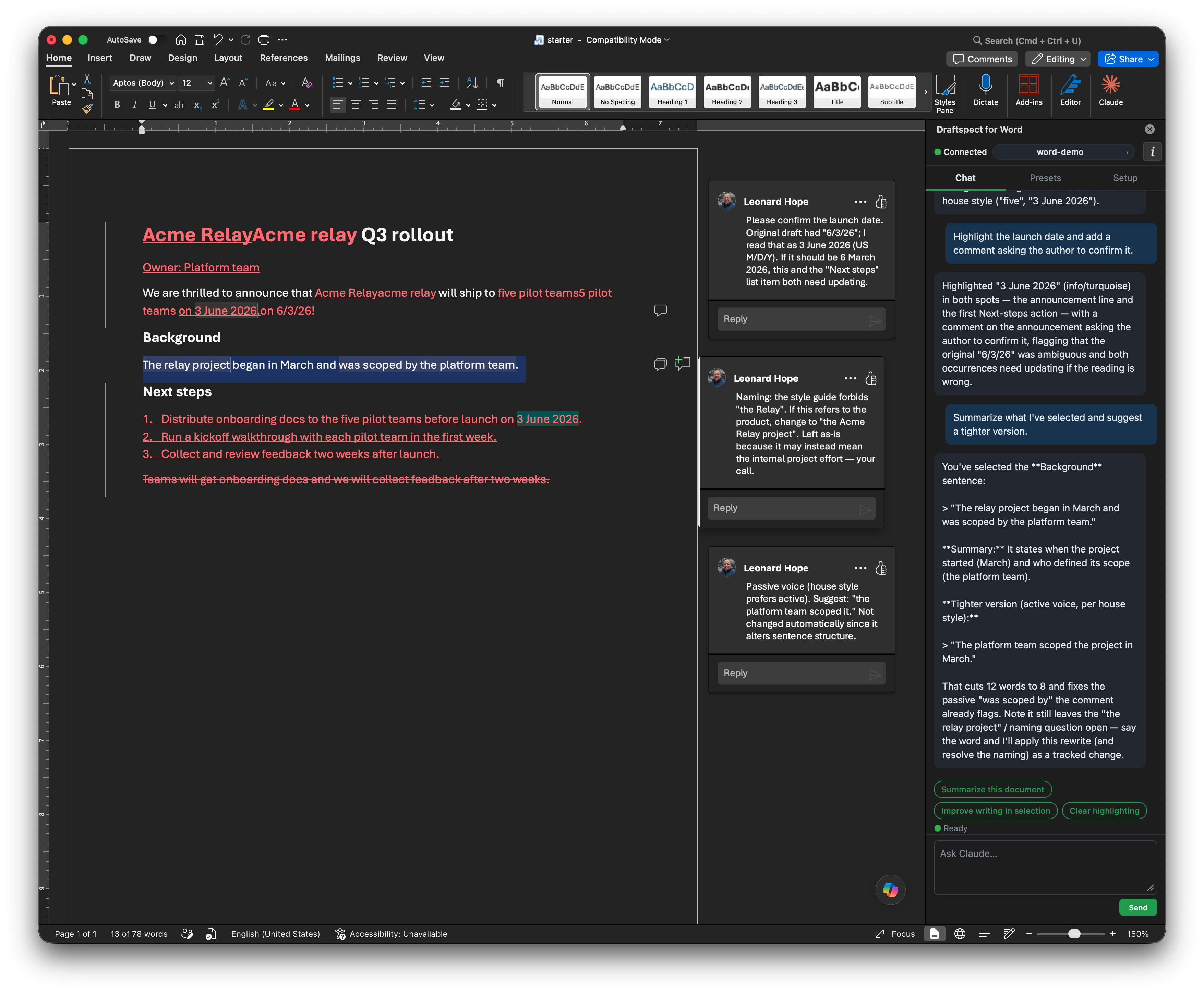
Word — shown: surgical, tracked edits with margin comments. It also rewrites sections, inserts content, sweeps for issues and highlights them by severity, and answers from your context files — every change reviewable as a tracked change.
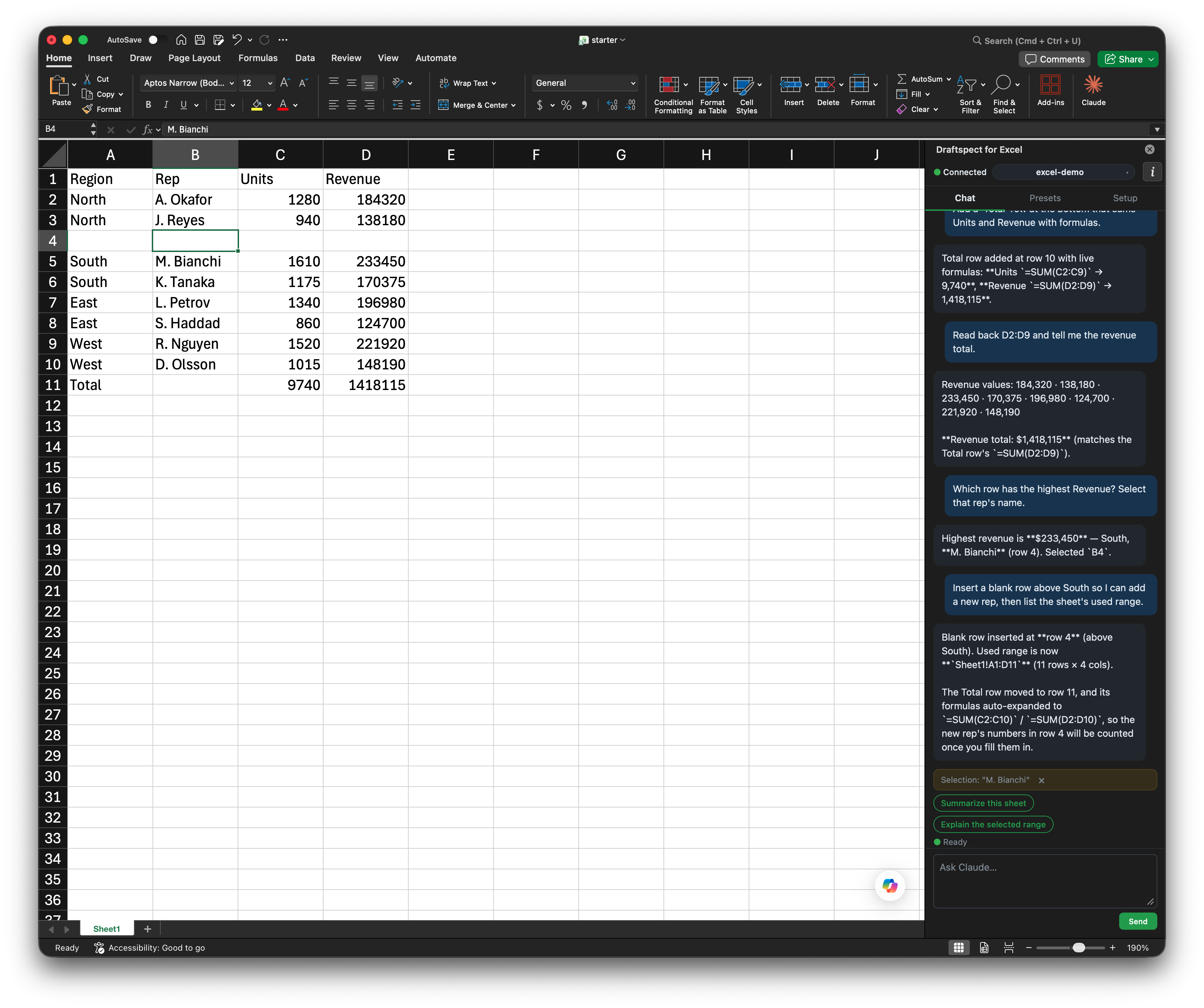
Excel — shown: a range written with a live =SUM() total row. It also reads and explains ranges, finds and selects cells, inserts/deletes rows, and works across sheets — all from the same chat, with formulas written as formulas (not baked-in numbers).
Status
Single-user tool you run on your own machine — intentionally scoped, not a hardened multi-tenant service (see Security & privacy). Development was done on a Mac; Windows has had only limited testing in a Parallels VM. macOS is the primary, most-polished platform; Windows works but is less exercised.
- Word — the more mature surface.
- Excel — newer; the tools work, the UX trails Word slightly.
What you can ask it to do
Open your document, click the add-in, and try things like:
- "Summarize this contract in plain English."
- "Improve the writing in the selection. Use track changes."
- "Add a Total row with
=SUM()formulas and read back the revenue total." - "Review the Background section. Highlight anything weak in yellow and leave a comment explaining why."
The asks that set Draftspect apart are the ones that pull in local context — folders or files you add in the Setup tab become background the agent reads on demand:
- "Compare this draft against my
~/Notesfolder and tell me what's missing." - "Rewrite the Methodology section using the terminology in
~/Research/glossary.md." - "Cross-check every figure in this paper against the data in
~/Project/results/." - "Fill this sheet from the assumptions in last quarter's deck (added as a context file)."
Because it's your local Claude Code, anything you've configured — custom subagents, MCP servers, your CLAUDE.md files, hooks, skills — still applies.
Prerequisites
Get these in place before you launch the app:
| Requirement | How to check / get it |
|---|---|
| macOS or Windows 10/11 | (other platforms won't load the manifests) |
| Node.js 18+ | node --version — nodejs.org or Volta / nvm |
| Microsoft Word and/or Excel | Microsoft 365, Office 2019, or 2021. Word needs WordApi 1.4+, Excel ExcelApi 1.4+ (any reasonably recent build; the manifests reject older). |
| Claude Code, signed in | claude in a terminal. Sign in once (Pro/Max works) and the daemon picks up your OAuth from the system keychain. Or export ANTHROPIC_API_KEY=sk-ant-... before launch (takes precedence). |
| Git | for cloning the repo |
If you don't have Claude Code yet, install it first. Draftspect is a thin layer on top of it — without it, nothing connects.
Install
git clone https://github.com/LeonardHope/Draftspect-Add-Ins-for-Word-and-Excel-Powered-by-Claude-Code.git
cd Draftspect-Add-Ins-for-Word-and-Excel-Powered-by-Claude-Code
npm install
npm start
A tray icon (menu bar on macOS, system tray on Windows) appears. First launch offers to install the add-in into Word and Excel for you — click Install.
Fully quit and reopen Word/Excel so Office picks up the manifest. Then open it:
- macOS: Insert → Add-ins → Developer Add-ins → Draftspect for Word / Draftspect for Excel.
- Windows: auto-sideloaded via the
WEF\Developerregistry key — find it under Insert → Add-ins (or Home → Add-ins).
One install per host. The manifests use fixed add-in
<Id>GUIDs, so a single Word (or Excel) install can sideload only one copy at a time. To run two clones side by side, change the<Id>in one clone'smanifests/word.xml/excel.xmlto a fresh UUID.
Daemon-only debugging. To see daemon output in the terminal, run
npm run devinstead ofnpm start(skips the Electron shell).
How it works
   ┌─ Your computer ────────────────────────────────────────┐
   │                                                        │
   │   Tray app  ─► Daemon ◄──WebSocket──► Task pane        │
   │   (Electron)   (Node)                 (in Word/Excel)  │
   │                  │                                     │
   │                  │ forwards MCP servers from           │
   │                  ▼ ~/.claude.json                      │
   │             Your other MCP servers                     │
   │             (Visio, Gmail, custom…)                    │
   └──────────────────┬─────────────────────────────────────┘
                      │
                      │ Claude Agent SDK (local OAuth or API key)
                      ▼
              ┌───────────────┐
              │ Anthropic API │
              └───────────────┘
Three pieces, all on your machine:
- Tray app (Electron) — spawns and watches the daemon, installs/uninstalls the add-in, surfaces native file pickers.
- Daemon (Node) — the engine. It embeds the Claude Agent SDK (
@anthropic-ai/claude-agent-sdk), which runs your locally-installed Claude Code headlessly — the same agent loop a non-interactiveclaudesession uses, driven by the SDK instead of a terminal. It registers the Office tools as an in-process MCP server, forwards every MCP server from your~/.claude.jsoninto the session, and speaks a small WebSocket protocol to the task pane. - Task pane — the HTML panel Word/Excel show on the right. Office.js reads and edits the active document; it chats with the daemon over
ws://127.0.0.1:47833.
One message, end to end: you type in the task pane → WebSocket → daemon → Agent SDK query() → your Claude Code reasons and calls tools → document-tool calls round-trip back over the WebSocket so the task pane executes them via Office.js in the live document → results stream into the chat. Filesystem / Bash / MCP tools run daemon-side exactly as in your terminal Claude Code; only the document tools hop to the task pane.
Each open document gets its own session (independent conversation, transcript, and workspace), so Word and Excel — and two Word docs at once — don't cross-talk.
The task pane and daemon both live on localhost. The WebSocket bridge requires a per-launch token; the HTTP server only accepts the task pane's own origin.
Compatibility
The daemon talks to Claude Code through the Agent SDK, never by shelling out to claude flags — so internal CLI changes are absorbed by the SDK. The dependency is pinned (@anthropic-ai/claude-agent-sdk, specific minor in package.json); on a breaking SDK major, bump the pin and re-test rather than chasing CLI behavior. You do need a reasonably current Claude Code installed and signed in — that's what the SDK drives.
Using the add-in
- Launch the tray app first — Word/Excel won't connect until the daemon is up.
- Open a document or workbook, then open the add-in panel (see Install for where it appears).
- The workspace is set automatically: it's the folder your open document lives in. Claude can already read anything inside that folder on demand; the workspace just determines which
CLAUDE.mdand conversation history apply. Use Change workspace (Setup tab) to override — it holds until you open a document in a different folder. - Add context files for material outside the workspace folder — notes, prior drafts, a vendor's spec, a glossary, anywhere on disk. Setup tab → Context files → + Add file / + Add folder, with an optional one-line description so Claude knows when to consult it. Entries are saved into the workspace's
CLAUDE.mdand read on demand viaRead/Glob/Grep. (Files inside the workspace don't need adding — Claude reaches them already.) - Chat in the Chat tab. Pinned presets (chips above the input) are one-click prompts.
Slash commands work from the chat box: type /yourcommand and your custom commands (.claude/commands/*.md in the workspace, or ~/.claude/commands/*.md) run just like in the terminal. Note that purely interactive, terminal-only built-ins (/help, /context, /clear, …) produce no chat output — Draftspect shows a one-line "command ran, no output" note so it's clear it executed rather than failing.
Known limitation: cloud-hosted documents (OneDrive / SharePoint)
Workspace auto-detection relies on the host app giving the add-in the document's local file path. Office.js only exposes Office.context.document.url, and what that contains depends on how the file's sync provider integrates with Word/Excel — this is intrinsic host behavior the add-in can't override, and it's the same on macOS and Windows:
- Local folders and Google Drive for Desktop present the document as an ordinary local file, so
document.urlis a real filesystem path. Workspace detection works normally. - OneDrive and SharePoint documents are cloud-service-native: the app treats the Microsoft 365 service as the document's canonical location (it co-authors / AutoSaves against the service, not the local synced copy), so
document.urlis anhttps://…sharepoint.com/…URL. There is no API that returns the local synced path for these files — by design.
Workaround: the synced copy still exists on disk under your OneDrive/SharePoint folder. Open the add-in → Setup → Change workspace and point Draftspect at that local folder yourself; add anything outside it as a context file. Everything works normally once the workspace is set — only the automatic detection is affected.
Default presets
Presets are host-specific — Word and Excel each get their own set, editable in the Presets tab.
Word
| Preset | What it does |
|---|---|
| Summarize this document | Read top-to-bottom, return a tight summary |
| Outline this document | Heading outline + paragraph counts |
| Improve writing in selection | Tighten the selection, track changes on |
| Fix typos and inconsistencies | Sweep + highlight + chat summary |
| Simplify the selection | Plain-language rewrite, track changes |
| Add comments on this section | Review-mode pass, no text edits |
| Answer using my context files | Use the folders/files you've added |
| Clear highlighting | Wipe every highlight in one click |
Excel
| Preset | What it does |
|---|---|
| Summarize this sheet | List sheets, read the used range, summarize |
| Explain the selected range | What the selection contains and any pattern |
| Add a totals row | Labelled Total row with =SUM() formulas |
| Check the data for problems | Blanks, inconsistencies, dupes — listed, not changed |
| Find a value | excel_find_value over a query |
| Answer using my context files | Use the folders/files you've added |
Settings (Setup tab → Preferences)
- Track changes (Word only) — Always / Modifications only / Never. "Always" is the safe default; every edit is reviewable.
- Show diagnostics in chat — session/tool/turn events. Off by default (quieter); turn on when debugging.
What the agent can touch in your documents
Word
Twenty-six tools, all through Office.js (no filesystem mutation of the live .docx):
| Tool | Use it for |
|---|---|
office_get_selection |
The implicit subject of "this", "here", "the selection" |
office_read_paragraphs |
Read by ID, heading section, or range |
office_get_document_text |
Whole-document text + word/character counts |
office_get_outline |
The heading tree (id / level / text) |
office_insert_paragraphs |
Add new content after a paragraph or heading |
office_replace_paragraphs |
Whole-paragraph rewrites, 1-to-1 |
office_replace_section |
Find a heading, replace its section |
office_replace_text |
Surgical sub-paragraph search/replace |
office_apply_style |
Restyle existing paragraphs in place |
office_set_font |
Bold / italic / underline, size, color, font name |
office_set_paragraph_formatting |
Alignment, indent, spacing |
office_insert_table |
Append a table, or insert one after a paragraph |
office_set_table_cell |
Overwrite a cell in an existing table |
office_highlight |
Color-coded by severity: error/warning/info/uncertain |
office_clear_highlights |
By paragraph, section, or all |
office_add_comment |
Anchored on a paragraph or specific text |
office_clear_comments |
By paragraph, section, or all |
office_list_comments |
Every comment: id / author / text / resolved |
office_reply_to_comment |
Reply to a comment thread by id |
office_resolve_comment |
Resolve or reopen a comment |
office_set_list |
Bulleted / numbered list from existing paragraphs |
office_insert_image |
Inline image from base64 |
office_insert_hyperlink |
Linkify a text query or whole paragraph |
office_insert_bookmark |
Named bookmark on a paragraph or query |
office_find |
Search → matches with their paragraph IDs |
office_header_footer |
Set the primary header / footer text |
Every write tool respects your track-changes setting.
Excel
Twenty-three tools, A1 notation, 2D arrays:
| Tool | Use it for |
|---|---|
excel_get_selected_range |
The implicit subject of "these cells" |
excel_list_sheets |
Worksheet inventory + used ranges |
excel_read_range |
Read a range or a whole sheet's used range |
excel_write_range |
Write a 2D values array (shape-checked) |
excel_write_formula |
Write a 2D array of formulas (e.g. =SUM(A1:A9)) |
excel_set_format |
Number format, font, fill, borders |
excel_find_value |
Substring / whole-cell match across one or all sheets |
excel_insert_rows / excel_delete_rows |
1-based row indices |
excel_insert_columns / excel_delete_columns |
Column-letter addressed |
excel_clear_range |
Clear contents, formats, or both |
excel_add_sheet / excel_delete_sheet / excel_rename_sheet |
Worksheet management |
excel_select_range |
Select a cell/range and switch to its sheet |
excel_sort_range |
Sort a range by a column |
excel_autofilter |
Apply or remove an AutoFilter |
excel_create_table |
Range → named table (ListObject) |
excel_add_table_rows |
Append rows to a table |
excel_create_chart |
Column / bar / line / pie / scatter / area |
excel_set_column_width / excel_set_row_height |
Fixed size or autofit |
What the agent will refuse
- Filesystem writes to the live document. A permission guard refuses
Write/Edit/MultiEditagainst.docx/.docm/.xlsx/.xlsmpaths, andBashcommands that mutate one in place (a redirection into an Office path, orrm/mv/cp/tee/sed -i/etc. against one). Reading is allowed — the agent legitimately doesunzip -p draft.docx …,cat, orgit log -- report.docx. Office holds the document open with unsaved changes; a filesystem write would corrupt it, so the agent uses the in-host tools instead. This is an accident guard, not a security boundary: it's heuristic and a determined agent can work around it (see Security & privacy).
Make it yours
Draftspect is a clone-and-run repo — the code is yours to modify:
- Task-pane UI —
taskpane/shared/taskpane.js+styles.css+ the per-hostindex.html. Change the layout, add a tab, restyle. - Presets — edit the defaults in
taskpane/shared/taskpane.js(defaultWordPresets/defaultExcelPresets), or just add/pin your own in the Presets tab at runtime. - Tools — add a Word/Excel capability: a tool def in
daemon/office-tools.mjs(zod schema) + an implementation intaskpane/shared/tools-word.js/tools-excel.js+ a dispatch case. - Agent behavior — the host-specific system prompts in
daemon/system-prompt.md,system-prompt-word.md,system-prompt-excel.mdare re-read every session start.
Troubleshooting
Task pane shows "Disconnected — retrying…"The daemon isn't running or crashed. Tray menu → Open logs (~/.claude/office-addins/daemon.log). The daemon auto-restarts up to 3 times before giving up.
The Agent SDK couldn't authenticate. Either:
- Sign in to Claude Code: run
claudein a terminal and follow the prompt. - Or set
ANTHROPIC_API_KEYin your shell and relaunch the tray app (the daemon reads env at boot).
Then quit the tray app and reopen it.
An MCP server I configured isn't visible to the agentAt daemon start the log shows Loaded N MCP server(s) from ~/.claude.json: …. The SDK silently drops any server whose initial handshake fails — restart the daemon (tray menu → Restart daemon) once it's back up. ~/.claude.json is read once at daemon boot; changes need a daemon restart.
The workspace follows the open document's folder automatically. If it's wrong, either you explicitly picked a different folder earlier, or the document is cloud-hosted (OneDrive/SharePoint) — auto-detection can't work for those by design (see Known limitation: cloud-hosted documents). Use Change workspace in the Setup tab to set it; that choice holds until you open a document in a different folder.
Auto-install of the add-in didn't workManual fallback: in Word/Excel, Insert → Add-ins → Manage My Add-ins → Upload My Add-in, point at the file in manifests/. If that's missing on your build:
- macOS: copy
manifests/word.xmlto~/Library/Containers/com.microsoft.Word/Data/Documents/wef/(create the folder if missing). Same for Excel. - Windows: add a
REG_SZvalue underHKCU\Software\Microsoft\Office\16.0\WEF\Developerwhose name and data are the manifest's full path, then restart Office. (A Trusted Add-in Catalog also works but requires a real UNC network share — a local path is silently ignored.)
Cosmetic. macOS Office often won't fetch an http://127.0.0.1 icon for the gallery tile; the add-in itself works regardless. (A fix needs the icon served over HTTPS, deferred.)
Saving a context entry restarts the agent session (conversation preserved via resume) so the new CLAUDE.md loads. If you don't see the change, confirm you're on the right workspace — the topbar chip shows the active one.
Authentication & distribution
The daemon authenticates via the Claude Agent SDK, which reads your Claude Code OAuth credential from the system keychain by default. Signed in to a Claude Pro/Max account? It just works. To use an API key instead:
export ANTHROPIC_API_KEY=sk-ant-...
npm start
The SDK prefers ANTHROPIC_API_KEY over keychain OAuth when present.
Distribution note. This repo is open source — each user clones and runs it on their own machine with their own auth. That use is sanctioned. Shipping a hosted/packaged product that uses Anthropic subscription OAuth on behalf of users requires partner approval; see the Agent SDK overview. If this ever becomes a product, expect to switch to BYO-API-key.
Security & privacy
A single-user tool you run on your own machine — threat model is "your own machine, your own documents," not a hardened service. Worth knowing:
- The
.docx/.xlsxfilesystem-write denial is an accident guard, not a security boundary. It's regex-based; a determined agent can bypass it (string-built paths, decoded payloads). It stops accidental overwrites of an open Office file, not a hostile agent. Edit Office files through theoffice_*/excel_*tools. - The local bridge is loopback-only and token-gated, but trusts every process running as you. The WebSocket binds
127.0.0.1and needs a per-daemon token; CORS blocks browser cross-origin reads, but any local process running as your user can read the token. No protection against a malicious local process — out of scope for a personal tool. - Conversation transcripts persist to disk, unredacted. The Agent SDK writes each session's full transcript — including tool inputs and outputs, which can contain document text and the contents of any local or context files the agent read — to
~/.claude/projects/<hash>/<session_id>.jsonl, exactly as terminal Claude Code does.daemon.log(plaintext of every chat message, tray → Open logs) is only the surface. Treat both~/.claude/office-addins/daemon.logand~/.claude/projects/as sensitive; delete to scrub history. - The tool writes into your workspace and
~/.claude. Adding a context file records it as aCONTEXT-FILESblock in that workspace'sCLAUDE.md(paths only — relative when the entry is inside the workspace); workspace/session bookkeeping lives in~/.claude/office-addins/sessions.json. Nothing else in your folders is modified except through the document tools. - Document content goes to Anthropic's API. To answer, the model must see the relevant document text (and any context files it reads) — those are sent to the Anthropic API via the Agent SDK, the same trust boundary as using Claude Code in your terminal. Orchestration, file access, and tool execution stay local.
Developing
File layout
.
├── app/
│   ├── main.mjs           Electron tray shell; spawns + watches daemon
│   ├── sideload.mjs       Add-in install/uninstall (mac wef/, win WEF\Developer)
│   └── tray-icon.png
├── daemon/
│   ├── index.mjs          Agent SDK loop, permission handler, per-doc sessions
│   ├── bridge.mjs         WebSocket server + per-pane tool-call protocol
│   ├── office-tools.mjs   Word + Excel tool defs (zod schemas)
│   ├── workspace.mjs      Workspace = the document's own folder
│   ├── context.mjs        Per-workspace context-file block in CLAUDE.md
│   ├── sessions.mjs       Per-(host, workspace) session-id persistence
│   ├── diag.mjs           Opt-in [diag] logger (CC_OFFICE_DEBUG=1)
│   └── system-prompt*.md  Shared + per-host system prompt
├── taskpane/
│   ├── shared/{taskpane.js, tools-word.js, tools-excel.js, paths.js, styles.css}
│   ├── word/index.html, excel/index.html
│   └── icon-{32,64}.png   Add-in icons (regen via scripts/build-icons.py)
├── manifests/{word.xml, excel.xml}
├── examples/{word-demo, excel-demo}/   Ready-to-run demo workspaces
├── scripts/build-icons.py
├── tests/{workspace,context,sessions,bridge}.test.mjs
├── .github/workflows/ci.yml
├── package.json
└── README.md
Tests
Pure-logic modules have unit tests (no Office.js, no SDK):
npm test
node:test runs all of tests/*.test.mjs. CI runs the same suite on Node 20.x and 22.x against every PR, plus prettier and an npm audit.
Conventions
- Feature branches + PRs; nothing direct to
main. CI green before merge. - Don't bypass the filesystem-write guard on Office files — it protects unsaved work.
- The product name is Draftspect ("Powered by Claude"). Accurate references to the user's real Claude Code (install, sign-in, OAuth, the SDK driving it) stay as "Claude Code" — that's correct nominative use.
License
MIT. See LICENSE.
Yorumlar (0)
Yorum birakmak icin giris yap.
Yorum birakSonuc bulunamadi