boxdown
Health Gecti
- License — License: Apache-2.0
- Description — Repository has a description
- Active repo — Last push 0 days ago
- Community trust — 24 GitHub stars
Code Gecti
- Code scan — Scanned 12 files during light audit, no dangerous patterns found
Permissions Gecti
- Permissions — No dangerous permissions requested
Bu listing icin henuz AI raporu yok.
CLI for Local Isolated Environments for Coding Agents
boxdown
Start and SSH into a reusable Dev Container environment for any local project.


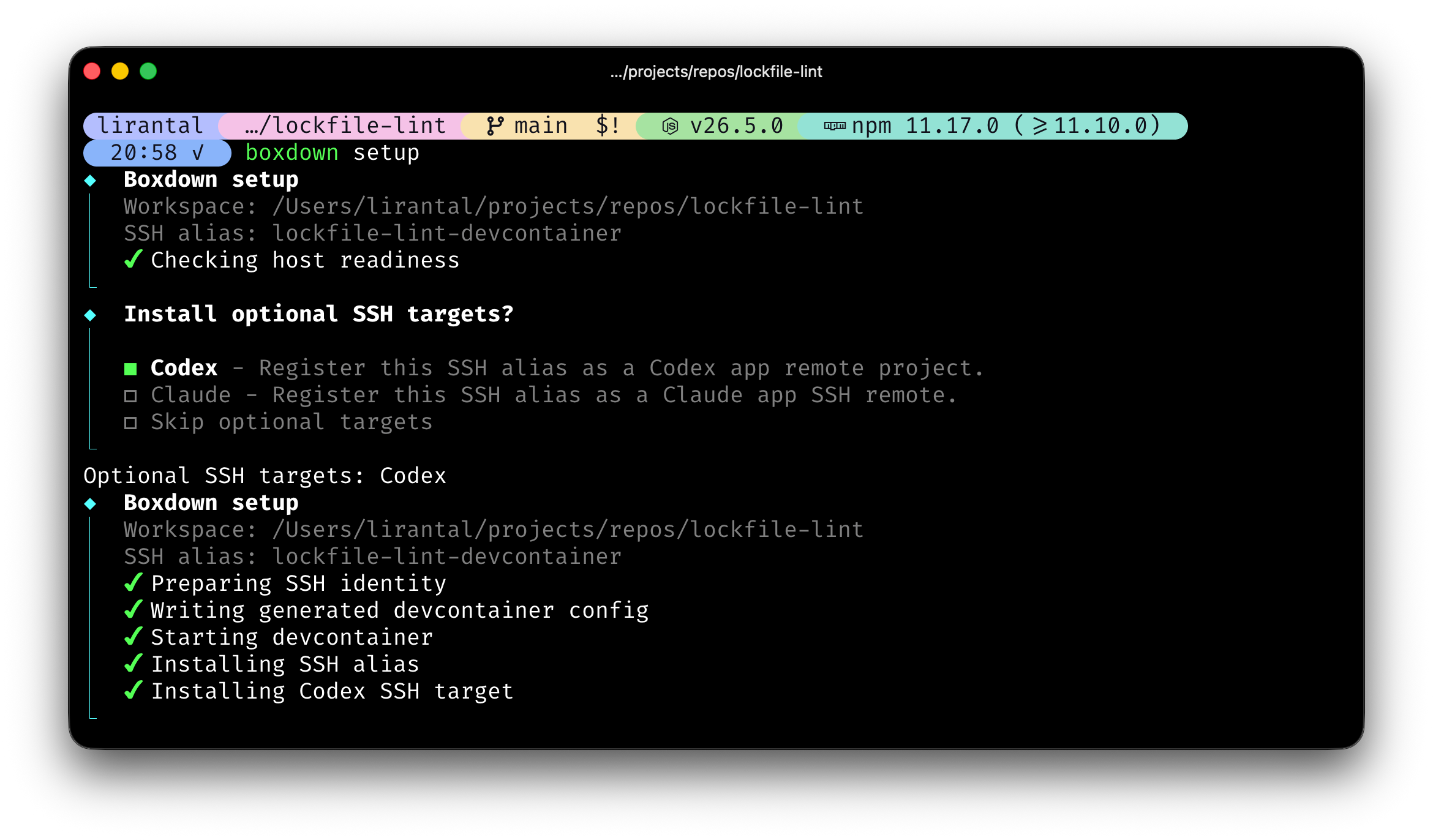
Install
npm install -g boxdown
You can also run it without installing:
npx boxdown setup
Usage
From any project repository on your host:
npx boxdown setup
Boxdown builds or reuses a Dev Container for the current directory and installs
an SSH alias for remote tools. The target repository stays clean; Boxdown writes
generated configuration and SSH keys under user cache/data directories instead
of copying .devcontainer/ into the project.
Startup commands print concise progress by default. With interactive --verbose,
Boxdown shows a detailed lifecycle trace. CI and non-interactive contexts stream
raw managed-command output. Boxdown also keeps one append-only per-workspace
command log under its data directory; boxdown status shows the exact path.
Interactive shell, agent, and tunnel session bytes are not tee'd into the log.
Open an interactive shell inside the container when you need one:
npx boxdown start
Choose workspace toolchains during setup. Boxdown detects supported root-level
Node.js, Python, Go, and Rust declarations, then lets you confirm or override
the versions it provisions inside the container:
npx boxdown setup --toolchain auto
npx boxdown start --toolchain [email protected] --toolchain [email protected]
Interactive setup shows an editable selection. In scripts, selectors are
explicit: omitted --toolchain values report detections but select nothing.
See Workspace toolchains for marker precedence,
release-pinned defaults, status, retry, and legacy-workspace recreation.
Boxdown ships and invokes its own @devcontainers/cli dependency. It does not require a host/global Dev Containers CLI install.
Boxdown Demo
https://github.com/user-attachments/assets/2c53a4c7-13d9-4b81-8540-b0ab6a624f35
Published devcontainer image
New containers pull the public release-matched imageghcr.io/lirantal/boxdown:<Boxdown-version> instead of building Dev Container
Features or shared tools locally. The first uncached use needs network access,
but does not need a GHCR login. The image contains the default Codex, Claude
Code, Snyk, 1Password, and AMD64 APM tools; OpenCode and Antigravity remain
lazy installs when their respective Boxdown commands run.
The image never contains your workspace or credentials. Boxdown adds those only
at container creation through mounts and runtime state. Codex and Claude keep
their throttled best-effort refreshes after startup, so their packaged versions
can advance between Boxdown releases.
Snyk, 1Password, and AMD64 APM advance with a Boxdown release and require a
container recreation to take effect. APM is intentionally deferred on ARM64
until you explicitly opt in to a Python-based installation. Existing
workspaces keep their current container until you run boxdown start --recreate
or boxdown setup --recreate.
FAQ
Why does Boxdown say my workspace uses a “legacy locally-built Dev Container image”?
The workspace was created by an older Boxdown version that built its Dev
Container image locally. It remains usable and Boxdown does not change it
automatically. Run boxdown setup --recreate or boxdown start --recreate to
replace it with Boxdown's current published image.
What Boxdown manages
Outside your repository
Boxdown stores generated devcontainer configuration under its cache root.
Per-workspace metadata, SSH keys, and redacted command log live under its data
roots. It keeps a per-workspace runtime root for runtime-secret state separate
from persistent data. It does not copy a .devcontainer directory into the
target repository; all generated state remains outside the target repository.
For generated-state details, see Generated configuration and state.
Container inputs
The host checkout is the Dev Container workspace: the Dev Containers CLI
bind-mounts it writable at /workspaces/<repo-name>, so edits made inside the
container are edits to the host checkout.
Boxdown additionally mounts its packaged assets, public SSH key, host Git-config
snapshot, and runtime-secret directory read-only. The Git-config snapshot is
copied to a writable /home/node/.gitconfig during container creation; the host
file is never edited.
When SSH commit signing is enabled, Boxdown mounts the host SSH-agent socket at/run/boxdown/ssh-agent.sock and mounts public signing-key state read-only at/opt/boxdown/state/git-signing. Private signing keys remain on the host.
Agent profiles
Agent profiles control host user-scoped coding-agent data. Choose one when a
command creates or recreates a container:
npx boxdown setup --agent-profile full
npx boxdown start --agent-profile none|auth|full
auth is the default. Repository-scoped configuration remains visible through
the normal workspace mount in every tier, including committed AGENTS.md,CLAUDE.md, .agents, .codex, .claude, and .mcp.json files.
During interactive boxdown setup, selecting or explicitly supplying at least
one Codex or Claude app target opens a single-choice agent profile prompt unless--agent-profile was supplied. An explicit --agent-profile suppresses this
prompt. Cursor alone does not open the agent-profile selector because it does
not consume a container agent profile; a mixed Cursor and Codex or Claude
selection does. Skipping every app target keeps the workspace's recorded
profile, or auth for a new workspace, without another prompt.
Non-interactive setup never asks.
Use both flags for a fully explicit setup:
boxdown setup --target codex --agent-profile auth
App registration and profile exposure are separate: choosing profile none
still allows app registration, and profiles are container-wide rather than
filtered to the selected app.
| CLI | Contents |
|---|---|
none |
no host user-scoped agent profile or Claude API key |
auth |
file-backed auth, Claude API key, complete ~/.agents |
full |
live, read-write host Codex/Claude homes plus ~/.agents |
auth mounts selected host sources only at read-only staging paths, then makes
a container-local writable copy on container creation. full instead mounts the
live host /home/node/.agents, /home/node/.codex, and /home/node/.claude
profiles read-write. Changes made inside the container to a full profile write
to the host profile immediately; this is intentional and there is no copy or
reverse synchronization layer.
full uses live, read-write host mounts.
On macOS, Claude credentials stored in Keychain are not copied. auth andfull can still expose an ANTHROPIC_API_KEY already available through
Boxdown's runtime-secret mechanism; otherwise Claude starts unauthenticated in
that container.
Choose full only when you need host user-scoped Codex or Claude configuration
such as MCP definitions. It exposes live complete homes, which can include
sensitive history, settings, plugins, and credentials and lets the container
change them on the host immediately. It can also retain broken host paths or
native dependencies that do not run in the container. Put portable user-scoped
MCP configuration in the repository instead, and never use full for an
untrusted workspace.
A custom mount at, above, or below a canonical agent-home destination is
externally managed. Boxdown skips its staging and copy for that destination so
it does not replace the custom mount. The mount owner is responsible for its
contents and write policy.
This changes the previous forwarding model: auth no longer exposes host Codex
config, Boxdown no longer creates a Claude MCP projection, and the supported
Claude credential is no longer a writable host mount. Existing containers keep
their previous configuration until recreated.
Recreate the container when changing --agent-profile or full-profile mount
configuration, or when refreshing copied auth sources. Changes to live full
profiles are already visible to a running container.boxdown status reports the exact generated paths for a workspace.
Host integrations
boxdown setup manages a workspace SSH alias. It writes Codex, Claude, or
Cursor integration records only when you select or explicitly request those
targets. Cursor uses the normal OpenSSH alias and public Cursor Remote SSH
settings; it is not a container agent profile.
Cleanup boundary
The stop, down, and purge commands define the cleanup boundary.
boxdown stop keeps the container and all Boxdown state, including its copiedauth profile; a full profile remains in its host location. Restarting the
same container preserves its auth profile changes. boxdown down removes the
container and its copied auth profile along with per-workspace runtime-secret
state. boxdown start --recreate seeds a new auth copy from current host
sources; it does not remove a live full host profile. down
retains persistent cache/data state: metadata, SSH keys, generated config, and
command log. boxdown purge removes the workspace's Boxdown-managed container,
its exact inspected or recorded Docker image only when unused, generated state,
command log, and managed SSH/app integrations;
it never removes repository files.
For lifecycle details, see Container lifecycle.
Portless SSH
boxdown setup installs an SSH alias for the current project. To only install
or update that alias without starting the devcontainer, use the lower-level SSH
command:
npx boxdown ssh install
This creates a <repo-name>-devcontainer SSH host. When run in an interactive
terminal, Boxdown also asks whether to install optional targets such as Codex
and Claude, plus Cursor.
Non-interactive runs skip optional targets and print the explicit --target
form to use in scripts.
Validate the SSH alias with:
ssh <repo-name>-devcontainer 'whoami && pwd'
Use the same alias in Cursor, Claude, ChatGPT, or any SSH-capable tool.
boxdown ssh install ends with a clear configuration outcome and the next
manual action for each selected app. Configuration complete means every
requested configuration write succeeded; Configuration complete with
warnings means the writes succeeded but an optional prerequisite or follow-up
needs attention; Configuration incomplete means one or more requested
writes failed. A successful result confirms configuration writes or
verification only: it does not test an SSH connection and never launches an
app. Follow the app-specific command or restart instruction under Next
step. Run with --verbose for configuration paths and diagnostic details, or
use boxdown status to find the workspace state.
To also add the project to ChatGPT's remote project sidebar or Claude's SSH
remote list, pass one or more targets during setup or select them from the
lower-level SSH prompt:
npx boxdown setup --target codex
npx boxdown setup --target claude
npx boxdown setup --target cursor
The lower-level SSH command also supports the same targets for scripts:
npx boxdown ssh install --target codex
npx boxdown ssh install --target claude
npx boxdown ssh install --target cursor
Restart the selected app after installing it so it applies the updated remote
project config. For the codex target, restart ChatGPT and open the remote
project; for Claude, restart Claude and open the configured SSH remote. Cursor
output includes a cursor --folder-uri command; run that command yourself,
then refresh Cursor Remote Explorer or restart Cursor if the alias is not
immediately visible. Boxdown does not launch any selected app or install Cursor
extensions.
From the target project directory, forward a dev server running inside the
container to your host browser:
npx boxdown tunnel --port 3030
If --port is omitted in an interactive terminal, Boxdown asks which port or
port mappings to forward and defaults to the generated devcontainer published
port when available. Non-interactive runs still require --port.
This keeps a foreground SSH tunnel open until you press Ctrl-C. The host and
Codex in-app browser can then open http://localhost:3030/. Repeat --port
or use <local:remote> mappings when needed:
npx boxdown tunnel --port 3030 --port 8080:3031
Use --workspace <path> only when running the command from a different
directory. Repeat it with down to remove multiple workspace containers in one
command. When down runs from a directory that is not a known Boxdown
workspace, interactive terminals show a workspace picker instead.
Remove one app integration while keeping the SSH alias, or remove the alias and
all known integrations when you no longer need it:
npx boxdown ssh uninstall --target claude
npx boxdown ssh uninstall --target codex
npx boxdown ssh uninstall --target cursor
npx boxdown ssh uninstall
--target is repeatable and removes only the selected agent integration; the
Boxdown-managed SSH alias remains in place. Omitting --target removes the
alias and all known integrations.
Commands
boxdown setup
boxdown start
boxdown codex
boxdown claude
boxdown opencode
boxdown antigravity
boxdown list
boxdown status
boxdown stop
boxdown down
boxdown purge
boxdown doctor
boxdown ssh install
boxdown ssh uninstall
boxdown ssh-proxy
boxdown tunnel --port 3030
boxdown refresh-gh-token
boxdown shell remains supported as an alias for boxdown start, but
documentation uses start as the canonical command.boxdown cc remains supported as an alias for boxdown claude, but
documentation uses claude as the canonical command.
boxdown setup begins with a host-readiness preflight before it prompts for
SSH targets, writes workspace state, or starts Docker work. Required failures
such as an unavailable Docker daemon stop setup with an actionable summary.
When a local Docker image is available, the preflight also performs a no-pull,
no-start bind-mount probe for the workspace and Boxdown-managed mount paths.
Run boxdown doctor directly for the complete diagnostic report; an unavailable
best-effort mount probe is reported as a warning and does not block setup.
boxdown start is standalone: it can create or reuse the devcontainer even ifboxdown setup was skipped or its preflight failed. Setup-only SSH aliases and
Codex/Claude/Cursor application integrations are still installed only bysetup.
Before a command creates or starts a container, Boxdown waits up to 60 seconds
for the Docker daemon and the selected Docker Buildx builder. If Buildx is not
installed, the bundled Dev Containers CLI uses its supported classic-build
fallback and Boxdown continues with a warning. Boxdown does not retry an actual
Dev Containers build failure.
Container bring-up pulls the release-matched image, which includes Codex and
Claude Code by default. The OpenCode and Antigravity commands stay available,
but install/update those CLIs only when you launch them. Use -- to pass
arguments to the selected agent:
boxdown claude -- --continue
On supported Linux/WSL and Windows hosts, Boxdown forwards the documented
Claude Code credential file automatically. Run Claude Code and complete /login
on the host, then run boxdown start --recreate to add the new mount.
On Linux/WSL, container creation also synchronizes the remote user's UID/GID so
owner-only host credentials remain writable; this can add a small create-time
cost.
List Boxdown-known devcontainer environments from any directory:
boxdown list
boxdown list --details
boxdown list --json
boxdown list --format json
Human boxdown list output shows STATE, REPO, PATH, and CONTAINER.
Use boxdown list --details when you need full copyable paths and SSH aliases
in human output. Use boxdown list --json or boxdown list --format json for
the same structured inventory.
Shared options:
--workspace <path>  # target project directory, defaults to cwd; repeatable with down; purge also accepts list values
--alias <name>      # SSH alias, defaults to <repo-name>-devcontainer
--target <name>     # with setup/ssh install/ssh uninstall, optional target; repeatable; supported: codex, claude, cursor
--port <port>       # tunnel port for `boxdown tunnel`; repeatable
--recreate          # recreate the devcontainer before starting
--agent-profile <tier> # host agent data: none, auth (copied; default), or full (live read-write mounts)
--toolchain <selector> # with setup/start; repeatable: auto, none, <runtime>, or <runtime>@<version>
--json              # JSON output for status and list
--format json       # JSON output for status and list; equivalent to --json
--details           # detailed human output for list
Use boxdown purge when you want to remove the workspace's Boxdown-managed
environment residue: the devcontainer, its exact inspected or recorded Docker
image only when unused, managed
SSH/Codex/Claude/Cursor entries, command log, and Boxdown cache/data for that
workspace. It does not delete the local repository directory or files inside it.
Interactive terminals ask for confirmation before purging.
For purge, --workspace accepts the PATH or unambiguous REPO value
shown by boxdown list. It also accepts exact SSH ALIAS values fromboxdown status, boxdown list --details, or JSON list output:
boxdown purge
boxdown purge --workspace my-repo-devcontainer
boxdown purge --workspace my-repo
boxdown purge --workspace /path/to/my-repo
When boxdown purge runs without --workspace from a directory that is not a
tracked Boxdown workspace, interactive terminals show a multi-select list of all
tracked workspaces, including missing/stale entries. The focused row highlights
the state token: running is green, exited is yellow, and absent,missing, or unknown are red. Non-interactive runs fail safely from
untracked directories; scripts should call boxdown purge --workspace <value>
for each workspace.
Contributing
Please consult CONTRIBUTING for guidelines on contributing to this project.
Author
boxdown © Liran Tal, Released under the Apache-2.0 License.
Yorumlar (0)
Yorum birakmak icin giris yap.
Yorum birakSonuc bulunamadi