pitstop
Health Uyari
- License — License: MIT
- Description — Repository has a description
- Active repo — Last push 0 days ago
- Low visibility — Only 7 GitHub stars
Code Basarisiz
- rm -rf — Recursive force deletion command in scripts/make-app.sh
Permissions Gecti
- Permissions — No dangerous permissions requested
Bu listing icin henuz AI raporu yok.
macOS menu bar app that tracks usage limits and switches accounts across Claude Code, Claude Desktop, and OpenAI Codex — one click to flip when one hits its rate limit.

PitStop
macOS menu bar app that tracks usage limits across your AI coding accounts
— Claude Code, Claude Desktop, and OpenAI Codex — and lets you
switch accounts with one click, so when one hits its rate limit you flip to
another and your work keeps going.
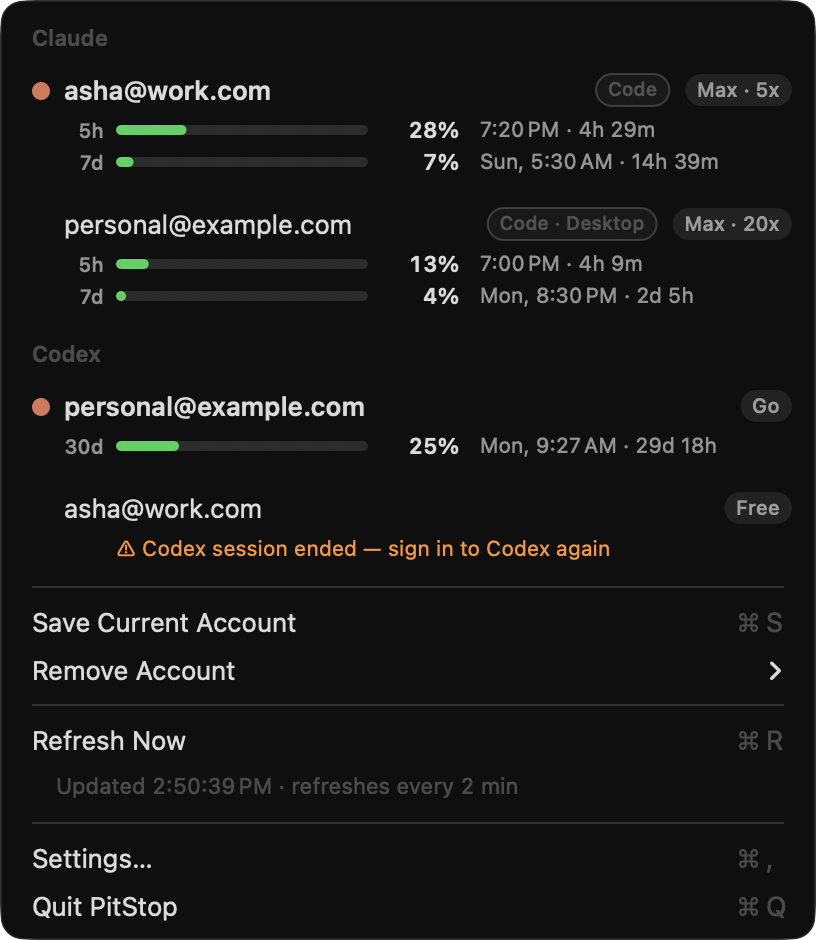
Accounts are grouped into a section per provider — Claude, Codex, and
whatever comes next. Within each section the live account is marked with a
coral dot and listed first, then the rest by headroom (emptiest next — the one
you'd switch to). Hovering a switchable row flips its plan chip into a coral
Switch pill. A small tag on each row names the surface — Code,
Desktop, or Code · Desktop — so you can tell a switchable CLI account
from a read-only Desktop one at a glance. The menu bar shows the active Claude
Code account's binding limit, color-coded.
What shows up where:
- Claude Code accounts are switchable. Claude Desktop (a different
login) shows read-only, tagged Desktop; an account signed into both Code
and Desktop is one shared usage pool, so it stays a single row tagged
Code · Desktop. - OpenAI Codex accounts are switchable too — its login lives in
~/.codex/auth.json(shared by the Codex CLI and the Codex app), which
PitStop snapshots per account and swaps the same way it swaps the Claude
Code credential. Each plan's rate-limit windows render as bars just like
Claude's 5-hour and weekly limits.
Quickstart
Using an AI agent? Copy this prompt into Claude Code (or any agent that can
run shell commands) on the target Mac:
Install and set up PitStop (https://github.com/Livin21/pitstop), a macOS
menu bar app that tracks usage limits and switches accounts across Claude
Code, Claude Desktop, and OpenAI Codex, on this Mac.

1. Verify requirements: macOS 26+, Xcode Command Line Tools
   (xcode-select --install), and Claude Code installed and logged in.
   Stop and tell me if any are missing.
2. Clone the repo and run ./scripts/make-app.sh — it builds and installs
   /Applications/PitStop.app. Then `open /Applications/PitStop.app`.
3. You cannot interact with macOS security dialogs — walk me through
   them instead: when PitStop first reads the Claude Code credentials,
   macOS may ask for my login keychain password. I'll enter it and click
   "Always Allow" (plain "Allow" makes the prompt come back). The grant
   is one-time; it survives rebuilds. If I use the Claude Desktop app too,
   a second identical prompt may appear for "Claude Safe Storage" (so
   PitStop can show that account's usage) — same deal, Always Allow.
4. Verify: a checkered-flag icon appears in the menu bar showing my
   usage percentage, and `.build/release/PitStop --check` prints my
   account with live usage numbers.
5. Tell me how to add a second account: run /login in Claude Code and
   sign in with the other account — PitStop saves it within 2 minutes
   (or via "Save Current Account" in the menu). I'll also click "Allow"
   on the notification prompt the first time it warns about usage.
6. If I also use OpenAI Codex or the Claude Desktop app, tell me they're
   detected automatically and show up in their own menu sections — Codex
   accounts are switchable like Claude Code (it reads ~/.codex/auth.json,
   no keychain grant), Claude Desktop is read-only.
Or set it up manually:
- Requirements: macOS 26+, Xcode Command Line Tools, and Claude Code
logged in at least once. - Build and install:
git clone https://github.com/Livin21/pitstop && cd pitstop ./scripts/make-app.sh open /Applications/PitStop.app - When macOS asks for your login keychain password, enter it and click
Always Allow — one-time; see Caveats. - Add more accounts per Adding a second account.
How it works
- Usage comes from Anthropic's OAuth usage endpoint
(api.anthropic.com/api/oauth/usage), called with the same OAuth token
Claude Code uses. Refreshes every 2 min (debounced on menu open), with
exponential backoff honoringRetry-Afterwhen Anthropic rate-limits,
retrying as soon as the backoff window expires; the last good numbers
stay visible (rows note "showing … data"; the menu bar dims) during
outages. - Menu bar number is, by default, the active Claude Code account's
binding constraint —max(5-hour, weekly)utilization — with a warning dot
from 75 % (🟠) and 90 % (🔴). (Dots rather than colored text: macOS repaints
menu bar items in a single wallpaper-matched ink, and emoji are the only
glyphs that keep their color.) Settings customizes it: what it shows
(icon & percent / icon only / percent only), which account it tracks (the
active Claude Code account, or the most-used account across any provider),
and which limit drives the number (highest / 5-hour / weekly). - Auto-switch (off by default) flips a switchable provider's live account
— Claude Code or Codex — to the saved account with the most headroom once
the live one crosses a configurable threshold, and notifies you. It only
moves onto accounts with trustworthy fresh data, and a per-provider cooldown
prevents flapping; Desktop is read-only and left alone. - Time-to-limit projection (on by default) samples usage over time and,
when a window is trending toward full before it resets, shows
"↗ on pace to hit limit ~3:40 PM" on the row. - Notifications fire when the active account crosses 80 % and 95 %,
with the reset time, so you can switch before sessions stall. - Settings (⌘, from the menu) is a small window holding all preferences —
the menu-bar options above, auto-switch, the projection toggle, and launch
at login. - Accounts are snapshots of the Claude Code credential blob:
- secrets live in the keychain (service
PitStop-profile, one item
per account email) — never written to disk; - non-secret identity (email, org, plan) lives in
~/.config/pitstop/profiles.json.
- secrets live in the keychain (service
- Claude Desktop (the chat app) is read separately and read-only. It
signs into claude.ai with a cookie session rather than the OAuth token
Claude Code uses, so PitStop decrypts that app'ssessionKeycookie
(Chromium AES, keyed by theClaude Safe Storagekeychain item, read
through the samesecuritypath) and calls claude.ai's usage endpoint —
which happens to return the same shape as the OAuth one. PitStop never
writes to Claude Desktop's data; you can't switch a Desktop account from
PitStop (its login lives in that app). - OpenAI Codex uses
~/.codex/auth.json— the ChatGPT OAuth token the
Codex CLI and Codex app both use — for both identity and switching. Usage
comes fromchatgpt.com/backend-api/codex/usage, a cheap metadata call
returning each rate-limit window's used-percent and reset time. Switching is
the file analog of the Claude flow: PitStop snapshots the liveauth.json
per account into the keychain (servicePitStop-codex) and, on switch,
writes the chosen account's snapshot back into the file (compacted — JSON is
whitespace-insensitive, andsecuritymangles multi-line secrets). Inactive
snapshots whose access token has aged out are refreshed via the ChatGPT
OAuth refresh grant (against Codex's public client) and the rotated tokens
stored back, so an inactive account shows live usage and a switch into it
lands a fresh token — the live account is left to Codex, which keeps it
fresh itself. The CLI and app share one login, so each Codex account is one
row. Per-account state is keyed by provider, so a Claude account and a Codex
account that happen to share an email stay distinct rows. - All keychain access goes through
/usr/bin/security— the same CLI
Claude Code shells out to. One "Always Allow" grant (enter the keychain
password when prompted) covers both apps and survives PitStop rebuilds,
since the requester is the stable Apple-signedsecuritybinary rather
than the re-signed app bundle. Trade-off: writes pass the blob via argv
(briefly visible in the process list) — same exposure Claude Code has. - Switching a Claude account writes its blob back into the live
Claude Code-credentialskeychain item and restores itsoauthAccount
identity in~/.claude.json. The whole blob is swapped, so per-account MCP
OAuth tokens (e.g. Atlassian) move with it. (Codex switching is the file
analog — see the Codex bullet above.) - Stale tokens of saved (inactive) Claude accounts are refreshed
automatically via the standard OAuth refresh grant against Claude Code's
public client, and the refreshed tokens are stored back. The active
account is never refreshed by PitStop — Claude Code keeps it fresh itself
(PitStop only steps in as a fallback if it finds the live token already
expired).
Adding a second account
PitStop can only switch between accounts it has snapshotted, and it snapshots
whatever is live on each refresh — so seed each account by being logged into
it once while PitStop runs:
- PitStop auto-saves whatever account is currently live.
- Sign in with the other account — Claude Code: run
/login; Codex: runcodexand sign in (the CLI and the Codex app share this login). - PitStop notices it on the next refresh and saves it too (for Claude you can
also click Save Current Account). - Both accounts now appear in the menu — click either to switch.
What switching means for running sessions
After a switch, the live credential (Claude Code's keychain item, or Codex's~/.codex/auth.json) points at the new account:
- New sessions use the new account immediately.
- Running Claude Code sessions keep working on the old in-memory token
until it expires (tokens are short-lived), then re-read the keychain — no
restarts. - The Codex app, if open, may need a quit-and-reopen to pick up the swap
(and can overwriteauth.jsonfrom memory while running — switch Codex with
the app closed for a clean result).
Development
./scripts/make-app.sh builds release and installs/Applications/PitStop.app. Useful flags on the bare binary:
--check— print accounts and live usage to stdout, no GUI.--preview— render sample account rows to/tmp/pitstop-preview.png
for iterating on the row design.--screenshot— run the app with sample addresses in place of real
emails, for README captures.
The app icon (usage gauge with a coral needle nearing the red zone, over a
checkered pit-lane strip) is drawn programmatically — regenerateResources/AppIcon.icns after design tweaks with:
swift scripts/make-icon.swift
Contributing
Contributions are welcome — see CONTRIBUTING.md for build
steps, style, and how to add a provider. Please open an issue before anything
non-trivial. Because PitStop handles live credentials, report security issues
privately per the security policy, not as a public issue. By
participating you agree to the Code of Conduct.
Caveats
- Keychain prompts are one-time per item: when
securityfirst touches
an item it isn't yet allowed on, macOS asks for the login keychain
password — enter it and click Always Allow (plain "Allow" grants once
and the prompt returns). Because access rides the Apple-signedsecurity
CLI, rebuilds of PitStop do not re-trigger prompts. ~/.claude.jsonis rewritten on switch (only theoauthAccountkey is
changed, but the file is re-serialized). Claude Code rewrites this file
constantly itself; a concurrent write race is theoretically possible but
the window is milliseconds.- Claude Desktop support adds one more one-time keychain grant: the first
time PitStop reads theClaude Safe Storageitem (to decrypt that app's
session cookie), macOS prompts — enter the password and click Always
Allow, same as the credentials grant. It reads claude.ai's unofficial web
endpoints with the desktop app's own session; if those change, updateClaudeDesktop.swift. If Claude Desktop isn't installed or isn't signed
in, nothing changes. - Codex keeps inactive snapshots fresh via the OAuth refresh grant, but
the live account is Codex's to maintain — PitStop never rewrites the liveauth.jsonon a refresh cycle. So if the live account's token is expired
(e.g. right after switching into an account whose snapshot was stale), its
row says "run codex to refresh" — runningcodex(or any use) refreshes it.
An inactive account only shows "sign in to Codex again" if its refresh token
is itself dead. Readingauth.jsonneeds no keychain prompt (it's a plain
file); saving/refreshing snapshots createsPitStop-codexkeychain items the
same silent way as the Claude ones. It reads ChatGPT's unofficial backend and
OAuth endpoints; if those change, updateCodex.swift. Not installed or not
signed in → nothing changes. - The usage endpoint and refresh flow are the same unofficial OAuth surface
Claude Code itself uses; if Anthropic changes them, updateUsageAPI.swift.
Yorumlar (0)
Yorum birakmak icin giris yap.
Yorum birakSonuc bulunamadi