OpenROAD-MCP
Health Gecti
- License — License: BSD-3-Clause
- Description — Repository has a description
- Active repo — Last push 0 days ago
- Community trust — 10 GitHub stars
Code Gecti
- Code scan — Scanned 12 files during light audit, no dangerous patterns found
Permissions Gecti
- Permissions — No dangerous permissions requested
Bu listing icin henuz AI raporu yok.
Model Context Protocol (MCP) server for OpenROAD
OpenROAD MCP Server
A Model Context Protocol (MCP) server that provides tools for interacting with OpenROAD and ORFS (OpenROAD Flow Scripts).
Demo
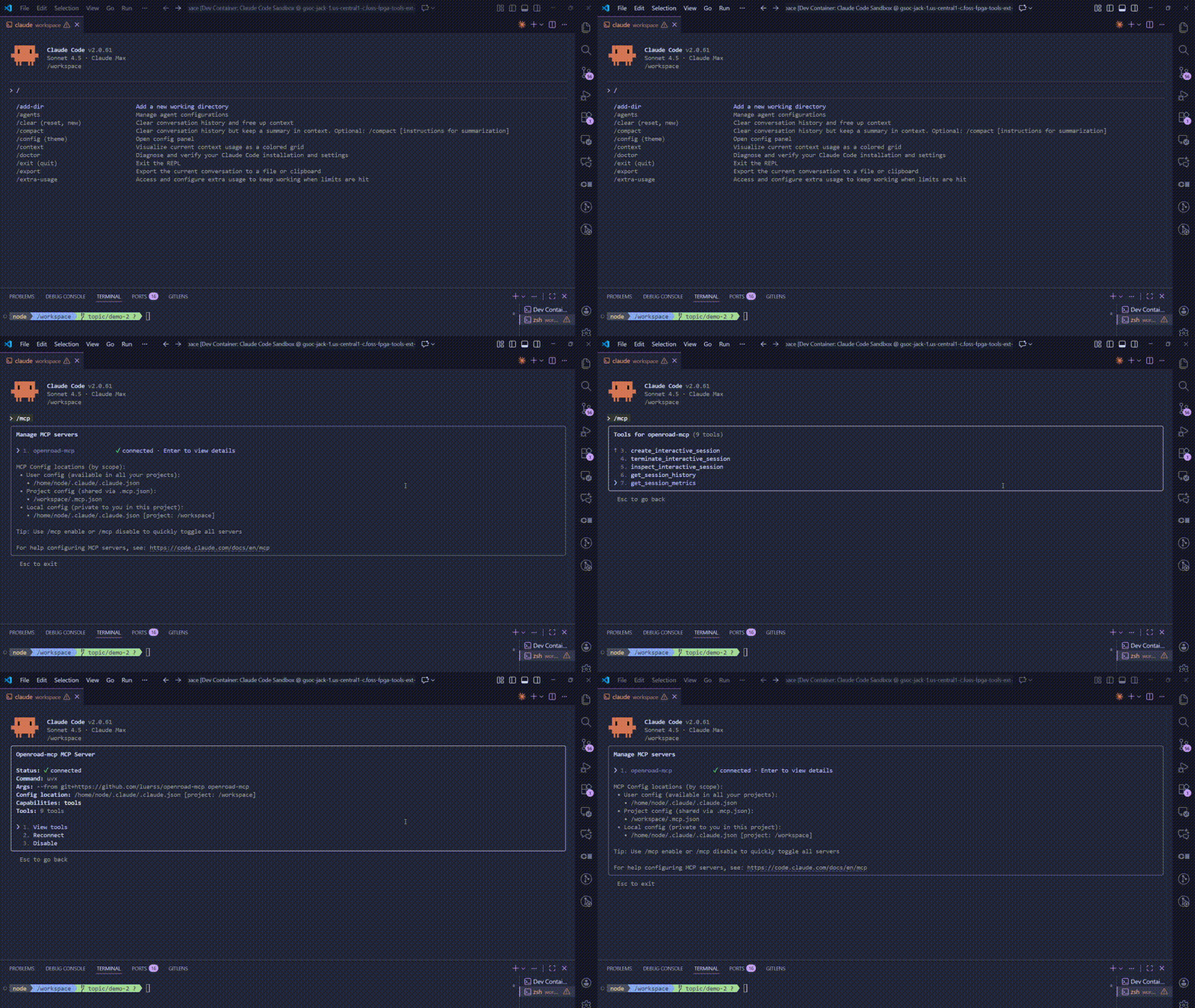
Features
- Interactive OpenROAD sessions - Execute commands in persistent OpenROAD sessions with PTY support
- Session management - Create, list, inspect, and terminate multiple sessions
- Command history - Access full command history for any session
- Performance metrics - Get comprehensive metrics across all sessions
- Report visualization - List and read report images from ORFS runs
Requirements
- OpenROAD installed and available in your PATH
- OpenROAD-flow-scripts (ORFS) for complete RTL-to-GDS flows (optional but recommended)
- Python 3.13+ or higher
- uv package manager
- Install:
curl -LsSf https://astral.sh/uv/install.sh | sh
- Install:
Support Matrix
| MCP Client | Supported | Transport Mode(s) | Config file |
|---|---|---|---|
| Claude Code | ✅ | STDIO | .claude/settings.json |
| Claude Desktop | ✅ | STDIO | ~/Library/Application Support/Claude/claude_desktop_config.json (macOS) |
| Cursor | ✅ | STDIO | .cursor/mcp.json |
| GitHub Copilot (VS Code) | ✅ | STDIO | .vscode/mcp.json |
| Gemini CLI | ✅ | STDIO | ~/.gemini/settings.json |
| Windsurf | ✅ | STDIO | ~/.codeium/windsurf/mcp_config.json |
| Cline | ✅ | STDIO | VS Code globalStorage (see below) |
| Roo Code | ✅ | STDIO | .roo/mcp.json |
| Continue | ✅ | STDIO | ~/.continue/config.json |
| Zed | ✅ | STDIO | ~/.config/zed/settings.json |
| JetBrains AI Assistant | ✅ | STDIO | Settings UI |
| Amazon Q Developer CLI | ✅ | STDIO | ~/.aws/amazonq/mcp.json |
| Augment Code | ✅ | STDIO | VS Code settings.json |
| Warp | ✅ | STDIO | Settings UI |
| Amp | ✅ | STDIO | CLI-managed |
| Trae | ✅ | STDIO | User config |
| Opencode | ✅ | STDIO | opencode.json |
| Kiro | ✅ | STDIO | Settings UI |
| Kilo Code | ✅ | STDIO | .kilocode/mcp.json |
| Goose | ✅ | STDIO | ~/.config/goose/config.yaml |
| Sourcegraph Cody | ✅ | STDIO | VS Code settings.json |
| OpenAI Codex CLI | ✅ | STDIO | ~/.codex/config.toml |
| PearAI | ✅ | STDIO | ~/pearai/config.json |
| CodeBuddy | ✅ | STDIO | ~/.codebuddy/config.jsonc |
| Hermes Agent | ✅ | STDIO | ~/.hermes/config.yaml |
| GitHub Copilot CLI | ✅ | STDIO | ~/.copilot/mcp-config.json |
| Oh My Pi | ✅ | STDIO | .omp/mcp.json |
| OpenClaw | ✅ | STDIO | ~/.openclaw/openclaw.json |
| AstrBot | ✅ | STDIO | WebUI |
| DeepCode | ✅ | STDIO | deepcode_config.json |
| nanobot | ✅ | STDIO | nanobot.yaml |
| Crush | ✅ | STDIO | .crush.json |
| Reasonix | ✅ | STDIO | reasonix.toml |
| Other MCP clients | ⚠️ | STDIO | Should work with standard STDIO transport |
Getting Started
New to OpenROAD MCP? Check out our Quick Start guide.
For platform-specific setup instructions, see the Cross-Platform Guide.
Standard Configuration
The basic configuration for all MCP clients:
{
  "mcpServers": {
    "openroad-mcp": {
      "command": "uvx",
      "args": [
        "--from",
        "git+https://github.com/luarss/[email protected]",
        "openroad-mcp"
      ]
    }
  }
}
Note: The URL above is pinned to a specific release for supply chain safety.
To always track the latest version instead, drop the@v0.5.3suffix:"git+https://github.com/luarss/[email protected]".
For local development, use:
{
  "mcpServers": {
    "openroad-mcp": {
      "command": "uv",
      "args": [
        "--directory",
        "/path/to/openroad-mcp",
        "run",
        "openroad-mcp"
      ]
    }
  }
}
Installation
Claude Codeclaude mcp add --transport stdio openroad-mcp -- uvx --from git+https://github.com/luarss/openroad-mcp openroad-mcp
Or add the standard configuration to .claude/settings.json.
Add the standard configuration to:
- macOS:
~/Library/Application Support/Claude/claude_desktop_config.json - Windows:
%APPDATA%\Claude\claude_desktop_config.json
Add the standard configuration to .cursor/mcp.json.
Add to .vscode/mcp.json (VS Code 1.99+). Note the different schema — servers key and "type": "stdio" required:
{
  "servers": {
    "openroad-mcp": {
      "type": "stdio",
      "command": "uvx",
      "args": [
        "--from",
        "git+https://github.com/luarss/[email protected]",
        "openroad-mcp"
      ]
    }
  }
}
Follow the Gemini MCP install guide, using the standard configuration above.
WindsurfAdd the standard configuration to ~/.codeium/windsurf/mcp_config.json.
Add to the Cline MCP settings file:
- macOS:
~/Library/Application Support/Code/User/globalStorage/saoudrizwan.claude-dev/settings/cline_mcp_settings.json - Windows:
%APPDATA%\Code\User\globalStorage\saoudrizwan.claude-dev\settings\cline_mcp_settings.json - Linux:
~/.config/Code/User/globalStorage/saoudrizwan.claude-dev/settings/cline_mcp_settings.json
{
  "mcpServers": {
    "openroad-mcp": {
      "command": "uvx",
      "args": [
        "--from",
        "git+https://github.com/luarss/[email protected]",
        "openroad-mcp"
      ],
      "disabled": false,
      "autoApprove": []
    }
  }
}
Add to .roo/mcp.json in your project root (or the equivalent user-level settings file via the Roo Code UI):
{
  "mcpServers": {
    "openroad-mcp": {
      "command": "uvx",
      "args": [
        "--from",
        "git+https://github.com/luarss/[email protected]",
        "openroad-mcp"
      ],
      "disabled": false,
      "autoApprove": []
    }
  }
}
Add to ~/.continue/config.json:
{
  "experimental": {
    "modelContextProtocolServers": [
      {
        "transport": {
          "type": "stdio",
          "command": "uvx",
          "args": [
            "--from",
            "git+https://github.com/luarss/[email protected]",
            "openroad-mcp"
          ]
        }
      }
    ]
  }
}
Add to ~/.config/zed/settings.json:
{
  "context_servers": {
    "openroad-mcp": {
      "command": {
        "path": "uvx",
        "args": [
          "--from",
          "git+https://github.com/luarss/[email protected]",
          "openroad-mcp"
        ]
      },
      "settings": {}
    }
  }
}
Open Settings → Tools → AI Assistant → Model Context Protocol (MCP) and add a new server entry using the standard configuration.
Amazon Q Developer CLIAdd the standard configuration to ~/.aws/amazonq/mcp.json.
Add to your VS Code settings.json (User or Workspace scope):
{
  "augment.advanced": {
    "mcpServers": [
      {
        "name": "openroad-mcp",
        "command": "uvx",
        "args": [
          "--from",
          "git+https://github.com/luarss/[email protected]",
          "openroad-mcp"
        ]
      }
    ]
  }
}
Open Settings → AI → MCP Servers → Add New MCP Server and enter:
- Name:
openroad-mcp - Command:
uvx - Args:
--from git+https://github.com/luarss/openroad-mcp openroad-mcp
amp mcp add openroad-mcp uvx --from git+https://github.com/luarss/openroad-mcp openroad-mcp
Add the standard configuration to the MCP section of Trae's user settings (accessible via Settings → MCP).
OpencodeAdd to opencode.json in your project root:
{
  "mcp": {
    "openroad-mcp": {
      "type": "local",
      "command": [
        "uvx",
        "--from",
        "git+https://github.com/luarss/[email protected]",
        "openroad-mcp"
      ],
      "enabled": true
    }
  }
}
Open the MCP configuration panel in Kiro and add a new server entry using the standard configuration.
Kilo CodeAdd to .kilocode/mcp.json in your project root:
{
  "mcpServers": {
    "openroad-mcp": {
      "command": "uvx",
      "args": [
        "--from",
        "git+https://github.com/luarss/[email protected]",
        "openroad-mcp"
      ],
      "alwaysAllow": [],
      "disabled": false
    }
  }
}
Add to ~/.config/goose/config.yaml:
extensions:
  openroad-mcp:
    name: openroad-mcp
    type: stdio
    cmd: uvx
    args:
      - --from
      - git+https://github.com/luarss/[email protected]
      - openroad-mcp
    enabled: true
Add to your VS Code settings.json:
{
  "openctx.providers": {
    "https://openctx.org/npm/@openctx/provider-mcp": {
      "transports": [
        {
          "type": "stdio",
          "command": "uvx",
          "args": [
            "--from",
            "git+https://github.com/luarss/[email protected]",
            "openroad-mcp"
          ]
        }
      ]
    }
  }
}
Add to ~/.codex/config.toml (global) or .codex/config.toml (project-scoped):
[[mcp_servers]]
name = "openroad-mcp"
command = "uvx"
args = ["--from", "git+https://github.com/luarss/[email protected]", "openroad-mcp"]
PearAI uses the same config format as Continue. Add to ~/pearai/config.json:
{
  "experimental": {
    "modelContextProtocolServers": [
      {
        "transport": {
          "type": "stdio",
          "command": "uvx",
          "args": [
            "--from",
            "git+https://github.com/luarss/[email protected]",
            "openroad-mcp"
          ]
        }
      }
    ]
  }
}
Add to ~/.codebuddy/config.jsonc (global) or .codebuddy/mcp.jsonc (project-scoped):
{
  "mcpServers": {
    "openroad-mcp": {
      "command": "uvx",
      "args": [
        "--from",
        "git+https://github.com/luarss/[email protected]",
        "openroad-mcp"
      ]
    }
  }
}
Add to ~/.hermes/config.yaml:
mcp_servers:
  - name: openroad-mcp
    transport: stdio
    command: uvx
    args:
      - --from
      - git+https://github.com/luarss/[email protected]
      - openroad-mcp
Add to ~/.copilot/mcp-config.json:
{
  "mcpServers": {
    "openroad-mcp": {
      "type": "stdio",
      "command": "uvx",
      "args": [
        "--from",
        "git+https://github.com/luarss/[email protected]",
        "openroad-mcp"
      ]
    }
  }
}
Or run /mcp add inside a Copilot CLI session for guided setup.
Add to .omp/mcp.json (project-level) or ~/.omp/agent/mcp.json (global):
{
  "mcpServers": {
    "openroad-mcp": {
      "type": "stdio",
      "command": "uvx",
      "args": [
        "--from",
        "git+https://github.com/luarss/[email protected]",
        "openroad-mcp"
      ]
    }
  }
}
Add to ~/.openclaw/openclaw.json:
{
  "mcp": {
    "servers": {
      "openroad-mcp": {
        "command": "uvx",
        "args": [
          "--from",
          "git+https://github.com/luarss/[email protected]",
          "openroad-mcp"
        ],
        "enabled": true
      }
    }
  }
}
Or run openclaw mcp add for guided setup.
Navigate to the AstrBot WebUI → MCP section → Add Server, and enter:
{
  "command": "uvx",
  "args": ["--from", "git+https://github.com/luarss/[email protected]", "openroad-mcp"]
}
Requires uv installed on the host running AstrBot.
Add to deepcode_config.json in your project root:
{
  "tools": {
    "mcpServers": {
      "openroad-mcp": {
        "type": "stdio",
        "command": "uvx",
        "args": [
          "--from",
          "git+https://github.com/luarss/[email protected]",
          "openroad-mcp"
        ]
      }
    }
  }
}
Add to nanobot.yaml in your project root:
mcpServers:
  openroad-mcp:
    command: uvx
    args:
      - --from
      - git+https://github.com/luarss/[email protected]
      - openroad-mcp
Add to .crush.json (project-local) or ~/.config/crush/crush.json (global):
{
  "mcp": {
    "openroad-mcp": {
      "type": "stdio",
      "command": "uvx",
      "args": [
        "--from",
        "git+https://github.com/luarss/[email protected]",
        "openroad-mcp"
      ]
    }
  }
}
Add to reasonix.toml (project root) or ~/.config/reasonix/config.toml (global):
[[plugins]]
name    = "openroad-mcp"
command = "uvx"
args    = ["--from", "git+https://github.com/luarss/[email protected]", "openroad-mcp"]
Alternatively, use the standard .mcp.json format — Reasonix auto-discovers it.
🚧 Work in Progress: Docker deployment via GitHub Container Registry (GHCR) is coming soon.
MCP RegistryOnce published to the MCP Registry, clients can discover and install directly:
uvx openroad-mcp
Verification
After configuration, restart your MCP client and verify the MCP server is running:
- The server should automatically start when your MCP client launches
- You can use OpenROAD tools through the MCP interface
- Check logs for any startup errors if tools are not available
Available Tools
Once configured, the following tools are available:
interactive_openroad- Execute commands in an interactive OpenROAD sessioncreate_interactive_session- Create a new OpenROAD sessionlist_interactive_sessions- List all active sessionsterminate_interactive_session- Terminate a sessioninspect_interactive_session- Get detailed session informationget_session_history- View command historyget_session_metrics- Get performance metricslist_report_images- List ORFS report directory imagesread_report_image- Read a ORFS report image
Troubleshooting
If the MCP server fails to start:
- Ensure
uvis installed and available in your PATH - Verify the path to openroad-mcp is correct
- Check that all dependencies are installed:
make sync - Review your MCP client logs for specific error messages
Development
Setup
# Install environment
uv venv
make sync
Testing
# Run core tests (recommended - excludes PTY tests that may fail in some environments)
make test

# Run interactive PTY tests separately (may have file descriptor issues in CI)
make test-interactive

# Run all tests including potentially problematic PTY tests
make test-all

# Format and check code
make format
make check
Note: Interactive PTY tests are separated because they may experience file descriptor issues in certain environments (containers, CI systems). The core functionality tests (make test) provide comprehensive coverage of the MCP integration without these environment-specific issues.
MCP Inspector
# Launch MCP inspector for debugging
# For STDIO transport: Set Command as "uv", Arguments as "run openroad-mcp"
make inspect
Contributing
We welcome contributions to OpenROAD MCP! Please see CONTRIBUTING.md for detailed instructions on how to get started, our development workflow, and code standards.
Support
If you encounter any issues or have questions, please open an issue on our GitHub issue tracker.
License
BSD 3-Clause License. See LICENSE file.
Built with ❤️ by Precision Innovations
Yorumlar (0)
Yorum birakmak icin giris yap.
Yorum birakSonuc bulunamadi