PortPilot
Health Warn
- License — License: MIT
- Description — Repository has a description
- Active repo — Last push 0 days ago
- Low visibility — Only 5 GitHub stars
Code Fail
- execSync — Synchronous shell command execution in mcp-server/index.js
- exec() — Shell command execution in mcp-server/index.js
- os.homedir — User home directory access in mcp-server/index.js
- process.env — Environment variable access in mcp-server/index.js
- fs module — File system access in scripts/capture-guide-screenshots.js
- fs module — File system access in scripts/generate-html-guide.js
- fs module — File system access in scripts/generate-icon.js
- child_process — Shell command execution capability in scripts/launch.js
- process.env — Environment variable access in scripts/launch.js
- child_process — Shell command execution capability in scripts/manual-test-report.js
- execSync — Synchronous shell command execution in scripts/manual-test-report.js
- process.env — Environment variable access in scripts/screenshot.js
Permissions Pass
- Permissions — No dangerous permissions requested
No AI report is available for this listing yet.
Localhost port manager - Electron desktop app for managing dev ports and apps
PortPilot
Localhost Port Manager for Windows & Linux - A desktop app for developers to manage local development ports and applications.





📑 Table of Contents
- ✨ AI Agent Integration
- What's New in v3.1.0
- What's New in v3.0.0
- What's New in v2.0.0
- What's New in v1.7.0
- Features
- Auto Detection
- Screenshots
- Installation
- Usage
- App Badges
- Themes
- Keyboard Shortcuts
- Testing
- MCP Integration
- Tech Stack
- Version History
- Contributing
✨ NEW: AI Agent Integration
Control PortPilot with natural language! Works with Claude Code, Cursor, Windsurf, and any MCP-compatible AI assistant.
"Start the azure-practice-exam-platform app"
"What's running on port 3001?"
"Kill whatever is running on port 3000"
What's New in v3.1.0
Web portal, hosted from VS Code
- Run the web portal from the VS Code extension - no desktop app needed. Enable
portpilot.webPortal.enabled(opt-in, off by default) and the browser UI is available whenever the editor window is open. - A "PP Portal" status-bar item shows it running; click to open
http://127.0.0.1:<port>/. There arePortPilot: Start / Stop Web Portalcommands too. - The extension spawns the same hardened loopback agent (
127.0.0.1-only, per-session token) using the editor's own Node, and stops it gracefully over an IPC channel - so it works on Windows and the agent does not orphan if the editor closes. - Optional
portpilot.webPortal.stopAppsOnStopalso stops the dev servers the portal started when you stop the portal.
What's New in v3.0.0
Web Agent - PortPilot in your browser
- Run the full UI in a browser with no Electron, via
npm run agentor the opt-in Web Access toggle in Settings - Embedded in the desktop app it runs in-process, sharing the same config and process table, so apps started in the browser and on the desktop are the same
- Live updates over SSE - external MCP edits push to the browser instantly
- Hardened loopback security:
127.0.0.1-only, per-session token, Host/Origin allowlists, locked CORS, strict CSP. Full threat model in SECURITY.md - Auto-picks a free port if 7317 is taken
All clients aligned
- The desktop app, MCP server, VS Code extension, and web agent now share one config path and the same two-phase running detection, so apps on a dynamic or non-preferred port are detected instead of reading "stopped"
- Dropped the deprecated
wmicfor PowerShell/CIM plus a batchedtasklistlookup - Fixed config data loss when editing MCP-added apps, and made
killPortlocale-independent across clients
What's New in v2.0.0
Full UI Redesign
- Single-pane unified layout - Removed the 4-tab system (Active Ports / My Apps / Knowledge / Settings)
- Settings moved to a slide-out panel with backdrop blur
- Knowledge tab removed - documentation moved to the GitHub wiki
- All emoji replaced with crisp SVG icons (21 inline SVGs)
- Glassmorphism card design with backdrop-filter blur
- New "Glass" theme added (6 themes total)
- Global search bar filters both apps and ports simultaneously
- App cards show running status inline (memory, uptime, PID)
MCP Server v2.0
- Updated from SDK 0.5.0 to 1.29.0 (was broken, now fixed)
- Rewritten with modern McpServer high-level API and Zod schemas
- 6 new tools:
get_status,check_port,bulk_start,bulk_stop,list_groups,move_to_group list_appsnow includes running status inline (no separate call needed)- 18 total tools available
VS Code Extension v1.2.0
- Status bar item showing "PP: N running" with click-to-refresh
- Groups rendered as collapsible tree nodes
- Full CRUD: add, edit, delete apps, change ports, toggle favourites
- Syncs with the Electron app via shared config file
What's New in v1.7.0
UX Improvements & International Fix
- App Search & Filter - Live search on the My Apps tab filters by name, command, or working directory with 150ms debounce
- Running Apps Summary - Header shows a live count badge ("3 running" / "all stopped") at a glance
- Sort Options - Sort apps by name A-Z, name Z-A, running status, or port number
- Group Colours - Assign a colour to each group; a matching left-border and dot appear on the group header
- Quick Add Wizard - 8 pre-built templates (npm dev, Vite, Next.js, Angular, Flask, FastAPI, Docker Compose, Static) pre-fill the add-app form in one click
- Keyboard Shortcuts -
Ctrl+F(focus search),Ctrl+G(new group) - Rich Tray Menu - System tray now lists each running app with a one-click Stop button; tooltip shows live app count
- Bug fix: non-English Windows - Port scanning now works on all Windows locales (German, French, Spanish, etc.) by checking the foreign-address column instead of matching locale-specific state strings like "ABHÖREN" or "EN ÉCOUTE"
Features
- 🔍 Search & Filter - Live search on My Apps tab, filter by name/command/cwd
- ⬆️ Sort Options - Sort apps by name, running status, or port
- 🎨 Group Colours - Colour-coded groups with left-border accent
- ⚡ Quick Add - 8 one-click templates for common project types
- ⌨️ Keyboard Shortcuts - Ctrl+F, Ctrl+G for power users
- 🖥️ Rich Tray Menu - Running apps listed in tray with per-app Stop buttons
- 🔍 Browse & Auto-detect - One-click project setup with recursive scanning and package manager detection
- ⚠️ Port Conflict Warnings - Visual warnings when unknown processes block app ports, with preview and kill options
- 🔍 Project Auto-Discovery - Scan directories to automatically find and import dev projects (Node.js, Docker, Python, static sites)
- ⭐ Favorites - Star frequently-used apps for quick access with collapsible sections
- 🗑 Bulk Operations - Delete all apps at once with safety confirmations
- Port Scanner - Discover all active TCP ports with process details (name, PID, command line)
- One-Click Kill - Free up stuck ports instantly
- App Registry - Register your dev projects with start commands and preferred ports
- Process Management - Start/stop apps directly from PortPilot
- Smart Port Matching - Two-phase algorithm with CWD validation and keyword extraction for accurate detection
- Requirement Badges - Visual indicators for Docker, Node.js, Python, and more
- Docker Integration - Click to start Docker Desktop, with status detection
- IPv4/IPv6 Awareness - Shows which protocol your app is bound to
- System Tray - Minimize to tray, "Stop All Apps" menu option, configurable window behaviour
- Single-Instance Lock - Only one PortPilot runs at a time, focuses existing window
- Multi-Theme Support - 6 themes including TokyoNight, Brutalist Dark, Nord, Dracula, Glass
- VS Code Extension - Status bar counter, collapsible groups, full CRUD from the sidebar
- MCP v2.0 with 18 tools - Manage your entire dev environment via any MCP-compatible AI assistant
Auto Detection
PortPilot automatically detects 8 different languages and platforms when you use "🔍 Browse & Auto-detect Project" or Project Auto-Discovery. Detection is intelligent, framework-aware, and includes confidence scoring.
Supported Languages & Frameworks
📦 Node.js
Detection Criteria:
package.jsonfile present- Package manager files:
package-lock.json,yarn.lock,pnpm-lock.yaml,bun.lockb
Supported Frameworks:
- React, Next.js, Vue, Angular, Vite
- Express, Fastify, Nest.js
- Gatsby, Nuxt, SvelteKit
Port Detection:
- Reads
package.jsonscripts for port numbers (e.g.,--port 3000) - Checks Vite/Next.js config files
- Checks
.envfiles forPORTvariable
Default Values:
- Port: 3000
- Command: Auto-detected package manager (
pnpm run dev,yarn dev,npm run dev) - Confidence: 90-95%
🐍 Python
Detection Criteria:
requirements.txt,pyproject.toml, orPipfilepresent- Python files with common framework imports
Supported Frameworks:
- FastAPI (port 8000)
- Django (port 8000)
- Flask (port 5000)
Port Detection:
- Scans Python files for
uvicorn.run(),app.run()with port arguments - Checks framework-specific config files
Default Values:
- Port: 8000 (FastAPI/Django), 5000 (Flask)
- Command: Framework-specific (
uvicorn main:app,python manage.py runserver,flask run) - Confidence: 85-90%
🐳 Docker
Detection Criteria:
docker-compose.ymlordocker-compose.yamlpresentDockerfilepresent
Port Detection:
- Parses
docker-compose.ymlfor exposed ports - Reads port mappings (e.g.,
3000:3000,8080:80)
Default Values:
- Port: Extracted from compose file
- Command:
docker compose upordocker-compose up - Confidence: 95%
🔷 Go
Detection Criteria:
go.modfile presentmain.gofile present
Supported Frameworks:
- Gin (port 8080)
- Fiber (port 3000)
- Echo (port 1323)
Port Detection:
- Scans
go.modfor framework dependencies - Parses
main.gofor port literals (e.g.,:8080)
Default Values:
- Port: 8080 (Gin), 3000 (Fiber), 1323 (Echo)
- Command:
go run . - Confidence: 80-95%
⚙️ .NET / C#
Detection Criteria:
.csprojfile present.slnsolution file present
Supported Frameworks:
- ASP.NET Core
Port Detection:
- Reads
Properties/launchSettings.jsonforapplicationUrl - Parses port from URLs (e.g.,
https://localhost:5001)
Default Values:
- Port: 5000
- Command:
dotnet run - Confidence: 85-95%
🦀 Rust
Detection Criteria:
Cargo.tomlfile present
Supported Frameworks:
- Actix-web (port 8080)
- Rocket (port 8000)
- Axum (port 3000)
- Warp (port 3030)
Port Detection:
- Scans
Cargo.tomldependencies for framework - Parses
src/main.rsforbind()orlisten()with port
Default Values:
- Port: Framework-specific (see above)
- Command:
cargo run - Confidence: 85-95%
💎 Ruby
Detection Criteria:
Gemfilefile presentconfig.rufile presentRakefilepresent
Supported Frameworks:
- Ruby on Rails (port 3000)
- Sinatra (port 4567)
- Rack (port 9292)
Port Detection:
- Checks for
config/application.rb(Rails) - Reads
Gemfilefor framework gems
Default Values:
- Port: 3000 (Rails), 4567 (Sinatra), 9292 (Rack)
- Command:
rails server,ruby app.rb, orrackup - Confidence: 70-95%
🌐 Static Sites
Detection Criteria:
index.htmlin root directory- No backend framework files present
Port Detection:
- No port needed (serves HTML directly)
Default Values:
- Port: N/A
- Command: N/A
- Confidence: 80%
Detection Priority
Detectors run in priority order (highest to lowest):
- Docker (95) - Most explicit configuration
- Node.js (90) - Very common, well-structured
- Go (85)
- .NET (85)
- Rust (85)
- Ruby (85)
- Python (80) - Lower due to less standardized structure
- Static Sites (60) - Fallback for simple projects
If multiple detectors match, the highest-priority one wins.
Confidence Scoring
| Score | Meaning |
|---|---|
| 95%+ | Exact port found in config file |
| 85-94% | Framework detected, using framework default port |
| 70-84% | Files detected, using language default port |
| <70% | Weak match, manual verification recommended |
Screenshots
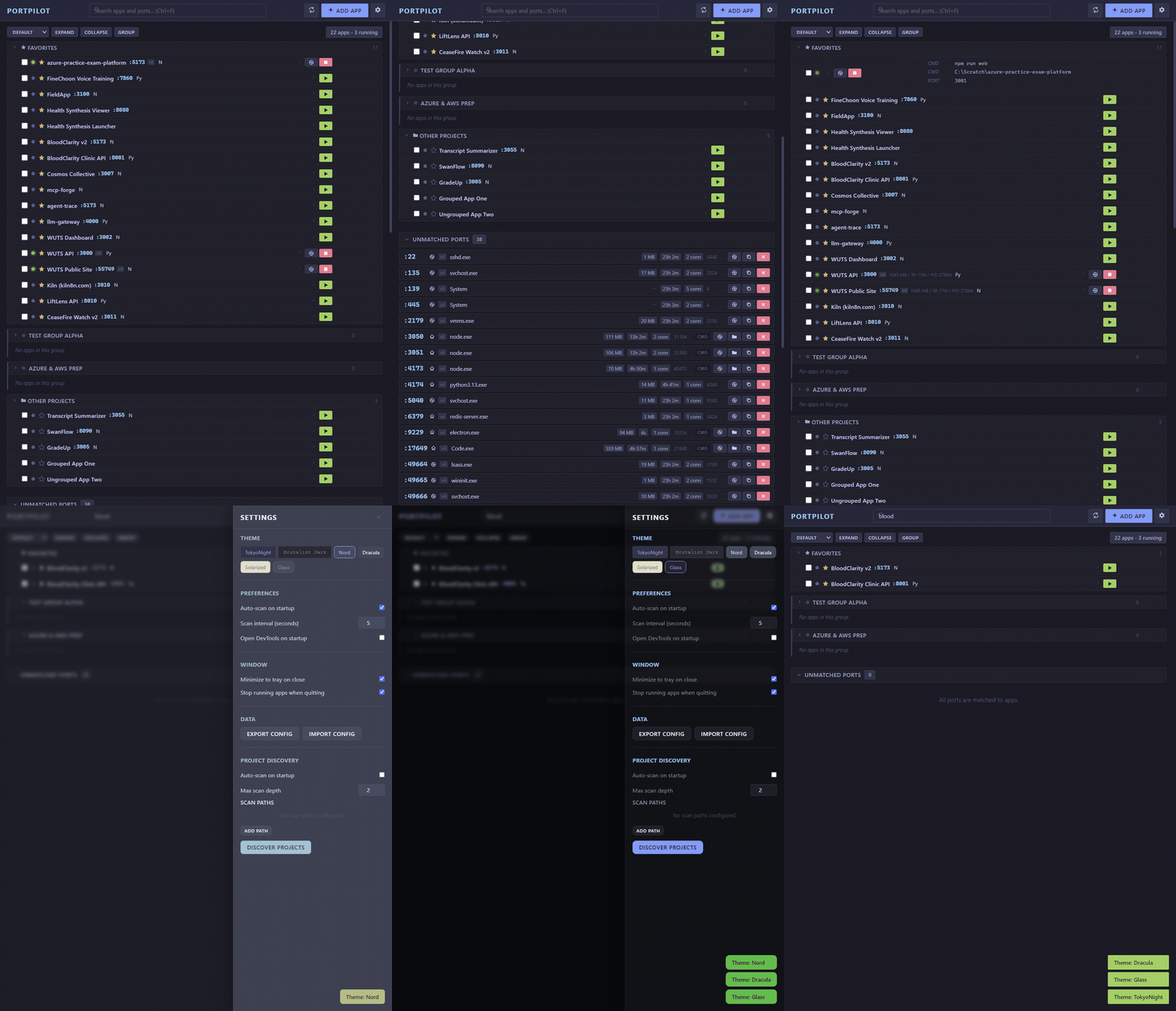
Explore all PortPilot features including app management, the Active Ports scanner, Settings panel, multiple themes, and more.
Installation
Download (Recommended)
Latest Release: v3.1.0
Windows:
- PortPilot-3.1.0-x64.exe - NSIS Installer (~72 MB)
- PortPilot-3.1.0-portable.exe - Portable (~72 MB)
Linux:
- PortPilot-3.1.0-x86_64.AppImage - AppImage (~98 MB)
- PortPilot-3.1.0-amd64.deb - Debian/Ubuntu (~69 MB)
macOS:
- Build from source (see below) - macOS is supported but not officially tested
Build from Source
# Clone the repo
git clone https://github.com/m4cd4r4/PortPilot.git
cd PortPilot

# Install dependencies
npm install

# Run the app
npm start

# Build for your platform
npm run build              # Windows (NSIS installer)
npm run build:linux        # Linux (AppImage + .deb)
npm run build:all-platforms  # Both Windows and Linux
Note for VSCode/Claude Code users: The app automatically clears the
ELECTRON_RUN_AS_NODEenvironment variable vialaunch.js.
Usage
Scan Ports
Click "Scan Ports" to discover all listening TCP ports. You'll see:
- Port number (large and prominent!)
- Process name
- PID
- Command line (with clean ellipsis for long paths)
Click the ❌ button to kill any process.
Register Apps
Option 1: Auto-detect (Recommended)
- Click "Add App"
- Click "🔍 Browse & Auto-detect Project"
- Select your project folder (e.g.,
C:\Scratch\MyApp) - PortPilot automatically fills in:
- Name from package.json
- Command with the correct package manager (
pnpm run dev,yarn dev,npm run dev) - Working Directory path
- Preferred Port from config files (if found)
- Review and edit if needed
- Click "Save App"
Option 2: Manual Entry
- Click "Add App"
- Fill in:
- Name: Display name (e.g., "AzurePrep Frontend")
- Command: Start command (e.g.,
npm run dev) - Working Directory: Project folder path
- Preferred Port: The port your app should use (or leave blank to assign later)
- Fallback Range: Alternative ports if preferred is taken (e.g.,
3001-3010)
- Click "Save App"
Now you can start/stop your apps directly from PortPilot with visual countdown feedback!
Handle Port Conflicts
When a port is blocked by an unknown process:
- You'll see "⚠️ Port Blocked" status on the app card
- Click 🌐 Globe button to preview what's running on that port
- Click "Kill Blocker" to terminate the blocking process
- Click "Start" to launch your app
App Badges
PortPilot automatically detects app requirements and shows badges:
| Badge | Meaning | Detected When |
|---|---|---|
| 🐳 | Docker app | Command includes docker or compose |
| 📦 | Node.js app | Command includes npm, npx, pnpm, yarn, or bun |
| 🐍 | Python app | Command includes python, uvicorn, flask, or django |
| 🗄️ | Database | Command includes postgres, mysql, redis, or mongo |
| ⚡ | Auto-start | App configured to start on launch |
| 🌐 | Remote | App runs on remote server/VPS |
Docker Integration
- Yellow pulsing 🐳 - Docker Desktop is not running (click to start)
- Green 🐳 - Docker Desktop is running and ready
IPv4/IPv6 Indicators
When apps are running, PortPilot shows v4 or v6 to indicate the IP protocol:
- v4 - Bound to IPv4 (e.g.,
0.0.0.0:3000) - v6 - Bound to IPv6 (e.g.,
[::]:3000)
This ensures the browser button opens the correct URL.
Themes
| Theme | Description |
|---|---|
| TokyoNight | Dark blue with cyan/magenta accents (default) |
| Brutalist Dark | Pure black, yellow/cyan, monospace |
| Nord | Cool arctic blues |
| Dracula | Purple/pink dark theme |
| Solarized Light | Warm, easy on the eyes |
| Glass | Translucent glassmorphism with extra transparency |
Keyboard Shortcuts
| Shortcut | Action |
|---|---|
Ctrl+R |
Refresh/Scan ports |
Ctrl+N |
Add new app |
Ctrl+F |
Focus global search |
Ctrl+G |
New group |
Escape |
Close modal / Settings panel |
Config Location
Your config is stored at:
- Windows:
%APPDATA%/portpilot/portpilot-config.json - macOS:
~/Library/Application Support/portpilot/portpilot-config.json - Linux:
~/.config/portpilot/portpilot-config.json
Example Config
{
  "apps": [
    {
      "id": "app_azureprep",
      "name": "AzurePrep",
      "command": "npm run web",
      "cwd": "C:\\Scratch\\azure-practice-exam-platform",
      "preferredPort": 3001,
      "fallbackRange": [3002, 3010],
      "color": "#84CC16",
      "autoStart": false
    }
  ],
  "settings": {
    "autoScan": true,
    "scanInterval": 5000,
    "openDevTools": false
  }
}
Development
# Install dependencies
npm install

# Run in development
npm start

# Run in dev mode (with DevTools if enabled)
npm run dev

# Run all tests
npm run test:all

# Take screenshots
npm run screenshots

# Build installers
npm run build:all
Testing
PortPilot uses a Playwright end-to-end smoke suite that drives the real Electron app.
# Run the E2E smoke suite (launches Electron + test servers on 3000/3001/8080)
npm test

# On headless Linux, run under a virtual display
xvfb-run -a npm test

# Generate UI screenshots
npm run screenshots
Covered: window launch, port scanning, test-server detection, port-card rendering,
global search filtering, copy/kill controls, the Settings panel, and the Add App modal.
The older
v1.3/v1.7/groupsfeature specs targeted the pre-v2.0 tab UI and are
kept for reference only; they need rewriting against the single-pane layout before
being re-enabled intest:all.
✨ AI Agent Integration (MCP)
PortPilot includes an MCP (Model Context Protocol) server that lets any compatible AI assistant manage your development environment with natural language.
Compatible Tools
Works with any MCP-enabled AI assistant:
- Claude Code (CLI)
- Claude Desktop
- Cursor
- Windsurf
- Cline
Setup
# Install MCP server dependencies
cd mcp-server && npm install && cd ..

# Add to Claude Code
claude mcp add portpilot -- node "C:\path\to\PortPilot\mcp-server\index.js"

# Verify connection
claude mcp list
# Should show: portpilot: ... - ✓ Connected
Restart your AI tool after adding to load the new tools.
Example Commands
Just ask in natural language:
"List all my PortPilot apps"
"Start the azure-practice-exam-platform app"
"What's running on port 3001?"
"Add a new app called 'hero-concepts-preview' at C:\Scratch\azure-practice-exam-platform with command 'npm run web' on port 3001"
"Stop mocksnap"
"Kill whatever is running on port 3000"
"Delete all apps from PortPilot"
"Favorite the AzurePrep app"
Available Tools
| Tool | Description |
|---|---|
list_apps |
List all registered apps with running status inline |
get_app |
Get details of a specific app |
get_status |
Get overall PortPilot status summary |
start_app |
Start an app by name or ID |
stop_app |
Stop a running app |
bulk_start |
Start multiple apps at once |
bulk_stop |
Stop multiple apps at once |
add_app |
Register a new app |
update_app |
Update app configuration |
delete_app |
Remove an app |
list_running |
Show currently running apps |
scan_ports |
Scan for active ports |
check_port |
Check what is running on a specific port |
kill_port |
Kill process on a port |
toggle_favorite |
Star/unstar an app |
delete_all_apps |
Remove all apps (requires confirmation) |
list_groups |
List all app groups |
move_to_group |
Move an app to a different group |
See mcp-server/README.md for full documentation.
Web Agent (v3 preview)
PortPilot can also run as a local web app — the same UI in your browser,
backed by a hardened loopback agent. This is an experimental preview.
npm run agent
# →  http://127.0.0.1:7317/
The agent runs the same backend as the desktop app and reuses the same UI, so
you get PortPilot in a browser tab without Electron. Because the backend can
start/kill processes, it is locked down with several independent controls:
- Binds to
127.0.0.1only (never reachable off your machine) - A per-session token is required on every API call
- Host-header validation (defeats DNS-rebinding) and Origin/CORS lockdown
- A custom header forces a CORS preflight, blocking cross-site requests
- Strict CSP; token file written
chmod 600
See SECURITY.md for the full threat model and verified
behaviour. Run either the desktop app or the agent at a time (they track
started processes separately).
Tech Stack
- Electron 27 - Cross-platform desktop framework
- Node.js - Process management and port scanning
- Playwright - End-to-end testing
- Vanilla JS - No framework bloat, lightweight and fast
- CSS Variables - Powerful theme system
- Native Commands -
netstat(Windows) /lsof(Mac/Linux)
Version History
v3.1.0 (2026-06-08) - Current Release
- Web portal hosted from VS Code - the extension runs the browser UI itself (opt-in
portpilot.webPortal.enabled), no desktop app needed - Spawns the hardened loopback agent with the editor's own Node; "PP Portal" status-bar item; graceful IPC shutdown (works on Windows); self-exits if the editor host closes
- Opt-in
portpilot.webPortal.stopAppsOnStopto also stop the dev servers the portal started
v3.0.0 (2026-06-08)
- Web Agent - run PortPilot in the browser (
npm run agentor the in-app Web Access toggle), shared in-process with the desktop app - SSE live updates, auto-port-fallback, and a hardened loopback security model (token, Host/Origin allowlists, locked CORS, strict CSP) - see SECURITY.md
- All clients aligned on one config path and the same two-phase running detection (apps on dynamic ports now detected)
- Dropped deprecated wmic for PowerShell/CIM + tasklist; locale-independent killPort across clients
- Fixed config data loss on MCP-added apps; VS Code extension now matches the desktop app's running detection
- App log viewer (desktop), opt-in window auto-resize, app-card accessibility
v2.0.0 (2026-04-14)
- Full UI redesign - single-pane layout replaces 4-tab system
- Settings moved to slide-out panel with backdrop blur
- Knowledge tab removed (docs moved to GitHub wiki)
- 21 inline SVG icons replace all emoji
- Glassmorphism card design with backdrop-filter blur
- New Glass theme (6 themes total)
- Global search bar filters apps and ports simultaneously
- MCP Server v2.0 - rewritten with McpServer API and Zod schemas on SDK 1.29.0
- 6 new MCP tools (18 total): get_status, check_port, bulk_start, bulk_stop, list_groups, move_to_group
- VS Code Extension v1.2.0 - status bar, collapsible groups, full CRUD
v1.7.0 (2026-03-25)
- App search and filter on My Apps tab
- Running apps summary badge in header
- Sort options (name, status, port)
- Group colour picker with left-border accent
- Quick Add wizard with 8 project templates
- Rich tray menu with per-app Stop buttons
- Bug fix: locale-independent port scanning (non-English Windows)
Contributing
Contributions are welcome! Please feel free to submit a Pull Request.
Licence
MIT © Macdara
Built for developers who juggle multiple localhost apps
🚀 Download Latest Release | 📖 Documentation | 🐛 Report Issues
Reviews (0)
Sign in to leave a review.
Leave a reviewNo results found