Wingman
Health Warn
- License — License: MIT
- Description — Repository has a description
- Active repo — Last push 0 days ago
- Low visibility — Only 5 GitHub stars
Code Fail
- fs.rmSync — Destructive file system operation in src/adapters/index.js
- process.env — Environment variable access in src/commands/context.js
- process.env — Environment variable access in src/commands/init.js
- process.env — Environment variable access in src/config.js
- fs.rmSync — Destructive file system operation in src/context-file.js
Permissions Pass
- Permissions — No dangerous permissions requested
No AI report is available for this listing yet.
Never lose your AI context again. Open-source memory that follows your projects across Claude Code, Codex, Gemini CLI, Cursor and every computer.
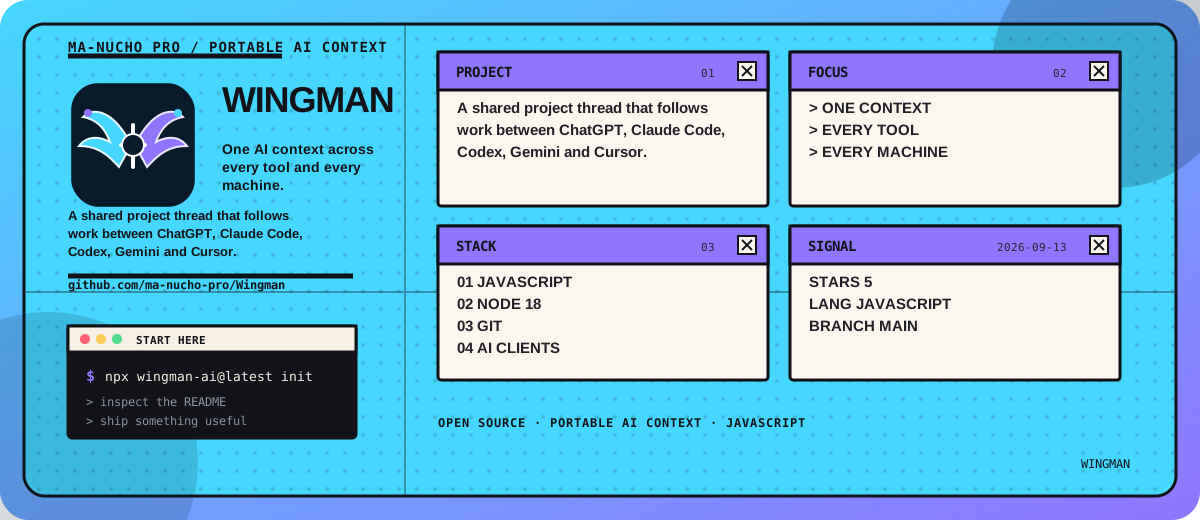
Wingman
One AI context across every tool and every machine.
Start something in ChatGPT. Continue it in Claude Code. Finish it in Cursor on a different computer.
Nothing gets re-explained.





Install ·
One computer ·
In the browser ·
Several computers ·
FAQ
The problem
You hit your message limit in Claude at 4pm. You switch to ChatGPT and spend fifteen minutes
re-explaining the project. Next morning you open Claude Code on your work laptop and it knows
nothing about either conversation.
Every tool remembers. None of them remember for each other. And none of them remember on your
other computer.
What Wingman does
Wingman keeps one shared thread of project context. Every AI tool writes to it, every AI tool reads
from it, on every machine you own.
Monday 10:20   work PC     Claude Code   → decided on RS256, not HS256
Monday 21:05   home PC     ChatGPT web   → ruled out jose@5
Tuesday 08:40  laptop      Gemini CLI    → 14 of 17 tests passing
Tuesday 14:00  work PC     Codex         → picks up from exactly here
Four tools. Three machines. One thread. No servers, no accounts, no subscription.
Install in 30 seconds
npx wingman-ai@latest init
That is the whole thing. It finds your project, detects which AI tools you have, wires them up,
and — if your GitHub is already connected, which it probably is — creates a private repo for your
context.
Then just work. Your tools load the context by themselves.
Prefer to have your AI agent install it?Paste this into Claude Code, Codex, Cursor, or Gemini CLI:
Install Wingman in this project. Read
https://raw.githubusercontent.com/ma-nucho-pro/Wingman/main/INSTALL.md
and follow it exactly.
That file is written for agents: deterministic steps, a verification command after each one, and a
failure branch for each. It is why installation does not go wrong.
Wingman needs Node 18+ and git. If either is missing, init tells you and stops — it never leaves
a half-configured setup.
| Node.js | git | |
|---|---|---|
| macOS | brew install node |
brew install git |
| Windows | winget install OpenJS.NodeJS.LTS |
winget install Git.Git |
| Linux | nodejs.org | sudo apt install git |
Then run npx wingman-ai@latest doctor — it checks everything and names the fix for anything
missing.
Using it on one computer
You have Claude Code, Codex (the ChatGPT CLI), Gemini CLI, or Cursor.
Step 1 — Set it up, once, inside your project
cd ~/my-project
npx wingman-ai@latest init
Step 2 — There is no step 2
| When | What happens |
|---|---|
| You open your AI tool | It loads the shared context automatically |
| Every few turns | A checkpoint is saved quietly, at zero token cost |
| Your context window fills up | A handoff is written before compaction |
| You switch to a different tool | It picks up exactly where the last one stopped |
Optional: asking for a richer handoff
You never have to. The hooks already save checkpoints and write a handoff before compaction.
But a handoff the agent writes deliberately is better, because it knows why things happened. If
you want one, just say:
Save a Wingman handoff before we run out of context.
Or do it yourself:
wingman save --agent claude-code --title "JWT migration" --stdin < notes.md
wingman load      # see exactly what any tool would receive
wingman status    # where things stand
Using it in the browser
Browsers cannot reach your files, so the bridge is two commands.
Taking your context to a web chat
wingman paste
Copies your project context to the clipboard, with the right framing already attached. Paste it
into ChatGPT, Claude, Gemini, Grok, Perplexity, DeepSeek — anything with a text box. It starts
already caught up.
Bringing the answer back
Copy the useful part of the reply, then:
wingman capture
It reads the clipboard and files it under the right project — even if you are standing in a
different folder, because every block Wingman copies carries a hidden tag saying where it belongs:
wingman: a3f9c21b8e04-myapp
Open your private wingman-memory repo on github.com or in the GitHub mobile app, go toprojects/<your-project>/journal/, and open the newest file. It is plain Markdown. Copy it into
the ChatGPT or Claude app and keep working from the bus.
This is the main reason Wingman stores plain text instead of encrypting by default. Encrypted, that
file would be unreadable noise.
Using it on 2, 3, or more computers
This is what Wingman is really for.
Step 1 — First machine
cd ~/my-project
npx wingman-ai@latest init
It creates a private repo called wingman-memory in your GitHub account. It verifies the repo
is private before writing a single byte, and refuses to continue if it is not.
Step 2 — Every other machine: the exact same command
cd ~/wherever-you-keep-this-project
npx wingman-ai@latest init
It sees the repo already exists, clones it, and registers that machine under its own name. Done.
Step 3 — Work anywhere
Work PC   →  save  →  your private GitHub repo  →  load  →  Home PC
Home PC   →  save  →  your private GitHub repo  →  load  →  Laptop
Saving happens automatically when a session ends or a context window fills. Loading happens
automatically when a tool starts. wingman sync forces both if you are impatient.
How does it know it's the same project on a different computer?
By the git remote, not the folder path.
~/work/myapp on one machine and D:\projects\myapp-clone on another are recognised as the same
project because both point at github.com/you/myapp. You configure nothing.
Folders with no git remote get a name once, and Wingman remembers it.
Why don't the machines conflict?
Each machine writes only inside its own folder, with timestamped filenames no other machine can
produce:
projects/a3f9c21b8e04-myapp/
  journal/
    work-pc--3f2a/     ← only the work PC ever writes here
    home-pc--91cd/     ← only the home PC ever writes here
    laptop--b70e/      ← only the laptop ever writes here
Everyone reads all of it. Those folders are mailboxes, not walls. On read, Wingman merges every
machine's entries into one thread sorted by time.
Because two machines never touch the same file, git has nothing to merge. Two computers can push in
the same second and both writes survive. There is a test for exactly this, including the case where
two machines are given the same name.
Does this cost a lot of tokens?
No — and it is worth seeing why, because the intuition runs the wrong way.
| Carrying the whole conversation | Carrying a handoff | |
|---|---|---|
| Cost to save | 0 tokens | ~500 output tokens, once |
| Cost to load elsewhere | 60,000–120,000 input tokens | 600–4,000 input tokens |
| Every time you open a session | Pays the full cost again | Pays the small cost again |
Writing a summary costs about 500 output tokens once. Loading a full transcript costs eighty
thousand input tokens every single time you open the tool. That is two orders of magnitude, in
Wingman's favour.
The quality argument is even stronger: dumping 80,000 tokens of someone else's conversation into a
fresh model produces worse results than a clean 500-token summary. The model has to infer what
mattered, and it guesses wrong. A handoff has already made that decision.
But what if I'm already out of context?
Fair — that is the real problem, and it is a question of when, not how much. Wingman has four
levels, and always lands on one:
- Before the wall. The
PreCompacthook fires before the agent compacts, while there is
still room. This is the normal case and the best one. - Rolling checkpoints. Every 20 minutes of active work, a small checkpoint is written. There
is always something recent saved, so there is never a race against the limit. - Zero-token rescue. If the agent can no longer respond, Wingman reads from disk with no model
call at all: branch, last commit, changed files, failing tests, last message. Worse than a
written handoff, infinitely better than nothing, and free. - Cheap model (optional). Bring your own key and summarise with a small fast model for a
fraction of a cent.
Levels 1, 2 and 3 work out of the box.
Secrets, and the local vault
Wingman never reads your conversations. It only reads handoffs — summaries the agent writes on
purpose. If you pasted an API key into a chat, that key stays in that chat. Wingman never saw it.
What travels to the next tool is the reference, not the value:
"The Stripe key is in
.envasSTRIPE_SECRET_KEY. We use the test key in development."
That passes through untouched, and it is what the next tool actually needs — because that tool can
read .env itself. It does not need Wingman as a courier.
Why the literal value is stripped
Pasting a key into a chat is momentary. Writing it into the journal is permanent and
replicated: it goes into a git repo, up to GitHub, down to all your machines, and stays in the
commit history forever. Deleting the file later does not remove it. And it lands somewhere you will
never think to look.
Every string is scanned before it is written, so a redacted secret never reaches disk and
therefore never reaches git history. Recognised: GitHub tokens and PATs, OpenAI, Anthropic, AWS,
Google, Slack, Stripe, GitLab, npm, DigitalOcean and Hugging Face keys, JWTs, PEM private key
blocks, credentials inside URLs, and assignments to credential-shaped variable names. Placeholders
like <your-key>, ${VAR} and changeme are deliberately left alone.
When you genuinely want a secret available
wingman vault -m "The staging key is in 1Password under Acme. Deploy user is [email protected]"
The vault is injected into every agent on this machine and is never committed and never
synced. It lives in a folder outside the store, so no flag can accidentally push it — there is no
code path that adds it to a commit. Vault content is stored exactly as written, secrets included,
because that is its entire purpose.
wingman vault           # show it
wingman vault --clear   # delete it
What about MCP? Do I need to host a server?
No. There is nothing to deploy, and nothing to pay for.
This trips people up because "MCP server" sounds like a web server. It is not. It is just a program
that runs on your computer. The difference shows up in one config line:
// Remote MCP — your data goes to somebody's cloud. Wingman does NOT do this.
{ "mcpServers": { "something": { "url": "https://mcp.example.com/sse" } } }

// Local MCP — a file on your own disk. This is what Wingman does.
{ "mcpServers": { "wingman": {
    "command": "node",
    "args": ["/home/you/.wingman/runtime/mcp/server.mjs"]
} } }
The second has no URL because there is nowhere to go. Cursor launches that file as a child process
and talks to it over stdin and stdout, exactly like ls | grep. No port, nothing listening,
nothing reachable from the network. Unplug the internet and it still works.
GitHub only hosts the code, never the data. Just like any npm package: someone runsnpx wingman-ai init, mcp/server.mjs lands on their disk, and runs there. You publish the program
once; every user runs their own private copy on their own machine. You never touch their data and
you never pay for hosting.
It exposes four tools:
| Tool | What it does |
|---|---|
wingman_load_context |
Fetch the project thread |
wingman_save_handoff |
Save a handoff |
wingman_list_projects |
List projects |
wingman_handoff_template |
Return the template to fill in |
It reads the same Markdown files as the CLI. If Cursor saves through MCP, Claude Code sees it
through its hook without knowing MCP was involved. Files are the canonical format; MCP is an
optional layer on top.
Privacy
- No Wingman server exists. There is nothing to send data to, and no account to create.
- No telemetry, ever. Not anonymous, not aggregated, not opt-out. None.
- Your context lives in your own private GitHub repo, in your own account.
- Wingman never authenticates to any AI provider. It does not know or care which ChatGPT or
Claude account you use, or whether you use different ones on different machines. - Everything is plain Markdown you can read, grep, diff, and delete.
- Secrets are stripped before anything is written.
- Wingman refuses to sync to a public repository, and verifies visibility before setup.
~/.wingmanis0700; journal entries are0600.- Zero runtime dependencies, so there is no supply chain beyond Node itself.
Honest wording, because it matters: once sync is on, your context is not only on your machine.
It goes to your private GitHub repo — that is the entire point of using several computers. What is
true is that it goes nowhere else. Want it purely local? wingman init --local never touches the
network.
Commands
| Command | What it does |
|---|---|
wingman init |
Set up here. Run it on each machine. |
wingman load |
Print the context for this project |
wingman save |
Save a handoff |
wingman paste |
Copy context to the clipboard for a web chat |
wingman capture |
Bring a web chat reply back into the project |
wingman vault |
Local notes, never synced |
wingman status |
Where things stand |
wingman sync |
Pull and push now |
wingman doctor |
Check everything, with a fix for anything broken |
wingman connect |
Turn on GitHub sync later |
wingman projects |
List projects |
wingman devices |
List machines |
wingman use <name> |
Link this folder to an existing project |
wingman template |
Print the handoff template |
wingman install |
Re-configure your AI tools |
wingman uninstall |
Remove Wingman from your AI tools |
Supported tools
| Tool | How it connects | Automatic? |
|---|---|---|
| Claude Code | SessionStart, Stop, PreCompact hooks |
Yes — zero commands |
| Codex / ChatGPT CLI | ~/.codex/hooks.json — SessionStart, Stop, PreCompact |
Yes — zero commands |
| Gemini CLI | ~/.gemini/settings.json — SessionStart, BeforeAgent, SessionEnd |
Yes — zero commands |
| Cursor | alwaysApply rule + local MCP server |
Yes — zero commands |
| Anything else | The wingman CLI |
Any agent that can run a shell command |
| ChatGPT / Claude / Gemini web | wingman paste and wingman capture |
Manual, two commands |
How context arrives without you doing anything
Every CLI agent disagrees about what a hook may print. Claude Code injects raw stdout. Gemini CLI
requires strict JSON and breaks on a single stray character. Codex expects its own envelope.
Those formats also drift between releases.
So Wingman's hooks print nothing at all. They refresh .wingman/CONTEXT.md, and each tool's
own instructions file points at it:
Hook on startup  →  refreshes .wingman/CONTEXT.md  →  prints nothing
                              ↑
      CLAUDE.md / AGENTS.md / GEMINI.md / .cursor/rules import it
Silence is the only output no parser can reject, so the hook cannot break your tool — now or three
versions from now. Your own instructions in those files are preserved, backed up first, andwingman uninstall removes only Wingman's block.
Wingman also never writes to ~/.codex/config.toml. That file holds credentials and provider
settings; a bad write there would break far more than Wingman. It uses the dedicated hooks.json
instead.
/plugin marketplace add ma-nucho-pro/Wingman
/plugin install wingman@wingman
Gives you /wingman:load, /wingman:save and /wingman:status plus the hooks. wingman init
already does this automatically; the plugin route is for people who prefer managing it there.
Frequently asked questions
How do I share context between Claude Code and Codex?
Run wingman init in your project. Both tools then read and write the same journal. Claude Code
loads it through a session hook; Codex is told to run wingman load by its instructions file.
How do I continue a ChatGPT conversation in Claude?
wingman paste, then paste into Claude. When you are done, copy the reply and runwingman capture. Works in either direction, between any two chat tools.
How do I keep the same AI context on two computers?
Run wingman init on both. The first creates a private wingman-memory repo; the second finds it
and clones it. After that, saving on one and loading on the other just works.
Does this create a repo with the same name as the Wingman project?
No. Wingman is the code; wingman-memory is your private data repo. Different names, no
collision. Use a different name with wingman init --repo my-name.
What if I don't have GitHub connected?
Wingman still works. init starts in local mode, says so, and does not fail. When you want sync,
run wingman connect — it walks you through gh auth login --web, or gives you the exact install
command for your operating system.
Does this send my code anywhere?
No. Wingman never reads your source files. It stores the handoffs your AI tools write: goals,
decisions, dead ends, next steps. Your code stays in your own repo, where it already was.
Do I need to host or deploy anything for MCP?
No. Wingman's MCP server is a local file your editor runs as a subprocess. No URL, no port, no
hosting, no cost. See the MCP section.
Will it break my existing setup?
Every config file is backed up before being touched, and JSON is validated before being written.
Your own hooks and settings are merged, never replaced — there is a test for exactly that. Runninginit repeatedly is safe. wingman uninstall removes everything cleanly.
What happens if I lose internet?
Everything saves locally and queues. The next command that reaches GitHub pushes it. A hook can
never fail your AI session, no matter what goes wrong.
What if I use different ChatGPT or Claude accounts on different machines?
Irrelevant to Wingman. It never authenticates to any AI provider, so it does not know or care which
account you are signed into.
Can I use it in a team repo without bothering my colleagues?
Yes. Nothing is committed to your project repo. The one marker file goes into .git/info/exclude,
which is local-only and invisible to everyone else.
How much context does it inject?
Roughly 600 to 4,000 tokens depending on history size. Recent entries appear in full; older ones
collapse to one-line summaries. Three hundred entries render in under 100ms.
Can I edit or delete my context?
Yes. It is Markdown in a git repo you own. Edit it, delete it, rewrite the history. Wingman will not
put anything back.
Something is wrong. What do I run?
wingman doctor
It checks Node, git, the store, GitHub auth, repo visibility, pending pushes, vault isolation, the
clipboard, and detected agents — and prints the specific fix for anything failing.
How it works, in one picture
   AI tools on any machine
            │
      save  │  load
            ▼
   ~/.wingman/store          ← a git repo on your disk
            │
       push │ pull
            ▼
   github.com/you/wingman-memory   (private, yours)
            │
            ▼
   Every other machine you own
Longer, plainer explanation: HOW-IT-WORKS.md (English) ·
COMO-FUNCIONA.md (Español)
Contributing
Issues and pull requests welcome. npm test runs all 80 tests, including a two-machine sync
simulation with concurrent writes. See CONTRIBUTING.md and
SECURITY.md.
License
MIT — see LICENSE.
Keywords: AI context handoff · share context between Claude Code and Codex · continue ChatGPT
conversation in Claude · cross-machine AI memory · sync AI context across computers · local MCP
server · Gemini CLI extension · Cursor memory · AI agent handoff · Claude Code memory · ChatGPT to
Claude context transfer · persistent AI project memory · open source AI memory
Reviews (0)
Sign in to leave a review.
Leave a reviewNo results found