Job-search-email-system-claude
Health Uyari
- License — License: MIT
- Description — Repository has a description
- Active repo — Last push 0 days ago
- Low visibility — Only 5 GitHub stars
Code Basarisiz
- Hardcoded secret — Potential hardcoded credential in config.template.py
Permissions Gecti
- Permissions — No dangerous permissions requested
Bu listing icin henuz AI raporu yok.
Automated daily job search pipeline — aggregates company tracking, sends styled HTML email digests, tailors resumes with Gemini AI, drafts LinkedIn outreach messages, and scans remote job APIs for given location. Hot jobs for the given role and many features are made as claude skills too newly.
Claude Job Search Agent 🎯
An end-to-end automated job search pipeline that handles everything from finding opportunities to preparing applications. Sends daily styled HTML email digests from your Excel tracker, scans remote job APIs for EMEA-compatible roles, tailors resumes per company using Gemini AI, sends HR outreach emails with attachments, and drafts LinkedIn outreach messages — all on autopilot via Windows Task Scheduler.
Heavily driven by Claude Code Skills — 9 plain-language voice commands cover the entire workflow: adding jobs, rejecting, opening hot jobs, emailing HR, tailoring resumes, and more. No scripts to remember, no flags to type.
Features
- Daily Email Reports - Styled HTML emails at 11:00 AM CET with companies grouped by role and status
- Hot Jobs Section - Sticky listings from LinkedIn + Welcome to the Jungle + BuiltIn (fully configurable role categories, 5–8 slots per category) that persist until you add a company to your tracker, then backfill just that slot — 1 slot per category is always reserved for BuiltIn, with automatic fallback to WTTJ/LinkedIn if none found — each job shows a coloured source badge (🔵 LI / 🟢 WTTJ / 🟠 BuiltIn) — WTTJ is prioritised first within each location tier (hitsPerPage 30, source priority sort)
- Remote Job Scanner - Fetches from RemoteOK, Remotive, We Work Remotely, Jobicy, LinkedIn (France/Global), and Bluedoor (free public ATS-aggregator API — Greenhouse/Lever/Ashby/Workday + 27 more) every 2 days, filters for EMEA-compatible roles. Bluedoor jobs are scoped to EMEA countries at the source, then description-verified (drops hard US-only roles, and annotates when a job's real scope is broader than its country tag, e.g. "Tagged Poland → actually global remote")
- Fit Scoring - Every digest job gets a Gemini-scored fit badge (Strong/Good/Moderate/Weak %) against your resume, shown inline in both the daily and remote emails
- Resume Tailor - Per-company tailored resumes using Gemini 2.5 Flash (free tier) — never fabricates, only reorders and surfaces existing skills
- Outreach Drafter - Auto-generates short/medium/long LinkedIn message templates for each applied company
- HR Outreach Emails - CLI script to send personalised cold outreach emails to HR contacts with resume + portfolio attached — auto-detects role from tracker, always previews before sending
- Excel Integration - Reads your application tracker daily for statuses, role links, and HR contacts
- HR Contact Management - Maintains recruiter contacts with clickable LinkedIn hyperlinks
- Platform Aggregators - Curated search links (Glassdoor, LinkedIn, WelcomeToTheJungle, etc.)
- Windows Automation - Runs on autopilot via Task Scheduler
- Claude Code Skills (9) - Plain-language commands for every step: add jobs, reject, open hot jobs, email HR, tailor resume, run search — no flags, no scripts to remember, just say what you want
Email Previews
All data shown below is fictional.
Daily Job Report (11:00 AM)
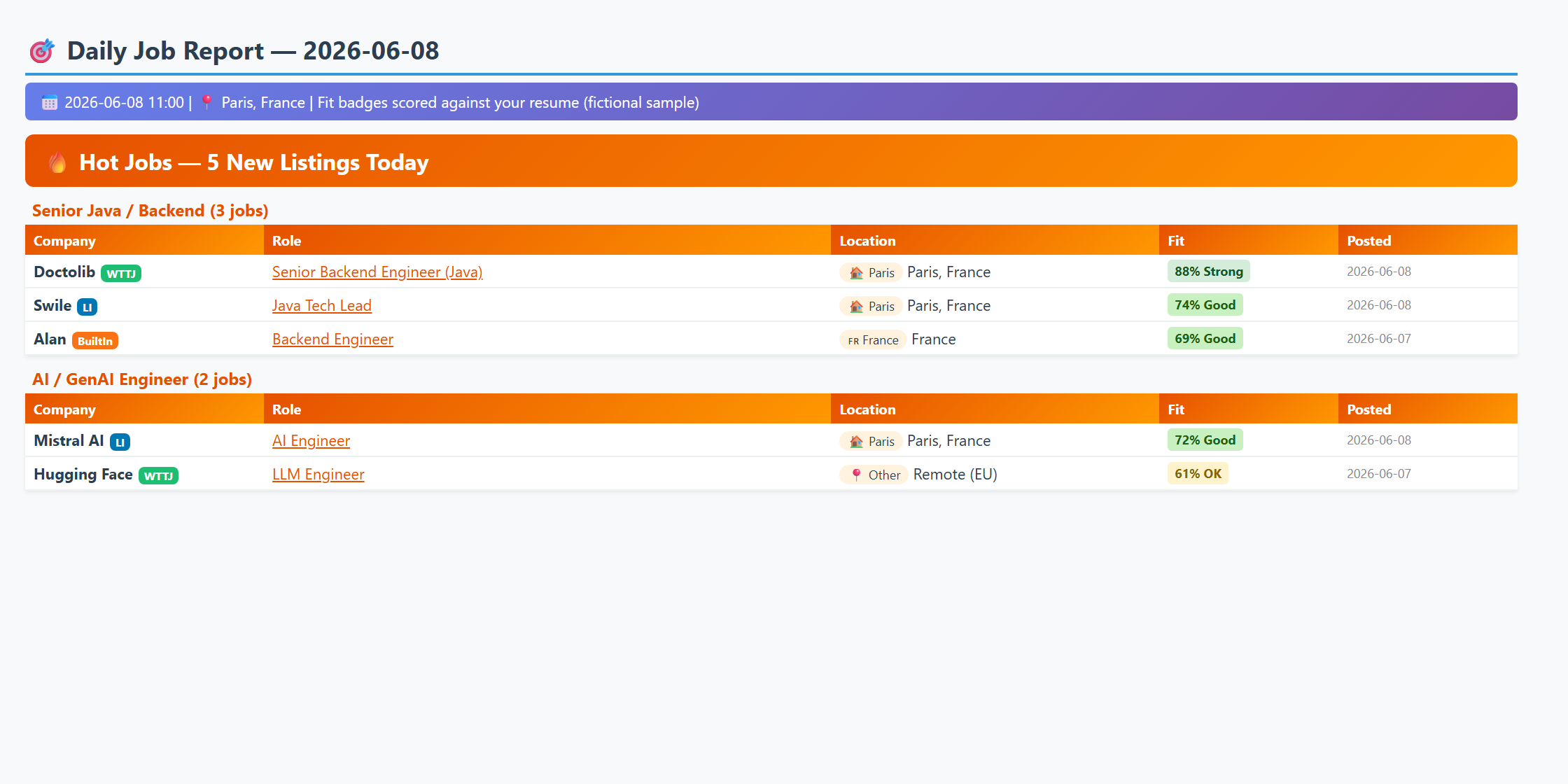
Companies grouped by status with clickable role links, HR contacts (purple), and quick search links. Platform aggregator links appear under each role category.
Remote Job Scanner (every 2 days, 12:00 PM)
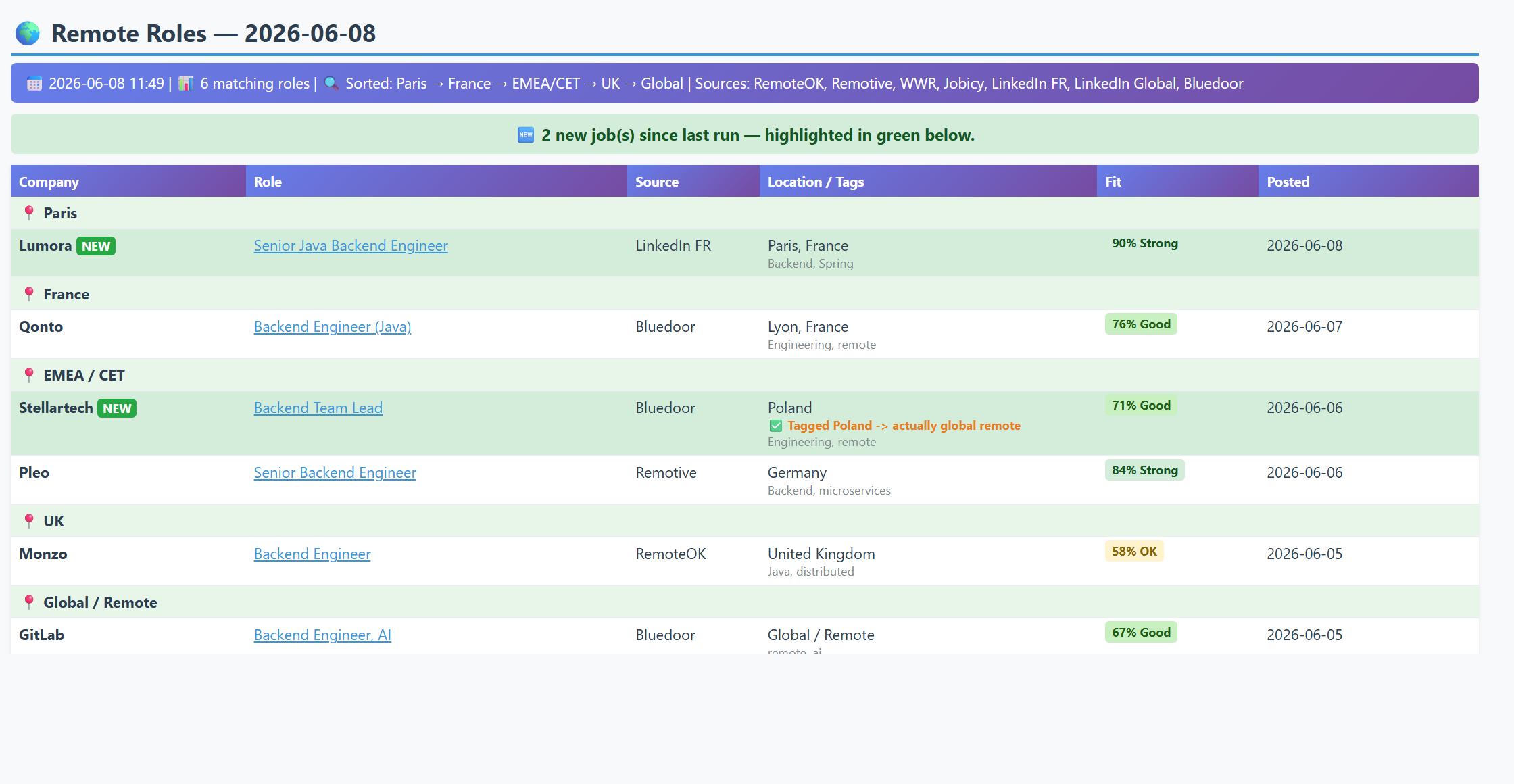
EMEA-compatible remote roles from RemoteOK, Remotive, and Arbeitnow APIs, filtered by your configured role keywords and location preferences.
What You Get
Roles Tracked
Roles are defined in daily_job_search.py — edit them to match your job search. The default setup includes Java backend and product management roles, but any stack or function works. Each role maps to a set of job board search links and hot jobs queries.
Status Tracking
- ⬜ Not Contacted
- 🕐 Under Review / In Progress
- ✅ Applied
- ⏸️ No Jobs Available
- ❌ Rejected
🌍 Important: Customize for Your Location
This tool comes with sample job search links. Before using:
- Open
daily_job_search.py - Update the location variables at the top (lines 15-16):
LOCATION_CITY = "YourCity" # Change from "Paris" LOCATION_COUNTRY = "YourCountry" # Change from "France" - Optionally update the job board URLs to match your location (see Customize URLs below)
Prerequisites
- Python 3.7+
- Gmail account with App Password enabled
- Excel tracker (optional but recommended)
- Windows OS (for Task Scheduler automation)
Quick Start
1. Install Python Dependencies
pip install openpyxl requests beautifulsoup4 python-docx
2. Configure Your Settings
IMPORTANT: Create your configuration file:
- Copy
config.template.pytoconfig.py - Edit
config.pywith your details:
EMAIL_CONFIG = {
    'smtp_server': 'smtp.gmail.com',
    'smtp_port': 587,
    'sender_email': '[email protected]',        # ← Your Gmail
    'sender_password': 'YOUR_APP_PASSWORD',         # ← Gmail App Password (16 chars)
    'recipient_email': '[email protected]',      # ← Recipient email
}

TRACKER_FILE = r'C:\Path\To\Your\Tracker.xlsx'     # ← Your Excel tracker path
3. Get Gmail App Password
- Go to Google Account Security
- Enable 2-Step Verification (if not already enabled)
- Go to App passwords (at the bottom)
- Select "Mail" and your device
- Copy the 16-character password (no spaces)
- Paste it in
config.pyassender_password
4. Test Run
python daily_job_search.py
Check your email - you should receive the job search report!
5. Schedule Daily Emails (11:00 AM)
Easy Setup (Recommended):
- Right-click
setup_task_admin.bat - Select "Run as administrator"
- Click "Yes" when prompted
- You should see "SUCCESS! Scheduled task created"
Alternative Methods:
- Run
setup_scheduled_task.ps1(PowerShell version) - Manual setup via Task Scheduler GUI (see
SETUP_INSTRUCTIONS.txt)
Excel Tracker Setup
Option 1: Use the Template (Recommended)
Copy the template:
# The repository includes tracker_template.xlsx
# Copy it and customize with your companies
Update
config.pywith your tracker path:TRACKER_FILE = r'C:\Path\To\Your\tracker.xlsx'
Option 2: Use Your Existing Tracker
Format your Excel file like this:
| Company | Role | Role link | status of application | potentialHR contact | Other comments |
|---|---|---|---|---|---|
| abc | Backend general specialist | https://... | In progress | Jane Smith | |
| xyz | Engineering Manager Java | https://... | Rejected | ||
| hogwarts | Senior Software Engineer | https://... | done | John Doe |
Required Columns:
- Column A: Company name (required)
- Column B: Role title (can be empty, script will use "Various")
- Column C: Application/job posting link (clickable in email report)
- Column D: Status - use one of these:
"done"or"applied"→ Shows as ✅ Applied"In progress"or"Under Review"→ Shows as 🕐 Review"Rejected"→ Shows as ❌ Rejected (apply strikethrough formatting)"Not available"or"Nothing to apply"→ Shows as ⏸️ No Jobs Available- Empty or anything else → Shows as ⬜ Not Contacted
Optional Columns:
- Column E: potentialHR contact - recruiter/TA names with LinkedIn hyperlinks (see HR Contacts below)
- Column F: Other comments
Tips:
- You can add section headers (e.g., "Product Owner Roles") in Column A
- Use strikethrough formatting on rejected companies (the script will detect it)
- The script automatically categorizes roles based on keywords in Column B
- Close Excel file before running the script to avoid permission errors
HR Contact Lookup
The system supports a potentialHR contact column (Column E) in your Excel tracker, showing recruiter/talent acquisition contacts for each company with clickable LinkedIn links in the email report.
How to Populate HR Contacts
Option A: Bulk populate with script (recommended for first setup)
- Copy
update_hr_contacts.template.pytoupdate_hr_contacts.py - Research recruiters for your target companies (search LinkedIn for
"CompanyName" "talent acquisition" OR "recruiter" YourCity site:linkedin.com/in) - Fill in the
HR_CONTACTSdictionary with(name, linkedin_url)tuples - Run:
python update_hr_contacts.py
This adds a potentialHR contact column to your Excel with clickable names.
Important: Web-scraped contacts are suggestions only — they may be outdated, in the wrong location, or no longer at the company. Always verify on LinkedIn before reaching out.
Option B: Add contacts directly in Excel
Simply type recruiter names into Column E of your Excel tracker. To make them clickable:
- Select the cell, right-click → Link → paste the LinkedIn profile URL
- The name will appear as a clickable link in the email report
Append-Only Workflow
The update_hr_contacts.py script uses append-only logic — it reads existing cell content first and only adds contacts that aren't already there. This means you can freely mix manual Excel edits with script updates:
| Action | What to do |
|---|---|
| Add a contact in Excel | Just type it in Column E — the script will never overwrite it |
| Add a new company row | Just add it in Excel — the script leaves unknown companies alone |
| Script finds new contacts | New contacts are added to the HR_CONTACTS dict, then the script appends only the new ones |
| Remove a contact | Delete from Excel and remove from the HR_CONTACTS dict in update_hr_contacts.py |
The script is idempotent — running it multiple times won't create duplicates. Only truly new contacts get appended.
Note: Removal is the only case where you need to update both places (Excel + script). For everything else, your manual Excel edits are always preserved.
Auto-Update in Daily Email
The daily email script reads the potentialHR contact column fresh from your Excel every time it runs. This means:
- Any contacts you add or edit in Column E are automatically included in the next email
- Deleted contacts are removed from the next email
- New company rows with HR contacts are picked up automatically
Note:
update_hr_contacts.pyis gitignored because it contains real contact data.
HR Outreach Emails
Send personalised cold outreach emails directly to HR/Talent Acquisition contacts — with your resume and portfolio attached — via a single CLI command.
python send_outreach_emails.py --name "Andrea Smith" --email "[email protected]" --company "Acme Corp"
# Optional CC:
python send_outreach_emails.py --name "Andrea Smith" --email "[email protected]" --company "Acme Corp" --cc "[email protected]"
# Optional explicit role (skips tracker lookup):
python send_outreach_emails.py --name "Andrea Smith" --email "[email protected]" --company "Acme Corp" --role "Senior Backend Engineer"
How it works:
- Role resolution (in priority order):
--role "..."if you pass it explicitly, or- the applied role looked up from your Excel tracker, or
- if the company isn't tracked → falls back to the spontaneous template (candidature spontanée — no specific open role)
- Fills placeholders (
{first_name},{company},{role}) in the chosen template - Shows a full preview of the email in the terminal
- Asks for yes/no confirmation before sending — nothing goes out without your approval
- Attaches your resume and portfolio PDFs
Dead-link guard: if the job posting URL returns 404 / is taken down, the role no longer exists — don't send the role-specific outreach; switch to the spontaneous template or skip (the
send-outreachskill enforces this).
Templates live in an emailoutreach/ folder (local only, gitignored — personal content):
cold_outreach_template.txt— rich outreach with bullet points about your background (default when a role is known)cold_outreach_spontaneous_template.txt— candidature spontanée for companies with no tracked open rolefollowup_template.txt— short 3-line nudge (for second follow-up after no reply)
Setup — paths to configure in send_outreach_emails.py:
# Folder containing your resume and portfolio PDFs
RESUME_DIR = os.path.join(BASE_DIR, 'resume')

# Folder containing your email templates
TEMPLATE_DIR = os.path.join(BASE_DIR, 'emailoutreach')

# Your actual PDF filenames
ATTACHMENTS = [
    os.path.join(RESUME_DIR, 'your_resume.pdf'),
    os.path.join(RESUME_DIR, 'your_portfolio.pdf'),
]
Note:
emailoutreach/is gitignored — create it locally and add your own templates.resume/is also gitignored — copy your PDFs there.
Outreach Drafter
After sending the daily email, the system automatically generates LinkedIn outreach drafts for all applied companies (status = "done") that have HR contacts.
Features:
- Short messages (max 300 chars) per HR contact — for LinkedIn connection requests
- Long messages per company — for InMail or email
- Skip logic — won't regenerate drafts if roles haven't changed
- Stable filenames — one file per company, overwritten only when roles change
- All personal info comes from
USER_PROFILEinconfig.py(no hardcoded data in code)
Output: Drafts are saved to the output folder configured in outreach_drafter.py.
Standalone run:
python outreach_drafter.py
Hot Jobs
The daily email includes a Hot Jobs section that surfaces fresh LinkedIn listings you haven't seen or applied to yet. It shows 5 jobs per role category (fully configurable), sorted by location priority (City > Country > Region).
How it works:
- Fetches from LinkedIn's guest API, Welcome to the Jungle (Algolia backend), and BuiltIn EU/France — all three run per query for France/Paris searches
- 1 slot per category is always reserved for BuiltIn — if no BuiltIn job is found, the slot falls back to WTTJ/LinkedIn
- Company names for BuiltIn jobs are resolved by fetching the individual job page (page title extraction), and tracker-matched companies (already applied) are skipped with automatic fallback to the next BuiltIn candidate
- Each job shows a coloured source badge in the email:
LI(blue) for LinkedIn,WTTJ(green) for Welcome to the Jungle,BuiltIn(orange) for BuiltIn - Maintains a sticky list — the same jobs persist across runs until you act on them
- When you add a company to your Excel tracker, that job drops out and gets backfilled with a fresh one
- Only fetches when there are empty slots to fill (fast repeat runs)
- Shown as an orange-themed section at the top of the daily email
Standalone check (no email sent):
python daily_job_search.py --hot-jobs
Remove a bad listing (e.g. closed, wrong language) and blocklist it:
python daily_job_search.py --hot-jobs --remove "Company" "Role title"
Only that specific company+role pair is blocklisted. Other roles from the same company can still appear.
Remove via Claude Code (recommended) — just say it in plain language:
"remove all senior java hot jobs, I applied to Theodo"
The remove-hot-job skill handles clearing slots and blocklisting dismissed jobs automatically.
Refresh all categories (clear and re-fetch):
python daily_job_search.py --hot-jobs --refresh
Refresh one category:
python daily_job_search.py --hot-jobs --refresh "Senior Java"
Customize queries in config.py (optional — defaults are used if omitted):
HOT_JOB_QUERIES = {
    'Senior Backend': [
        ('senior+backend+developer', 'YourCity, YourCountry'),
        ('senior+software+engineer', 'YourCountry'),
    ],
    'Product Manager': [
        ('product+manager', 'YourCity, YourCountry'),
    ],
}
Per-category title filter (HOT_JOB_TITLE_FILTERS in daily_job_search.py): Optionally restrict a category to only show titles containing specific keywords. Useful for broad searches (e.g. "project manager") where you only want IT/tech results:
HOT_JOB_TITLE_FILTERS = {
    'Project Manager': ['java', 'it', 'software', 'data', 'digital', 'cloud'],
}
Note: The LinkedIn guest API only returns card-level data (title, company, location, URL) — it does not read full job descriptions. Some irrelevant listings may appear; use --remove to blocklist them.
Resume Tailor
Automatically generates per-company tailored resumes using Gemini 2.5 Flash (free tier, $0 cost). Runs at the end of the daily pipeline, after outreach drafts.
What it does:
- Reads applied companies (status = "done") with non-LinkedIn role links from the Excel tracker
- Fetches job descriptions from those URLs (supports Workday, WelcomeToTheJungle, Salesforce, and other ATS sites via JSON-LD extraction)
- Sends the resume + JD to Gemini to get minimal tailoring suggestions
- Applies changes to a copy of your base DOCX resume and saves per-company files
- Prints a bullet-point diff summary showing exactly what changed vs the original
Rules (hard-coded):
- NEVER fabricates experience — only reorders skills and adds keywords from existing experience
- Keeps the original job title heading unchanged
- Removes the "Open Minded" line, keeps "Open to remote/hybrid"
- Maximum 3 bullet tweaks per resume to keep changes minimal
Setup:
- Get a free Gemini API key at https://aistudio.google.com/apikey
- Add to
config.py:GOOGLE_API_KEY = 'your_gemini_api_key' BASE_RESUME_PATH = r'C:\Path\To\Your\base_resume.docx' RESUME_OUTPUT_DIR = r'C:\Path\To\Your\resume_adjusted' - Install dependency:
pip install google-generativeai(optional, only needed for the SDK — the script uses the REST API directly)
Batch run (from tracker):
python resume_tailor.py
Single job (pass URL + company name):
python resume_tailor.py "https://company.workdayjobs.com/job/..." "Company Name"
Idempotent: Existing resume files are skipped. Delete a file to regenerate it.
Output:
- Tailored DOCX:
resume_{company_name}.docx - Change summary:
summary_changes_resume_{company_name}.md— documents all changes applied (tagline, skills reorder, bullet tweaks, summary) plus raw Gemini suggestions
Auto-outreach: When running in single mode, outreach drafts are automatically generated after a successful resume tailor (no need to run outreach_drafter.py separately).
Claude Code Skills
Skills are the primary interface for this project. Instead of remembering script names, paths, and flags, you just describe what you want in plain language — Claude picks the right skill and executes the full workflow.
This project includes 9 skills covering every stage of the job search:
Tracker Management
| Skill | What it does | Say something like... |
|---|---|---|
| new-job | Adds a new job to List.xlsx with company, role, URL, and status |
"new job https://..." · "I applied to Qonto" · "add to tracker" |
| mark-rejected | Marks a company as Rejected in the tracker | "Deel rejected" · "mark Natixis as rejected" |
| search | Checks if a company or URL is already in the tracker | "have I applied to Datadog?" · "is this url in my tracker?" |
Hot Jobs
| Skill | What it does | Say something like... |
|---|---|---|
| open-hot-jobs | Opens all (or a category of) hot job links in the browser | "open all hot jobs" · "open backend java hot jobs" |
| remove-hot-job | Removes a job from the hot list and blocklists it | "remove senior java hot jobs" · "I applied to Theodo from hot jobs" |
| reject-job | Blocklists a company/role from appearing in future hot jobs | "hide this job" · "don't show Capgemini again" |
Outreach & Applications
| Skill | What it does | Say something like... |
|---|---|---|
| send-outreach | Sends a cold outreach email to an HR contact — test preview first, then real send | "send outreach to Andrea at Natixis" · "email HR at CFM" · "reach out to Mistral" |
| update-hr | Searches LinkedIn for HR contacts at a company and adds them to the tracker | "find HR for BNP" · "add recruiter for Société Générale" |
| resume-tailor | Fetches the job description and generates a tailored resume via Gemini AI | "tailor resume for Filigran" · "adapt my resume to this role" |
Pipeline Control
| Skill | What it does | Say something like... |
|---|---|---|
| test-run | Manually triggers the daily email or remote job scanner | "run daily jobs now" · "send the digest" · "test remote search" |
How skills work: Each skill is a SKILL.md file in .claude/skills/ that encodes the full workflow — which script to run, what args to pass, what to check, what can go wrong. Claude reads it and follows it exactly. No slash commands, no flags to remember. Just say what you want.
Skills are version-controlled with the project and load automatically in every Claude Code session.
Architecture
Excel Tracker (List.xlsx)
    │
    ├── daily_job_search.py ──→ HTML email (11:00 AM daily)
    │       │
    │       ├── Hot Jobs ──→ LinkedIn guest API + Welcome to the Jungle (Algolia) + BuiltIn EU
    │       ├── outreach_drafter.py ──→ LinkedIn message drafts
    │       └── resume_tailor.py ──→ Tailored DOCX resumes
    │               │
    │               └── Gemini 2.5 Flash API (free tier)
    │
    └── remote_search/
            ├── remote_job_search.py ──→ HTML email + remote.xlsx append (every 2 days)
            │       │
            │       ├── RemoteOK + Remotive + WWR + Jobicy APIs
            │       ├── LinkedIn France (remote f_WT=2 filter)
            │       ├── LinkedIn Global (EMEA description verification)
            │       ├── Bluedoor (ATS-aggregator API, EMEA-scoped + description-verified)
            │       ├── fit_scorer.py ──→ Gemini fit badges (batched, thinking disabled)
            │       └── rejected_remote.json (filtered out before email/Excel)
            └── reject_remote.py ──→ CLI to manage rejected_remote.json
File Structure
claude-job-agent/
├── daily_job_search.py                # Main daily pipeline (hot jobs + email + outreach + resume)
├── daily_hot_jobs.json                # Sticky hot jobs state (auto-generated, gitignored)
├── outreach_drafter.py                # LinkedIn outreach draft generator
├── resume_tailor.py                   # Per-company resume tailoring via Gemini AI
├── send_outreach_emails.py            # CLI: send cold outreach emails to HR with PDF attachments
├── remote_search/
│   ├── remote_job_search.py           # Remote job API scanner (EMEA filter + Excel dump)
│   ├── reject_remote.py               # CLI to manage rejected jobs list
│   ├── rejected_remote.json           # Reviewed & rejected (company, title) pairs
│   ├── previous_jobs.json             # Last run's job keys for new-job detection (auto-generated)
│   └── run_remote_job_search.bat      # Scheduler wrapper for remote search
├── emailoutreach/                     # Email templates — LOCAL ONLY (gitignored, create your own)
│   ├── cold_outreach_template.txt     # Rich cold outreach with bullet points (default)
│   └── followup_template.txt          # Short follow-up nudge (second contact)
├── resume/                            # Resume + portfolio PDFs — LOCAL ONLY (gitignored)
│   ├── your_resume.pdf
│   └── your_portfolio.pdf
├── config.template.py                 # Configuration template (copy to config.py)
├── config.py                          # Your private configuration (gitignored)
├── update_hr_contacts.template.py     # HR contacts updater template
├── update_hr_contacts.py              # Your HR contacts data (gitignored)
├── run_daily_job_search.bat           # Scheduler wrapper for daily email
├── setup_task_admin.bat               # Easy setup for scheduled task
├── setup_scheduled_task.ps1           # PowerShell setup script
├── SETUP_INSTRUCTIONS.txt             # Detailed setup guide
├── tracker_template.xlsx              # Excel tracker template
├── job_search_log.txt                 # Execution log (auto-generated)
├── .gitignore                         # Excludes private files from Git
├── README.md                          # This file
└── .claude/
    └── skills/
        ├── new-job/SKILL.md           # Auto-triggered: add new job to tracker
        ├── mark-rejected/SKILL.md     # Auto-triggered: mark company as rejected
        ├── search/SKILL.md            # Auto-triggered: search tracker by company or URL
        ├── reject-job/SKILL.md        # Auto-triggered: reject/hide remote jobs
        ├── open-hot-jobs/SKILL.md     # Auto-triggered: open hot job links in browser
        ├── remove-hot-job/SKILL.md    # Auto-triggered: remove & blocklist hot jobs
        ├── test-run/SKILL.md          # Auto-triggered: manually run daily or remote search
        ├── update-hr/SKILL.md         # Auto-triggered: find and add HR contacts
        ├── resume-tailor/SKILL.md     # Auto-triggered: tailor resume for a company
        └── send-outreach/SKILL.md     # Auto-triggered: send cold outreach email to HR contact
How It Works
Daily Pipeline (11:00 AM)
- Read Excel - Loads your application tracker for statuses, role links, and HR contacts
- Fetch Hot Jobs - Queries LinkedIn + Welcome to the Jungle + BuiltIn for fresh listings per role category, filters out tracker companies, keeps a sticky list per category (5–8 slots, 1 always reserved for BuiltIn), only backfills when a slot opens — each job tagged with a coloured source badge in the email
- Organize - Groups companies by role and status (Not Contacted / Review / Applied / Rejected)
- Send Email - Styled HTML report via Gmail SMTP with hot jobs section + clickable links and HR contacts
- Outreach Drafts - LinkedIn message templates for applied companies with HR contacts
- Resume Tailor - Tailored DOCX resumes via Gemini AI for companies with fetchable job links
Remote Job Scanner (every 2 days, 12:00 PM)
- Fetch - Pulls listings from RemoteOK, Remotive, WWR, Jobicy, LinkedIn France, LinkedIn Global (India/Boston/NY), and Bluedoor (EMEA countries, remote-only)
- Filter - Matches role keywords + location-compatible positions (configurable in
config.py) - Dedup - Removes duplicates by company+title across sources
- EMEA Verification - For LinkedIn Global jobs, fetches each job's full description and checks for explicit EMEA timezone signals (
emea,cet,work from anywhere,any timezone, etc.). Rejects US-only or no-timezone-info jobs. Bluedoor survivors get the same treatment via?include=description— hard US-only clauses are dropped, and a digest note flags when the true scope is broader than the country tag (e.g. "Tagged Poland → actually global remote"). - Fit Scoring - One batched Gemini call scores every surviving job against your resume; badges render inline in the email.
- Excel Dump - Appends new jobs to
remote_search/remote.xlsx(append-only, never touchesList.xlsx) - Send Email - Styled HTML table sorted by location tier (Paris → France → EMEA → UK → Global), new jobs highlighted in green
Reject remote jobs you've reviewed using reject_remote.py — entries are stored in rejected_remote.json and filtered out on every future run:
# Reject a single job
python remote_search/reject_remote.py "company name" "job title"

# Bulk-reject everything from the last run (after reviewing the email)
python remote_search/reject_remote.py --all

# Restore a job for review
python remote_search/reject_remote.py --remove "company name" "job title"

# List all rejections
python remote_search/reject_remote.py --list

# Show all commands
python remote_search/reject_remote.py --help
Test runs — use --no-save to avoid consuming the NEW flag before the scheduled run:
python remote_search/remote_job_search.py --no-save
Excel still gets appended; previous_jobs.json is left untouched.
Leave title as "" to reject all roles from a company. Entries are matched as lowercase substrings.
Excel dump — each run appends new remote jobs to remote_search/remote.xlsx (standalone file, never touches List.xlsx). Columns: Company, Role, URL, Source, Location, Tags, Posted, New?. Append-only — existing rows are never removed, deduped by company+title.
Customization
Customize Remote Job Filters
Edit config.py to match your skills and target region:
REMOTE_ROLE_KEYWORDS = ['java', 'backend', 'software engineer', 'devops', 'python']

REMOTE_LOCATION_INCLUDE = [
    'worldwide', 'anywhere', 'emea', 'europe', 'remote', 'global',
    'yourcountry', 'yourcity',  # ← Add your country/city
]

REMOTE_LOCATION_EXCLUDE = ['us only', 'us timezone', 'americas only']
If omitted, sensible defaults are used (see config.template.py).
Add More Companies
Simply add them to your Excel tracker! The script automatically:
- Reads all companies from your Excel file
- Categorizes them by role (Java Developer, Backend Developer, Product Owner)
- Merges them with platform aggregator links
- Updates daily with latest statuses
No code changes needed - just update your Excel file and the next email will include the new companies.
Customize for Your Location
Quick Setup (Just 2 Variables!):
Open daily_job_search.py and update lines 15-16:
LOCATION_CITY = "YourCity"         # e.g. "London", "Berlin", "Amsterdam"
LOCATION_COUNTRY = "YourCountry"   # e.g. "UK", "Germany", "Netherlands"
This automatically updates:
- ✅ Email header location display
- ✅ All job search link labels
Optional: Update Job Board URLs
If you want to customize the actual URLs for your location:
- Find the
PLATFORM_AGGREGATORSsection (around line 35) - Update URLs for your region's job boards
- Add job boards popular in your country
Tip: The link labels already use your location variables, so you only need to update the URLs themselves.
Change Email Time
To change from 11:00 AM to another time:
- Delete existing task:
schtasks /delete /tn "DailyJobSearch" /f - Run
setup_task_admin.batagain after editing the time in the file - Or manually update via Task Scheduler GUI
Modify Email Format
Edit the HTML/CSS in the create_job_report() function in daily_job_search.py.
Troubleshooting
Email Not Sending
- ✅ Check Gmail App Password is correct (16 characters, no spaces)
- ✅ Verify 2-Step Verification is enabled in Google Account
- ✅ Make sure
config.pyexists (copy fromconfig.template.py) - ✅ Test with manual run:
python daily_job_search.py
Excel Not Reading
Common Error: Permission denied: 'C:\\...\\List.xlsx'
This happens when Excel file is open. Solution:
- ✅ Close the Excel file before running the script
- ✅ Make sure Excel isn't running in the background
- ✅ If error persists, restart your computer
Other Excel issues:
- ✅ Verify Excel file path in
config.pyis correct (use raw string:r'C:\Path\...') - ✅ Check the file exists at that path
- ✅ Ensure
openpyxlis installed:pip install openpyxl - ✅ Make sure file is
.xlsxformat (not.xlsor.csv)
Empty Email Received?
- If email is empty/shows 0 companies, the Excel file couldn't be read
- Check the log:
job_search_log.txtwill show "Warning: Could not read tracker" - Close Excel file and run again
Task Scheduler Not Running
- ✅ Check task exists:
schtasks /query /tn "DailyJobSearch" - ✅ Verify task is enabled in Task Scheduler (
taskschd.msc) - ✅ Run
run_daily_job_search.batmanually to test - ✅ Check log file:
job_search_log.txt - ✅ Make sure computer is ON at 11:00 AM
Script Errors
- ✅ Make sure
config.pyexists (not justconfig.template.py) - ✅ Verify all paths use raw strings:
r'C:\Path\...' - ✅ Check Python version:
python --version(need 3.7+)
Verify It's Working
Check Scheduled Task:
Get-ScheduledTask -TaskName "DailyJobSearch"
Manual Test Run:
python daily_job_search.py
Check Logs:
type job_search_log.txt
Contributing
If you'd like to improve this project:
- Fork the repository
- Create a feature branch
- Make your changes
- Submit a pull request
Security Notes
⚠️ IMPORTANT:
- Never commit
config.pyto Git (it's in.gitignore) - Never commit
update_hr_contacts.pyto Git (contains real recruiter names/LinkedIn URLs) - Keep your Gmail App Password secure
- Don't share your Excel tracker if it contains private data
License
MIT License - Feel free to use and modify for personal use.
Support
For issues or questions:
- Check the Troubleshooting section above
- Review logs in
job_search_log.txt - See
SETUP_INSTRUCTIONS.txtfor detailed setup help - Test manually first before debugging scheduler
Built with Claude Code | Last Updated: 2026-04-20
Claude Model Compatibility
This project was built and tested with Claude Code using:
| Model | Best for |
|---|---|
Claude Opus 4.6 (claude-opus-4-6) |
Complex multi-step tasks: designing new features, debugging logic, writing EMEA verification, refactoring filter chains |
Claude Sonnet 4.6 (claude-sonnet-4-5-20250929) |
Routine edits: blocklist entries, README updates, config tweaks, quick JSON changes |
Both models work fully with this codebase. Switch between them in Claude Code with /model.
Yorumlar (0)
Yorum birakmak icin giris yap.
Yorum birakSonuc bulunamadi