party-hud
Health Uyari
- License — License: NOASSERTION
- Description — Repository has a description
- Active repo — Last push 0 days ago
- Low visibility — Only 8 GitHub stars
Code Gecti
- Code scan — Scanned 12 files during light audit, no dangerous patterns found
Permissions Gecti
- Permissions — No dangerous permissions requested
Bu listing icin henuz AI raporu yok.
A tmux plugin that shows your coding agents as an RPG party
party-hud
A tmux plugin that draws the coding agents you have running as an RPG party. At a glance you see who is waiting for
you, who has finished and how much context is left; from there you can jump to its pane or read its report.
It only reads, stays on your machine and uses little CPU and memory.
Each tmux session is a squad, each agent in it is a member. The author's main agent is Claude Code, which has
HP (context left) and SP (prompt cache minutes left). Codex has HP; agy and Grok show whether they are busy and
their last reply.
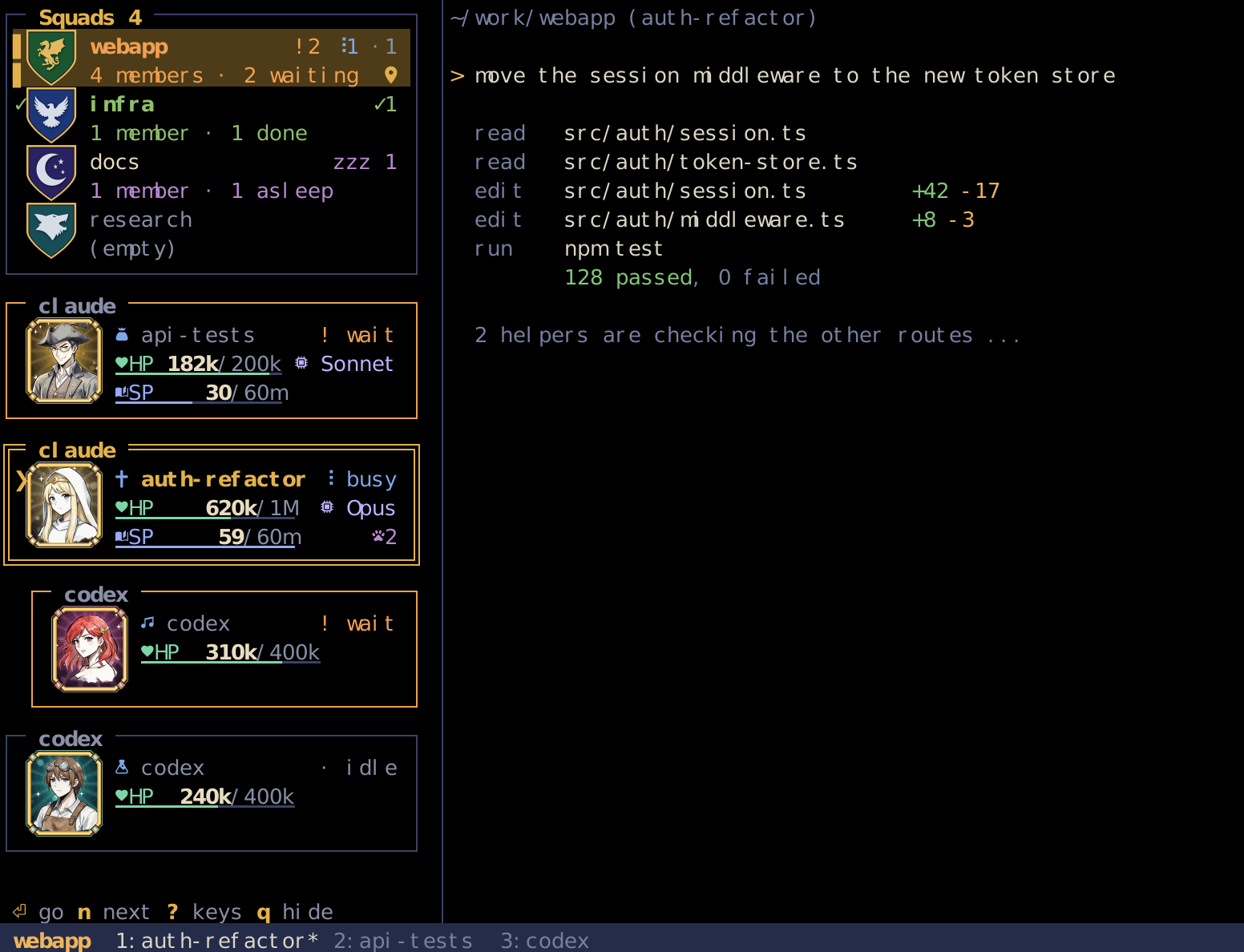
- See who needs you: a squad turns orange when a member waits for you, green when one finished.
nselects the
next waiting member,Enterswitches to its pane. - Know when to compact: HP shows context left; SP shows prompt cache left (Claude Code only).
- Read what it did:
prefix Ropens the Party Select screen: the leads and waiting crew, and in a wide enough pane a
report preview of the one under the cursor.Enteropens its report with the Markdown formatted. This only reads. - Optional: agents ask agents: an add-on. One agent can open another, send it a question and read the answer back.
- Cheap and local: Python standard library only, no daemon, no network; it never writes to the agents' files.
Measured numbers: Footprint.
After installing, press prefix C-t to open the sidebar.
See who needs you
Orange means waiting for you, green means done and not seen yet, purple zzz 1 means a prompt cache expired, gray ·1
counts idle members. A bell rings in windows you are not looking at. More: docs/sidebar.md.
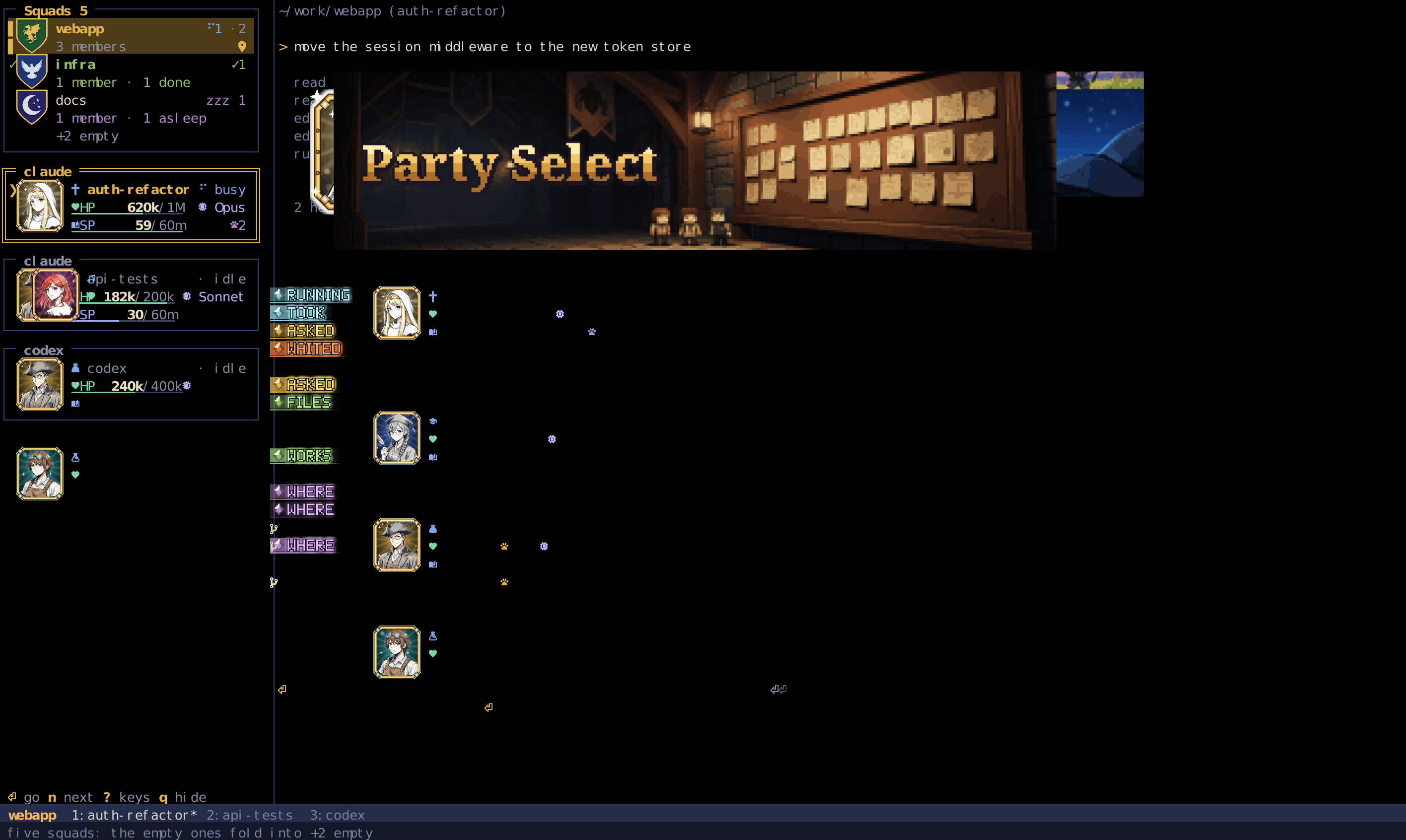
The whole flow, from the sidebar to a report and back:
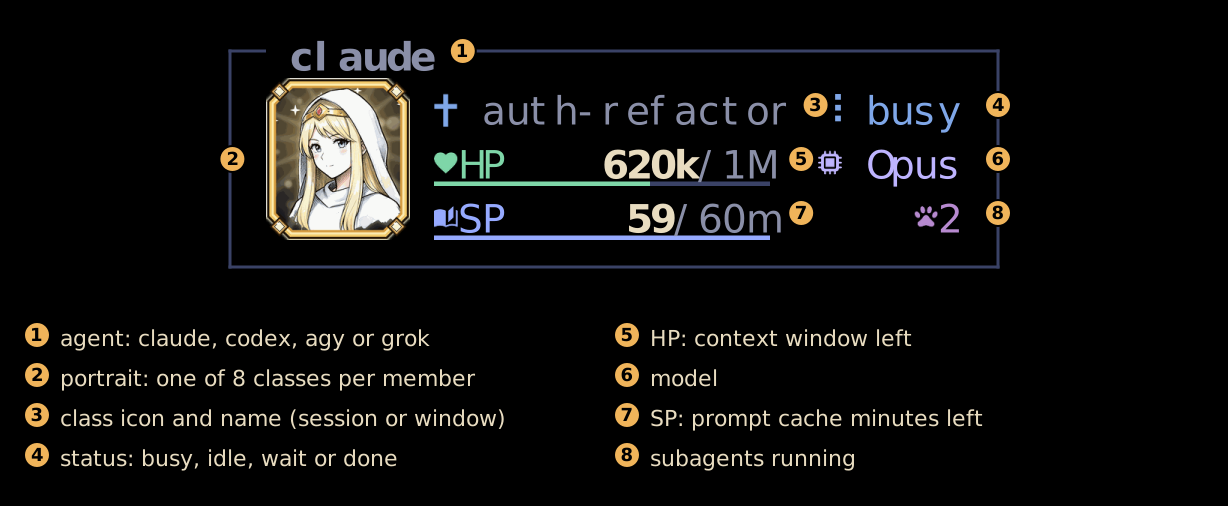
Reading a card
| # | Meaning |
|---|---|
| 1 | Agent: claude, codex, agy or grok |
| 2 | Portrait: one of 8 classes, picked from the session id; up to 8 members of one squad do not repeat |
| 3 | Class icon and name: the Claude Code session name (/rename or its automatic title), else the tmux window name; other agents show their kind |
| 4 | Status: busy, idle, wait (waiting for you), done, zzz (idle, prompt cache expired) |
| 5 | HP: context left (620k/1M), blinking at 10% or less |
| 6 | Model |
| 7 | SP (Claude Code only): prompt cache minutes left (59/60m); at 0 the next message re-reads the whole context |
| 8 | Subagents running |
The frame blinks when the member turns done or waiting, and a big HP or SP change shows next to the number for a few seconds.
Quest reports: what it did
prefix R opens the Party Select screen in a pane over the current window (a floating pane on tmux 3.8+, a split on
older tmux). It lists the leads of all squads, waiting first, then done, working, idle and sleeping. Each lead is the
same card the sidebar draws. A summoned member (crew) shows up only while it waits for input, as an indented row under
its lead's card.
Beside the list you see the member under the cursor: its time and directory, the state of its lead's crew, what you
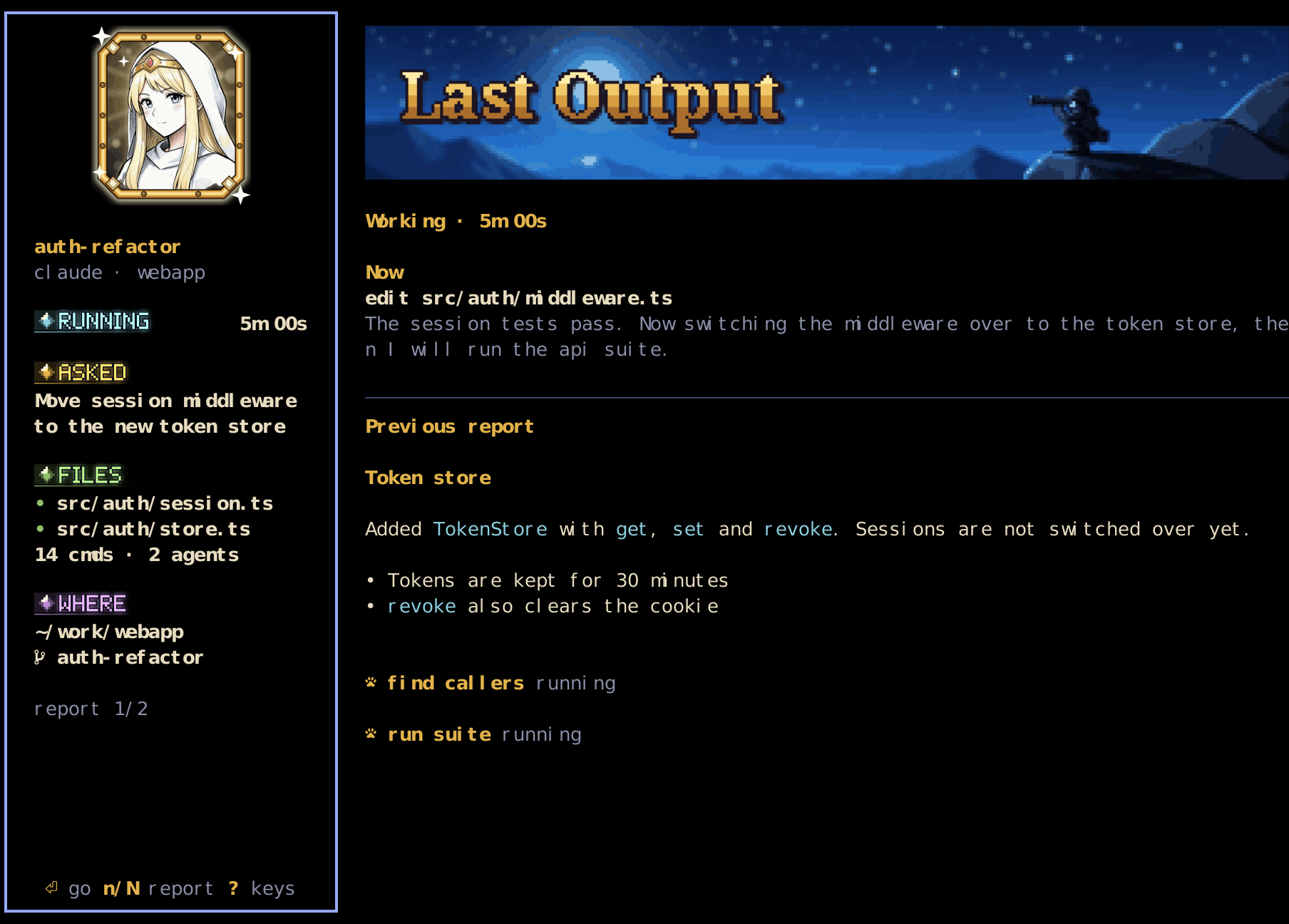
asked, and a preview of its report. A working member's preview shows what it is doing now and keeps updating. A member
with no finished report yet shows the last lines of its pane. Previewing does not mark a report as read.
Move with j/k or the arrow keys, open a report with 1–9, Enter or l, close with q/Esc; ? shows the
keys. To go to a member's pane, open its report and press Enter there.
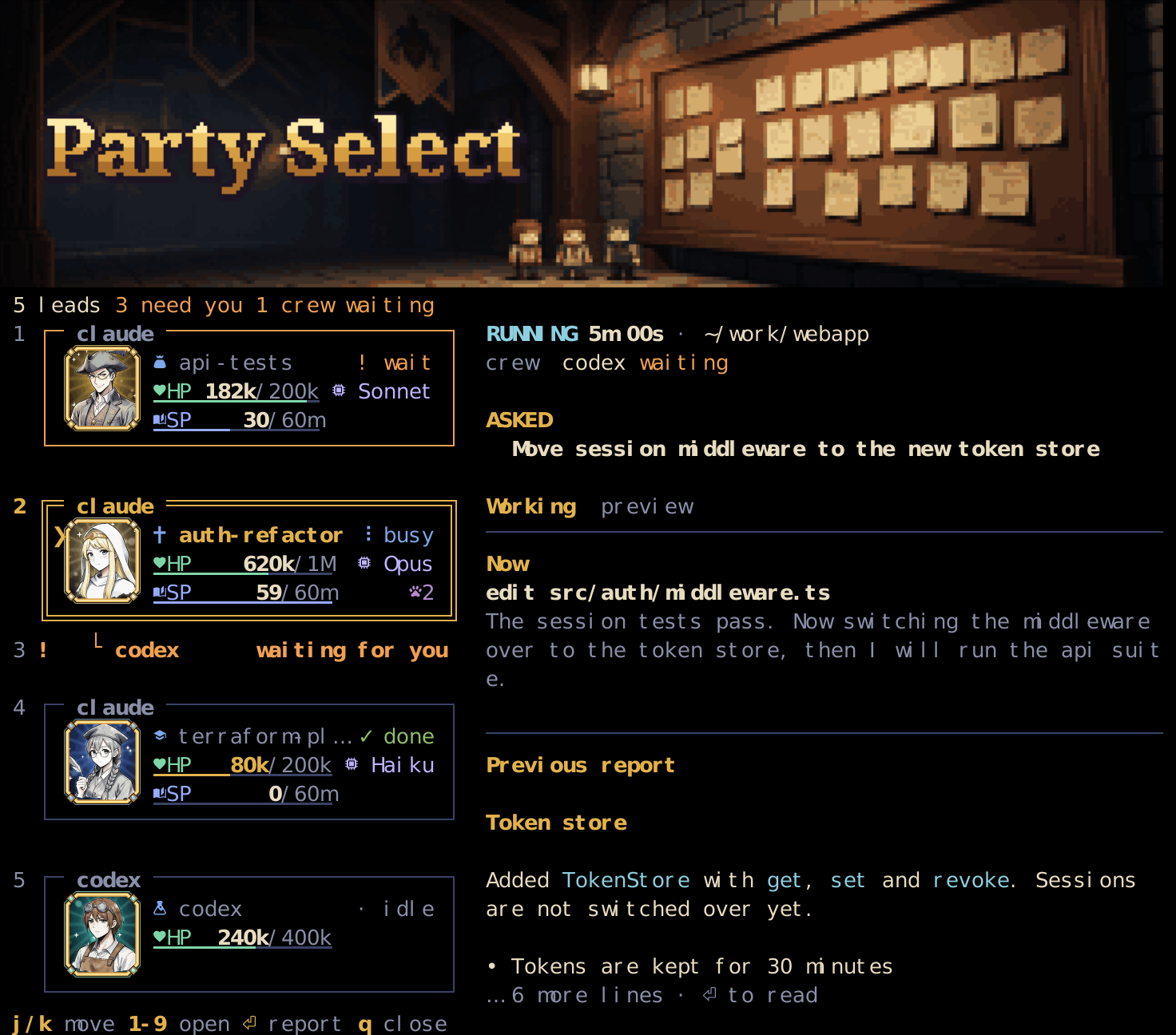
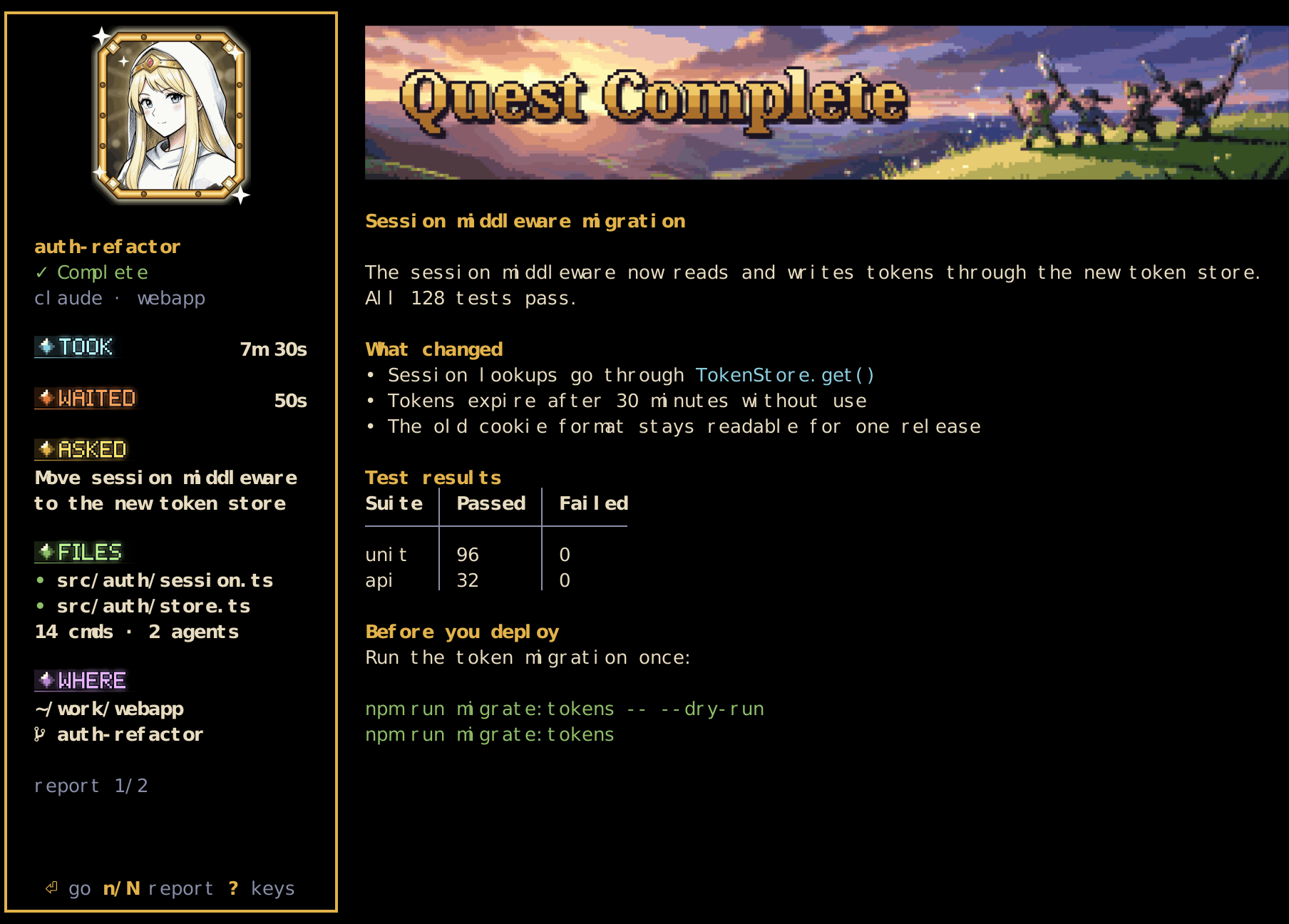
The report page opens in the same pane. In a wide pane the left column shows how long it took, how long it has waited,
what you asked, the files it edited and where it runs; the right side is the report with its Markdown formatted.
A member that is still working shows what it is doing now:
In the report page n moves to the next member (waiting first, then done) and h goes back to the select screen when you came from it.
Banners, pane size, layout, scrolling, images and every key: docs/reports.md.
Optional: crew, agents asking agents
This is an add-on; the sidebar and the report screens work without it. The HUD itself (sidebar, select screen, report
page) only reads: it never writes to an agent's files and never uses the network. The subcommands below open panes,
send keys and close the panes they opened, and only when an agent calls them.
One agent can open another, send it a question and wait for the answer. Each step prints the value the next one needs
(a pane id such as %12, then the time sent):
python3 ~/.tmux/plugins/party-hud/party.py --summon codex --read-only
python3 ~/.tmux/plugins/party-hud/party.py --ask PANE 'your question'
python3 ~/.tmux/plugins/party-hud/party.py --report-text PANE --wait --after TIME
python3 ~/.tmux/plugins/party-hud/party.py --dismiss PANE
--summon opens the member in a background tmux session, listed under its lead in the sidebar.--read-only makes codex read-only through its sandbox; claude, grok and agy use their own plan mode, which the agent enforces itself.
To let Claude Code use it for you, link the bundled party-crew skill once:
mkdir -p ~/.claude/skills
ln -s ~/.tmux/plugins/party-hud/skills/party-crew ~/.claude/skills/party-crew
The path is the TPM install path; with a clone, use your checkout. Then you can tell Claude Code "ask codex for a second opinion on this diff".
Placement options, exit codes, dismissing, saved rounds, the skill and the sandbox setting: docs/crew.md.
Footprint
All numbers are from one machine (AMD Ryzen 9 5900XT, Linux, Python 3.14); how to measure on yours and the full
tables: docs/performance.md.
- Sidebars in real use: 0.18 % of one core and 23.2 MB of memory on average, all sidebar processes together, over
60 s with 18 sidebar panes, 2 agents and normal use (bench/live.sh). A sidebar out of
view stops its process after 2 s, so only the windows you look at run one. - One sidebar frame on fake data: collecting 0.056 ms and drawing 0.294 ms for 5 agents (
bench/bench.py, median of
200 runs). - Select screen and report page: 0.84 % of one core over a fixed 27.5 s key script with 5 leads in a 179 × 47 pty,
images on (bench/use.py, median of 3 runs).
Requirements
- Linux or macOS on the machine running tmux.
- tmux 3.3 or newer.
- Python 3.10 or newer as
python3on tmux'sPATH. On macOS the systempython3is 3.9: install Homebrew's and
make sure tmux finds it first, or the keys do nothing. - A Nerd Font in your terminal.
- For portraits and crests: Ghostty or Kitty
(Kitty graphics protocol with Unicode placeholders). Other terminals get the text version automatically. - Optional:
jq, for the Claude Code HP integration below. Without it HP stays estimated.
Install
With TPM, add this to ~/.tmux.conf and press prefix I:
set -g @plugin 'mangow314/party-hud'
Or clone it anywhere, add run-shell ~/path/to/party-hud/party.tmux to ~/.tmux.conf and reload it
(tmux source ~/.tmux.conf).
Then start an agent in a tmux pane and press prefix C-t to open the sidebar.
The paths below assume the TPM install at ~/.tmux/plugins/party-hud; with a clone or a different TPM path, use yours.
HP for Claude Code (recommended)
Claude Code passes a JSON object to your statusline command. Forward it to party-hud so HP shows the real
context size and the model name. In your statusline script (statusLine.command in ~/.claude/settings.json):
input=$(cat)
printf '%s' "$input" | ~/.tmux/plugins/party-hud/integrations/claude-statusline.sh
# ... the rest of your statusline, using "$input" ...
This needs jq. Without the statusline setup or jq, HP is estimated from the transcript. Details: docs/integrations.md.
Terminal tips
The HP / SP bars are colored underlines. In Ghostty they look best a little lower and thicker:
adjust-underline-position = 2
adjust-underline-thickness = 3
Over SSH the remote runs everything and your local terminal only draws. The remote needs your terminal's terminfo
(Ghostty:shell-integration-features = ssh-terminfo).
Keys
| Key | Action |
|---|---|
prefix C-t |
Open / close the sidebar in every window |
prefix a |
Jump to the next member that is waiting or done, without opening anything |
prefix R |
Party Select: preview a member or open its report |
j / k |
Next / previous member in this squad (stops at the ends) |
J / K |
Next / previous squad |
1–9 |
Member N of this squad |
Enter |
Go to that member's pane |
n |
Next waiting member, then next finished one |
v |
Peek at the member's last lines of output |
r |
In the sidebar: open the selected member's quest report in a pane |
Esc / q |
Back to your pane / hide all sidebars |
? |
Show / hide the key help (also in the quest report); while it is open Esc / q only close the help |
Drag the sidebar border to resize; the width is remembered for all sidebars (minimum 30 columns).
Options
Set these in ~/.tmux.conf before the plugin loads.
| Option | Default | Meaning |
|---|---|---|
@party_key_toggle |
C-t |
Key for open / close |
@party_key_next |
a |
Key for "next waiting" |
@party_key_report |
R |
Key for quest reports |
@party_art |
auto |
on / off forces images; auto uses them on Ghostty and Kitty |
@party_anim |
on |
off turns off the opening animation of the report pane and the sidebar's card blink and HP / SP +N / -N labels |
@party_sidebar_width |
34 |
Sidebar width in columns |
How members are detected
| Agent | Status | HP | SP |
|---|---|---|---|
| Claude Code | ~/.claude/sessions/*.json |
statusline integration, or estimated from the transcript | prompt cache TTL from the transcript |
| Codex | screen changes | rollout file in ~/.codex/sessions |
not shown |
| agy, Grok | screen changes | -- |
not shown |
A pane counts when an agent is its command or runs among its child processes. workmux
status is used too. Everything is read locally; nothing is sent anywhere. Details: docs/integrations.md.
Limitations
- One tmux server per user. All servers share one state folder and tmux pane ids (
%5) repeat across servers,
so with a second server (tmux -L name) the sidebars can show the wrong members or jump to the wrong pane.
Separate sessions in one server work fine.
More
- docs/sidebar.md: squad colors, HP / SP, blinking, narrow sidebars, images
- docs/reports.md: the quest report page in full
- docs/crew.md:
--summon,--ask,--report-text,--dismissand the party-crew skill - docs/integrations.md: what is read for each agent
- docs/architecture.md, docs/performance.md: design and numbers
Credits and license
Code: MIT. Images: CC0, generated locally with FLUX.2 [klein] 4B (Apache-2.0);
prompts, seeds and the full pipeline are in ASSETS.md.
Yorumlar (0)
Yorum birakmak icin giris yap.
Yorum birakSonuc bulunamadi