gimp-mcp
Health Gecti
- License — License: GPL-3.0
- Description — Repository has a description
- Active repo — Last push 0 days ago
- Community trust — 72 GitHub stars
Code Gecti
- Code scan — Scanned 12 files during light audit, no dangerous patterns found
Permissions Gecti
- Permissions — No dangerous permissions requested
Bu listing icin henuz AI raporu yok.
GIMP MCP server
GIMP MCP





Demo
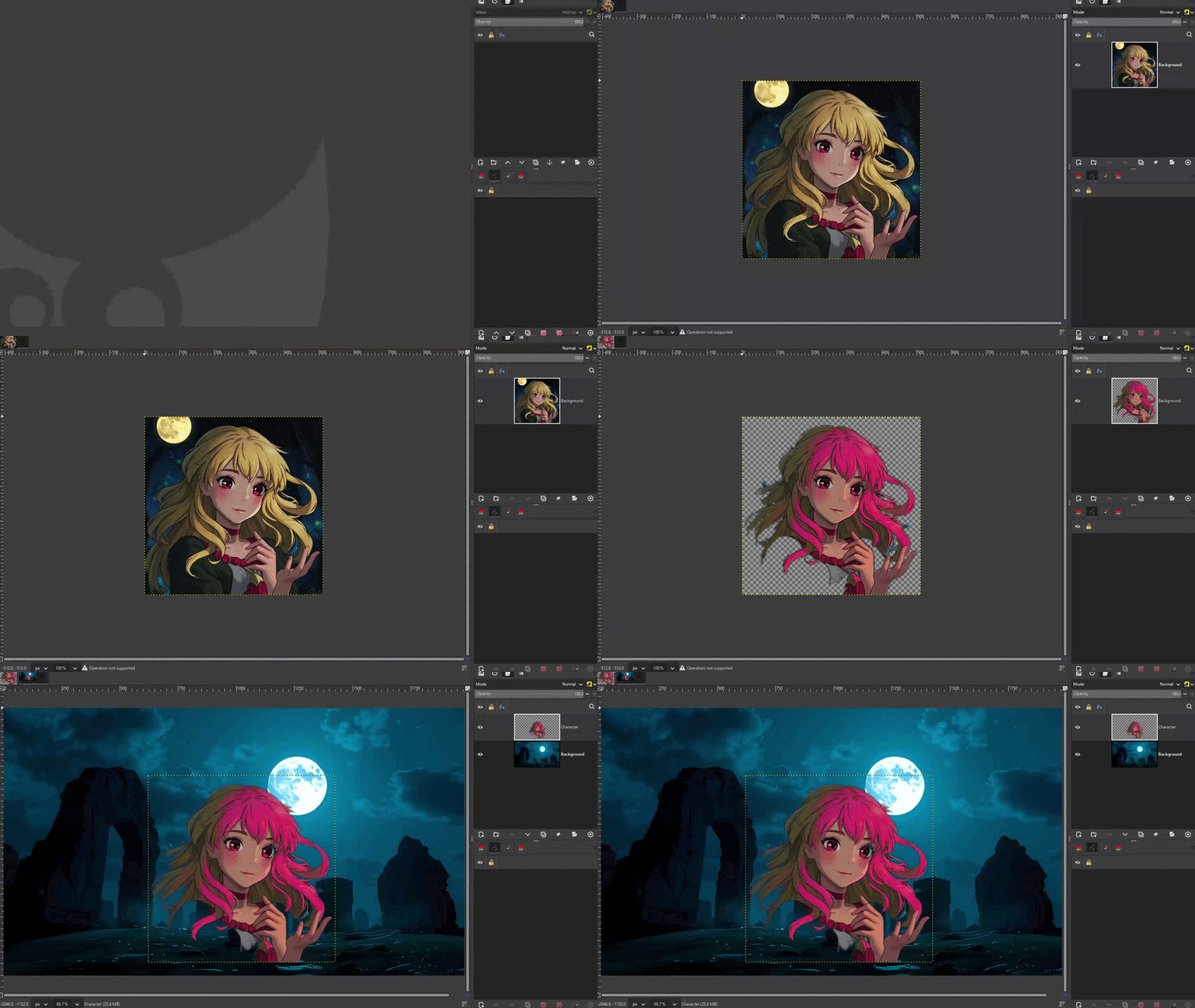
Full demo (with audio): https://github.com/maorcc/gimp-mcp/raw/main/docs/demo.mp4
AI agent using GIMP MCP to remove a background, edit a character's expression, and verify results — all through natural language via Claude
Overview
GIMP MCP bridges GIMP's professional image editing capabilities with AI assistants through the Model Context Protocol. It lets you edit images by describing what you want — and gives the AI a live visual feedback channel to verify each change before moving on.
What makes it different from other GIMP integrations:
- The AI can see the image at any point in the workflow without saving to disk (
get_state_snapshot) - Supports fully autonomous multi-step pipelines: open → edit → verify → refine → export
- 56 dedicated tool commands covering every major GIMP operation
- Fully compatible with GIMP 3.2.x (all breaking API changes resolved)
Key Features
| 👁️ Live Visual Feedback | get_state_snapshot returns a PNG preview mid-workflow so the AI verifies each step |
| 🎨 56 GIMP Tools | Adjustments, transforms, selections, layers, drawing, text, filters — all via MCP |
| 🔧 GIMP 3.2 Compatible | All GIMP 3.2 API breaks fixed and tested (56/56 passing) |
| 🔁 Iterative Workflows | AI loops until a goal is met — e.g. keeps removing BG until no pixels remain |
| 🖼️ Region Snapshots | Zoom into any area for detail verification (face, mouth, corner, etc.) |
| 🔌 Universal MCP | Works with Claude Desktop, Claude Code, Gemini CLI, PydanticAI, and more |
What Can It Do?
Background Removal with Iterative Verification
The AI removes the background, takes a snapshot to inspect the result, detects remaining pixels, and loops until the image is clean:
"Remove the background from this image and keep looping until only the character remains"
Expression Editing
"Make the character smile — paint a smile arc with teeth over her mouth"
Complex Multi-Step Pipelines
"Open navi_portrait.png, remove the background, verify it's clean,
 then make her smile and export the final result as a PNG"
Color & Tone Work
"Boost the contrast, shift the hue 15 degrees warmer, then show me a before/after zoom of the face"
Text & Compositing
"Add a bold title at the top in white with a subtle drop shadow, then export for web"
Prerequisites
- GIMP 3.2+ — tested on GIMP 3.2.2 (Windows, macOS, Linux)
- Python 3.8+ — for the MCP server
- uv — Python package manager (
pip install uv) - MCP-compatible AI client — Claude Desktop, Claude Code, Gemini CLI, PydanticAI, etc.
Quick Start
1. Install Dependencies
git clone https://github.com/maorcc/gimp-mcp.git
cd gimp-mcp
uv sync
2. Install the GIMP Plugin
Copy gimp-mcp-plugin.py to GIMP's plug-ins directory and restart GIMP.
Linux (standard):
mkdir -p ~/.config/GIMP/3.0/plug-ins/gimp-mcp-plugin
cp gimp-mcp-plugin.py ~/.config/GIMP/3.0/plug-ins/gimp-mcp-plugin/
chmod +x ~/.config/GIMP/3.0/plug-ins/gimp-mcp-plugin/gimp-mcp-plugin.py
Linux (Snap):
mkdir -p ~/snap/gimp/current/.config/GIMP/3.0/plug-ins/gimp-mcp-plugin
cp gimp-mcp-plugin.py ~/snap/gimp/current/.config/GIMP/3.0/plug-ins/gimp-mcp-plugin/
chmod +x ~/snap/gimp/current/.config/GIMP/3.0/plug-ins/gimp-mcp-plugin/gimp-mcp-plugin.py
macOS:
mkdir -p ~/Library/Application\ Support/GIMP/3.0/plug-ins/gimp-mcp-plugin
cp gimp-mcp-plugin.py ~/Library/Application\ Support/GIMP/3.0/plug-ins/gimp-mcp-plugin/
chmod +x ~/Library/Application\ Support/GIMP/3.0/plug-ins/gimp-mcp-plugin/gimp-mcp-plugin.py
Windows:
%APPDATA%\GIMP\3.2\plug-ins\gimp-mcp-plugin\gimp-mcp-plugin.py
No chmod needed on Windows. Just copy and restart GIMP.
For all platforms: GIMP Plugin Installation Guide
3. Start the MCP Server in GIMP
- Open any image in GIMP
- Go to Tools > Start MCP Server
- Server starts on
localhost:9877
4. Configure Your MCP Client
Claude Desktop
~/.config/Claude/claude_desktop_config.json (Linux/macOS) or %APPDATA%\Claude\claude_desktop_config.json (Windows):
{
  "mcpServers": {
    "gimp": {
      "command": "uv",
      "args": ["run", "--directory", "/full/path/to/gimp-mcp", "gimp_mcp_server.py"]
    }
  }
}
Claude Code
cd /path/to/gimp-mcp
claude  # .mcp.json is auto-detected
Or manually:
claude mcp add gimp-mcp -- uv run --directory /full/path/to/gimp-mcp gimp_mcp_server.py
Gemini CLI
~/.config/gemini/.gemini_config.json:
{
  "mcpServers": {
    "gimp": {
      "command": "uv",
      "args": ["run", "--directory", "/full/path/to/gimp-mcp", "gimp_mcp_server.py"]
    }
  }
}
PydanticAI
from pydantic_ai import Agent
from pydantic_ai.mcp import MCPServerStdio

server = MCPServerStdio('uv', args=['run', '--directory', '/path/to/gimp-mcp', 'gimp_mcp_server.py'])
agent = Agent('openai:gpt-4o', mcp_servers=[server])
Available MCP Tools
👁️ Visual Feedback
get_state_snapshot(image_index, max_size, region, label)
Returns a live PNG of the current image state — the AI's primary feedback mechanism. Call this between any edits to verify the result without saving to disk.
# Full image snapshot
snapshot = get_state_snapshot(max_size=512)

# Zoom into a face region for detail inspection
snapshot = get_state_snapshot(
    region={"x": 140, "y": 80, "width": 240, "height": 300},
    max_size=512,
    label="face-check"
)
This enables iterative agentic workflows: edit → snapshot → assess → refine → repeat.
get_image_bitmap(image_index, max_width, max_height, region)
Lower-level bitmap fetch with region extraction and scaling. Returns base64-encoded PNG.
🎨 Adjustments
| Tool | Description |
|---|---|
adjust_brightness_contrast |
Brightness and contrast |
adjust_curves |
Curves by channel (RGB/R/G/B/A) |
adjust_hue_saturation |
Hue, saturation, lightness |
adjust_color_balance |
Shadows/midtones/highlights color balance |
auto_levels |
Auto-stretch levels |
desaturate |
Convert to grayscale (keep RGB mode) |
invert_colors |
Invert all channels |
sharpen |
Unsharp mask sharpening |
blur |
Gaussian blur |
denoise |
Noise reduction |
🔄 Transforms
| Tool | Description |
|---|---|
scale_image |
Scale to exact dimensions |
scale_to_fit |
Scale within bounding box (aspect-safe) |
crop_to_rect |
Crop to rectangle |
rotate_image |
Rotate 90/180/270 or arbitrary angle |
flip_image |
Flip horizontal or vertical |
resize_canvas |
Resize canvas without scaling content |
✂️ Selections
| Tool | Description |
|---|---|
select_rectangle |
Rectangular marquee |
select_ellipse |
Elliptical marquee |
select_by_color |
Select by color (global) |
select_all / select_none |
Select all / deselect |
invert_selection |
Invert selection |
modify_selection |
Grow, shrink, feather, or border |
🗂️ Layers
| Tool | Description |
|---|---|
create_layer |
New empty layer |
duplicate_layer |
Duplicate active layer |
delete_layer |
Delete named layer |
rename_layer |
Rename layer |
set_layer_properties |
Opacity, blend mode, visibility |
reorder_layer |
Move layer in stack |
merge_visible_layers |
Flatten visible to one layer |
flatten_image |
Flatten all layers |
list_layers |
List all layers with properties |
🖌️ Drawing & Fill
| Tool | Description |
|---|---|
fill_layer |
Fill entire layer with color |
fill_selection |
Fill selection (foreground/background/transparent) |
fill_rectangle |
Fill a rectangle region |
fill_ellipse |
Fill an ellipse region |
draw_line |
Draw a line (pencil or paintbrush) |
draw_rectangle |
Draw a rectangle outline |
draw_ellipse |
Draw an ellipse outline |
gradient_fill |
Apply linear or radial gradient |
set_colors |
Set foreground/background colors |
🔤 Text
| Tool | Description |
|---|---|
add_text |
Add a text layer |
edit_text |
Edit existing text layer |
list_fonts |
List available fonts |
✨ Filters & Effects
| Tool | Description |
|---|---|
apply_gaussian_blur |
Gaussian blur filter |
apply_pixelate |
Pixelate/mosaic effect |
apply_emboss |
Emboss effect |
apply_vignette |
Vignette darkening |
apply_noise |
Add noise/grain |
apply_drop_shadow |
Drop shadow effect |
📁 File Operations
| Tool | Description |
|---|---|
open_image |
Open image file |
export_image |
Export to PNG, JPEG, BMP, TIFF |
new_canvas |
Create blank canvas |
close_image |
Close image |
list_images |
List open images |
🔍 Info & Context
| Tool | Description |
|---|---|
get_image_metadata |
Image size, mode, layers, filename |
get_gimp_info |
GIMP version, platform, capabilities |
get_context_state |
Current colors, brush, opacity, mode |
get_pixel_color |
Color value at a specific pixel |
get_histogram |
Histogram data for a channel |
get_selection_bounds |
Current selection bounds |
AI Agent Feedback Loop
The get_state_snapshot tool enables a pattern where the AI loops until a goal is visually confirmed:
┌─────────────┐
│  Apply edit │
└──────┬──────┘
       │
       ▼
┌─────────────────┐
│ get_state_      │  ← AI sees live PNG, no disk save needed
│ snapshot()      │
└──────┬──────────┘
       │
       ▼
┌─────────────────┐     ┌──────────────────┐
│ Goal achieved?  │─ No─▶ Adjust & retry   │
└──────┬──────────┘     └──────────────────┘
       │ Yes
       ▼
┌─────────────┐
│   Export    │
└─────────────┘
Example: Iterative Background Removal
See bg_remove_iterative.py for a complete example. The AI:
- Removes the background using edge-seeded contiguous select
- Takes a snapshot to check the result
- Scans for remaining background-colored pixels
- Runs targeted removal passes with progressively finer grids (25px → 1px)
- Runs a final despeckle pass for isolated pixels
- Loops until no background pixels remain
Example Scripts
| Script | Description |
|---|---|
run_tests.py |
56-test suite — run against your GIMP to verify all tools work |
bg_remove_iterative.py |
Iterative BG removal with snapshot checkpoints |
bg_remove.py |
Simple single-pass background removal |
agent_edit_demo.py |
Full pipeline: open → remove BG → edit expression → export |
Run the test suite to verify your setup:
python run_tests.py
# Expected: 56/56 PASSED
Technical Architecture
Plugin ↔ Server Communication
AI Client (Claude, etc.)
      │  MCP (stdio)
      ▼
gimp_mcp_server.py          ← MCP tool definitions
      │  TCP JSON  :9877
      ▼
gimp-mcp-plugin.py          ← Runs inside GIMP process
      │  PyGObject
      ▼
GIMP 3.2 (gi.repository.Gimp)
- MCP server translates tool calls into JSON commands sent to the plugin over TCP
- Plugin executes operations directly in the GIMP process via PyGObject
- Two message formats:
{"type": "...", "params": {...}}for named tools,{"cmds": ["python..."]}for arbitrary exec
GIMP 3.2 Compatibility Notes
GIMP 3.x introduced breaking API changes from GIMP 2.x. Key fixes included in this release:
| Issue | Fix |
|---|---|
layer.copy(False) → error |
layer.copy() takes no args in GIMP 3.2 |
Gimp.text_fontname() removed |
Use PDB gimp-text-fontname |
gimp-blend removed |
Use GEGL gegl:linear-gradient / gegl:radial-gradient |
GimpDoubleArray TypeError in curves |
Use drawable.curves_spline() directly |
Gimp.fonts_get_list() returns Font objects |
Convert via .get_name() before JSON serialization |
image.select_none() removed |
Use PDB gimp-selection-none |
layer.get_pixel() returns Gegl.Color |
Use .get_rgba() to extract float components |
Troubleshooting
"Could not connect to GIMP"
- GIMP must be running with an image open
- Start the MCP server: Tools > Start MCP Server
- Check port 9877 is not blocked by firewall
Plugin Not Visible in GIMP
- Confirm the plugin file is in the correct directory (see install steps above)
- On Linux/macOS: ensure the file has execute permission (
chmod +x) - Restart GIMP after installation
- Check Filters > Script-Fu > Console for error messages
Tests Failing
Run the test suite and check the failure list:
python run_tests.py
Each failure includes the tool name and error — most issues on GIMP 3.2 are covered by the fixes above.
Debug Mode
GIMP_MCP_DEBUG=1 uv run --directory /path/to/gimp-mcp gimp_mcp_server.py
Example Output
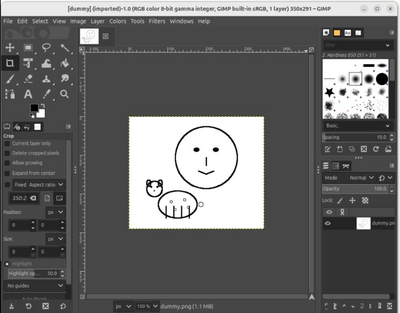
"Draw me a face and a sheep" — generated entirely through natural language via GIMP MCP
Future Enhancements
- 📚 Recipe Collection: Reusable workflow templates (portrait cleanup, product photo, etc.)
- ↩️ Undo System: History management and rollback via MCP
- 🚀 Dynamic Discovery: Auto-generate MCP tools from GIMP's full PDB procedure database
- 🔒 Security: Sandboxed execution for untrusted command inputs
- ⚡ Performance: Optimized bitmap transfer for large images
- 🌐 Remote Access: Network-accessible GIMP instances
Contributing
Contributions are welcome — bug fixes, new tools, documentation, or example scripts. Open a PR or issue on GitHub.
Yorumlar (0)
Yorum birakmak icin giris yap.
Yorum birakSonuc bulunamadi