ClaudeTray
Health Uyari
- License — License: MIT
- Description — Repository has a description
- Active repo — Last push 0 days ago
- Low visibility — Only 5 GitHub stars
Code Uyari
- fs module — File system access in tools/panel-features.js
- fs module — File system access in tools/panel-preview.js
Permissions Gecti
- Permissions — No dangerous permissions requested
Bu listing icin henuz AI raporu yok.
Windows tray panel for your Claude chats and Claude Code sessions: status, replies, one-click steps, usage limits. Unofficial.
Tray for Claude
A Windows tray panel for your Claude chats and plan usage. Follow several chats at once, answer Claude, run the
commands it gives you and keep an eye on your limits, without switching windows.
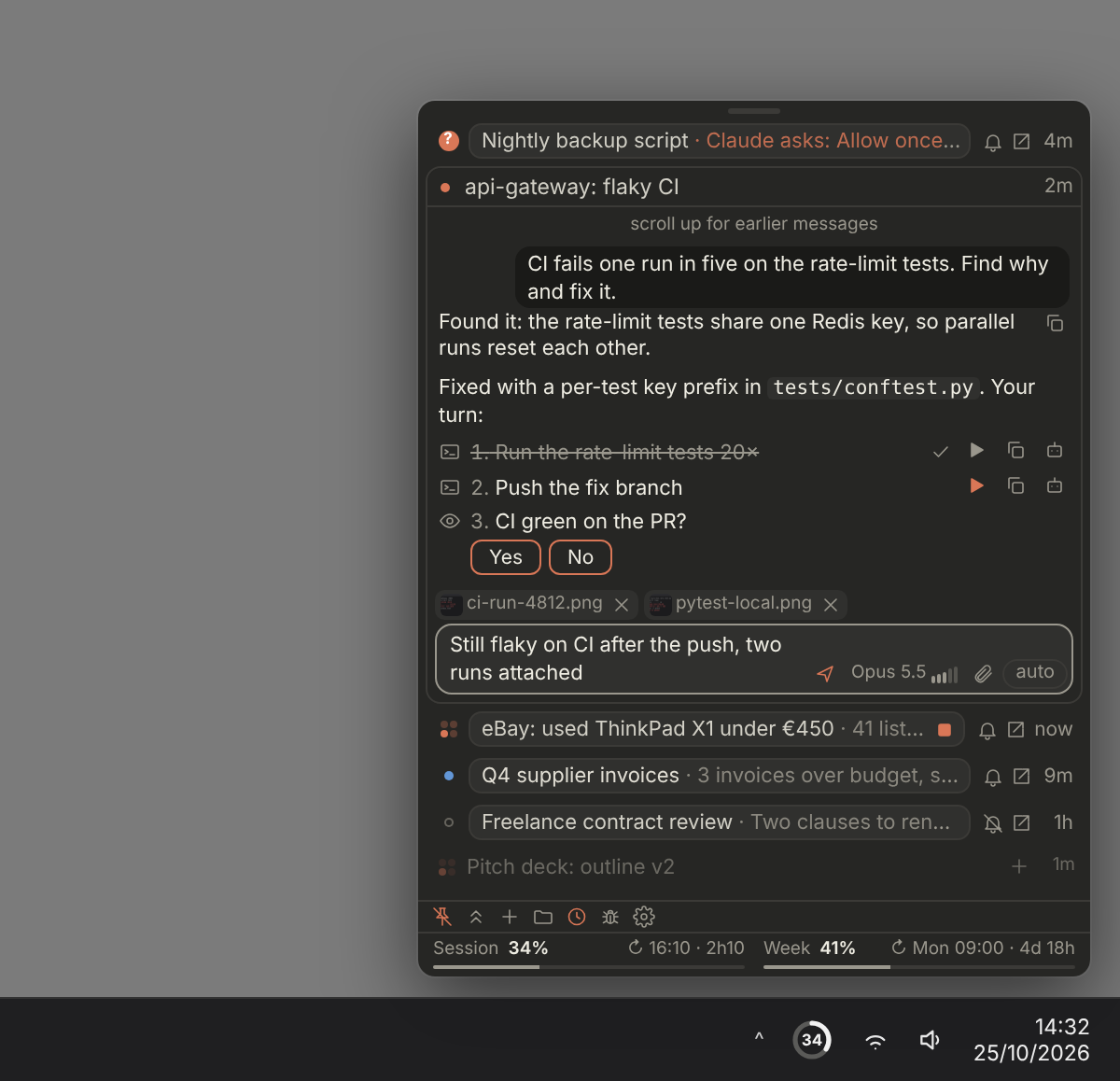
Preview release (0.3.x). It works, but things still change between versions. Bug reports are welcome.
What it does
- All your chats in one list. claude.ai chats and Claude Code sessions, one line each, with their status:
working, waiting for you, new reply, steps to run. Open one to read the conversation, reply, stop or retry, and
send or open files. - Steps in one click. In chats started with
/tray, Claude lists the commands it wants you to run. You run them
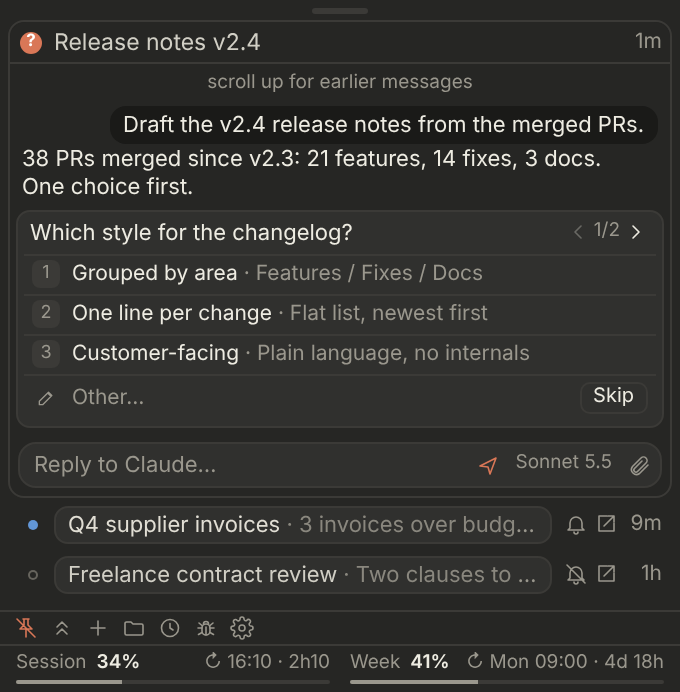
from the panel, their output is kept, and Claude reads it when you send "check". - Questions and permissions. Claude Code questions and Allow / Deny prompts are answered from the panel. A "?"
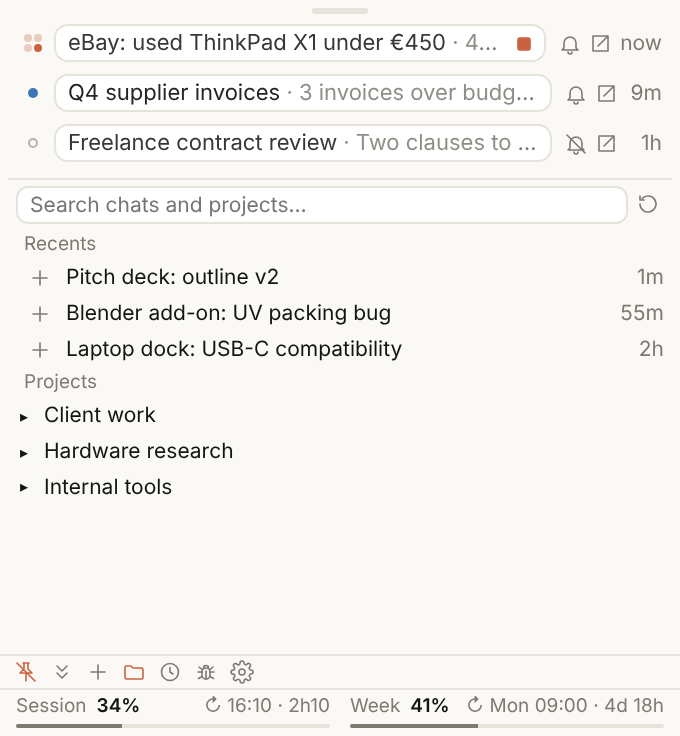
shows on the chat and on the tray icon while Claude waits for you. - BROWSE and recent chats. Search all your chats and projects, add any of them with +. Recent chats that aren't
in the tray show greyed and can be used as they are. - Model and effort of a chat, shown in its reply bar and changed from there.
- Usage. Session and weekly limits under the list, with a notification at 80 % and 95 %.
Typical use: a Claude Code session fixing a test while you push its branch from the panel, a research chat comparing
second-hand listings in the background, a permission to approve for a script, a contract review to read later.
Install
Download or clone this repository to a folder you can write to, for example
C:\Tools\ClaudeTray.In PowerShell, from that folder:
powershell -NoProfile -ExecutionPolicy Bypass -File .\ClaudeTray.ps1 -WebLoginA browser window opens on claude.ai. Sign in and close it. The icon then appears next to the clock and the
tray starts with Windows.To start it again later: type "Tray for Claude" in Windows search, or double-click the "Tray for Claude"
shortcut (orStart Tray for Claude.cmd) in its folder.Optional, for steps: upload
skill/tray.zipas a skill in Claude and start a chat with/tray. The/tray
chip in a reply box adds it to your next message.
Needs Windows 10 (1809 or later) or Windows 11, Edge and the WebView2 runtime (both come with Windows), and a paid
Claude plan. No installer and no admin rights. Updates: Settings > Check for updates.
Shortcuts
Panel
| Action | How |
|---|---|
| Show or hide the panel | Click the tray icon |
| Open the Claude app (starts it if needed) | Double-click the tray icon |
| Keep the panel on top | Pin button, first on the toolbar |
| Move the panel | Drag the grip at the top. It stays where you leave it. |
| Collapse all chats, bring them back | Click the grip, or the arrows button on the toolbar |
| Resize | Drag any edge. Settings > Reset panel size goes back to automatic. |
| Zoom | Ctrl + mouse wheel |
| Report a bug | Bug button on the toolbar: with or without the log (cleaned, ready to drag into the page) |
Chats
| Action | How |
|---|---|
| Open a chat (one at a time) | Click its dot, or double-click its line |
| Open a chat next to the open ones | Right-click its dot |
| Close a chat | Click its title, or double-click around its messages |
| Share the space between two open chats | Drag the line between them. Double-click it: equal parts. |
| Pin, rename, move to a section, mute, hide | Right-click its title |
| Open it in the Claude app or on claude.ai | Button at the end of its line, or right-click its title |
| Change the model or the effort | Click the model name in its reply bar |
| Jump to the latest message | Arrow button at the bottom of the conversation |
| New chat, sections, sort | + button on the toolbar |
Replying
| Action | How |
|---|---|
| Send, new line | Enter, Shift + Enter |
| Reply without opening the chat | Type in its line and press Enter |
| Slash commands and skills | Type / at the start of a reply box |
| Attach files | Paste, drop on the chat, or use the clip button |
| Clear a line, close a menu | Esc |
Steps and questions
| Action | How |
|---|---|
| Run a step | Play button (hidden, output kept). Copy button to run it yourself. |
| Let Claude do a step itself | Robot button on the step ("auto" in the reply bar: all steps) |
| Mark a manual step done, add a note | Tick button, pencil button |
| Answer a step's question | Type in its box and press Enter, or pick a choice |
| Tell Claude you're done | Enter in the chat's empty line once all steps are done: it sends "check" |
| Run a step you skipped before replying | Its button above your message, then "Run anyway?" |
| Answer a question card | Pick a choice, or type in Other. Next / Back between parts, Skip to skip. |
| Allow or deny a permission | The buttons under the chat |
BROWSE and recent chats
| Action | How |
|---|---|
| Open BROWSE | Folder button on the toolbar. It folds back when you click elsewhere. |
| Search chats and projects | Type in BROWSE's search box |
| Add a chat to the tray | + on its row |
| Make BROWSE taller or shorter | Drag the line above it |
| Show recent chats not in the tray | Clock button. All chats collapsed: the 10 newest. A chat open: only the active ones. |
| Keep a recent chat | + on its row, or in its line once opened |
Settings (gear button): light or dark theme, short replies from Claude, start with Windows or with the Claude
app, keep the Claude app running, how soon idle chats leave the tray, reset the panel size, check for updates,
debug logs.
Commands
Run them as powershell -NoProfile -ExecutionPolicy Bypass -File .\ClaudeTray.ps1 <command>.
| Command | What it does |
|---|---|
-WebLogin |
Signs the tray's browser in to claude.ai, then starts the tray. |
(none), -Restart |
Starts or restarts the tray in the background. |
-QuestRoot <folder> |
Sets the folder shared with Claude for steps and results (optional). |
-Install, -Uninstall |
Adds or removes the Start menu and startup shortcuts. |
-Set key=value |
Changes one setting in config.json. |
Privacy
- The tray only talks to claude.ai and Anthropic, over HTTPS, plus GitHub when you click Check for updates. No
telemetry, no analytics, no other servers. - Chats are read in a hidden Edge window with its own profile (
%LOCALAPPDATA%\ClaudeTray), signed in by you.
It opens one tab per chat you track and reads only what the panel shows. - Steps only run when you click them. Programs and scripts that Claude sends as files are shown in their folder,
not started. - Settings, layout and logs stay in the tray's folder and are ignored by git. Logs contain no message text, chat
titles or tokens. - The hidden Edge is controlled through the DevTools protocol on
127.0.0.1. While it runs, another program on
your PC that finds that port could use it, like any browser started in remote-debugging mode. It closes when
the tray exits.
To remove everything: run -Uninstall, then delete the folder and %LOCALAPPDATA%\ClaudeTray.
Known issues and limits
- The tray reads the claude.ai pages, not a public API. A claude.ai update can break a part of it until the next
version. - Recent chats: the tray can't see whether Claude is replying in a chat it doesn't follow. "Active" means changed
in the last 3 minutes. - Claude Desktop local (Cowork) chats are experimental. They rely on Desktop's own files and window, which are not
documented and can change with any Desktop update. Tested on one setup only (Desktop from the Microsoft Store,
Windows 11, one UI language, one organization).- No live view from claude.ai: messages and status come from the session's file on disk, so they can lag.
- Steps need the quest folder connected to that Cowork session. Bridge mode does not apply.
- Sending, stopping and answering go through Desktop's window in the background. Permission prompts need two
clicks, and Allow has to be clicked in Desktop. - A question with several steps: answer it in Desktop for now. The model and effort can't be changed from the
tray (the chip opens Desktop). - No direct link to a local chat: opening one brings Desktop to the front.
Troubleshooting
- No chats, or a dash in the icon: Settings > Sign in to claude.ai.
- "claude.ai wants a browser check": Settings > Open claude.ai in the tray browser, then close it.
- "claude.ai not reachable": the panel greys out and reconnects by itself. The Reconnect button does it at once.
- "Running scripts is disabled": use the full command shown above.
-ExecutionPolicy Bypassonly applies to that
run. - Anything else: turn on Settings > Debug logs, reproduce the problem, then click the bug button and choose "with the
log". The page opens on GitHub with the versions filled in; drag the cleaned log into it.
Questions, ideas or feedback that aren't bugs: Discussions.
See also: changelog, backlog, quest protocol,
notes for maintainers.
Disclaimer
This is an unofficial community project, not affiliated with or endorsed by Anthropic. "Claude" is a trademark of
Anthropic. The tray drives claude.ai in your own signed-in browser and relies on data that is not a public API, so
it can stop working at any time. You use it at your own risk and under your own agreement with Anthropic. MIT
License, provided as is: see LICENSE.
Yorumlar (0)
Yorum birakmak icin giris yap.
Yorum birakSonuc bulunamadi