lazymark
Health Pass
- License — License: MIT
- Description — Repository has a description
- Active repo — Last push 0 days ago
- Community trust — 74 GitHub stars
Code Fail
- rm -rf — Recursive force deletion command in assets/readme/demo-env.sh
Permissions Pass
- Permissions — No dangerous permissions requested
No AI report is available for this listing yet.
Lazy markdown notes, tasks and a Kanban board in your terminal. With a sleepy sloth.

lazymark
Lazy markdown notes, tasks and a Kanban board in your terminal.
Plain markdown files. Keyboard and mouse. Inline images.


Obsidian compatibility · Install · Quick start · Keys · Configuration
Why lazymark
- Your notes stay yours. They are plain markdown files in one folder. Edit them with any editor; lazymark only rewrites the line you change and never overwrites a note that changed outside it.
- Learn it by looking at it. Panels, rounded borders and a bar of keys at the bottom. Press
?for the keys of the panel you are in. - Keyboard or mouse. Every action has a key. You can also click rows and the keys in the bottom bar, drag the divider between the columns and use the scroll wheel.
- Tasks come from your notes. The Tasks panel lists the checkboxes you already wrote, and ticking one changes only that line.
- Safe by default. Deleted notes go to a trash for 20 days, and folders with content always ask first.
What it does
Notes and folders
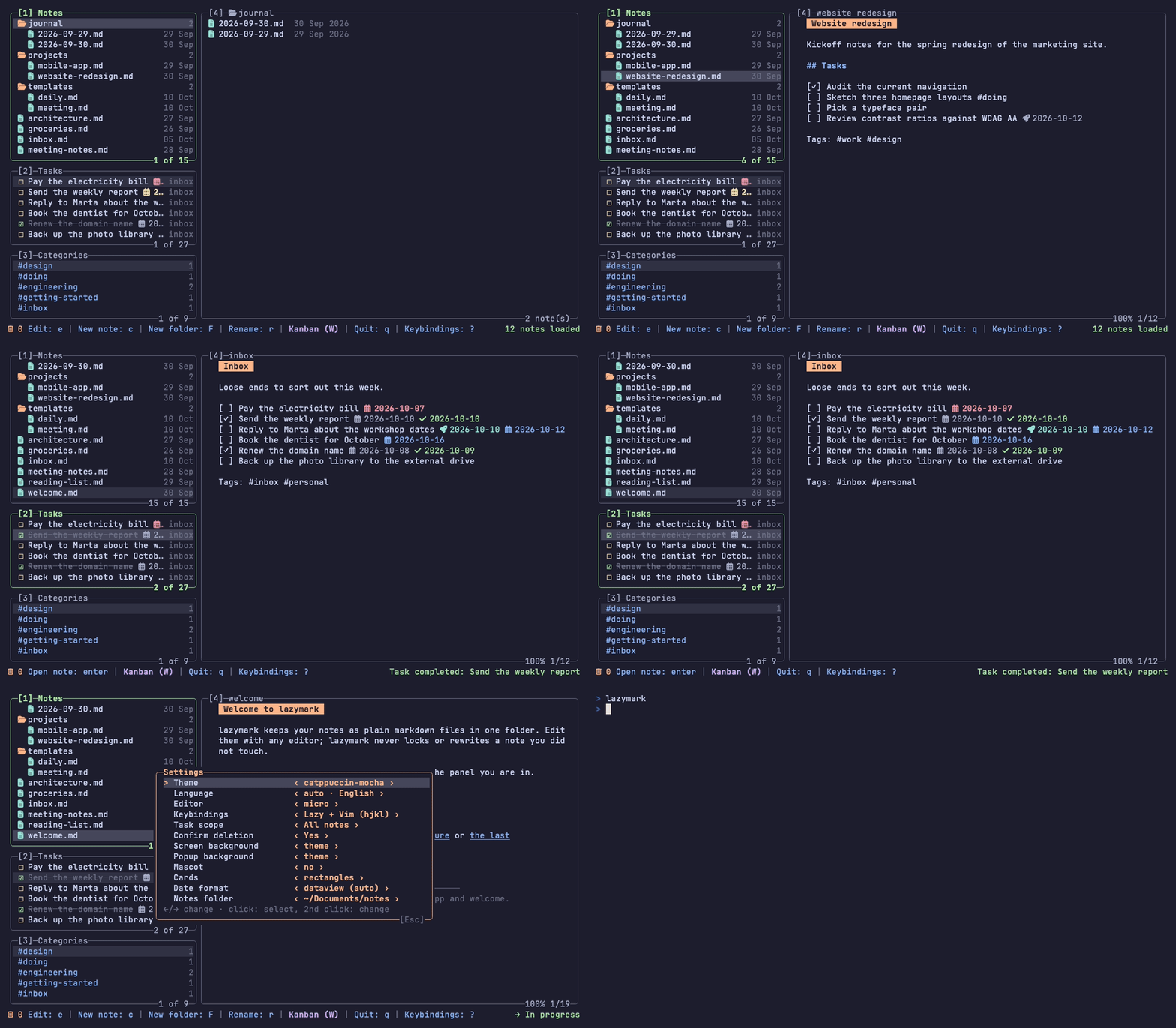
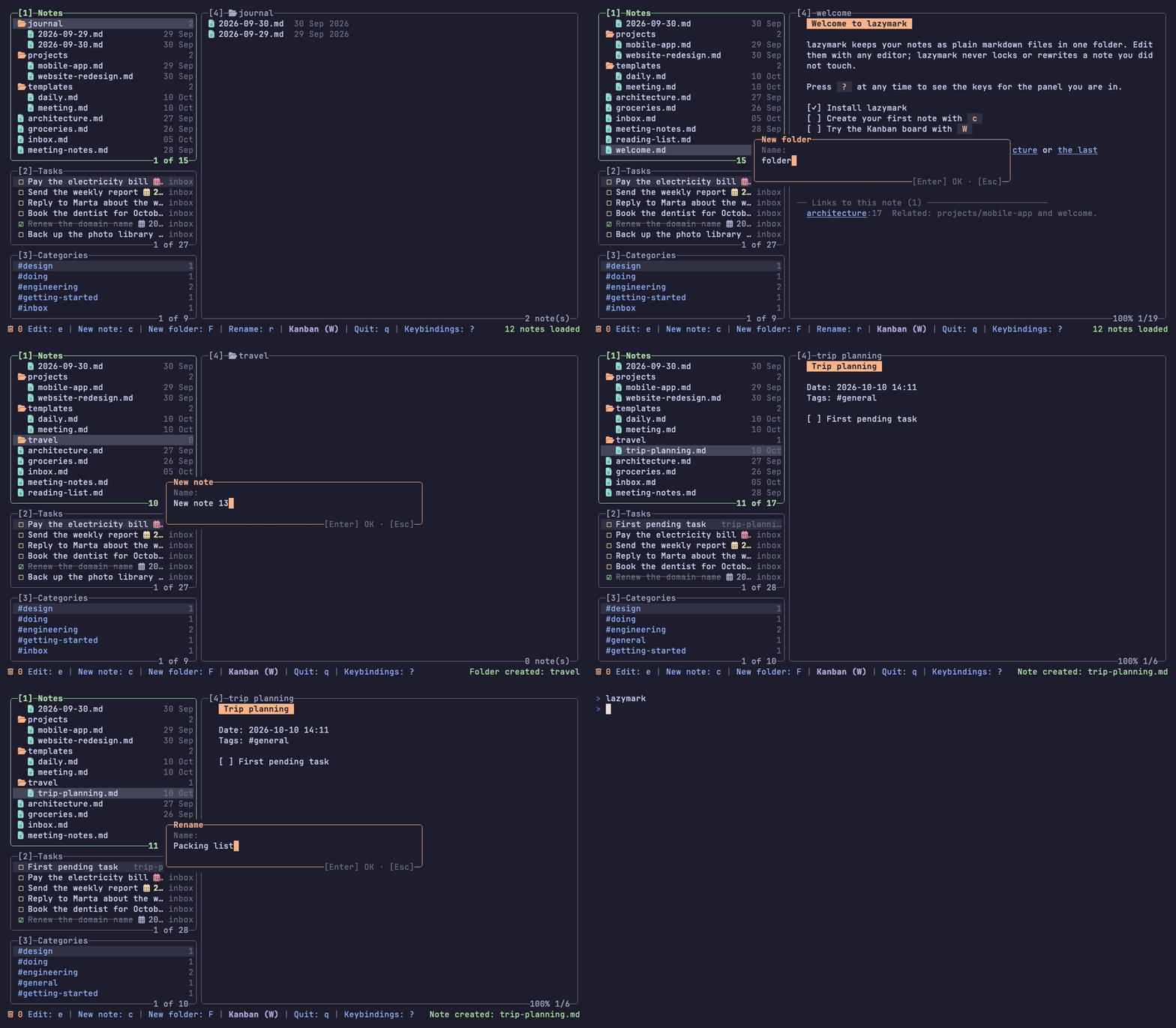
One tree for folders and notes. Create, rename, move and delete with a single key; the cursor lands on what you just created.
Templates and the daily note
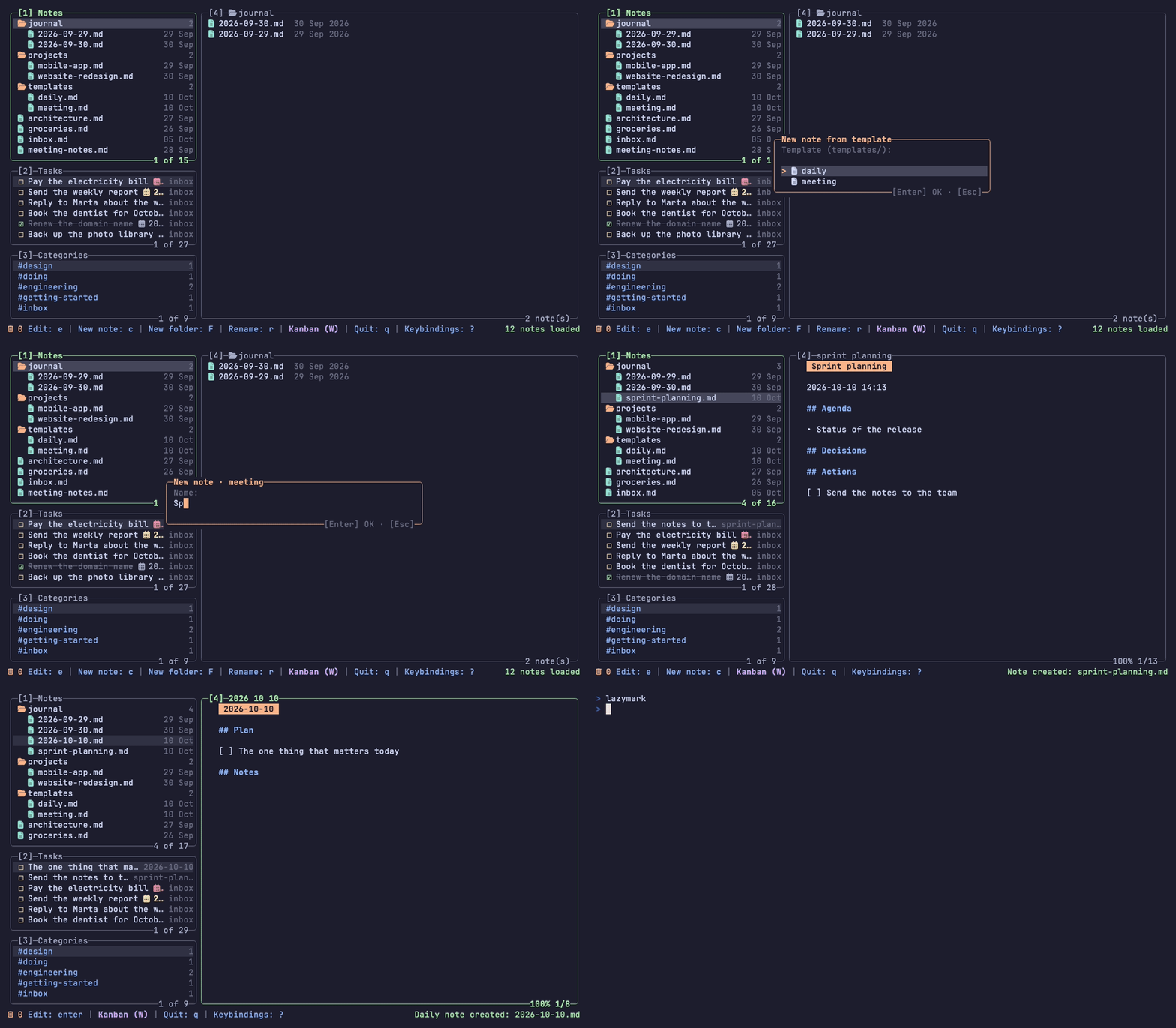
Put notes in a templates/ folder and start new ones from them with C; {{date}}, {{time}} and {{title}} are filled in. T opens today's note, journal/YYYY-MM-DD.md, made from templates/daily.md the first time; lazymark daily does the same from the shell. See docs/templates.md.
Tasks
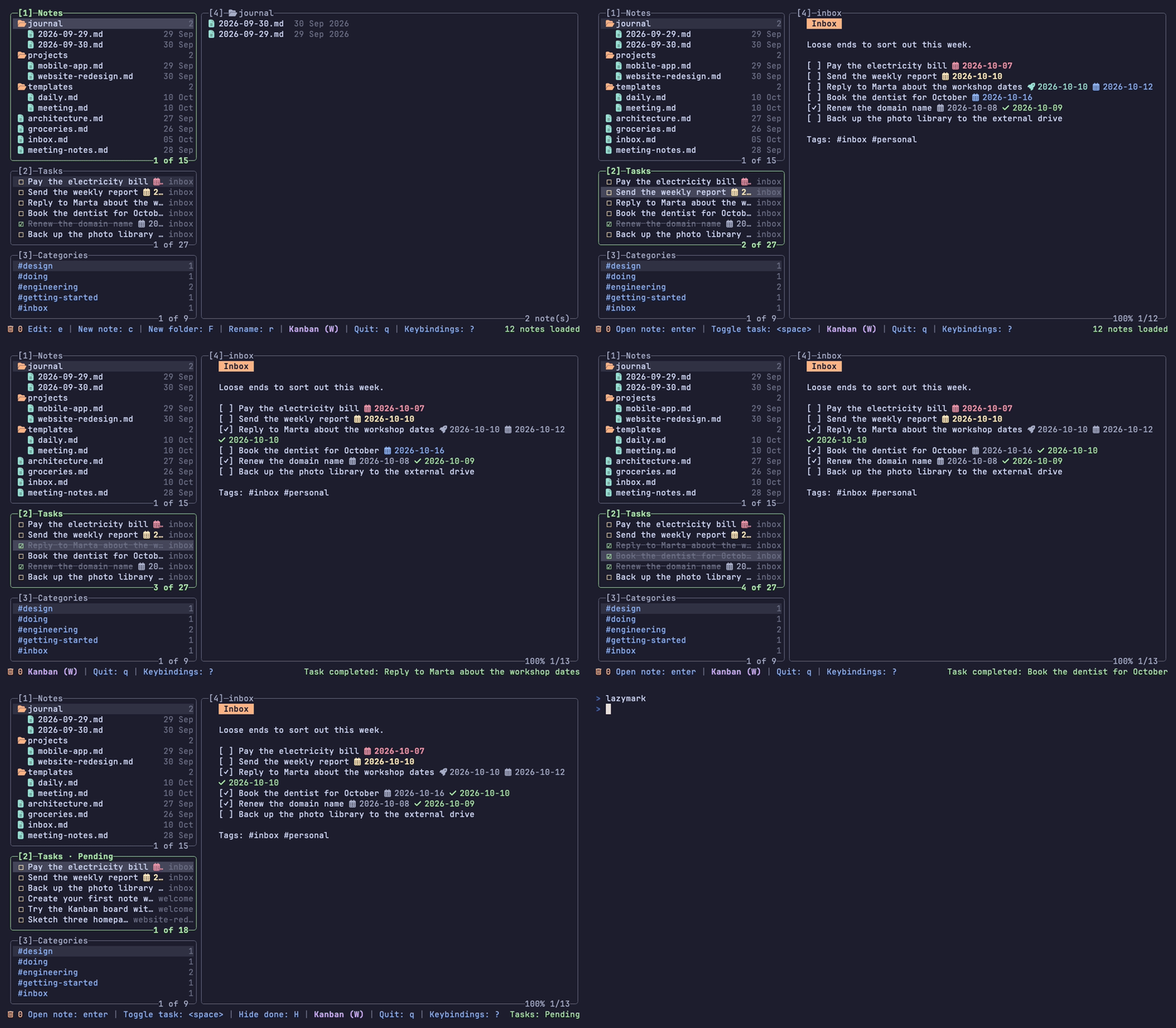
Every - [ ] and - [x] in your notes, in one list. Space ticks a task and rewrites only its line; H hides the finished ones. The preview shows the note at the task's line.
Dates
Select a task, in the Tasks panel or on the board, and press d. A small popup asks for Start and Due: type a date the way you say it (2026-10-09, today, tomorrow, +3d, +1w or a weekday such as friday, in your interface language) and the resolved date appears next to the field before you save. Leave a field empty to remove that date, Esc cancels. On the board, clicking the dates of a card opens the same popup. From the shell, lazymark task due <id> 2026-10-09 and lazymark task start <id> … do the same.
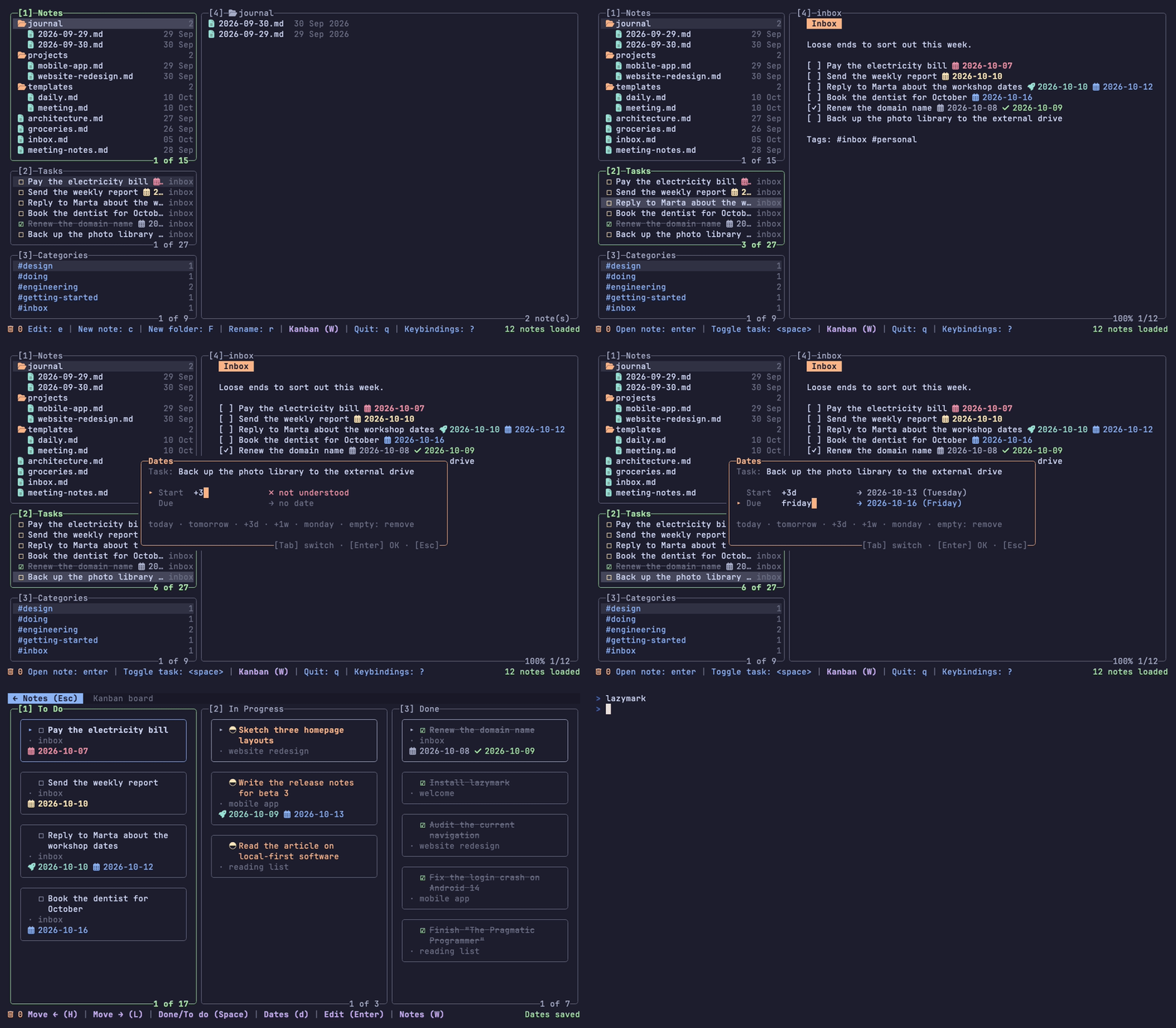
The completion date is added by itself when you tick a task. On screen the dates are monochrome glyphs (never emoji) in the color of their state, taken from the theme's palette: overdue in red, due soon (today, or the next N days) in the warning color, on time in the accent color, and completed in green. Turn the colors off with Date colors in Settings (,) or date_colors in the config, set how many days ahead counts as "due soon" with due_soon_days, and pick the color of each state in Settings; see docs/configuration.md. If you set a start date after the due date, the popup warns you (and saves anyway).
In the file the dates go at the end of the task line, in a format that Obsidian Tasks understands. By default lazymark writes the Dataview format ([due:: 2026-10-09], plain ASCII, so it looks the same in any editor and on GitHub), and it always reads both that and the emoji format of Obsidian Tasks, including scheduled and created dates. To write the emoji format instead, set Date format in Settings (,) or date_format in the config. A vault that already has emoji dates and none in Dataview keeps writing emojis (lazymark tells you once, so formats do not get mixed). A task you edit keeps the format its line already had.
To use Dataview dates in Obsidian, open the Tasks plugin settings and set Task format to Dataview; Obsidian Tasks reads one format at a time, so after that it will not read the emoji ones. To convert the notes you already have, run lazymark dates migrate --to dataview --dry-run to see the change and then without --dry-run to apply it (--to emoji goes back). It is never automatic, only touches task lines, writes each note atomically and a second run changes nothing. More in docs/cli.md.
Categories
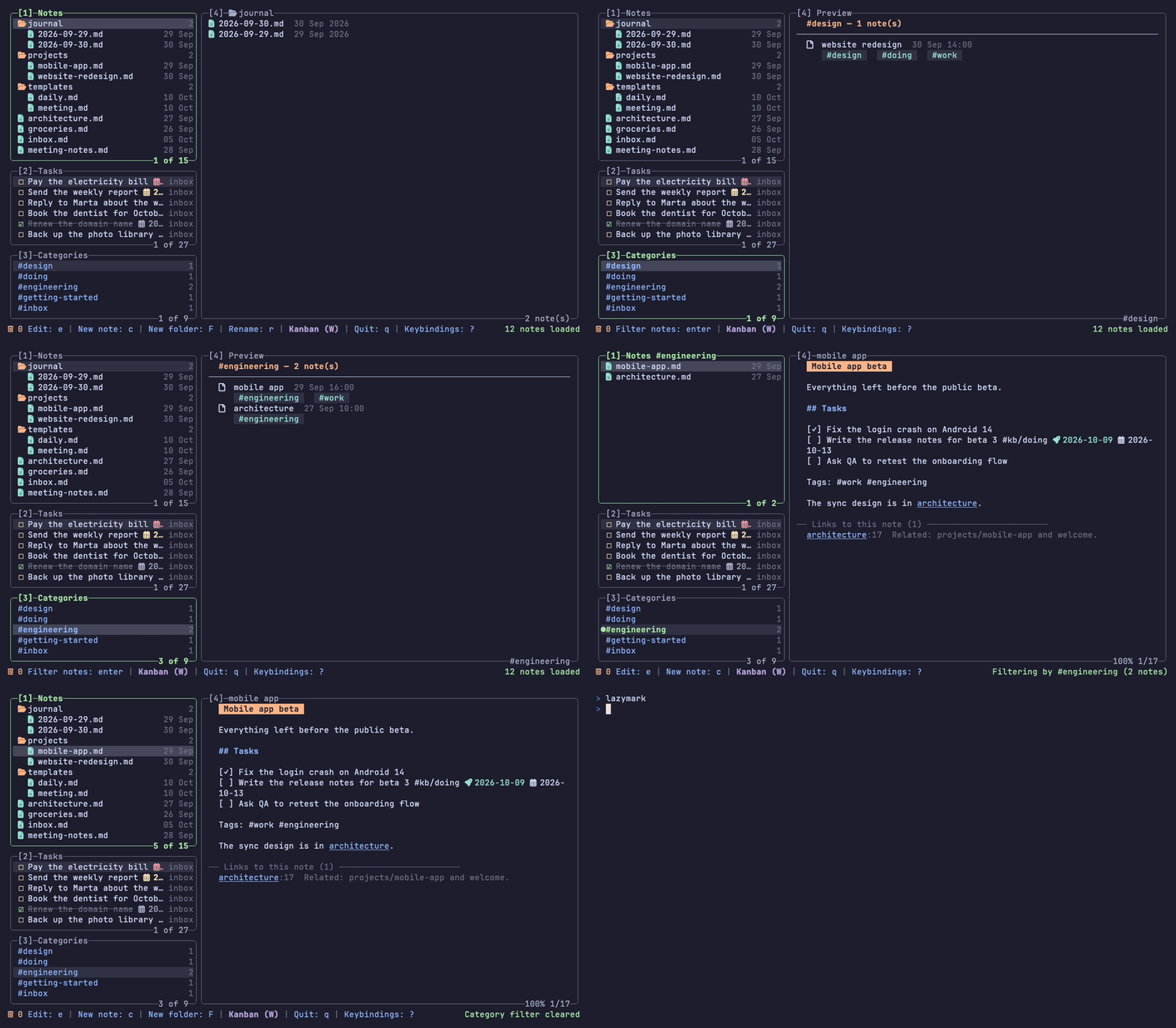
Inline #tags in your notes become categories; code fences, inline code, link
destinations and frontmatter are excluded. Enter on a category shows only the
notes that have it. See docs/tags.md for the parsing rules.
Kanban board
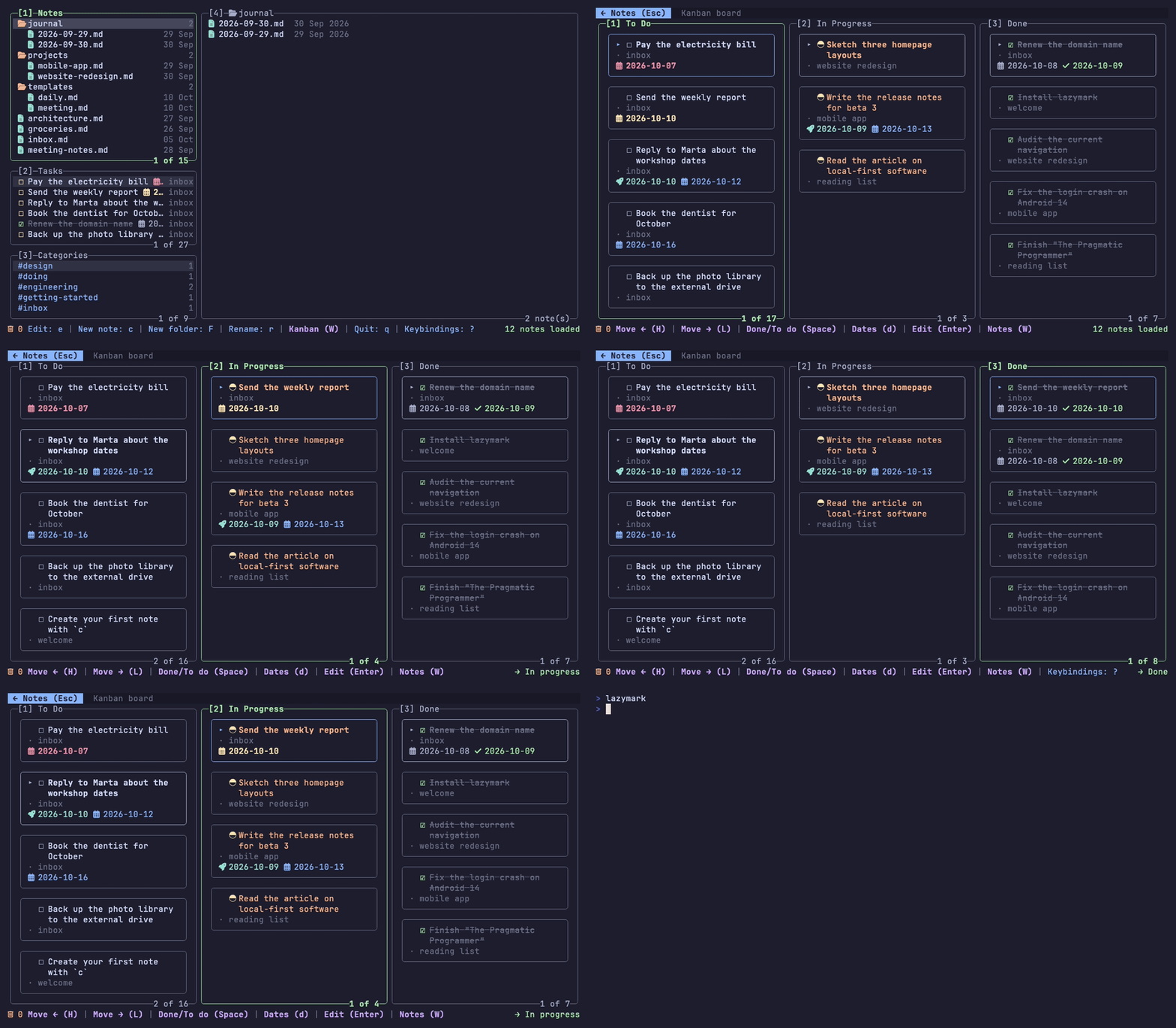
Each task is a card with a rounded border: its text (up to 2 lines), its note and its dates (set them with d, see Dates). Settings has "Cards: rectangles | compact" for the one-row view.
The same tasks as columns: To Do, In Progress and Done by default. Move a card with H and L or Shift+← and Shift+→, or drag it with the mouse to another column: the card and the target column are highlighted while you drag, Esc cancels. Inside a column, K and J (or Shift+↑ and Shift+↓) move a card up and down, and dragging it over another card of the same column does the same: it swaps the two tasks (each with its subtasks) in the note, so it works between sibling tasks of the same note; across different notes the cards always follow the order of the notes. The change is written back to the note, on that line only, and never over a note that changed outside lazymark (it reloads and tells you). Kanban (W) opens the board, Notes (W) and ← Notes (Esc) go back, and the bottom bar lists what the selected card can do.
The column is a tag at the end of the task line, so it works in any editor: - [ ] write report #kb/doing. Set your own columns (2 to 6) in the config:
"kanban_columns": [
  {"id": "todo", "titles": {"en": "To do", "es": "Por hacer"}},
  {"id": "doing", "title": "Writing"},
  {"id": "review"},
  {"id": "done"}
]
CLI and MCP
Everything the board does is available without the interface, with a stable --json output and exit codes, and over MCP for agents:
$ lazymark task list --pending --json
$ lazymark task move projects/plan.md#16de6420 doing
$ lazymark note new "Meeting" --folder work
$ claude mcp add --transport stdio lazymark -- lazymark mcp

See docs/cli.md for the commands, the JSON schema, the exit codes and the MCP tools.
Links between notes
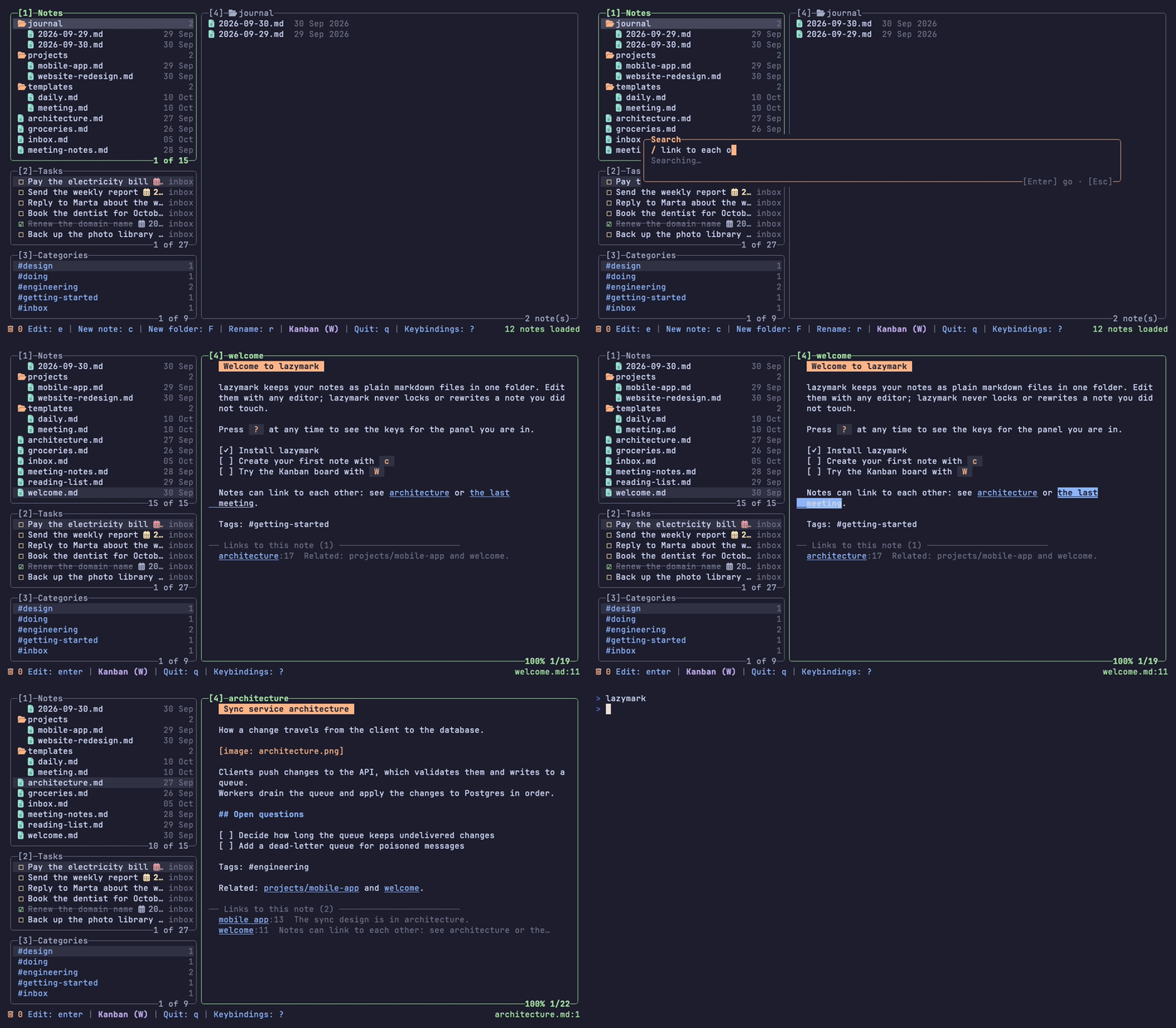
[[note]] and [[note|alias]] link notes the way Obsidian does. In the preview they are underlined, n and N move between them, Enter or a click follows one (a link to a note that does not exist offers to create it), and the end of the preview lists the notes that link to this one. Renaming a note offers to update the links that point to it, showing the lines that change. See docs/links.md.
Search
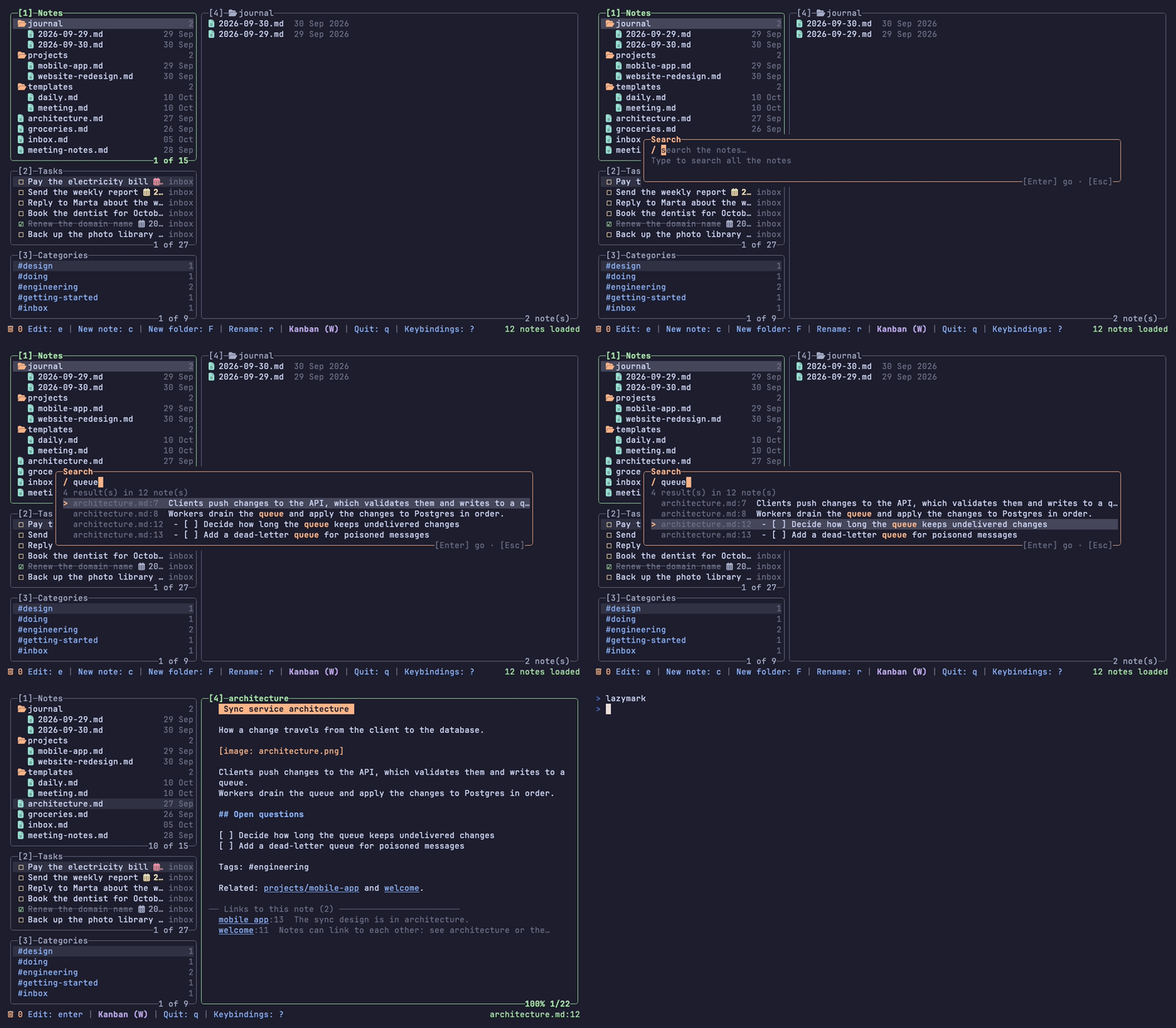
/ searches all the notes as you type and jumps to the match; lazymark search and the MCP tool search_notes do the same without the interface (see docs/cli.md).
Inline images
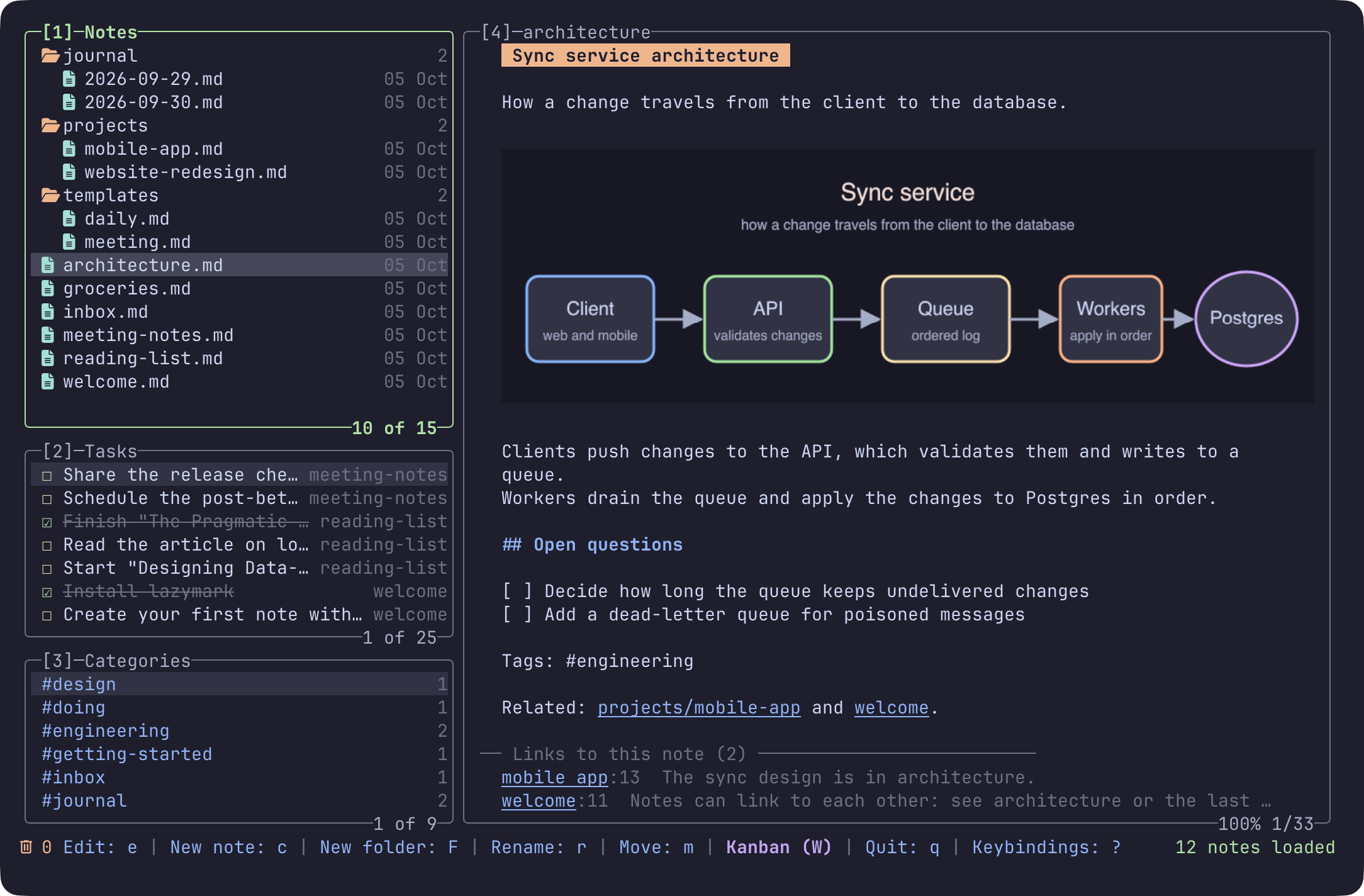
Images in a note show up in the preview, in place, in terminals that support the Kitty graphics protocol. Ctrl+V pastes the image on your clipboard into the note, and pasting a copied image file imports it.
Settings and themes
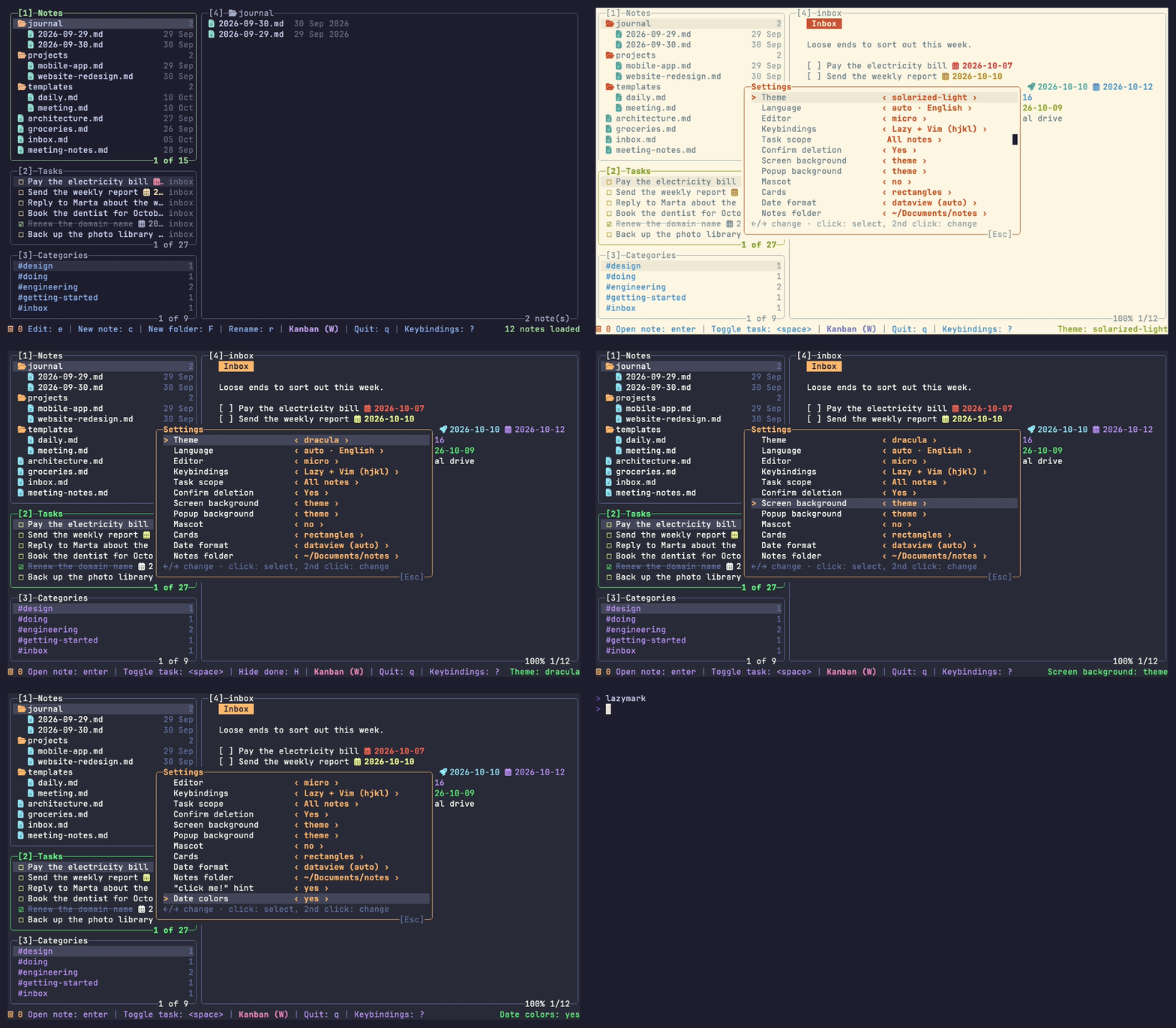
Press ,. The interface speaks eight languages (English, Spanish, Brazilian Portuguese, French, German, Italian, Japanese and Simplified Chinese) and starts in yours; docs/i18n.md says which translations a native speaker has reviewed. Fourteen themes (Catppuccin ×4, Tokyo Night, Gruvbox, Nord, Dracula, One Dark, Rosé Pine, Kanagawa, Everforest, Solarized Dark and Light), changed live, and the whole interface follows them, including the markdown preview. You can add your own as a JSON file (how). Screen background is theme by default and paints the whole screen with the theme's base color; terminal keeps your terminal's background, so a translucent terminal stays translucent. You can also pick the notes folder here.
Paste images from your editor
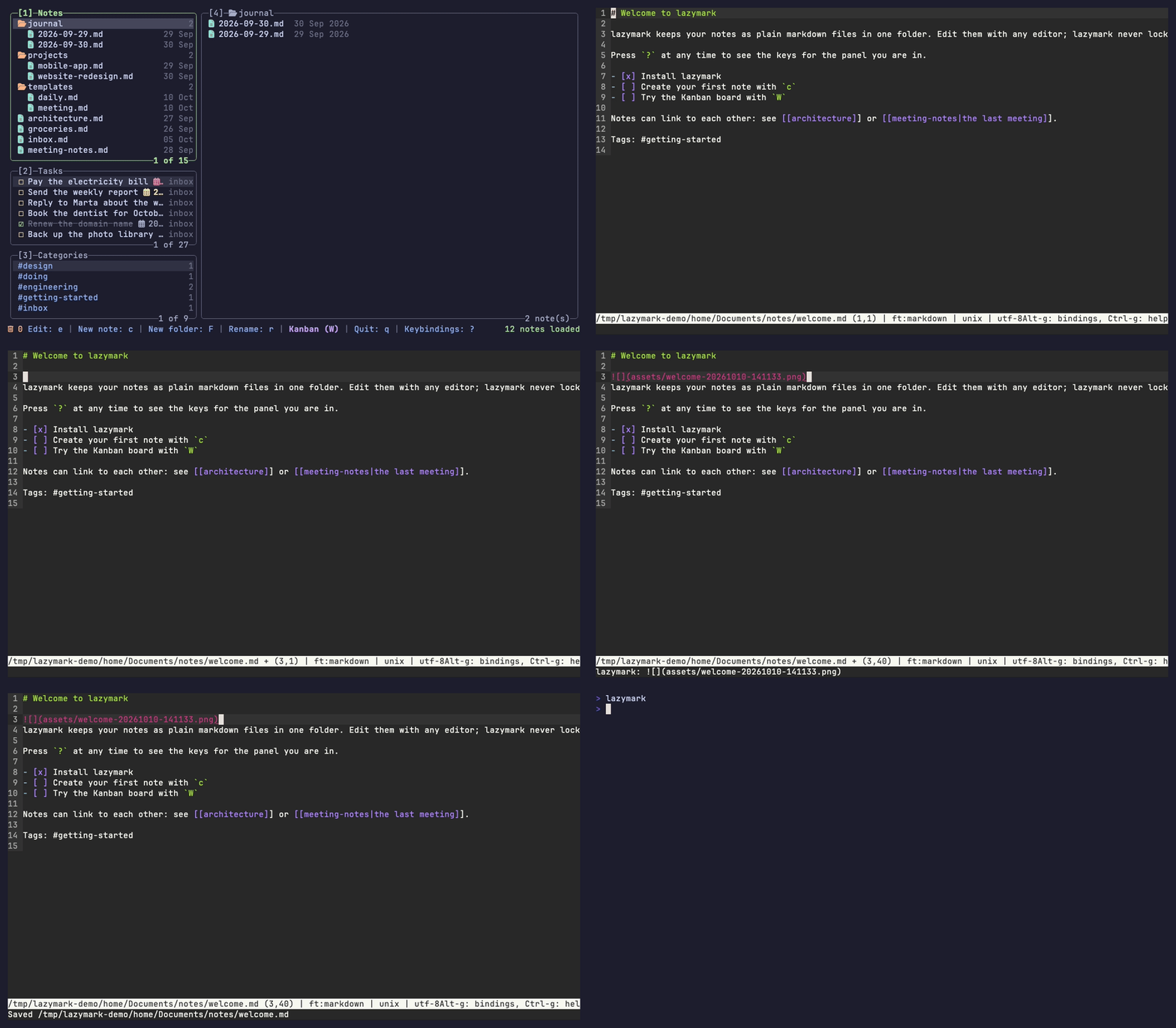
Copy a screenshot, or an image file in the file manager, open the note in micro, vim or GNU nano and press one key: the  reference lands at the cursor and the image is saved next to the note. lazymark editor-plugins install sets it up; the keys are Alt-i in micro, \ip in vim and Alt-7 in nano (on macOS terminals, set Option to act as Alt). The GIF runs micro's pasteimage command, which Alt-i also runs. The nano that ships with macOS is Pico and has no key bindings: use GNU nano (brew install nano). See docs/editor-plugins.md.
Obsidian compatibility
A lazymark notes folder is an Obsidian vault: open the same folder in both and they work on the same files. lazymark never adds a hidden folder or a database, and it does not touch the .obsidian folder.
What lazymark reads and writes the way Obsidian does:
Wikilinks:
[[note]],[[note|alias]],[[note#Heading]],[[note#^block]]and[[folder/note]]. Renaming a note or a folder offers to update the links that point to it (docs/links.md).Tags: inline
#tags, including Unicode names such as#caféand nested
ones such as#project/web(categoryproject). See docs/tags.md
for boundaries and exclusions.Tasks:
- [ ]and- [x]lines, nested at any depth.Task dates of the Obsidian Tasks plugin, in both of its formats. It always reads both, mixed in the same vault if you like:
Task format in Obsidian Tasks How the dates look in the file lazymark dates migrateDataview [start:: 2026-10-05] [due:: 2026-10-09]--to dataviewTasks (the default of the plugin) a small emoji icon before each date (a calendar for the due date) --to emojiThe fields are start, due, completion, scheduled and created. lazymark writes the format you choose in Settings (
,) → Date format (date_format): Dataview by default, plain ASCII that looks the same in any editor and on GitHub. A vault that already has emoji dates and none in Dataview keeps writing emojis, and lazymark tells you once how to change it.
Which one to pick. In Obsidian open Settings → Tasks → Task format and choose the same one in lazymark. Obsidian Tasks reads one format at a time and has no tool to convert a vault, so if the two do not match, Obsidian will not see the dates lazymark writes. To convert the notes you already have:
lazymark dates migrate              # no --to: says how many tasks use each format and what to try
lazymark dates migrate --to dataview --dry-run   # shows the change, writes nothing
lazymark dates migrate --to dataview             # applies it (--to emoji goes back)
It is never automatic, only touches task lines (not paragraphs, code blocks or the front matter), writes each note atomically and a second run changes nothing. Then set the same Task format in Obsidian.
What is not compatible, so you are not surprised:
- Priorities, recurrence (
every week), dependencies andon completionare not interpreted. They stay in the line, untouched and shown as text; ticking a recurring task does not create the next one. - Tasks and Dataview query blocks are not run: they show as the code they are.
- Tags in the front matter (
tags: [x]) are not read as categories; only inline#tagsare. The front matter itself is never modified. - Embeds (
![[file]]), canvases, callouts, plugins and the graph view are not supported.
Install
Install a Nerd Font in your terminal for the folder and note icons. Building needs Go 1.27.1 or newer.
With Go
go install github.com/MathiasDrizzy/lazymark/cmd/lazymark@latest
From source
git clone https://github.com/MathiasDrizzy/lazymark.git
cd lazymark
go build -o lazymark ./cmd/lazymark
Homebrew (macOS)
brew install mathiasdrizzy/tap/lazymark
Prebuilt binaries for macOS, Linux and Windows are on the Releases page.
Quick start
- Run
lazymark. It opens~/Documents/notes, creating it if needed. Uselazymark --dir <folder>for another folder, or pick one later in Settings. - Press
c, type a name and pressEnterto create a note. Presseto write in your editor ($EDITOR,microif it is not set). - Press
?any time to see the keys.
Keys
The essentials. ? shows the keys of the panel you are in, and docs/keybindings.md has all of them.
| Keys | Action |
|---|---|
↑ ↓ |
Up / Down |
Tab |
Next panel |
1 2 3 4 |
Jump to a panel |
c F |
New note / New folder |
r m d |
Rename / Move / Delete |
Space d |
Toggle a task / Dates (Tasks panel and Kanban) |
W |
Kanban board |
/ T |
Search / Daily note |
? , x |
Keybindings / Settings / Trash |
q |
Quit |
Configuration
Most things are in Settings (,) and are saved at once. They live in a config.json in your user configuration folder (~/Library/Application Support/lazymark/ on macOS, ~/.config/lazymark/ on Linux, %AppData%\lazymark\ on Windows). A file with only what you want to change is enough:
{
  "theme": "tokyo-night",
  "editor": "code --wait",
  "screen_background": "theme",
  "popup_background": "none"
}
Almost everything lazymark does its own way can be changed or turned off: the date warnings and colors, the mascot and its click me!, the trash days (or no trash), where the daily notes and templates live, the prefix of the board tag, the order of the Notes and Tasks panels and the glyph of each date field. See docs/configuration.md for every setting, the command line and the commands for scripts and other tools (lazymark task list, lazymark mcp, and more). If you write in micro, vim or nano, docs/editor-plugins.md shows how to paste a copied image into the note from the editor.
Compatibility
| Status | |
|---|---|
| macOS | Developed and tested here, including the interface. |
| Linux | Builds, and its tests run on every change, and its interface tests (a terminal emulator driving the real binary) also run in a Linux container. Not used interactively by the author yet. |
| Windows | Builds, and its tests run on every change. Not used interactively by the author yet; docs/windows.md has a checklist to try it by hand. |
| Terminal | Inline images |
|---|---|
| Ghostty | ✓ tested |
| Kitty, WezTerm | ✓ support the protocol, not tested |
| Any other | ✗ each image shows as [image: name.png] |
Limitations:
- Tasks are the list items that start with
- [ ]or- [x](also*,+and numbered), nested at any depth; code blocks are ignored. - The Kanban board has 2 to 6 columns, in the order of your config; cards can be reordered only among tasks of the same note.
- Pasting an image from the clipboard (
Ctrl+V, orlazymark pastefrom an editor) needsosascriptorpngpaste(macOS),wl-pasteorxclip(Linux) or PowerShell (Windows). - The editor plugins need micro, vim or GNU nano; nano also needs the note to be opened from lazymark.
- The terminal must be at least 60 columns by 20 rows.
Contributing
Issues and pull requests are welcome. Run go test ./... before sending a change, and git config core.hooksPath scripts/hooks to run gofmt, go vet and the tests before every commit. CI runs on Linux, macOS and Windows.
The GIFs are made from the tapes in assets/readme, so they can be redone with vhs.
License
The mascot
When there is nothing to show in the preview (an empty notes folder, an empty folder or an empty note), a small sloth sleeps at the bottom right of the panel. Click it and it wakes up and plays an animation (it waves, dances, jumps or spins); each click plays the next one. If you leave lazymark alone for about 20 seconds, a faint click me! shows above it for 15 seconds, and again every minute while you stay away, just so you find out it can be clicked. It never appears while you are working, and after your first click on the sloth it does not come back during that session. It needs the mouse (not --no-mouse) and a terminal at least 60 columns wide. To turn the sloth off, set Mascot to off in Settings (,) or mascot = false in the config.
Reviews (0)
Sign in to leave a review.
Leave a reviewNo results found