llm-peer-review
Health Uyari
- License — License: MIT
- Description — Repository has a description
- Active repo — Last push 0 days ago
- Low visibility — Only 5 GitHub stars
Code Uyari
- process.env — Environment variable access in scripts/ask-gemini.js
- fs module — File system access in scripts/ask-gemini.js
- process.env — Environment variable access in scripts/ask-gpt.js
- fs module — File system access in scripts/ask-gpt.js
- fs module — File system access in scripts/browse.js
Permissions Gecti
- Permissions — No dangerous permissions requested
This workflow tool automates a multi-round adversarial debate between different AI models (like ChatGPT and Gemini) to review your project specs, plans, and code. It synthesizes agreements, disagreements, and action items before you approve final implementations.
Security Assessment
The overall security risk is Low. The tool reads environment variables exclusively to fetch API keys required to query external AI models. It uses the file system module to read local project files and likely to save the resulting debate outputs and reviews. There are no hardcoded secrets, no dangerous permission requests, and no evidence of unexpected network requests or arbitrary shell execution. The code behaves exactly as its description implies, acting as a local orchestrator for external APIs.
Quality Assessment
The project is freshly maintained, with its last push occurring today. It uses a standard, permissive MIT license. However, community trust and visibility are currently very low. With only 5 GitHub stars, the tool is clearly in its early stages. It lacks a broad user base to actively vet the code for edge cases, and developers should expect to rely on their own code review rather than community consensus.
Verdict
Safe to use, though it is a very early-stage project that warrants a quick manual review of the scripts before integrating heavily into your daily workflow.
Multi-model AI debate for your entire project lifecycle. Plans, specs, research, and code. Free and open source.
LLM Peer Review
A full project workflow where AI models debate your work before you ship it.
Whether you're speccing a feature, conducting competitive research, building a plan, or writing code, this toolkit gives you a structured process: explore the problem, create a plan, build, review, then run a 3-round debate between Claude and ChatGPT (or Gemini). They push back on each other, concede points, and produce a structured verdict: what they agreed on, where they disagreed, and a prioritized action list. Then you approve what gets implemented.
This is the same consensus/divergence synthesis that Perplexity's Model Council produces and what Karpathy's LLM Council does for general Q&A, applied to a full project lifecycle with multi-round adversarial debate and an implementation workflow.
Inspired by Zevi Arnovitz's workflow on Lenny's Podcast. The key difference is that Zevi manually conducts peer reviews by copying feedback from one model to another because he likes seeing the reasoning from tools like ChatGPT or Gemini. This toolkit automates the entire process with two slash commands - /ask-gpt and /ask-gemini - that handle the multi-round debate loop for you.
Works for product specs, research plans, competitive analysis, and code equally.
flowchart TD
    W(["/worktree (optional)"]) -.-> A(["/explore"])
    A --> B(["/create-plan"])
    B --> C(["/execute"])
    C --> D(["/review-code"])
    D --> E(["/ask-gpt or /ask-gemini"])
    E --> F(["Agreed · Disagreed · Actions"])
    F --> G{"You approve"}
    G --> H(["/document"])
If the diagram doesn't render, here's the flow:
/worktree(optional) ->/explore->/create-plan->/execute->/review-code->/ask-gptor/ask-gemini->/document
Commands
| Command | What it does |
|---|---|
/explore |
Think through the problem - scoping for concrete features, vision for strategy and ideation |
/create-plan |
Write a step-by-step plan with status tracking |
/execute |
Build it, updating the plan as you go |
/review-code |
Code review (single pass or 4 sub-agents) - reports issues only, won't fix until you say so |
/review-commands |
Review slash command prompts for quality, workflow, and consistency |
/review-plan |
Check if implementation matches a plan file in .claude/plans/ |
/review-ux |
UX review from code/markup - usability, accessibility, user flows |
/review-full |
Pre-release cross-domain check with Ready / Not ready recommendation |
/peer-review |
Evaluate feedback from other AI models |
/document |
Update your README and docs to match what was built |
/create-issue |
Create a GitHub issue (asks you questions first) |
/pair-debug |
Focused debugging partner - investigate before fixing |
/ask-gpt |
Debate your work with ChatGPT (3 rounds) |
/ask-gemini |
Debate your work with Gemini (3 rounds) |
/package-review |
Bundle your work into one file for external review |
/learning-opportunity |
Learn a concept at 3 levels of depth |
/worktree |
Create an isolated parallel session in a new worktree |
/ask-gptand/ask-geminiautomate the full debate loop./peer-reviewis for when you paste feedback from an external tool manually.
/worktreecreates an isolated copy of your project so you can work on something else without interrupting your current work. See Multi-Session Worktree Support.
Which review command do I use?
| I need to... | Use |
|---|---|
| Check code for bugs, security, and quality | /review-code |
| Review slash command prompts and workflows | /review-commands |
| Verify implementation matches a plan | /review-plan |
| Evaluate UX, accessibility, and user flows | /review-ux |
| QA a running web app via headless browser | /review-browser |
| Pre-release go/no-go check across all domains | /review-full |
The Workflow
Use them in this order:
/worktree (optional) → /explore → /create-plan → /execute → /review-code → /ask-gpt or /ask-gemini → /document
You don't have to use every command every time. But following the order prevents the most common mistake: coding before you've thought it through.
Want to see the full workflow in action? Follow the 5-minute walkthrough in DEMO-SCRIPT.md.
Working on multiple things at once? Use
/worktreefirst to create an isolated copy, then open it in a new Cursor window and run/explorethere.
Requirements
This toolkit runs on macOS, Linux, or WSL (Windows Subsystem for Linux). Windows users: install WSL first.
Setting Up a Brand New Computer
Never set up a dev environment before? Follow the step-by-step guide in SETUP.md. It covers Windows (WSL), Mac, Node.js, GitHub CLI, Cursor, and API keys - everything you need from scratch.
If you already have Node.js, git, and Cursor installed, skip ahead to Add to a New Project.
Not using Cursor? The setup guide assumes Cursor, but the toolkit works with any editor that supports Claude Code. Copy the relevant setup page into any AI assistant and ask it to rewrite the steps for your editor.
Add to a New Project
This isn't an app you install - it's a set of instructions that live in your project folder. Once they're there, type / in your editor and the commands show up.
First time? Use the quick setup (one command, nothing to install).
Setting up multiple projects? Install a reusable command first, then use it anywhere.
Quick Setup (One Command)
Pick the script that matches your shell:
Bash (WSL, macOS, Linux):
bash /path/to/llm-peer-review/scripts/setup/setup.sh /path/to/your-project
PowerShell (for setup only - see Requirements):
powershell -ExecutionPolicy Bypass -File C:\path\to\llm-peer-review\scripts\setup\setup.ps1 -Target "C:\path\to\your-project"
Or run from inside your project directory (no target needed):
cd /path/to/your-project
bash /path/to/llm-peer-review/scripts/setup/setup.sh
Note: If you run the script from inside the toolkit repository without specifying a target, it will show an error to prevent accidentally copying files into the wrong place.
The scripts copy commands, runtime scripts (ask-gpt.js, ask-gemini.js), and toolkit rules to your project. Setup scripts stay in the toolkit repo and are not copied. CLAUDE.md, LESSONS.md, and settings.local.json are skipped if they already exist - those are yours to customize. Toolkit rules (.claude/rules/toolkit.md) are always updated. See How It Works for details on which files are yours vs. managed by the toolkit.
Reusable Command (For Multiple Projects)
Install a setup-claude-toolkit command you can run from anywhere:
Bash (WSL, macOS, Linux):
cd /path/to/llm-peer-review
bash scripts/setup/install-alias.sh
source ~/.bashrc  # or ~/.zshrc for zsh
PowerShell (native Windows):
cd C:\path\to\llm-peer-review
powershell -ExecutionPolicy Bypass -File scripts\setup\install-alias.ps1
. $PROFILE  # Reload profile (or restart PowerShell)
Note: If you don't have a PowerShell profile yet, the installer will create one for you automatically.
Then use it from anywhere:
setup-claude-toolkit /path/to/your-project
Do It Manually
Copy these into your project:
| What to copy | Where it goes |
|---|---|
.claude/commands/ (whole folder) |
your-project/.claude/commands/ |
.claude/rules/toolkit.md |
your-project/.claude/rules/toolkit.md |
.claude/settings.local.json |
your-project/.claude/settings.local.json |
scripts/ (ask-gpt.js, ask-gemini.js, and browse.js) |
your-project/scripts/ |
CLAUDE.md |
your-project/CLAUDE.md |
LESSONS.md |
your-project/LESSONS.md |
.env.local.example |
your-project/.env.local.example |
.gitignore |
your-project/.gitignore |
.gitattributes |
your-project/.gitattributes |
Then in your project folder:
# For /ask-gpt and /ask-gemini (AI debate commands):
npm install @google/generative-ai openai
cp .env.local.example .env.local
# Open .env.local and paste your API keys

# For /review-browser (headless browser QA):
npm install playwright-core
npx playwright-core install chromium
# On Linux/WSL, also: sudo npx playwright-core install-deps chromium
Both dependency groups are optional. Skip them if you don't need those commands - the other 14 commands work without them.
Let Your AI Agent Do It
Tell your AI agent (Claude Code, Cursor, etc.): "Set up the workflow from this repo in my project" and point it to AGENT-SETUP.md. It has step-by-step instructions written for AI agents.
Update an Existing Project
Re-run the same setup command. It's safe to rerun - commands, scripts, and toolkit rules get updated; your CLAUDE.md, LESSONS.md, and settings.local.json are never overwritten. Your .gitignore is merged (new toolkit entries are added, your custom entries are preserved).
Full Setup (All Features)
Want everything working? After running the setup script, run these in your project folder:
# AI debate commands (/ask-gpt, /ask-gemini)
npm install @google/generative-ai openai
cp .env.local.example .env.local
# Edit .env.local and paste your OPENAI_API_KEY and GEMINI_API_KEY

# Browser QA (/review-browser)
npm install playwright-core
npx playwright-core install chromium
# On Linux/WSL only:
sudo npx playwright-core install-deps chromium
Check what's already installed:
node -v                                  # Node.js
npm list @google/generative-ai openai    # debate dependencies
npm list playwright-core                 # browser QA dependency
npx playwright-core --version            # Chromium binary
Coming from before the CLAUDE.md split? If your CLAUDE.md has toolkit rules mixed in (workflow, permissions, slash commands table), those now live in .claude/rules/toolkit.md. After re-running setup, edit your CLAUDE.md to keep only project-specific info. See CHANGELOG.md for details.
Checking Your Version
Open .claude/rules/toolkit.md in your project. The first comment at the top shows your installed version:
<!-- Toolkit version: X.Y.Z | Managed by LLM Peer Review. ...
To update, re-run setup. The version stamp updates automatically. See CHANGELOG.md for what changed between versions.
How /ask-gpt and /ask-gemini Work
/ask-gpt and /ask-gemini run an automated debate between Claude and another AI about your code or plan. You don't have to copy anything manually - it handles the whole loop.
Example
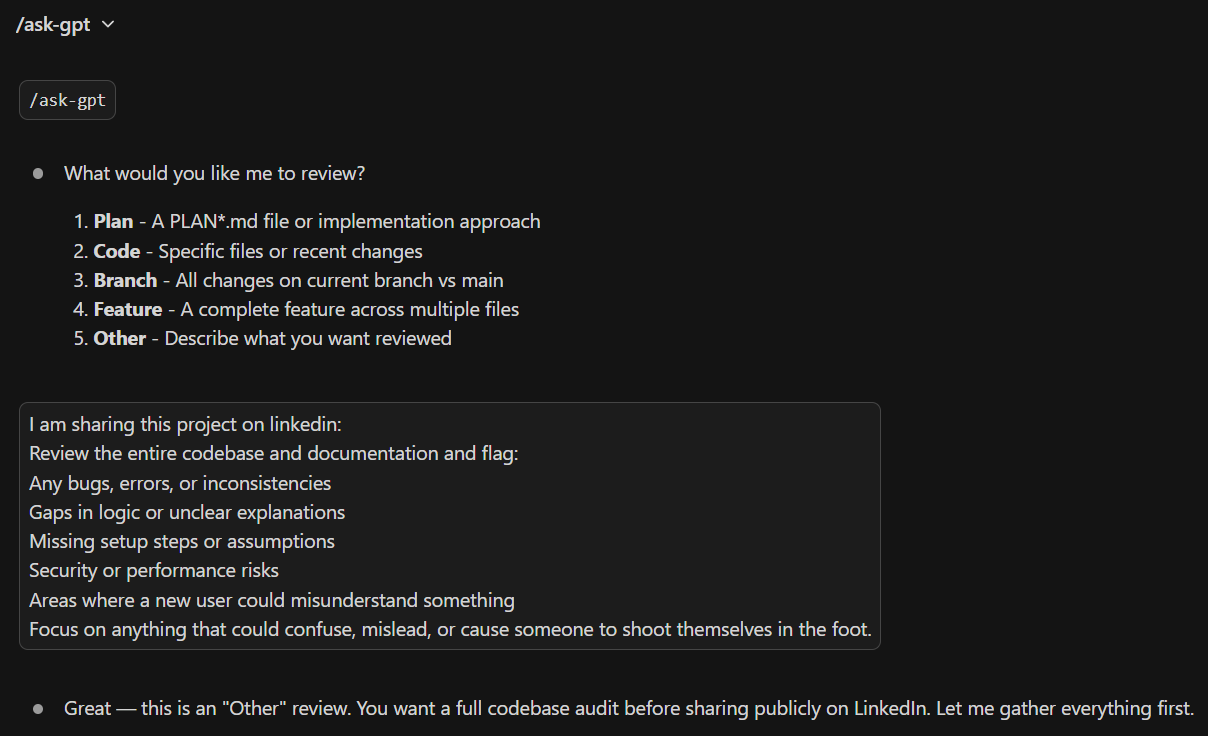
You: /ask-gpt

Claude: What would you like me to review?
        1. Plan    2. Code    3. Branch    4. Feature    5. Other

You: Review the auth middleware

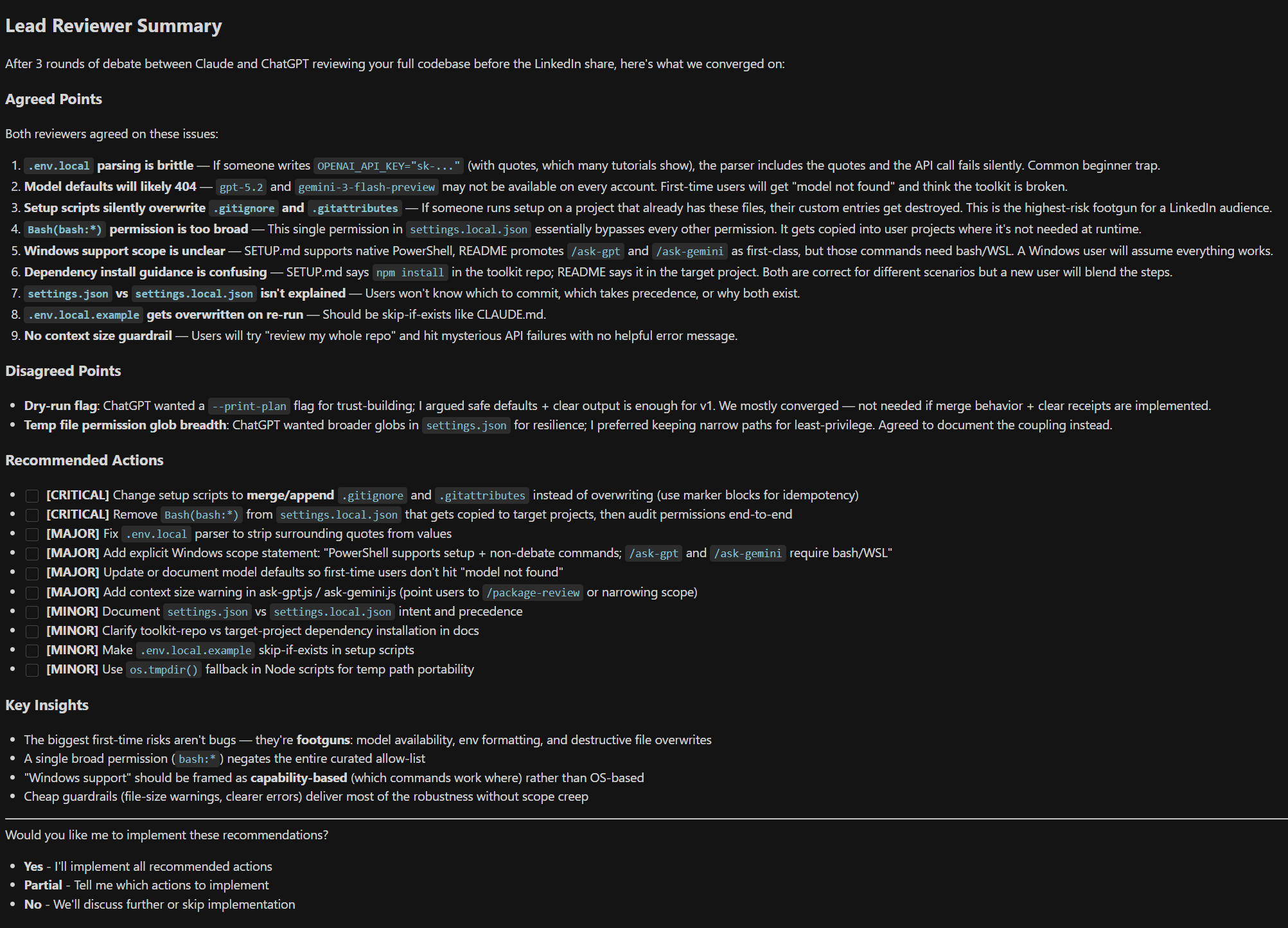
Claude: [Gathers context → sends to ChatGPT → they debate 3 rounds]

        --- Summary ---
        Agreed: Add token expiry check, extract magic numbers

        Recommended Actions:
        - [ ] Add token expiry validation
        - [ ] Move 3600 to TOKEN_EXPIRY_SECONDS

        Want me to implement these?

You: Yes
Want a different perspective? Run /ask-gemini next.
API costs: Each 3-round debate typically costs $0.01-$0.10 in API credits depending on context size. You'll need an OpenAI and/or Gemini API key with credits. See API-KEYS.md for a step-by-step setup guide.
What It Looks Like
Choosing what to review:
The structured debate output:
How It Works: File Architecture
When you set up the toolkit in a project, it creates several files. Here's how they fit together:
| File | Who owns it | What it does |
|---|---|---|
CLAUDE.md |
You | Your project-specific instructions (tech stack, preferences, team info). Never overwritten by setup. |
.claude/rules/toolkit.md |
Toolkit | Workflow rules, slash command docs, permissions. Always updated when you re-run setup. |
.claude/commands/*.md |
Toolkit (editable) | One file per slash command. You can customize these. |
LESSONS.md |
You | Track what you learn across sessions. Never overwritten. |
Setup also copies a few supporting files (.gitignore, .gitattributes, settings.local.json, .env.local.example). See Do It Manually for the full list.
Why is CLAUDE.md empty? On purpose. It's a blank slate for your project-specific info. The toolkit rules live in .claude/rules/toolkit.md instead, so toolkit updates can reach you without overwriting your project notes.
How does Claude find toolkit.md? Claude Code automatically reads every file in .claude/rules/ when it opens your project. No config needed - just having the file there is enough.
Multi-Session Worktree Support
If you run multiple Claude Code sessions at the same time (in Cursor windows or via Remote Control), use Git worktrees so sessions don't conflict with each other.
Starting a parallel session: Type /worktree in the Claude Code panel. It creates an isolated worktree, installs dependencies, and copies your API keys. Open the path it gives you in a new Cursor window.
What the toolkit does automatically:
/worktreecreates the worktree, installsnpmdependencies, and copies.env.local/exploreand/create-plandetect worktree sessions and rename the branch toworktree-<issue-number>-<short-label>when an issue is referenced/documentcreates a PR from the worktree branch and offers to clean up the worktree folder when you're done- The branch and PR stay alive even after the worktree folder is deleted - you can always re-create a worktree if fixes are needed
What /worktree does:
- Checks you're not already in a worktree (and warns about uncommitted changes)
- Creates a new worktree in
.claude/worktrees/worktree-N - Runs
npm installif apackage.jsonexists (so debate scripts work) - Copies
.env.localso API keys are available - Prints the path to open in a new Cursor window
Key concept: A worktree is just a folder. Deleting the folder does not delete the branch or PR. Think of it like closing a document window vs. deleting the file.
Customization
- CLAUDE.md - Your project-specific instructions. Describe your project, tech stack, and preferences here. See How It Works for details.
.claude/rules/toolkit.md- Toolkit workflow rules (auto-updated on setup). Don't edit this - your changes will be overwritten.- Commands - Each file in
.claude/commands/is independent. Want/review-codeto check different things? Editreview-code.md. There are 6 review commands:review-code,review-commands,review-plan,review-ux,review-browser,review-full. - LESSONS.md - Track what you learn across sessions. Yours to customize.
Troubleshooting
- Commands don't show up in Cursor - Make sure
.claude/commands/exists in your project root with.mdfiles inside. The editor workspace root must be the folder that contains.claude/. /ask-gptor/ask-geminifails - Check thatnpm installwas run and.env.localhas valid API keys.- "setup.sh: command not found" - Run the full command from the setup instructions, not just
setup.shon its own. - "target directory does not exist" - Create the project folder first:
mkdir -p /path/to/project - Script errors with
/bin/bash^Mor "bad interpreter" - This is a line-ending issue. Your shell scripts have Windows-style line endings (CRLF) instead of Unix-style (LF). Easiest fix: delete the folder and clone fresh. Advanced fix: rungit add --renormalize . && git checkout -- .in the repo. - Setup one-liner fails partway through - Safe to rerun the command. Leftover
/tmp/tmp.*folders are harmless and can be deleted. - Commands seem outdated or missing sections - Delete any toolkit command files from
~/.claude/commands/. Global copies override project commands and cause stale behavior. The setup script warns about this automatically.
License
MIT - see LICENSE
Yorumlar (0)
Yorum birakmak icin giris yap.
Yorum birakSonuc bulunamadi