minimax-code
Health Uyari
- License — License: MIT
- Description — Repository has a description
- Active repo — Last push 0 days ago
- Low visibility — Only 5 GitHub stars
Code Gecti
- Code scan — Scanned 12 files during light audit, no dangerous patterns found
Permissions Gecti
- Permissions — No dangerous permissions requested
Bu listing icin henuz AI raporu yok.
MiniMax Code WebUI — a browser workspace with a local agent runtime.

MiniMax Code WebUI
Turn a prompt into something that works. Build, review, and keep iterating in your browser—with MiniMax or your own model.
Get started · Documentation · Features · Contributing
English · 简体中文



Choose a project folder, describe a task, and follow the agent's work in one browser workspace. Keep the conversation, files, terminal, changes, and previews together as you iterate.
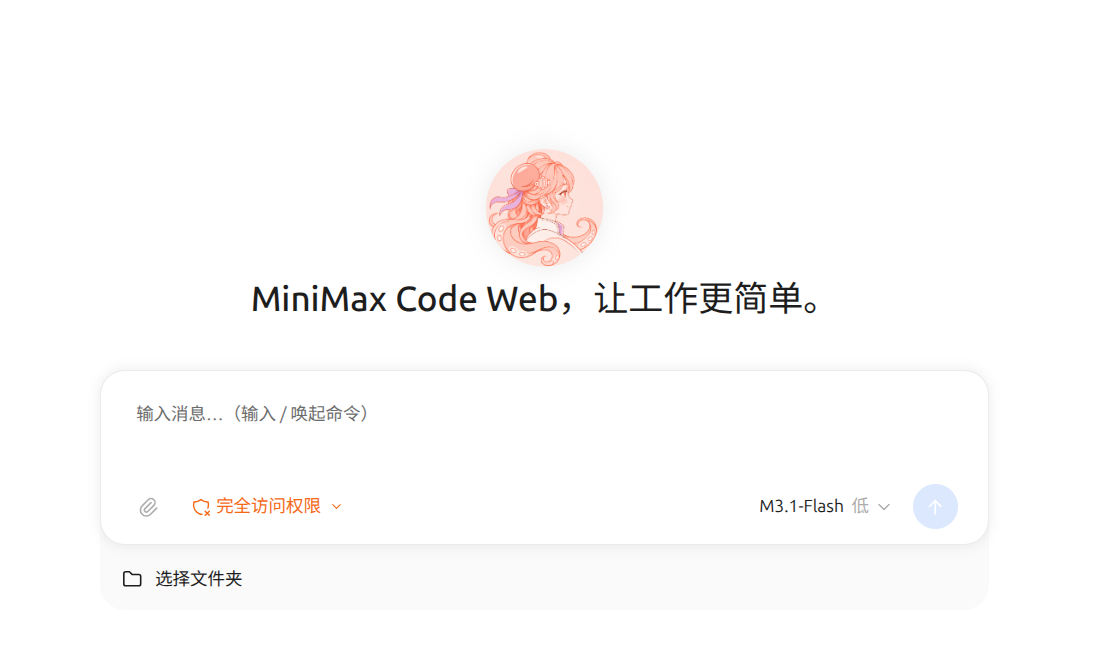
Run it locally → · Configuration and deployment →
A browser interface with a local runtime. The server runs on your computer or a machine you manage; the browser connects to that server. Model calls use your MiniMax account or configured provider and may incur charges. This repository is the WebUI fork of MiniMax Code, retaining its TUI, headless CLI, and ACP sources.
Quick start
1. Install the WebUI
Install a supported Node.js version: 22.19+ (22.x), 24.2+ (24.x), 25, or 26, then run:
npm install --global @minimax-webui/minimax-code
mcode-webui
With npm 12 or later, explicitly allow the native dependency install scripts:
npm install --global @minimax-webui/minimax-code --allow-scripts=better-sqlite3,bufferutil,node-pty,utf-8-validate
The service listens on http://127.0.0.1:2233/ and opens your default browser when launched in an interactive terminal. If it does not open, use the address printed in the terminal. Keep the process running while you work; press Ctrl+C to stop it.
Check the installed command without starting the runtime:
mcode-webui --version
mcode-webui --help
The WebUI has its own npm package and launcher. The upstream CLI installer installs mcode; use the command above to install mcode-webui.
2. Sign in or bring your own model
Open the account menu in the lower-left corner to sign in to MiniMax. An existing CLI login can be reused when both clients use the same data directory. Account models and managed services require the corresponding account access and available quota.
For your own model, open Settings → Usage & models → Custom models, add a provider, enter its endpoint and API key, and choose a model. Supported API formats include openai-completions, openai-responses, and anthropic-messages. The model settings also offer the official MiniMax API source.
Model selection lives in the composer. Available models can expose thinking controls and context-window choices:
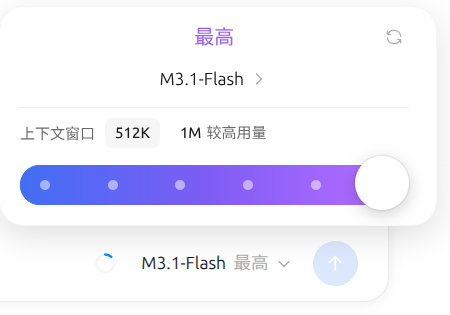
The default data directory is ~/.minimax, shared with the CLI. It contains account state, model configuration, and session history. Set MINIMAX_DATA_DIR before starting the server to use a separate directory.
3. Work in your own project
Click Select folder, choose a project on the machine running the server, and describe your task. For example:
Find a failing test, explain the cause, fix the implementation, and run the relevant tests.
Follow responses and tool activity, review file changes, and use the workspace panels for files, diffs, terminals, and previews. Choose the permission mode in the composer to control how the agent requests approval.
When connecting from another computer, the project folder and terminal belong to the server's machine.
Continue your work
Use the sidebar to reopen projects and conversations, import session bundles, queue follow-up messages, and inspect task progress. Use Scheduled tasks to create recurring or one-time work; keep the WebUI runtime running for scheduled execution.
Connect from another device
The server binds to loopback by default. To make it reachable on your LAN:
macOS / Linux / WSL
WEBUI_HOST=0.0.0.0 WEBUI_OPEN_BROWSER=0 mcode-webui
Windows (PowerShell)
$env:WEBUI_HOST = "0.0.0.0"
$env:WEBUI_OPEN_BROWSER = "0"
mcode-webui
Open the printed LAN URL, including its per-start token. When using Mini Apps remotely, the shared Mini App port must also be reachable. See startup examples and access options.
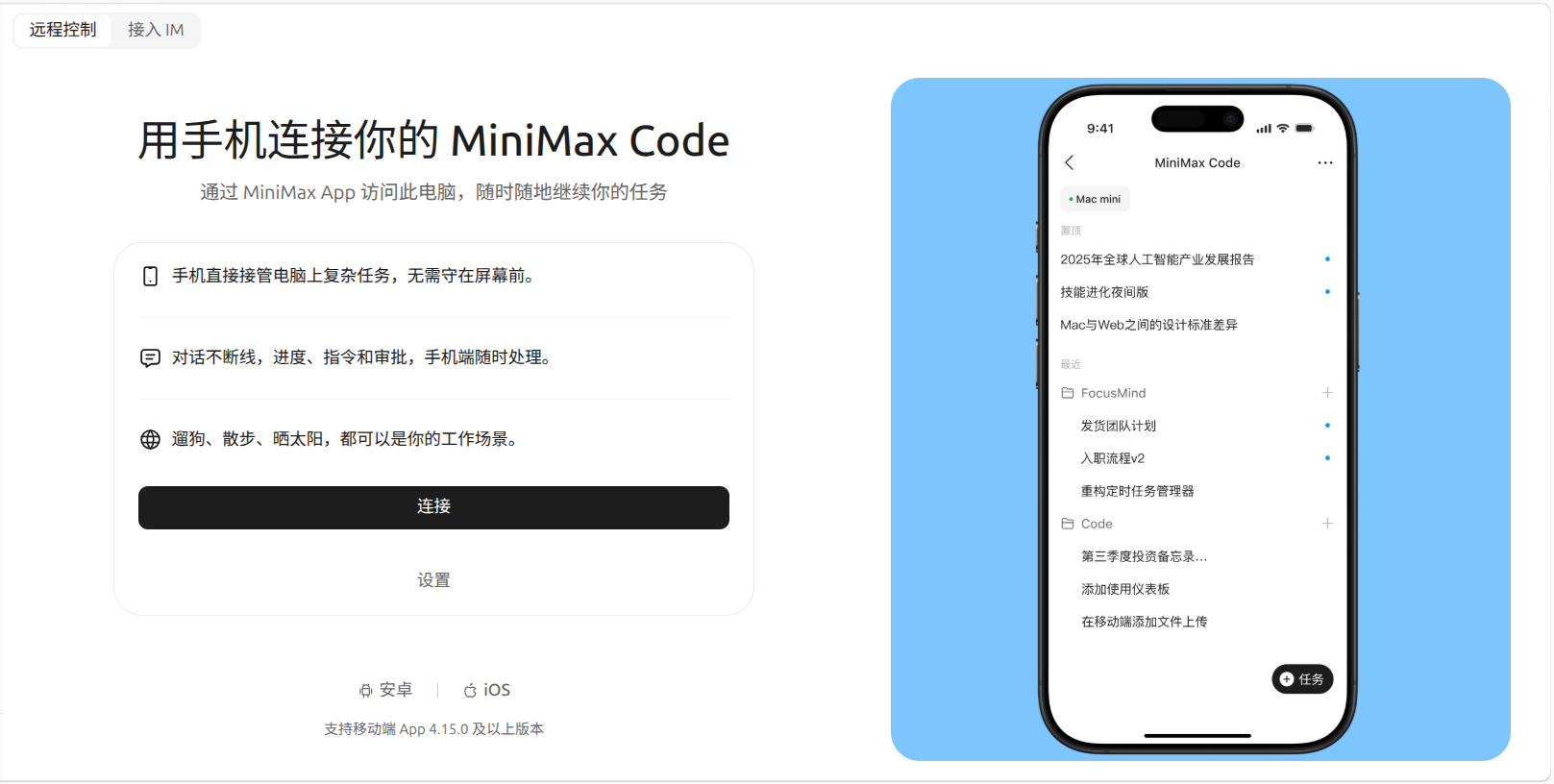
The Remote page also offers MiniMax App pairing and IM connections, subject to account and service availability:
Uninstall
Stop the running WebUI with Ctrl+C, then use the same npm installation used to install it:
npm uninstall --global @minimax-webui/minimax-code
Uninstalling leaves the runtime data directory in place. Back up account configuration and sessions before removing data. Check MINIMAX_DATA_DIR and whether another CLI or WebUI installation shares the directory before deleting anything.
What you can do
| Task | Capabilities |
|---|---|
| Edit and verify code | Ask the agent to inspect projects, edit files, run commands and tests, and present changes for review. |
| Review work in context | Keep files, diffs, terminal sessions, rendered documents, and previews beside the conversation. |
| Choose your model | Use MiniMax account models, the official MiniMax API, custom compatible providers, and supported OAuth providers. Adjust the controls each model exposes. |
| Extend the workspace | Install and manage plugins, Skills, MCP servers, and browser-capable Mini Apps. |
| Use the browser | Configure Browser Use with isolated Chromium or a paired Chrome/Edge extension; availability depends on the selected provider and setup. |
| Keep work moving | Reopen conversations, use subagents, queue follow-ups, and create scheduled tasks. |
| Connect remotely | Access a server-hosted WebUI in your browser, or use the Remote page for supported mobile and IM integrations. |
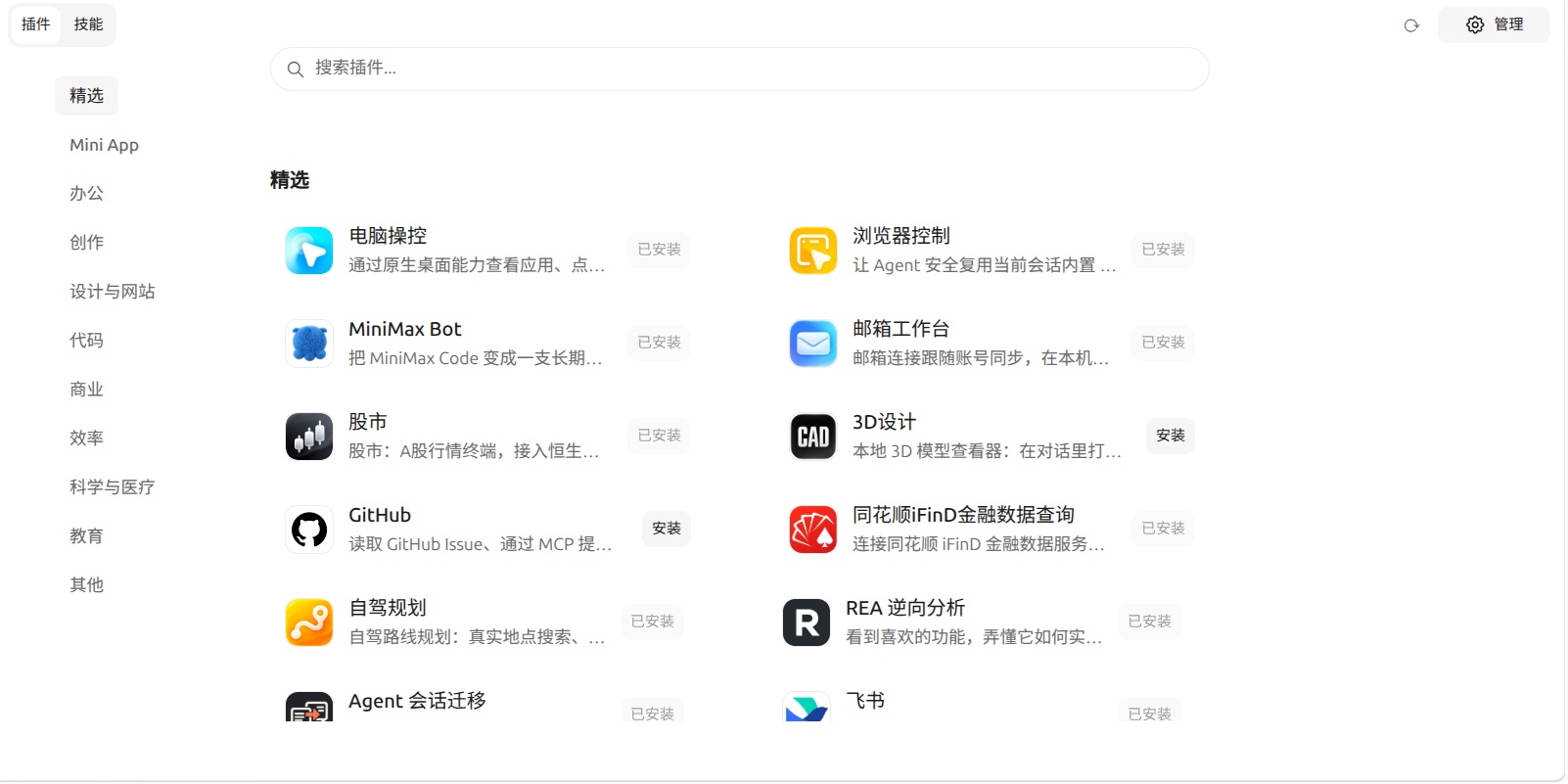
Plugins and Mini Apps can depend on platform capabilities, additional setup, or external accounts. Managed search, media, and connector tools require the relevant beta setting, authorization, and service access. See known gaps and service boundaries for current limits.
Build from source
You need Git, a supported Node.js version, and pnpm 9.12.0. On Windows, keep the checkout on a local NTFS volume outside cloud-synced folders.
git clone https://github.com/mcode-webui/minimax-code.git
cd minimax-code
git switch webui
node scripts/check-windows-source-location.mjs
pnpm install --frozen-lockfile
pnpm build:webui
pnpm --filter @mavis/webui dev:server
Open the address printed by the server. It serves the built client on port 2233. The first build requires network access to download dependencies and build resources.
For client hot reload, keep the runtime service running and start Vite in a second terminal:
pnpm dev:webui
Open http://localhost:5173/. See the WebUI development guide for port overrides and local npm package builds.
Configuration
| Variable | Default | Purpose |
|---|---|---|
WEBUI_HOST |
127.0.0.1 |
Server bind address. |
WEBUI_SERVER_PORT |
2233 |
WebUI HTTP and WebSocket port. |
WEBUI_MINIAPP_PORT |
49152 |
Shared Mini App HTTP and WebSocket port. |
MINIMAX_DATA_DIR |
~/.minimax |
Account, configuration, and session data. |
WEBUI_OPEN_BROWSER |
Open when stdout is a terminal | Set 0 to prevent automatic browser opening. |
The packaged launcher also supports --full-access, which disables WebUI token authentication for HTTP, WebSocket, and Mini App services. Anyone who can reach those services can use their WebUI operations. It does not change Agent tool permissions or the bind address. Omit it to retain the default token policy; see access options.
Documentation and contributing
- Install, configure, and run the WebUI
- WebUI architecture and technical documentation
- Contributor guide · WebUI development rules
- Upstream CLI and shared runtime documentation
English is the primary documentation language. The Chinese README mirrors this page. See the contributor guide for contribution and review requirements.
Feedback and contact
| Channel | Use it for |
|---|---|
| WebUI GitHub Issues | WebUI bug reports, feature requests, and questions. |
| Upstream MiniMax Code | Upstream CLI, desktop product information, and the original project. |
| Security policy | Vulnerability reporting guidance. Keep exploit details and credentials out of public issues. |
For a WebUI bug, include mcode-webui --version, your operating system and Node.js version, the installation method, and a minimal reproduction. Remove credentials, account details, and private project content from reports.
License
First-party code defaults to MIT. Existing file-level and package-level licenses remain in place. See third-party notices and license status for dependencies, assets, and mcode-tools.
Yorumlar (0)
Yorum birakmak icin giris yap.
Yorum birakSonuc bulunamadi