mcp-servers-for-revit
Health Pass
- License — License: MIT
- Description — Repository has a description
- Active repo — Last push 0 days ago
- Community trust — 84 GitHub stars
Code Fail
- rimraf — Recursive directory removal in server/package-lock.json
- rimraf — Recursive directory removal in server/package.json
- exec() — Shell command execution in server/src/database/db.ts
Permissions Pass
- Permissions — No dangerous permissions requested
This tool connects AI assistants to Autodesk Revit via the Model Context Protocol, enabling AI clients to read, create, modify, and delete elements directly inside Revit projects.
Security Assessment
Overall Risk: Medium. The architecture requires a local Node.js server that communicates with a C# Revit add-in via WebSockets. The automated scan flagged shell command execution (`exec()`) in the database module (`server/src/database/db.ts`), which could potentially be exploited if arbitrary user input is passed to the system shell. No hardcoded secrets or dangerous permissions were found. However, giving an AI the ability to modify and delete elements in architectural files naturally introduces high stakes regarding data integrity.
Quality Assessment
Overall Quality: Good. The project is actively maintained, with repository updates pushed as recently as today. It carries a permissive MIT license and demonstrates strong community trust with 84 GitHub stars. The codebase is straightforward, utilizing TypeScript for the MCP server and C# for the Revit plugin, and provides clear, step-by-step installation instructions for easy deployment.
Verdict
Use with caution — while the integration is well-built and actively maintained, users should review the flagged shell execution logic and ensure strict oversight when allowing AI models to modify critical Revit project files.
🔥💧🤖 Sparx fork of the mcp-servers-for-revit/revit-mcp project
mcp-servers-for-revit
Connect AI assistants to Autodesk Revit via the Model Context Protocol.
mcp-servers-for-revit enables AI clients like Claude, Cline, and other MCP-compatible tools to read, create, modify, and delete elements in Revit projects. It consists of three components: a TypeScript MCP server that exposes tools to AI, a C# Revit add-in that bridges commands into Revit, and a command set that implements the actual Revit API operations.
[!NOTE]
This is a fork of the original revit-mcp project with additional tools and functionality improvements.
Architecture
flowchart LR
    Client["MCP Client<br/>(Claude, Cline, etc.)"]
    Server["MCP Server<br/><code>server/</code>"]
    Plugin["Revit Plugin<br/><code>plugin/</code>"]
    CommandSet["Command Set<br/><code>commandset/</code>"]
    Revit["Revit API"]

    Client <-->|stdio| Server
    Server <-->|WebSocket| Plugin
    Plugin -->|loads| CommandSet
    CommandSet -->|executes| Revit
The MCP Server (TypeScript) translates tool calls from AI clients into WebSocket messages. The Revit Plugin (C#) runs inside Revit, listens for those messages, and dispatches them to the Command Set (C#), which executes the actual Revit API operations and returns results back up the chain.
Requirements
- Node.js 18+ (for the MCP server)
- Autodesk Revit 2020 - 2026 (any supported version)
Quick Start (Using a Release)
Download the ZIP for your Revit version from the Releases page (e.g.,
mcp-servers-for-revit-v1.0.0-Revit2025.zip)Extract the ZIP and copy the contents to your Revit addins folder:
%AppData%\Autodesk\Revit\Addins\<your Revit version>\After copying you should have:
Addins/2025/
├── mcp-servers-for-revit.addin
└── revit_mcp_plugin/
    ├── revit-mcp-plugin.dll
    ├── ...
    └── Commands/
        └── RevitMCPCommandSet/
            ├── command.json
            └── 2025/
                ├── RevitMCPCommandSet.dll
                └── ...
Configure the MCP server in your AI client (see below)
Start Revit - the plugin loads automatically
MCP Server Setup
The MCP server is published as an npm package and can be run directly with npx.
Claude Code
claude mcp add mcp-server-for-revit -- cmd /c npx -y mcp-server-for-revit
Claude Desktop
Claude Desktop → Settings → Developer → Edit Config → claude_desktop_config.json:
{
    "mcpServers": {
        "mcp-server-for-revit": {
            "command": "cmd",
            "args": ["/c", "npx", "-y", "mcp-server-for-revit"]
        }
    }
}
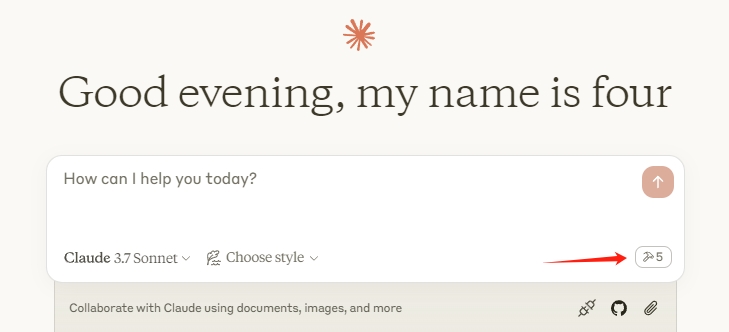
Restart Claude Desktop. When you see the hammer icon, the MCP server is connected.
Revit Plugin Setup
If using a release ZIP, the plugin is already included. For manual installation:
- Build the plugin from
plugin/(see Development) - Copy
mcp-servers-for-revit.addinto%AppData%\Autodesk\Revit\Addins\<version>\ - Copy the
revit_mcp_plugin/folder to the same addins directory
Command Set Setup
If using a release ZIP, the command set is pre-installed inside the plugin. For manual installation:
- Build the command set from
commandset/(see Development) - Inside the plugin's installation directory, create
Commands/RevitMCPCommandSet/<year>/ - Copy the built DLLs into that folder
- Copy
command.json(from repo root) intoCommands/RevitMCPCommandSet/
Supported Tools
| Tool | Description |
|---|---|
get_current_view_info |
Get current active view info |
get_current_view_elements |
Get elements from the current active view |
get_available_family_types |
Get available family types in current project |
get_selected_elements |
Get currently selected elements |
get_material_quantities |
Calculate material quantities and takeoffs |
ai_element_filter |
Intelligent element querying tool for AI assistants |
analyze_model_statistics |
Analyze model complexity with element counts |
create_point_based_element |
Create point-based elements (door, window, furniture) |
create_line_based_element |
Create line-based elements (wall, beam, pipe) |
create_surface_based_element |
Create surface-based elements (floor, ceiling, roof) |
create_grid |
Create a grid system with smart spacing generation |
create_level |
Create levels at specified elevations |
create_room |
Create and place rooms at specified locations |
create_dimensions |
Create dimension annotations in the current view |
create_structural_framing_system |
Create a structural beam framing system |
delete_element |
Delete elements by ID |
operate_element |
Operate on elements (select, setColor, hide, etc.) |
color_elements |
Color elements based on a parameter value |
tag_all_walls |
Tag all walls in the current view |
tag_all_rooms |
Tag all rooms in the current view |
export_room_data |
Export all room data from the project |
store_project_data |
Store project metadata in local database |
store_room_data |
Store room metadata in local database |
query_stored_data |
Query stored project and room data |
send_code_to_revit |
Send C# code to Revit to execute |
say_hello |
Display a greeting dialog in Revit (connection test) |
Testing
The test project uses Nice3point.TUnit.Revit to run integration tests against a live Revit instance. No separate addin installation is required — the framework injects into the running Revit process automatically.
Prerequisites
- .NET 10 SDK — required by Nice3point.Revit.Sdk 6.1.0. Install via
winget install Microsoft.DotNet.SDK.10 - Autodesk Revit 2026 (or 2025) — must be installed and licensed on your machine
Running Tests
- Open Revit 2026 (or 2025) and wait for it to fully load
- Run the tests from the command line:
# For Revit 2026
dotnet test -c Debug.R26 -r win-x64 tests/commandset

# For Revit 2025
dotnet test -c Debug.R25 -r win-x64 tests/commandset
Note: The
-r win-x64flag is required on ARM64 machines because the Revit API assemblies are x64-only.
Alternatively, you can use dotnet run:
cd tests/commandset
dotnet run -c Debug.R26
IDE Support
- JetBrains Rider — enable "Testing Platform support" in Settings > Build, Execution, Deployment > Unit Testing > Testing Platform
- Visual Studio — tests should be discoverable through the standard Test Explorer
Test Structure
| Directory | Purpose |
|---|---|
tests/commandset/AssemblyInfo.cs |
Global [assembly: TestExecutor<RevitThreadExecutor>] registration |
tests/commandset/Architecture/ |
Tests for level and room creation commands |
tests/commandset/DataExtraction/ |
Tests for model statistics, room data export, and material quantities |
tests/commandset/ColorSplashTests.cs |
Tests for color override functionality |
tests/commandset/TagRoomsTests.cs |
Tests for room tagging functionality |
Writing New Tests
Test classes inherit from RevitApiTest and use TUnit's async assertion API:
public class MyTests : RevitApiTest
{
    private static Document _doc;

    [Before(HookType.Class)]
    [HookExecutor<RevitThreadExecutor>]
    public static void Setup()
    {
        _doc = Application.NewProjectDocument(UnitSystem.Imperial);
    }

    [After(HookType.Class)]
    [HookExecutor<RevitThreadExecutor>]
    public static void Cleanup()
    {
        _doc?.Close(false);
    }

    [Test]
    public async Task MyTest_Condition_ExpectedResult()
    {
        var elements = new FilteredElementCollector(_doc)
            .WhereElementIsNotElementType()
            .ToElements();

        await Assert.That(elements.Count).IsGreaterThan(0);
    }
}
Development
MCP Server
cd server
npm install
npm run build
The server compiles TypeScript to server/build/. During development you can run it directly with npx tsx server/src/index.ts.
Revit Plugin + Command Set
Open mcp-servers-for-revit.sln in Visual Studio. The solution contains both the plugin and command set projects. Build configurations target Revit 2020-2026:
- Revit 2020-2024: .NET Framework 4.8 (
Release R20throughRelease R24) - Revit 2025-2026: .NET 8 (
Release R25,Release R26)
Building the solution automatically assembles the complete deployable layout in plugin/bin/AddIn <year> <config>/ - the command set is copied into the plugin's Commands/ folder as part of the build.
Project Structure
mcp-servers-for-revit/
├── mcp-servers-for-revit.sln    # Combined solution (plugin + commandset + tests)
├── command.json     # Command set manifest
├── server/          # MCP server (TypeScript) - tools exposed to AI clients
├── plugin/          # Revit add-in (C#) - WebSocket bridge inside Revit
├── commandset/      # Command implementations (C#) - Revit API operations
├── tests/           # Integration tests (C#) - TUnit tests against live Revit
├── assets/          # Images for documentation
├── .github/         # CI/CD workflows, contributing guide, code of conduct
├── LICENSE
└── README.md
Releasing
A single v* tag drives the entire release. The release workflow automatically:
- Builds the Revit plugin + command set for Revit 2020-2026
- Creates a GitHub release with
mcp-servers-for-revit-vX.Y.Z-Revit<year>.zipassets - Publishes the MCP server to npm as
mcp-server-for-revit
To create a release:
Run the bump script (updates
server/package.json,server/package-lock.json, andplugin/Properties/AssemblyInfo.cs, then commits and tags):./scripts/release.ps1 -Version X.Y.ZPush to trigger the workflow:
git push origin main --tags
[!NOTE]
npm publish uses trusted publishing via OIDC — no npm token is required. Provenance attestation is generated automatically.
Acknowledgements
This project is a fork of the work by the mcp-servers-for-revit team. The original repositories:
- revit-mcp - MCP server
- revit-mcp-plugin - Revit plugin
- revit-mcp-commandset - Command set
Thank you to the original authors for creating the foundation that this project builds upon.
License
Reviews (0)
Sign in to leave a review.
Leave a reviewNo results found