magicdesk
Health Gecti
- License — License: MIT
- Description — Repository has a description
- Active repo — Last push 0 days ago
- Community trust — 33 GitHub stars
Code Gecti
- Code scan — Scanned 10 files during light audit, no dangerous patterns found
Permissions Gecti
- Permissions — No dangerous permissions requested
Bu listing icin henuz AI raporu yok.
Open-source workstation environment for Android 15+, with native windows, desktop tools, external displays, shell-powered integrations, and extensible platform drivers.
MagicDesk
MagicDesk is an open-source workstation environment for Android 15 and newer.
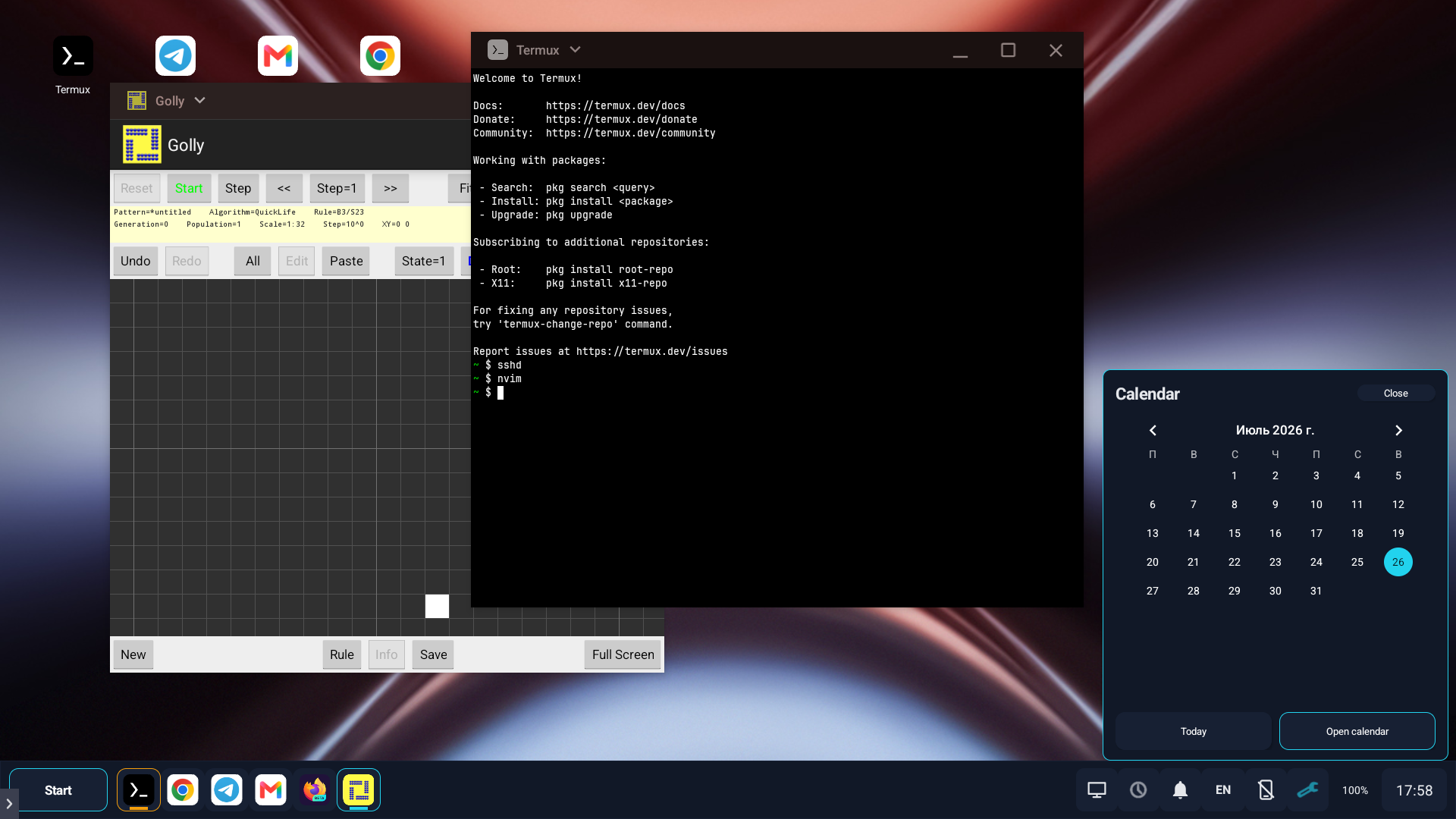
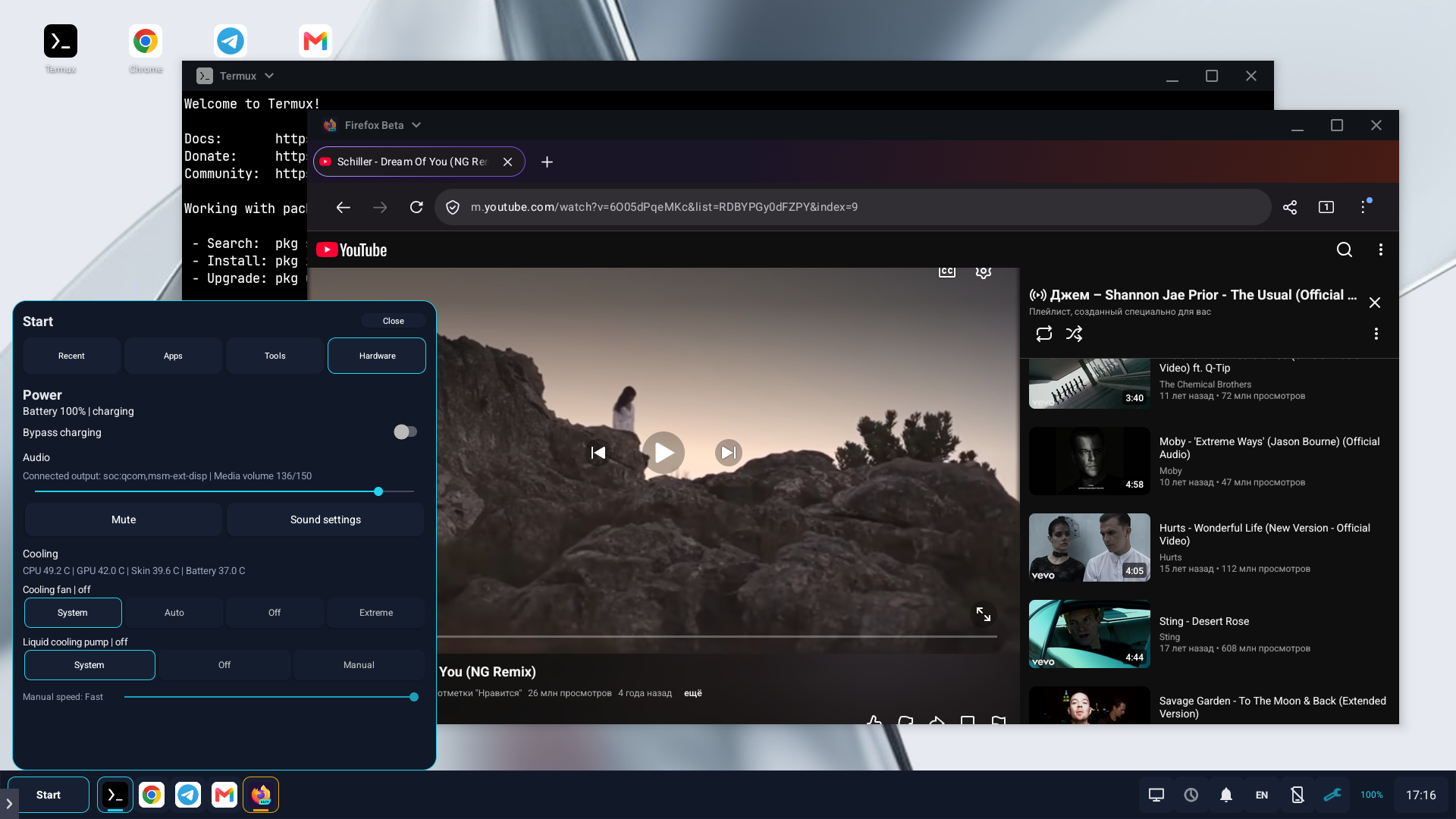
It turns a phone, tablet, or Android secondary display into a practical desktop
with native application windows, a taskbar and Start menu, desktop files and
widgets, Files, Console, Task Manager, display capture, and physical keyboard
and mouse controls.
Applications remain ordinary Android tasks managed by the system. MagicDesk
organizes them into one workspace and connects them to Android displays,
files, input, and an authorized shell identity. It does not stream
applications, embed them in replacement views, or run a guest operating
system.
The MagicDesk desktop uses one APK and one codebase across supported vendors.
Standard Android behavior forms the baseline; platform, display, and SoC
drivers add capabilities only when runtime probes verify them. Optional root
hardware helpers remain separate and are never desktop requirements.
Latest release |
Development APK |
Optional Display Fixes APK |
Compatibility |
Getting started
Why MagicDesk
Native Android Desktop
MagicDesk works with real Android tasks and WMShell windows. Applications can
overlap, resize, snap, maximize, enter true fullscreen, move between displays,
and continue running in the background according to their normal Android
lifecycle.
One Workspace Across Displays
The same desktop implementation runs on the phone, on a simulated development
display, or on a connected wired or wireless secondary display. Desktop
items, pins, shortcuts, widgets, recent applications, and live task layout can
follow the session while output mode, Fill display, and DPI remain specific to
each monitor.
Built-In Workstation Tools
Files, Console, Task Manager, Settings, notifications, media controls, and
capture workflows are integrated with the desktop instead of being unrelated
utility applications. Files and Console use the authorized Android shell
identity, making the workspace useful without requiring a separate file
manager or terminal package. When Termux is installed, the same Console UI can
also host independent Termux PTYs and run its installed command-line tools.
Semantic Automation
An optional local MCP server exposes typed desktop actions, state, events,
operation traces, visual observations, and interactive terminals. Android 16+
App Functions provide a smaller action set to authorized system agents.
Automation operates on MagicDesk concepts such as tasks, displays, windows,
and desktop items rather than depending only on synthetic screen coordinates.
Capabilities
Desktop Sessions And Windows
- Run the complete workspace on the phone, a simulated display, HDMI/USB-C
output, or an already connected Miracast display. - Launch applications in remembered Auto, Windowed, or Fullscreen modes.
- Snap, restore, minimize, close, focus, and move exact Android tasks.
- Switch tasks with
Alt+Tab, use Show Desktop, and reach overflow tasks when
the taskbar is full. - Preserve still-running tasks, window modes, bounds, visibility, and stacking
when a desktop closes or an external display disconnects. - Use Start search, application quick actions, widgets, Android app
information, taskbar pins, and desktop shortcuts.
Workspace Tools
- Use
/storage/emulated/0/Desktopas a real desktop folder with freely
positioned files, folders, shortcuts, and Android widgets. - Browse and modify the filesystem visible to the authorized shell identity in
multiple Files windows, with list/grid views, search, selection, properties,
drag and drop, and shared desktop context menus. - Run independent interactive
/system/bin/shsessions in Console through a
real PTY with ANSI color, alternate-screen applications, mouse reporting,
selection, clipboard, and live resizing. - Open independent Termux-backed Console windows through the same terminal UI,
window lifecycle, Desktop Entry pipeline, and semantic MCP controls. - Inspect and control running tasks in Task Manager, including CPU and memory
indicators, exact-task focus and close, explicit force-stop, and a bounded
per-application log viewer. - Create bounded freedesktop-compatible
.desktopentries for folders, web
links, Android applications and shortcuts, Android shell commands, Termux
commands, and Termux:X11 launch presets. Terminal applications created from
Desktop, Files, or Console also appear in Start and can accept dropped or
opened files through standard Desktop Entry arguments.
See Workstation tools and
Desktop Entry files for the complete behavior.
Input, Media, And Platform Integration
- Use physical keyboards, mice, touchpads, right click, key repeat, keyboard
layouts, and an optional phone touchpad and text-input panel. - Capture the selected display and record video with automatic internal-audio,
microphone, or no-audio selection according to detected capabilities. - Control media volume and connected audio output from the taskbar.
- Select per-monitor DPI and, where supported, output resolution, refresh rate,
and Fill display. - Use optional platform features such as managed projection, phone-screen
control, absolute pointer positioning, charging separation, cooling, and
temperature readings without making them requirements for other devices.
Automation And Validation
- Control sessions, tasks, windows, Files, Task Manager, settings, diagnostics,
and interactive terminals through the local MCP server. - Observe bounded state, events, operation traces, screenshots, and pixel
samples for development and troubleshooting. - Run a production-path self-test on phone, simulated, wired, or wireless
targets to check window transitions, focus, captions, background visibility,
task-stack invariants, and cleanup. - Generate a privacy-bounded compatibility report containing firmware,
displays, input devices, component-provider evidence, capability probes,
runtime counters, structured MagicDesk errors, and a machine-readable
summary suitable for onboarding unverified firmware.
See Automation, Architecture, and
the validation matrix.
Requirements And Compatibility
MagicDesk requires:
- Android 15 / API 35 or newer;
- firmware with working Android freeform windows;
- the official Shizuku application with an authorized server running;
- one Device Setup pass and reboot before the first desktop session.
The Standard Android driver supports the phone desktop, the simulated desktop,
and secondary displays that Android already exposes. External video output,
Miracast, application-task hosting, and physical input routing remain firmware
capabilities.
Nubia/REDMAGIC firmware has a separate platform extension for verified
projection, display-output, input, phone-screen, and hardware interfaces.
Other vendors continue through the standard driver; an unsupported optional
feature is disabled rather than blocking the desktop.
Passing the baseline check does not guarantee that every firmware implements
Android windowing correctly. See Compatibility and issue reports
for tested profiles, support levels, known limitations, and report contents.
Quick Start
- Install Shizuku from its
official releases, start its
server through wireless debugging, ADB, or a deliberately configured root
method, and confirm that it is running. - Install MagicDesk from the
latest release or
the rolling development APK. - Open MagicDesk and grant its Shizuku request.
- Select Prepare device, review the capability results, and reboot when
requested. - Restart Shizuku if required by its startup method, then open MagicDesk.
- Select Open desktop here for the phone or Start external desktop for
a connected secondary display.
Use Close desktop to retain still-running tasks for a later session. Use
Exit MagicDesk to discard the workspace, close MagicDesk windows, restore
owned runtime state, and stop its services.
DisplayFixes-development.apk is an optional standalone root helper for the
small set of firmware that hides native external-display timings from shell
UID 2000. It is not required by MagicDesk and should be installed only for
that specific problem. See Native Display Mode Helper.
The full installation, session, update, and removal workflow is in
Getting started.
Keyboard Shortcuts
| Shortcut | Action |
|---|---|
Win+D |
Start/reveal the desktop or restore the previous window layout |
Win+Up |
Move the active task to true fullscreen |
Win+Down |
Restore a fullscreen/maximized task; press again to minimize |
Win+Left / Win+Right |
Snap the active task to either half |
Alt+Tab / Alt+Shift+Tab |
Switch through exact Android tasks |
Alt+F4 |
Close the active task |
Win+Backspace |
Send Android Back to the active display |
Win+L |
Lock the phone |
Win+N |
Toggle notifications |
Win+Q |
Toggle the System panel |
Win+I |
Open MagicDesk Settings |
Win+Print Screen |
Capture the active display |
Win+Shift+Print Screen |
Start or stop desktop recording |
Ctrl+Space |
Select the next configured keyboard layout |
Win+/ |
Show all MagicDesk shortcuts |
Security And Trust
Privileged operations run through one user-authorized Android shell service,
normally UID 2000 (adb shell) or UID 0 when the user deliberately starts
Shizuku with root. The effective identity and individual capabilities are
reported by Diagnostics. MagicDesk does not independently acquire elevated
privileges or silently fall back to application-UID behavior.
- The main APK contains no privilege-escalation path or kernel module.
- Files and Console show and use the connected shell identity. Applications
opened from Files receive a temporary URI, not that identity. - The MCP server is disabled by default, binds only to
127.0.0.1, requires a
private bearer token, and has separate developer and shell-access gates. - Platform-specific commands remain behind capability and platform-driver
boundaries. - Restore defaults removes MagicDesk-owned persistent windowing overrides.
Read Shell access and privilege modes,
Automation, and third-party notices
before enabling privileged or automated workflows.
Firmware that hides the monitor's complete timing list from shell UID 2000 can
be tested with the independent, direct-root
Native Display Mode Helper. It is not
part of the main APK or required for normal MagicDesk operation.
Diagnostics
Open Tools > Diagnostics after reproducing a problem. Attach the complete
report, exact reproduction steps, and whether the problem survives a reboot to
a GitHub issue. Reports omit user files, accounts, notification contents, and
the installed-application list.
The self-test is a contributor and compatibility tool, not a substitute for
normal use on real firmware. Run it only while the phone is awake and unlocked
and no other MagicDesk desktop session is active. See
Compatibility and the
validation matrix.
Development
The project builds with JDK 17 or newer, Android SDK platform/build-tools 37,
and Android NDK 27.3.13750724.
./gradlew verifyDevelopment
Every non-documentation push to main publishes a release-signed development
APK at the stable link near the top of this page. A v* tag runs the signed
release workflow and publishes the APK and SHA-256 checksum.
See Contributing for IDE setup, repository rules, build
variants, verification commands, and pull-request expectations.
Documentation
- Getting started
- Workstation tools
- Architecture
- Automation and MCP
- Desktop Entry files
- Shell access and privilege modes
- Native Display Mode Helper
- Compatibility and issue reports
- Fullscreen transitions
- Validation matrix
- Nubia vendor interface audit
- Contributing and IDE setup
Project
- Author: Dmitry Mekhontsev
- Package:
io.github.mekhontsev.magicdesk - Minimum SDK: 35
- Target SDK: 37
- License: MIT
- Third-party components: notices and licenses
Samsung DeX is a trademark of Samsung Electronics. Its name describes a
related Android desktop-product category only; MagicDesk is an independent
project.
Yorumlar (0)
Yorum birakmak icin giris yap.
Yorum birakSonuc bulunamadi