codex-mcp-bridge-for-chatgpt
Health Uyari
- License — License: MIT
- Description — Repository has a description
- Active repo — Last push 0 days ago
- Low visibility — Only 6 GitHub stars
Code Basarisiz
- spawnSync — Synchronous process spawning in .codex/hooks/experiment-retirement.mjs
- spawnSync — Synchronous process spawning in .codex/hooks/git-lifecycle.mjs
- process.env — Environment variable access in .codex/hooks/remote-branch-cleanup.mjs
- rm -rf — Recursive force deletion command in .github/workflows/ci.yml
- fs module — File system access in .github/workflows/ci.yml
Permissions Gecti
- Permissions — No dangerous permissions requested
Bu listing icin henuz AI raporu yok.
A policy-enforcing Streamable HTTP MCP bridge from ChatGPT to local Codex.
Codex MCP Bridge for ChatGPT
Use ChatGPT to work with Codex on your own computer. Register your projects, reuse your working procedures, continue existing work, and check progress from ChatGPT or the native macOS menu-bar app.
Download releases · Setup guide · Skill library · Security model
This README describes the current development branch, with English screenshots refreshed on October 23, 2026. A downloaded release can have different features and screens; use the README at that release's Git tag, such as v0.4.1. A development build can retain the same product version while its features change. Screenshots use sample data.
What you can do
- Work on local projects from ChatGPT. Ask Codex to inspect a registered folder, make an approved change, or continue an existing Agent. Activities group work around a goal; Agents keep execution context; Jobs record individual runs.
- Reuse your procedures. Keep review checklists, release instructions, and reference Markdown in the Bridge skill library. Import a folder or ZIP, edit the source, and restore earlier versions.
- Choose your installation and account. Use an existing Codex installation or a Bridge-managed CLI, and choose an existing login, a separate ChatGPT login, or a Bridge API-key connection.
- Control model and execution settings. Choose fixed or automatic model selection, edit model descriptions with version history, select processing speed, and set access and concurrency limits.
- Keep track of work. View work in progress, individual run history, and problem history, with available account usage above the lists. Save new conversations across restarts and choose app visibility separately.
- Manage another Mac. Pair a client Mac with a server on your private LAN or VPN and switch between saved servers.
ChatGPT → OpenAI Secure MCP Tunnel → Bridge on your server computer → Codex in a registered project folder.
Choose a setup
| Your situation | Setup | What runs on this computer |
|---|---|---|
| This Mac will run Codex | macOS app: Run Server on This Mac | App, helper, Bridge, Tunnel, and Codex |
| This Mac will manage another Mac | macOS app: Connect to Existing Server | Client app only |
| Windows, Linux, or Mac managed from a terminal | Node.js server | Bridge, Tunnel, and Codex |
The native app requires macOS 13 or later. Server setups also need Node.js 22 or later, tunnel-client, an OpenAI Secure MCP Tunnel, and authenticated Codex. A client-only Mac needs the app and a pairing invitation. See prerequisites and setup paths.
Get started
macOS app
- Download the DMG matching your Mac from Releases:
arm64for Apple Silicon orx64for Intel. For the development screens shown here, build the current app from source. - Move Codex MCP Bridge for ChatGPT to Applications and open it.
- Choose Run Server on This Mac. The assistant checks existing connection settings before asking for a Tunnel runtime key and Tunnel ID.
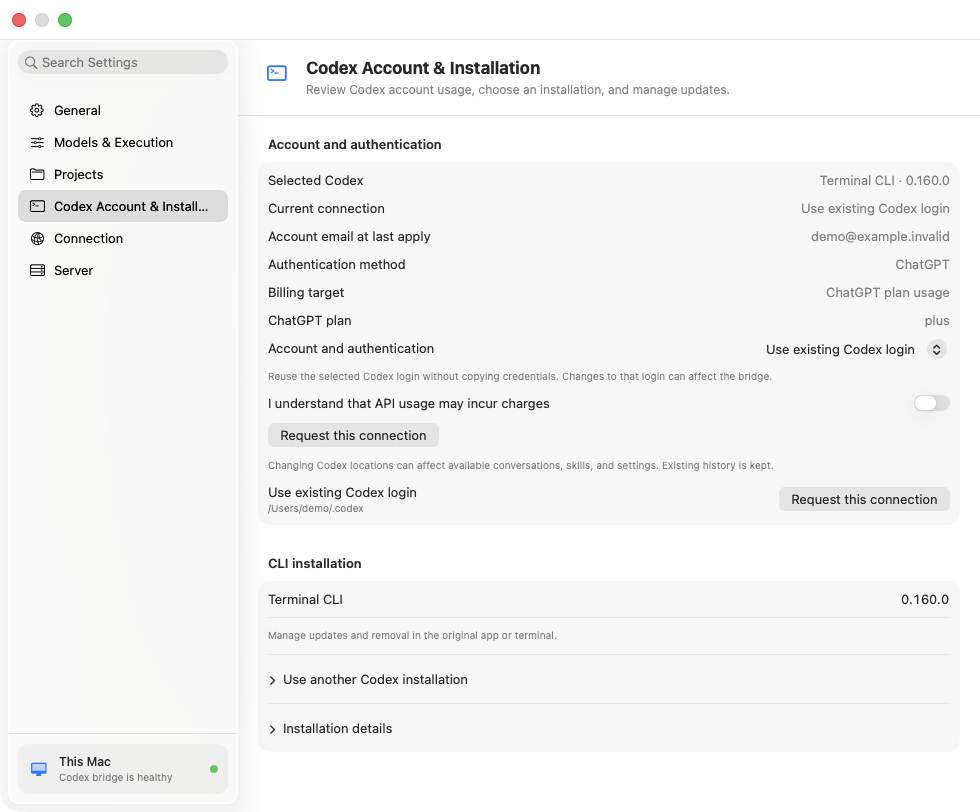
- In Codex Account & Installation, explicitly select an existing installation or install a Bridge-managed CLI, then choose and verify an authentication connection.
- Register your first existing project folder and confirm that the Bridge and Tunnel are ready.
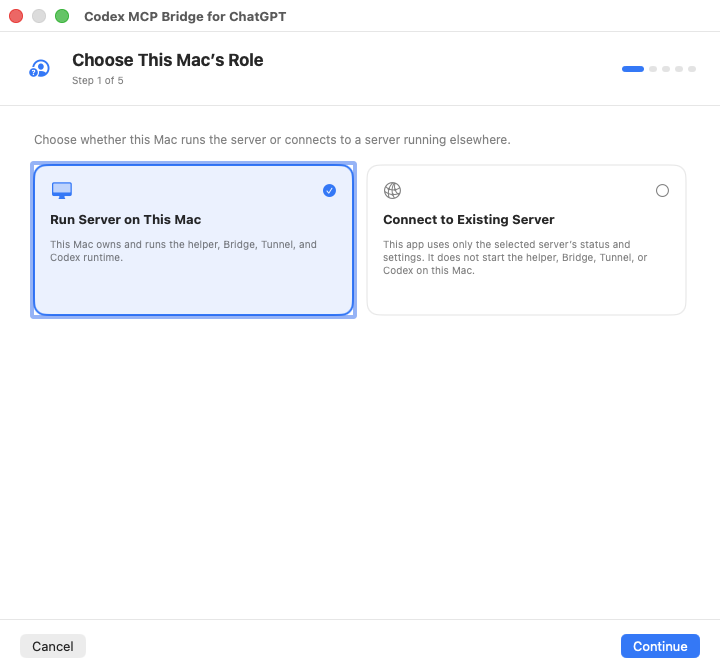
The app is ad-hoc signed and not notarized. macOS may require approval in System Settings → Privacy & Security on first launch. Setup, installation ownership, and manual updates are covered in Setup and Codex installations.
Windows, Linux, or a terminal-managed server
Install Node.js 22 or later, the Codex CLI, and tunnel-client. Authenticate the CLI in the Codex home you intend this server to use. A new login in a shared home can affect other Codex clients; see authentication connections.
Build the development branch using the development commands, then create the private runtime configuration outside your project folders using the shell or PowerShell instructions.
Set CONTROL_PLANE_API_KEY and CONTROL_PLANE_TUNNEL_ID, then run npm run bridge:secure and keep the process running. npm run bridge:local is for loopback development. Windows and Linux use the ChatGPT Settings and Dashboard cards for ordinary management.
Connect to ChatGPT
- Associate your Tunnel with the target ChatGPT workspace in Platform tunnel settings.
- Enable Developer mode in ChatGPT Settings → Security and login. Workspace policy can control access.
- Open ChatGPT Plugins, create a developer connection, and choose Connection → Tunnel.
- Select or enter the server's Tunnel ID and choose No Auth for the ordinary Bridge connection.
- Add the connection in a new ChatGPT conversation and ask it to open Bridge settings. Register a project if you have not already done so.
Tunnel creation needs Read + Manage permission; running or selecting it needs Read + Use. Follow the official Tunnel guide if the Tunnel is absent. Refresh the connection after an upgrade that changes tools, authentication, or card UI; close old cards and reopen the current ones. Routine restarts with the same build do not require Refresh.
Try your first task
Use the exact name of a registered project. For a project named Bridge Demo, start with:
Use Codex to inspect the registered project "Bridge Demo". Explain its structure and suggest one small improvement. Keep this task read-only.
Then continue the existing context:
Continue the same Agent and investigate the improvement you suggested. Explain which files would change and how to verify it.
For an implementation, first allow the required access in Bridge settings and the server's access ceiling, then approve the specific change. Ask for the work's status or open the Codex Dashboard to see running work and run history.
Ordinary tasks and question answers automatically attach a blank goal relay, without a separate activation. It sends event references to the originating GPT, which reads exact original results and existing followup receipts before continuing approved work or requesting a decision. Dashboard opens only when requested. Host teardown stops that iframe; automatic GPT resumption while the app is closed is not guaranteed. See relay delivery. Closing a screen or losing a connection does not cancel Codex. Return to the originating conversation and ask to read the existing work before starting anything again. See task and result recovery.
Reuse procedures with the skill library
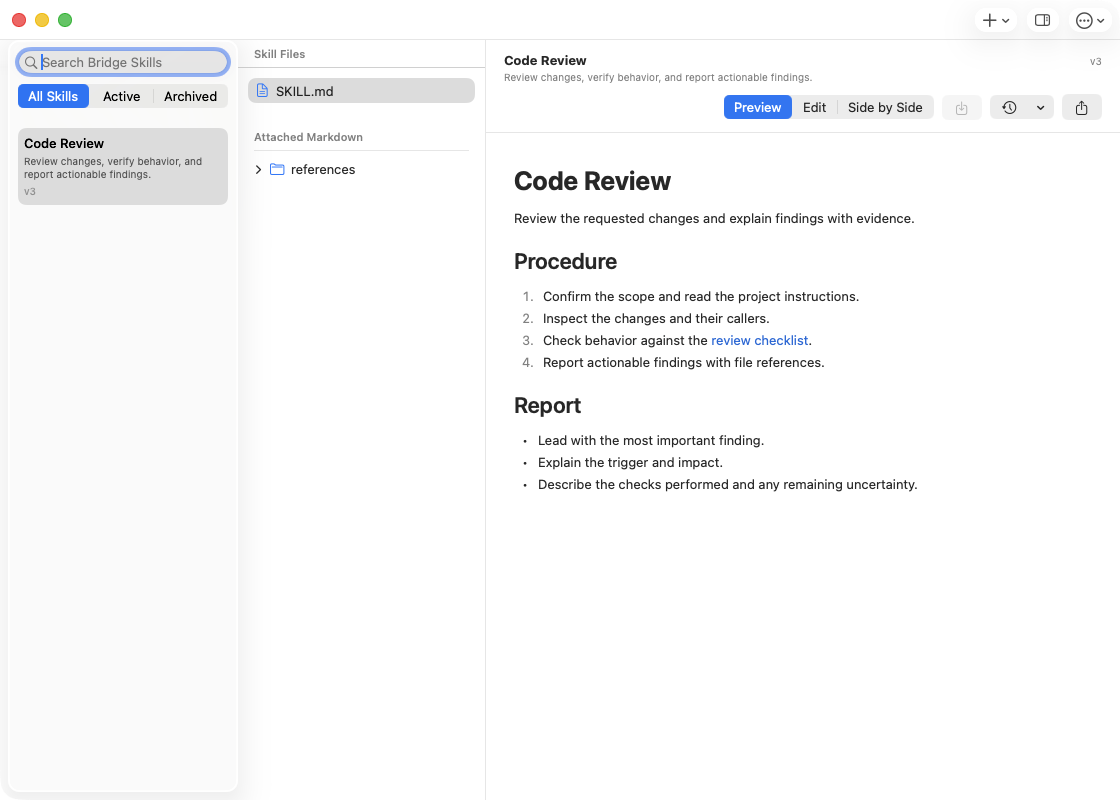
Bridge skills store your instructions as SKILL.md with optional reference Markdown files. ChatGPT searches and reads the selected version, then applies the procedure to your request. Reading a skill does not start Codex or change task permissions.
Open Skill Library (the book icon) in the macOS menu-bar popover. Create or import a skill, review the content and files, then save. Each save creates a version you can restore or export. See the first-skill walkthrough for import and management details. Ask ChatGPT to find and use it:
Find the Bridge skill "Code Review" and read it and its checklist. Use that procedure to review the registered project "Bridge Demo", then report the findings here.
Choose settings for your work
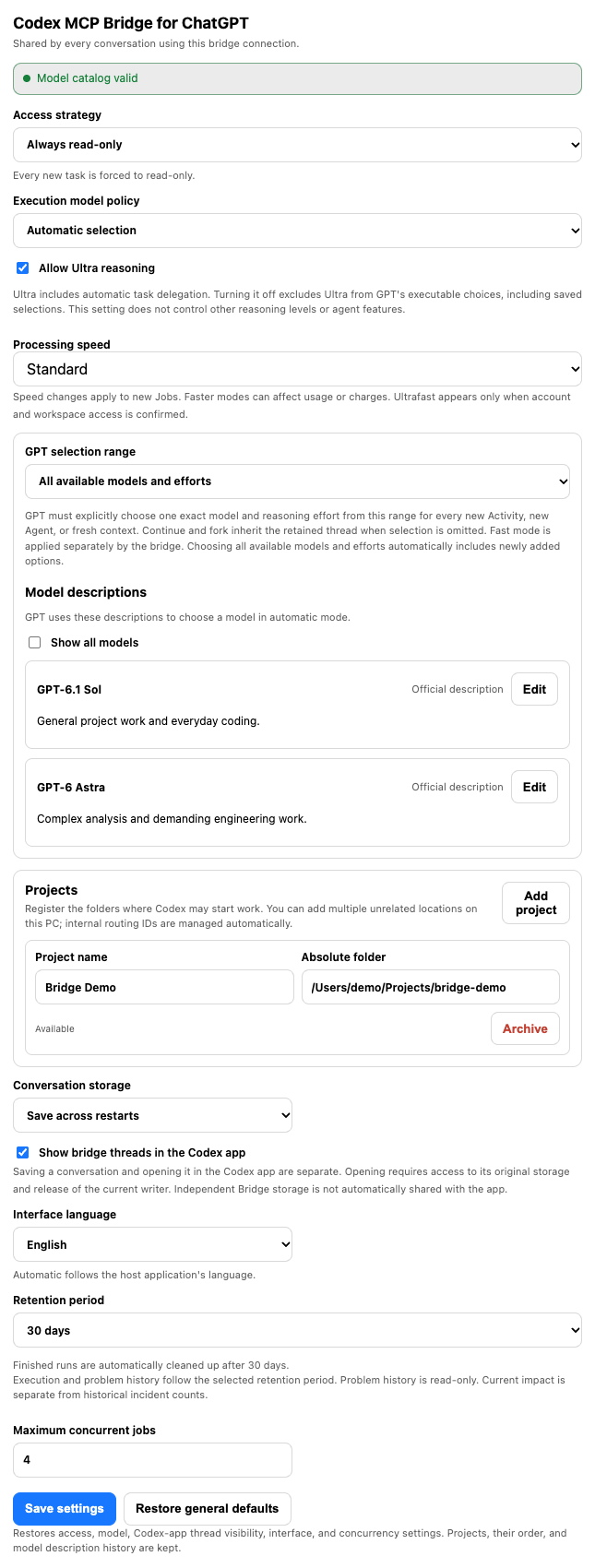
The native Settings sidebar separates General, Models & Execution, Projects, Codex Account & Installation, Connection, and Server. Shared changes save automatically in the native app; the ChatGPT card uses Save settings. Server limits use an explicit apply and restart. See all settings.
| Setting | How it helps |
|---|---|
| Codex installation and authentication | Choose the executable separately from its account. Reuse an existing login, prepare a separate ChatGPT login, or explicitly select API billing. |
| Fixed or automatic model | Keep one model/effort pair, or let ChatGPT choose within your allowed catalog. In automatic mode, edit model descriptions and restore earlier descriptions from history. |
| Processing speed | Choose Standard or Fast for each new Job. Ultrafast requires verified access and is currently unavailable for new selection. Earlier settings keep their behavior until you explicitly choose a speed. |
| Conversation storage | Save new conversations across restarts or use memory-only context. App visibility is a separate choice; opening a conversation also needs accessible original storage and a released connection. |
| Projects and history | Archive to end active work safely; restore an archived registration or delete its Bridge records after cleanup. Choose 7, 30, 90 days, or unlimited retention for results and related history. |
| Language and concurrency | Apply an explicit language to the app and cards and limit concurrent Jobs. Automatic language follows the host showing each surface. |
Check work and usage
Open the menu-bar icon for server health, available weekly Codex usage, and In progress / Execution history / Problem history counts. Select one to expand its list, select it again to collapse it, and use Show more for further entries. Refresh explicitly to get a new snapshot.
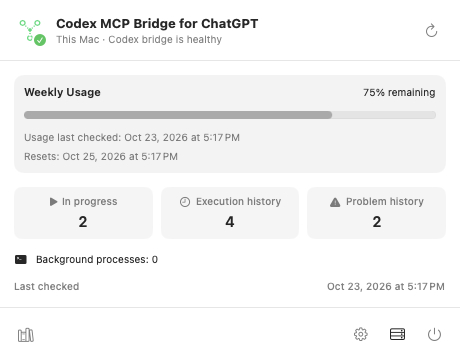
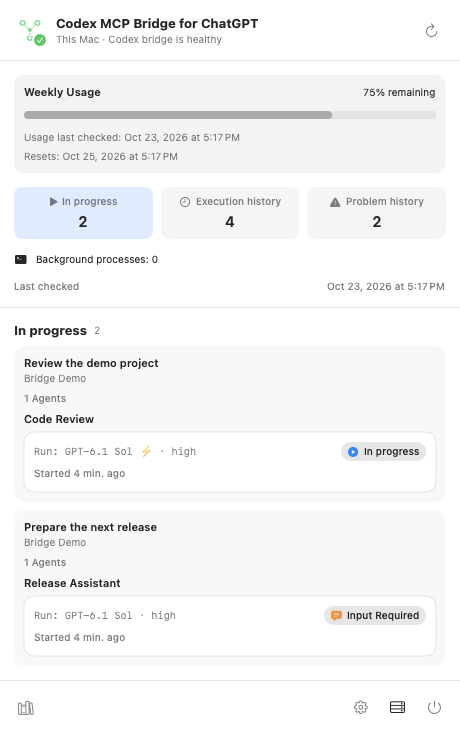
The ChatGPT Dashboard switches between This conversation and All conversations. The three lists group work by Activity, Agent, and individual run. Problem history includes failed, interrupted, or cancelled runs and their recorded reasons. Each run shows its own model, reasoning level, speed selection, and time; a selected speed does not prove the actual processing tier.
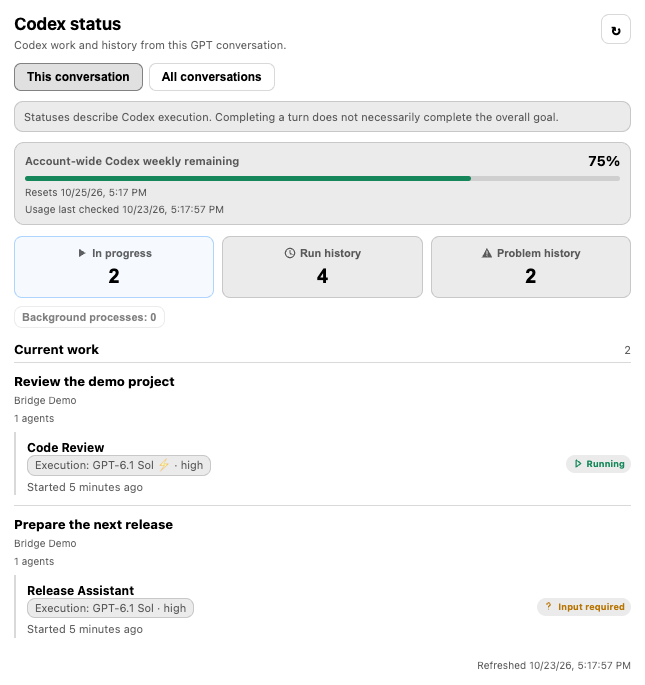
The Dashboard opens when requested. It manages and displays work without sending results into the chat or starting automatic followups. Read more about questions, history, and conversation handoff.
Manage another Mac
On the server Mac, open Settings → Connection, enable Manage This Server from Another Mac, and create a pairing invitation. Paste it on the client Mac. It includes the server address and security identity, expires after five minutes, and can be used once.
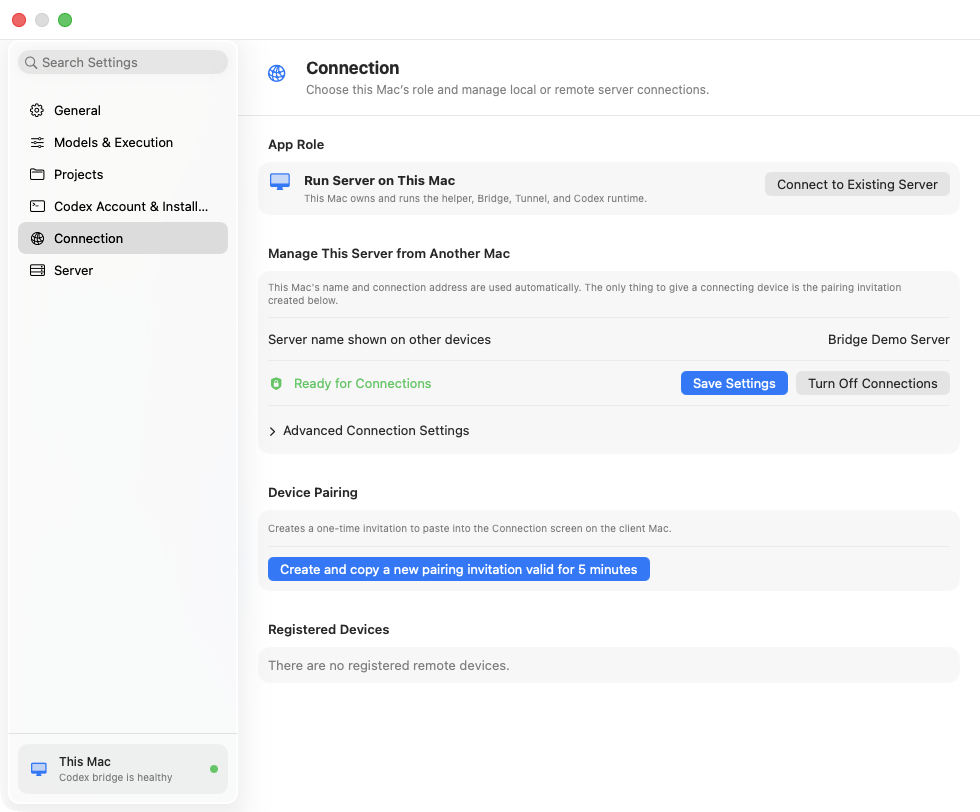
Only one saved server is active at a time. Switching changes the source of status and shared settings. Project paths refer to folders on that server. Use a private LAN or VPN you control; see remote client mode.
Access and safety
- The Bridge begins with read-only access and binds to loopback by default.
- Register each permitted project folder explicitly. Keep runtime credentials outside those folders.
- Write or full access requires the server to allow it; settings cannot exceed that ceiling.
- The Bridge is for one trusted operator. Shared settings are not isolated by ChatGPT account.
- For stronger isolation, use a separate OS user, container, VM, or disposable project copy.
MCP Events is a separate experiment disabled by default. Ordinary setup and approved followups use the normal conversation path. See security boundaries before broadening access.
Documentation
| Guide | Contents |
|---|---|
| Setup and settings | Prerequisites, platform setup, first task, and every user-facing setting |
| Bridge skill library | Create, import, use, version, restore, and export reusable procedures |
| Codex installations and authentication | CLI ownership, manual updates, account choices, storage, and billing |
| Model selection and processing speed | Allowed models, description history, speed scope, and execution evidence |
| Native macOS app, remote client, and work history | Native settings, current work, retained runs, pairing, and recovery |
| ChatGPT integration, card tools, and decision files | Connection refresh, task contracts, questions, comparisons, and smoke checks |
| Security, database, and recovery | Trust boundaries, retained data, backups, and upgrades |
| MCP migration, input, and output | Current protocol and tool contracts |
| UI releases, release process, and governance | Card cache behavior, validation, and distribution gates |
| Localization and text integrity | Translation source and Unicode policy |
Development
git clone --branch dev https://github.com/menaje/codex-mcp-bridge-for-chatgpt.git
cd codex-mcp-bridge-for-chatgpt
npm ci
npm run check
On macOS, run npm run macos:check and npm run macos:bundle, then open macos/build/Codex MCP Bridge for ChatGPT.app.
Release identity and supported targets are defined in release-manifest.json. Historical attribution is in UPSTREAM.md.
License
MIT
Yorumlar (0)
Yorum birakmak icin giris yap.
Yorum birakSonuc bulunamadi