claude-for-researchers
Health Uyari
- No license — Repository has no license file
- Description — Repository has a description
- Active repo — Last push 0 days ago
- Community trust — 29 GitHub stars
Code Basarisiz
- rm -rf — Recursive force deletion command in starter/.claude/settings.json
Permissions Gecti
- Permissions — No dangerous permissions requested
Bu listing icin henuz AI raporu yok.
Practical guide and toolkit for physicists and mathematicians using Claude Code — built from months on a real research project
Claude for Researchers
A practical guide and toolkit for researchers — especially physicists and mathematicians
— who want to use Claude Code productively on long, technically
demanding projects.
This guide is written from real experience running a months-long mathematical research
project with Claude Code, not a weekend experiment. It covers what works, what wastes time,
the failure modes you will hit, and how to set up a workflow that survives them.
How to read this guide
This guide serves two audiences at once, so it is organised in parts:
- Never used Claude Code? Read Part I from the top.
It takes you from nothing to a fully configured project — including a step where
Claude does the setup for you. Then read Part II gradually, as the topics become
relevant to your work. You do not need anything in Part III to be productive. - Already using Claude Code? Skip Part I (except perhaps
Bootstrapping, which is useful for any
new project) and start with Part II — the workflow
patterns there are the heart of this guide. Add the machinery in
Part III when you want it. - Everyone, whatever your experience level: read
Honest limitations before trusting anything Claude produces.
The failure modes described there are not edge cases.
Table of Contents
Part I: Getting started — for readers new to Claude Code
- Installation and first launch
- Bootstrapping a new project with Claude
- Quick-start flowcharts
- The right mental model
Part II: The core workflow — the heart of the guide, for everyone
- CLAUDE.md: the most important file
- The dual-document pattern: main.tex and condensed.tex
- Session continuity: next-session-prompts.md
- Session length and context limits
- Skills: reusable procedures
- Git workflow for academics
- Numerics and computation
Part III: Power tools — optional; adopt once the basics feel comfortable
Part IV: What Claude gets wrong — required reading
Part I: Getting started
New to Claude Code? Start here. By the end of this part you will have a working
installation and a fully configured research project — most of it set up by Claude
itself. Experienced users can skip ahead to Part II.
Installation and first launch
This section is for readers who have never used VS Code or Claude Code before.
If you are already set up, skip to
Bootstrapping a new project with Claude.
What you need
- A computer running macOS, Windows, or Linux
- An Anthropic account (the same account you use for Claude on the web)
- A Claude Pro subscription or API credits — Claude Code uses your API account
You do not need to know anything about terminal commands or configuration files
to get started. This guide walks through each step.
Step 1 — Install VS Code
VS Code is a free text editor made by Microsoft. Claude Code runs inside it as
an extension. You can also run Claude Code in a standalone terminal, but VS Code
gives you a much better experience: you see the files Claude is editing, the
terminal where it runs, and the chat window all in one place.
- Go to https://code.visualstudio.com and
click the download button for your operating system. - Run the installer. On macOS, drag VS Code into your Applications folder.
On Windows, the installer does everything for you. - Open VS Code. You will see a welcome screen. You can close it.
That is all. You do not need to configure anything in VS Code before continuing.
Step 2 — Install the Claude Code extension
- In VS Code, click the Extensions icon on the left sidebar (it looks like
four squares, one slightly detached). - In the search box that appears, type
Claude Code. - The first result should be "Claude Code" by Anthropic. Click Install.
- After installation, a Claude icon appears in the left sidebar.
Alternatively, you can install Claude Code as a command-line tool and use it
from any terminal without VS Code:
npm install -g @anthropic-ai/claude-code
This requires Node.js to be installed. The VS Code extension is easier if you
are not familiar with the terminal.
Step 3 — Sign in
- Click the Claude icon in the VS Code sidebar.
- Click Sign in with Anthropic.
- A browser window will open. Sign in with your Anthropic account.
- After signing in, return to VS Code. You should see a chat interface.
If you are using API credits instead of Claude Pro: in the sign-in screen,
choose Use API key, paste your key from
console.anthropic.com/settings/api-keys,
and confirm.
Step 4 — Open your project folder
Claude Code works on a folder, not a single file. It reads the files in your
project folder and makes changes to them.
- In VS Code, go to File → Open Folder (macOS: File → Open...).
- Navigate to your research project directory and open it.
- VS Code will show your files in the left sidebar under "Explorer."
If you do not have a project folder yet, create one:
mkdir my-research-project
cd my-research-project
git init
The git init command sets up version control, which Claude Code uses to track
changes and help you undo mistakes. If you do not have git installed, see
git-scm.com/downloads.
Step 5 — Start a conversation
In the Claude Code chat panel (the one that opened when you clicked the Claude
icon), type a message and press Enter. For example:
"I just opened my project folder. What files are in it?"
Claude will look at your folder and reply. From here, you can ask it to read
files, write code, compile LaTeX, run Python scripts, or help you organise your
work.
The most important thing to do next is create a CLAUDE.md file in your
project folder. This file tells Claude everything it needs to know about your
project every time you open it. Without it, Claude starts each session knowing
nothing about your work.
You can write it by hand — the CLAUDE.md section
below explains exactly what to put in it. Or, for the fastest path, skip to
Bootstrapping a new project with Claude
— the next section: describe your project to Claude in plain language, point
it at this guide, and it will create all the files and install all the tools for you.
A note on cost
Claude Code charges per message based on the length of the conversation. A
typical research session (a few hours of active use) costs roughly $1–5 USD in
API tokens, depending on how much context is loaded and how many files are read.
You can track your usage at
console.anthropic.com/usage. If you have
a Claude Pro subscription, Claude Code usage is included in that plan.
Bootstrapping a new project with Claude
The fastest path from nothing to a fully configured research project is to let
Claude do the setup for you — once. Here is how.
This section mentions pieces that are explained later in the guide — CLAUDE.md,
skills, hooks. You do not need to understand them first: set the project up now,
and learn what each piece does in Part II as you start working.
Step 1 — Gather your materials. Create a folder for the project. Put in it
whatever you have: a LaTeX draft, reference PDFs, computation scripts, handwritten
notes scanned to PDF, a plain-text outline. It does not matter how raw the state is.
Step 2 — Open the folder in VS Code and start a Claude Code session.
Step 3 — Describe the project. In your first message, tell Claude everything
it would need to know. Cover:
- What the project is and what mathematical or scientific object you are studying
- The open question you are working toward
- The files you added and what each one is for
- The notation and conventions you use (including sign and normalisation choices)
- Your preferences: how detailed should LaTeX write-ups be, what is your git remote
setup, do you use Mathematica or Python for numerics, etc. - Anything else you would put in a CLAUDE.md if you were writing it by hand
Do not worry about structure. Write it conversationally. The more you say, the
better the generated CLAUDE.md will be.
Step 4 — Ask Claude to initialise the project. Paste this prompt after your
description:
I want to set up this project using the workflow at
https://github.com/Mexregkan/claude-for-researchers/. Please:
- Create
CLAUDE.mdpopulated with the project details I just described,
usingexamples/CLAUDE-template.mdfrom that repo as the template.- Create
.claude/settings.json(use the starter package version from that repo).- Create
.claude/hooks/pre-compact.shand.claude/hooks/promise-checker.sh
(use the starter package versions from that repo).- Create
.claude/skills/with thelatex-compile,sync-condensed,nb-to-wolfbook,verify-citation,reality-check, andcross-validateskills
(all in the starter package).- Install rtk if not already installed (
brew install rtk && rtk init -g --auto-patch).- Install the Anthropic pdf skill (
curlit into.claude/skills/pdf.md).- Install the Wolfbook VS Code extension (
code --install-extension vanbaalon.wolfbook).- Initialise a git repo if one does not exist.
Fill in
CLAUDE.md's Conventions, File map, and Current status sections from what
I told you about the project.
Claude will read the guide, download the starter files, install the tools, create
the directory structure, and write a CLAUDE.md populated with your project's details.
The whole thing takes a few minutes.
Step 5 — Review what Claude produced. Read through the generated CLAUDE.md
carefully. The structure, hooks, and settings will be correct by construction. The
parts that need your attention are the domain-specific sections — Conventions and
Current status — because those require your knowledge to get right. Correct anything
Claude misunderstood about your project, and you are ready to begin.
If you have existing Mathematica notebooks or scripts, run /nb-to-wolfbook on
them after setup is complete. Point it at a file or a whole directory and it will
convert everything to Wolfbook's .wb format in one step — re-run the cells
afterwards to regenerate output.
This works because Claude Code can read a GitHub repository, run shell commands, and
create files, and because the guide it is reading contains explicit templates and
instructions it can follow directly. The setup task is exactly the kind of structured,
mechanical work Claude does reliably. The research that follows is yours.
Quick-start flowcharts
Visual overviews of the two key workflows. Scan these before reading the full guide.
| Setting up a new project | Each working session |
|---|---|
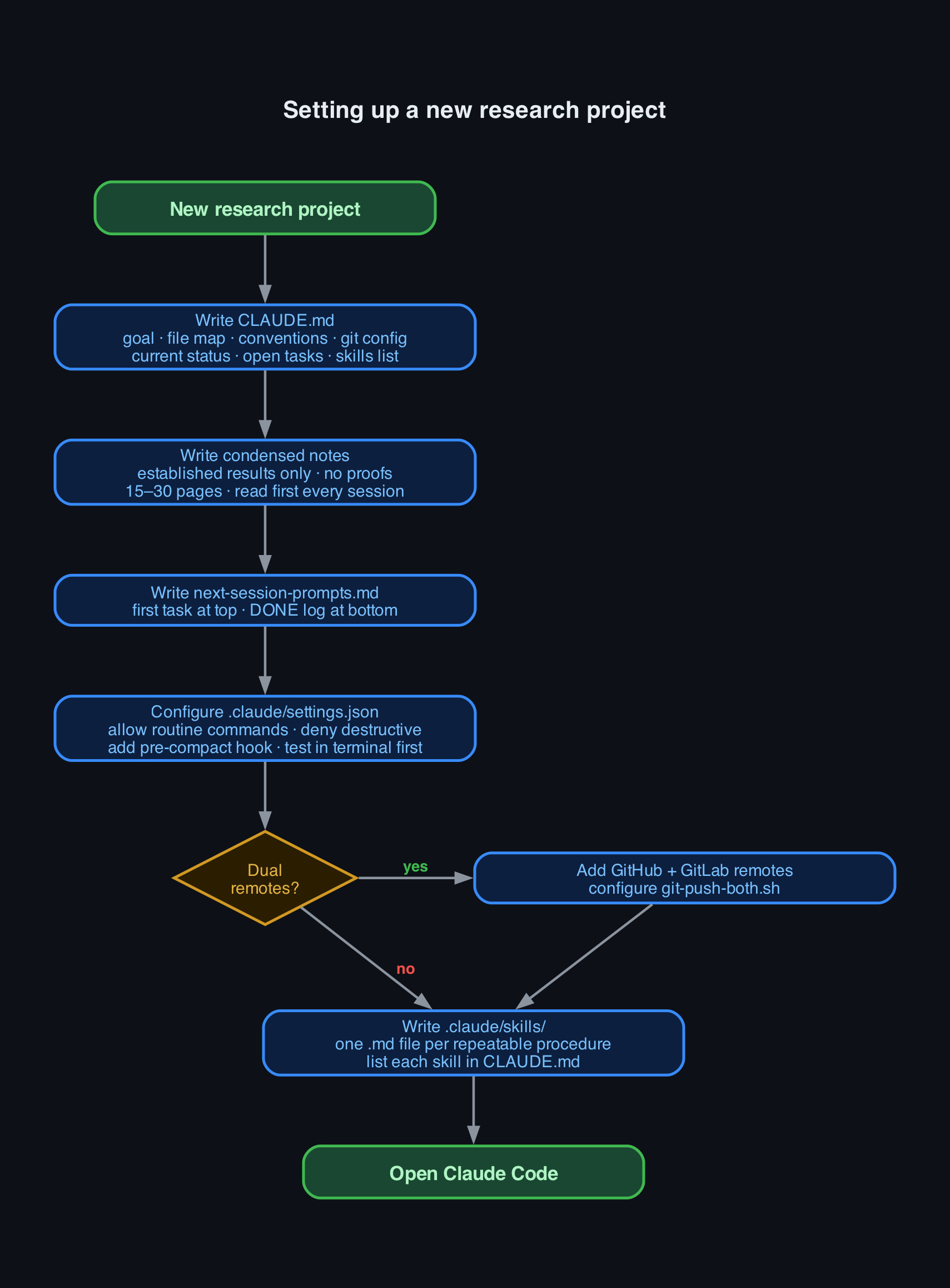 |
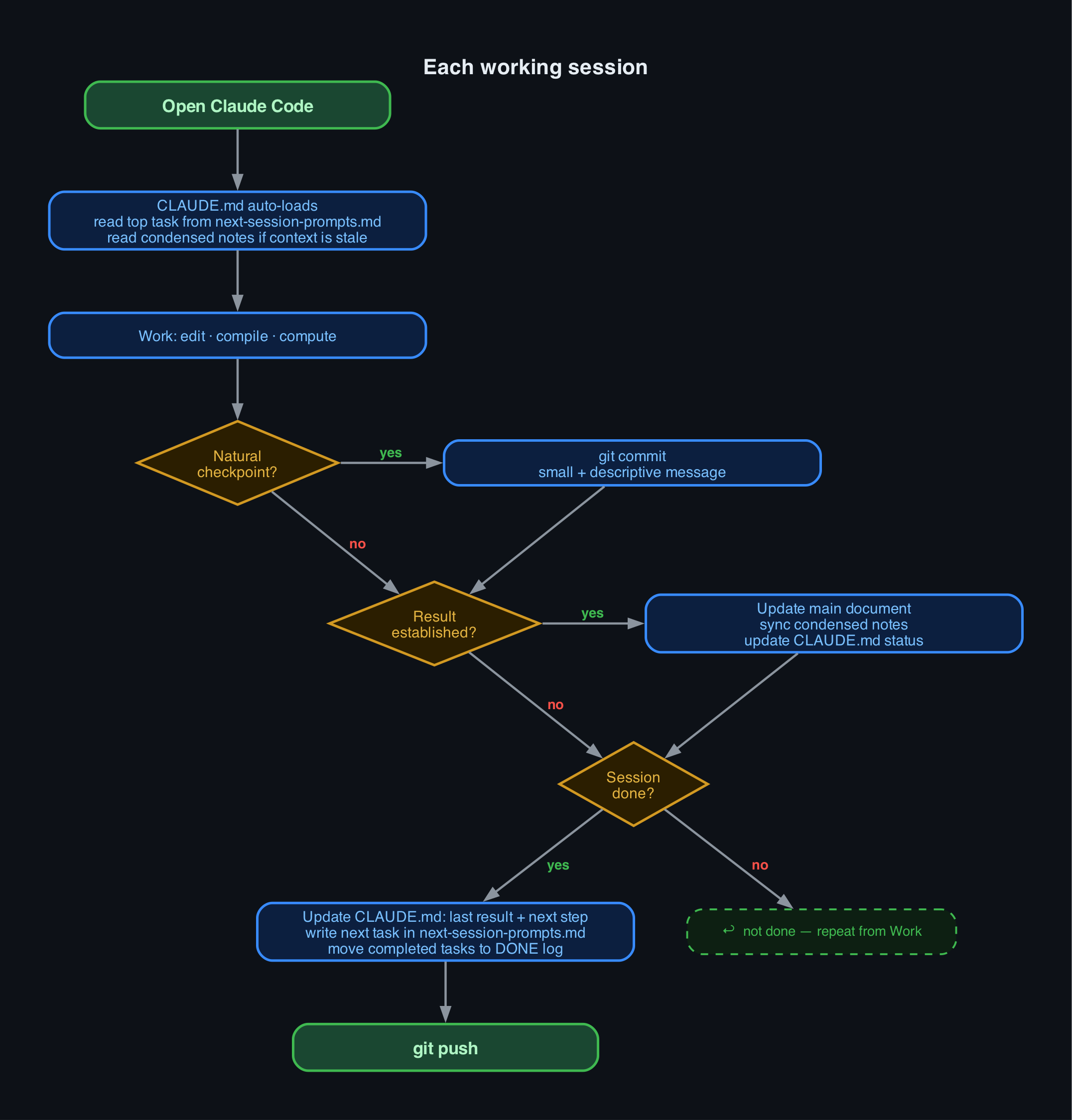 |
Green = start/end · Blue = action · Gold = decision · Red label = no path · Green label = yes path
The right mental model
Before setting anything up, it helps to understand what kind of tool Claude Code
actually is, because the wrong mental model leads to the wrong workflow.
Claude Code is not a research collaborator. It does not have intuition, taste,
or genuine understanding of your field. It has read an enormous amount of text,
including mathematical papers, and can pattern-match on that reading very
effectively. That is genuinely useful, but it is different from understanding.
Claude Code is not an intelligent assistant that figures things out. It follows
instructions. If your instructions are vague, the result will be vague. If your
instructions are precise — which file, which section, which formula, what to check —
the result will be precise and fast.
Claude Code is a very capable junior research assistant. It can:
- Write, edit, and compile LaTeX faster than you can, including tracking down obscure errors
- Write Python or Mathematica computation scripts from a clear specification
- Keep careful records — updating documents, maintaining logs, tracking what was tried
- Read and navigate a large document without losing track of the structure
- Do tedious mechanical work (checking all cases of a formula, renaming things consistently)
without making the transcription errors a human would make
What it cannot do:
- Notice when a mathematical argument is wrong on its own terms (it may reproduce
the error confidently) - Supply physical intuition or mathematical taste
- Know when it is out of its depth (it will not tell you unprompted)
- Remember anything reliably between sessions without explicit help
The workflow described in this guide is designed to make the "capable junior assistant"
model actually work in practice: it keeps Claude well-informed about your project,
tells it precisely what to do, and keeps you in control of all decisions that matter.
Part II: The core workflow
The heart of the guide: how to organise a long research project so that every
Claude session is productive. This part is for everyone — but you do not need to
read it all on day one. Start working, and come back to each topic as it becomes
relevant.
CLAUDE.md: the most important file
What it is
CLAUDE.md is a plain text file that lives at the root of your project directory.
Claude Code reads it automatically at the start of every session, before you type
anything. It is the primary way you communicate standing instructions, context,
and conventions to Claude.
Every session, Claude starts with no memory of previous sessions. Without CLAUDE.md,
you spend the first 20 minutes of every session re-explaining your project. With a
good CLAUDE.md, Claude starts the session already knowing:
- What the project is and what you are trying to achieve
- The notation and conventions you use
- Where everything is and which file is authoritative
- What has been established and what is still open
- Exactly what to do next
- How you want it to behave (chat style, writing style, what tools to use)
A good CLAUDE.md is the difference between a session that is productive from the
first message and one that wastes half an hour on orientation.
Why it is the most important file
Every other practice in this guide — the condensed notes, the session log, the
skills — feeds into the session through CLAUDE.md. If CLAUDE.md is wrong, incomplete,
or out of date, every session will be off. No amount of clever tooling fixes a bad
CLAUDE.md.
Conversely, a well-maintained CLAUDE.md is so effective that experienced Claude Code
users often say it is the one practice that most clearly separates productive from
unproductive research workflows.
What to put in it
A CLAUDE.md for a research project should contain the following sections.
1. Project goal
One or two paragraphs. What is this project? What is the mathematical or scientific
object you are studying? What is the open question you are working toward?
Be precise. Not "I am studying Eisenstein series" but "I am computing the regularised
integral of a product of four Eisenstein series over the modular fundamental domain
as a function of their spectral parameters, using the Rankin–Selberg method." The
more specific you are, the more accurately Claude understands the scope of the project
and can judge whether something is relevant.
2. File map
A list of every file or directory Claude needs to know about, with one sentence each
explaining what it is and what it is for. Explicitly say which file is authoritative.
Example:
- condensed.tex — 20-page self-contained reference; READ FIRST in every new session.
  Contains all current results, key formulas, and open problems. No proofs.
- main.tex — the full paper draft (~250 pages). Authoritative record; everything
  established is here in full detail. Too large to read in full — grep or use section labels.
- next-session-prompts.md — task log. Top = next task; bottom = DONE log.
- numerics/ — computation scripts. numerics/README.md explains each file.
3. Conventions
The exact notation and conventions Claude must get right. This is critical for
mathematical and physics projects, where a sign error or wrong normalisation
is not a style issue but a factual error.
Include:
- Definitions of every symbol that appears in your calculations
- Which normalisation convention you use (there are often several in the literature)
- Sign conventions
- Which branch of a function you take
- Any non-standard notation
Example:
- ξ(s) = π^{-s/2} Γ(s/2) ζ(s). Functional equation: ξ(s) = ξ(1-s).
  Simple poles at s=0 (residue -1/2) and s=1 (residue +1/2).
- E*_s = ξ(2s) E(z,s) is the completed Eisenstein series. NOT the same as E(z,s).
  Simple poles at s=0,1 with residues ∓1/2.
- M_3(μ_0,μ_1,μ_2,μ_3) = the depth-three Mellin transform. The variable s = μ_0
  is the Mellin variable; μ_1,μ_2,μ_3 are the spectral parameters of the three
  Eisenstein factors.
- ∏ξ always means ∏_{i=0}^3 ξ(2μ_i).
Do not assume Claude knows what your symbols mean "from context." Write the conventions
explicitly every time.
4. Current status
A short, honest summary of where the project is right now. Not history — current state.
One screenful. This is the section you update most often.
It should answer:
- What has been established (what is rigorous and complete)?
- What is the most recent result?
- What is the exact next step?
Example structure:
## Current status

**Last result (2026-06-04):** The discrete Maass block D was observed directly
at (μ_0,μ_1,μ_2,μ_3) = (12,2,2,2). Residual R = M_3 − 2(½∏ξ·ΣΞ + ½∏ξ·C_cont)
= 2.64e-9 agrees with ∏ξ·D to 0.014% with no free parameters (L-values from LMFDB).

**Established:**
- All 8 boundary residues Res_{μ_i=1} = +½Z, Res_{μ_i=0} = -½Z (theorem)
- All 16 interior pole hyperplanes identified (pinch analysis)
- Interior residue formula R_σ = -∏ξ(2μ_i - [σ_i=-1]) (numerically validated at 3 tuples)
- M_3 is NOT a Langlands-Shahidi ratio (E ≠ 0 confirmed)

**Open:**
- Deep DK-derivation sections need the κ=1 factor-2 audit (~90 instances)

**Next step:** See next-session-prompts.md Prompt A.
5. Chat formatting
Tell Claude explicitly how you want math written in chat. This matters because
Claude Code's chat interface does not render LaTeX. If Claude writes$\xi(s) = \pi^{-s/2}\Gamma(s/2)\zeta(s)$ in a chat reply, you see raw LaTeX,
not a formula.
The standard instruction:
## Chat formatting (NON-NEGOTIABLE)
In chat replies, do NOT use LaTeX markup ($...$, \frac{}{}, \xi, \Gamma, etc.).
Write math in plain Unicode: ξ, μ, Γ, ζ, ∑, ∏, ∫, √, ½, →, ≈, ≤, ⇒.
Single-character subscripts and superscripts: use Unicode — M₃, μ₀, sᵢ, x², yⁿ.
Multi-character sub/superscripts: use underscore/caret notation — M_{ab}, e^{-π t}, τ^{-2}.
LaTeX belongs ONLY inside .tex files.
Mark this as NON-NEGOTIABLE. Without this instruction, Claude will revert to LaTeX
in chat after a few exchanges.
6. Open tasks
The current ranked list of things to do. This section is what Claude looks at to
decide what to work on next when you say "continue" or "pick up where we left off."
Keep it short — two or three items. The full task log lives in next-session-prompts.md.
This section is just the top of the queue.
7. Skills
List every skill you have defined and what it does. See the Skills section
below for what skills are. A one-line description per skill is enough here.
Example:
## Skills
- /latex-compile — compile main.tex or condensed.tex, fix errors and overfull boxes.
- /sync-condensed — propagate new results from main.tex to condensed.tex.
- /verify-residue — check a specific residue computation against the formula.
8. Writing style for your main document
If Claude is helping you write or edit your main document, tell it explicitly what
level of detail you expect. Researchers have very different preferences, and Claude's
default is far too terse for most mathematical writing.
Example (verbose style):
## Writing style in main.tex (NON-NEGOTIABLE)
main.tex is the authoritative, comprehensive record. Show every step of every
calculation. State each substitution, each application of the functional equation,
each sign and factor-of-two choice — explicitly, in its own sentence. Never collapse
a multi-step manipulation into "one finds" or "a short computation gives." If in
doubt, over-explain. A reader must be able to reconstruct every result from main.tex
alone, with no external notes and no gaps.
If you prefer concise theorem-proof style instead, say that. The point is to say
something explicit rather than leaving it to Claude's default.
9. Numerics configuration
If you run computations, tell Claude the setup:
## Numerics
- Primary engine: Python + mpmath (arbitrary precision)
- Precision: mp.dps = 30 unless stated otherwise
- venv: numerics/venv/ — run as numerics/venv/bin/python numerics/script.py
- Route long-running output to: numerics/run.log
- Mathematica (wolframscript): for symbolic verification only, not primary
10. Git configuration
Tell Claude your exact remote setup:
## Git
- Remote 'github': https://github.com/YOUR_USER/YOUR_REPO.git (primary, main tracks it)
- Remote 'gitlab': [email protected]_INSTITUTION.ac.uk:YOUR_ID/YOUR_REPO.git (institution mirror)
- Push: git push github main (hook auto-mirrors to gitlab)
- Commit author: YOUR_NAME <your-email>
- No Co-Authored-By trailers in commits.
Without this, Claude will push to the wrong remote or use the wrong identity.
What NOT to put in CLAUDE.md
Not a logbook. CLAUDE.md is a current-state snapshot, not a history. When a
task is done, move it to the DONE log in next-session-prompts.md. When a status
changes, update the section in place — do not append a new dated block. Appended
blocks accumulate, CLAUDE.md grows, Claude reads old states as if they were current,
and sessions degrade.
Not a full exposition. CLAUDE.md should be navigable in one or two screenfuls
per section. Detailed content belongs in your condensed notes document (see below).
CLAUDE.md points Claude to the condensed notes; it does not replace them.
Not speculative or in-progress work. Only write what is established. In-progress
calculations belong in next-session-prompts.md. A CLAUDE.md that says something is
established when it is not will cause Claude to treat it as proven and build on it.
How to maintain CLAUDE.md
The most important habit: update the "Current status" and "Open tasks" sections
before ending every session. This takes five minutes and saves thirty minutes of
re-orientation next session.
Before closing Claude Code:
- Change "last result" to what you just found
- Move completed items out of "Open tasks" to the DONE log in
next-session-prompts.md - Write the next open task clearly
If you forget to do this, the next session starts from the wrong state. If this
happens repeatedly, sessions become progressively less useful.
The pre-compact hook (see Settings and hooks) automatically
stamps CLAUDE.md with a timestamp when the context window fills up, so you can
see exactly when a compaction happened and use next-session-prompts.md to re-orient.
Common CLAUDE.md mistakes
Too long. If CLAUDE.md is more than 5–6 screenfuls, Claude spends too much
context on it. Move detailed exposition to the condensed notes document. Keep CLAUDE.md
as a navigation index and current-status snapshot.
Not updated. A CLAUDE.md that has not been updated for a week is misleading.
Claude will work from the old state as if it were current.
Wrong status. Marking something as established when it is only conjectured, or
missing a correction to an earlier result. Claude will confidently build on wrong premises.
No conventions section. Without conventions, Claude will guess what your symbols
mean. It will often guess wrong in exactly the way that is hardest to catch — a
plausible-looking sign or normalisation error.
Instructions given once and forgotten. Things like "write math in plain Unicode
in chat" or "show every step in main.tex" need to be in CLAUDE.md permanently, not
said once in conversation. Claude does not remember conversation instructions between
sessions.
The dual-document pattern: main.tex and condensed.tex
The problem
Mathematical and physics research projects involve long documents. A paper draft,
after a few months of work, might be 150 to 300 pages. Claude Code has a finite
context window. When your main document exceeds what fits in context, something
breaks: Claude can no longer read the whole document, and sessions begin to
degrade — Claude forgets earlier results, contradicts itself, misses constraints
that were established weeks ago.
You cannot solve this by making Claude read the document in pieces each session.
That takes too long and the pieces do not form a coherent picture. And you cannot
solve it by making CLAUDE.md longer — a CLAUDE.md that attempts to summarise a
200-page paper is itself too long and misses exactly the details that matter.
The solution: two documents with different purposes
Maintain two documents in parallel:
The main document (main.tex or equivalent) is your full, authoritative record.
Everything established goes here in complete detail. Theorems with proofs.
Derivations step by step. Numerical results with methods and validation. Corrections
clearly stated. This document is verbose by design. It is written for a human reader
who wants to understand everything, and it is the record you would submit for
publication. Claude does not read this document in full each session — it is too long.
Instead, Claude navigates it with grep and targeted reads when it needs a specific
equation or section.
The condensed document (condensed.tex, notes.md, or whatever name you choose)
is a short (15–30 pages / 1000–3000 lines) self-contained reference. It contains
the current state of the project: what is established, what the key formulas are,
what is open, and where to find things in the main document. It contains no proofs,
no derivations, no history. Claude reads this document at the start of new sessions
as the primary orientation source.
The condensed document acts as a compressed session memory. When the main document
has grown beyond what fits in context, Claude reads the condensed version and stays
accurately oriented.
What to put in the main document
Everything. The main document is the authoritative record, and "authoritative"
means complete. There are no results too numerical or too routine to include in full.
If a calculation was worth doing, it is worth recording in full detail.
Specifically:
- Every theorem and proposition with a complete proof
- Every formula with the full derivation shown step by step
- Every numerical result: what was computed, the method, the precision, the validation,
and any caveats - Every correction: if you found an error and fixed it, the corrected statement and
an explicit note that the old version was wrong - Every failed attempt that taught you something, with an explanation of why it failed
The reason for this completeness is practical, not pedantic. A result you "know"
but did not write down will be forgotten when the context rolls over. The main
document is what survives.
Structuring main.tex so Claude can navigate it
Claude does not read main.tex from top to bottom each session. It navigates
with grep and targeted reads, jumping to whatever section is relevant right now.
Two things make this work or fail:
Cross-references. Use \label and \ref (or \eqref) liberally — more than
you would for human readers. Every theorem, equation, section, and subsection
should be labelled, and results should refer to each other explicitly. When Claude
reads Section 4 and needs to know what Proposition 2.3 says, a cross-reference
tells it where to look. Without them, Claude either guesses or misses the
connection entirely.
Section structure. Flat documents — everything in one or two large sections —
are hard for Claude to navigate. A clear, deep hierarchy (sections → subsections →
subsubsections, with meaningful names) lets Claude find the right part of the
document without reading everything around it.
Both of these are also just good LaTeX practice. They cost almost nothing when you
write them and save significant friction later.
Corrections must replace, not append
This is a non-negotiable rule: if you discover that something in main.tex is
wrong, correct it in place. Do not write a new paragraph further on saying
"earlier I claimed X but actually Y." Delete or replace the wrong content.
The reason is specific to how Claude uses the document. Claude reads different parts
of main.tex in different sessions — it does not read everything. If the wrong
version stays in the file and the correction is only a few pages later, there is a
real risk that Claude reads the wrong statement in a future session and never
encounters the correction. It will then work from incorrect information, confidently.
In-place corrections also produce a cleaner document for human readers. There is
no legitimate reason to keep wrong content in an authoritative record.
What to put in the condensed document
Only what is established and currently relevant. The condensed document is a snapshot
of the current state of knowledge about the project, compressed to what is essential.
Include:
- Every established theorem and proposition, stated precisely (without proof)
- Every key formula, with the exact normalizations and signs you use
- A cross-reference to the main document for each result (section label or equation name)
so Claude can navigate there when it needs the derivation - The current status: what is proved, what is conjectured, what is open
- Open problems, ranked by importance
- A concise conventions section
- Recent corrections (the corrected statement, clearly marked as corrected)
Exclude:
- Proofs and derivations
- Pedagogical examples and motivation
- History (how you arrived at results, what you tried first)
- In-progress or speculative work
- Anything that is not yet established
How to structure the condensed document
A structure that works well:
§1  Abstract / main results
    The 2–3 key theorems stated precisely. Someone reading only this
    section should know what the project has established.

§2  Conventions and definitions
    Every symbol defined, with the exact normalisation used.
    This section prevents Claude from guessing.

§3–N  Results by topic
    One section per topic. Theorem statement, key formula,
    cross-reference to main document.
    Mark each result: ESTABLISHED / CONJECTURED / OPEN.

§N+1  Numerical results
    Exact computed values, method used, what was validated.

§N+2  Open problems
    Ranked list. "Item 1 is the next thing to prove."
The sync discipline
The condensed document and the main document will drift apart unless you actively
maintain them. Two situations require a sync:
After a new result is established: Add the theorem statement (not the proof) to
the condensed document. Update the status of related open problems. This takes five
minutes and saves the result from being lost in the main document.
After a correction: If you find that something in the condensed document is wrong,
fix it immediately. A wrong condensed document is worse than no condensed document —
Claude will confidently work from incorrect information.
The /sync-condensed skill in this repository automates part of this: it classifies
which changes in the main document are "load-bearing" (new theorems, corrected formulas)
and prompts you to propagate them.
What "load-bearing" means
Not every change to the main document needs to go into the condensed document.
Propagate to condensed:
- A new theorem or proposition (statement only)
- A corrected formula (sign, factor, argument — whatever changed)
- A result that changes the status of an open problem
- A new definition that other results depend on
Do not propagate:
- A new proof of an already-stated theorem
- A pedagogical re-derivation of an existing result
- A reorganisation or renaming that does not change content
- Footnotes, remarks, summary subsections
When in doubt, propagate. It is easier to trim an unnecessary update than to
recover a missing one.
Common mistakes with the dual-document pattern
The condensed document grows. When it exceeds 30 pages, it starts to function
like a smaller version of the main document — still too large for an orienting read.
Prune it: collapse routine results into tables, remove historical context, cut anything
that is not load-bearing for future work.
In-progress work ends up in the condensed document. The condensed document
contains what is established. When you are in the middle of a calculation, that
belongs in next-session-prompts.md, not in the condensed document.
Syncing stops. A condensed document that is two months out of date is useless.
Treat syncing as part of the cost of every new result, not as a separate task.
The condensed document is not self-contained. If someone (or Claude) reading
only the condensed document cannot understand what the project has established,
it is not doing its job. Every result should be understandable without reference
to the main document, even if the main document is where the proof lives.
Corrections in main.tex are appended rather than replaced. This is the most
dangerous mistake. If you write "earlier I said X, but actually Y" at the end of
a section, a later Claude session may read only the beginning of that section and
work from X, never seeing the correction. Wrong content must be replaced in place,
not annotated. See the section above on corrections.
Session continuity: next-session-prompts.md
The problem
Even with a well-maintained CLAUDE.md and condensed notes document, there is
context that lives only in the conversation — the details of what you just tried,
why a particular approach failed, what the next micro-step is. This context does
not survive between sessions. A new session starts without it.
The consequence is a common, frustrating experience: you end a session knowing
exactly what to do next, then start the next session and spend 20 minutes
reconstructing where you were.
The solution: a human-maintained session log
next-session-prompts.md is a file you maintain by hand. It has two sections:
The current task queue (top of the file): one to three self-contained task
descriptions, written well enough that you could paste one into a new Claude session
and have Claude understand exactly what to do. Each task should include:
- What you are trying to do and why it matters
- What is already known (so Claude does not re-derive it)
- The specific instruction: which file, which section, which formula, what to change
- What success looks like (a number, a passing test, a compiled document, a sentence written)
The DONE log (bottom of the file): a timestamped record of completed tasks,
with results and any caveats. This is the durable history of the project. CLAUDE.md
is the current-state snapshot; the DONE log is the record of how you got there.
Why this works better than relying on Claude's memory
Claude Code has an auto-memory system. It saves facts between sessions (conventions,
preferences, who you are). This is useful for stable information. It is not useful
for in-flight research state — what you just tried, why it failed, what the next
step is.
The auto-memory system does not know the difference between "I established this
formula" and "I am currently trying to prove this formula." next-session-prompts.md
does, because you write it.
The other reason: when you write a task description carefully enough to hand it to
Claude, you often clarify your own thinking in the process. The discipline of writing
"here is what I want to do, here is why, here is what success looks like" is valuable
independently of Claude.
Writing a good task description
The quality of the task description determines the quality of the next session.
A bad task description is vague:
"Work on the boundary residue calculation."
Claude does not know which boundary, which residue, what the current state is, or
what you want to produce.
A good task description is self-contained:
Context: We are verifying the formula R_σ = -∏ξ(2μ_i - [σ_i = -1]) for the
interior pole residues of M_3. We have checked it for the n_- = 1 representative
at three integer tuples and it passes to ratio 1.0003.What to do: Check the formula for the n_- = 2 representative at the integer
point (μ_0,μ_1,μ_2,μ_3) = (5,4,3,2). This should give Res = -ξ(9)ξ(7)ξ(5)ξ(3).
Write the residue extraction script in numerics/residue_n2.py following the
pattern of residue_general.py.Success: The computed ratio (numerical residue)/(formula value) is within
0.1% of 1.0.
Someone reading this description — Claude, or you three months from now — knows
exactly what to do and how to check that it is done correctly.
The DONE log
Every completed task gets a brief entry at the bottom of the file:
### 2026-06-04 — Interior residue R_σ: n_-=1 check
Result: Ratio 1.0003 at three tuples (4,2,2,2), (5,2,2,3), (6,2,2,4).
Files changed: numerics/residue_general.py, main.tex sec:numStrategy:ansatzCheck
Notes: n_-=1 residue validated; other 15 hyperplanes follow by G_3 symmetry.
The DONE log is the long-term record. When you need to explain what your project
established and in what order, the DONE log is where that history lives.
Session length and context limits
The context window
Every Claude session has a finite context window — the total amount of text
(your messages, Claude's replies, file contents, tool outputs) that can fit in a
single conversation. As the session grows, this fills up. When it gets close to
the limit, Claude Code automatically compacts the session. If the session grows
beyond what even repeated compaction can manage, you will see an error along the
lines of "context window full" or "API context token limit reached". This
is not a bug or a network problem — it means the session has accumulated more than
the model can hold at once. The fix is to start a new session.
Compaction and auto-compaction
What compaction is: when Claude Code detects that the context window is getting
full, it runs a compaction step automatically. It takes the older part of the
conversation, summarises it into a compact representation, and replaces the
original exchanges with that summary. The recent part of the conversation is kept
in full. The session continues without interruption.
What you lose: compaction preserves the facts and conclusions from earlier in
the session, but not the full detail. Nuanced reasoning, exploratory back-and-forth,
and intermediate steps that were never written anywhere else are compressed or
dropped. For software work this is usually fine. For research, it can matter: if
you worked through a subtle argument in conversation and never wrote it intomain.tex, compaction may reduce it to a one-line summary and lose the subtlety.
The practical implication: write important results and reasoning into your documents
before the session gets long, not after.
Manual compaction: you can trigger compaction yourself at any time by typing/compact in the chat. This is useful when you have just finished a self-contained
chunk of work and want to clear the accumulated noise before starting the next one —
without closing the session entirely.
The pre-compact hook: Claude Code fires a PreCompact event just before
auto-compaction runs. You can use this to run a script automatically — for example,
to timestamp your CLAUDE.md, snapshot the task log, or commit any uncommitted
changes. The starter package in this repository includes a working pre-compact hook
at starter/.claude/hooks/pre-compact.sh.
This is the safety net that makes auto-compaction less risky: critical state is
saved before the conversation history is compressed.
Session degradation
A subtler problem happens before you hit the hard limit. As a session grows, each
turn requires the model to process the entire accumulated history — every file
read, every tool output, every exchange. The useful signal (your actual research
question and the relevant context) gets diluted by the growing volume of earlier
material that is no longer relevant.
In practice this shows up as:
- Responses become slower and more expensive, because each turn sends more tokens
- Claude starts giving less precise answers, hedging more, or losing track of
constraints established earlier in the session - Small mistakes appear that would not have happened in a fresh session — a wrong
sign, a missed condition, a contradicted earlier decision - Suggestions become more generic and less tailored to your specific project
This is not Claude "getting tired." It is a structural property of how large
language models work: attention is spread across everything in context, and a
large context means less focus on any given part of it. The effect is gradual and
easy to miss, which makes it more dangerous than the hard limit — at least the
hard limit is obvious.
Finding the right session length
The right session length is not as short as possible or as long as possible.
Very short sessions (closing after every exchange) waste the warmup time you
spend orienting Claude at the start. Very long sessions accumulate noise and
eventually degrade.
A useful heuristic: close the session when a natural unit of work is complete.
Not mid-derivation, not mid-debugging — but when you have reached a result you
can state cleanly, committed it to the main document, and updated the task log.
That is a natural seam. The next session starts fresh, oriented by the documents
you maintain, without carrying the noise of the previous one.
Why the workflow in this guide is designed around this
Most of what this guide recommends — main.tex, condensed.tex, andnext-session-prompts.md — exists specifically to make closing a session
painless.
main.tex is the permanent record. Closing a session does not lose work, because
everything established is already written down in full.
condensed.tex is the orientation document. A new session reads it first and
reaches working context in minutes, not in a long re-explanation. Without it, you
would either keep sessions open too long to avoid re-orienting Claude, or spend
the first 20 minutes of every session catching Claude up.
next-session-prompts.md captures the in-flight state: what you were in the
middle of, why a particular approach failed, what the immediate next step is.
This is the context that does not fit anywhere else — too specific and temporary
for condensed.tex, too detailed for CLAUDE.md.
Together, they mean that ending a session and starting a new one is a deliberate
tool, not a loss. Use it.
Skills: reusable procedures
What skills are
Skills are named, reusable instruction sets for Claude. You define a skill once by
writing a Markdown file in .claude/skills/. After that, any time you type/skill-name in your Claude Code session, Claude executes that skill.
Think of skills as macros or procedures: instead of explaining a multi-step process
every time you need it, you write it once and invoke it by name. Claude reads the
skill file and follows the instructions in it.
Skills are different from CLAUDE.md instructions in an important way: CLAUDE.md
is always active (Claude reads it every session). Skills are invoked on demand.
Use CLAUDE.md for standing instructions about how to behave; use skills for
specific procedures you want to run on demand.
Why skills are useful
Without skills, you find yourself typing the same instructions over and over:
"Compile main.tex, fix any errors, tell me the page count and any overfull boxes."
With a skill, you type /latex-compile and Claude does exactly that procedure,
exactly the same way, every time.
For research, the most valuable skills are:
Compilation skills — compile your document, catch a specific class of errors,
report in a standard format. Without a skill, you either write these instructions
every time or get inconsistent behavior.
Sync skills — propagate changes between related documents (e.g., from your
full paper to your condensed notes). The criteria for what to propagate are subtle;
writing them once in a skill ensures consistent judgment across sessions.
Verification skills — run a specific check against current results. For
mathematical projects, this might be "verify that this formula gives the right
residue at a specific point." Writing the check protocol in a skill means Claude
always checks the right things in the right order.
Writing skills — draft a new section in your house style (verbose, step-by-step,
with explicit justifications) and append it to the main document. If you always want
sections to have the same structure and level of detail, a skill enforces that.
How to write a skill
Skills live in .claude/skills/ in your project directory, one file per skill.
The file is a Markdown document. Claude reads it and follows it when you invoke
the skill.
A skill file has a simple structure:
# skill-name

One sentence describing what this skill does.

## When to invoke
Precise conditions: what state should the files be in, what is the input,
what triggers you to run this rather than something else.

## Input
What arguments the user can pass: /skill-name condensed.tex, or /skill-name §3, etc.

## Steps
1. Concrete step.
2. Concrete step, referencing specific tools or commands.
3. Include error handling: what to do if step 2 fails.

## Output format
What Claude tells you when done. A standard format helps you scan results
quickly across many sessions.
The key is specificity. Vague skills ("do analysis") produce vague results.
Specific skills ("run pdflatex twice, check for error lines starting with !,
fix undefined control sequences by checking the preamble macros, report page count
and overfull box count > 5pt") produce consistent, reliable results.
Ready-made skills from Anthropic
You do not need to write every skill from scratch. Anthropic maintains a public
skills repository with skills for common
tasks. The most useful one for researchers is the pdf skill.
The pdf skill handles everything you might want to do with a PDF file: extract
text or tables, merge or split documents, add watermarks, OCR a scanned PDF, or
create a new PDF programmatically. Drop the skill file into .claude/skills/ and
invoke it with /pdf (or whatever name you give the file).
Install it:
# Download directly:
curl -o .claude/skills/pdf.md \
  https://raw.githubusercontent.com/anthropics/skills/main/skills/pdf/SKILL.md
For researchers, this is most useful when you have reference PDFs you want to
extract specific sections from, or when you want Claude to process a scanned
document before working with its content. Without the skill, Claude handles
PDFs less consistently and you have to re-explain the approach each time.
When to write a skill vs not
Write a skill when:
- You will do this procedure more than twice
- The procedure has a checklist or a defined done-condition
- The procedure involves a judgment (e.g., which changes are "load-bearing") that
you want to codify consistently - The order of steps matters and is non-obvious
- You want the result reported in a standard format every time
Do not write a skill when:
- You only need to do this once (just give the instruction in chat)
- The procedure genuinely varies each time
- The task is simple enough to state in one sentence
Example: the latex-compile skill
Here is a complete, working skill from this repository:
# latex-compile

Compile a LaTeX document, fix errors and overfull hboxes, and report the result.

## When to invoke
After any edit to a .tex file. Also invoke before committing.

## Input
The user may specify a file: `/latex-compile condensed.tex`. Default: main.tex.

## Steps

1. Run `pdflatex -interaction=nonstopmode -halt-on-error <file>` twice.
   (Second pass resolves cross-references and TOC entries.)

2. Check the output for:
   - Fatal errors (lines starting with `!`):
     - "Undefined control sequence": check macro definitions in preamble.
     - "Missing {": usually a fragile macro in a section title;
       use \DeclareRobustCommand instead of \newcommand.
     - "Missing $": stray character in math mode.
   - Undefined references (LaTeX Warning: Reference ... undefined):
     report to user; do not fix (these are usually expected forward refs).
   - Overfull hboxes > 5pt: fix by adding a line break at a natural word boundary,
     switching inline math to display math, or adding \emergencystretch=3em.

3. Report: page count, number of undefined references, number of overfull hboxes.

## Output format
Compiled <file>: N pages, M undefined refs, K overfull hboxes.
[If errors fixed: fixed X / remaining Y (describe each remaining error)]
Short, specific, consistent output.
Git workflow for academics
Many physicists avoid version control because git has a reputation for being
painful to learn. Claude Code largely removes that barrier: you do not need to
know git commands. You say "commit the current state" or "push to GitHub" and
Claude handles it. What you do need to do is tell Claude your setup once, in
CLAUDE.md.
Why version control matters when working with Claude
When Claude is editing files — restructuring a LaTeX section, propagating a
formula change, rewriting a computation script — mistakes can happen. With git,
recovery is a one-sentence instruction: "revert to the last commit." Without it,
recovery means working backwards through chat history hoping nothing was overwritten.
Commit at natural checkpoints: after a LaTeX section compiles clean, after a
numerical result is validated, before a major restructure. You do not need to
write commit messages yourself; Claude will write them based on what it just did.
Dual-remote setup for academics
Many researchers have a personal GitHub for public work and an institution GitLab
for work under their affiliation. Tell Claude both remotes in CLAUDE.md:
## Git
- Remote 'github': https://github.com/YOUR_USER/YOUR_REPO.git (primary)
- Remote 'gitlab': [email protected]_INSTITUTION.ac.uk:YOUR_ID/YOUR_REPO.git (institution)
- Push: git push github main
- Commit author: YOUR_NAME <your-email>
- No Co-Authored-By trailers in commits.
The scripts/git-push-both.sh script handles pushing
to both remotes, and the PostToolUse hook in the starter settings fires it
automatically after every push to GitHub. You can also ask Claude to keep an
experimental branch on only one remote until you are ready to publish it — just
tell it which remote to use.
Numerics and computation
Choose a primary engine and commit to it
For a long research project, use one computation engine as the primary and one
as an independent cross-check. Do not mix them casually.
Recommended primary engine: Python + mpmath.
mpmath is a Python library for arbitrary-precision arithmetic. It supports:
- Arithmetic to any precision (
mp.dps = 50for 50 decimal places) - Special functions (Gamma, zeta, Bessel, Hurwitz zeta, polylogarithm, and more)
- Numerical integration and summation
- Root-finding, differentiation
It is free, open source, and reproducible. Results can be committed alongside
the scripts that produced them. The precision can be increased if a result is
ambiguous at the default level.
When to use Mathematica: for symbolic computation and independent cross-checks.
Mathematica's symbolic engine is more powerful than mpmath's. Use it to verify
a formula symbolically (e.g., check a simplification, verify a functional equation).
Note that Mathematica output is hard to put in version control and hard to reproduce
exactly across different versions.
wolframscript runs Mathematica headlessly from the command line and can be invoked
from a shell script or Claude session — the recommended interface if you have Mathematica.
Wolfbook: Mathematica notebooks in VS Code
If you use Mathematica, Wolfbook is the right way to work
with it in this workflow. It is a free, open-source VS Code extension that runs
Wolfram Language notebooks directly inside VS Code — cell-by-cell evaluation,
LaTeX-rendered output, and inline graphics, connected to your local Mathematica
kernel. Install from the
VS Code Marketplace
or from github.com/vanbaalon/wolfbook.
Wolfram's own VS Code extension is significantly worse. The Mathematica desktop
application requires an expensive licence for every machine you use and does not
integrate with your git workflow or with Claude. Wolfbook is free; only the
Mathematica kernel licence costs anything.
File format: .wb, not .nb. Wolfbook uses its own .wb format — plain text,
Git-diffable, and directly readable by Claude. This matters: Claude can open a.wb notebook, understand what computations you ran and what results came out,
and help you debug or extend them without any special handling. Mathematica's
native .nb format is a proprietary binary that Claude cannot read and that does
not version-control cleanly. For a research project where you want Claude to
understand your symbolic computations, .wb is the right format.
For new work: start in .wb from the beginning. The workflow is the same as
a Mathematica notebook — you write cells, evaluate them, see output inline.
For existing .nb notebooks and .m scripts: use the /nb-to-wolfbook skill
included in the starter package. Run /nb-to-wolfbook <file> (or point it at a
directory to convert everything at once). The skill tries wolframscript first — if
that is available it exports the notebook content directly; otherwise it falls back
to mathematica2jupyter. Output
cells (computed results) are not preserved in the conversion — re-run the cells
after opening the .wb file in VS Code. Graphics-heavy notebooks may need minor
manual cleanup. Convert once, then work in .wb going forward.
Plain .m script files (not notebooks) work well for computation scripts that
Claude runs or modifies. Claude reads and edits .m files the same as Python
scripts — no special handling needed.
Precision discipline
Always state the precision explicitly:
- In the computation script:
mp.dps = 30at the top - In CLAUDE.md: "Precision: mp.dps = 30 unless stated otherwise"
- In the paper write-up: "computed to 30 decimal places"
A result is not validated until you have confirmed it at two different precision
levels or by two independent methods. "It came out correctly at 15 digits" is not
a validation. "It came out correctly at 15 digits by method A and at 12 digits by
method B" is.
Build validation into every script
Every numerical result should have a validation before you treat it as established:
- A known special case (does the formula give the right answer at a value you
can check analytically?) - A symmetry check (if the result should be symmetric under some operation, is it?)
- An independent computation (same result by a different method or script)
- A residue check (if the function should have a pole of known residue, does the
numerical extraction match?)
Ask Claude to build the validation into the script, not as an afterthought.
A script that computes a result and separately validates it is worth twice a script
that only computes.
The run log
For computations that take more than a few seconds, route output to a log file:
import sys
log = open("numerics/run.log", "w")
print(f"M_3 = {result}", file=log, flush=True)
Watch it from your editor or terminal: tail -f numerics/run.log. This lets
you monitor progress without blocking your editor and gives Claude a way to see
what a long computation is doing.
Mark AI-generated outputs separately
In data-science projects, a common convention is a dedicated data/generated/
folder to separate AI-produced outputs from human-processed data. The same
principle applies to a LaTeX research project — just in a different form.
Why it matters: Claude can produce a plot, a table, or a numerical output that
looks exactly like something you computed yourself. Months later you cannot tell
which results came from your own scripts and which came from a Claude session that
ran something quickly and never saved the script properly. This is a reproducibility
problem: if the result is not traceable to a committed script, it cannot be
verified or reproduced.
Convention for LaTeX projects:
numerics/
  ├── residue_check.py         ← your scripts (committed, reviewed)
  ├── run.log
  └── generated/               ← Claude-produced outputs pending your review
      ├── table_residues.tex
      └── plot_spectral.pdf

figures/
  ├── diagram_unfolding.pdf    ← figures you made
  └── generated/               ← Claude-produced figures pending your review
      └── spectral_plot.pdf
Everything in generated/ is provisional. Before a result moves out ofgenerated/ and into the main directory, you have reviewed it, traced it to a
committed script, and confirmed it is correct. Nothing in generated/ should
appear in the paper directly — it is a staging area, not a source of truth.
Add this to your CLAUDE.md:
## AI-generated outputs
All plots, tables, and numerical outputs Claude produces go in numerics/generated/
or figures/generated/ until I have reviewed them and traced them to a committed
script. Never include generated/ outputs in main.tex without my explicit instruction.
Part III: Power tools
Optional machinery: automation hooks, token savings, and publishing your work.
None of this is required to be productive. Adopt it once the basics feel
comfortable and you want to remove friction.
Settings and hooks
Overview
Claude Code's .claude/settings.json controls two important behaviors:
permissions (what Claude can do without asking) and hooks (shell commands
that fire automatically at specific events).
Permissions
Every time Claude wants to run a shell command (compile LaTeX, run a Python script,
run git), it either runs automatically or asks for your approval, depending on
permissions. By default, Claude asks for most things.
For a research project, constantly approving routine commands (compile, git status,
run the computation script) is friction that adds up. The permissions block insettings.json lets you pre-approve what Claude can run.
The most practical approach for research is allow all Bash commands, deny the
dangerous ones explicitly:
"permissions": {
  "allow": ["Bash"],
  "deny": [
    "Bash(rm:*)",
    "Bash(rmdir:*)",
    "Bash(shred:*)",
    "Bash(dd:*)",
    "Bash(sudo:*)",
    "Bash(git clean:*)",
    "Bash(git reset --hard:*)",
    "Bash(git checkout --:*)",
    "Bash(* rm -rf *)",
    "Bash(find * -delete*)"
  ]
}
"allow": ["Bash"] approves all shell commands by default. The deny list then
blocks the ones you never want Claude to run — deletion, privilege escalation, and
destructive git operations. Anything in deny takes precedence over allow.
This is what the starter package uses. Copystarter/.claude/settings.json rather than
writing your own from scratch — it has the full deny list and annotated comments.
Hooks
Hooks run shell commands automatically when specific events happen. The events
available include:
PreCompact— before Claude compresses the conversation contextPostToolUse— after Claude uses a specific tool (with amatcherto filter which tool)PreToolUse— before Claude uses a tool (can block the action)Stop— when Claude finishes a responseSessionStart— when a new session begins
For research, two hooks are particularly useful:
Pre-compact hook: fires before the context window compresses. Use it to stampCLAUDE.md with a timestamp and snapshot your task log. This ensures you never lose
track of where you were when a session compresses mid-work.
"PreCompact": [{
  "hooks": [{
    "type": "command",
    "command": "bash .claude/hooks/pre-compact.sh"
  }]
}]
Post-push hook: fires after Claude pushes to your primary git remote. Use it
to automatically mirror to a secondary remote (institution GitLab, for example)
under a different identity.
"PostToolUse": [{
  "matcher": "Bash(git push github*)",
  "hooks": [{
    "type": "command",
    "command": "bash scripts/git-push-both.sh"
  }]
}]
Important: hooks run silently
A hook that fails silently causes real problems — you think something happened when
it did not. Always test hooks manually before relying on them. Run the hook script
directly in the terminal and verify it does what you expect. Then add it to settings.json.
Document every hook in CLAUDE.md. When a hook does something unexpected in a session,
you want Claude and yourself to be able to diagnose it. "There is a PostToolUse hook
that runs after git push github* and mirrors to gitlab" is crucial information when
debugging a push that went wrong.
See starter/.claude/settings.json andstarter/.claude/hooks/pre-compact.sh for working, annotated examples.
Reducing token consumption: rtk
Every bash command Claude runs — git status, grep, ls, pytest — returns
output back into the context window. On a long session, this adds up fast: rawgit diff output can easily cost 2,000–10,000 tokens. Multiply that across a
working session and a large fraction of your context budget goes to command noise,
not your actual work.
rtk (Rust Token Killer) is a CLI proxy that
intercepts bash commands and returns token-optimised summaries instead of raw
output. It filters noise, groups similar items, truncates redundancy, and
deduplicates repeated log lines. The same git status that costs 2,000 tokens
raw costs around 400 through rtk — a consistent 60–90% reduction on common
commands, with no change to how Claude works.
Installation
brew install rtk          # macOS
rtk init -g               # register the hook globally for Claude Code
Then restart Claude Code. From that point on, bash commands are automatically
routed through rtk. You do not need to change anything else — no new commands,
no changes to CLAUDE.md or skills.
For Linux, or if you do not use Homebrew:
curl -fsSL https://raw.githubusercontent.com/rtk-ai/rtk/refs/heads/master/install.sh | sh
# add ~/.local/bin to PATH if needed, then:
rtk init -g
What it does and does not do
rtk only applies to bash commands (the Bash tool). Claude Code's built-inRead, Grep, and Glob tools bypass rtk and are already efficient. The savings
come from the chatty commands: git operations, test runners, linters, file listings.
rtk does not change results — only how they are formatted before Claude sees them.
If you ever want to see the raw output yourself, run the command directly in a
terminal.
Token savings in practice
| Command | Without rtk | With rtk | Saving |
|---|---|---|---|
git status |
~2,000 | ~400 | −80% |
git diff (medium file) |
~10,000 | ~2,500 | −75% |
git log |
~2,500 | ~500 | −80% |
pytest (full suite) |
~8,000 | ~800 | −90% |
grep result |
~16,000 | ~3,200 | −80% |
Across a 30-minute session on a medium-sized project, the total saving is typically
around 80%. On a long research session with many git operations and test runs, the
difference is significant.
GitHub README and LaTeX
If your repository is public and contains mathematical content, you will want
math in the README. GitHub renders math using a restricted subset of MathJax.
Many standard LaTeX commands are silently blocked or render incorrectly.
The most important difference: syntax for inline and display math
GitHub's preferred inline math syntax:
The function $`\xi(s) = \pi^{-s/2}\Gamma(s/2)\zeta(s)`$ satisfies ...
Note the backtick inside the dollar signs: $...`$. The plain $...$` syntax
works in some contexts but not all on GitHub.
GitHub's preferred display math syntax:
```math
M_3 = M_3^{\mathrm{bdry}} + g_{\mathrm{int}} + \mathcal{E}
```
Use a fenced code block with the language tag math. The $$...$$ syntax is
inconsistent on GitHub.
Commonly blocked commands
| Command | Problem | Fix |
|---|---|---|
\operatorname{Res} |
Not in allowlist | Use \mathrm{Res} |
\bm{v} |
Requires bm package |
Use \mathbf{v} |
\mathscr{F} |
Requires mathrsfs |
Use \mathcal{F} |
\boldsymbol{\mu} |
May not render | Use \mathbf{\mu} or test carefully |
\hspace{1em} |
Not in math | Use \quad or \; |
\underbrace{...} |
May not render | Restructure expression |
Always verify in a browser
No local tool can perfectly predict GitHub's rendering. After writing a README
with math, push it and check it in a browser. Do not trust compiled output or
previews. GitHub's rendering of the same Markdown can differ between the web
editor preview and the actual rendered page.
The scripts/readme-latex-check.sh script
in this repository scans a file for commonly blocked commands and flags them
before you push.
Part IV: What Claude gets wrong
Required reading, whatever your experience level. None of these failure modes
are edge cases — a months-long project will hit all of them.
Honest limitations
Claude makes confident mistakes
The most important thing to understand about using Claude for research is that
it will make confident mistakes. Not "I'm not sure about this" mistakes — mistakes
stated with the same tone as correct things, sometimes with a seemingly compelling
argument.
The specific failure mode in mathematical research: Claude will reproduce the steps
of an argument plausibly, but the argument may be wrong. It has read many papers
and can generate text that looks like mathematics, but it does not have the logical
machinery to verify that a proof is correct on its own terms.
This does not mean Claude is not useful for mathematics. It means: every formula
Claude writes needs a sanity check. Every calculation needs an independent
verification. Every claim that something is "obvious" or "immediate" needs scrutiny.
If you build validation into your workflow (verification scripts, residue checks,
cross-checks by independent methods), Claude's mistakes get caught quickly and
cheaply. If you do not, they accumulate.
Claude does not know your field
Claude has read papers in your field. It does not have the intuition that comes
from working in a field for years — failing repeatedly, recognising patterns,
developing judgment about what approaches are promising. When Claude suggests an
approach, it is pattern-matching on things that looked like approaches in similar
papers, not reasoning from physical or mathematical intuition.
Your intuition, when it says "this feels wrong," is usually right. Do not override
your judgment based on Claude's confidence. Claude's confidence is not calibrated
to its accuracy.
Context limits cause drift
On a long project, Claude's behavior in long sessions can degrade as the context
fills up. It may forget things said earlier in the same session, contradict a
calculation done two hours ago, or fail to apply a constraint that was clearly
stated at the start of the session.
The condensed notes and session log patterns described in this guide mitigate this
significantly. But for very long or complex sessions, periodically re-state critical
constraints ("to be clear, the convention is ξ(s) = π^{-s/2}Γ(s/2)ζ(s)") to keep
Claude on track.
Do not use Claude for decisions that matter
Claude can help you decide how to implement something, but not whether to do something.
Questions like "should I include this result in the paper?", "is this approach
mathematically sound?", "is this contribution novel?" require human judgment from
someone who understands your field. Claude will answer these questions fluently,
but you should not rely on those answers.
Claude fabricates citations
Claude will invent references with the same confidence it cites real ones. It does
not retrieve papers from a database — it generates plausible-sounding titles,
authors, and journal names from patterns in its training data. The output looks
like a real citation. The paper often does not exist.
The hardest failure to catch is "vibe citing" (a term from
Imbad0202/academic-research-skills):
Claude mixes elements from two or three real papers — a real author, a real journal,
a plausible title — into a single fabricated reference. Each component sounds
familiar; the combination is fictitious. This is harder to detect than a purely
invented citation.
The rule: treat every citation Claude produces as unverified until you have
checked it yourself. The check takes 30 seconds: search Semantic Scholar,
OpenAlex, or arXiv for the exact
title and author. Do not soften this rule because the citation "looks right."
A practical instruction to add to your CLAUDE.md:
Never write a citation into any file without telling me you are about to do so.
If you cannot find the paper on Semantic Scholar, arXiv, or OpenAlex, say so
explicitly — do not invent a plausible reference.
The /verify-citation skill in the starter package
automates this check: it searches for the paper before writing the citation and
blocks if it cannot confirm the reference exists.
Claude agrees when it should not
Claude is trained to be helpful, and helpfulness creates a failure mode that
matters specifically in research: when you push back — "are you sure?", "that
doesn't look right" — Claude will often revise its answer toward yours, even if
its original answer was correct.
In mathematical research this is dangerous. Claude derives a residue; you think
the sign is wrong and say so; Claude agrees and corrects itself. Later you find
the original sign was right. The problem is not that Claude made an error — it
is that Claude changed a correct answer because you expressed doubt.
A related failure: Claude makes a commitment without following through. It says
"I'll note that in CLAUDE.md" or "I've recorded that" without actually calling
any write tool. The promise-checker hook in the starter
settings catches this automatically: if the last Claude turn contains a phrase
like "I've saved that" or "I'll remember" and no file was written, it prompts
Claude to actually do it.
The rule for contested calculations: if Claude changes its answer after you
express doubt, open a new session and ask the same question in isolation, without
the prior exchange visible. If the fresh answer matches the original, the first
answer was almost certainly right. Use the /reality-check
skill to structure this cleanly.
Add this instruction to your CLAUDE.md:
If you change your answer because I expressed doubt or disagreement, say so
explicitly: "I am revising my earlier answer because you pushed back." Do not
quietly update without flagging the change.
This does not prevent sycophancy entirely, but it makes the failures visible.
Validate physics claims with a second model
Claude has specific, documented weak spots in physics that are distinct from
general-purpose errors:
- Dimensional analysis: Claude checks dimensions inconsistently and sometimes
skips the check entirely while asserting the result is dimensionally correct. - Formula provenance: it will write down a formula from memory without a
source and be wrong about the sign convention, the normalisation, or both. - Plausible-but-wrong interpretations: it constructs arguments that look like
physics reasoning but break down when you trace them carefully.
These failure modes are largely independent across different AI models. A formula
Claude gets wrong tends not to be wrong in the same way that Gemini or ChatGPT
get it wrong (a property called "hallucination orthogonality" in
flonat/claude-research). This means
cross-model validation is an effective check: ask the same question to a second
model and compare the answers.
Practical workflow:
- Get Claude's result and note any quantities with dimensions, sign choices, or
formulas cited from memory. - Ask the same question to Gemini or ChatGPT. Do not show it Claude's answer.
- If the answers agree: high confidence. If they disagree: one of them is wrong,
and you need to go back to the source. This is almost always faster than
debugging the derivation from scratch.
The /cross-validate skill formats a claim for
this check and lists what specifically to look for when comparing the two answers.
For a free, scriptable version of this: the Gemini CLI
can be called from the terminal (gemini -p "..."), which makes it possible to
run both models on the same question from a single session.
Appendix
Everything in this repo that you can copy directly into your own project.
Templates and scripts in this repo
Starter package
The fastest way to begin: copy the contents of starter/ into your
project root. It gives you everything you need in the right place, ready to fill in.
starter/
├── CLAUDE.md                        ← fill in your project details
├── next-session-prompts.md          ← session continuity log
└── .claude/
    ├── settings.json                ← permissions + hooks
    ├── hooks/
    │   ├── pre-compact.sh           ← auto-save before context compression
    │   └── promise-checker.sh       ← Stop hook: catches "I'll remember" without a write
    └── skills/
        ├── latex-compile.md         ← /latex-compile skill
        ├── sync-condensed.md        ← /sync-condensed skill
        ├── nb-to-wolfbook.md        ← /nb-to-wolfbook skill
        ├── verify-citation.md       ← /verify-citation skill
        ├── reality-check.md         ← /reality-check skill
        └── cross-validate.md        ← /cross-validate skill
Copy the files, fill in CLAUDE.md with your project's details, and you are ready
to start your first session. If you would rather have Claude fill in CLAUDE.md from
a description you give it, see
Bootstrapping a new project with Claude
in Part I.
Individual files
| File | What it is |
|---|---|
starter/CLAUDE.md |
Starting CLAUDE.md for any research project, with all sections and explanatory comments |
starter/next-session-prompts.md |
Session log template with format examples |
starter/.claude/settings.json |
Annotated generic settings: permissions for research tools + hooks for pre-compact, dual-remote push, and promise-checker |
starter/.claude/hooks/pre-compact.sh |
Pre-compact hook: timestamps CLAUDE.md and snapshots the task log before context compression |
starter/.claude/skills/latex-compile.md |
Skill: compile LaTeX, fix common errors, report result |
starter/.claude/skills/sync-condensed.md |
Skill: propagate load-bearing changes from main document to condensed notes |
starter/.claude/skills/nb-to-wolfbook.md |
Skill: convert .nb notebooks and .m scripts to Wolfbook's .wb format |
starter/.claude/skills/verify-citation.md |
Skill: verify a paper exists on Semantic Scholar / arXiv before writing it as a citation |
starter/.claude/skills/reality-check.md |
Skill: re-derive a contested result in isolation to detect sycophantic capitulation |
starter/.claude/skills/cross-validate.md |
Skill: format a physics claim for cross-model validation against Gemini or ChatGPT |
starter/.claude/hooks/promise-checker.sh |
Stop hook: catches "I'll remember / I've saved" without a corresponding file write |
examples/CLAUDE-template.md |
Heavily commented CLAUDE.md template with all sections; use as the base when filling in manually |
examples/next-session-prompts-template.md |
Session log template with worked examples of well-written task descriptions |
examples/condensed-notes-guide.md |
Detailed guide on what to include and exclude from the condensed notes document |
scripts/git-push-both.sh |
Dual-remote push: push to GitHub (personal) and GitLab (institution) with separate identities |
scripts/readme-latex-check.sh |
Scan a README for LaTeX commands that GitHub's MathJax does not support |
License
MIT. Use, adapt, and share freely.
Yorumlar (0)
Yorum birakmak icin giris yap.
Yorum birakSonuc bulunamadi