assetto-mcp
Health Uyari
- License — License: MIT
- Description — Repository has a description
- Active repo — Last push 0 days ago
- Low visibility — Only 5 GitHub stars
Code Gecti
- Code scan — Scanned 12 files during light audit, no dangerous patterns found
Permissions Gecti
- Permissions — No dangerous permissions requested
Bu listing icin henuz AI raporu yok.
MCP server that turns an AI assistant into your race engineer for Assetto Corsa — records live telemetry, analyzes every lap corner by corner, and writes setups straight into the game.
assetto-mcp



Turn an AI assistant into a race engineer for Assetto Corsa.
Drive a few laps, then ask it what the car is doing. It reads AC's live
telemetry, stores every lap, reduces them to the numbers an engineer actually
reasons about — corner minimum speeds, brake points, tyre pressures and temps,
understeer/oversteer balance, damper behavior — and writes revised setups that
appear straight in your in-game setup menu.
Then you drive again, and it tells you whether the change actually worked or
whether you just had a good lap.
Runs on the Windows PC that runs Assetto Corsa. Original AC only — it uses
theacpmf_*shared memory layout, not ACC's.
What you need
- Assetto Corsa on Windows, with Custom Shaders Patch (you already
have it if you use Content Manager with CSP enabled) - An MCP client — anything that can launch a local stdio MCP server:
Claude Desktop, Claude Code, ChatGPT Desktop, Cursor, Windsurf, VS Code with
Copilot, or LM Studio if you'd rather run the model locally too. - Python 3.10 or newer from python.org — on the installer's first
screen, tick "Add python.exe to PATH". Don't use the Microsoft Store
build; its sandboxing breaks shared-memory access.
Install
Clone this repository, then in its folder double-clickinstall-windows.bat.
The installer finds Python, installs the package, locates your Assetto Corsa
install, copies the in-game app into place, and registers the server with
Claude Desktop — merging with any MCP servers you already have, and taking
a backup first. Re-running it updates in place.
Then fully quit your client and reopen it. For Claude Desktop, closing the
window isn't enough — right-click the tray icon (bottom right, possibly hidden
under the ^ arrow) and choose Quit. After this, the assistant can restart
the server itself with its restart_server tool; it asks first, and won't do
it while you're out on a lap.
Using a different client? Run install-windows.bat -SkipClientConfig.
Everything else installs the same way, and the installer prints the two lines
to paste into your client's config. docs/INSTALL.md has the
snippet for each client, and the manual install.
Other flags: -AcPath "D:\Games\steamapps\common\assettocorsa" if it can't
find the game, -SkipLuaApp, -Uninstall.
Something went wrong? Run diagnose.bat, then see
docs/TROUBLESHOOTING.md.
Updating
Ask the assistant "Is there an update?" It checks GitHub withcheck_for_updates, shows you the changes, and applies them only once you
say yes, then restarts itself. From a terminal, the same thing ispython -m assetto_mcp.update --check and --apply.
Updates come as releases, tested and listed in CHANGELOG.md.
To get each change as soon as it's finished instead, tell the assistant
"I want the latest changes"; "Back to releases" switches back.
Updating needs the install to be a git clone, and leaves it alone if you
have edited files, switched branches or made commits of your own. A copy
downloaded as a ZIP can't be updated this way. The manual route always
works: git pull, then re-run install-windows.bat.
Starting a session
The repo ships a race-engineer skill in.claude/skills/race-engineer/: the
session routine an engineer would otherwise have to be told every time —
what to check before the first flying lap, which tool answers which question,
how to read the numbers, how to run an A/B, and the handoff at the end. Claude
Code opened in this folder loads it by itself; any other client can be
pointed at SKILL.md.
"I'm at Sebring in the NSX. Start a session."
It asks which of two modes you want, and assumes debrief if you don't
say:
- Debrief. It records every lap and says nothing until you come in or
ask. Then you get one report — the session lap by lap, incidents and their
causes, what each setup change did, recommendations with the test that
would settle each, fuel and tyre numbers, and the line map — written toexports/. - Live. A short read in the chat after every lap, and anything you have
to act on — box, fuel at two laps, a car close behind — spoken aloud
over the game audio. It wakes on each lap withscripts/watch_laps.py
where the client can run background shell commands, and with thewait_for_laptool where it can't. Speaking needs a shell on the gaming
PC:scripts/say.pyuses the voices Windows already has.
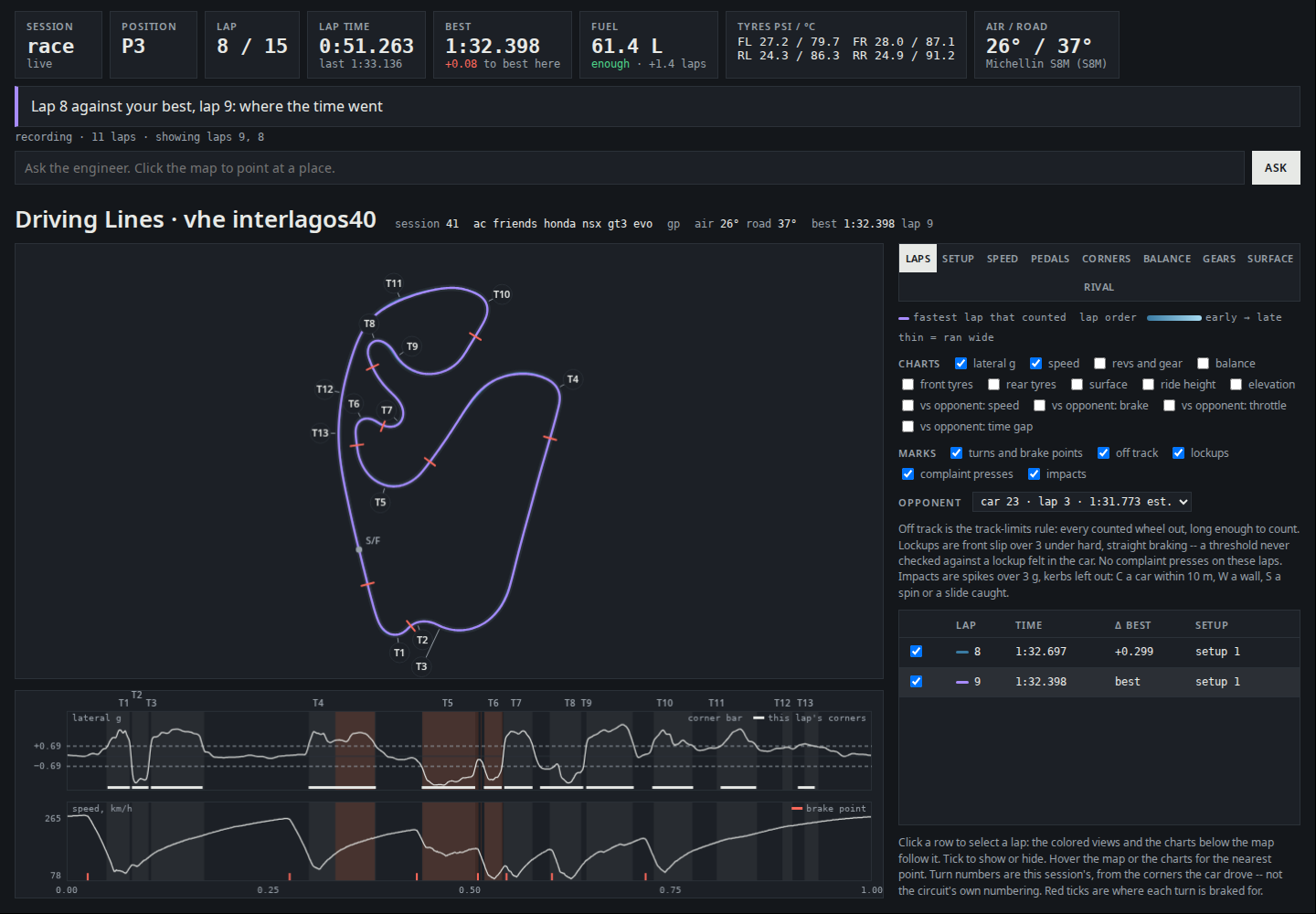
Either way, the pit wall at http://127.0.0.1:9666/dash shows the
session live in a browser on the gaming PC: lap times and the gap to your
best lap, position, fuel to the flag, tyre pressures and temperatures, and
the line map. When the assistant points at something, it puts those laps,
zoomed to the turn, and a caption there. Click the map and type a question,
and the assistant gets it with the next thing it reads.
Without a chat: run
assetto-mcp-pit-walland leave it open. It
records and serves the pit wall on its own, for a stream or a tablet; a
chat started later still puts laps on it and reads your questions.On a phone or tablet: set
ASSETTO_MCP_DASH_LAN=1and the pit wall is
also served on your network, on port 9667, at a secret link: click Open
on a phone on the pit wall for a QR code. Anyone with the link can see it
and ask questions; for a new one, delete~/.assetto-mcp/dash-tokenand
restart.On a stream: http://127.0.0.1:9666/dash/overlay is a strip of cards
(position, lap clock and gap, fuel and tyres, a track map with every car,
dimmed in the pit lane) on a transparent background. In OBS, add a
Browser source with that URL at the size of the space it fills (it scales
to any size), and leave its custom CSS empty so the background stays
transparent.
Without the skill you still get every tool; you just ask for each step
yourself, as below.
Step by step
Recording starts by itself and waits for the game.
1. Get on track and check the assistant can see you.
"Confirm you can see my session."
2. Drive 3–5 laps. Every lap is stored, including out-laps and the one
that ended in the barrier. Each is flagged for what it is, so a lap whose
time isn't a lap time can't poison your best-lap numbers.
3. Ask what the car is doing.
"Summarize my last lap and read my current setup."
You get per-corner minimum speed and brake points, tyre pressures and
temperatures, ride height and damper behavior, and a slip-balance number —
positive means understeer, negative means oversteer.
Corners are numbered T1, T2, T3 in the order your car drove them, and
places are given the way you'd say them: "T4 braking zone, 90 m before
turn-in". Where the track ships a data/sections.ini, turns also carry the
circuit's own names — Turn 10A, the Esses. Ask for track_corners to see
where each turn is.
4. Talk it through, and have it write a setup.
"It pushes on entry at the second-to-last corner. Try something and save it
asclaude_v1."
Values are clamped to what your car will actually accept, so the game can't
silently ignore them. It refuses to reuse an existing setup name, and to
write anything for a car whose ranges it hasn't seen — which happens until
the in-game app has seen the setup screen once.
It also tells you what each value reads as on the setup screen, which is
often a different number from the stored one, or says it doesn't know. Read
a couple off the screen for it and it won't have to ask again:
"At minimum front toe shows 0.40, at maximum -0.40."
Details: docs/SETUP-RANGES.md.
5. Pit, load the setup — then say you loaded it.
"I've loaded claude_v1."
Nothing in shared memory reveals which setup is on the car, so this is how
laps get labeled. If you realize afterwards that some laps were on a setup
nobody recorded, say which: "laps 41 to 44 were on baseline".
6. Drive again, and ask whether it worked.
"Compare my best lap on the new setup against lap 14."
Corner-by-corner deltas in minimum speed and brake point. With several laps
a side, ask it to compare the two runs: it judges the change against your own
lap-to-lap spread, so "faster" has to beat "you were just quicker that lap",
and it checks whether you got more consistent (that needs about six laps a
side).
Every comparison is filed in a setup book for the car, with what changed,
the conditions, the result and what you decided. Before the next change, the
engineer checks what earlier tests found, and works out how many laps a side
the test needs to show anything:
"What do we know about the rear anti-roll bar?"
7. See where you drove.
"Draw me a map of this session's laps."
You get a single self-contained HTML file in exports/ in the data
folder: every lap drawn where you drove, your best line picked out, laps colored by setup for an A/B,
any lap shaded by speed, pedal, gear or front/rear slide, a bump map of the
circuit, per-lap channel charts, marks where you ran wide or locked a wheel,
and an opponent's braking and throttle points against yours.
While you're driving
The in-game app (apps sidebar on the right edge of the screen) gives you:
- Four complaint buttons — Understeer, Oversteer, Braking, Traction —
each bindable to a wheel button in the app's Assetto MCP Bindings
window. Press one the moment you feel it and it records where on track
you were, to be matched against the telemetry:
"you flagged understeer twice at the same corner — that's where front slip
exceeds rear by 0.09." - A status overlay — recording state and laps stored. If laps are
finishing and none are landing, it says so. - Messages from the assistant — "claude_v2 saved — pit and load it."
What gets logged
Everything stays on your machine. It's a SQLite file at~/.assetto-mcp/telemetry.db, the in-game app talks to the server over
localhost only, and nothing is uploaded anywhere.
While recording, at 25 Hz:
- Car state — speed, throttle, brake, steering, gear, RPM, lateral and
longitudinal acceleration - Tyres — per-wheel slip, pressure, core temperature and wear
- Chassis — ride height, world position, heading, pitch and roll, tyres
off track, and bodywork damage - Electronics — the TC and ABS settings
- From the in-game app — suspension travel, wheel loads and plank wear,
at up to 333 Hz, for the last 20 laps of a session
Per session it also stores the car, track, tyre compound, temperatures, fuel
figures, and a copy of every setup value on the car, which is how it works
out later which setup a lap was driven on. Per lap it stores the fuel burned
from line to line, so race fuel is planned on what your car actually uses.
Worth knowing:
- Other cars on track are logged too — driver name, car, lap times, and
speed/gear/pedal traces — which is what makes "compare me to the car ahead"
work. In an online session, other people's names end up in your local
database. - Notes about you and your cars — setup history, fuel rates, how you
like to be told things — are kept by the race-engineer skill innotes/
in the data folder, never in the repository. A client with no file
access of its own writes them, and the session handoff inexports/,
through the server's notes tools, which can write nowhere else. - Setup files are written only under names you ask for. Overwriting an
existing setup needs you to say so, and keeps the old file as<name>.ini.bak-<timestamp>.
How big it gets
About 0.4 MB per lap, roughly 12 MB per hour of driving. No lap is
ever deleted. Past the size budget (2 GB by default, set withASSETTO_MCP_MAX_DB_BYTES, 0 to disable), the oldest sessions' traces are
thinned — every 2nd sample, then every 4th, and so on — and their
opponent traces and high-rate suspension samples are dropped. Ask for a storage report to see
where you are.
diagnose.bat writes a report that redacts other MCP servers' secrets on a
best-effort basis, but still contains your username and absolute paths. Skim
it before sharing it.
Going deeper
| .claude/skills/race-engineer/ | The race-engineer skill: session routine, tool reference, how to read the numbers |
| docs/INSTALL.md | Manual install, per-client config, environment variables, upgrading from ac-race-engineer |
| docs/TROUBLESHOOTING.md | When your client shows no tools, when laps stop landing, and the rest |
| docs/SETUP-RANGES.md | How setup values are clamped |
| docs/INTERNALS.md | Corner detection, data-quality flags, driving line, suspension capture |
| docs/DEVELOPMENT.md | Running the tests, CI, schema changes |
| Issues | Open work |
Contributing
It has been driven on a handful of cars and circuits, so the places it's
wrong are mostly the places it hasn't been. If a number disagrees
with what you feel in the car, please open an issue: a lap marked invalid
that shouldn't have been, a setup value that didn't stick, a car whose ranges
come out wrong, a change you're sure you felt that it called "within noise".
Say which car and track, with lap numbers if you have them.
Pull requests are welcome. The test suite needs neither Windows nor
Assetto Corsa: the collector runs against a fake shared-memory source and the
in-game app against a stubbed CSP API.
pip install -e ".[test]"
python run_tests.py
See docs/DEVELOPMENT.md, and
the issues for somewhere to start. Support for another MCP
client's installer is particularly welcome:windows/install-claude-desktop.ps1 is the only file that knows about a
specific client.
License
MIT. Not affiliated with Kunos Simulazioni, Assetto Corsa, or the
Custom Shaders Patch project.
Yorumlar (0)
Yorum birakmak icin giris yap.
Yorum birakSonuc bulunamadi