env-doctor
Health Pass
- License — License: MIT
- Description — Repository has a description
- Active repo — Last push 0 days ago
- Community trust — 131 GitHub stars
Code Pass
- Code scan — Scanned 12 files during light audit, no dangerous patterns found
Permissions Pass
- Permissions — No dangerous permissions requested
This tool diagnoses and resolves GPU and CUDA compatibility issues across local machines, Docker containers, and CI/CD pipelines. It helps developers quickly find mismatched dependencies between NVIDIA drivers, toolkits, and AI libraries like PyTorch or TensorFlow.
Security Assessment
Risk Rating: Low
The tool is designed to inspect hardware and software environments. While it inherently reads local system configurations to detect compatibility issues and offers features like a CUDA Auto-Installer (which executes shell commands and installations), it does not access highly sensitive personal data. The light code audit found no dangerous patterns, no hardcoded secrets, and no dangerous permissions are requested. It operates entirely within the expected scope of an environment diagnostic utility.
Quality Assessment
Quality and maintenance are solid. The project is licensed under the standard MIT license. It is actively maintained, with repository activity as recent as today. It has garnered 131 GitHub stars, indicating a healthy level of community trust and adoption. The straightforward documentation and clear feature set suggest a mature and reliable tool for developers.
Verdict
Safe to use.
Diagnose and Fix CUDA / GPU environments compatibility issues locally, in Docker, and CI/CD. CLI + MCP server available.

Env-Doctor
The missing link between your GPU and Python AI libraries


"Why does my PyTorch crash with CUDA errors when I just installed it?"
Because your driver supports CUDA 11.8, but
pip install torchgave you CUDA 12.4 wheels.
Env-Doctor diagnoses and fixes the #1 frustration in GPU computing: mismatched CUDA versions between your NVIDIA driver, system toolkit, cuDNN, and Python libraries.
It takes 5 seconds to find out if your environment is broken - and exactly how to fix it.
Doctor "Check" (Diagnosis)
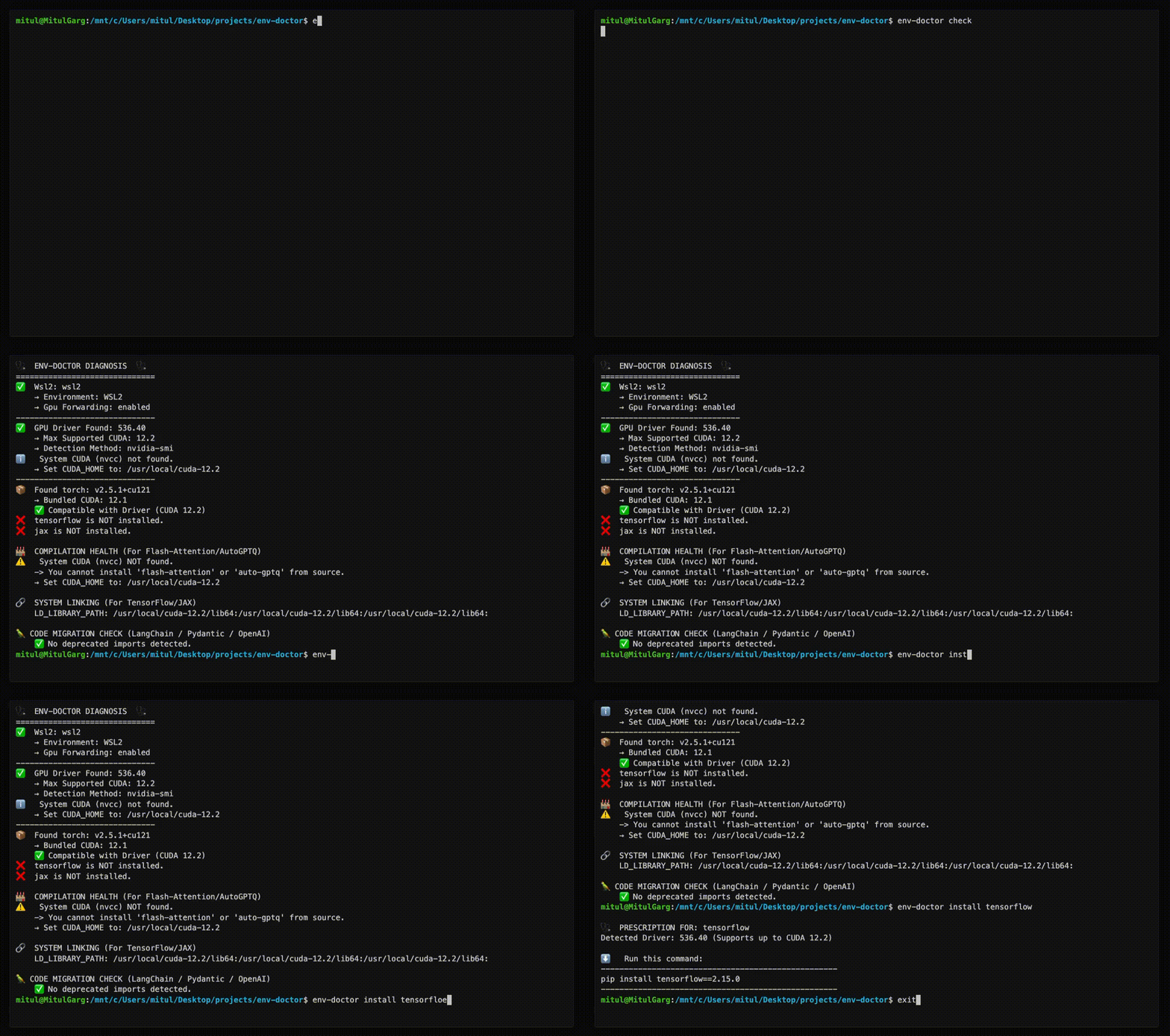
Features
| Feature | What It Does |
|---|---|
| One-Command Diagnosis | Check compatibility: GPU Driver → CUDA Toolkit → cuDNN → PyTorch/TensorFlow/JAX |
| Compute Capability Check | Detect GPU architecture mismatches — catches why torch.cuda.is_available() returns False on new GPUs (e.g. Blackwell) even when driver and CUDA are healthy |
| Python Version Compatibility | Detect Python version conflicts with AI libraries and dependency cascade impacts |
| CUDA Auto-Installer | Execute CUDA Toolkit installation directly with --run; CI-friendly with --yes; preview with --dry-run |
| Safe Install Commands | Get the exact pip install command that works with YOUR driver |
| Extension Library Support | Install compilation packages (flash-attn, SageAttention, auto-gptq, apex, xformers) with CUDA version matching |
| AI Model Compatibility | Check if LLMs, Diffusion, or Audio models fit on your GPU before downloading |
| WSL2 GPU Support | Validate GPU forwarding, detect driver conflicts within WSL2 env for Windows users |
| Deep CUDA Analysis | Find multiple installations, PATH issues, environment misconfigurations |
| Container Validation | Catch GPU config errors in Dockerfiles before you build |
| MCP Server | Expose diagnostics to AI assistants (Claude Desktop, Zed) via Model Context Protocol |
| CI/CD Ready | JSON output, proper exit codes, and CI-aware env-var persistence (GitHub Actions, GitLab CI, CircleCI, Azure Pipelines, Jenkins) |
Installation
pip install env-doctor
Or with uv (a faster Python package manager):
# Install as an isolated tool (won't touch your project env)
uv tool install env-doctor

# Or run once without installing
uvx env-doctor check
Both methods install the same package from PyPI — pick whichever you prefer.
MCP Server (AI Assistant Integration)
Env-Doctor includes a built-in Model Context Protocol (MCP) server that exposes diagnostic tools to AI assistants like Claude Code and Claude Desktop.
Quick Setup for Claude Desktop
Install env-doctor:
pip install env-doctorAdd to Claude Desktop config (
~/Library/Application Support/Claude/claude_desktop_config.json):{ "mcpServers": { "env-doctor": { "command": "env-doctor-mcp" } } }Restart Claude Desktop - the tools will be available automatically.
Available Tools (11 Total)
env_check- Full GPU/CUDA environment diagnosticsenv_check_component- Check specific component (driver, CUDA, cuDNN, etc.)python_compat_check- Check Python version compatibility with installed AI librariescuda_info- Detailed CUDA toolkit informationcudnn_info- Detailed cuDNN library informationcuda_install- Step-by-step CUDA installation instructionsinstall_command- Get safe pip install commands for AI librariesmodel_check- Analyze if AI models fit on your GPUmodel_list- List all available models in databasedockerfile_validate- Validate Dockerfiles for GPU issuesdocker_compose_validate- Validate docker-compose.yml for GPU configuration
Demo — Claude Code using env-doctor MCP tools
Example Usage
Ask your AI assistant:
- "Check my GPU environment"
- "Is my Python version compatible with my installed AI libraries?"
- "How do I install CUDA Toolkit on Ubuntu?"
- "Get me the pip install command for PyTorch"
- "Can I run Llama 3 70B on my GPU?"
- "Validate this Dockerfile for GPU issues"
- "What CUDA version does my PyTorch require?"
- "Show me detailed CUDA toolkit information"
Learn more: MCP Integration Guide
Usage
Diagnose Your Environment
env-doctor check
Example output:
🩺 ENV-DOCTOR DIAGNOSIS
============================================================

🖥️  Environment: Native Linux

🎮 GPU Driver
   ✅ NVIDIA Driver: 535.146.02
   └─ Max CUDA: 12.2

🔧 CUDA Toolkit
   ✅ System CUDA: 12.1.1

📦 Python Libraries
   ✅ torch 2.1.0+cu121

✅ All checks passed!
On new-generation GPUs (e.g. RTX 5070 / Blackwell), env-doctor catches architecture mismatches and distinguishes between two failure modes:
Hard failure — torch.cuda.is_available() returns False:
🎯  COMPUTE CAPABILITY CHECK
    GPU: NVIDIA GeForce RTX 5070 (Compute 12.0, Blackwell, sm_120)
    PyTorch compiled for: sm_50, sm_60, sm_70, sm_80, sm_90, compute_90
    ❌ ARCHITECTURE MISMATCH: Your GPU needs sm_120 but PyTorch 2.5.1 doesn't include it.

    This is likely why torch.cuda.is_available() returns False even though
    your driver and CUDA toolkit are working correctly.

    FIX: Install PyTorch nightly with sm_120 support:
       pip install --pre torch torchvision torchaudio --index-url https://download.pytorch.org/whl/nightly/cu126
Soft failure — torch.cuda.is_available() returns True via NVIDIA's PTX JIT, but complex ops may silently degrade:
🎯  COMPUTE CAPABILITY CHECK
    GPU: NVIDIA GeForce RTX 5070 (Compute 12.0, Blackwell, sm_120)
    PyTorch compiled for: sm_50, sm_60, sm_70, sm_80, sm_90, compute_90
    ⚠️  ARCHITECTURE MISMATCH (Soft): Your GPU needs sm_120 but PyTorch 2.5.1 doesn't include it.

    torch.cuda.is_available() returned True via NVIDIA's driver-level PTX JIT,
    but you may experience degraded performance or failures with complex CUDA ops.

    FIX: Install a newer PyTorch with native sm_120 support for full compatibility:
       pip install --pre torch torchvision torchaudio --index-url https://download.pytorch.org/whl/nightly/cu126
Check Python Version Compatibility
env-doctor python-compat
🐍  PYTHON VERSION COMPATIBILITY CHECK
============================================================
Python Version: 3.13 (3.13.0)
Libraries Checked: 2

❌  2 compatibility issue(s) found:

    tensorflow:
      tensorflow supports Python <=3.12, but you have Python 3.13
      Note: TensorFlow 2.15+ requires Python 3.9-3.12. Python 3.13 not yet supported.

    torch:
      torch supports Python <=3.12, but you have Python 3.13
      Note: PyTorch 2.x supports Python 3.9-3.12. Python 3.13 support experimental.

⚠️   Dependency Cascades:
    tensorflow [high]: TensorFlow's Python ceiling propagates to keras and tensorboard
      Affected: keras, tensorboard, tensorflow-estimator
    torch [high]: PyTorch's Python version constraint affects all torch ecosystem packages
      Affected: torchvision, torchaudio, triton

💡  Consider using Python 3.12 or lower for full compatibility

💡  Cascade: tensorflow constraint also affects: keras, tensorboard, tensorflow-estimator

💡  Cascade: torch constraint also affects: torchvision, torchaudio, triton

============================================================
Get Safe Install Command
env-doctor install torch
⬇️ Run this command to install the SAFE version:
---------------------------------------------------
pip install torch torchvision --index-url https://download.pytorch.org/whl/cu118
---------------------------------------------------
Install CUDA Toolkit
Display instructions or execute the installation directly:
# Show platform-specific steps (default)
env-doctor cuda-install

# Preview what would run — no changes made
env-doctor cuda-install --dry-run

# Execute interactively (asks [y/N] before running)
env-doctor cuda-install --run

# Execute headlessly — great for CI/scripts
env-doctor cuda-install --run --yes

# Install a specific version, headless
env-doctor cuda-install 12.6 --run --yes
Example dry-run output (Windows):
[DRY RUN] [1/1] winget install Nvidia.CUDA --version 12.2

[DRY RUN] [1/1] nvcc --version

CUDA 12.2 installation completed successfully.
Verification: PASSED

Full log: C:\Users\you\.env-doctor\install.log
Every run writes a timestamped log to ~/.env-doctor/install.log for debugging.
Supported Platforms:
- Ubuntu 20.04, 22.04, 24.04
- Debian 11, 12
- RHEL 8, 9 / Rocky Linux / AlmaLinux
- Fedora 39+
- WSL2 (Ubuntu)
- Windows 10/11 (via
winget) - Conda (all platforms)
Exit codes for CI pipelines:
| Code | Meaning |
|---|---|
0 |
Installation succeeded and verified |
1 |
An installation step failed |
2 |
Installed but nvcc --version failed |
Install Compilation Packages (Extension Libraries)
For extension libraries like flash-attn, SageAttention, auto-gptq, apex, and xformers that require compilation from source, env-doctor provides special guidance to handle CUDA version mismatches:
env-doctor install flash-attn
Example output (with CUDA mismatch):
🩺  PRESCRIPTION FOR: flash-attn

⚠️   CUDA VERSION MISMATCH DETECTED
     System nvcc: 12.1.1
     PyTorch CUDA: 12.4.1

🔧  flash-attn requires EXACT CUDA version match for compilation.
    You have TWO options to fix this:

============================================================
📦  OPTION 1: Install PyTorch matching your nvcc (12.1)
============================================================

Trade-offs:
  ✅ No system changes needed
  ✅ Faster to implement
  ❌ Older PyTorch version (may lack new features)

Commands:
  # Uninstall current PyTorch
  pip uninstall torch torchvision torchaudio -y

  # Install PyTorch for CUDA 12.1
  pip install torch --index-url https://download.pytorch.org/whl/cu121

  # Install flash-attn
  pip install flash-attn --no-build-isolation

============================================================
⚙️   OPTION 2: Upgrade nvcc to match PyTorch (12.4)
============================================================

Trade-offs:
  ✅ Keep latest PyTorch
  ✅ Better long-term solution
  ❌ Requires system-level changes
  ❌ Verify driver supports CUDA 12.4

Steps:
  1. Check driver compatibility:
     env-doctor check

  2. Download CUDA Toolkit 12.4:
     https://developer.nvidia.com/cuda-12-4-0-download-archive

  3. Install CUDA Toolkit (follow NVIDIA's platform-specific guide)

  4. Verify installation:
     nvcc --version

  5. Install flash-attn:
     pip install flash-attn --no-build-isolation

============================================================
Check Model Compatibility
env-doctor model llama-3-8b
🤖  Checking: LLAMA-3-8B (8.0B params)

🖥️   Your Hardware: RTX 3090 (24GB)

💾  VRAM Requirements:
  ✅  FP16: 19.2GB - fits with 4.8GB free
  ✅  INT4:  4.8GB - fits with 19.2GB free

✅  This model WILL FIT on your GPU!
List all models: env-doctor model --list
Cloud GPU Recommendations:
# Get cloud GPU recommendations for a model that doesn't fit
env-doctor model llama-3-70b --recommend

# Direct VRAM lookup (no model name needed)
env-doctor model --vram 80000 --recommend
☁️   Cloud GPU Recommendations

  FP16 (~140.0 GB):
    $27.20 /hr  azure  ND96asr_v4              8x A100 (40GB each)          180.0GB free
    $29.39 /hr  gcp    a2-highgpu-8g            8x A100 (40GB each)          180.0GB free
    ...
Automatic HuggingFace Support (New ✨)
If a model isn't found locally, env-doctor automatically checks the HuggingFace Hub, fetches its parameter metadata, and caches it locally for future runs — no manual setup required.
# Fetches from HuggingFace on first run, cached afterward
env-doctor model bert-base-uncased
env-doctor model sentence-transformers/all-MiniLM-L6-v2
Output:
🤖  Checking: BERT-BASE-UNCASED
    (Fetched from HuggingFace API - cached for future use)
    Parameters: 0.11B
    HuggingFace: bert-base-uncased

🖥️   Your Hardware:
    RTX 3090 (24GB VRAM)

💾  VRAM Requirements & Compatibility
  ✅  FP16:  264 MB - Fits easily!

💡  Recommendations:
1. Use fp16 for best quality on your GPU
Validate Dockerfiles
env-doctor dockerfile
🐳  DOCKERFILE VALIDATION

❌  Line 1: CPU-only base image: python:3.10
    Fix: FROM nvidia/cuda:12.1.0-runtime-ubuntu22.04

❌  Line 8: PyTorch missing --index-url
    Fix: pip install torch --index-url https://download.pytorch.org/whl/cu121
More Commands
| Command | Purpose |
|---|---|
env-doctor check |
Full environment diagnosis |
env-doctor python-compat |
Check Python version compatibility with AI libraries |
env-doctor cuda-install |
Step-by-step CUDA Toolkit installation guide |
env-doctor install <lib> |
Safe install command for PyTorch/TensorFlow/JAX, extension libraries (flash-attn, auto-gptq, apex, xformers, SageAttention, etc.) |
env-doctor model <name> |
Check model VRAM requirements |
env-doctor cuda-info |
Detailed CUDA toolkit analysis |
env-doctor cudnn-info |
cuDNN library analysis |
env-doctor dockerfile |
Validate Dockerfile |
env-doctor docker-compose |
Validate docker-compose.yml |
env-doctor init --github-actions |
Generate GitHub Actions workflow |
env-doctor scan |
Scan for deprecated imports |
env-doctor debug |
Verbose detector output |
CI/CD Integration
Generate a GitHub Actions workflow with one command:
env-doctor init --github-actions
This creates .github/workflows/env-doctor.yml — review, commit, and push. Your CI will validate the ML environment on every push and PR.
Or add manually:
# JSON output for scripting
env-doctor check --json

# CI mode with exit codes (0=pass, 1=warn, 2=error)
env-doctor check --ci
GitHub Actions example:
- run: pip install env-doctor
- run: env-doctor check --ci
Documentation
Full documentation: https://mitulgarg.github.io/env-doctor/
- Getting Started
- Command Reference
- MCP Integration Guide
- WSL2 GPU Guide
- CI/CD Integration
- Architecture
Video Tutorial: Watch Demo on YouTube
Contributing
Contributions welcome! See CONTRIBUTING.md for details.
License
MIT License - see LICENSE
Reviews (0)
Sign in to leave a review.
Leave a reviewNo results found