glance-desktop
Health Warn
- License — License: MIT
- Description — Repository has a description
- Active repo — Last push 0 days ago
- Low visibility — Only 8 GitHub stars
Code Fail
- rm -rf — Recursive force deletion command in scripts/bundle.sh
- rm -rf — Recursive force deletion command in scripts/package-linux.sh
Permissions Pass
- Permissions — No dangerous permissions requested
No AI report is available for this listing yet.
Native screenshot tool for macOS and Linux: annotate, animate, and share visual context with coding agents. Built with Rust and GPUI.
Glance
Glance is a native screenshot editor for macOS, with experimental support for Omarchy.
Capture a screenshot, add arrows and labels, then copy, save, or share it.
Frame images with backdrops and export animations as GIF or MP4.
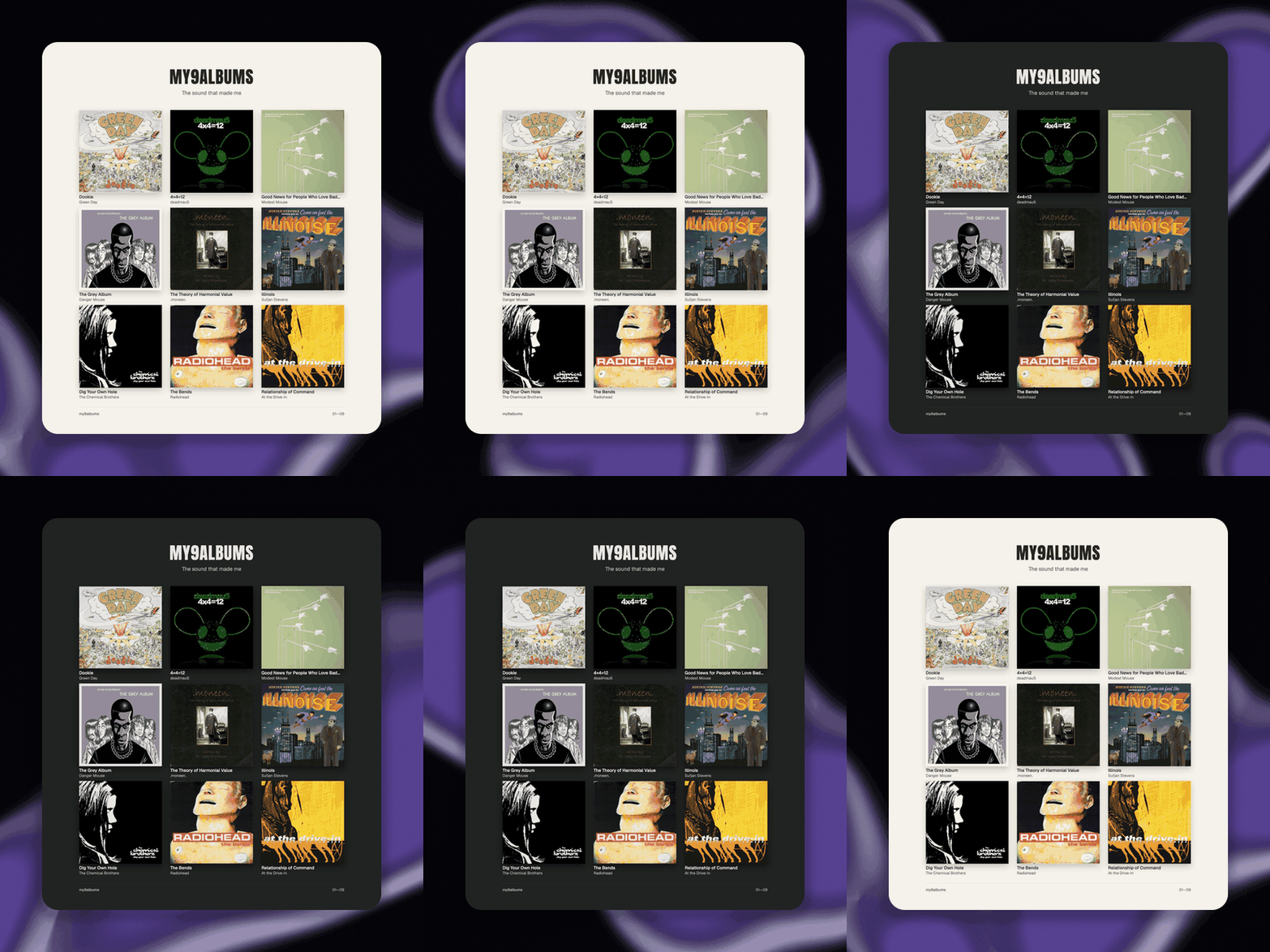
Six-second loop made with Glance’s padding and animated Lava backdrop.
See a still annotation example.
Install
Download a binary from the latest release.
macOS — Apple Silicon, macOS 12+
- Download
Glance-<version>-macos-arm64.zipand extract it. - Move
Glance.appto Applications and open it. - If macOS blocks it, follow the FAQ below.
Omarchy — x86_64, experimental
Download the release's .pkg.tar.zst package, then install and launch it:
sudo pacman -U ./glance-desktop-*.pkg.tar.zst
glance
See the Omarchy guide for checksum verification and global capture bindings.
Your first screenshot
The app opens with a practice canvas. Try the tools there, or capture your screen:
- Press ⌘⌥2 to select an area, or ⌘⌥3 to capture the main display.
Grant Screen Recording access when prompted, then quit and reopen Glance. - Press A and draw an arrow. Press T, click, and type a label.
- Press ⌘C to copy the image or ⌘S to save a PNG.
- To share a temporary link, press ⌘⇧C and paste it into a chat.
On Omarchy, use Ctrl for editor shortcuts; use the guide above to capture globally.
Open Backdrop to add framing or motion, and Export to save a GIF or MP4.
Read the usage guide for selection, tool options, and shortcuts.
Editing, copying, and file exports work locally. Sharing a link uploads an encrypted
PNG to glance.sh. Anyone with the link can retrieve it until
it expires, usually after about 30 minutes.
macOS FAQ
macOS says it cannot verify Glance. How do I open it?
The current download is ad-hoc signed and has not been notarized by Apple.
For a copy downloaded from this repository's releases, try opening it once,
then go to System Settings → Privacy & Security → Open Anyway and confirm Open.
On macOS 12, use System Preferences → Security & Privacy → General.
“Cannot verify” is different from “will damage your computer.” For the latter,
stop and report the exact message in an issue.
See Apple's explanation.
Why can't Glance capture my screen?
Enable Glance under Privacy & Security → Screen Recording (called
Screen & System Audio Recording on newer macOS), then quit and reopen it.
On macOS 12, this setting is under Security & Privacy → Privacy.
If access is already enabled, remove Glance's entry and add the installed app again.
More
- Usage · Omarchy · MCP setup
- Build from source · Contribute · Architecture
- Report a bug · Security · Changelog
License
MIT. See third-party notices for bundled code and assets.
Reviews (0)
Sign in to leave a review.
Leave a reviewNo results found