framejam
Health Gecti
- License — License: MIT
- Description — Repository has a description
- Active repo — Last push 0 days ago
- Community trust — 14 GitHub stars
Code Gecti
- Code scan — Scanned 12 files during light audit, no dangerous patterns found
Permissions Gecti
- Permissions — No dangerous permissions requested
Bu listing icin henuz AI raporu yok.
Make videos with your coding agent: pick a style, then point at the frame and say what to change. Works with Hyperframes, Remotion or any video tool, over MCP.
FrameJam
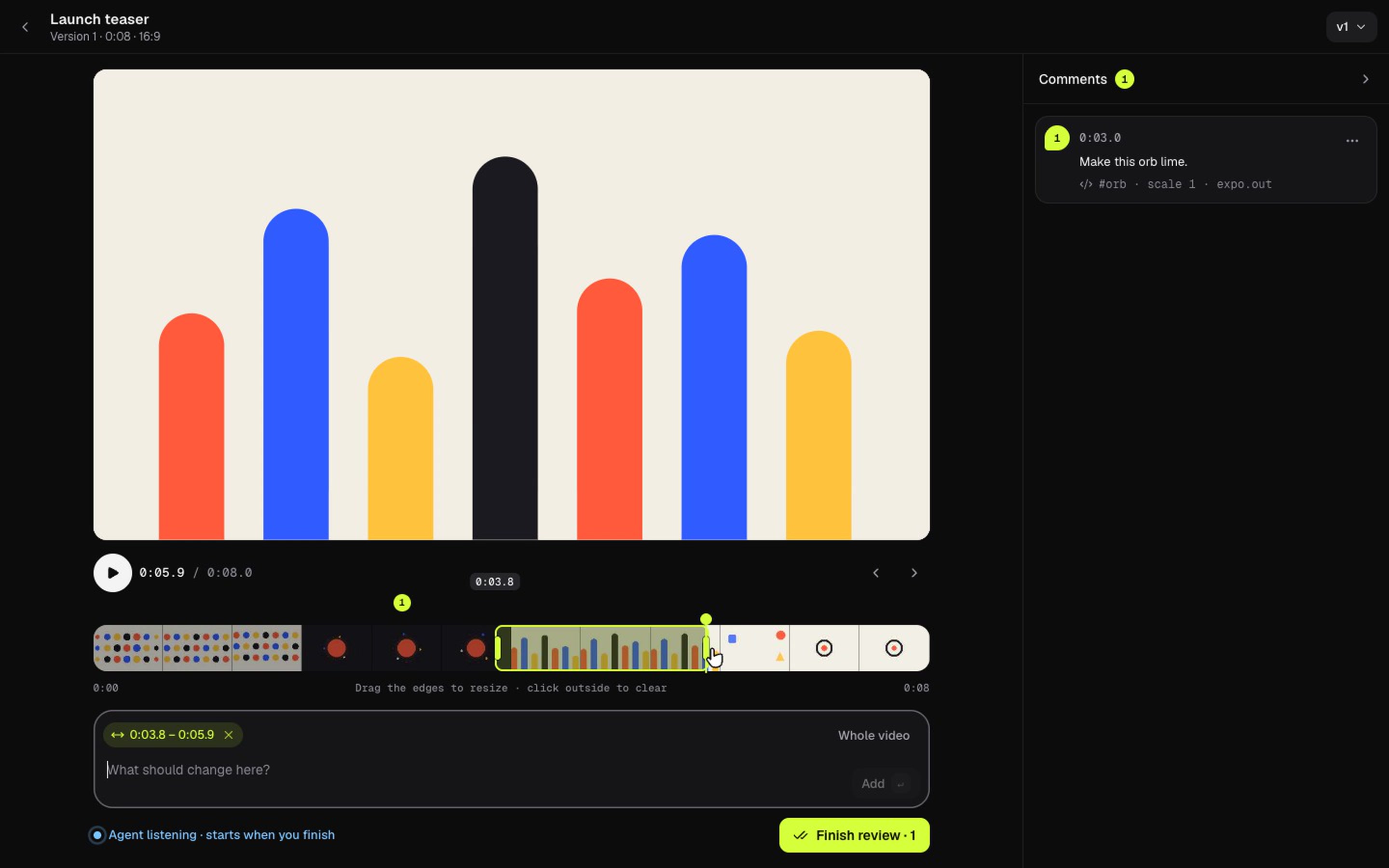
Make videos with your coding agent, and tell it what to change by pointing at the screen.
Pick a style, let the agent build the video, then click the frame that's wrong and say why.
Your agent gets the exact timestamp and a frame image with your pin on the spot you clicked.
Website · Join the Discord · Get updates · Report an issue
Why FrameJam
Coding agents are surprisingly good at making videos, with Hyperframes,
Remotion, Motion Canvas, ffmpeg or whatever your project already uses. The hard part is everything around it. Describing a look in words is slow, and "the thing at around three seconds
should be bigger" is a terrible way to give feedback. FrameJam is a small app that sits next to your agent
(Cursor, Claude Code, ChatGPT desktop) and handles both.
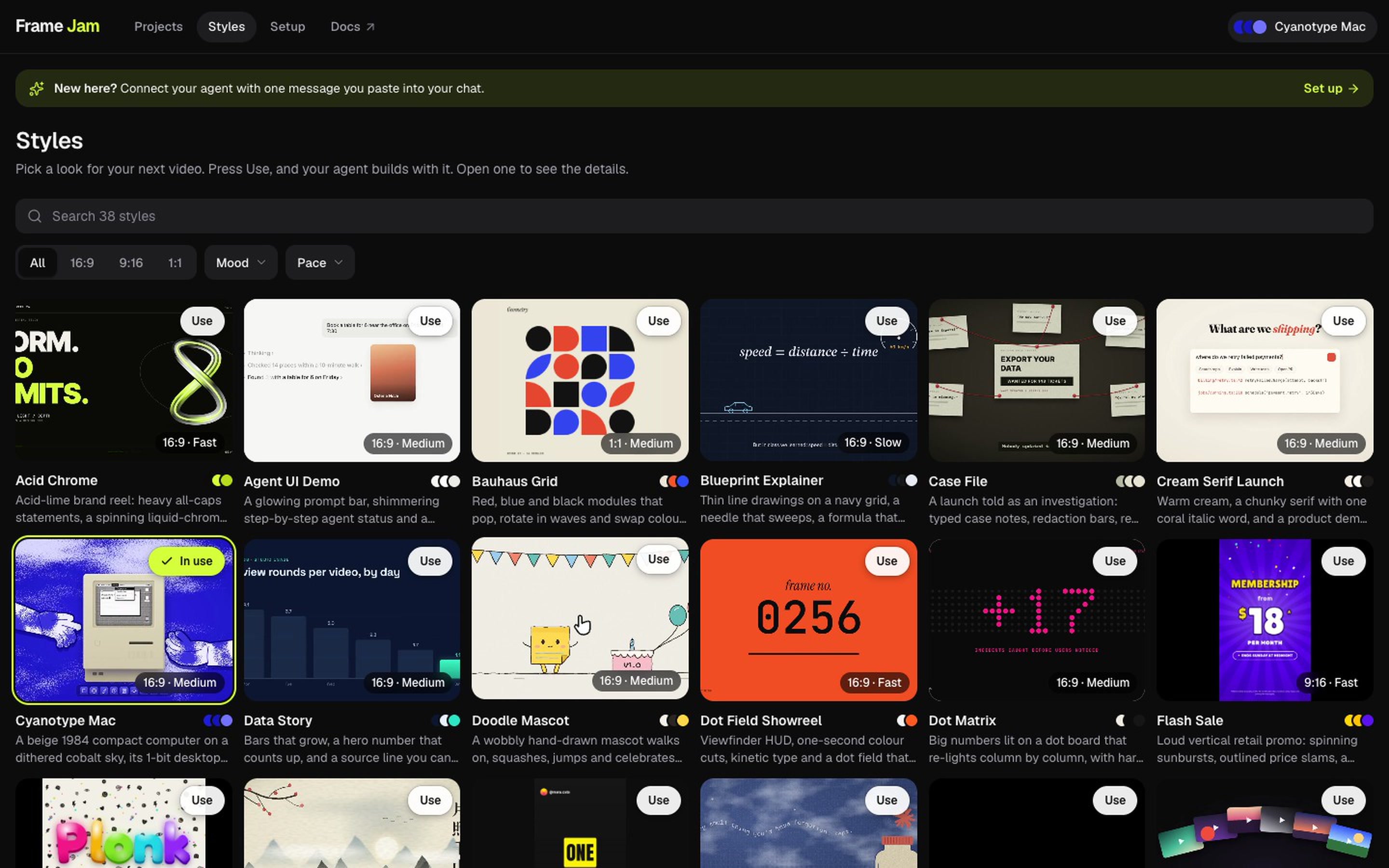
Pick a style instead of describing one. Browse 30 example videos and press Use. Your agent gets the full
recipe: palette, fonts, easing, transitions, text animations, pacing and a working template.
Give feedback like you would to a person. Pause and type, click the thing that's off, or drag across the
timeline to mark a range. Press Finish review and your agent gets every comment with its timestamp and a frame
from the render, with your pin drawn where you clicked.
Works with any video tool. Anything that renders an mp4 can be reviewed, and you always review the render.
Go round by round. Each new version from the agent is a fresh round. Old versions keep their comments, so
you can always see what changed and why.
Runs on your machine. One local Node process, no account, no upload. Your projects are plain JSON files in~/.framejam. Your videos and comments never leave your machine. The Styles page streams its example videos from
framejam.ai, and the Feedback button sends the note you write; nothing else goes out.
How it works
- Pick a look on the Styles page.
- Ask your agent for a video, for example "make a 7-second launch teaser with FrameJam and open it for review".
- Review it in the browser pane next to your chat: click, type, drag, then press Finish review.
- Get version 2. The agent applies your notes and the page switches to the new version on its own. Repeat
until you love it.
Not ready to animate yet? Ask for a storyboard first: one still per shot, which you review the same way.
Quick start
You need Node 22+ and ffmpeg (brew install ffmpeg on macOS). Paste this into your agent (shown for Cursor;
use claude or codex for the other apps):
Run
npx -y framejam install cursorand open the link it prints in your built-in browser.
Or run npx -y framejam install in a terminal yourself; without an app name it sets up every app it finds. It adds
the FrameJam MCP server to each app, installs the skill with the skills CLI,
checks Node and ffmpeg, and starts the app in the background at http://localhost:2400. Restart your agent app once
so it loads the new tools (Cursor: reload the window or turn framejam on in Settings → MCP; Codex: Settings → MCP
servers → Restart).
Updating. Run npx -y framejam@latest install any time: it refreshes the skill and the MCP entry, and replaces an
older FrameJam UI that is still running in the background with the new one. The Projects page shows a notice with
this command when a newer version is on npm (it asks the npm registry at most every 6 hours; setFRAMEJAM_NO_UPDATE_CHECK=1 to turn that off). Restart your agent app afterwards so it loads the new version.
After that, typing /framejam in your agent is all it takes: the agent opens FrameJam and picks up where you are (a
video you're already editing, feedback waiting, or a new video). Until an agent has connected, the start page shows a
short setup checklist (it stays available at /setup). After that, it lists your projects and shows whose turn it is
on each one.
To run from a clone instead:
git clone https://github.com/moritzkremb/framejam.git
cd framejam
npm install
npm run build
npm start                 # http://localhost:2400  (MCP at http://localhost:2400/mcp)
node dist/server/cli.js install   # points your apps at this clone instead of npm
Connect your agent
npx -y framejam install does all of this for you. To set it up by hand, each app needs the MCP server and the
skill; then run npx -y framejam start to start the UI. Desktop apps launched from the Dock may not see the PATH
from your shell (nvm, fnm): if the server fails to start because npx isn't found, use the full path fromwhich npx as the command. When running from a clone, replace npx -y framejam withnode /absolute/path/to/framejam/dist/server/cli.js and moritzkremb/framejam with the clone's path.
Add this to ~/.cursor/mcp.json (or .cursor/mcp.json in a project):
{
  "mcpServers": {
    "framejam": {
      "command": "npx",
      "args": ["-y", "framejam", "--stdio"]
    }
  }
}
npx -y skills add moritzkremb/framejam -g -a cursor -y
Open http://localhost:2400 in Cursor's built-in browser so the review sits beside the chat.
claude mcp add -s user framejam -- npx -y framejam --stdio
npx -y skills add moritzkremb/framejam -g -a claude-code -y
Restart Claude Code so it loads the server. It has no built-in browser, so open http://localhost:2400 yourself.
codex mcp add framejam -- npx -y framejam --stdio
npx -y skills add moritzkremb/framejam -g -a codex -y
Then restart the MCP servers in Settings → MCP servers.
ChatGPT chat mode (or any remote MCP client)ChatGPT's chat connectors use MCP over HTTP. Run npm start, turn on developer mode for connectors in ChatGPT's
settings, and add a custom connector with this URL:
http://localhost:2400/mcp
If your ChatGPT build requires an https URL, expose the port with a tunnel (for examplecloudflared tunnel --url http://localhost:2400) and set FRAMEJAM_PUBLIC_URL to the tunnel URL so the review links
it hands out are reachable.
skills/framejam/SKILL.md is the skill. npx skills add moritzkremb/framejam installs it
for most agents; you can also drop it into AGENTS.md. It walks the agent through: ask what to make → pick a preset →
build with the project's tool → render → open_review → wait_for_feedback (and call it again while the result ispending, up to 12 times in a row, about 10 minutes) → edit → add_version with a note, until you say it's done. .cursor/rules/framejam.mdc is the same text
as a Cursor rule; regenerate it with npm run sync:rule after editing the skill.
Try the whole loop without an agent
npm start                 # terminal 1
npm run e2e               # terminal 2 — plays the agent: picks a preset, opens a review, blocks on wait_for_feedback
Open the printed review URL, add a few comments and press Finish review. The script prints what the agent
received, then posts v2, and you can watch the page move to it live. npx tsx scripts/ui-demo.ts does the browser
side automatically (headless Chrome) and saves screenshots.
Styles
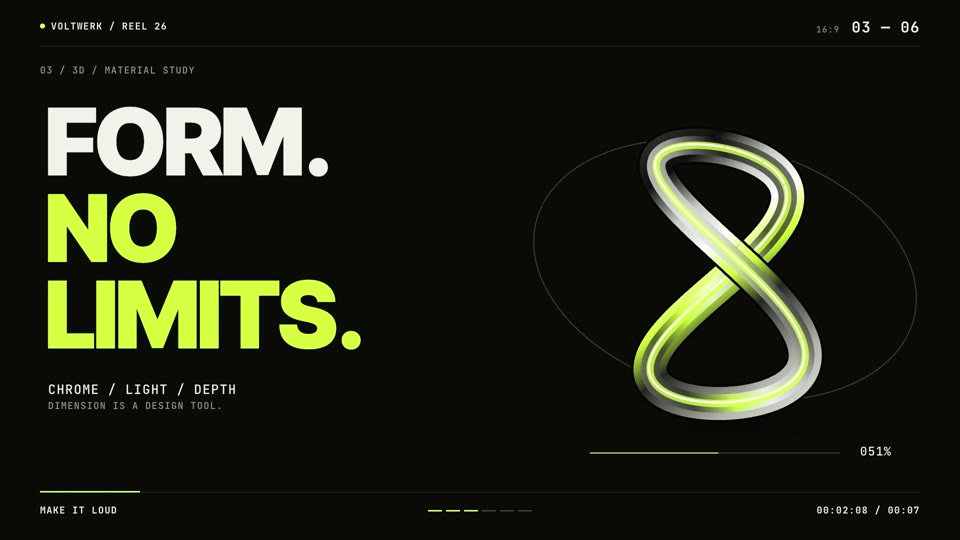 Acid Chrome |
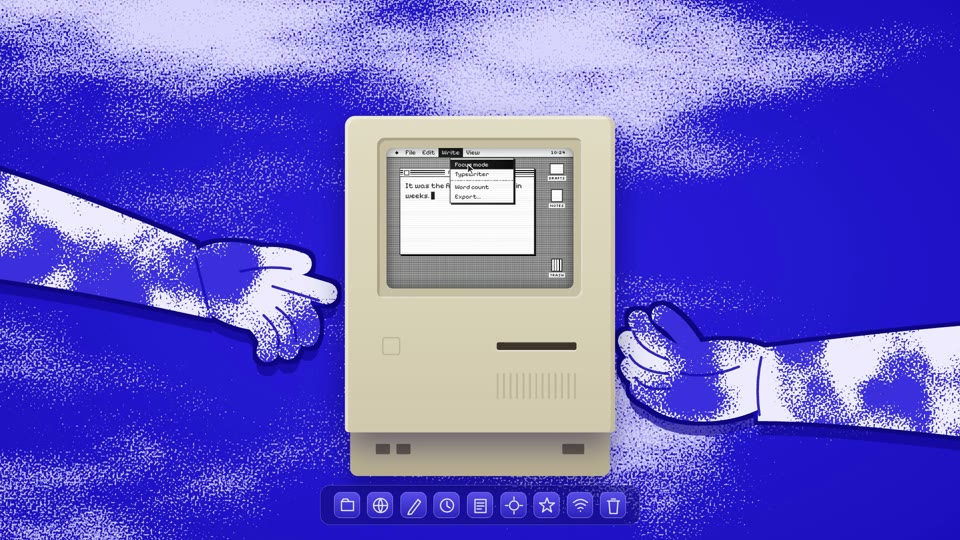 Cyanotype Mac |
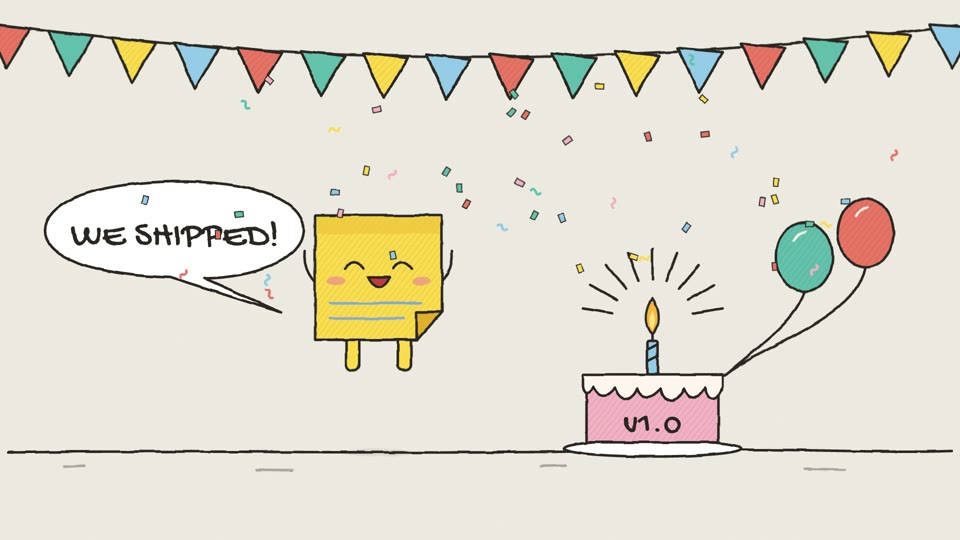 Doodle Mascot |
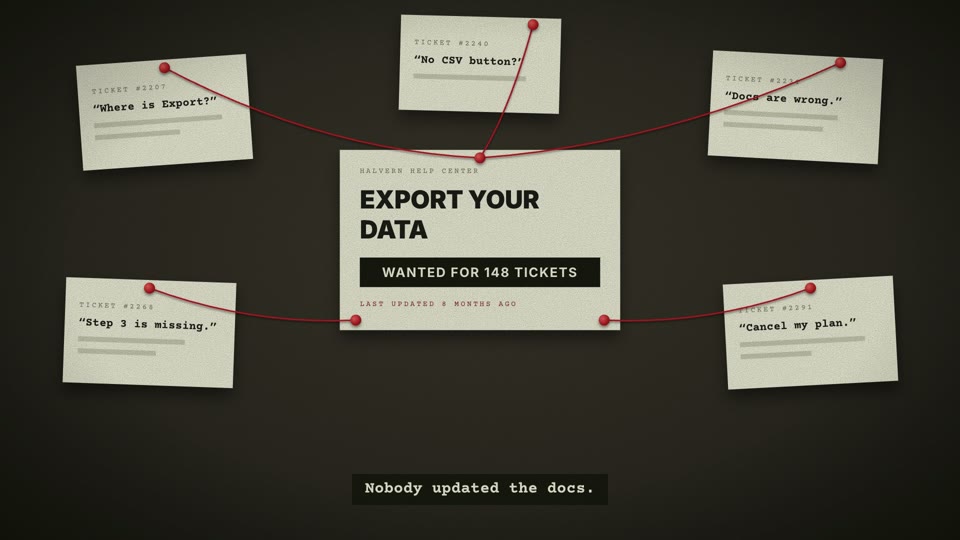 Case File |
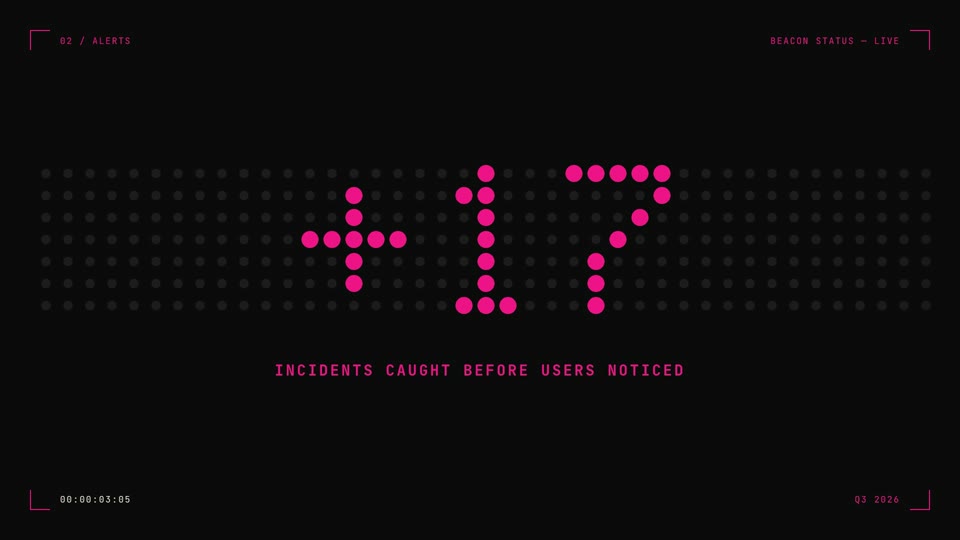 Dot Matrix |
 Ink Wash |
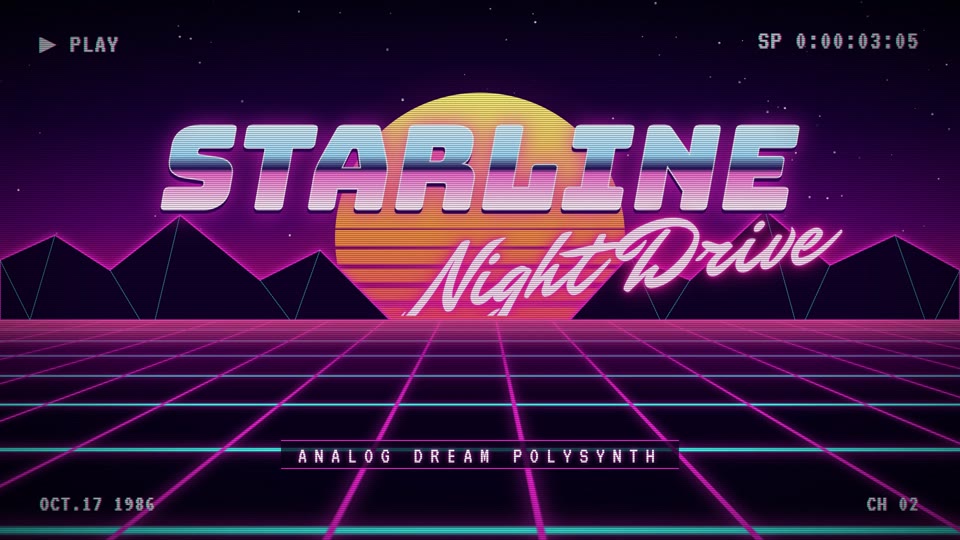 Synthwave Grid |
 Parchment Epic |
FrameJam ships with 30 styles:
Neon Terminal, Noir Quote, Data Story, Mono Changelog, Paper Marker, Bauhaus Grid (1:1),
Dot Matrix, Red Band Title, Midnight Launch, Cream Serif Launch, Agent UI Demo,
Dot Field Showreel, Blueprint Explainer, Topo Credits, Parchment Epic, Case File, Ink Wash,
Acid Chrome, Recipe Steps, Split Flap, Label Collage, Cyanotype Mac, Doodle Mascot,
Synthwave Grid, Pop Zine, UI Microstudy, Motion Principles, Dither Serif, Life Timeline and
Storybook Lantern. Want a style that isn't here? Ask for it in the
FrameJam Discord.
Many were studied from the Skillry Opus 5.5 gallery, What Ships launch films and Opus 5.5 videos shared on X, with
original copy and no brand assets. Every one passes hyperframes lint with no errors.
Presets live in presets/<id>/ (built-in) and ~/.framejam/presets/<id>/ (yours):
presets/neon-terminal/
  style.json          # palette, fonts, easing, transitions, textAnimations, rhythm, guide, format, size
  composition/        # the style as a Hyperframes project (index.html + assets), a template for agents
  preview.mp4         # rendered with `npx hyperframes render`
  poster.jpg
The npm package leaves out the built-in preview.mp4 files to stay small; the Styles page streams them fromhttps://www.framejam.ai/presets/<id>/preview.mp4 (override with FRAMEJAM_PREVIEW_URL). To add a style pack, unzip
it into ~/.framejam/presets/.
To re-render the previews:
npm run render:presets # or: npm run render:presets -- noir-quote
The review page
Rounds, comments and what the agent sees- One round per version. You add comments to the latest version, then press Finish review. That locks the
version and hands its comments to the agent. The agent's next version starts with an empty list, and older versions
show their comments greyed out. - Changed your mind? After finishing, Edit comments reopens the round. If the agent hadn't picked the comments
up yet they're simply withdrawn; if it had, finishing again sends a revised list (revised: true) that replaces the
old one. - Layout. The video, timeline and comment box sit on the left; the comments are a list in a sidebar on the right
that collapses to a rail. Clicking a comment anywhere (pin, timeline marker, corner note) opens the sidebar on it.
Below 720px wide the sidebar slides over the video instead of taking a column. - The comment box sits under the timeline. It's attached to the current time by default; click the video to attach
a spot (the agent gets that frame with your pin drawn on it), drag across the filmstrip to attach a range, or choose Whole video. Enter adds the comment. - On the video, a comment shows up only while the playhead is at it: pinned comments as a bubble on their spot,
time and range comments as a note in the top-left corner. The cursor over the video is a comment bubble. - Agent listening. The page says "Agent listening" while the agent is inside
wait_for_feedback(and for 15
seconds between its calls). That only happens while the agent's turn is still running: once it ends its turn, nobody
is listening, and after you finish the page shows one line to paste into the chat ("Apply my FrameJam feedback for
rev_…"). It switches to "Your agent is making version N" once the agent picks the comments up. - What plays. Always the render. Each version keeps a snapshot of its mp4, so older versions look as they did then.
- Timeline zoom. Pinch on the timeline,
⌘+scroll (Ctrl+scroll), or use the zoom buttons to pick ranges on long
videos. Scroll sideways or drag the bar under the filmstrip to move along. - Download. The download button next to Finish review (or Download video in the version menu) saves a copy of
the version's video wherever you choose. - Keys.
Spaceplay/pause,←/→step one frame,Shift+←/→step one second,Cfocus the comment box,⌘↩(Ctrl+Enter) finish review,Escclear,?shortcuts. - Copy comments as text (version menu) copies a version's comments as markdown for harnesses without MCP.
Before anything is animated, an agent can open a storyboard: a set of still panels, one per shot, each with an
optional title and caption (action, camera move, voiceover line, duration).
open_review({
  title: "Launch storyboard",
  panelsDir: "/abs/project/storyboard",          // every image in the folder, sorted by file name
  panels: [{ path: "01.png", title: "Cold open", caption: "Slow push in. VO: 'Every team ships faster.'" }, "02.png"],
})
The review page shows the panels as a board (a grid with titles and captions) and a panel view (one panel
large, with a strip of all panels underneath). Click a panel on the board to open it, click inside it to pin a spot,
or just type to comment on the whole panel. On the board, the comment box is for the whole storyboard. Keys: ←/→
previous/next panel, B board, C comment, ⌘↩ finish review.
Comments reach the agent by panel: at: "panel 3 (Cold open)", with the panel's number, title, caption and image path,
the pin position, and an image of the panel with the pin drawn on it. Rounds, Finish review, Edit comments and versions
work exactly as for videos. Each version keeps its own copy of the panel images, so the agent can overwrite the files
for v2 and v1 still shows what it was.
| Tool | What it does |
|---|---|
open_review({ title?, videoPath?, panels?, panelsDir?, reviewId?, note? }) |
Opens a review and returns { reviewId, url, version }. videoPath is a render from any tool. Pass panels/panelsDir instead of a video for a storyboard. Calling it again with the same title adds v2, v3, and so on. |
wait_for_feedback({ reviewId, timeoutSeconds? }) |
Blocks until the user presses Finish review. Returns { status: "pending" } after about 50s; call it again, up to 12 times in a row, then stop and tell the user to say "apply my FrameJam feedback". Sends progress notifications while waiting. |
get_feedback({ reviewId?, include? }) |
Returns the newest round of comments right away. Without reviewId it picks the review whose comments haven't reached the agent yet; unsent comments are sent (and their version locked). Use it when the user says "apply my FrameJam feedback". |
list_reviews() |
Lists reviews with their URL and where each round stands (awaiting_user, user_commenting, sent_not_delivered, delivered_to_agent). |
add_version({ reviewId, videoPath?, panels?, panelsDir?, note? }) |
Attaches a new render (or new storyboard panels) as the next round. It starts with no comments; the note is shown to the user. With no media, a storyboard re-reads its panelsDir. |
resolve_comments({ reviewId, ids, note? }) |
Optional bookkeeping for the agent. The UI shows each version as one round instead. |
list_presets({ mood?, pacing?, format?, query? }) |
Lists the style presets. |
get_preset({ id }) |
Returns style.json, the guide, and the template source files. |
get_selected_preset() |
Returns the preset the user picked with Use this style. |
Feedback comes back three ways: as JSON (comments[] with at, time, endTime, position, thumbnailPath), as a
markdown prompt, and as inline JPEG frames with the pin drawn on them.
Development
npm run dev        # API on :2400 (tsx watch) + Vite UI on :2401 with a proxy
npm test           # vitest: MCP tools (in-memory, streamable HTTP, stdio) + REST API
npm run typecheck
npm run lint
| Path | Contents |
|---|---|
src/server/cli.ts |
CLI entry. framejam install [cursor|claude|codex] sets up the MCP server and skill for each app (src/server/install.ts) and starts the UI; framejam start starts the UI in the background (log in ~/.framejam/server.log) and prints the URL, --browser also opens it; framejam starts HTTP in the foreground; framejam --stdio runs MCP on stdio and also hosts the UI when the port is free. |
src/server/mcp.ts |
MCP tool definitions. |
src/server/store.ts |
JSON file store. Every call re-reads from disk, so several processes can share ~/.framejam. |
src/server/app.ts |
Hono routes: REST, SSE change feed, media with HTTP range support, /mcp. |
src/web/ |
React front end styled by the design system (src/web/styles/, generated from design/). |
design/ |
The FrameJam design system: brand book, tokens, component CSS and screen mockups. Open design/index.html. |
skills/framejam/ |
The agent skill (also mirrored as the Cursor rule in .cursor/rules/framejam.mdc). |
videos/framejam-landing/ |
Hyperframes source for the FrameJam landing video (sources only; renders aren't committed). |
Configuration: --port / FRAMEJAM_PORT (default 2400), --host / FRAMEJAM_HOST (default 127.0.0.1),--data-dir / FRAMEJAM_HOME (default ~/.framejam), FRAMEJAM_PUBLIC_URL (the base URL used in links), andFRAMEJAM_PREVIEW_URL (where the Styles page streams built-in previews from), and FRAMEJAM_NO_UPDATE_CHECK=1 (don't
look for a newer version on npm).
- One UI host per port. If several harnesses each start
framejam --stdio, the first one hosts the web UI and the
others reuse it through the shared data directory. If the hosting process exits, restart one of them (or runnpx -y framejam start). - No MCP Apps embedding yet. The UI is a plain web page, ready to be embedded later.
Join the community
Join the FrameJam DiscordFrameJam is free and open source, and so is the community. Join the
Just want the news? Sign up for updates for new styles and releases. |
Created by @moritzkremb.
Questions, ideas or bugs? Use the Feedback button in the app or open an issue.
Yorumlar (0)
Yorum birakmak icin giris yap.
Yorum birakSonuc bulunamadi