claudebar
Health Gecti
- License — License: MIT
- Description — Repository has a description
- Active repo — Last push 0 days ago
- Community trust — 21 GitHub stars
Code Basarisiz
- rm -rf — Recursive force deletion command in tests/lib.sh
Permissions Gecti
- Permissions — No dangerous permissions requested
Bu listing icin henuz AI raporu yok.
Waybar widget for Claude Code usage limits: session, weekly, per-model, and extra-usage spending. Progress bars, countdowns, pacing; OAuth refresh + Omarchy theming. Pure Bash; AUR package.
claudebar


Waybar widget that shows your Claude AI usage limits — session, weekly, and per-model — with colored progress bars and countdown timers.
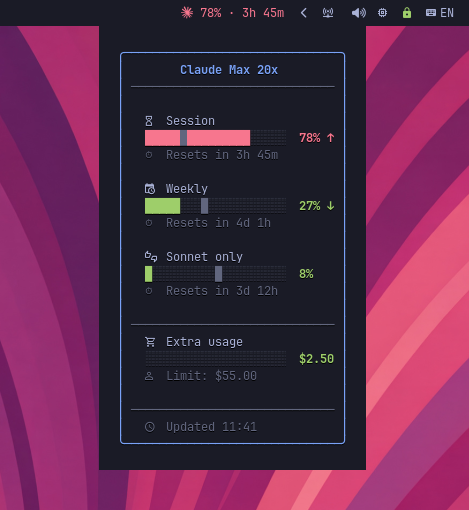
Features
- Session (5h) and weekly (7d) usage with countdown timers
- Per-model tracking (Sonnet) when available
- Extra usage tracking (spending, limit, balance) when enabled
- Pacing indicators — ratio-based and point-based, with optional per-window coloring
- Tooltip elapsed markers — visual pacing reference in progress bars
- Colored progress bars in tooltip (Pango markup)
- Customizable bar text and tooltip via
--format/--tooltip-formatplaceholders - Granular CSS classes (
low,mid,high,critical) for bar styling - Response cache (60s TTL) — fast even on multi-monitor setups
- Auto-refreshes OAuth token (no manual re-auth needed)
- Pure Bash — no runtime dependencies beyond
curl,jq, and GNUdate - Works with any Waybar setup (Hyprland, Sway, etc.)
Requirements
- Claude CLI — must be logged in (
claudecommand) - Claude Pro or Max subscription
curl,jq, GNUdate(standard on most Linux systems)- Waybar
- A Nerd Font for tooltip icons
- (Optional) Font Awesome ≥ 7.2.0 OTF for the Claude brand icon
Installation
Arch Linux (AUR)
yay -S claudebar
From source
git clone https://github.com/mryll/claudebar.git
cd claudebar
make install PREFIX=~/.local
Or system-wide:
sudo make install
To uninstall:
make uninstall PREFIX=~/.local
Quick install
curl -fsSL https://raw.githubusercontent.com/mryll/claudebar/master/claudebar \
  -o ~/.local/bin/claudebar && chmod +x ~/.local/bin/claudebar
Quick start
Add the module to your ~/.config/waybar/config.jsonc:
"modules-right": ["custom/claudebar", ...],

"custom/claudebar": {
    "exec": "claudebar",
    "return-type": "json",
    "interval": 300,
    "signal": 13,
    "tooltip": true,
    "on-click": "xdg-open https://claude.ai/settings/usage"
}
[!WARNING]
The usage endpoint (/api/oauth/usage) is undocumented and has aggressive rate limits. Intervals below 300s will likely trigger HTTP 429 errors. Even at 300s, 429s may occur during Anthropic service disruptions. When this happens, the widget falls back to cached data and shows a⏸indicator. See claude-code#30930.
Configuration
Icon
Use --icon to prepend an icon to the widget text. The icon inherits the same color as the usage text.
Emoji:
"exec": "claudebar --icon '🤖'"
// => 🤖 42% · 1h 30m
Nerd Font glyph:
"exec": "claudebar --icon ''"
// => 42% · 1h 30m
Claude brand icon (requires Font Awesome ≥ 7.2.0 OTF):
"exec": "claudebar --icon \"<span font='Font Awesome 7 Brands'></span>\""
[!NOTE]
On Arch Linux, install the OTF package (sudo pacman -S otf-font-awesome). The WOFF2 variant (woff2-font-awesome) does not render in Waybar due to a Pango compatibility issue.
Colors
The bar text is colored by severity level out of the box (One Dark palette):
| Class | Range | Default color |
|---|---|---|
low |
0–49% | #98c379 (green) |
mid |
50–74% | #e5c07b (yellow) |
high |
75–89% | #d19a66 (orange) |
critical |
90–100% | #e06c75 (red) |
To override, pass --color-* flags in the exec field:
"custom/claudebar": {
    "exec": "claudebar --color-low '#50fa7b' --color-critical '#ff5555'",
    ...
}
Available flags: --color-low, --color-mid, --color-high, --color-critical.
CSS classes (low, mid, high, critical) are also emitted for additional styling via ~/.config/waybar/style.css.
Theming (Omarchy)
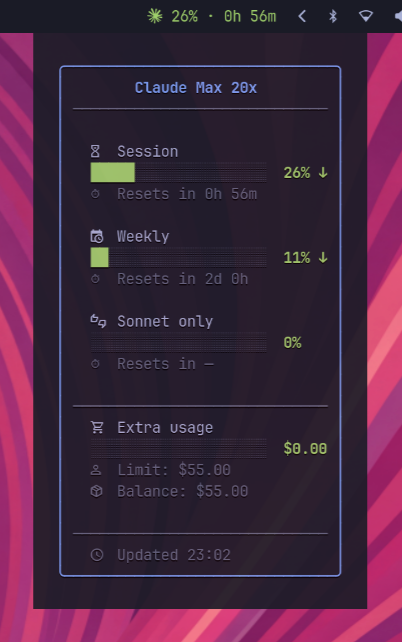
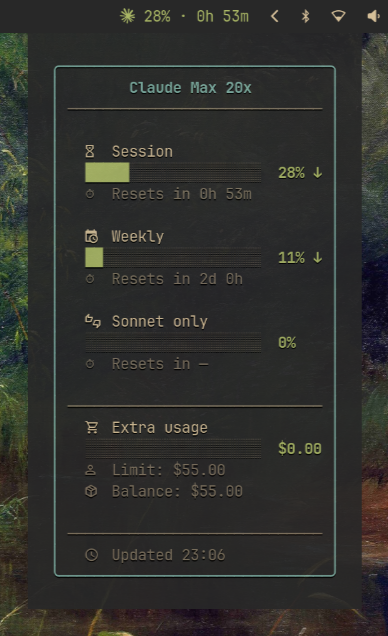
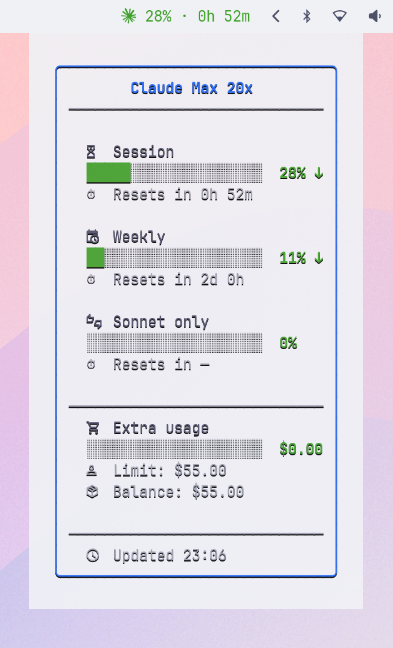
Tooltip and bar text colors are automatically read from the active Omarchy theme at ~/.config/omarchy/current/theme/colors.toml on every execution. On non-Omarchy systems, the One Dark palette is used as fallback.
The priority chain is: CLI flags (--color-*) > Omarchy theme > One Dark defaults.
| Tokyo Night | Gruvbox | Catppuccin Latte |
|---|---|---|
 |
 |
 |
Format customization
Use --format to control the bar text:
# Default (session usage + countdown)
claudebar
# => 42% · 1h 30m

# Weekly usage
claudebar --format '{weekly_pct}% · {weekly_reset}'
# => 27% · 4d 1h

# Session + weekly
claudebar --format 'S:{session_pct}% W:{weekly_pct}%'
# => S:42% W:27%

# With pacing indicator
claudebar --format '{session_pct}% {session_pace} · {session_reset}'
# => 42% ↑ · 1h 30m

# Minimal
claudebar --format '{session_pct}%'
# => 42%
[!TIP]
For icons, use--icon(see Icon) instead of embedding them in--format. This lets you use Pango markup to select the font, which is necessary for brand icons like Font Awesome.
Use --tooltip-format for a custom plain-text tooltip (overrides the default rich tooltip):
claudebar --tooltip-format 'Session: {session_pct}% ({session_reset}) | Weekly: {weekly_pct}% ({weekly_reset})'
Example Waybar config with custom format:
"custom/claudebar": {
    "exec": "claudebar --format '{session_pct}% {session_pace}'",
    "return-type": "json",
    "interval": 300,
    "signal": 13,
    "tooltip": true,
    "on-click": "xdg-open https://claude.ai/settings/usage"
}
Available placeholders
| Placeholder | Description | Example |
|---|---|---|
{icon} |
Claude icon (Nerd Font) | |
{plan} |
Plan label | Max 5x |
{session_pct} |
Session (5h) usage % | 42 |
{session_reset} |
Session countdown | 1h 30m |
{session_elapsed} |
Session time elapsed % | 58 |
{session_bar} |
Session usage progress bar (Pango) | ████████░░░░░░░░░░░░ |
{session_pace} |
Session pacing icon (ratio-based) | ↑ / ↓ / → |
{session_pace_indicator} |
Session pacing icon (point-based) | ↑ / ↓ / → |
{session_pace_pct} |
Session pacing deviation (ratio) | 12% ahead |
{session_pace_pts} |
Session pacing deviation (points) | 5pts ahead |
{session_pace_delta} |
Session pacing delta (signed) | -12 |
{session_pace_abs_delta} |
Session pacing delta (unsigned) | 12 |
{weekly_pct} |
Weekly (7d all models) usage % | 27 |
{weekly_reset} |
Weekly countdown | 4d 1h |
{weekly_elapsed} |
Weekly time elapsed % | 42 |
{weekly_bar} |
Weekly usage progress bar (Pango) | █████░░░░░░░░░░░░░░░ |
{weekly_pace} |
Weekly pacing icon (ratio-based) | ↑ / ↓ / → |
{weekly_pace_indicator} |
Weekly pacing icon (point-based) | ↑ / ↓ / → |
{weekly_pace_pct} |
Weekly pacing deviation (ratio) | 5% under |
{weekly_pace_pts} |
Weekly pacing deviation (points) | 8pts under |
{weekly_pace_delta} |
Weekly pacing delta (signed) | -8 |
{weekly_pace_abs_delta} |
Weekly pacing delta (unsigned) | 8 |
{sonnet_pct} |
Sonnet-only weekly usage % | 4 |
{sonnet_reset} |
Sonnet countdown | 2h 24m |
{sonnet_elapsed} |
Sonnet time elapsed % | 42 |
{sonnet_bar} |
Sonnet usage progress bar (Pango) | ░░░░░░░░░░░░░░░░░░░░ |
{sonnet_pace} |
Sonnet pacing icon (ratio-based) | ↑ / ↓ / → |
{sonnet_pace_indicator} |
Sonnet pacing icon (point-based) | ↑ / ↓ / → |
{sonnet_pace_pct} |
Sonnet pacing deviation (ratio) | 3% ahead |
{sonnet_pace_pts} |
Sonnet pacing deviation (points) | 3pts ahead |
{sonnet_pace_delta} |
Sonnet pacing delta (signed) | 3 |
{sonnet_pace_abs_delta} |
Sonnet pacing delta (unsigned) | 3 |
{extra_spent} |
Extra usage spent | $2.50 |
{extra_limit} |
Extra usage monthly limit | $50.00 |
{extra_pct} |
Extra usage spent % | 5 |
{extra_bar} |
Extra usage progress bar (Pango) | █░░░░░░░░░░░░░░░░░░░ |
[!NOTE]
Bar placeholders are colored by their own window's usage thresholds (low/mid/high/critical), independently of the surrounding bar text color, which reflects the worst window overall. A{session_bar}can render green while the surrounding text is red because weekly or sonnet hit the critical threshold.
Pacing indicators
Pacing compares your actual usage against where you "should" be if you spread your quota evenly across the window. It answers: "at this rate, will I run out before the window resets?"
- ↑ — ahead of pace (using faster than sustainable)
- → — on track
- ↓ — under pace (plenty of room left)
How it works: if 30% of the session time has elapsed, you "should" have used ~30% of your quota. The widget divides your actual usage by the expected usage and flags deviations beyond a tolerance band:
| Scenario | Time elapsed | Usage | Pacing | Icon |
|---|---|---|---|---|
| Burning through quota | 25% | 60% | 140% ahead | ↑ |
| Slightly ahead | 50% | 52% | on track (within tolerance) | → |
| Perfectly even | 50% | 50% | on track | → |
| Conserving | 70% | 30% | 57% under | ↓ |
By default the tolerance is ±5% — deviations of 5% or less show as "on track" to avoid noise. You can tune it with --pace-tolerance:
# More sensitive (±2%) — flags smaller deviations
claudebar --pace-tolerance 2

# More relaxed (±10%) — only flags large deviations
claudebar --pace-tolerance 10
The {session_pace_pct} / {weekly_pace_pct} placeholders show the deviation (e.g. "12% ahead", "5% under", "on track").
Point-based pacing
In addition to ratio-based pacing, there's a point-based alternative that computes actual_usage - expected_usage. At 22% usage with 78% elapsed, the delta is -56 — intuitive and stable across the window.
| Placeholder | Type | Example | Description |
|---|---|---|---|
{*_pace} |
Ratio | ↑ | Icon with tolerance band (±5% default) |
{*_pace_indicator} |
Points | ↑ | Icon without tolerance (any non-zero = ↑/↓) |
{*_pace_pct} |
Ratio | 12% ahead | Ratio-based deviation label |
{*_pace_pts} |
Points | 5pts ahead | Point-based deviation label |
{*_pace_delta} |
Points | -12 | Signed integer delta |
{*_pace_abs_delta} |
Points | 12 | Unsigned integer delta |
Replace * with session, weekly, or sonnet.
Per-window pace coloring
Use --format-pace-color to color pace placeholders individually per window based on their point delta, instead of the global usage-based color:
claudebar --format-pace-color \
  --format '{session_pace_indicator}{session_pace_abs_delta}·{weekly_pace_indicator}{weekly_pace_abs_delta}'
# => ↑4·↓10  (↑4 in orange, ↓10 in green, · in neutral)
| Delta | Color | Meaning |
|---|---|---|
| ≤ -10 | Green | Well under pace |
| -10 to 0 | Yellow | Slightly under or on pace |
| 1 to 9 | Orange | Slightly ahead |
| ≥ 10 | Red | Burning fast |
Without this flag, the entire bar text is colored by usage percentage — identical to the default behavior.
Tooltip elapsed markers
Use --tooltip-pace-pts to add an elapsed marker (█) to each tooltip progress bar, showing where even pacing would put you:
Without --tooltip-pace-pts:
  Session
    █████░░░░░░░░░░░░░░░  27% ↑

With --tooltip-pace-pts:
  Session
    █████░░░░░█░░░░░░░░░  27% ↑
                  ^ marker at 32% (even pace position)
The marker color adapts to the active theme. Without this flag, the tooltip is unchanged.
Spacing
Adjust padding (inside the widget) and margin (outside the widget) in ~/.config/waybar/style.css:
#custom-claudebar {
    padding: 0 8px;
    margin: 0 4px;
}
How it works
- Reads OAuth credentials from
~/.claude/.credentials.json(created by Claude CLI) - Auto-refreshes the access token if it expires within 5 minutes
- Calls
api.anthropic.com/api/oauth/usagefor live usage data (cached for 60s) - Outputs JSON with
text,tooltip(Pango markup), andclassfor Waybar
The tooltip shows colored progress bars for each usage window (session, weekly, sonnet) with countdown timers, time elapsed, and pacing info. Colors change from green → yellow → orange → red as usage increases.
Cache
API responses are cached in ~/.cache/claudebar/usage.json for 60 seconds. This keeps the widget fast (~40ms from cache vs ~1s from API), which matters if you run multiple Waybar instances (e.g. multi-monitor).
Troubleshooting
| Bar shows | Meaning | Fix |
|---|---|---|
↻ |
Syncing | Normal at boot — data appears on next refresh |
⚠ |
Auth error | Run claude to log in |
⚠ |
Token expired | Run claude to re-authenticate |
⏸ |
Stale data (API rate-limited) | Cached data is shown; resolves automatically |
⚠ |
API error | Check your internet connection |
| Nothing | Module not loaded | Check Waybar config and restart Waybar |
Related
- codexbar — OpenAI Codex usage widget for Waybar
- logibar — Logitech battery widgets for Waybar
- meteobar — Weather widget for Waybar (Open-Meteo)
- ClaudeBar — Similar widget using TypeScript/Bun
- waybar-ai-usage — Claude + Codex monitor (Python, uses browser cookies)
- Omarchy — Beautiful, modern & opinionated Linux distribution
- Waybar — Status bar for Wayland compositors
Yorumlar (0)
Yorum birakmak icin giris yap.
Yorum birakSonuc bulunamadi