hyper-hand
Health Uyari
- License — License: MIT
- Description — Repository has a description
- Active repo — Last push 0 days ago
- Low visibility — Only 5 GitHub stars
Code Gecti
- Code scan — Scanned 8 files during light audit, no dangerous patterns found
Permissions Gecti
- Permissions — No dangerous permissions requested
Bu listing icin henuz AI raporu yok.
Let AI agents (Claude Code, Codex, any MCP client) control Hyper-V Windows VMs: screenshots, mouse, keyboard, commands, files and checkpoints, with no guest network or password.
HyperHand
Give your AI agent a Windows VM it can see, operate and roll back.
HyperHand is an MCP server for Windows and Hyper-V. Connect Claude Code, Codex or another MCP client to let your agent test installers, operate desktop software, run commands and check the results in a virtual machine.
The host-to-guest connection needs no guest network access, and you do not need to give the AI your guest password. Screenshots, mouse and keyboard input work through Hyper-V, including on sign-in screens and UAC prompts.
Download · Quick start · User guide · Tool reference
For example, after setup, ask your agent:
In the Win10 VM, create a checkpoint, copy
D:\build\setup.exefrom the host and install it. Open the installed app, take a screenshot and report whether it starts. Then restore the checkpoint.
[!WARNING]
HyperHand gives an AI full control of your virtual machines. Use VMs you can afford to lose, and keep checkpoints. Any program on your computer can reach HyperHand's local MCP endpoint, which has no password.
What you can use it for
- Test Windows installers and builds: copy in a build, click through setup, check that the application opens and restore a checkpoint for the next run.
- Automate desktop software without an API: let the agent read buttons and fields through Windows UI Automation, or use screenshots, mouse and keyboard where controls are not exposed.
- Reproduce bugs from a known starting point: save a checkpoint before a test, collect screenshots and command output, then restore it to try again.
Requirements
- A Windows 10 or 11 Pro or Enterprise host with Hyper-V enabled. The release binaries are for x64 Windows.
- An existing Windows VM with a user logged on to the desktop. Sign in manually or configure automatic sign-in after boot; a stored unlock password only unlocks a session that was already signed in.
- Virtual Machine Connection in basic session mode, not enhanced session.
- An MCP client that supports Streamable HTTP, such as Claude Code, Codex or Cursor.
Administrator approval is required to install, update or uninstall HyperHand on the host. Everyday host use does not prompt for UAC; guest applications have their own elevation requirements.
Quick start
Install HyperHand on the host. Download
hyperhand-X.Y.Z-windows-amd64.zipfrom the latest release, extract both executables to the same folder and open PowerShell in that folder:.\hyperhand.exe installApprove the UAC prompt once. HyperHand installs to
%ProgramFiles%\HyperHand, and its tray icon appears.Connect your AI client. Run the command for your client:
Claude Code:
claude mcp add --transport http hyperhand http://127.0.0.1:8770/mcpCodex:
codex mcp add hyperhand --url http://127.0.0.1:8770/mcpOther clients: add a Streamable HTTP server with the URL
http://127.0.0.1:8770/mcp. Start a new client session to load the tools.Connect your VM. Start it, log on and switch the guest keyboard to English. Ask the AI: "Install the HyperHand agent in Win10." Replace
Win10with your VM's name. The guest agent starts at every logon from then on.Try a first task. Ask the AI:
In the Win10 VM, open Notepad, type "Hello from HyperHand", save it as
hello.txton the guest desktop and take a screenshot of the result.
The user guide covers optional guest setup, updates and troubleshooting. To check a connection, ask the AI to run vm_doctor for your VM and report the results.
Features
- Screenshots and UI controls: inspect the whole desktop or one window, read exposed buttons and fields, and act on them by control reference or image coordinates.
- Input checks: actions using observations recheck their targets and reject detected stale coordinates. Raw input remains available for sign-in screens and UAC; it bypasses those freshness checks.
- Commands and programs: run PowerShell or cmd in the guest, get output and exit codes, launch desktop applications, and check on long-running background jobs.
- File transfer: copy files or folders in either direction. Uploads skip unchanged files; directory mirroring previews changes before applying them.
- Checkpoints: create, restore, keep and delete checkpoints. Task cleanup removes temporary checkpoints, with optional automatic cleanup via client hooks.
- Desktop readiness: wait for the guest agent and an unlocked session. Unlock an already signed-in session using a password stored in Windows Credential Manager on the host, without returning it to the AI.
See the tool reference for exact behavior and the acceptance results for tested environments and workflows.
How it works
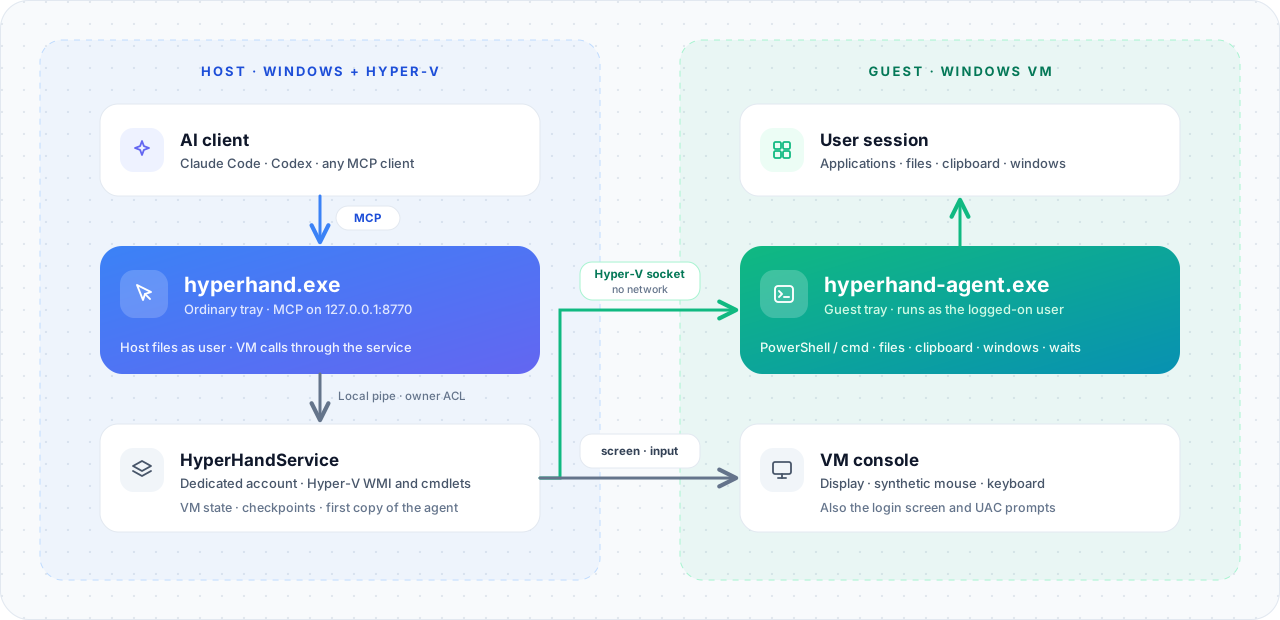
HyperHand has two executables and three roles:
hyperhand.exe, an ordinary tray program on the host. It serves MCP athttp://127.0.0.1:8770/mcp.HyperHandService, the same executable running as a Windows service under its own dedicated account. It performs the Hyper-V operations, so you do not need to be a Hyper-V administrator.hyperhand-agent.exe, a small tray program inside the guest. It runs commands, starts programs, transfers files and reads windows and controls in the logged-on user's session.
Known limitations
- The guest keyboard must be in English mode while the agent is installed, because the install command is typed on the keyboard. Installing the agent by hand avoids this.
- HyperHand cannot sign a user in at the sign-in screen after a cold boot; use automatic sign-in. It can unlock a session that Windows locked later. The unlock password must be ASCII; store the PIN if the lock screen asks for one.
- Screenshots and input act on the VM console, so they do not reach a remote desktop or enhanced session.
- Commands that run as administrator need the guest's UAC set to elevate without prompting; otherwise the UAC prompt waits in the guest.
- Programs that draw their own controls show no buttons or fields to read; the AI then works from the screenshot alone.
- Deleting a checkpoint merges its disk changes, which can take minutes.
Privacy and security
HyperHand sends no telemetry and makes no outbound internet connections. The host and the guest talk over Hyper-V sockets. Your MCP client receives screenshots and tool results; whether it sends them to a model provider depends on that client's configuration.
The MCP endpoint listens only on 127.0.0.1 and needs no authentication by design: it serves the AI clients on your own computer, and any program there can use it to control your VMs. Unlock passwords are stored in Windows Credential Manager and are never returned to the AI. Details in Privacy.
Uninstall
Uninstall the guest agent first, then the host: run %LOCALAPPDATA%\HyperHand\hyperhand-agent.exe uninstall inside each guest, then hyperhand.exe uninstall on the host, and remove the server from your MCP client. See Uninstalling.
Documentation
- User guide: installation step by step, the tool list, updating, uninstalling and troubleshooting.
- Features: the exact behavior of every tool.
- Building HyperHand: building from source, testing, development installs and releasing.
- Privacy: what is stored and what goes over the wire.
- Python client: calling HyperHand from scripts without an MCP client.
- v0.2.0 acceptance: tested environments and results.
- Changelog
License
HyperHand is released under the MIT License.
Disclaimer
HyperHand is an independent project, not affiliated with or endorsed by Microsoft or Anthropic. Hyper-V and Windows are trademarks of Microsoft.
Yorumlar (0)
Yorum birakmak icin giris yap.
Yorum birakSonuc bulunamadi