planswap
Health Warn
- License — License: MIT
- Description — Repository has a description
- Active repo — Last push 0 days ago
- Low visibility — Only 5 GitHub stars
Code Pass
- Code scan — Scanned 12 files during light audit, no dangerous patterns found
Permissions Pass
- Permissions — No dangerous permissions requested
No AI report is available for this listing yet.
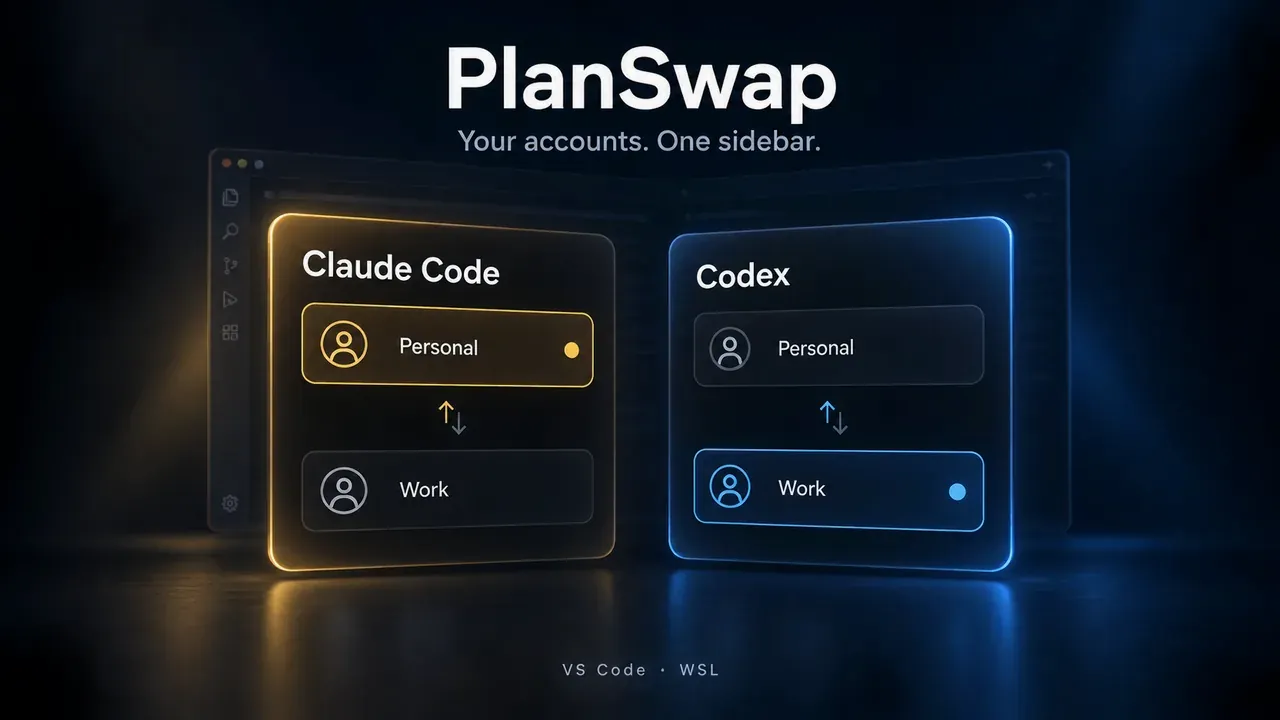
PlanSwap: switch between your Claude Code and Codex subscription accounts (Pro, Max, Plus…) from a VS Code sidebar. Built for WSL.

PlanSwap: Claude Code & Codex Account Switcher
Switch between the Claude Code and Codex subscription accounts you own (Claude Pro / Max, ChatGPT Plus / Pro…) from a VS Code sidebar, without signing out and back in. Built for VS Code WSL remote windows and native Windows.
WSL/Linux or native Windows, with a VS Code 1.107+ compatible editor. macOS is not supported. See Requirements and Native Windows.





Features
- One sidebar, two tabs: manage Claude and Codex accounts separately, with email and subscription plan shown when available.
- Keep accounts signed in: sign in once per account, then switch from the sidebar. Codex switches need an editor restart (Supported editors).
- Linked or independent accounts: reuse the default account's setup, or keep separate settings and session histories.
- Display names: give named accounts labels that are easy to recognize.
- Usage limits on account cards: once an account has been checked, its card shows the remaining limits as bars, with the time until each one resets (for example
2d 5h); hovering a bar shows what is left and what is used. A used-up limit shows its reset time in red. This covers Claude subscription sign-ins and Codex ChatGPT sign-ins, not API key accounts; values older than 24 hours are hidden, and no data is never shown as 0%. - Usage at a glance in the status bar: the status bar shows what is left of each product's short (5-hour) limit, for example
Claude 97% · Codex 82%, and turns to the warning or error color when any limit, the weekly one included, is nearly used up. Hover it for a table of the general limits, with a refresh button for each product whose account can be checked. - Refresh on demand: icons next to All accounts check the current account or every signed-in account in that tab, one at a time, so you can compare accounts before switching. The same actions are in the Command Palette (Refresh Usage Limits of All Claude Accounts, Refresh Usage Limits of All Codex Accounts and the single-account commands). An account checked less than a minute ago is not checked again.
- Automatic checks you control: every signed-in account of each product, the current one first, is checked about 20 seconds after start-up and then every 15 minutes while the window is focused; turn on
planswap.usageAutoRefreshCurrentOnlyto check only the current accounts. Change the interval or turn it off per product withplanswap.claude.usageAutoRefresh/planswap.claude.usageRefreshMinutes(10–1440) andplanswap.codex.usageAutoRefresh/planswap.codex.usageRefreshMinutes(5–1440). If checks time out on a slow machine or network, give them more time withplanswap.claude.usageTimeoutSeconds(default 30, 10–120) andplanswap.codex.usageTimeoutSeconds(default 15, 5–120). - Status bar and switch settings:
planswap.statusBar.enabled,planswap.statusBar.products,planswap.statusBar.alignment,planswap.statusBar.warningThresholdandplanswap.statusBar.errorThresholdhide the status bar item, limit it to one product, move it to the left or change its color thresholds (default 30% and 10%); turn offplanswap.claude.confirmSwitchto switch Claude accounts without the confirmation dialog. - Card display settings:
planswap.sidebar.showEmail,planswap.sidebar.showFiveHourLimitandplanswap.sidebar.showWeeklyLimithide the email, the 5-hour or the 7-day limit on the cards;planswap.sidebar.showModelLimits(default off) adds Claude's model-specific limits. - Handy tools: open your rules and settings, update the CLI, check installed versions and reload the window.
- English, Simplified Chinese, Traditional Chinese, Spanish and Japanese UI, switchable in the settings.
Requirements
- A VS Code 1.107+ compatible editor: VS Code, Antigravity IDE or VSCodium. PlanSwap runs in a WSL remote window, on native Windows (Native Windows), on a local Linux desktop or in another remote window; see Supported editors.
- The official Claude Code and/or Codex extensions installed where the window runs (the WSL side, Linux, or Windows).
- The
claudecommand on the PATH there, for terminal sign-in, the CLI tools and Claude usage limits. Thecodexcommand for Codex terminal sign-in; Codex usage limits fall back to the binary bundled with the Codex extension. - For Codex switching outside native Windows: Bash as the login shell.
Supported editors
For Claude, new sessions use the selected account; reload the window to update open panels. For Codex, follow the restart steps for your environment:
| Environment | After switching a Codex account |
|---|---|
| Antigravity IDE in WSL | After your confirmation, PlanSwap restarts the WSL server. Click Reload Window in each disconnected window. |
| VSCodium in WSL | After your confirmation, PlanSwap restarts the WSL server. Click Reload Window in each disconnected window. |
| VS Code in WSL | Close all VS Code windows connected to that WSL distribution, wait a few seconds, then reopen them. |
| Local Linux desktop | The selection is saved and PlanSwap shows instructions: fully exit the editor and relaunch it with CODEX_HOME set to the selected account directory. |
| Native Windows | The selection is saved in your user environment variable CODEX_HOME. Fully quit the editor and start it again from the Start menu or taskbar. |
| Other remote windows | The selection is saved and PlanSwap shows instructions for restarting the remote editor server with CODEX_HOME set. |
Save your work before switching Codex accounts. Restarting the WSL server disconnects its editor windows and closes integrated terminals and running CLI sessions. Reloading just one window does not replace this restart or a manual relaunch.
Account switching has been tested end to end only in Antigravity IDE in WSL. VSCodium, VS Code and native Windows have not yet been verified end to end in their real editor environments, and usage limits have so far been checked only with a default Claude account.
Install
Open the Extensions view in a WSL window (the extension runs on the WSL side) or in a local Windows window, search for PlanSwap and click Install.
- VS Code: Visual Studio Marketplace
- Antigravity IDE, VSCodium: Open VSX
If you already have a .vsix file, run Extensions: Install from VSIX... in a WSL window or a local Windows window and select it.
Quick start
Open PlanSwap in the activity bar. The default row represents your existing default account. Use the Claude or Codex tab for the service you want to manage. The user guide walks through every step in detail.
Claude
- Click + Add next to All accounts, type a name (letters, digits,
-and_) and press Enter. Leave Link to the default account's settings and history checked to reuse your default setup, or uncheck it for separate settings and history. - Click the row's Log in button and complete sign-in in the terminal. You can also switch to the account and sign in from the Claude Code panel.
- Click the Switch to this account arrow icon on a row that is not current, and confirm. New sessions use that account; click Reload Window in the banner to move open panels over too.
Codex
- On the Codex tab, click Enable Codex switching and confirm the changes PlanSwap shows (shell configuration in WSL and on Linux, your user environment variable on Windows).
- Add an account, choose linked or independent, then click Log in and complete sign-in in the terminal.
- Click the account's Switch to this account arrow icon, confirm, and follow the restart steps for your environment. Codex uses the selected account after the restart.
Tip: signing in to a new account does not sign out the others. Each account keeps its sign-in in its own directory, so there is no need to sign out first; signing out ends only that account's session. PlanSwap warns you when two of your accounts are signed in to the same Claude or ChatGPT account and workspace, because switching between them gives no separate usage limits.
Use the pencil button to change a named account's display name. Use the refresh button in the panel title bar to rescan accounts and update their information.
Linked and independent accounts
Choose how each new account uses your default setup:
| Linked | Independent | |
|---|---|---|
| Settings, rules and skills | Uses the default account's | Starts with a copy of the default configuration; later changes stay separate |
| History and sessions | Uses the default account's | Keeps its own history and sessions |
| Sign-in | Separate for each account | Separate for each account |
| Best for | Accounts you use with the same setup | Accounts that need separate setups and histories |
Linked rows show a link badge. Codex memories always stay separate per account. A linked Claude account also gets the default account's MCP servers and project trust settings, and, once signed in, its first-run status, so Claude Code does not repeat its setup. Sharing session files does not guarantee that another account can resume them; see Known limitations.
You can change an existing account's mode after switching away from it and closing its sessions, with the icons on its row:
- Link to the default account moves the account's settings and history into the default account and links them from then on. Files that differ are kept side by side for you to merge; PlanSwap lists them. The Command Palette command Share with Default Account (one for Claude, one for Codex) does the same for an account you pick.
- Unlink from the default account gives the account its own copy of the default configuration and keeps its sign-in and any files that were not linked. History and sessions stay in the default account and are not copied back.
After you change the default account's setup, click Re-link in the Tools section to bring linked accounts up to date and repair their links; for Claude it also updates their MCP servers. It appears only when the tab has a linked account.
Tools
The Tools section and footer let you open rules and settings, check CLI and extension versions, reload the window, or restart the extension host.
Update CLI opens a terminal for the selected service. Follow its progress and prompts there. If you installed the CLI another way, you may need to update it that way.
For troubleshooting, run Preview Diagnostics Report from the Command Palette. It opens an anonymized report of PlanSwap, editor, CLI and extension versions, the platform and connection type, account counts and selection state, the Codex switching pre-check and restart method, and the names of any environment variables that override Claude sign-in. Review it before choosing Copy report; nothing is uploaded automatically.
User guide opens the dedicated usage instructions; Star opens the GitHub repository. The footer also shows your installed PlanSwap version.
Language
In extension settings, set planswap.language to auto (follow your editor), en (English), zh-cn (简体中文), zh-tw (繁體中文), es (Español) or ja (日本語). The panel and messages update immediately; Command Palette titles and the sidebar name follow the editor's display language.
Known limitations
Open sessions keep their current account. Reload Claude panels after a switch; complete the WSL server restart or the manual relaunch for Codex.
Switching is not per window. A Claude switch changes a machine-wide editor setting, so other windows of the same editor switch too. A Codex selection applies to every editor in the same WSL distribution or Linux user account after its restart; on Windows, to every editor started afterwards.
Continuing another account's session can fail, particularly between Codex accounts in different ChatGPT organizations. Avoid opening the same session from two accounts at once.
Some shared settings need a refresh. After changing the default setup, use Re-link. If PlanSwap reports conflicting files, resolve them manually. Deleting Claude prompt history from a linked account does not necessarily remove it from the shared history.
MCP connections may need sign-in again for each account. Claude MCP settings copied from the default account can include API keys stored in those settings; choose account setups accordingly.
Some sign-ins are not per account. Any of these takes precedence over every account's own sign-in, and PlanSwap warns when it sees one:
- an API key, auth token or long-lived OAuth token in the environment (
ANTHROPIC_API_KEY,ANTHROPIC_AUTH_TOKEN,CLAUDE_CODE_OAUTH_TOKEN); - a named Anthropic profile (
ANTHROPIC_PROFILE) or the federation variables (ANTHROPIC_FEDERATION_RULE_IDwithANTHROPIC_ORGANIZATION_ID); - a cloud provider setting (
CLAUDE_CODE_USE_BEDROCK,CLAUDE_CODE_USE_VERTEX,CLAUDE_CODE_USE_FOUNDRY).
A Claude Console sign-in without an API key is stored outside the account directories (
~/.config/anthropic, on Windows%APPDATA%\Anthropic) and signs out every claude.ai login on the machine, so it cannot be kept per account (Claude Code authentication).- an API key, auth token or long-lived OAuth token in the environment (
OneDrive (Windows). PlanSwap warns when your user folder is synced by OneDrive: OneDrive sync is known to corrupt Claude Code's
.claude.json, and every account directory is inside that folder.
Native Windows
PlanSwap also runs in a local Windows editor (no remote window). Claude switching works as in WSL (CLAUDE_CONFIG_DIR in claudeCode.environmentVariables). Differences:
- Codex is selected through your user-level environment variable
CODEX_HOME. Enabling asks for confirmation and is refused when you already set that variable to another value yourself; if it already points to one of your~/.codex-<name>account directories, PlanSwap takes it over. After a switch, fully quit the editor and start it again from the Start menu or taskbar; Reload Window and terminals started before the switch keep the old value. PlanSwap's own account terminals always get the right value. - Linking works for directories without any special rights (Windows directory junctions). Linking single files such as
settings.jsonorhistory.jsonlneeds Windows Developer Mode or an editor run as administrator. Without it:- PlanSwap still links the directories, and offers to copy small configuration files (
settings.json,CLAUDE.md,config.toml,AGENTS.md,hooks.json) once so the account starts with them; later edits are not shared, and declining leaves them out. - History stays separate, and PlanSwap never moves an account's files away.
- The dialog has an Open Developer Settings button. Turn Developer Mode on, then click Re-link: missing files are linked, and copies still identical to the default account's become links.
- PlanSwap still links the directories, and offers to copy small configuration files (
- Codex thread databases (
*.sqlite) are never linked on Windows, because SQLite there can lose data written through a link. Each account keeps its own, while sessions, history and configuration are still shared. - In-use checks cannot tell which account a running Claude or Codex process belongs to. PlanSwap refuses to convert an account (or remove a Claude account) while its PlanSwap terminal is open, while a Claude session recorded in its own unlinked directory is still running, or while its Codex daemon runs. If the account's terminal opens while PlanSwap asks about copying files, the conversion stops without changes. Close the account's sessions and PlanSwap terminal tabs before converting or removing it, even if the CLI has already exited.
- When
chatgpt.runCodexInWindowsSubsystemForLinuxis enabled, PlanSwap treats Codex as running in WSL and refuses Codex switching in the Windows window; manage those accounts from a WSL window, or turn the setting off. How the Codex extension behaves with this setting has not yet been verified on a real machine. - Codex account information is read locally as described in Privacy;
auth.jsonis never copied or rewritten. Accounts signed in through the OS keyring instead ofauth.jsonshow as signed out.
Privacy
Account management runs locally in your WSL environment, Linux account or Windows user profile. PlanSwap includes no telemetry or analytics and makes no network requests of its own. To show usage limits, it runs the official CLI for each account it checks (the current account automatically, every signed-in account when you refresh all): claude -p /usage (which sends no prompt) with that account's directory, or codex app-server with that account's CODEX_HOME (the Codex extension's bundled binary when codex is not installed). The CLI then contacts Anthropic's or OpenAI's service as it always does.
- Local storage: account lists, display names, hidden-account records and dismissed warnings are saved in
~/.config/planswap/state.jsoninside each WSL environment (on Windows,%USERPROFILE%\.config\planswap\state.json). The selected Codex account is saved in~/.config/planswap/codex-homewhile Codex switching is enabled. The selected sidebar tab is saved in the editor's extension storage. - Usage records: the same state file keeps each Codex account's last usage values, when they were checked, the account directory and the size and modification time of its sign-in file; no tokens or account identifiers. Records survive restarts, are hidden when the sign-in file changes, and expire after their reset time or 24 hours.
- Account information: email and plan details are read locally for display. PlanSwap never reads the contents of Claude's
.credentials.json; Claude usage values come from the usage cache Claude Code keeps in the account's.claude.json. It reads Codex'sauth.jsonlocally and decodes theid_tokenpayload for account information and identity comparison, but never copies, swaps or rewrites the file, or sends raw tokens to the sidebar. Account identifiers used to detect two accounts signed in to the same account stay in memory and are never shown or saved. - Configuration changes: switching updates the settings that select an account. Enabling Codex switching adds configuration to
~/.profileand~/.bashrcafter confirmation (on Windows it sets the user environment variableCODEX_HOMEinstead). Linking shares settings and history and writes a linked Claude account's MCP servers, project trust settings and first-run status into its own.claude.json; it never links or copies login credential files. - Deleting accounts: removing a row does not delete its files unless you separately confirm directory deletion. Deleting the directory permanently removes that account's login and local data. Linked data in the default account is kept.
Sign-in, CLI updates and AI requests are handled by the official Claude Code and Codex clients, which have their own network behavior and privacy policies.
Uninstall
Before uninstalling PlanSwap:
- Switch Claude back to
defaultand reload the window. - If you enabled Codex switching, run Codex Account: Disable Codex Account Switching from the Command Palette to remove its shell configuration (on Windows, the user environment variable
CODEX_HOME). - Uninstall PlanSwap from the Extensions view in the window where you installed it (WSL or Windows).
Your account directories (~/.claude-<name> and ~/.codex-<name>) are kept. To clear PlanSwap's saved account list, display names and usage records as well, delete ~/.config/planswap/state.json. This does not delete the accounts' own files.
Documentation
- User guide: step-by-step account setup, switching, usage limits, tools and troubleshooting.
- Changelog: changes in each release.
- Feature reference: detailed behavior of accounts, switching and panel tools.
- AGENTS.md: which document covers development, design and verification; module contracts are in the code.
- Blog post: why PlanSwap exists and how it switches accounts without copying or swapping credentials.
Disclaimer
PlanSwap is an independent community project and is not affiliated with, endorsed by, or sponsored by Anthropic or OpenAI.
License
Built by N2NS Lab, the open-source lab of datafrog.io for practical AI developer tools.
Reviews (0)
Sign in to leave a review.
Leave a reviewNo results found