plan-swap
Health Warn
- License — License: MIT
- Description — Repository has a description
- Active repo — Last push 0 days ago
- Low visibility — Only 5 GitHub stars
Code Fail
- fs.rmSync — Destructive file system operation in .agents/skills/devhost-test/scripts/lib.mjs
- process.env — Environment variable access in .agents/skills/devhost-test/scripts/lib.mjs
- spawnSync — Synchronous process spawning in .agents/skills/devhost-test/scripts/run.mjs
- fs.rmSync — Destructive file system operation in .agents/skills/devhost-test/scripts/run.mjs
- process.env — Environment variable access in .agents/skills/devhost-test/scripts/run.mjs
- os.homedir — User home directory access in .agents/skills/devhost-test/scripts/suite.cjs
- process.env — Environment variable access in .agents/skills/devhost-test/scripts/suite.cjs
- fs module — File system access in .agents/skills/devhost-test/scripts/suite.cjs
- new Function() — Dynamic code execution via Function constructor in .agents/skills/preview-verify/scripts/run.mjs
- spawnSync — Synchronous process spawning in .agents/skills/preview-verify/scripts/run.mjs
- fs.rmSync — Destructive file system operation in .agents/skills/preview-verify/scripts/run.mjs
Permissions Pass
- Permissions — No dangerous permissions requested
No AI report is available for this listing yet.
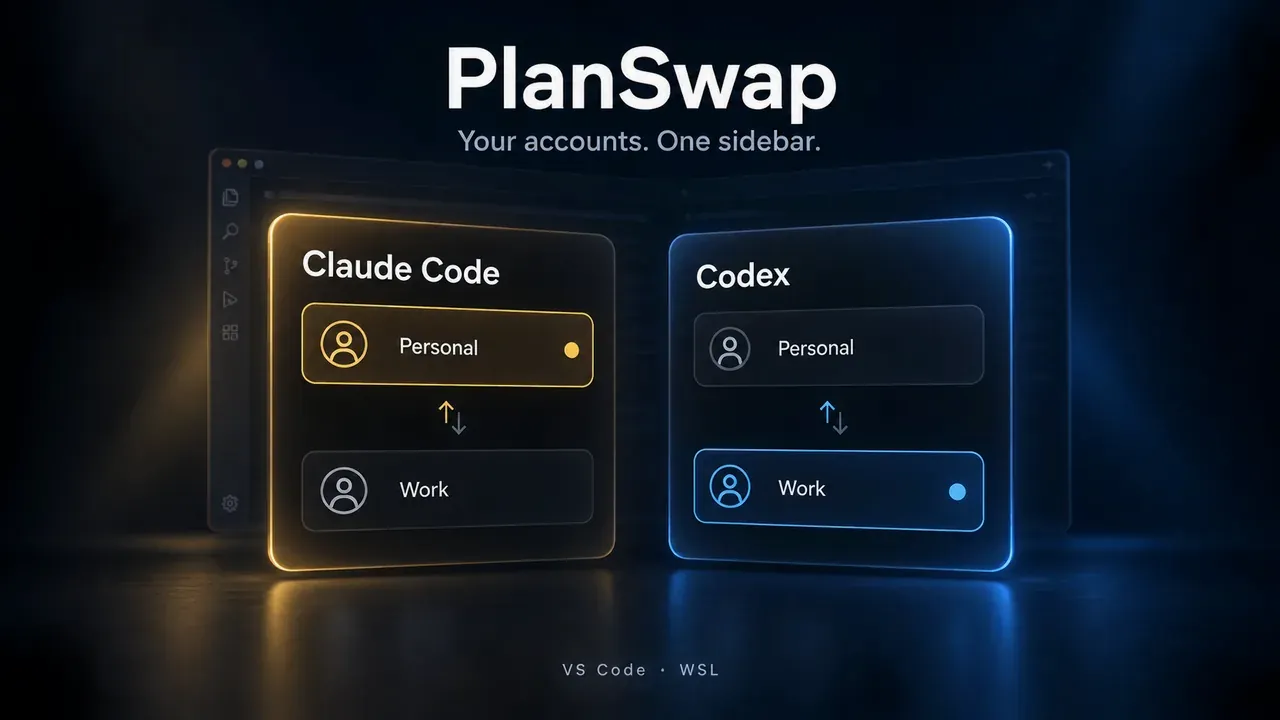
PlanSwap: switch between your Claude Code and Codex subscription accounts (Pro, Max, Plus…) from a VS Code sidebar. Built for WSL.

PlanSwap: Claude Code & Codex Account Switcher
Switch between the Claude Code and Codex subscription accounts you own (Claude Pro / Max, ChatGPT Plus / Pro…) from a VS Code sidebar, without signing out and back in. Built for VS Code WSL remote windows and native Windows; local Linux desktops and other remote windows work too. macOS is not supported.





Features
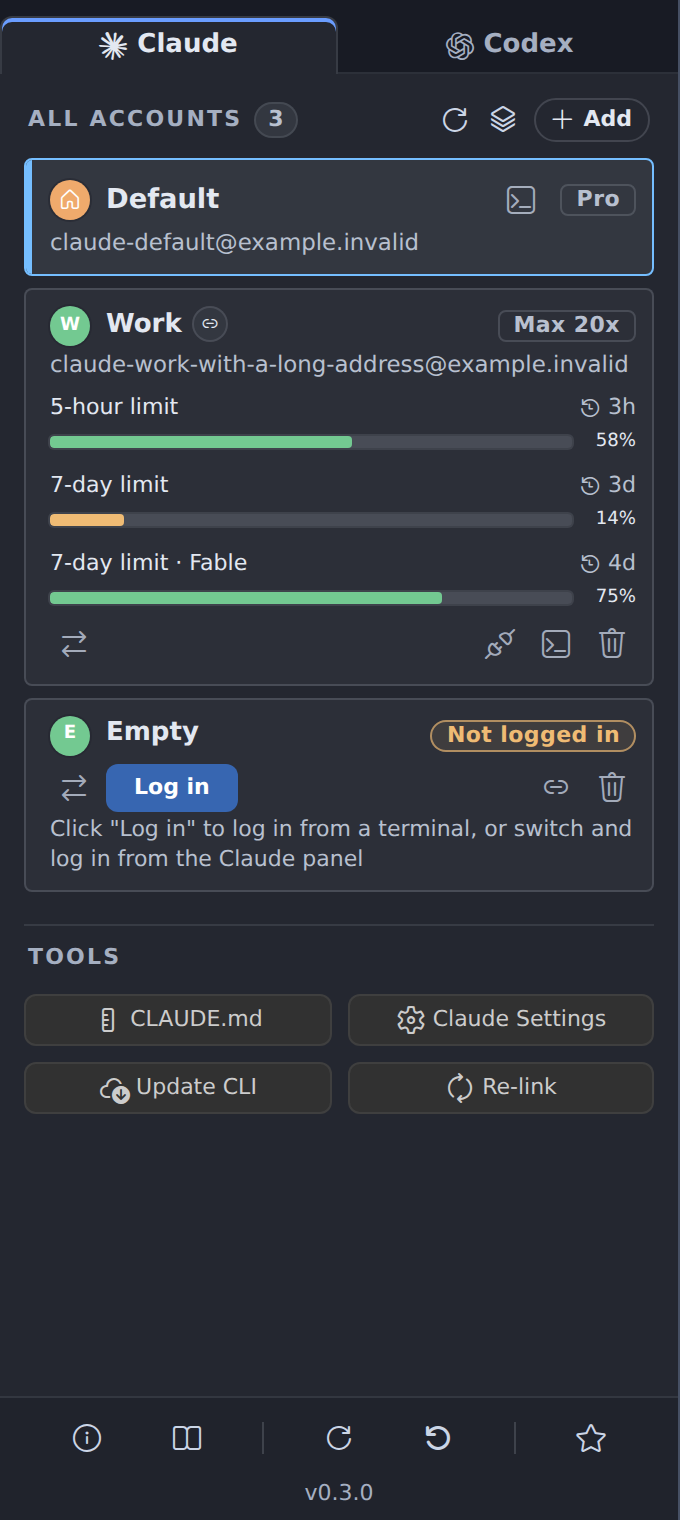
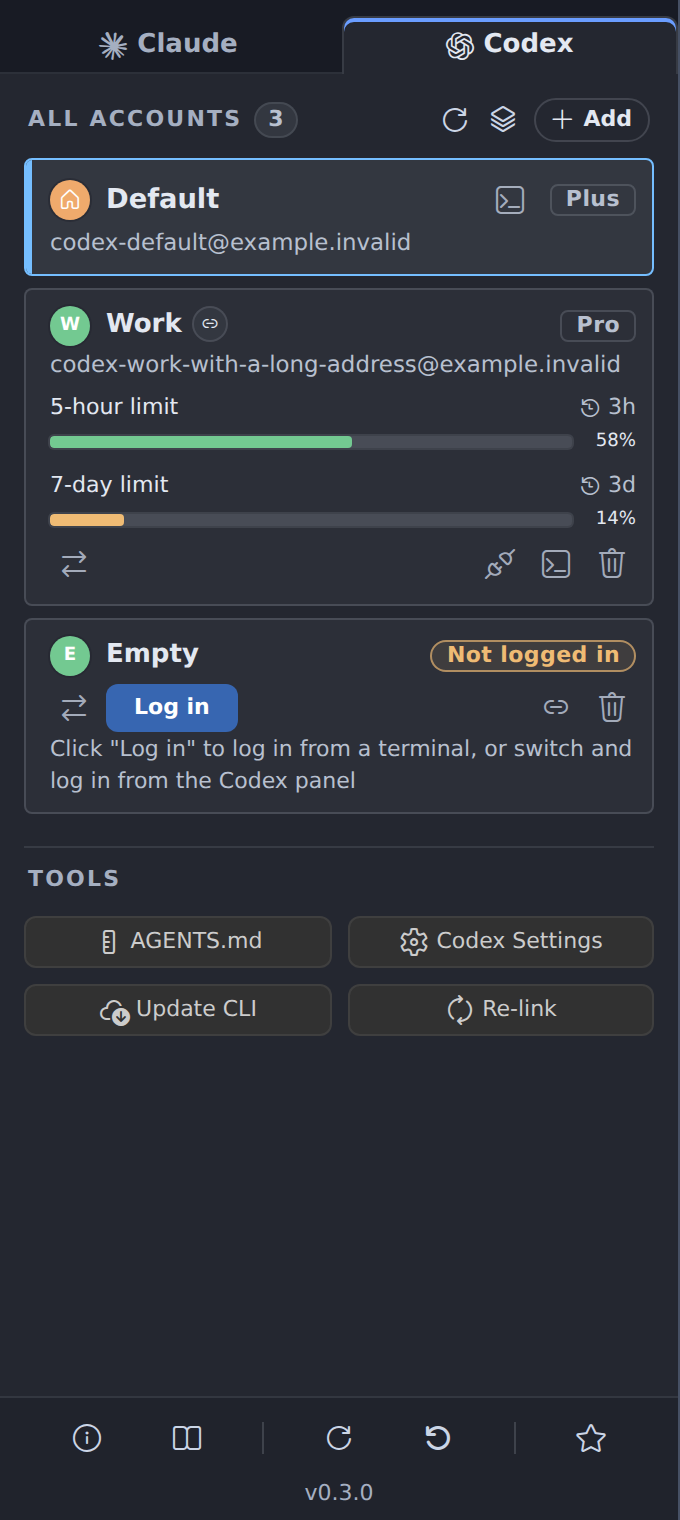
- One sidebar, two tabs: Claude and Codex accounts side by side, each with its email and plan.
- Stay signed in everywhere: sign in once per account, then switch with one click.
- Linked or independent accounts: share the default account's setup and history, or keep them separate.
- Usage limits on every card: what is left (or used) of each limit and when it resets, checked automatically or on demand.
- Status bar summary:
Claude 97% · Codex 82%, turning yellow or red when a limit runs low. - Tools: open your rules file and the official extension's settings, update the CLI, re-link accounts.
- Five languages: English, Simplified Chinese, Traditional Chinese, Spanish and Japanese.
Every setting is listed in the user guide.
Requirements
- A VS Code 1.107+ compatible editor: VS Code, Antigravity IDE or VSCodium, in a WSL remote window, on native Windows, on a local Linux desktop or in another remote window.
- The official Claude Code and/or Codex extension installed where the window runs.
- The
claudeand/orcodexcommand on the PATH there for terminal sign-in. Usage checks can also use the CLI bundled with the corresponding official extension when the command is unavailable. - For Codex switching outside native Windows: Bash as the login shell.
Supported editors
A Claude switch applies to new sessions; reload the window to move open panels over. A Codex switch needs a restart:
| Environment | After switching a Codex account |
|---|---|
| Antigravity IDE or VSCodium in WSL | PlanSwap restarts the WSL server after you confirm; reload each disconnected window. |
| VS Code in WSL | Close all VS Code windows of that distribution, then reopen them. |
| Native Windows | Fully quit the editor and start it again from the Start menu or taskbar. |
| Local Linux or other remote windows | Restart the editor or remote server as PlanSwap's instructions show. |
Save your work before switching Codex accounts: the restart closes integrated terminals and running CLI sessions. Step-by-step instructions: user guide.
Install
Search for PlanSwap in the Extensions view of a WSL window (the extension runs on the WSL side) or a local Windows window, and click Install.
- VS Code: Visual Studio Marketplace
- Antigravity IDE, VSCodium: Open VSX
With a downloaded .vsix file, run Extensions: Install from VSIX... in the same kind of window instead.
Quick start
Open PlanSwap in the activity bar. The default row is your existing account.
Claude
- Click + Add, type a name and press Enter. Keep Link to the default account's settings and history checked to reuse your setup.
- Click the row's Log in button and sign in in the terminal.
- Click the Switch to this account arrow icon and confirm.
Codex
- On the Codex tab, click Enable Codex switching and confirm.
- Add an account and sign in, as for Claude.
- Switch to it and follow the restart steps for your environment.
Signing in to a new account never signs out the others. The user guide covers every step in detail.
Linked and independent accounts
| Linked | Independent | |
|---|---|---|
| Settings, rules and skills | The default account's | A copy, changed separately |
| History and sessions | The default account's | Its own |
| Sign-in | Its own | Its own |
You can change an account's mode later, and Re-link in Tools brings linked accounts up to date after you change the default setup (user guide).
Known limitations
- Open sessions keep their account until you reload (Claude) or restart (Codex).
- Switching is not per window: other windows of the same editor switch too.
- Continuing another account's session can fail, especially between Codex accounts in different ChatGPT organizations.
- Some sign-ins apply to every account, such as an
ANTHROPIC_API_KEYin the environment; PlanSwap warns you (details). - On Windows, linking single files needs Developer Mode, and Codex thread databases stay per account (details).
- Not yet verified everywhere: switching has been tested end to end only in Antigravity IDE in WSL, and usage limits only with a default Claude account.
Privacy
PlanSwap has no telemetry and makes no network requests of its own. Usage limits are read through the official claude and codex CLIs, which contact their own services as usual. PlanSwap never copies, moves or sends your sign-in credentials, and it changes your shell or environment configuration only after you confirm. Details: privacy.
Uninstall
Before uninstalling PlanSwap:
- Switch Claude back to
defaultand reload the window. - If you enabled Codex switching, run Codex Account: Disable Codex Account Switching from the Command Palette to remove its shell configuration (on Windows, the user environment variable
CODEX_HOME). - Uninstall PlanSwap from the Extensions view in the window where you installed it (WSL or Windows).
Your account directories (~/.claude-<name> and ~/.codex-<name>) are kept. To clear PlanSwap's saved account list, display names and usage records as well, delete ~/.config/planswap/state.json. This does not delete the accounts' own files.
Documentation
- User guide: step-by-step account setup, switching, usage limits, tools and troubleshooting.
- Privacy: what PlanSwap reads, stores, changes and sends.
- Changelog: changes in each release.
- Blog post: why PlanSwap exists and how it switches accounts without copying or swapping credentials.
Contributing
The feature reference describes the detailed behavior of accounts, switching and panel tools.
Disclaimer
PlanSwap is an independent community project and is not affiliated with, endorsed by, or sponsored by Anthropic or OpenAI.
License
Built by N2NS Lab, the open-source lab of datafrog.io for practical AI developer tools.
Reviews (0)
Sign in to leave a review.
Leave a reviewNo results found