freecad-mcp
Health Gecti
- License — License: MIT
- Description — Repository has a description
- Active repo — Last push 0 days ago
- Community trust — 712 GitHub stars
Code Basarisiz
- exec() — Shell command execution in addon/FreeCADMCP/rpc_server/rpc_server.py
Permissions Gecti
- Permissions — No dangerous permissions requested
This server connects AI assistants (via the Model Context Protocol) to FreeCAD, allowing LLMs to execute CAD commands and design 3D models remotely.
Security Assessment
Risk Rating: Medium
The automated scan flagged shell command execution (`exec()`) within the RPC server module. Because the tool's core purpose is to translate AI commands into FreeCAD operations, this execution capability is expected. However, since it enables an external AI to run commands inside your local software environment, it inherently expands your system's attack surface. No dangerous permissions or hardcoded secrets were detected. By default, the RPC server correctly limits itself to `localhost`, though the README does provide instructions for opening it to remote connections, which should be done with caution.
Quality Assessment
The project is highly active, with its last push occurring today. It has garnered a strong community following with over 700 GitHub stars, indicating solid developer trust. It is well-documented, clearly explaining installation and setup steps, and is legally safe to use under the permissive MIT license.
Verdict
Use with caution: the tool is well-maintained and safe to run locally, but users should be aware that it grants an AI agent execution capabilities within their FreeCAD environment.
FreeCAD MCP(Model Context Protocol) server
FreeCAD MCP
This repository is a FreeCAD MCP that allows you to control FreeCAD from Claude Desktop.
Demo
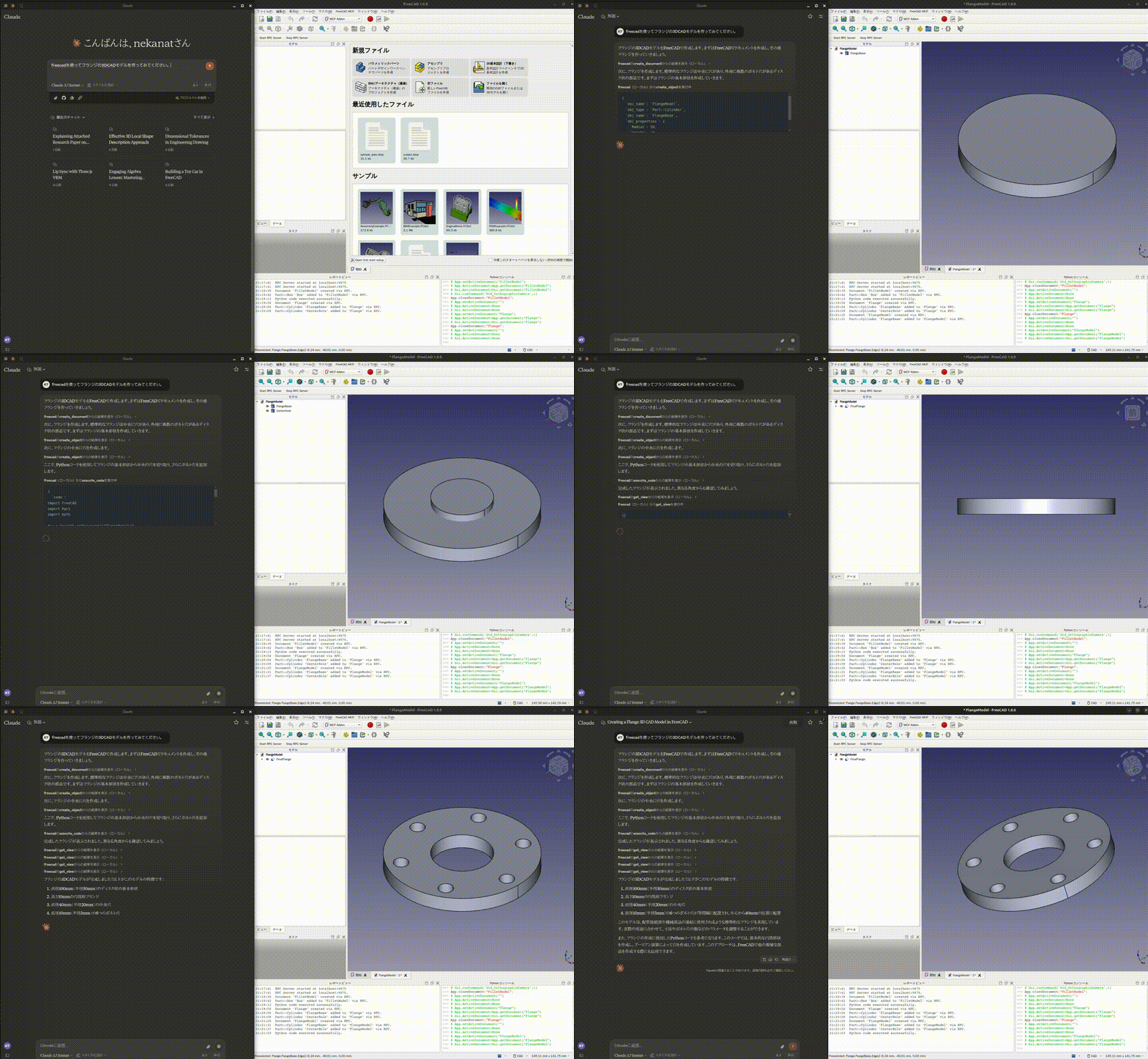
Design a flange
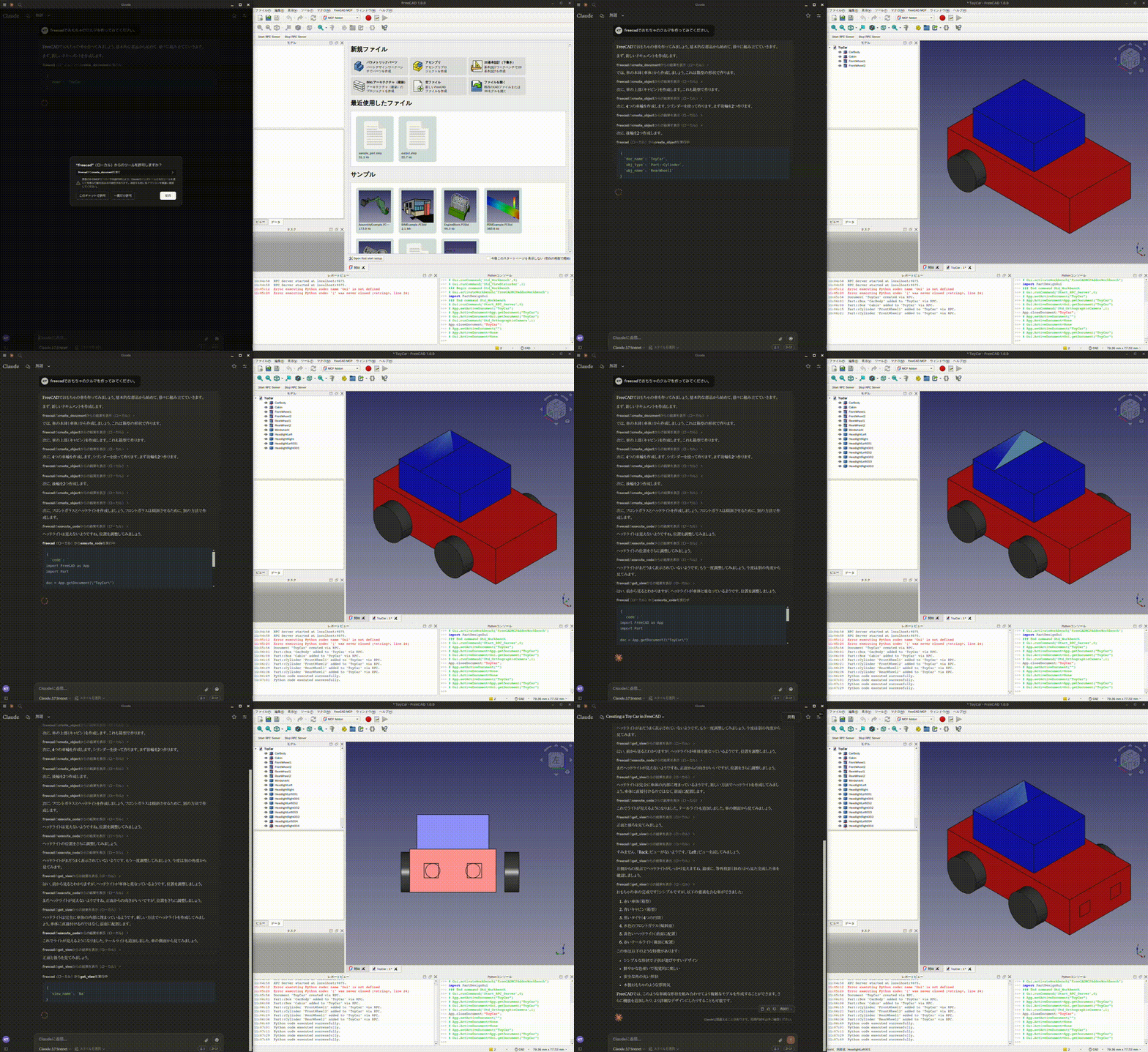
Design a toy car
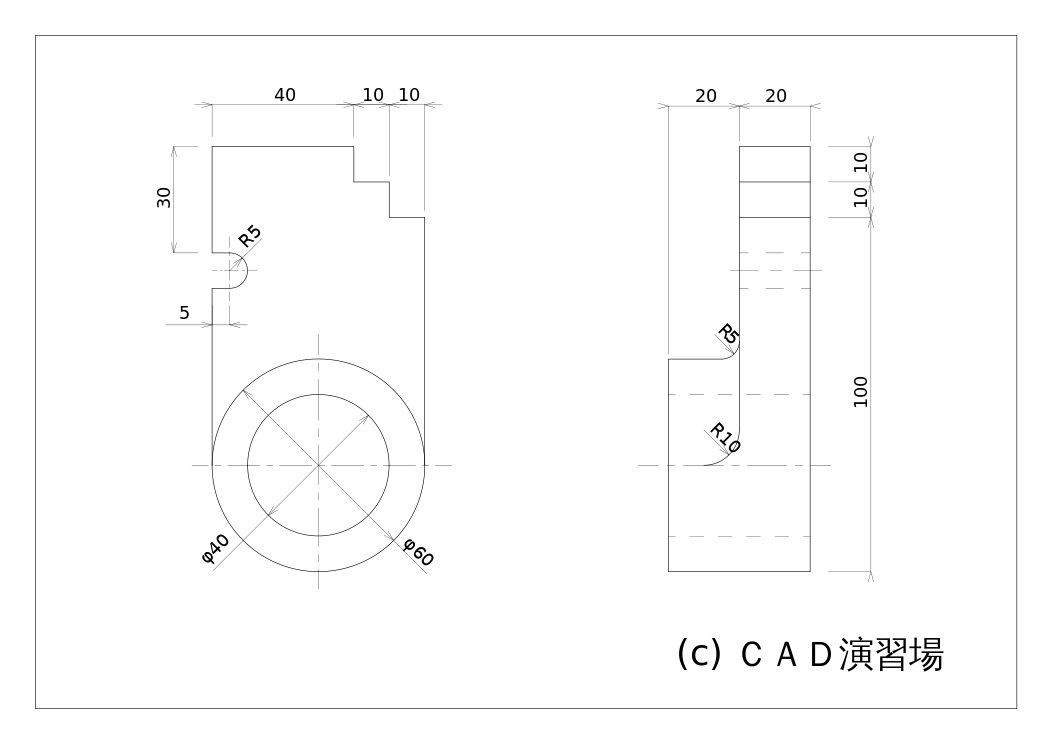
Design a part from 2D drawing
Input 2D drawing
Demo
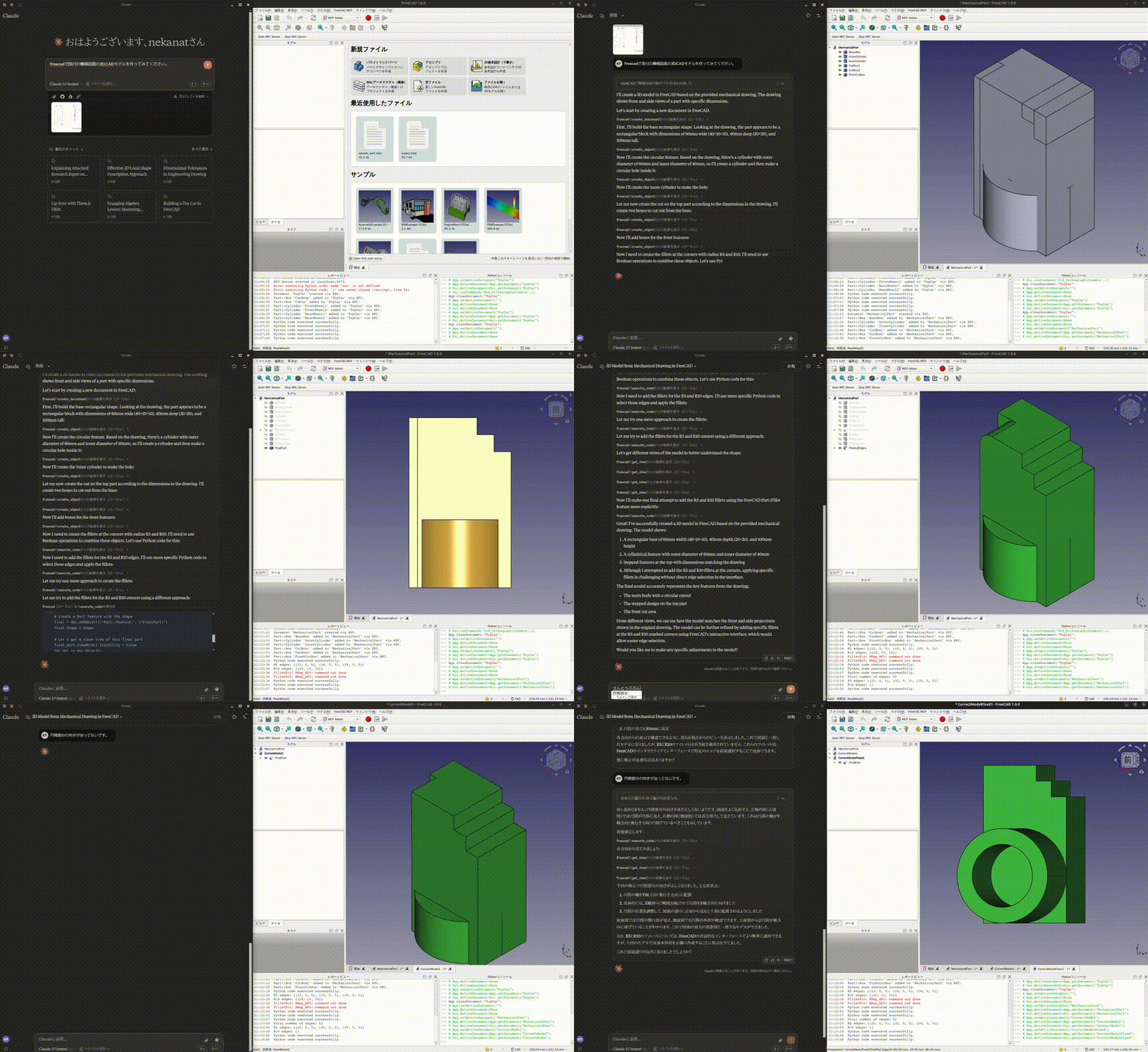
This is the conversation history.
https://claude.ai/share/7b48fd60-68ba-46fb-bb21-2fbb17399b48
Install addon
FreeCAD Addon directory is
- Windows:
%APPDATA%\FreeCAD\Mod\ - Mac:
~/Library/Application\ Support/FreeCAD/Mod/ - Linux:
- Ubuntu:
~/.FreeCAD/Mod/or~/snap/freecad/common/Mod/(if you install FreeCAD from snap) - Debian:
~/.local/share/FreeCAD/Mod
- Ubuntu:
Please put addon/FreeCADMCP directory to the addon directory.
git clone https://github.com/neka-nat/freecad-mcp.git
cd freecad-mcp
cp -r addon/FreeCADMCP ~/.FreeCAD/Mod/
When you install addon, you need to restart FreeCAD.
You can select "MCP Addon" from Workbench list and use it.
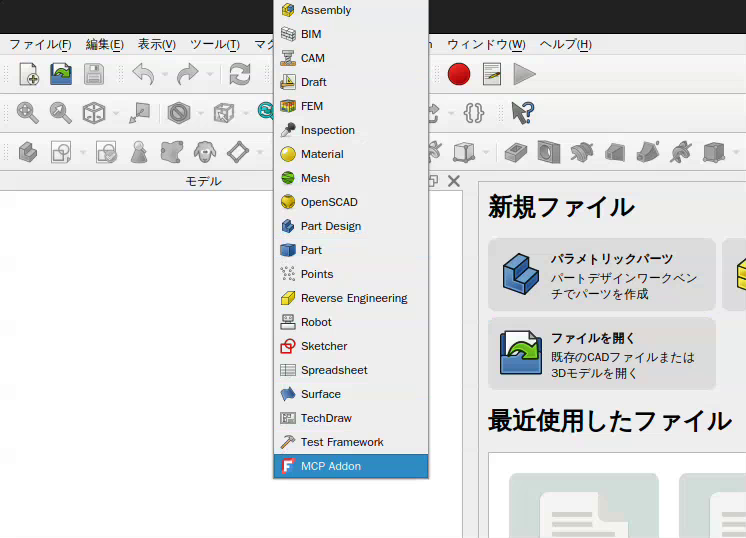
And you can start RPC server by "Start RPC Server" command in "FreeCAD MCP" toolbar.
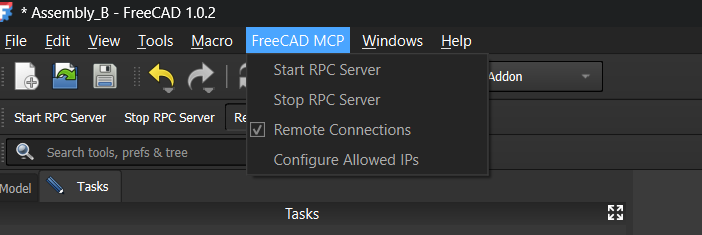
Auto-Start RPC Server
By default, the RPC server must be started manually each time FreeCAD opens. To start it automatically:
- Open the FreeCAD MCP menu (switch to the MCP Addon workbench first)
- Check Auto-Start Server
The setting is saved to freecad_mcp_settings.json and persists across sessions. On the next FreeCAD launch, the RPC server will start automatically once the application finishes loading.
You can disable it at any time by unchecking Auto-Start Server in the same menu.
Setting up Claude Desktop
Pre-installation of the uvx is required.
And you need to edit Claude Desktop config file, claude_desktop_config.json.
For user.
{
  "mcpServers": {
    "freecad": {
      "command": "uvx",
      "args": [
        "freecad-mcp"
      ]
    }
  }
}
If you want to save token, you can set only_text_feedback to true and use only text feedback.
{
  "mcpServers": {
    "freecad": {
      "command": "uvx",
      "args": [
        "freecad-mcp",
        "--only-text-feedback"
      ]
    }
  }
}
For developer.
First, you need clone this repository.
git clone https://github.com/neka-nat/freecad-mcp.git
{
  "mcpServers": {
    "freecad": {
      "command": "uv",
      "args": [
        "--directory",
        "/path/to/freecad-mcp/",
        "run",
        "freecad-mcp"
      ]
    }
  }
}
Remote Connections
By default the RPC server does not accept remote connections and listens on localhost. To control FreeCAD from another machine on your network:
1. Enable remote connections in FreeCAD
In the FreeCAD MCP toolbar:
Check Remote Connections — the RPC server will bind to
0.0.0.0(all interfaces) on the next restart. For security reasons, it only accepts connections from the IP addresses or CIDR subnets specified in the Allowed IPs field. By default this is127.0.0.1.Click Configure Allowed IPs and enter a comma-separated list of IP addresses or CIDR subnets that are allowed to connect, e.g.:
192.168.1.100, 10.0.0.0/24127.0.0.1is always the default. Invalid entries are rejected with an error dialog. Restart the RPC server after changing these settings.
2. Point the MCP server at the remote host
Pass the --host flag with the IP address or hostname of the machine running FreeCAD:
{
  "mcpServers": {
    "freecad": {
      "command": "uvx",
      "args": [
        "freecad-mcp",
        "--host", "192.168.1.100"
      ]
    }
  }
}
The --host value is validated on startup — it must be a valid IPv4/IPv6 address or hostname.
Tools
create_document: Create a new document in FreeCAD.create_object: Create a new object in FreeCAD.edit_object: Edit an object in FreeCAD.delete_object: Delete an object in FreeCAD.execute_code: Execute arbitrary Python code in FreeCAD.insert_part_from_library: Insert a part from the parts library.get_view: Get a screenshot of the active view.get_objects: Get all objects in a document.get_object: Get an object in a document.get_parts_list: Get the list of parts in the parts library.
Contributors
Made with contrib.rocks.
Yorumlar (0)
Yorum birakmak icin giris yap.
Yorum birakSonuc bulunamadi