openclaw-desktop-docker
Health Warn
- No license — Repository has no license file
- Description — Repository has a description
- Active repo — Last push 0 days ago
- Low visibility — Only 5 GitHub stars
Code Pass
- Code scan — Scanned 5 files during light audit, no dangerous patterns found
Permissions Pass
- Permissions — No dangerous permissions requested
No AI report is available for this listing yet.
Docker-powered Ubuntu desktop with OpenClaw pre-installed — access via browser (NoVNC), RDP, or VNC. AI agent gateway ready out of the box.
OpenClaw Docker Desktop Environment
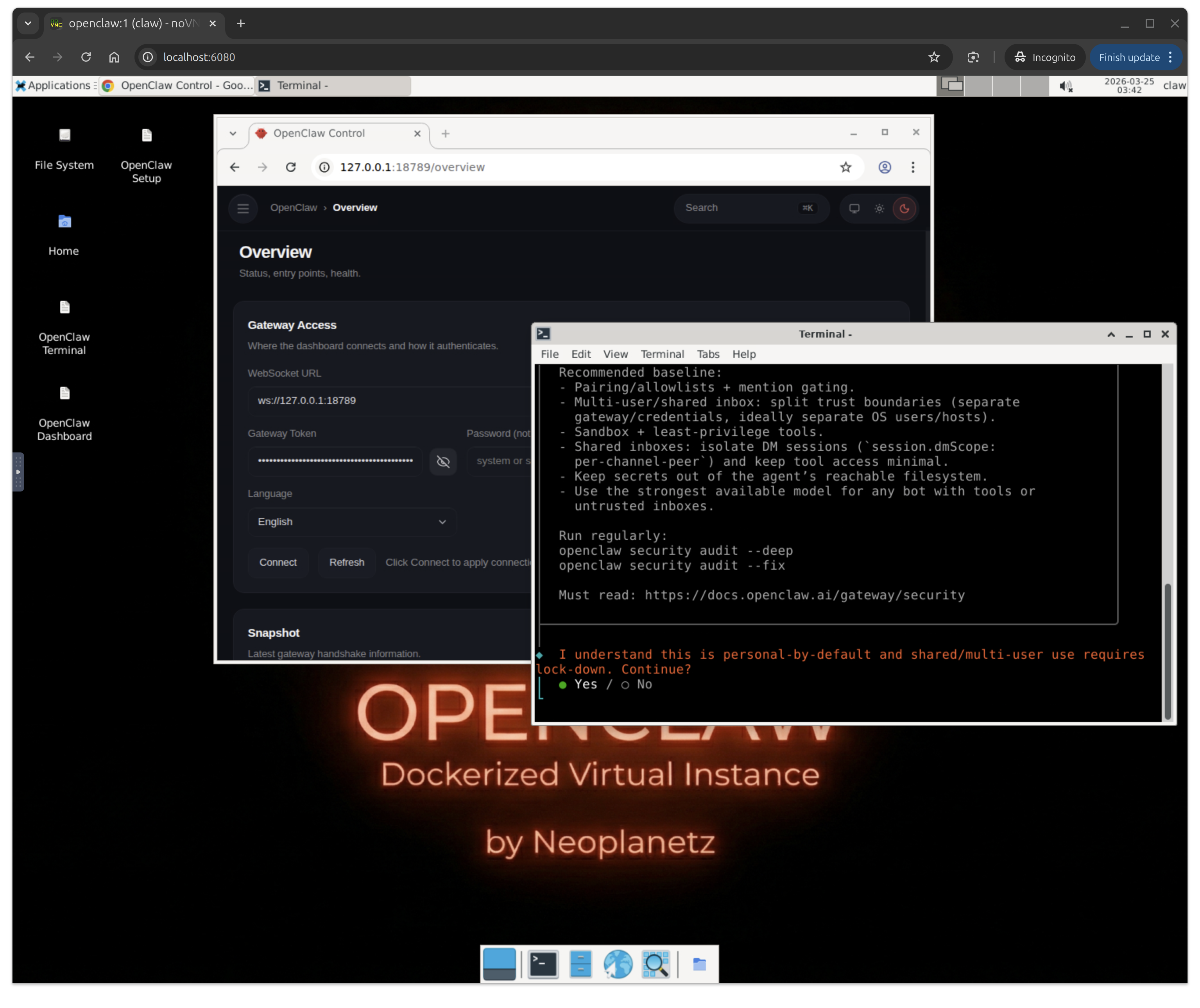
A turnkey Docker setup for running OpenClaw inside a full Ubuntu 24.04 GUI desktop, accessible via web browser (NoVNC), RDP, or VNC.
Everything is pre-installed — Node.js 22, OpenClaw, Google Chrome, and a default Gateway config. On first boot the Gateway starts automatically; just set your AI model and go.


New to Docker? Check out the Beginner's Guide for step-by-step instructions with screenshots.
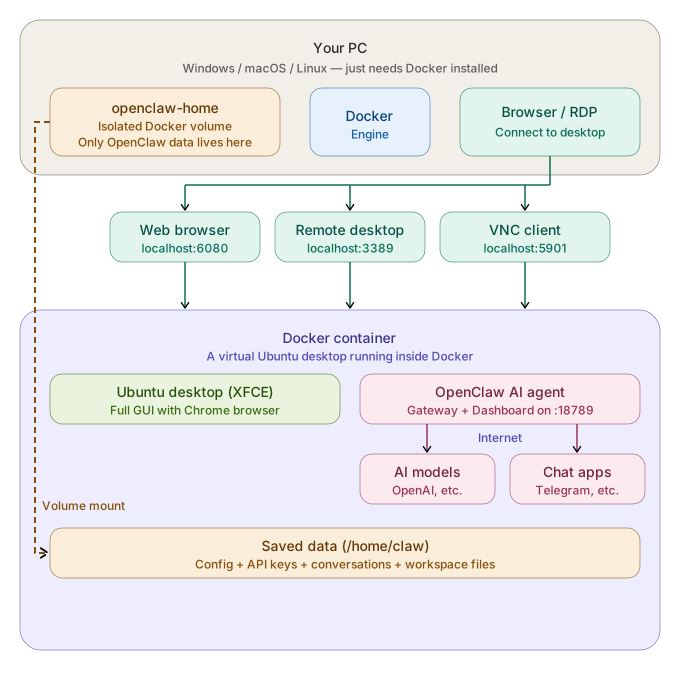
Architecture
What's Included
| Component | Details |
|---|---|
| Base OS | Ubuntu 24.04 |
| Desktop | XFCE4 with Korean + CJK + emoji fonts |
| Remote Access | TigerVNC + NoVNC (web), xRDP (Remote Desktop), raw VNC |
| Browser | Google Chrome (default, --no-sandbox wrapper) |
| Runtime | Node.js 22 (NodeSource) |
| OpenClaw | Latest from npm, default config pre-seeded, Gateway auto-starts |
| Desktop Shortcuts | OpenClaw Setup, Dashboard, Terminal |
Ports
| Port | Service |
|---|---|
6080 |
NoVNC — access the desktop via web browser |
5901 |
VNC — direct VNC client connection |
3389 |
RDP — Windows Remote Desktop / Remmina |
18789 |
OpenClaw Gateway & Dashboard |
Quick Start
Prerequisites
- Docker Engine 20+
Run from Docker Hub (Recommended)
docker compose up -d
Or standalone:
docker pull neoplanetz/openclaw-desktop-docker:latest
docker run -d --name openclaw-desktop \
  -p 6080:6080 -p 5901:5901 -p 3389:3389 -p 18789:18789 \
  --shm-size=2g --security-opt seccomp=unconfined \
  neoplanetz/openclaw-desktop-docker:latest
Build from Source
If you want to build the image yourself:
docker compose up -d --build
Connecting to the Desktop
Web Browser (NoVNC)
Open http://localhost:6080/vnc.html and enter the VNC password (default: claw1234, configurable in .env).
RDP (Remote Desktop)
Connect to localhost:3389 with any RDP client:
- Windows:
mstsc - macOS: Microsoft Remote Desktop
- Linux: Remmina
Login with your configured username and password (default: claw / claw1234, configurable in .env). Leave Domain blank.
VNC Client
Connect to localhost:5901 with any VNC viewer.
OpenClaw Setup
How It Works (No Manual Install Needed)
The Docker image ships with Node.js 22, OpenClaw, and a minimal ~/.openclaw/openclaw.json config. On every container start, the entrypoint:
- Starts VNC, NoVNC, and xRDP servers
- Ensures the OpenClaw config exists (regenerates if missing)
- Writes
OPENCLAW_ALLOW_INSECURE_PRIVATE_WS=1to~/.openclaw/.env(allows Gateway health check over Docker's internal network) - Starts the OpenClaw Gateway in the background (
openclaw gateway run) - Sets Chrome as the default XFCE web browser
Since Docker has no systemd, the Gateway daemon install step during onboarding will fail — this is expected and can be safely ignored. The entrypoint manages the Gateway process directly.
Desktop Shortcuts
Three icons are placed on the XFCE desktop:
| Icon | What It Does |
|---|---|
| OpenClaw Setup | Runs openclaw onboard — configure AI model/auth, channels (Telegram, Discord, etc.), and skills. Gateway daemon install failure at the end is normal. |
| OpenClaw Dashboard | Runs openclaw dashboard — opens Chrome with the correct localhost URL and auto-login token. |
| OpenClaw Terminal | Opens an XFCE terminal with the openclaw CLI ready. |
First-Time AI Model Setup
Double-click "OpenClaw Setup" on the desktop. The onboarding wizard walks through:
- Model / Auth — choose a provider (OpenAI Codex OAuth, Anthropic API key, etc.)
- Channels — connect Telegram, Discord, WhatsApp, or skip
- Skills — install recommended skills or skip
- Gateway daemon — will fail (no systemd) — ignore this
The wizard automatically restarts the Gateway and opens the Dashboard when finished.
OpenAI Codex OAuth (ChatGPT Subscription)
If you have a ChatGPT Plus/Pro subscription, select "OpenAI Codex (ChatGPT OAuth)" during onboarding. A browser window opens for you to log into your OpenAI account. After authorization, the model is set automatically.
Or run directly in the terminal:
openclaw models auth login --provider openai-codex --set-default
Anthropic API Key
openclaw config set agents.defaults.model.primary anthropic/claude-sonnet-4-6
echo 'ANTHROPIC_API_KEY=sk-ant-...' >> ~/.openclaw/.env
OpenAI API Key
openclaw config set agents.defaults.model.primary openai/gpt-4o
echo 'OPENAI_API_KEY=sk-...' >> ~/.openclaw/.env
Gateway Management
openclaw status              # Overall status
openclaw gateway status      # Gateway-specific status
openclaw models status       # Model/auth status
openclaw config get          # View current config
openclaw dashboard           # Open Dashboard with auto-login token
Configuration
Default openclaw.json
Pre-seeded at ~/.openclaw/openclaw.json:
{
  gateway: {
    mode: "local",
    port: 18789,
    bind: "lan",
    controlUi: {
      allowedOrigins: ["*"],
    },
  },
  agents: {
    defaults: {
      workspace: "~/.openclaw/workspace",
    },
  },
  env: {
    vars: {
      TZ: "Asia/Seoul",
    },
  },
}
bind: "lan"— listens on all interfaces so the host can accesshttp://localhost:18789/controlUi.allowedOrigins: ["*"]— allows Dashboard access from any origin (needed inside Docker)- No AI model is configured by default — set one via onboarding or CLI
Custom Username & Password
Edit the .env file in the project root (same directory as docker-compose.yml):
CLAW_USER=myname
CLAW_PASSWORD=mypassword
Then rebuild:
docker compose up -d --build
If changing the username after a previous run, delete the old volume first:
docker compose down -v && docker compose up -d --build
Environment Variables
These are set automatically from .env via docker-compose.yml:
.env Variable |
Container Env | Default | Description |
|---|---|---|---|
CLAW_USER |
USER |
claw |
Linux username |
CLAW_PASSWORD |
PASSWORD |
claw1234 |
VNC / RDP / sudo password |
| — | VNC_RESOLUTION |
1920x1080 |
Desktop resolution |
| — | VNC_COL_DEPTH |
24 |
Color depth |
| — | TZ |
Asia/Seoul |
Timezone |
| — | OPENCLAW_ALLOW_INSECURE_PRIVATE_WS |
1 |
Allows plaintext ws:// to Docker-internal private IPs (details) |
Data Persistence
The openclaw-home named volume mounts to the configured user's home directory (/home/claw by default). This preserves:
- OpenClaw config, credentials, and conversation history
- Chrome profile and bookmarks
- Desktop customizations
- SSH keys, shell history, etc.
Data survives docker compose down / up. Only docker volume rm openclaw-home destroys it.
Docker-Specific Workarounds
This setup includes several workarounds for running a full GUI + browser + OpenClaw inside Docker:
| Issue | Solution |
|---|---|
| No systemd | Entrypoint manages VNC, xRDP, and Gateway processes directly |
| Chrome needs sandbox | Wrapper script adds --no-sandbox to every launch |
xdg-open uses Docker internal IP |
Wrapper rewrites 172.x.x.x / 10.x.x.x URLs to localhost |
| Browser detaches from terminal | setsid in xdg-open wrapper prevents SIGHUP on terminal close |
| Chrome profile lock conflicts | Stale SingletonLock files cleaned once at container start |
| XFCE default browser | Custom exo-helper + mimeapps.list set on every start |
VNC password (vncpasswd missing) |
3-tier fallback: vncpasswd binary → openssl → pure Python DES |
| Firefox snap broken in Docker | Replaced with Google Chrome deb package |
Gateway health check blocks ws:// to non-loopback |
OPENCLAW_ALLOW_INSECURE_PRIVATE_WS=1 permits plaintext ws:// to RFC 1918 private IPs (Docker internal network only, added in v2026.2.19) |
Troubleshooting
Container keeps restarting
docker compose logs openclaw-desktop
Check for errors in VNC startup or config validation.
NoVNC shows blank screen
# Replace 'claw' with your CLAW_USER if changed in .env
docker exec -it openclaw-desktop bash
su - claw -c "vncserver -kill :1"
su - claw -c "vncserver :1 -geometry 1920x1080 -depth 24 -localhost no"
RDP shows white screen
docker exec -it openclaw-desktop /etc/init.d/xrdp restart
OpenClaw Gateway not running
# Replace 'claw' with your CLAW_USER if changed in .env
docker exec -u claw openclaw-desktop openclaw status
# Manual restart:
docker exec -u claw openclaw-desktop bash -c \
  "nohup openclaw gateway run >> ~/.openclaw/gateway.log 2>&1 & disown"
"Gateway daemon install failed" during onboarding
This is expected — Docker containers have no systemd. The entrypoint handles Gateway lifecycle instead. Ignore this message.
Dashboard shows "control ui requires device identity"
The browser opened with a Docker internal IP instead of localhost. Close it and use the "OpenClaw Dashboard" desktop shortcut, which runs openclaw dashboard with the correct URL and token.
File Structure
openclaw-desktop-docker/
├── .env                        # User configuration (CLAW_USER, CLAW_PASSWORD)
├── Dockerfile                  # Ubuntu 24.04 base image
├── docker-compose.yml          # Compose configuration
├── entrypoint.sh               # Runtime: VNC, xRDP, Chrome config, Gateway
├── README.md                   # Documentation (EN, KO, ZH, JA)
├── assets/                     # Images & architecture diagrams
│   ├── architecture_*.svg
│   ├── dockerized_openclaw.png
│   └── openclaw_desktop_web.png
└── docs/                       # Guides & changelog
    ├── CHANGELOG.md
    ├── DOCKERHUB_OVERVIEW.md
    ├── GUIDE_FOR_BEGINNERS.*.md
    └── images/                 # Guide screenshots
Reviews (0)
Sign in to leave a review.
Leave a reviewNo results found