droid-ai-toolkit
Health Warn
- License — License: MIT
- Description — Repository has a description
- Active repo — Last push 0 days ago
- Low visibility — Only 6 GitHub stars
Code Fail
- rm -rf — Recursive force deletion command in install.sh
Permissions Pass
- Permissions — No dangerous permissions requested
This project provides an automated, interactive toolkit for installing and managing various AI tools (like Ollama, n8n, and Gemini CLI) natively on non-rooted Android devices via the Termux terminal emulator.
Security Assessment
The overall risk is rated as Medium. The tool operates entirely through shell scripts that execute commands directly on your device. While no hardcoded secrets or explicitly dangerous permission requests were found, there are two notable security concerns. First, the automated scanner flagged a recursive force deletion command (`rm -rf`) inside the `install.sh` script. Second, the default Quick Start instructions ask users to pipe a remote script directly into bash (`curl | bash`). This installation method automatically executes whatever code is hosted at that URL without prior inspection. Additionally, the managed AI tools inherently require network access to function.
Quality Assessment
The project is under active development, with its most recent push happening today. It is properly licensed under the permissive MIT license. However, it suffers from very low community visibility, currently sitting at only 6 GitHub stars. Consequently, the codebase has not been widely peer-reviewed by the broader developer community, meaning undocumented bugs or security flaws are more likely to exist.
Verdict
Use with caution. While the project is active and open-source, the low community engagement, script piping installation method, and destructive file deletion commands warrant a manual code review before running it on your device.
🤖 High-performance toolkit for running AI tools (OpenClaw, Pi Agent, n8n, Ollama, Hermes) natively on Android via Termux.
🤖 Droid AI Toolkit (Termux)


-green.svg)
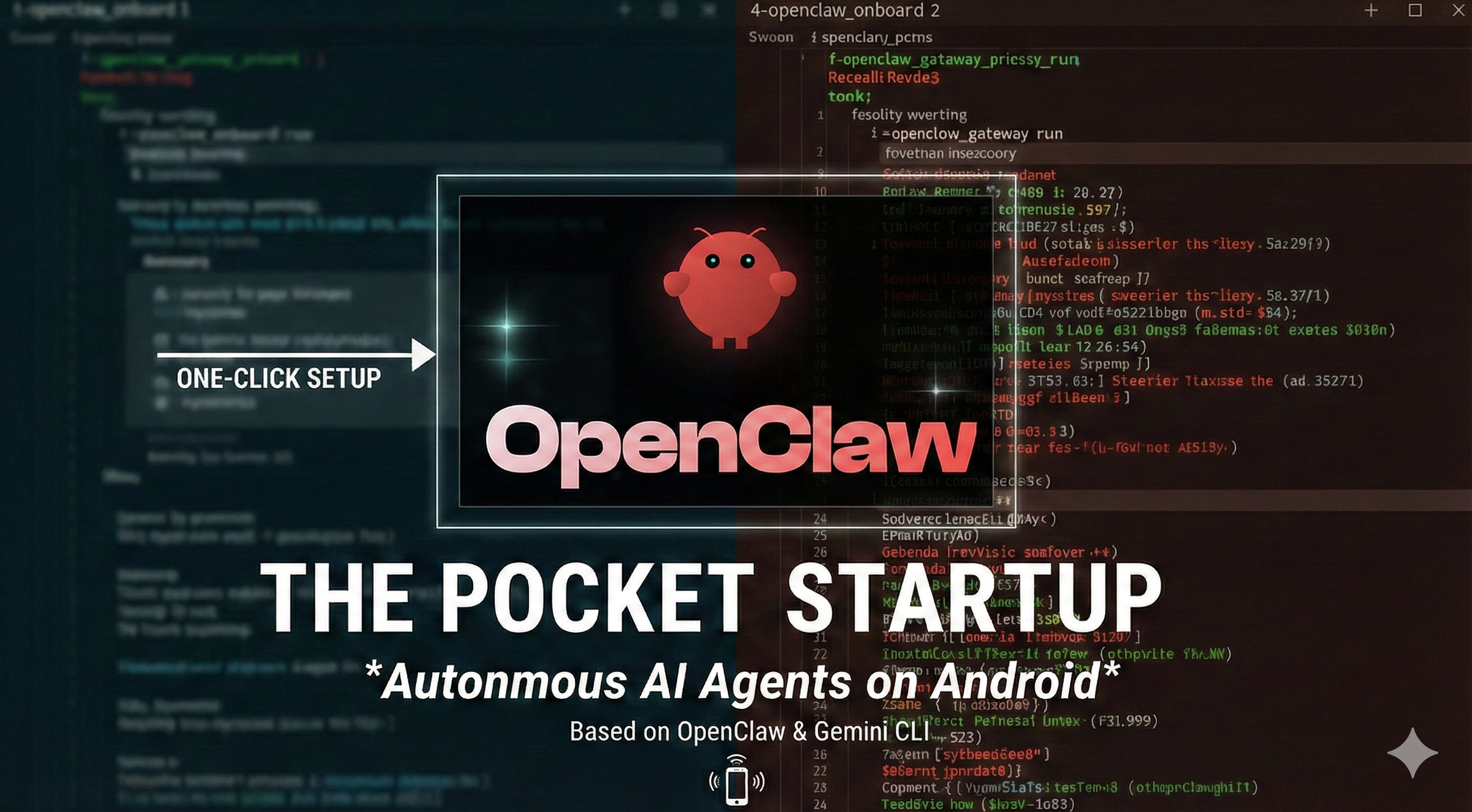
A high-performance, automated toolkit for running AI tools — OpenClaw, Gemini CLI, n8n, Ollama, Hermes, and Paperclip — natively on non-rooted Android devices. This toolkit bypasses kernel restrictions (renameat2), patches hardcoded system paths, and optimizes execution for mobile environments.
📱 Compatibility
- OS: Android 9.0 and above.
- Architecture: Tested on
armv8l(32-bit) andaarch64(64-bit) CPUs. - Optimization: Automatically detects system RAM and recommends appropriate memory limits (512MB to 2048MB) for Node.js and n8n workloads.
- Package Managers: Supports both npm (Standard) and pnpm (High Efficiency) for Node.js-based tools.
- Process Management: Supports PM2 (Recommended) and termux-services (Native).
🚀 Quick Start
1. Environment Setup
Install Termux from F-Droid. Do not use the Play Store version as it is obsolete.
2. Run the Toolkit
Execute the following command to start the interactive toolkit:
curl -sSL https://raw.githubusercontent.com/niyazmft/droid-ai-toolkit/main/install.sh | bash
💡 Smart Repair (v1.5.0+): If a tool is already installed, the toolkit offers a [R] Repair mode. Use this to fix Android-specific patches in seconds without re-downloading the entire package.
3. Choose Your Tools
The toolkit menu provides one-click install/repair for:
| Option | Tool | Description |
|---|---|---|
| 1 | Hermes | Nous Research AI agent |
| 2 | OpenClaw | AI Gateway with multi-channel support |
| 3 | Gemini CLI | Google's command-line AI assistant |
| 4 | n8n | Workflow automation server |
| 5 | Ollama | Local LLM runner (Termux native package) |
| 6 | Paperclip | AI orchestration server (EXPERIMENTAL) |
4. Onboard OpenClaw (If Installed)
Initialize your account and API providers:
openclaw onboard
Select QuickStart and choose an external provider (OpenRouter, OpenAI, etc.).
5. Background Service (Optimized)
To keep tools running even after you close Termux:
- Run the toolkit and choose Option 8 (Manage PM2 Processes).
- Select the service you want to start (OpenClaw, n8n, Ollama, or Paperclip).
- View logs with:
pm2 logs
✨ Key Features
- 🛠 Smart Repair: Detects existing installations and provides a 2-second "Repair Only" path to re-apply patches without redundant downloads.
- 🩹 Zero-Config Patching: Automatically fixes the
koffinative bridge andrenameat2kernel crashes for OpenClaw. - 📂 Path Awareness: Aggressively redirects
/bin/npm,/bin/node, and/tmpto Termux-compatible directories using$PREFIX. - 🚀 PM2 Integration: Native support for starting, stopping, and monitoring OpenClaw, n8n, Ollama, and Paperclip via PM2 with optimized memory flags.
- 📦 pnpm Support: Integrated support for pnpm to speed up installations and save storage space.
- 🧠 Memory Guard: Automatically clears memory (PM2 kill) and increases Node.js heap limits (1.5GB+) to prevent crashes on low-RAM devices during updates.
- 🛡 Surgical Cleanup: The uninstaller offers Soft/Deep options and a Wipe Stack (Reset) function that preserves your system packages while cleaning the apps.
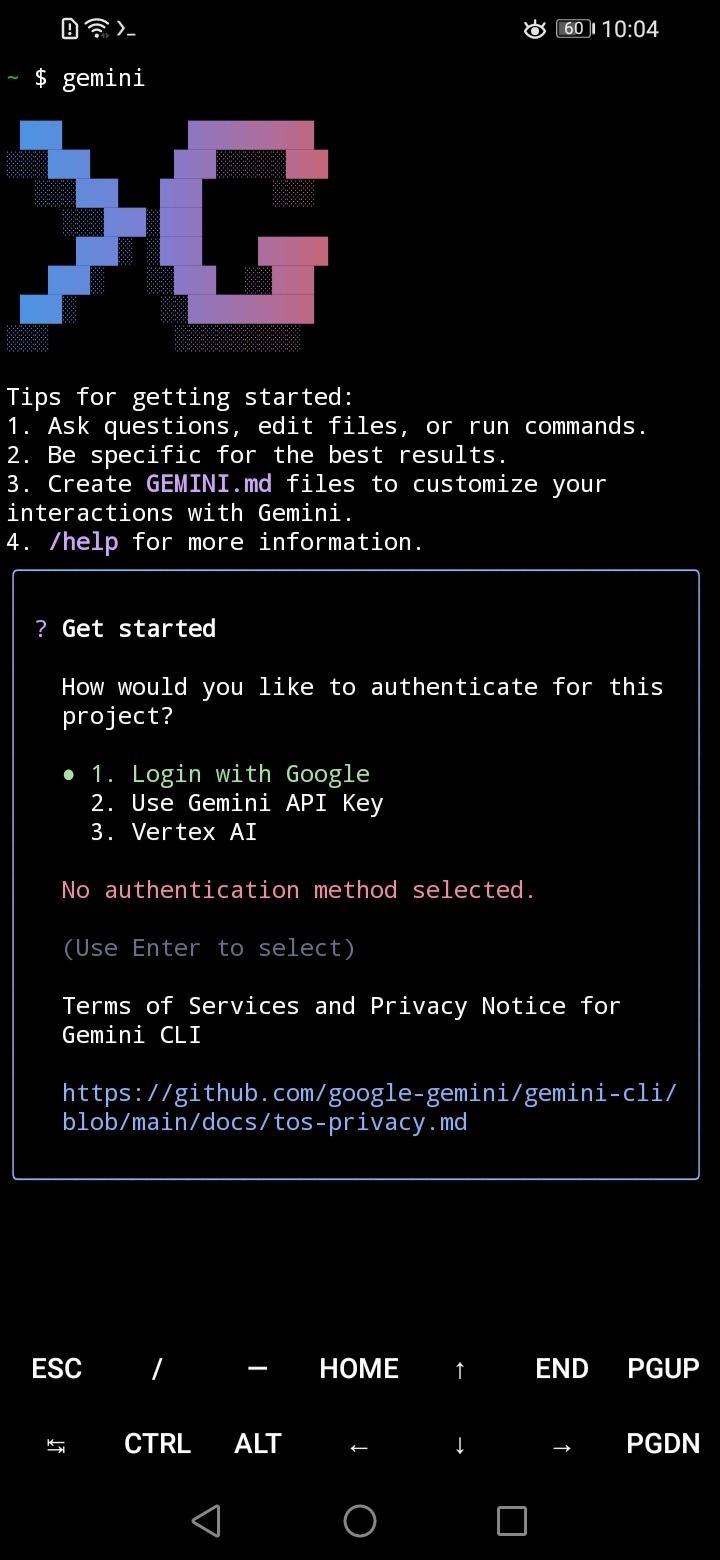
- 🧩 Gemini CLI Support: Dedicated installer with NDK environment optimizations.
- 🦙 Ollama Support: One-click install via Termux native package (
pkg install ollama). - ⚡ Hermes Support: One-click install via official curl installer.
🦙 Ollama (Local LLMs)
Run large language models locally on your Android device. Installed via Termux's native package manager:
ollama serve          # Start the server
ollama pull llama3    # Download a model
ollama run llama3     # Run a model
Use Option 8 (PM2) to keep Ollama running in the background. Downloaded models are stored in ~/.ollama and preserved during uninstall.
⚡ Hermes (Nous Research Agent)
AI agent by Nous Research, installed via the official curl installer:
hermes # Start the agent
🥧 Pi Coding Agent (Recommended)
The high-performance coding agent by Mario Zechner, optimized for the Termux environment.
pi --help             # View available commands
pi                    # Start the interactive agent
Use Option 9 (PM2) to keep the Pi Agent running in the background. The toolkit automatically configures a Termux-specific AGENTS.md context file to ensure the agent is aware of Android path structures and system utilities.
🗑 Uninstallation & Reset
Run the toolkit and select Option 10 (Uninstall) to access the modular uninstallation menu. Each option provides a detailed summary of the impact before you confirm:
- Remove OpenClaw: Choice of Soft Uninstall (keeps memories/skills) or Deep Uninstall (full wipe). Automatically cleans up PM2 and background services.
- Remove Gemini CLI: Full removal of application binaries and configurations.
- Remove n8n: Surgically kills the GCP tunnel (port 5678) and removes the watchdog cron.
- Remove Ollama: Removes the package. Downloaded models in
~/.ollamaare preserved. - Remove Hermes: Runs the official uninstaller if available, otherwise removes directories manually.
- Remove Pi: Full removal of global package and configuration.
- Remove Paperclip: Stops the PM2 service and preserves the source code and PostgreSQL database.
- Wipe Software Stack (Reset): Batch "Deep Uninstall" of all seven applications. Safe Reset: Cleans all toolkit-specific data but preserves system packages (Node.js, Git, Python, etc.) so your other Termux apps don't break.
📱 n8n Android Infrastructure
This toolkit includes a professional-grade setup for running n8n on Android with an optional GCP bridge for secure public access.
1. Installation
Run the toolkit and choose Option 4 (Install/Repair n8n Server). This will:
- Install n8n, Python 3, and process monitors.
- Configure a 5-minute watchdog (Cron) to ensure 24/7 uptime.
- Set up an optimized memory cap for your device.
2. Monitoring & Control
- Manual Restart: Choose Option 8 in the toolkit or run
~/n8n_server/scripts/n8n-monitor.sh. - View n8n Dashboard: If not using a bridge, access locally at
http://localhost:5678.
📎 Paperclip (EXPERIMENTAL)
Paperclip is an open-source orchestration server for managing teams of AI agents. Running it on Android requires an external PostgreSQL database (the embedded version does not support Android).
1. Installation (Paperclip)
Run the toolkit and choose Option 6 (📎 Paperclip Server). This will:
- Clone the Paperclip repository and build from source.
- Install PostgreSQL via
pkgand initialize a local database. - Remove the
embedded-postgresdependency (no Android build). - Configure
SHARP_IGNORE_GLOBAL_LIBVIPS=1sosharpcompiles against Termux'slibvips. - Set a memory cap (
--max-old-space-size) appropriate for your device.
Requirements: ~2GB free RAM, 2GB+ storage, pnpm 9.15+. This is an experimental path — expect longer build times.
2. Launching
After install, start the server via PM2 (Option 8) or manually:
cd ~/paperclip
pm2 start 'bash -c "set -a && source config/paperclip.env && set +a && node --import ./server/node_modules/tsx/dist/loader.mjs server/dist/index.js"' --name paperclip --interpreter none
pm2 save
3. First Run / Onboarding
Before you can use the dashboard, Paperclip requires a one-time onboarding step to generate the agent JWT and instance config.
cd ~/paperclip
pnpm paperclipai onboard --yes
The default is trusted local loopback mode (accessible only from the device). If you plan to access it from another machine on the same Wi-Fi, stop the server and re-onboard with a LAN bind:
pm2 stop paperclip
cd ~/paperclip
pnpm paperclipai onboard --yes --bind lan
pm2 restart paperclip
Other bind options: loopback (default), lan, or tailnet.
Then access the UI locally at http://localhost:3100.
Note: If accessing from your Mac via SSH port forwarding (e.g.,
http://localhost:3101),loopbackmode is sufficient.
🌐 GCP Bridge Walkthrough (Optional)
To expose your n8n instance securely to the internet (https://yourdomain.com), follow this walkthrough:
Step 1: Prepare the GCP VM
- Create Instance: In GCP Console, create an
e2-microVM (Debian/Ubuntu). - Static IP: Reserve a static external IP for this VM.
- Firewall: Allow TCP 80 (HTTP), 443 (HTTPS), and 22 (SSH).
Step 2: Set up DNS
- Point your domain (e.g.,
n8n.example.com) to the GCP VM's static IP.
Step 3: Configure Nginx (on GCP VM)
- Install Nginx and Certbot:
sudo apt install nginx certbot python3-certbot-nginx - Create a site config that proxies to
localhost:5678. - Secure it with SSL:
sudo certbot --nginx -d yourdomain.com
Step 4: Establish the Tunnel
- Run the toolkit on your Android device and choose Option 7 (Configure GCP Bridge).
- Follow the prompts to enter your VM IP and Domain.
- Copy the generated SSH Public Key and paste it into the GCP VM's
~/.ssh/authorized_keysfile. - The monitor script will now automatically maintain a secure
autosshtunnel to the VM.
📊 Management Commands
| Action | Command |
|---|---|
| Check Health | sv status openclaw |
| View Live Logs | tail -f ~/.openclaw/logs/current |
| Stop Service | sv down openclaw |
| Restart Gateway | sv restart openclaw |
| Force Kill (Stray) | pkill -9 -f openclaw |
| Fix Environment | openclaw doctor |
| Find Access Token | grep "token" ~/.openclaw/openclaw.json |
| Ollama: Start Server | ollama serve |
| Ollama: Pull Model | ollama pull llama3 |
| Ollama: Run Model | ollama run llama3 |
| Hermes: Start | hermes |
🔄 Maintenance
🛡 Safe Updates & Smart Repair
⚠️ WARNING: Never use the built-in openclaw update command. It will overwrite the Android patches and break the application.
To update or repair safely:
- Run the
install.shscript. - Choose the tool's Install/Repair option from the menu.
- Select [R] Repair to fix patches instantly (2s) or [U] Update to install the latest verified version.
💡 Latest Version: This toolkit always installs the latest available version of each tool to ensure maximum feature compatibility and security.
🔋 Battery Optimization
To prevent Android from killing the background process, run:
termux-wake-lock
🛠 Troubleshooting
- Telegram Plugin Not Available: This toolkit attempts to pre-fix this. If it persists, finish onboarding and run:
openclaw channels add --channel telegram. - Homebrew Recommendations: Ignore them. Homebrew is not supported on Android. Use
pkg install <package>for any missing dependencies. - Node.js Errors: Run the toolkit's Install/Repair option to reset environment locks and paths.
- Ollama Not Found After Install: Restart Termux or run
source ~/.bashrcto refresh your PATH.
🛠 Code Quality
This project implements a "Zero-Waste" and "Self-Healing" quality gate to maintain high standards for all contributions.
Tools Used
- ESLint v10: Modern JavaScript and JSON linting via Flat Config.
- Stylelint: Standardized CSS quality checks.
- Markdownlint: Documentation consistency enforcement.
- Husky & lint-staged: Automated pre-commit hooks to auto-fix code.
- Self-Healing: Custom Python scripts to safely refactor unused code.
Usage
Run the full quality audit locally:
pnpm run lint:all
📄 License
Distributed under the MIT License. See LICENSE for more information.
mation.
Reviews (0)
Sign in to leave a review.
Leave a reviewNo results found