Launchpad-CLI
Health Pass
- License — License: NOASSERTION
- Description — Repository has a description
- Active repo — Last push 0 days ago
- Community trust — 16 GitHub stars
Code Fail
- child_process — Shell command execution capability in source/apply-wt-settings.js
- execSync — Synchronous shell command execution in source/apply-wt-settings.js
- process.env — Environment variable access in source/apply-wt-settings.js
- fs module — File system access in source/apply-wt-settings.js
- process.env — Environment variable access in source/configure-statusline.js
- fs module — File system access in source/configure-statusline.js
Permissions Pass
- Permissions — No dangerous permissions requested
No AI report is available for this listing yet.
Claude Code Launchpad installer for Windows + macOS. Bundles Node.js, Git, Windows Terminal theme, Live status bar, Folder picker, Right-click launch, Named profiles, Flages. Zero-to-Claude in under a minute
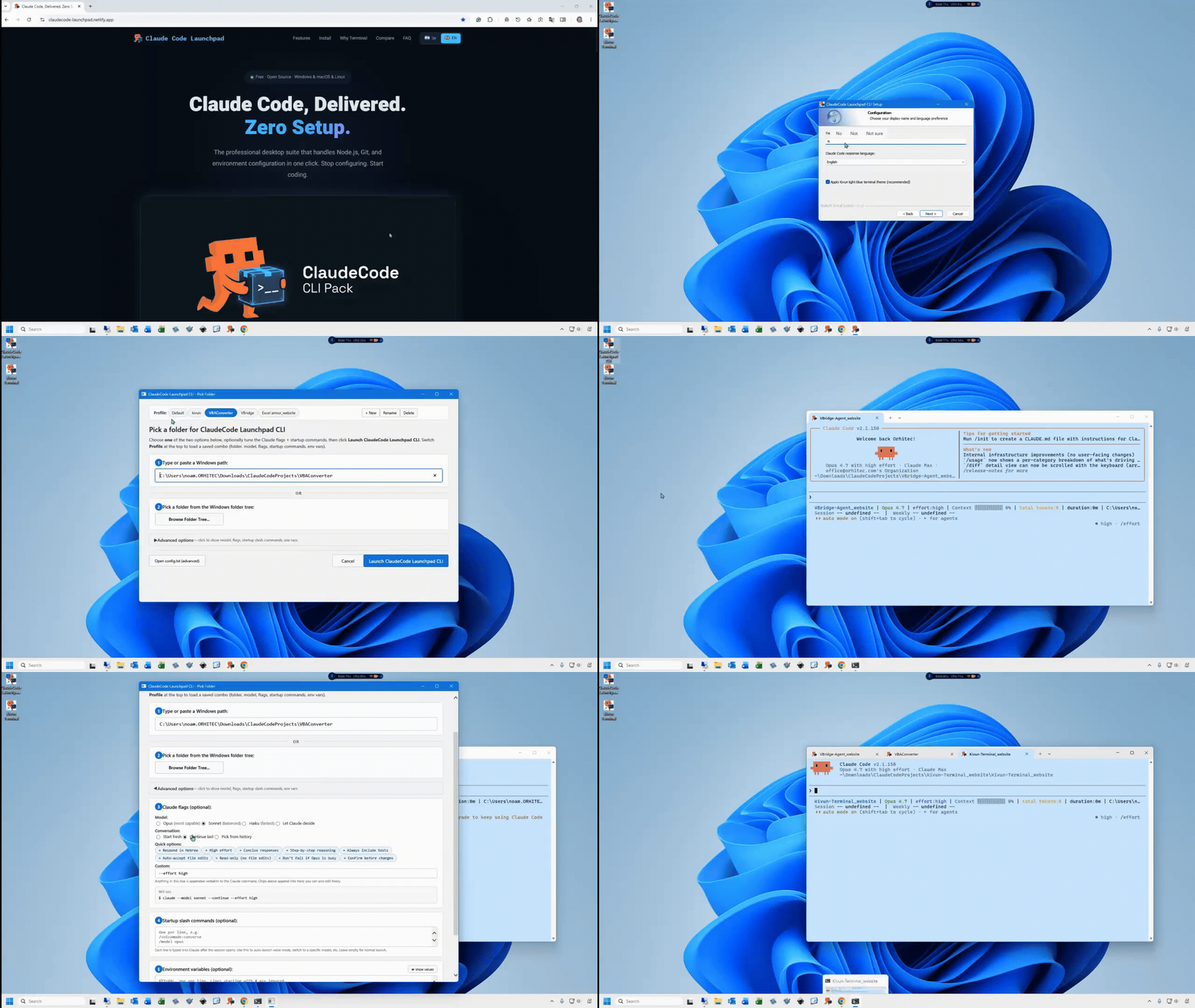
📹 Demo: ClaudeCode Launchpad CLI - one-click install, folder picker, and launch - download MP4 (2.2 MB) if your browser doesn't autoplay above.







Zero-to-Claude in 1 minute. Installer, status bar, and launcher for Claude Code on Windows & macOS.
Quick Start • Why Launchpad CLI? • Status Bar • Architecture • Configuration • Changelog • Troubleshooting
Why Launchpad CLI?
| Manual Setup | Launchpad CLI | |
|---|---|---|
| Get Claude Code running | Find Node.js, Git, and Claude installers, run them in order, fix PATH | One installer, one click |
| Live status bar (model, context %, usage) | Write your own statusline script + configure settings.json |
Pre-installed |
| Desktop shortcut + right-click "Open with..." | Manual .lnk files + registry edits |
Included |
| Pick a folder before launching | cd into every project |
GUI picker dialog (browse tree or paste a path) |
| Default Claude flags + startup slash commands | Type them every session | Set once in the picker, reused every launch |
| Named profiles per project (folder + model + flags + env vars + startup slash-commands) | Track combos in your head, retype every session | 🆕 v2.6.0 — chip row at top of picker, click to switch; ANTHROPIC_API_KEY etc. masked in preview by default |
| Time to first prompt | 20+ minutes | ~1 minute |


Here's the picker you'll get
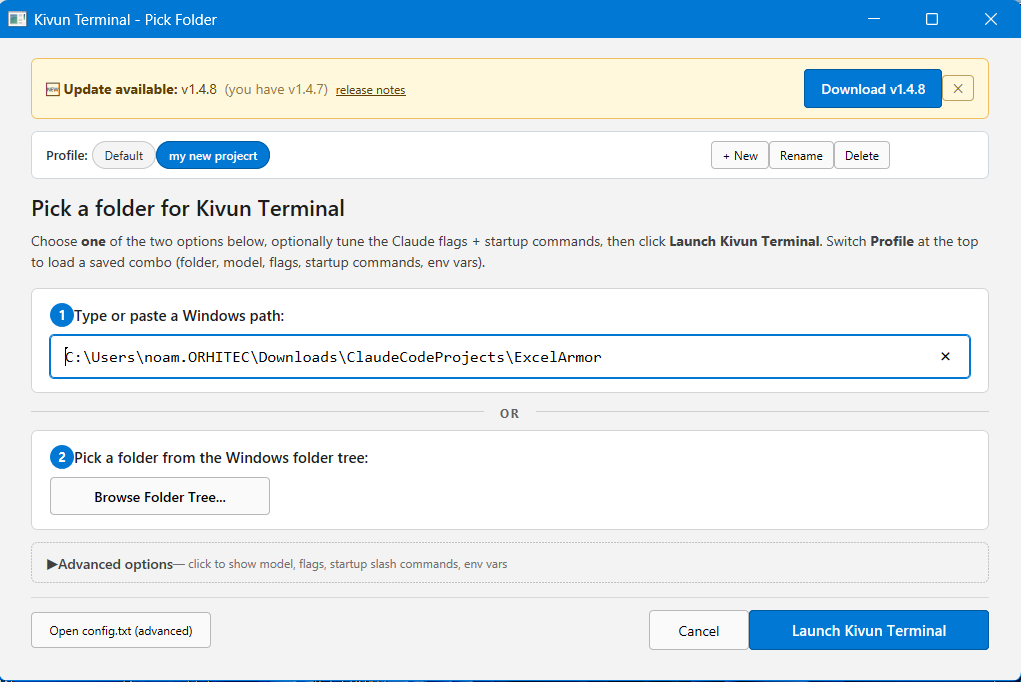
The desktop shortcut opens this picker: pick a profile from the chip row at the top (or + New to save the current setup as a named profile — folder + model + flags + startup commands + env vars), type/paste a Windows path or browse the tree, optionally pick a model (Opus / Sonnet / Haiku), tap chips for common options (Respond in Hebrew, High effort, Auto-accept file edits, Read-only, Don't fail if Opus is busy, Confirm before changes), and add startup slash commands like /voicemode:converse that get typed into Claude after it opens.
Launchpad CLI vs Kivun Terminal — which one?
There are two projects in this family. Pick whichever fits how you work:
| Launchpad CLI (this repo) | Kivun Terminal wsl | |
|---|---|---|
| Live status bar (model, context %, usage) | ✅ | ✅ |
| Light-blue Kivun theme | ✅ Windows Terminal | ✅ Konsole |
| Right-click "Open with..." on a folder | ✅ Windows Explorer | ✅ Windows Explorer + Linux file managers |
| Folder picker dialog with model + flag chips | ✅ | ✅ |
| Named profiles per project (folder + model + flags + env vars + startup slash-commands) | ✅ v2.6.0 | ✅ v1.4.0 |
| Hebrew / Arabic / Persian text right-aligned | ❌ shows left-aligned | ✅ aligns to the right where it belongs |
| English/code mixed inside a Hebrew sentence | ❌ words pushed to the wrong edge | ✅ words land at the correct position in the sentence |
| Supported RTL languages | 0 (LTR only) | 11 (Hebrew, Arabic, Persian, Urdu, Pashto, Kurdish, Dari, Uyghur, Sindhi, Yiddish, Syriac) |
| Startup time | ~2 s | ~6 s |
| Install size on Windows | ~150 MB | ~2 GB (includes Ubuntu + Konsole via WSL2) |
| Windows support | Native (Windows Terminal) | WSL2 + Ubuntu + Konsole |
| macOS support | ✅ | ❌ Deprecated as of v1.2.4 (no Mac terminal handles mixed Hebrew + English) |
| Linux support | ❌ | ✅ apt / dnf / pacman / zypper |
Pick Launchpad CLI if you work in English (or any LTR language), use macOS, or want the lightest fastest install.
Pick Kivun Terminal if you work in Hebrew, Arabic, Persian, Urdu, or another RTL language — or you're on Linux.
Quick Start
Windows
- Download
ClaudeCode_Launchpad_CLI_Setup.exe - Run as Administrator - the wizard auto-detects what's already installed
- Double-click the "ClaudeCode Launchpad CLI" desktop shortcut
- Start coding with Claude
macOS
- Download the
.pkginstaller - Double-click it, allow in System Settings > Privacy & Security, then run again
- Open Terminal and type
claude - Start coding with Claude
First time? You'll need a Claude Pro/Max subscription or Anthropic API key.
Status Bar
A two-line live status bar at the bottom of every session:
BookWriter | 🟢 Sonnet 4.6 | Context 🟩🟩🟩🟩🟩⬜⬜⬜⬜⬜ 51% | tokens: 284K | 24:13
Session 🟨🟨🟨🟨🟨🟨🟨🟨⬜⬜ 77% resets in 4h15m | Weekly 🟩🟩⬜⬜⬜⬜⬜⬜⬜⬜ 16% resets in 6d18h
| Field | What it shows |
|---|---|
| Model | Active Claude model (color-coded: green = Opus, yellow = Sonnet/Haiku) |
| Context | % of context window consumed (green/yellow/red) |
| Tokens | Combined input + output tokens this session |
| Session / Weekly | Usage limit % with countdown to reset |
Tech Stack
| Component | Technology | Purpose |
|---|---|---|
| Windows installer | NSIS | Silent/wizard install with dependency detection |
| macOS installer | pkgbuild | .pkg with postinstall script via Homebrew |
| Launcher | Batch / Shell | Folder picker, flag passing, WT/CMD fallback |
| Terminal profile | Windows Terminal JSON Fragment | Custom "Noam" color scheme (#C8E6FF) |
| Status bar | Node.js (statusline.mjs) |
Live model, context, and usage display |
| Config scripts | Node.js | WT settings injection, statusline setup |
| CI/CD | GitHub Actions | Automated macOS .pkg builds |
Configuration
Edit %LOCALAPPDATA%\Kivun\config.txt (Windows) after installation:
RESPONSE_LANGUAGE=english     # 24+ languages supported
TERMINAL_COLOR=kivun          # "kivun" or "default"
CLAUDE_FLAGS=                 # e.g. --continue
Contributing
Contributions are welcome! Areas where help is especially useful:
- Installer testing -- different Windows/macOS versions and locales
- Windows on ARM -- the NSIS installer is x64-only today
- macOS notarization -- the .pkg is currently unsigned; users on stricter Gatekeeper settings have to right-click → Open
Looking for Linux + RTL (Hebrew/Arabic/Persian)? Use the sister project kivun-terminal-wsl — Windows-via-WSL + Linux installers with full BiDi rendering.
Fork the repo, make your changes, and open a PR.
Community
Submitted to awesome lists (pending review):
License
Made by Noam Brand




Reviews (0)
Sign in to leave a review.
Leave a reviewNo results found