spaceapp
Health Gecti
- License — License: NOASSERTION
- Description — Repository has a description
- Active repo — Last push 0 days ago
- Community trust — 12 GitHub stars
Code Gecti
- Code scan — Scanned 12 files during light audit, no dangerous patterns found
Permissions Gecti
- Permissions — No dangerous permissions requested
Bu listing icin henuz AI raporu yok.
Self-hosted workspace that runs several AI coding CLIs (OpenCode, Codex, Claude Code, Gemini) side by side in persistent rooms.
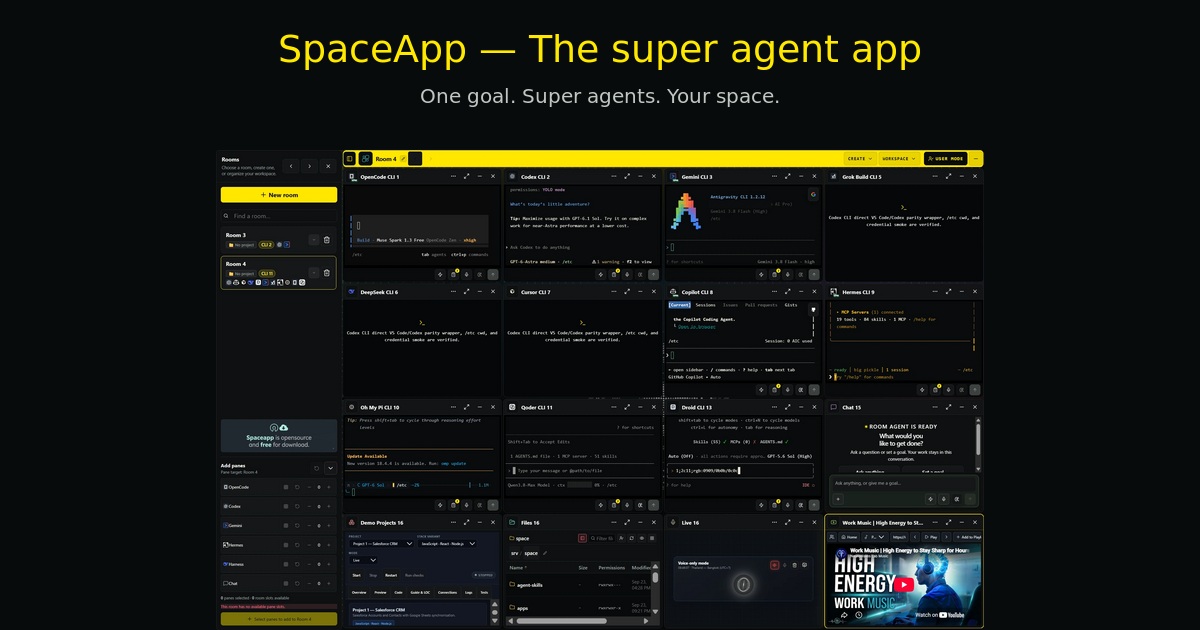






The Source-Available, Self-Hosted Multi-Agent AI Coding Workspace
Run OpenCode, OpenAI Codex, Claude Code, Google Gemini, Qwen, Kimi, Grok, and DeepSeek concurrently in persistent rooms on your own machine. Rooms organize sessions; they are not a security boundary between mutually untrusted users.
Explore spaceapp.dev » | Try Live Demo »
🌟 What is SpaceApp?
SpaceApp is a self-hosted workspace engineered for developers who use AI coding assistants. Instead of juggling dozens of terminal windows, scattered browser tabs, and copy-pasting code between tools, SpaceApp brings your entire AI engineering team into a single, unified mission control interface.
With SpaceApp, you can:
- Run Multiple AI Coding Agents in Parallel: Pair program with Codex, Claude Code, Gemini, and OpenCode side-by-side on the same project repository or across separate workspaces.
- Control Your Deployment: Self-host the application and choose its providers and integrations. Remote model requests send the context needed for execution to the configured provider or gateway. Host filesystem access and credentials depend on deployment settings and explicit operator permissions; see the state and trust boundaries.
- Start with OpenCode: Setup presents OpenCode first. Available models, free tiers and authentication requirements depend on the installed CLI and its current provider catalog. Select and verify a model during setup.
- Shared Vector Memory (optional): When the memory graph is enabled for a deployment, SpaceApp stores memory records and their embeddings in PostgreSQL with
pgvectorand shows them as a 3D graph that agent sessions can query. Embeddings are computed by the configured embedding provider, so that provider receives the indexed text. - One-Command Setup: A single universal launcher command installs Docker prerequisites (if missing), configures containers, sets up database secrets, and launches the web application across Linux, macOS, and Windows 11.
📸 Visual Tour
1. Parallel Multi-Agent Workspace (The 16-Pane Matrix)
Run up to 16 AI coding assistants, terminals, or workspace monitors simultaneously in a single coordinated room. Keep their terminals and task history accessible while working across projects. Context limits and continuation behavior depend on the runtime:
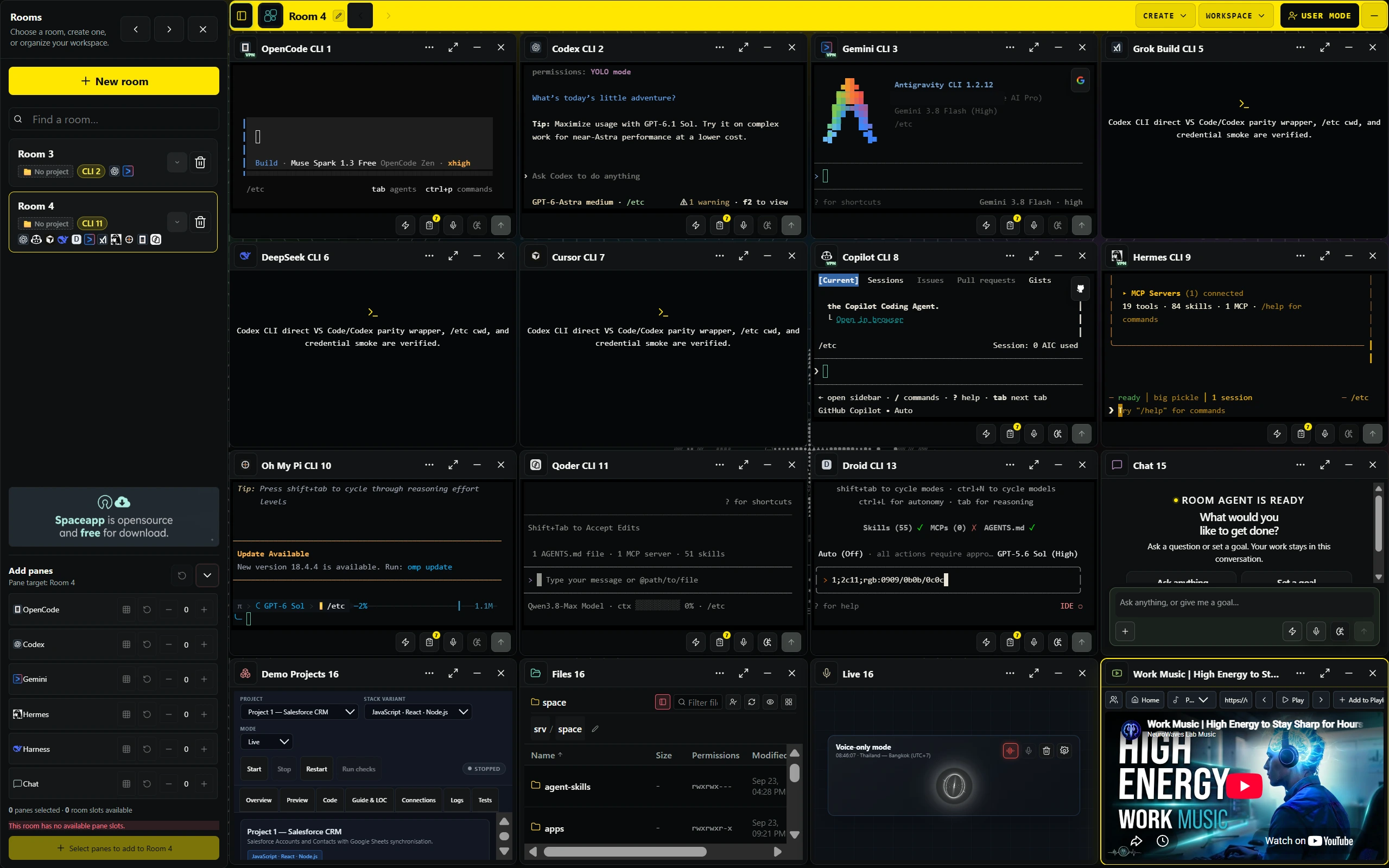
Above: SpaceApp running OpenCode, Codex, Gemini, Grok, DeepSeek, Cursor, Copilot, Hermes, Droid, and terminal tools in a live 16-pane room grid.
2. Live Agent Execution & Streaming Telemetry
Watch agent output, shell commands and test runs as they stream from each pane. Token usage appears where the runtime reports it (for example Codex rollouts); otherwise it is shown as unavailable:
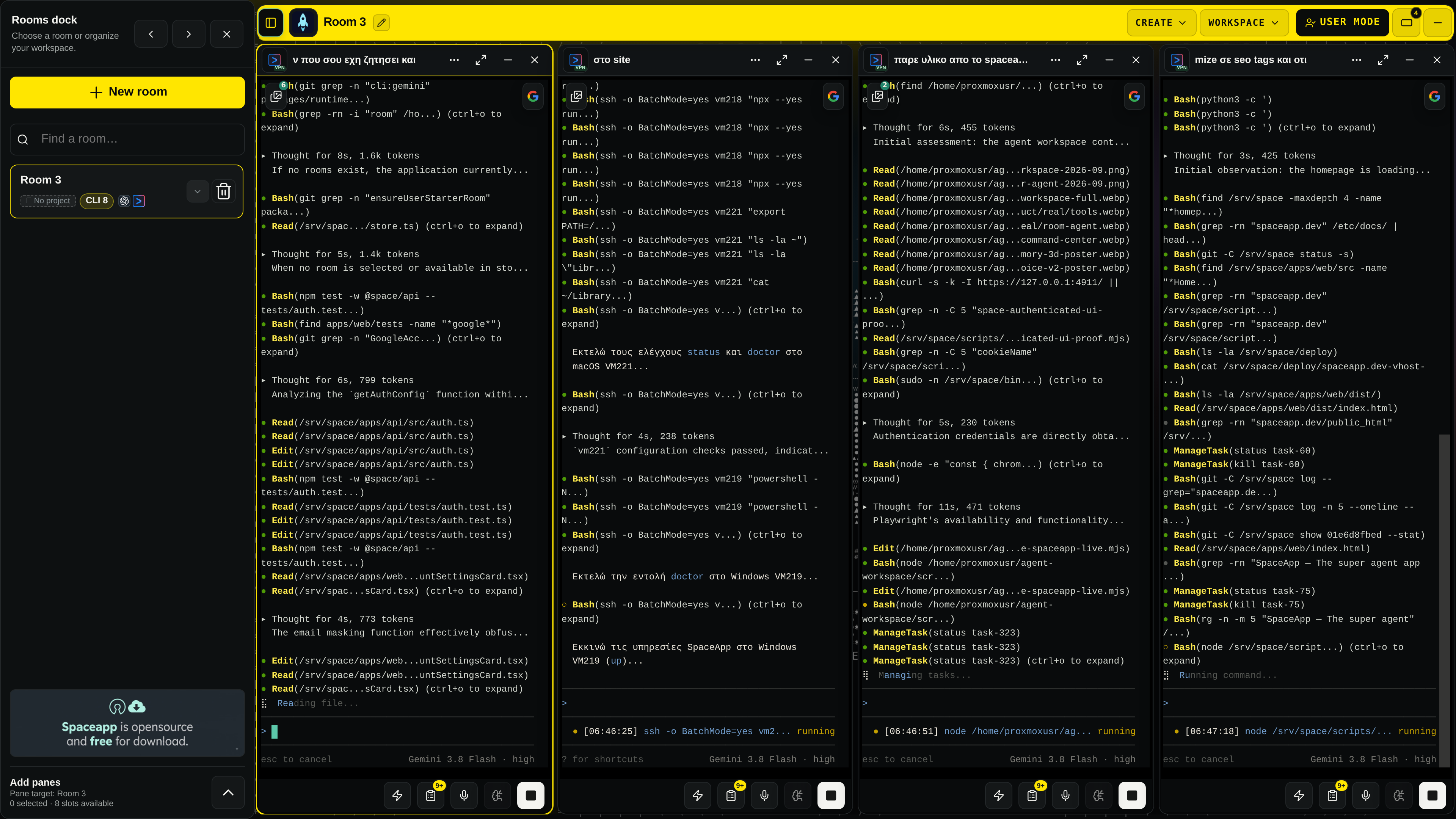
Above: Real-time execution captured from a live SpaceApp room running parallel Google Gemini 3.8 Flash agents handling test verification, codebase search, and file editing.
3. Unified Workspace Action Palette & Docks
Access your entire engineering environment through the central SpaceApp overlay: switch rooms, inspect agent files, manage persistent clipboards, configure VPN routes, and monitor system resources:
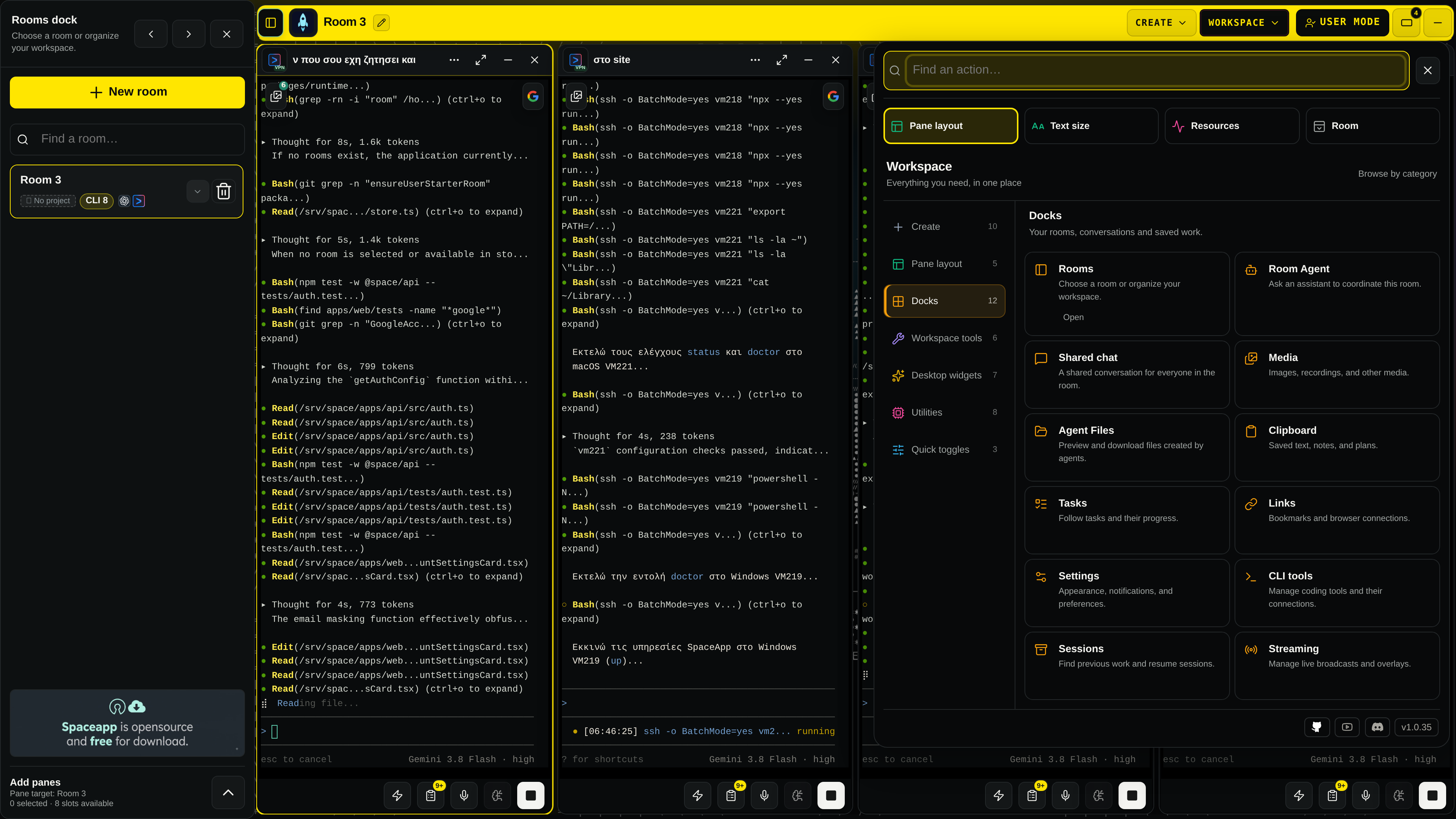
Above: The SpaceApp Actions & Docks center, a single entry point to Rooms, Room Agent, Shared Chat, Media, Agent Files, Tasks, Links, Settings, and CLI Tools.
4. Canonical 3D Vector Memory Graph
SpaceApp features an integrated PostgreSQL pgvector database that indexes file modifications, architecture choices, and session history into an interactive 3D point cloud:
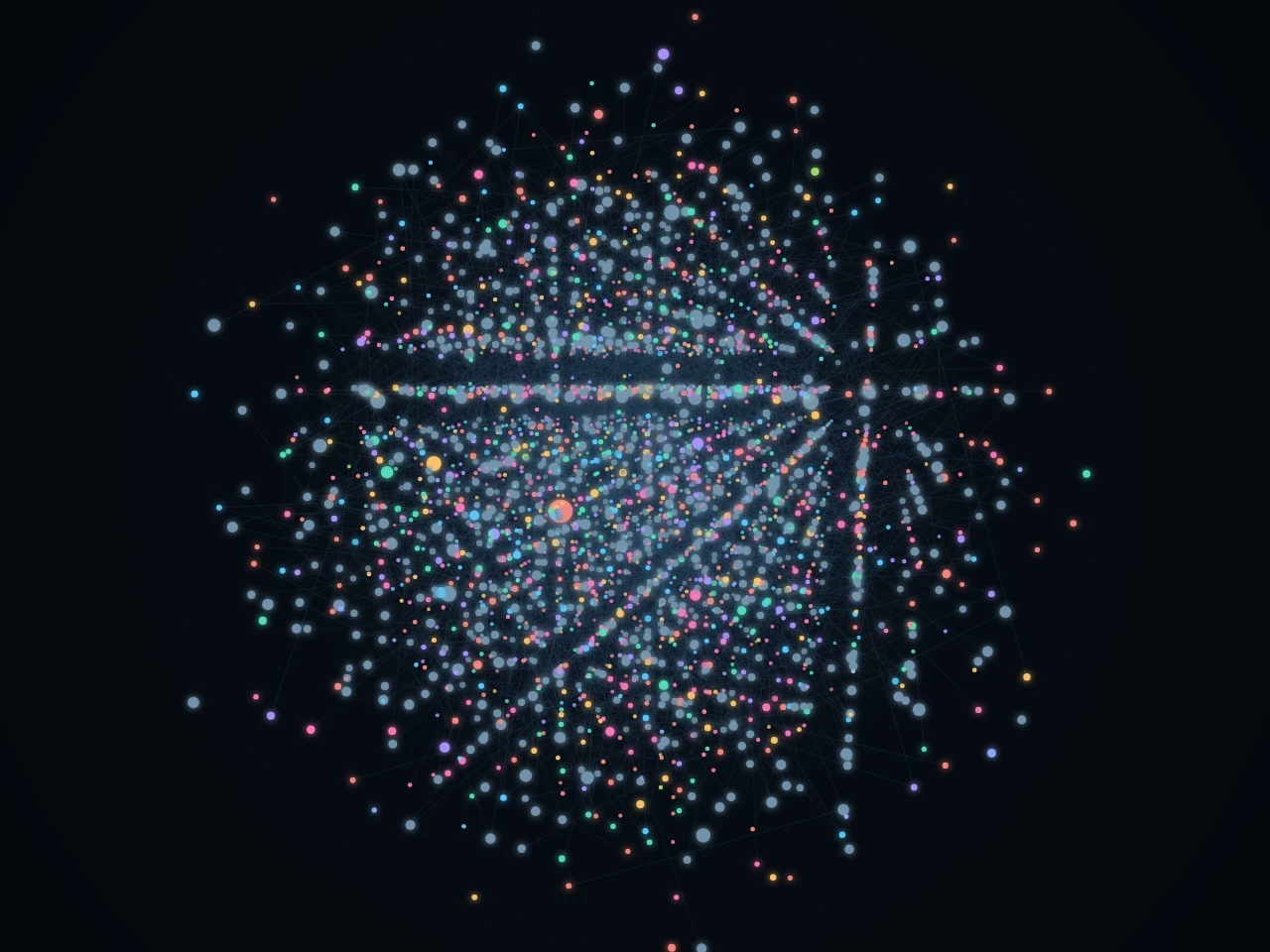
Above: 3D visualization of the persistent vector memory graph linking multi-session context, file relationships, and cross-agent discoveries.
5. Conversational Room Agent & Gemini Live Voice
Coordinate multi-step tasks conversationally through the Room Agent or speak naturally to your workspace using full-duplex Gemini Live voice streaming:
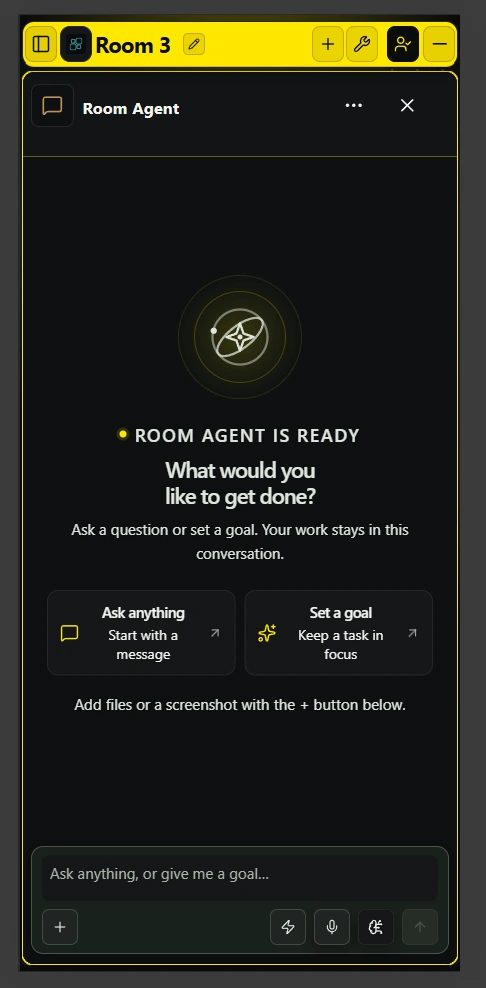
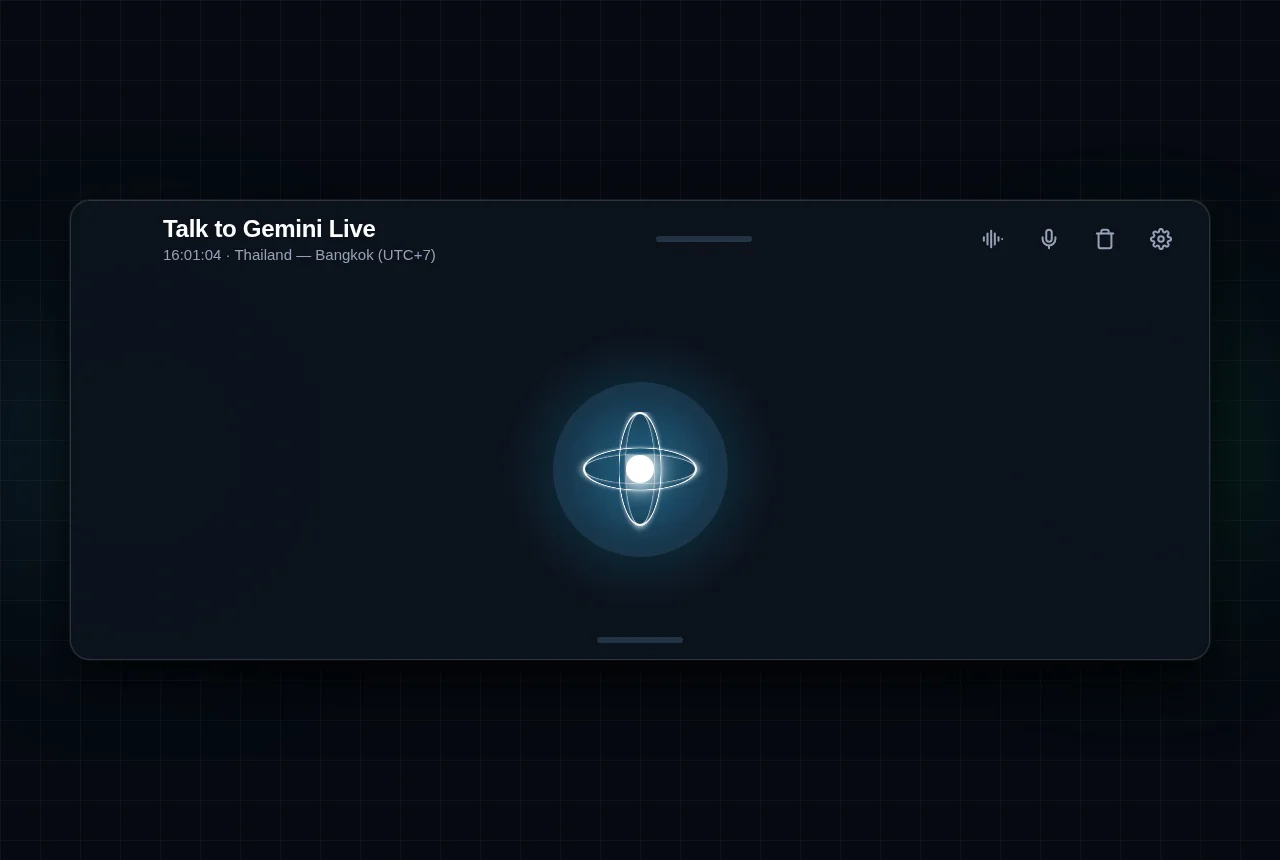
Above left: The Room Agent coordinator ready to receive goals and orchestrate sub-agents. Above right: Gemini Live full-duplex voice interface (latency depends on the provider and network and is not benchmarked here).
⚡ Quick Start: One-Command Installation
Prerequisites
- Node.js: Follow the selected
run-spaceapplauncher version'senginesrequirement. Development of this monorepo requires >=22.12 <23; see Contributing. - Hardware:
- Minimum (
smallprofile): 4 CPU cores, 8 GB-class RAM (at least 7 GiB reported by the operating system), 6.5 GiB free disk. largeprofile (adds the managed browser): 8 CPU cores, 15 GiB RAM, 11 GiB free disk.
- Minimum (
- Docker: If Docker is not installed, the installer automatically installs official Docker Desktop (Windows/macOS) or Docker Engine (Linux).
Run the Installation Command
Run the universal command in your terminal:
npx --yes run-spaceapp@latest install
Windows 11 Tip: Use Command Prompt (
cmd.exe) or the Command Prompt profile in Windows Terminal. If PowerShell has a restricted execution policy, runnpx.cmd --yes run-spaceapp@latest install.
What Happens Next (Step-by-Step Onboarding):
- System & Docker Verification: The launcher verifies CPU, RAM, and disk space, and installs/starts Docker if needed.
- Container Initialization: Pulls SpaceApp's images by exact version tag (published with SBOM and provenance attestations that the release workflow verifies) and the third-party images pinned by digest, then starts the container stack.
- One-Time Setup Token: The terminal prints a secure 15-minute setup token and automatically opens
http://127.0.0.1:4911. - Create Your Operator Account: Paste the token into the setup screen, enter your email and password, and click Create Owner.
- Start Coding with OpenCode: Open the Getting Started room, verify the available provider/model and complete its authentication if required. Submit a small task and check its actual result.
To retain a global spaceapp command for future management, optionally install:
npm install -g run-spaceapp
💻 Complete CLI Command Reference
The run-spaceapp launcher provides a comprehensive set of commands to manage, troubleshoot, and operate your self-hosted instance.
You can run any command using npx --yes run-spaceapp@latest <command> or simply spaceapp <command> if installed globally.
🚀 Stack Lifecycle Management
| Command | Description | Example |
|---|---|---|
install |
Full setup: installs Docker if needed, creates secrets, starts stack, and opens browser. | npx --yes run-spaceapp@latest install --profile auto |
reinstall |
Clean reinstallation of containers while preserving existing data, credentials, and workspaces. | npx --yes run-spaceapp@latest reinstall --keep-data |
up |
Starts the Docker application containers in the background. | npx --yes run-spaceapp@latest up |
down |
Stops all SpaceApp containers cleanly without removing data. | npx --yes run-spaceapp@latest down |
status |
Checks running container status, health checks, and port bindings. | npx --yes run-spaceapp@latest status |
logs |
Shows the most recent container log lines (bounded tail) for troubleshooting. | npx --yes run-spaceapp@latest logs |
open |
Opens the SpaceApp web application (http://127.0.0.1:4911) in your default browser. |
npx --yes run-spaceapp@latest open |
uninstall |
Stops and removes containers. Keeps user data by default (--purge-data to delete). |
npx --yes run-spaceapp@latest uninstall |
🔐 Owner Account & Recovery
| Command | Description | Example |
|---|---|---|
owner reset-password |
Forgot your password? Securely resets the operator account password from your terminal via masked input. | npx --yes run-spaceapp@latest owner reset-password |
owner rotate-setup-token |
Setup token expired? Generates a fresh 15-minute token if the first-run owner setup was not completed in time. | npx --yes run-spaceapp@latest owner rotate-setup-token |
factory-reset |
Fresh start: Creates a safety backup, purges all Docker volumes and database data, and resets to clean slate. | npx --yes run-spaceapp@latest factory-reset |
📁 Host Workspace Management
By default, the SpaceApp containers get no bind mount of your host filesystem: agents see only the directories you register. Container separation is not a sandbox against a hostile workload, and host-root access (below) removes this boundary; see the architecture and trust boundaries. Register the directories your AI agents may inspect and modify:
| Command | Description | Example |
|---|---|---|
workspace add <path> |
Registers a local repository directory so agents can read and edit its files. | npx --yes run-spaceapp@latest workspace add /home/user/my-project |
workspace add <path> --read-only |
Mounts a directory in read-only mode (ideal for reference repos or sensitive libraries). | npx --yes run-spaceapp@latest workspace add /docs/ref --read-only |
workspace list |
Lists all currently registered workspaces and their mount IDs. | npx --yes run-spaceapp@latest workspace list |
workspace remove <path> |
Unregisters a workspace from the SpaceApp environment. | npx --yes run-spaceapp@latest workspace remove /home/user/my-project |
Note: After adding or removing workspaces, run
npx --yes run-spaceapp@latest upto apply the updated mounts to the running stack.
🤖 AI Providers & Credentials
| Command | Description | Example |
|---|---|---|
provider install <name> |
Installs or updates a CLI agent into its own persistent volume (codex, claude, gemini, qwen, kimi, grok, deepseek, etc.). |
npx --yes run-spaceapp@latest provider install claude |
credentials set <provider> |
Securely saves an API key for a provider via masked standard input (never passed as CLI flags). | npx --yes run-spaceapp@latest credentials set claude |
credentials list |
Lists the provider names accepted by credentials set, grouped as bundled, owner-installed, and experimental. It does not show which keys are stored. |
npx --yes run-spaceapp@latest credentials list |
credentials remove <provider> |
Securely deletes stored credentials for a specific provider. | npx --yes run-spaceapp@latest credentials remove gemini |
🛠️ Diagnostics, Maintenance & Backups
| Command | Description | Example |
|---|---|---|
doctor [--fix] |
Diagnoses system prerequisites, Docker health, and config; --fix automatically repairs issues. |
npx --yes run-spaceapp@latest doctor --fix |
repair [--dry-run] |
Verifies and rebuilds container configurations and runtime files. | npx --yes run-spaceapp@latest repair |
support-bundle |
Generates a sanitized diagnostic JSON bundle to share when seeking help or opening issues. | npx --yes run-spaceapp@latest support-bundle |
update [version] |
Safely downloads updated Docker images and upgrades the application stack with automatic checkpointing. | npx --yes run-spaceapp@latest update |
rollback |
Switches back to the previously recorded runtime images and configuration. It does not revert database changes; use restore for that. |
npx --yes run-spaceapp@latest rollback |
backup |
Generates a portable, checksummed archive containing PostgreSQL data, app settings, and memory graph. | npx --yes run-spaceapp@latest backup |
restore |
Restores database, application data, and memory state from a previously generated backup archive. | npx --yes run-spaceapp@latest restore |
Global CLI Options
--plan: Dry-run mode. Displays what actions would be executed without making any changes.--profile <auto|small|medium|large>: Explicitly select the resource allocation profile.--non-interactive: Automated headless execution for CI/CD or scripted environments.--answers <json|path>: Pre-seeds wizard responses for silent installation.--json: Outputs structured JSON data for scripting and integration.--log-file <path>: Logs full execution output to a designated file.
🧩 Supported AI Coding Agents
The runtime registry declares 16 CLI adapters, listed below. Installed versions and available credentials determine what can run. See the compatibility evidence and limitations; a declared adapter is not an authenticated runtime proof.
| Assistant | Integration Type | Authentication | Description |
|---|---|---|---|
| OpenCode | First CLI in setup | Provider-dependent | Uses the installed CLI's provider catalog and native sessions. |
| OpenAI Codex | CLI adapter | Provider-supported login | Native session references and Codex control integration. |
| Anthropic Claude Code | CLI adapter | Provider-supported login | Uses the installed Claude CLI and its current model catalog. |
| Google Gemini CLI | CLI adapter | Native account authentication | Login availability and recovery support are capability-specific. |
| Qwen Code | CLI adapter | Provider-dependent | Uses the configured Qwen provider and current catalog. |
| Kimi Code | CLI adapter | Provider-supported login | Native behavior depends on the installed Kimi CLI. |
| Grok Build | CLI adapter | Provider-supported login | Account authentication and model availability are provider-controlled. |
| DeepSeek CLI | CLI adapter | Configured API credentials | Runtime and native-session format support remain version-specific. |
| Cursor / Copilot / Autohand | CLI adapters | Provider-dependent | Capabilities and recovery limitations are declared per runtime. |
| Hermes / Oh My Pi / Qoder / Muse / Droid | CLI adapters | Provider-dependent | Declared adapters; resume is limited to the provider's own session selection or unsupported. |
🏗️ System Architecture & Profiles
SpaceApp deploys a versioned Docker Compose stack. The installation profile decides which of the services below run; optional companion services are not shown:
┌────────────────────────────────────────────────────────────────────────┐
│                              Host Machine                              │
│  ┌───────────────────────┐             ┌────────────────────────────┐  │
│  │  run-spaceapp launcher│             │    Registered Workspaces   │  │
│  └───────────┬───────────┘             └─────────────┬──────────────┘  │
│              │                                       │ (Bind Mounts)   │
├──────────────┼───────────────────────────────────────┼─────────────────┤
│              ▼                                       ▼                 │
│  ┌───────────────────────┐             ┌────────────────────────────┐  │
│  │     spaceapp-core     │◄───────────►│        spaceapp-cli        │  │
│  │ (Web UI, API, Memory) │             │ (Codex, Claude, OpenCode)  │  │
│  └───────────┬───────────┘             └────────────────────────────┘  │
│              │                                                         │
│              ├──────────────────────┬──────────────────────────────────┤
│              ▼                      ▼                                  ▼
│  ┌───────────────────────┐ ┌─────────────────┐        ┌─────────────┐  │
│  │      PostgreSQL       │ │    Temporal     │        │  spaceapp-  │  │
│  │ (pgvector memory DB)  │ │(Workflow Engine)│        │   browser   │  │
│  └───────────────────────┘ └─────────────────┘        └─────────────┘  │
└────────────────────────────────────────────────────────────────────────┘
Installation Profiles
The launcher selects the largest profile that fits the available CPU, RAM, and free disk (and Docker's CPU and memory allocation when it can measure it), or you can pass --profile <name>:
| Profile | Target System | Allocated Services | Minimum Hardware |
|---|---|---|---|
small |
Laptops / Small VMs | spaceapp-core, spaceapp-cli, postgres |
4 CPUs, 7 GiB RAM, 6.5 GiB disk |
medium |
Standard Dev PC | Small stack + temporal (background workers & automated workflows) |
4 CPUs, 11 GiB RAM, 8 GiB disk |
large |
Workstations / Servers | Medium stack + spaceapp-browser (Chromium browser sessions in a separate service) |
8 CPUs, 15 GiB RAM, 11 GiB disk |
❓ Frequently Asked Questions & Troubleshooting
Forgot your operator password?Run the following command in your terminal. You will be prompted to enter a new password securely:
npx --yes run-spaceapp@latest owner reset-password
If you did not complete the initial browser setup within 15 minutes, generate a fresh token:
npx --yes run-spaceapp@latest owner rotate-setup-token
On Linux, the launcher can mount the whole host filesystem into the CLI service. CLI sessions can then read and modify the entire host, so read the [trust boundaries](docs/architecture.md#trust-boundaries) first:
npx --yes run-spaceapp@latest install --access host-root
Host-root is supported only on Linux. Run npx --yes run-spaceapp@latest install --access isolated to remove the host mount again.
To create a safety backup, wipe old containers/volumes, and return to factory state:
npx --yes run-spaceapp@latest factory-reset
Ensure your user is in the `docker` group. Run the diagnostic repair tool:
npx --yes run-spaceapp@latest doctor --fix
Log out and log back in for group changes to take effect.
Windows PowerShell execution policy error?Windows may block npm's `.ps1` shims by default. Switch to **Command Prompt** (`cmd.exe`) in Windows Terminal or run:
npx.cmd --yes run-spaceapp@latest install
📚 Documentation & Deep Dives
- Getting Started & Installation Guide
- CLI Providers, Models & Credential Setup
- Operations, Backup, Restore & Rollback
- Architecture, Trust Boundaries & Feature Status
- Security Model: Authentication, Rate Limits & Browser Capture
- Claims Audit: Performance, Isolation & Continuity Evidence
- Known Limitations (generated from the findings register)
- Clean-Room Verification Runbook
- Release Process & Pipeline
- Public Distribution Decision (ADR-010)
- Contributing Guidelines
- Community Support
- Security Disclosures
📄 License
SpaceApp is licensed under the Business Source License 1.1 (BSL 1.1).
SpaceApp is source-available, not open source, until its Change Date. The licensor is oll4.com. This summary is not legal advice; the LICENSE text governs.
- Permitted use: The license lets you copy, modify, create derivative works, redistribute and make non-production use of SpaceApp. Its Additional Use Grant also permits production use, including self-hosting and internal business operations.
- Use limitation: You may not make SpaceApp's functionality available to third parties as a hosted or managed service, application service provider (ASP) or software-as-a-service (SaaS) offering that competes with oll4.com products or services.
- Change Date: On 2030-10-01 (October 1, 2030), the licensed version becomes available under the Apache License, Version 2.0.
Integrated AI provider CLIs (Claude, Codex, Gemini, etc.) remain subject to their respective third-party licenses and terms. See Third-Party Notices.
Yorumlar (0)
Yorum birakmak icin giris yap.
Yorum birakSonuc bulunamadi