mcp-telegram
Health Warn
- License — License: MIT
- Description — Repository has a description
- Active repo — Last push 0 days ago
- Low visibility — Only 6 GitHub stars
Code Fail
- exec() — Shell command execution in docs/.vitepress/cache/deps/vitepress___mark__js_src_vanilla__js.js
- network request — Outbound network request in docs/.vitepress/cache/deps/vitepress___minisearch.js
Permissions Pass
- Permissions — No dangerous permissions requested
This tool is an MCP server that connects AI assistants like Claude to a user's personal Telegram account via the MTProto protocol. It allows the AI to read chats, send messages, manage accounts, and interact with media, functioning as a comprehensive "userbot."
Security Assessment
Overall risk: Medium. By design, this tool requires highly sensitive data. It operates as a userbot, meaning it gets full access to your personal Telegram chats, contacts, message history, and media. While the automated scan passed the permissions check (as it relies on user-provided API credentials rather than broad system permissions), the nature of the tool is inherently highly privileged.
The scan flagged a failed check for shell command execution and a warning for outbound network requests. However, these issues are located safely within the documentation's VitePress cache (`docs/.vitepress/cache/deps/`), meaning they are localized to the static documentation website and do not impact the actual runtime security of the MCP server. There are no hardcoded secrets in the codebase.
Quality Assessment
The project is actively maintained, with its most recent push happening today. It benefits from a clear README and is licensed under the standard MIT license. However, community trust and visibility are currently very low. The repository has only 6 GitHub stars, indicating that it has not been widely adopted or heavily vetted by the open-source community yet.
Verdict
Use with caution — while the code itself appears structurally sound and actively maintained, granting any tool unrestricted access to your primary personal Telegram account carries inherent risks that require a high degree of trust in the developer.
Connect Telegram to Claude AI — messages, media, reactions, polls, scheduled messages & more. Hosted version: mcp-telegram.com (QR login, 30 sec setup). Built on GramJS/MTProto.
MCP Telegram







📖 Documentation · ☁️ Cloud version — connect Telegram to Claude.ai or ChatGPT in 30 seconds with QR code, no API keys needed.
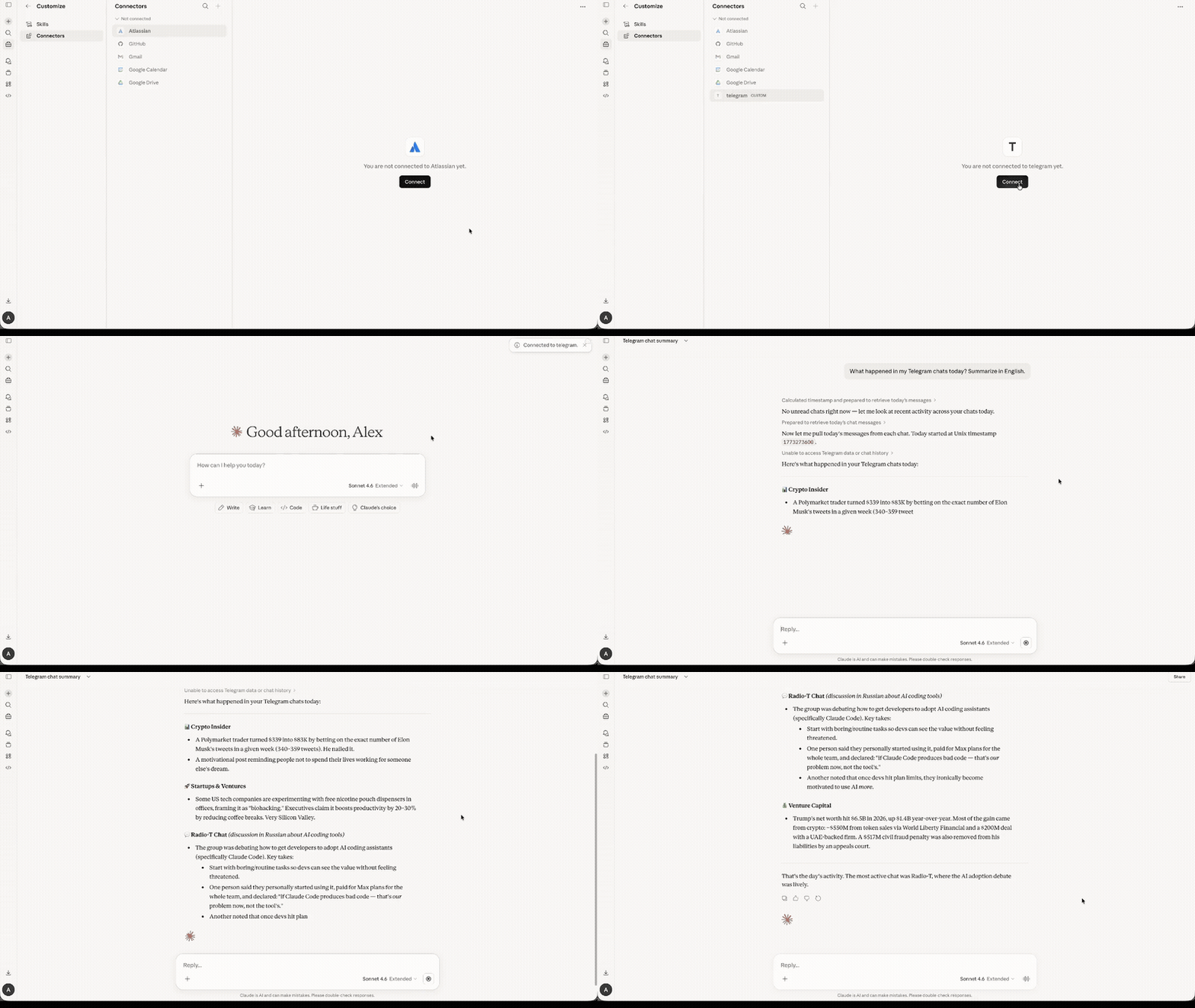
An MCP (Model Context Protocol) server that connects AI assistants like Claude to Telegram via the MTProto protocol. Unlike bots, this runs as a userbot -- it operates under your personal Telegram account using GramJS, giving full access to your chats, contacts, and message history.
Features
- 59 tools -- the most comprehensive Telegram MCP server available
- MTProto protocol -- direct Telegram API access, not the limited Bot API
- Userbot -- operates as your personal account, not a bot
- Full-featured -- messaging, reactions, polls, scheduled messages, stickers, media, contacts, and more
- Forum Topics -- list topics, read per-topic messages, send to specific topics, per-topic unread counts
- Stickers -- search sticker sets, browse installed/recent stickers, send stickers to any chat
- Account management -- update profile, manage privacy settings, sessions, auto-delete timers
- Global search -- search messages across all chats at once
- QR code login -- authenticate by scanning a QR code in the Telegram app
- Session persistence -- login once, stay connected across restarts
- Human-readable output -- sender names are resolved, not just numeric IDs
- Works with any MCP client -- Claude Code, Claude Desktop, ChatGPT, Cursor, VS Code, Mastra, etc.
Prerequisites
- Node.js 18 or later
- Telegram API credentials --
API_IDandAPI_HASHfrom my.telegram.org
Quick Start
1. Get Telegram API credentials
- Go to my.telegram.org and log in with your phone number.
- Navigate to API development tools.
- Create a new application (any name and platform).
- Copy the App api_id and App api_hash.
2. Login
TELEGRAM_API_ID=YOUR_ID TELEGRAM_API_HASH=YOUR_HASH npx @overpod/mcp-telegram login
A QR code will appear in the terminal. Open Telegram on your phone, go to Settings > Devices > Link Desktop Device, and scan the code. The session is saved to ~/.mcp-telegram/session and reused automatically.
Custom session path: set
TELEGRAM_SESSION_PATH=/path/to/sessionto store the session file elsewhere.
3. Add to Claude
claude mcp add telegram -s user \
  -e TELEGRAM_API_ID=YOUR_ID \
  -e TELEGRAM_API_HASH=YOUR_HASH \
  -- npx @overpod/mcp-telegram
That's it! Ask Claude to run telegram-status to verify.
Multiple Accounts
Use TELEGRAM_SESSION_PATH to run separate Telegram accounts side by side:
# Login each account with a unique session path
TELEGRAM_API_ID=ID1 TELEGRAM_API_HASH=HASH1 TELEGRAM_SESSION_PATH=~/.mcp-telegram/session-work npx @overpod/mcp-telegram login
TELEGRAM_API_ID=ID2 TELEGRAM_API_HASH=HASH2 TELEGRAM_SESSION_PATH=~/.mcp-telegram/session-personal npx @overpod/mcp-telegram login
Then add each as a separate MCP server:
claude mcp add telegram-work -s user \
  -e TELEGRAM_API_ID=ID1 \
  -e TELEGRAM_API_HASH=HASH1 \
  -e TELEGRAM_SESSION_PATH=~/.mcp-telegram/session-work \
  -- npx @overpod/mcp-telegram

claude mcp add telegram-personal -s user \
  -e TELEGRAM_API_ID=ID2 \
  -e TELEGRAM_API_HASH=HASH2 \
  -e TELEGRAM_SESSION_PATH=~/.mcp-telegram/session-personal \
  -- npx @overpod/mcp-telegram
Each account gets its own session file — no conflicts.
Proxy Support
If Telegram is blocked or you're running in a containerized environment (Docker, K3s), use a SOCKS5 or MTProxy:
# SOCKS5 proxy
TELEGRAM_PROXY_IP=127.0.0.1 \
TELEGRAM_PROXY_PORT=10808 \
npx @overpod/mcp-telegram

# MTProxy
TELEGRAM_PROXY_IP=proxy.example.com \
TELEGRAM_PROXY_PORT=443 \
TELEGRAM_PROXY_SECRET=ee00000000000000000000000000000000 \
npx @overpod/mcp-telegram
| Variable | Description |
|---|---|
TELEGRAM_PROXY_IP |
Proxy server address |
TELEGRAM_PROXY_PORT |
Proxy server port |
TELEGRAM_PROXY_SOCKS_TYPE |
4 or 5 (default: 5) |
TELEGRAM_PROXY_SECRET |
MTProxy secret (enables MTProxy mode) |
TELEGRAM_PROXY_USERNAME |
Optional proxy auth |
TELEGRAM_PROXY_PASSWORD |
Optional proxy auth |
Installation Options
npx (recommended, zero install)
No need to clone or install anything. Just use npx @overpod/mcp-telegram.
Global install
npm install -g @overpod/mcp-telegram
mcp-telegram          # run server
mcp-telegram login    # QR login
Pre-built binary (no runtime needed)
Download from Releases — standalone single-file binaries, zero dependencies:
| Platform | Server | Login CLI |
|---|---|---|
| Linux x64 | mcp-telegram-linux-x64 |
mcp-telegram-login-linux-x64 |
| Linux ARM64 | mcp-telegram-linux-arm64 |
mcp-telegram-login-linux-arm64 |
| macOS x64 | mcp-telegram-darwin-x64 |
mcp-telegram-login-darwin-x64 |
| macOS ARM64 | mcp-telegram-darwin-arm64 |
mcp-telegram-login-darwin-arm64 |
| Windows x64 | mcp-telegram-windows-x64.exe |
mcp-telegram-login-windows-x64.exe |
# Download (example for Linux x64)
curl -L -o mcp-telegram https://github.com/mcp-telegram/mcp-telegram/releases/latest/download/mcp-telegram-linux-x64
curl -L -o mcp-telegram-login https://github.com/mcp-telegram/mcp-telegram/releases/latest/download/mcp-telegram-login-linux-x64
chmod +x mcp-telegram mcp-telegram-login

# Login
TELEGRAM_API_ID=YOUR_ID TELEGRAM_API_HASH=YOUR_HASH ./mcp-telegram-login

# Run
./mcp-telegram
From source
git clone https://github.com/mcp-telegram/mcp-telegram.git
cd mcp-telegram
npm install && npm run build
Docker
docker build -t mcp-telegram https://github.com/mcp-telegram/mcp-telegram.git
Login (interactive terminal required):
docker run -it --rm \
  -e TELEGRAM_API_ID=YOUR_ID \
  -e TELEGRAM_API_HASH=YOUR_HASH \
  -v ~/.mcp-telegram:/root/.mcp-telegram \
  --entrypoint node mcp-telegram dist/qr-login-cli.js
Run the MCP server:
docker run -i --rm \
  -e TELEGRAM_API_ID=YOUR_ID \
  -e TELEGRAM_API_HASH=YOUR_HASH \
  -v ~/.mcp-telegram:/root/.mcp-telegram \
  mcp-telegram
Note: Login must be done once via terminal. After that, the session is persisted in
~/.mcp-telegramand reused automatically.
Usage with MCP Clients
Claude Code (CLI)
claude mcp add telegram -s user \
  -e TELEGRAM_API_ID=YOUR_ID \
  -e TELEGRAM_API_HASH=YOUR_HASH \
  -- npx @overpod/mcp-telegram
Claude Desktop
Open your config file:
- macOS:
~/Library/Application Support/Claude/claude_desktop_config.json - Windows:
%APPDATA%\Claude\claude_desktop_config.json
- macOS:
Add the Telegram server:
{
  "mcpServers": {
    "telegram": {
      "command": "npx",
      "args": ["@overpod/mcp-telegram"],
      "env": {
        "TELEGRAM_API_ID": "YOUR_ID",
        "TELEGRAM_API_HASH": "YOUR_HASH"
      }
    }
  }
}
Restart Claude Desktop.
Ask Claude: "Run telegram-login" -- a QR code will appear. If the image is not visible, it's also saved to
~/.mcp-telegram/qr-login.png. Scan it in Telegram (Settings > Devices > Link Desktop Device).Ask Claude: "Run telegram-status" to verify the connection.
Note: No terminal required! Login works entirely through Claude Desktop.
Claude Desktop (Binary)
Same setup, but using the pre-built binary instead of npx:
{
  "mcpServers": {
    "telegram": {
      "command": "/path/to/mcp-telegram",
      "env": {
        "TELEGRAM_API_ID": "YOUR_ID",
        "TELEGRAM_API_HASH": "YOUR_HASH"
      }
    }
  }
}
Claude Desktop (Docker)
Login via terminal first (see Docker section above).
Add to your config file:
{
  "mcpServers": {
    "telegram": {
      "command": "docker",
      "args": [
        "run", "-i", "--rm",
        "-e", "TELEGRAM_API_ID=YOUR_ID",
        "-e", "TELEGRAM_API_HASH=YOUR_HASH",
        "-v", "~/.mcp-telegram:/root/.mcp-telegram",
        "mcp-telegram"
      ]
    }
  }
}
- Restart Claude Desktop. Ask Claude: "Run telegram-status" to verify.
Cursor / VS Code
Add the same JSON config above to your MCP settings (Cursor Settings > MCP, or VS Code MCP config).
Mastra
import { MCPClient } from "@mastra/mcp";

const telegramMcp = new MCPClient({
  id: "telegram-mcp",
  servers: {
    telegram: {
      command: "npx",
      args: ["@overpod/mcp-telegram"],
      env: {
        TELEGRAM_API_ID: process.env.TELEGRAM_API_ID!,
        TELEGRAM_API_HASH: process.env.TELEGRAM_API_HASH!,
      },
    },
  },
});
Tools (59)
All tools are auto-discoverable via MCP — your AI client will see the full list with parameters and descriptions when connected.
| Category | Tools |
|---|---|
| Auth | telegram-status, telegram-login |
| Messaging | telegram-send-message, telegram-edit-message, telegram-delete-message, telegram-forward-message, telegram-send-scheduled |
| Reading | telegram-list-chats, telegram-read-messages, telegram-search-messages, telegram-search-global, telegram-search-chats, telegram-get-unread, telegram-mark-as-read |
| Forum Topics | telegram-list-topics, telegram-read-topic-messages |
| Polls | telegram-create-poll |
| Reactions | telegram-send-reaction, telegram-get-reactions |
| Stickers | telegram-send-sticker, telegram-get-installed-stickers, telegram-get-recent-stickers, telegram-get-sticker-set, telegram-search-sticker-sets |
| Media | telegram-send-file, telegram-download-media, telegram-get-profile-photo |
| Groups | telegram-create-group, telegram-edit-group, telegram-invite-to-group, telegram-join-chat, telegram-leave-group, telegram-kick-user, telegram-ban-user, telegram-unban-user, telegram-set-admin, telegram-remove-admin, telegram-get-my-role |
| Chat Info | telegram-get-chat-info, telegram-get-chat-members, telegram-get-chat-folders |
| Invite Links | telegram-create-invite-link, telegram-get-invite-links, telegram-revoke-invite-link |
| Contacts | telegram-get-contacts, telegram-add-contact, telegram-get-contact-requests |
| Moderation | telegram-block-user, telegram-unblock-user, telegram-report-spam |
| Profiles | telegram-get-profile, telegram-update-profile |
| Account | telegram-get-sessions, telegram-terminate-session, telegram-set-privacy, telegram-set-auto-delete |
| Pinning | telegram-pin-message, telegram-unpin-message |
| Chat Settings | telegram-mute-chat |
Tip: Ask your AI assistant "What Telegram tools are available?" to get the full list with parameters and descriptions.
Development
npm run dev        # Start with file watching (tsx)
npm start          # Start the MCP server
npm run login      # QR code login in terminal
npm run build      # Compile TypeScript
npm run lint       # Check code with Biome
npm run lint:fix   # Auto-fix lint issues
npm run format     # Format code with Biome
Project Structure
src/
  index.ts            -- MCP server entry point
  telegram-client.ts  -- TelegramService class (GramJS wrapper)
  qr-login-cli.ts     -- CLI utility for QR code login
  tools/              -- Modular tool definitions
    auth.ts           -- Connection & login
    messages.ts       -- Send, read, search, edit, delete, forward
    chats.ts          -- Chat listing, group management, admin
    contacts.ts       -- Contacts, profiles, moderation
    media.ts          -- Files, photos, downloads
    reactions.ts      -- Reactions
    extras.ts         -- Pin, schedule, polls, topics
    stickers.ts       -- Sticker sets, send, search, browse
    account.ts        -- Sessions, privacy, auto-delete, profile, chat mute/folders, invite links
    shared.ts         -- Shared utilities
Tech Stack
- TypeScript -- ES2022, ESM modules
- GramJS (
telegram) -- Telegram MTProto client - @modelcontextprotocol/sdk -- MCP server framework
- Zod -- Runtime schema validation for tool parameters
- Biome -- Linter and formatter
- tsx -- TypeScript execution without a build step
- dotenv -- Environment variable management
Troubleshooting
AUTH_KEY_DUPLICATED
A Telegram session can only be used by one process at a time. If you get AUTH_KEY_DUPLICATED, it means another process is already using the same session file.
Solution: Create separate sessions for each environment:
# Local development
TELEGRAM_SESSION_PATH=~/.mcp-telegram/session-local npx @overpod/mcp-telegram login

# Production server
TELEGRAM_SESSION_PATH=~/.mcp-telegram/session-prod npx @overpod/mcp-telegram login
Then set TELEGRAM_SESSION_PATH in each environment's MCP config accordingly.
Security
- API credentials are stored in
.env(gitignored) - Session is stored in
~/.mcp-telegram/sessionwith0600permissions (owner-only access) - Session directory is created with
0700permissions - Phone number is not required -- QR-only authentication
- No data is sent to third-party services -- all communication goes directly to Telegram servers via MTProto
- QR login codes are generated locally and never leave your machine
- One session per process -- using the same session in multiple processes simultaneously causes
AUTH_KEY_DUPLICATEDerrors (see Troubleshooting) - This is a userbot (personal account), not a bot -- respect the Telegram Terms of Service
License
MIT
Reviews (0)
Sign in to leave a review.
Leave a reviewNo results found