Astera
Health Warn
- License — License: Apache-2.0
- Description — Repository has a description
- Active repo — Last push 0 days ago
- Low visibility — Only 5 GitHub stars
Code Fail
- child_process — Shell command execution capability in scripts/build-release-notes.cjs
- exec() — Shell command execution in scripts/build-release-notes.cjs
- process.env — Environment variable access in scripts/build-release-notes.cjs
- fs module — File system access in scripts/build-release-notes.cjs
- network request — Outbound network request in scripts/check-codex-baseline.mjs
- fs.rmSync — Destructive file system operation in scripts/gen-diagram.js
- fs module — File system access in scripts/gen-diagram.js
- rm -rf — Recursive force deletion command in scripts/gen-icon-mac.sh
Permissions Pass
- Permissions — No dangerous permissions requested
No AI report is available for this listing yet.
Desktop app for running and orchestrating many Claude Code and Codex sessions — account rolling on usage limits, git worktree isolation, and Slack remote control.
Keep Claude Code and Codex working while you are away.




Download · What it does · Jobs · Documentation · Report a bug
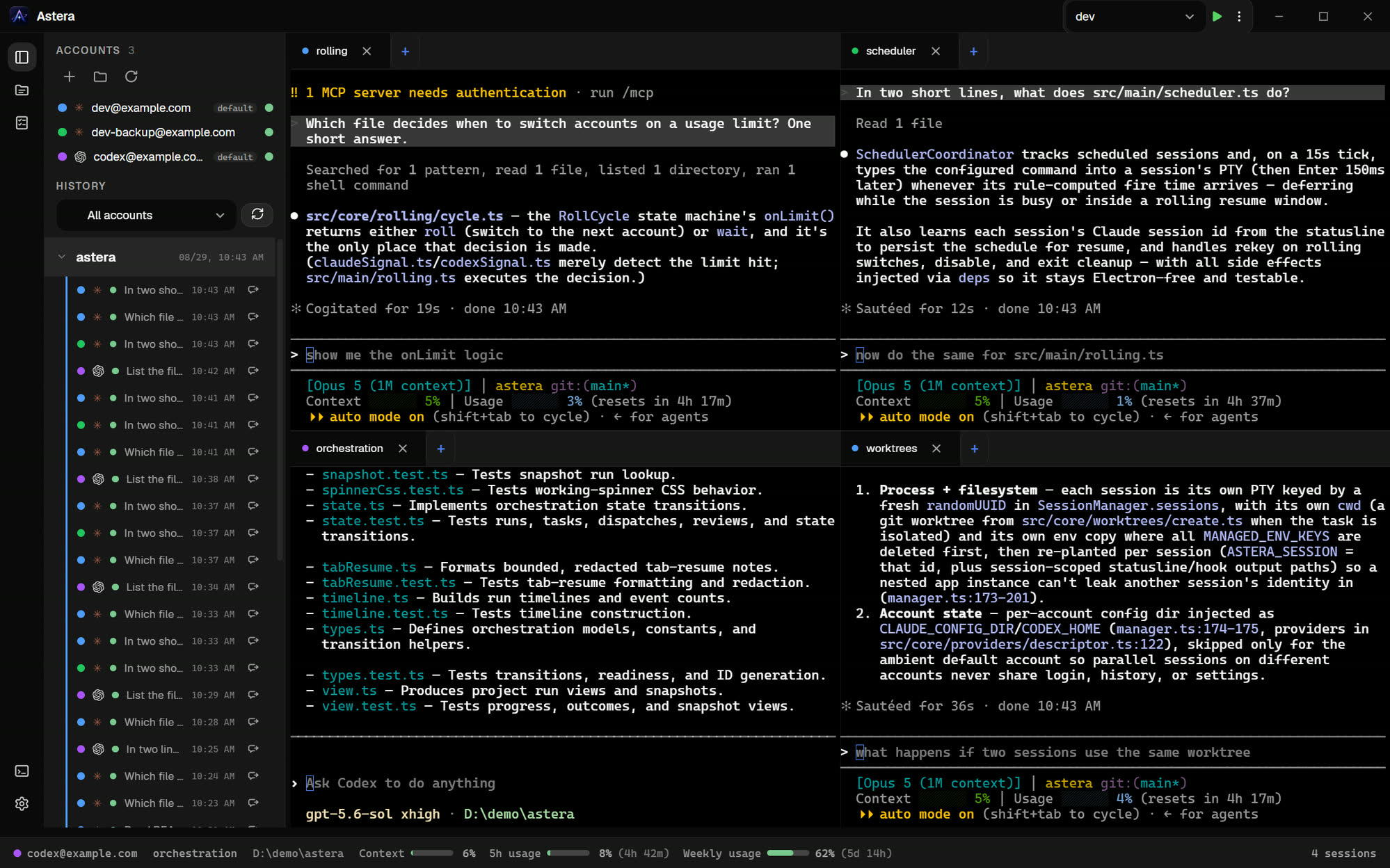
Astera is a desktop workbench for long-running Claude Code and Codex work. Keep several sessions
moving without staying at the desk: schedule them, switch accounts when a usage limit lands, and
resume the same work. Concurrent sessions stay isolated in their own git worktrees, and Slack keeps
the loop open from your phone. When the work has dependencies, a Job coordinates tasks across both
vendors, checks the result, and waits when a human decision is needed.
Status: Windows, macOS and Linux. It drives the
claudeandcodexCLIs, so it is only as
capable as whichever of those you have installed.
What it does
Project workspaces
- Many
claude/codexsessions in one window, as tabs and as split panes - A terminal per project
Accounts
- Several accounts per vendor, each isolated through its own
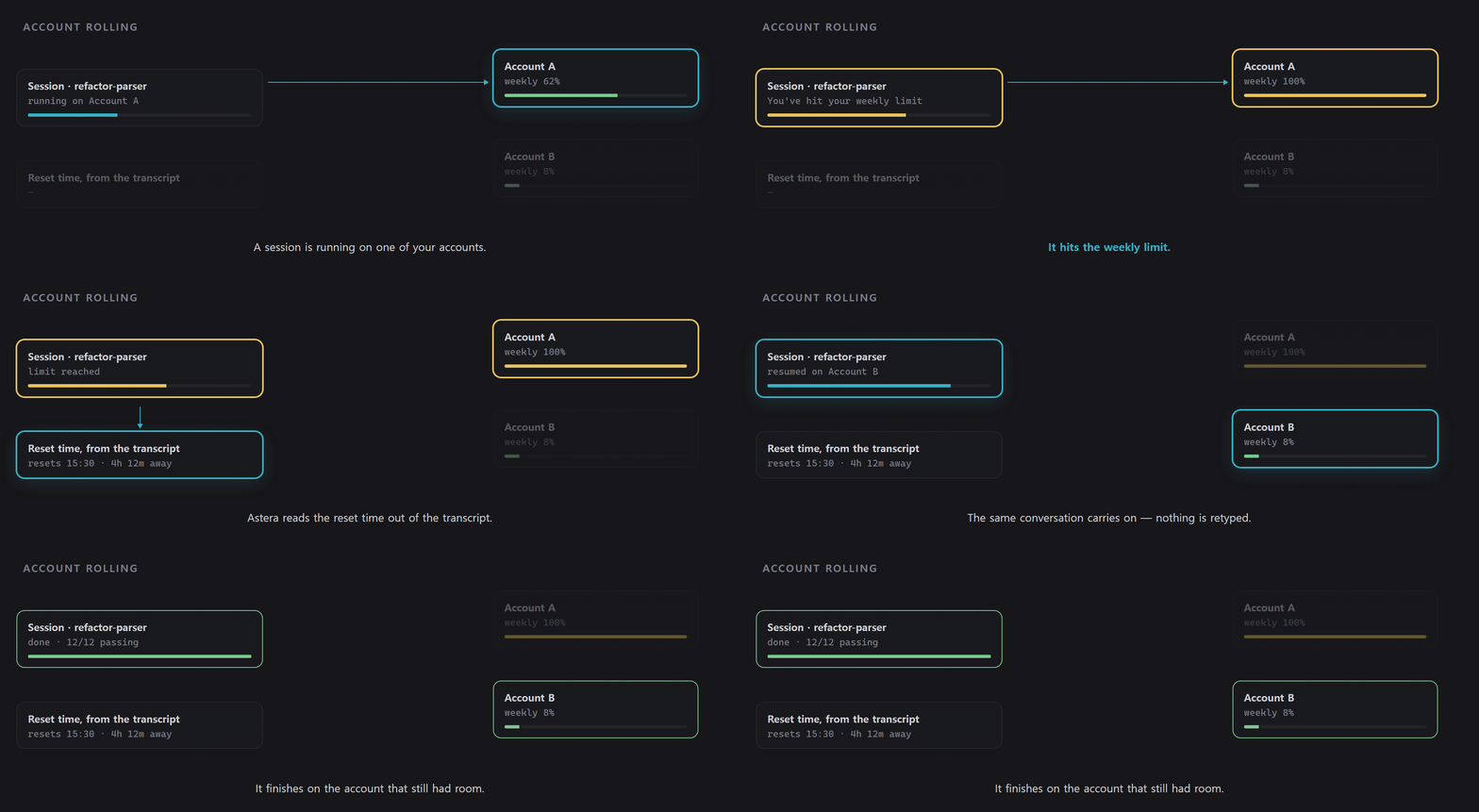
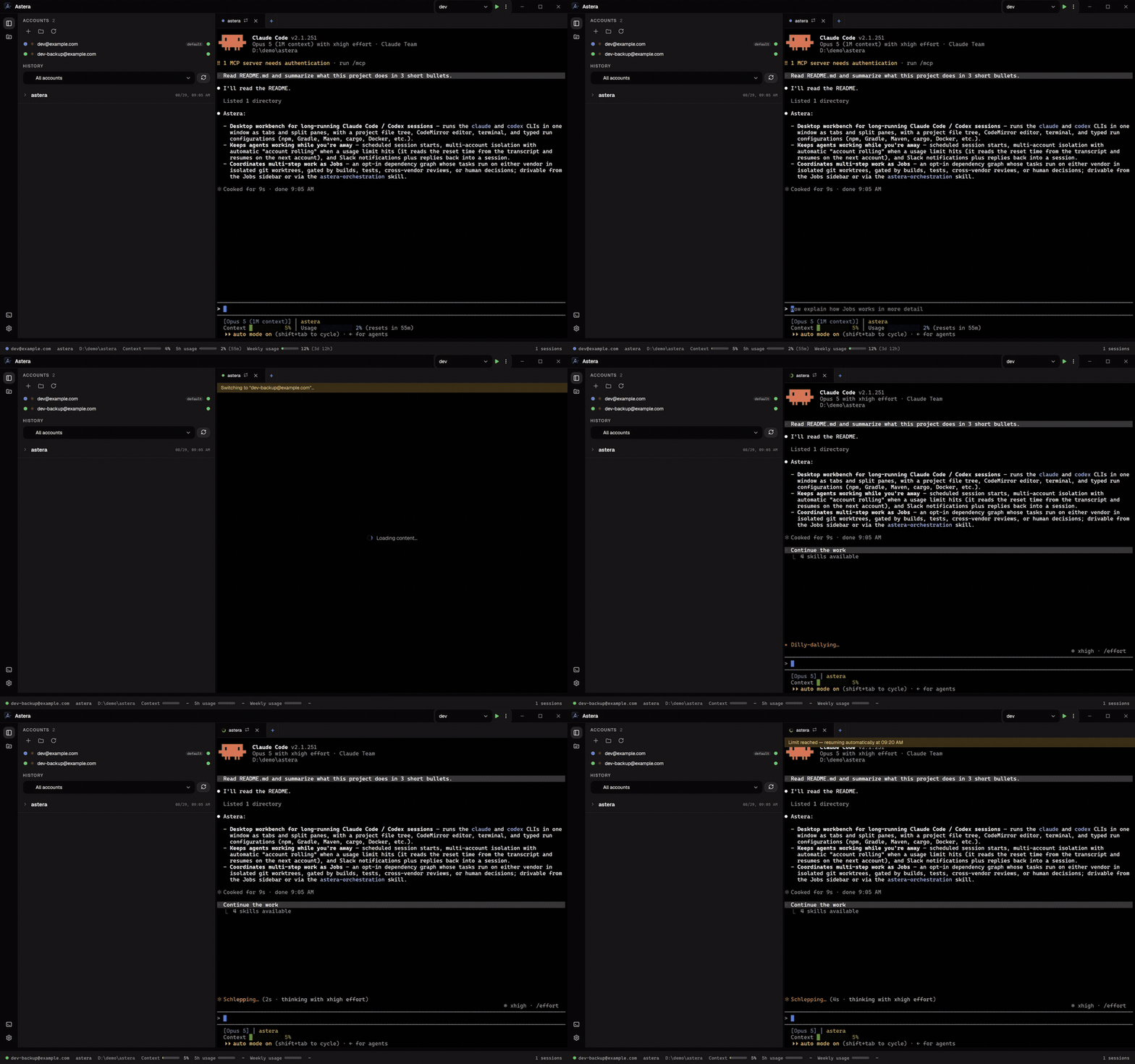
CLAUDE_CONFIG_DIR/CODEX_HOME - Account rolling: when a session hits a usage limit, Astera detects it from the transcript,
works out the reset time, and resumes the work on the next account - Optional import of a new account's setup from your default one:
settings.json, the MCP server
list, and theskills,commandsandagentsdirectories
Smart Resume (experimental)
- Off by default. Settings → General → Session resume strategy chooses between the CLI's own
resume and this one - With it on, a usage limit that moves the work to the next account starts that session blank and
hands it a compact checkpoint as its first message, instead of replaying the whole conversation - The checkpoint carries the working folder and its git state, the conversation's recent requests in
order, the files it touched, the last command it ran, and the tail of the exchange — with secrets
redacted on the way in - If a checkpoint cannot be built the switch falls back to the ordinary resume, so turning this on
never leaves a roll worse off than before
Scheduling and remote control
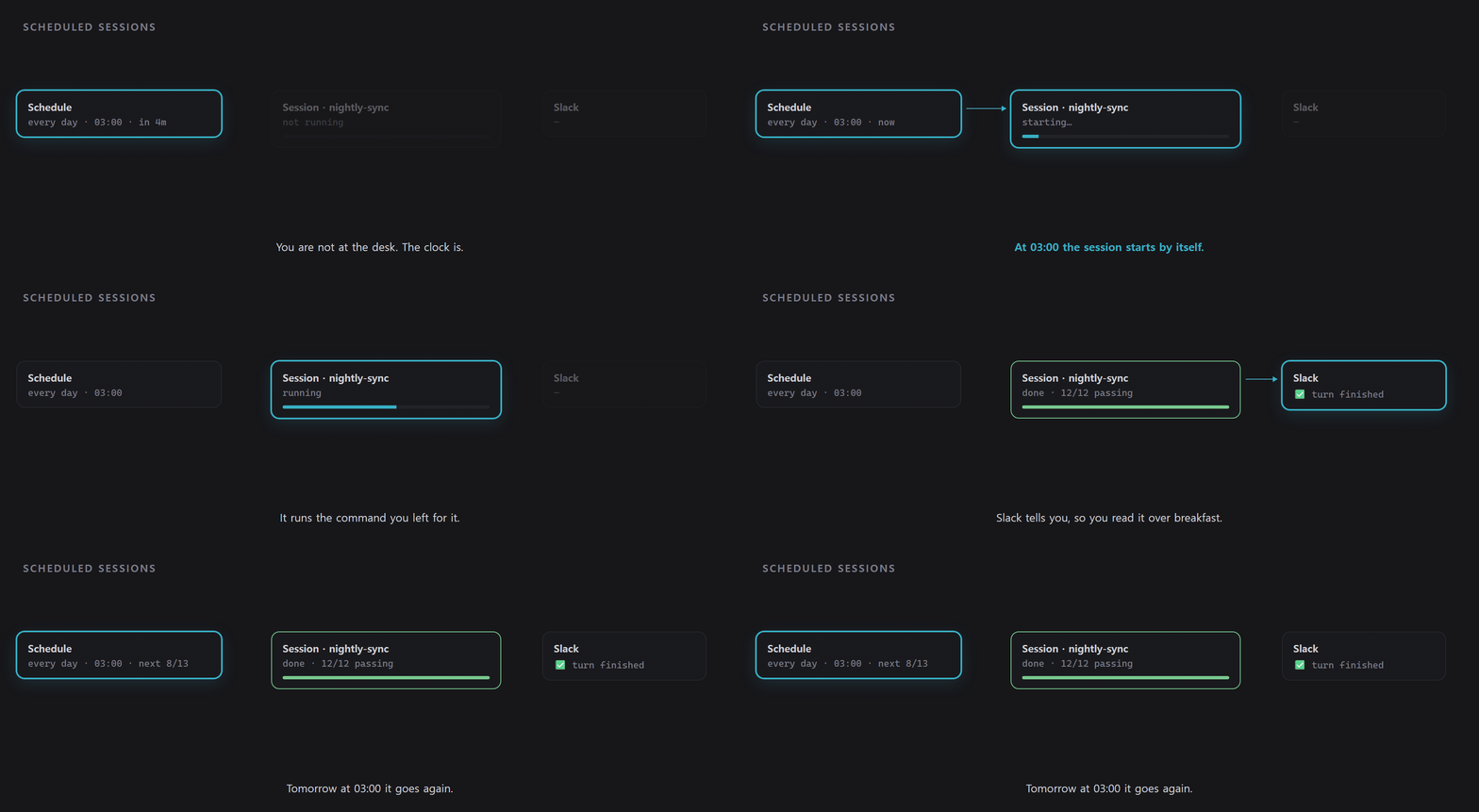
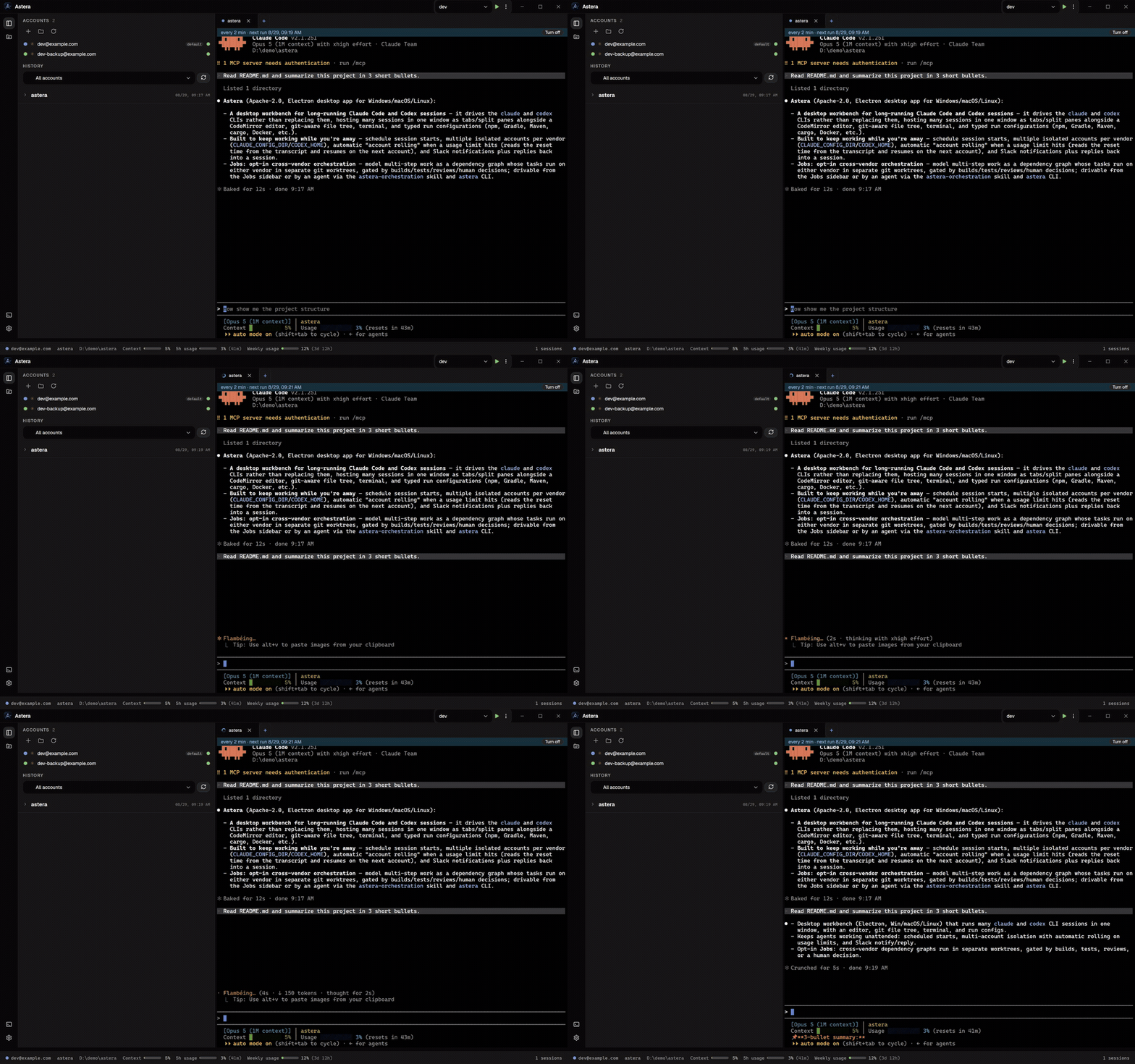
- Schedule sessions to start at a given time
- Slack notifications when a turn finishes or a limit is hit, and Slack-side replies back into a
session — so you can keep an eye on a run from your phone
Run
- A run configuration has a kind — Shell, npm, Node.js, Gradle, Maven, cargo, go, Python, pytest,
Docker Compose, Dockerfile or .NET — and holds only the fields that kind actually has - The command is assembled when you run it, so the Gradle wrapper, the package manager your lockfile
implies and the quoting your shell needs are worked out then, not typed into a box - Your build files are read, so a project's npm scripts are already there as configurations, and a
Gradle or Maven project starts with the standard tasks and goals. A detected one shows in italics
until you edit it, which saves it as yours
How It Works (experimental)
- How It Works is for people who do not read code. Nothing is recorded until you start it — type
/astera-taskwith what you want done, and one piece of work is one row from there, however many
messages it takes: an approval, a correction, a change of mind partway are all the same row - A Jobs Run is still one row on its own, with no
/astera-taskneeded - Off by default. Turn on Work unit tracking in settings, then pick the Explanation account
that will write the entries. It does not apply to sessions that are already open — only new
sessions get it - Only work finished after you turned tracking on. Nothing before it is read — not the code, not
earlier sessions, not earlier runs - The agent marks a row done when the objective is met, or you mark it done yourself from the
screen — a piece of work that never got an ending just waits there until you do - A row fills itself in a few minutes after it closes. If it could not be written up, it says why
and offers to try again - Open a row for what changed, what a person using the product will notice, the order things happen
in, the decisions taken, and where it lives in the code - What the agent said it checked is shown as reported, not as something the app measured itself
- It still only ever reads. Nothing here can change your code
Editor and shortcuts
- One key shows and hides the explorer —
Ctrl/Cmd+Shift+Efor the file tree, the run toolbar
and the run console, leaving the panes where they are - The other two sidebar views have a key each —
Ctrl/Cmd+Shift+Jfor Jobs andCtrl/Cmd+Shift+Hfor How It Works - One tab bar per pane, holding both kinds of tab: a file sits beside the session that is changing
it, a split shows the two at once, andCtrl+Tabwalks the active pane's row - A real editor, not a text box: CodeMirror with syntax highlighting for TypeScript, JavaScript,
Python, Go, Rust, C/C++, Java, PHP, SQL, HTML, CSS, Markdown, JSON, YAML and XML, open across tabs - Markdown side by side: a markdown file opens as editor, split, or preview, and
Ctrl/Cmd+Shift+Vcycles the three — in split, the two panes follow each other's scrolling - A file tree with git state on each entry (new, modified, deleted, conflict), and create, rename,
move, copy, delete and reveal-in-Finder/Explorer - Local history: a snapshot is taken before a delete, so an agent's cleanup — or your own — is
recoverable. Kept 30 days, up to 200 MB per project - Every shortcut is remappable in settings, defaulting to
Cmdon macOS andCtrlelsewhere:
splitting panes, moving focus between them, cycling sessions, closing a file tab, opening a
sidebar view
Appearance
- Seven themes — Vega, Orion, Umbra, Aurora, Antares, Quasar and Sirius — picked from cards that each draw
themselves in their own palette, so you choose by looking rather than by name - A theme is more than colours: the corner radius, the shadows, the UI typeface and the row density
come with it, so Quasar puts more on screen than Umbra does - Switching one changes what is already open — a running terminal's colours are swapped in place, so
it keeps its scrollback - The terminal font is chosen separately, including the fallback for CJK text
Also
- Korean, English, Japanese, and Spanish UI, plus a System option that follows the OS locale
- Auto-update from GitHub Releases
Jobs
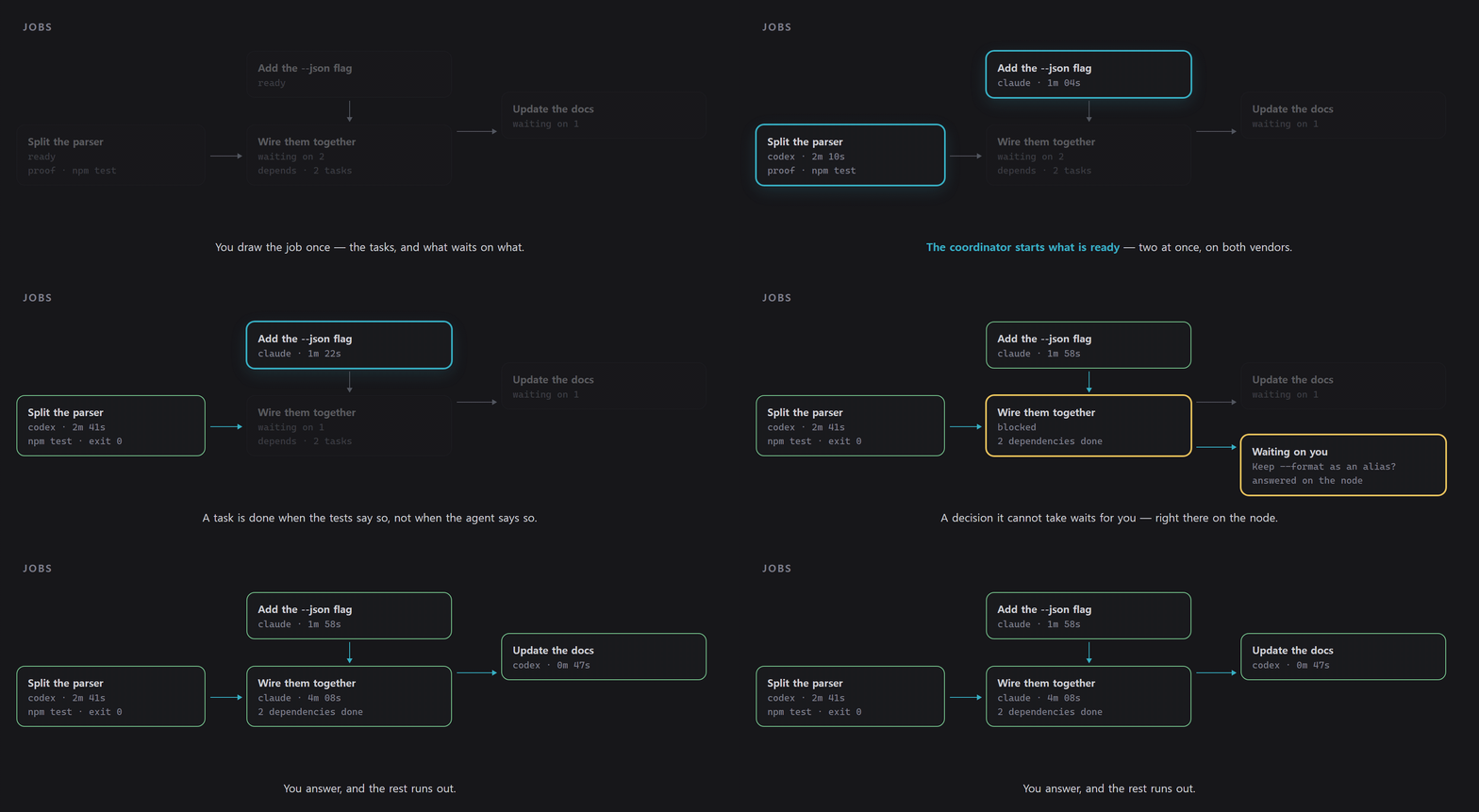
Jobs is opt-in. Turn on Agent orchestration in settings to add the Jobs sidebar. A job is a
dependency graph whose tasks can run under either vendor, and there are two ways to run one.
1. Build it in the Jobs sidebar
- Make sure the project is a git repository with a branch checked out.
- Click New job, enter the Objective, choose a Coordinator account, set Run at once,
and optionally add a schedule. - Add tasks with instructions, one or more worker accounts, and any dependencies. Builds, tests and
cross-vendor reviews can be attached as completion checks. - Click Run. A normal job opens its coordinator; a scheduled job activates its schedule.
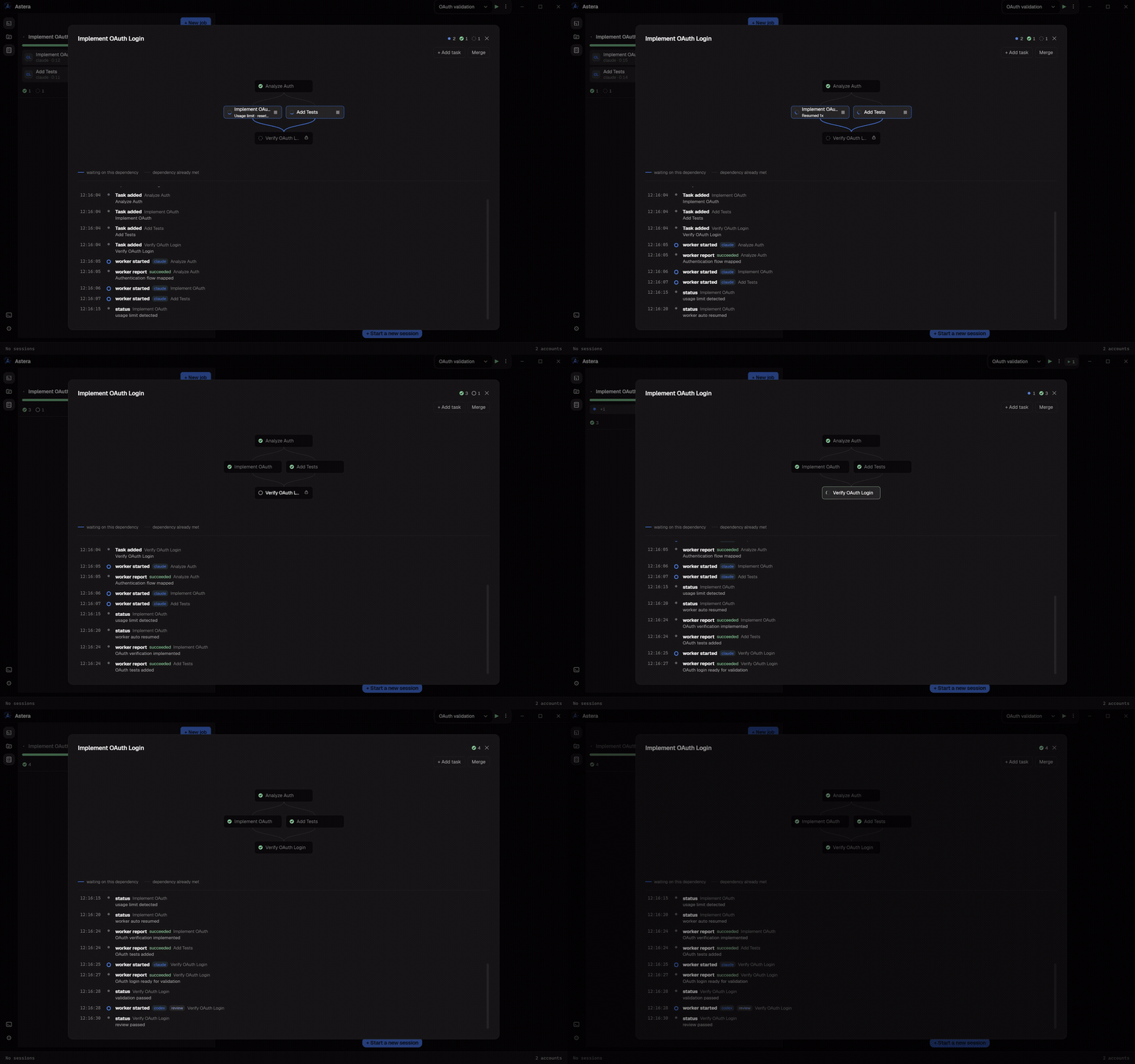
The Jobs view shows the dependency graph, active workers, questions and timeline. Parallel tasks can
use separate git worktrees, and the finished result stays out of your checked-out branch until you
click Merge. See the complete Job lifecycle for details.
2. Run it with the astera-orchestration skill — an agent coordinates
Turn on Agent orchestration before starting the coordinator session. At startup that session
receives the astera CLI on its PATH and the astera-orchestration skill. You can ask naturally:
Use the
astera-orchestrationskill to coordinate this work: refactor the authentication module,
add regression tests after the refactor, and verify the test suite.
The skill can also be invoked explicitly as /astera-orchestration. It is for multi-step work that
needs supervision, completion tracking or dependency coordination. The coordinator creates the run
and tasks, dispatches Claude and Codex workers, waits for their reports and brings questions back to
you. Runs created this way also appear in the Jobs sidebar when they belong to the open project.
Skills are loaded when a session starts, so enable Agent orchestration first and then open a new
coordinator session. A simple one-off handoff does not need an orchestration run.
To read the coordinator CLI reference:
astera help
If astera is not on PATH, use the path in $ASTERA_CLI. An empty value means the session was not
started by Astera, or Agent orchestration is off.
Install
Download the latest release from
Releases and run it — astera-<version>-setup.exe
on Windows, astera-<version>-universal.dmg on macOS, and astera-<version>-x86_64.AppImage orastera-<version>-amd64.deb on Linux. On Windows the app updates itself from there afterwards,
asking before it downloads.
macOS builds are not notarized yet, which costs you two things. Gatekeeper blocks the first
launch, so after dragging the app to Applications, clear the quarantine flag macOS put on it:xattr -cr /Applications/Astera.appThat removes the "downloaded from the internet" marker, which is the only thing standing in the way
— the app itself is signed (ad-hoc), so nothing else about it changes. System Settings →
Privacy & Security → Open Anyway works too if you prefer clicking; the Control-click →
Open shortcut does not, macOS 15 (Sequoia) removed it.And auto-update stays off until the build is notarized, so a new version means downloading the dmg
again. On Windows, SmartScreen may warn on first run — click More info → Run anyway.Signing through the SignPath Foundation's open-source program (Windows) and an Apple Developer ID
(macOS) is being set up — see the Code signing policy for who signs what,
and docs/releasing.md for the mechanics. The Linux builds are unsigned, which
is what that channel expects.
On Linux, neither artifact runs straight from the download. Give the AppImage the executable
bit:chmod +x astera-<version>-x86_64.AppImageand install the deb through apt rather than
dpkg -i, so its dependencies come with it:sudo apt install ./astera-<version>-amd64.debThe deb declares the supported floor, so apt refuses an older system instead of installing
something that cannot start.
You will also need:
- Windows 10 or 11, macOS 12 (Monterey) or later, or Ubuntu 22.04 / Debian 12 or later
- Claude Code and/or the Codex CLI on your
PATH— Astera runs
them, it does not replace them
Build from source
Building needs Node.js 22.12+, and a C++ toolchain for node-pty's native rebuild (viaelectron-builder install-app-deps): the Visual Studio Build Tools (C++) on Windows, the
Xcode Command Line Tools (xcode-select --install) on macOS, or build-essential and
python3 on Linux, where node-pty ships no prebuild and is always compiled.
npm ci
npm run dev        # run in development
npm run typecheck  # tsc over both the node and web projects
npm run build      # bundle
npm run dist       # package for the current platform into dist-installer/
npm run dist:win   # Windows installer
npm run dist:mac   # macOS universal dmg + zip
npm run dist:linux # Linux AppImage + deb
npm run dist reads the committed icon assets (build/icon.ico on Windows, build/icon.icns on
macOS, and the shared resources/tray.png on both) rather than generating them. If you change the logo, replaceresources/logo-source.png and re-run the matching script on its own platform — powershell -File scripts/gen-icon.ps1 (ico/png) on Windows, sh scripts/gen-icon-mac.sh (icns) on
macOS — then commit the regenerated assets.
Tests are colocated as *.test.ts and run with npm test (Vitest). CI runs the typecheck, the suite,
and a full bundle build.
Documentation
- Slack bot setup — creating the app, tokens, and permissions
- Releasing — how a version gets cut and published
- Code signing policy — who signs the releases, what is signed, and privacy
Contributing
Issues and pull requests are welcome. A couple of things worth knowing before you start:
- Run
npm run typecheck,npm testandnpm run buildbefore opening a PR — that is what CI checks. - A change to behaviour is expected to come with a test. One rule worth knowing before you touch the
rolling tests: the usage-limit phrases are split with+on purpose, because Astera watches session
output for them — see CONTRIBUTING. - Bug reports are much easier to act on with the app version, your OS version, and the relevant
lines fromrolling.logwhen the problem involves account rolling —%APPDATA%\astera\rolling.log
on Windows,~/Library/Application Support/astera/rolling.logon macOS.
Acknowledgements
- The cross-vendor orchestration model — a coordinator dispatching tasks to worker sessions through a
local CLI, blocking questions, and ownership checks — takes its cues from
Orca's agent orchestration. The implementation here is our own. - The Windows code-signing pipeline follows the fail-open SignPath flow Orca uses for its releases —
see docs/releasing.md. - macOS releases are meant to be signed and notarized with an Apple Developer ID, and the workflow is
ready for it. Unlike the Windows path, this one is not optional: without it,electron-updater's
macOS auto-update (built on Squirrel.Mac) refuses to install updates at all — so until the
certificate is in place, builds ship ad-hoc signed and do not auto-update.
License
Reviews (0)
Sign in to leave a review.
Leave a reviewNo results found