Claude-Code-Desktop-Switcher
Health Gecti
- License — License: MIT
- Description — Repository has a description
- Active repo — Last push 0 days ago
- Community trust — 42 GitHub stars
Code Basarisiz
- rm -rf — Recursive force deletion command in macos/build.sh
Permissions Gecti
- Permissions — No dangerous permissions requested
Bu listing icin henuz AI raporu yok.
Use multiple Claude desktop accounts at the same time on Windows and macOS: one-click add and switch, separate logins, Claude Code chat transfer, keep-running watchdog. Unofficial.
Claude Profile Switcher
Use several Claude desktop accounts at the same time, on Windows and macOS.
Separate logins side by side, one click to add or switch, and nothing to sign out of.








| Windows | macOS |
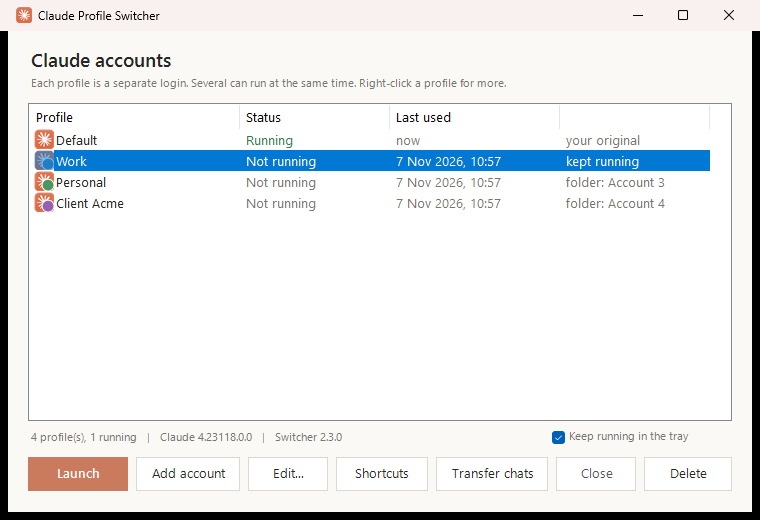 |
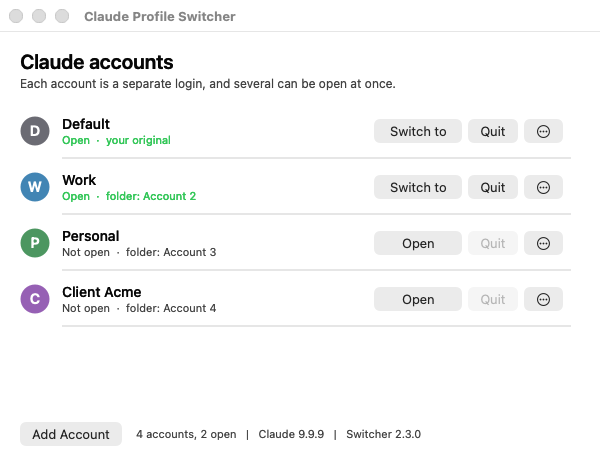
|
Why
The Claude desktop app signs in one account at a time. If you have a work and a personal
account, or several clients, switching means signing out, signing back in and losing your
place. Claude Profile Switcher gives each account its own copy of the app with its own login,
so they all stay signed in and run at the same time, Claude Code included.
Install
Windows 10 or 11
Download Install-ClaudeProfileSwitcher.cmd
and double-click it. It adds Claude Profile Switcher to the desktop and Start menu and
opens it. Or in PowerShell:
irm https://github.com/PriyanshuGeTRekT/Claude-Code-Desktop-Switcher/releases/latest/download/ClaudeSwitcher.ps1 -OutFile "$env:TEMP\ClaudeSwitcher.ps1"; powershell -ExecutionPolicy Bypass -File "$env:TEMP\ClaudeSwitcher.ps1" -Install
macOS 12 or later
Download ClaudeProfileSwitcher-macOS.zip,
unzip it, and drag Claude Profile Switcher to Applications. The first time, right-click
it and choose Open: it is not notarized by Apple, so a plain double-click is refused once.
Or clear that flag in Terminal:
xattr -dr com.apple.quarantine "/Applications/Claude Profile Switcher.app"
It lives in the menu bar.
Add your second account in three steps
- Click Add account (Windows) or Add Account (macOS, also in the menu bar).
- A new Claude window opens at the sign-in screen. Sign in with your other account.
- Done. Both accounts stay signed in from now on. Give the new one a name like
Work:
Edit... or F2 on Windows, More > Rename... on macOS.
From then on, Launch opens an account, or brings it to the front if it is already open.
Features
| Windows | macOS | |
|---|---|---|
| Several accounts open at once, each with its own login | ✓ | ✓ |
| One-click Add account, straight to the sign-in screen | ✓ | ✓ |
| Switch to, quit or restart any account | ✓ | ✓ |
| Rename, colour badge, delete | ✓ | ✓ |
| Per-account environment variables and launch flags | ✓ | ✓ |
| Tray or menu bar access, keyboard shortcuts | ✓ | ✓ |
| Command line for scripts | ✓ | ✓ |
| Your original account is never touched | ✓ | ✓ |
| Each account gets its own taskbar button and badged icon | ✓ | Dock icon per account |
| Browser sign-ins go to the account that asked | ✓ | |
| Move Claude Code chats between accounts | ✓ | |
| Reopen accounts after Claude's own auto-update closes them | ✓ | |
| Desktop and Start menu shortcuts per account | ✓ | |
| Self-update | ✓ |
Windows guide
| Action | In the window | Keyboard |
|---|---|---|
| Open an account, or switch to it | Launch / Switch to, double-click | Enter, Ctrl+1..9 |
| Add an account | Add account | Ctrl+N |
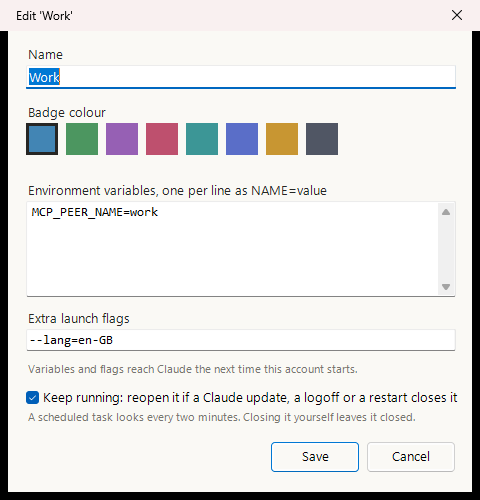
| Name, colour, variables, flags, keep running | Edit... | F2 |
| Close or restart its Claude | Close, right-click Restart | |
| Shortcuts on the desktop and Start menu | Shortcuts | |
| Copy Claude Code chats to another account | Transfer chats | |
| Delete an account | Delete | Del |
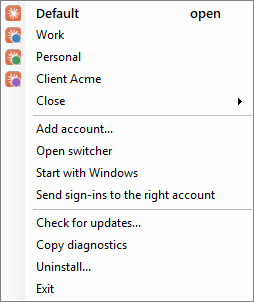
Right-click any account for the same actions. Closing the window keeps the switcher in the
notification area: right-click its icon to switch accounts, add one, close one, check for
updates, or turn on Start with Windows.
Browser sign-ins and
claude:// links
Signing in through the browser ends with a claude:// link, and Windows sends every one of
those to your original account. The first time you add an account, the switcher offers to
handle those links and pass each sign-in to the account that asked for it. Turn it on or off
from the tray (Send sign-ins to the right account), or with -RouteSignIns and -Revert.
A sign-in goes to the first of these that applies: the account you launched while it was
signed out, the only open account that is signed out, the open account you used last, and
otherwise your original one. Other claude:// links, such as a link to a Claude Code session,
open in your original account unless you choose otherwise: -OpenLinksIn Work sends them all
to Work, and -OpenLink <url> -Account Work opens a single link there.
Keeping accounts open through Claude's updates[!NOTE]
On the Store build of Claude, Windows keepsclaude://links for Claude until you choose
otherwise. Turning routing on opens Settings at the right page: set CLAUDE to
Claude Profile Router.-Statusshows whether that step is still to do.
When Claude installs an update while idle, Windows closes every copy of it and the app
brings back only your original account. Logoff and restart do the same. For an account that
has to stay up (Remote Control, scheduled tasks, long Claude Code sessions), tick Keep
running in Edit..., or run -KeepRunning Work.
A per-user scheduled task then looks every two minutes and at logon, and reopens a kept
account only when its own log ends in a forced close; one you closed yourself stays closed.
It waits out an update in progress, reopens minimized, never takes the foreground, and never
reopens the same account twice within ten minutes. Each action is written to%LOCALAPPDATA%\ClaudeProfiles\.switcher\watchdog.log.

Shortcuts puts a Claude - <name> shortcut on the desktop and in the Start menu, so you can
search for an account or pin it. Each extra account's window also gets its own taskbar button
with its badge instead of piling onto Claude's, and a pinned shortcut shares that button. Your
original account keeps Claude's own button.
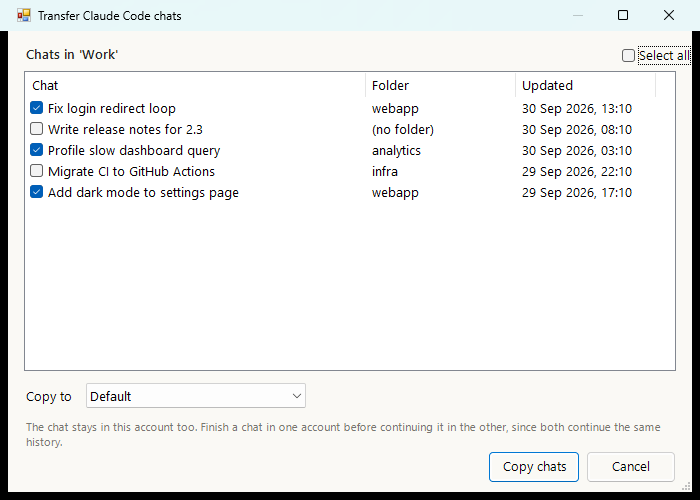
Select an account, click Transfer chats, tick the chats and pick where they go. The chat
stays in the original account too, and both continue the same history, so finish in one before
picking it up in the other. The target account needs to have opened the Code tab once.
Set them in Edit...: variables one per line as NAME=value, flags as you would type them.
If the account is open, the switcher offers to restart it so they take effect. They are stored
in %LOCALAPPDATA%\ClaudeProfiles\settings.json, keyed by the account's folder name:
"ProfileEnv":  { "Work": { "MCP_PEER_NAME": "work" } },
"ProfileArgs": { "Work": "--lang=en-GB", "Personal": ["--lang", "fr-FR"] }
A copy that is already open keeps what it started with. Your original account on the Store
build starts through Windows and takes neither.
macOS guide
The switcher sits in the menu bar. Its menu lists every account with its badge (open ones are
ticked) and ⌘+1..9 to open them, plus Add Account
(⌘+N), Quit Account and Show Accounts.... The window has
Open / Switch to and Quit for each account, and More for Rename, Restart,
Show in Finder and Delete. Each open account gets its own Dock icon.
Your original account uses Claude's own data in ~/Library/Application Support/Claude, which
the switcher never touches. Extra accounts live in~/Library/Application Support/ClaudeProfiles/<name>, with settings.json beside them using
the same keys as on Windows, so per-account ProfileEnv and ProfileArgs work the same way.
The app is one Swift file with no dependencies; macos/build.sh builds it. The macOS version
is new: it is built and tested on every change against a stand-in Claude (the screenshot above
comes from that run, hence its "Claude 9.9.9"), but not yet against the real Claude on a real
Mac. Please open an issue
with what you see.
Command line
Windows (ClaudeSwitcher.ps1)
| Command | Does |
|---|---|
-AddAccount |
Add an account and open Claude at its sign-in screen |
-Launch Work |
Open an account, or bring it forward if it is open |
-Close Work / -Restart Work |
Close its Claude / close it and open it again |
-List |
Accounts and which are running |
-Shortcut Work [-To <dir>] |
Shortcuts for one account |
-KeepRunning Work / -StopKeeping Work |
Reopen it after Claude's updates, or stop |
-RouteSignIns / -Revert / -Status |
Sign-in routing on, off, and its state |
-OpenLink <url> -Account Work |
Open one claude:// link in an account |
-OpenLinksIn Work |
Send links that are not sign-ins there from now on |
-Update / -Version |
Install the latest release / print the version |
-Install / -Uninstall [-RemoveProfiles] |
Install or refresh; remove everything it created |
-ShortcutStyle headless|hidden|plain |
Remake launchers in a plainer shape for strict antivirus |
-Doctor |
What a bug report needs, user name redacted |
-Tray / -ClaudePath <exe> |
Start in the tray / use this Claude.exe |
Names can be an account's label or its folder name.
macOS ("/Applications/Claude Profile Switcher.app/Contents/MacOS/ClaudeSwitcher")
| Command | Does |
|---|---|
--add-account |
Add an account and open Claude at its sign-in screen |
--launch Work |
Open an account, or bring it forward if it is open |
--quit Work / --restart Work |
Quit its Claude / quit it and open it again |
--list |
Accounts and which are open |
--rename Work Client |
Rename (the folder and sign-in stay) |
--delete Work |
Delete an account and its folder |
--claude-path <app> / --version |
Use this Claude.app / print the version |
How it works
The Claude desktop app is built on Electron, which honours --user-data-dir. An account is
just a folder with its own cookies, local storage and settings, so each folder is an
independent login, and Electron's single-instance lock is per folder, so copies pointed at
different folders run side by side.
flowchart LR
    S["Claude Profile Switcher"]
    S -->|as usual| D["Claude: your original account"]
    S -->|--user-data-dir| W["Claude: Work"]
    S -->|--user-data-dir| P["Claude: Personal"]
    D --- DD[("Claude's own data, never touched")]
    W --- WD[("its own folder")]
    P --- PD[("its own folder")]
Nothing in Claude is modified, patched or proxied, and the switcher never handles passwords
or tokens: you sign in to each account in Claude itself.
- Two builds of Claude, both detected: the Store (MSIX) build, whose original data lives in
%LOCALAPPDATA%\Packages\Claude_<id>\LocalCache\Roaming\Claudeand which the switcher starts
through the shell so it keeps auto-update andclaude://links; and the installer build,
with its data in%APPDATA%\Claude. - Extra accounts live in
%LOCALAPPDATA%\ClaudeProfile-<name>, directly under%LOCALAPPDATA%, because Cowork's local VM service only finds its disk image there. Older
versions used%LOCALAPPDATA%\ClaudeProfiles\<name>; those move once, and a link left at
the old place keeps Code chats that remember the old path working. - Renaming changes a label only. A folder is an account's permanent id, because Electron
stores absolute paths inside its data. - Running detection counts only the desktop app's own process, not the Claude Code CLI,
which is also calledclaude.exe. - Sign-in routing is off until you turn it on. It then takes over the
claude://handler
inHKCU, after saving Claude's own to.switcher\claude-handler-backup.json, which-Revertrestores. Links are validated before use and never logged, because a sign-in link
carries a one-time code. - Updates fetch a 300-byte checksum file from this repository's releases once a day, and the
script only when it changed. A new script is installed only when it matches the published
checksum, and only after you agree."UpdateCheck": falseinsettings.jsonturns the
daily check off. See SECURITY.md for everything the switcher writes or reads.
FAQ
Can I use two Claude accounts at the same time?Yes. Each account runs in its own copy of the Claude desktop app with its own login, so you
can have a work and a personal account (or several) open and signed in at once.
Yes. Each account has its own Code tab and sessions. On Windows you can also copy Code chats
from one account to another, and keep accounts that run long Code sessions open through
Claude's updates.
No. Your original account keeps using Claude's own data, which the switcher never touches.
New accounts get folders of their own.
No. It only starts the official app with a different data folder. You sign in inside Claude
itself, and the switcher never reads tokens or passwords.
Each open account is a full copy of the app, so roughly one Claude's worth of memory per
account. A folder grows to a few hundred MB, mostly caches. On Windows, an account that runs
Cowork tasks locally also starts its own Linux VM (about 4 GB of memory, 10 GB of disk).
claude command line tool?
This is for the desktop app. The claude CLI already supports several accounts through itsCLAUDE_CONFIG_DIR environment variable.
Troubleshooting
Claude cannot be foundPoint at it once and it is remembered: -ClaudePath C:\path\to\Claude.exe on Windows,--claude-path /path/to/Claude.app on macOS.
The shortcuts run conhost --headless powershell -ExecutionPolicy Bypass -File ..., which some
products (Huorong has been reported) take for a trojan pattern. Remake them in a plainer shape:
.\ClaudeSwitcher.ps1 -ShortcutStyle hidden    # no conhost; a console may flicker
.\ClaudeSwitcher.ps1 -ShortcutStyle plain     # also without -ExecutionPolicy Bypass
plain needs Set-ExecutionPolicy -Scope CurrentUser RemoteSigned once.-ShortcutStyle headless goes back to the default.
The app is not notarized by Apple. Right-click it in Applications and choose Open once, or
run xattr -dr com.apple.quarantine "/Applications/Claude Profile Switcher.app".
Use -ExecutionPolicy Bypass as in the install line, and Get-ChildItem -Recurse | Unblock-File
if you downloaded the ZIP. Anything fatal is shown in a message box and written to%LOCALAPPDATA%\ClaudeProfiles\switcher-error.log. For a bug report, paste the output of.\ClaudeSwitcher.ps1 -Doctor (or the tray's Copy diagnostics): versions, accounts and
recent log lines, with your user name replaced.
Windows: the tray's Uninstall..., or -Uninstall. That removes shortcuts, the watchdog task,
sign-in routing and the installed copy, and keeps your accounts and settings unless you add-RemoveProfiles. macOS: quit it from the menu bar and move the app to the Bin; extra accounts
are in ~/Library/Application Support/ClaudeProfiles.
What has been verified
- Windows: tested on Windows 11 with the Store build of Claude: install, adding accounts,
switching, running detection beside Claude Code sessions, shortcuts and taskbar buttons,
sign-in routing with real sign-ins, the tray, updates, and the watchdog's task. Ten test
suites run on every change in Windows PowerShell 5.1 and PowerShell 7. The installer build
of Claude, and chat transfer between two real accounts, have not been tried yet. - macOS: built for Apple Silicon and Intel and tested end to end on every change against a
stand-in Claude: adding, opening, switching, flags and variables, rename, quit, delete, all
in a folder path with spaces. Not yet run against the real Claude on a real Mac.
Reports from either of those untested setups are the most useful contribution anyone can make
right now.
Star history
Contributing
Issues and pull requests are welcome. See CONTRIBUTING.md for setup, the
tests to run on each platform, and the traps that have already caused bugs here. Please also
read the Code of Conduct.
Disclaimer
Unofficial, and not affiliated with, endorsed by, or supported by Anthropic. It uses only
documented Electron command line switches and does not modify the Claude application. Using
multiple accounts is subject to Anthropic's terms of service.
License
MIT, see LICENSE.
Yorumlar (0)
Yorum birakmak icin giris yap.
Yorum birakSonuc bulunamadi