pmx-canvas
Health Pass
- License — License: MIT
- Description — Repository has a description
- Active repo — Last push 0 days ago
- Community trust — 28 GitHub stars
Code Fail
- process.env — Environment variable access in .github/extensions/pmx-canvas/extension.mjs
- network request — Outbound network request in .github/extensions/pmx-canvas/extension.mjs
- process.env — Environment variable access in .github/extensions/pmx-canvas/mcp-bootstrap.ts
- exec() — Shell command execution in .github/extensions/pmx-canvas/runtime.mjs
- process.env — Environment variable access in .github/extensions/pmx-canvas/runtime.mjs
- eval() — Dynamic code execution via eval() in .github/workflows/test.yml
Permissions Pass
- Permissions — No dangerous permissions requested
No AI report is available for this listing yet.
PMX Canvas is a shared board where you and your AI agents collect and present the data and evidence behind your work. Curate that material into context for your agent's next step, then bring the results back onto the board to review and build on. You both add and edit material on the same board, in real time. Pin context to focus input and output.
pmx-canvas
PMX Canvas is a shared board where you and your AI agents collect and present
the data and evidence behind your work. Curate that material into context for
your agent's next step, then bring the results back onto the board to review
and build on. You both add and edit material on the same board, in real time.
Collect evidence. Curate context. Move work forward.
Real work needs evidence: research, files, data, charts, diagrams, decisions.
When that's scattered across chats and files, you keep re-explaining the
background and your agent works from whatever it happens to see.
On a PMX board, you and your agent put that material in one place, side by
side. Then you curate it:
- Pin cards and boards to choose the material you want your agent to use.
- Link conclusions to their sources, so evidence stays connected.
- See what the agent has read, what changed since, and what it added or edited.
Ask your agent to put its findings back on the board as new material to
review, present, and build on. Boards save locally and link to one another,
so the evidence for your work keeps building up across sessions.
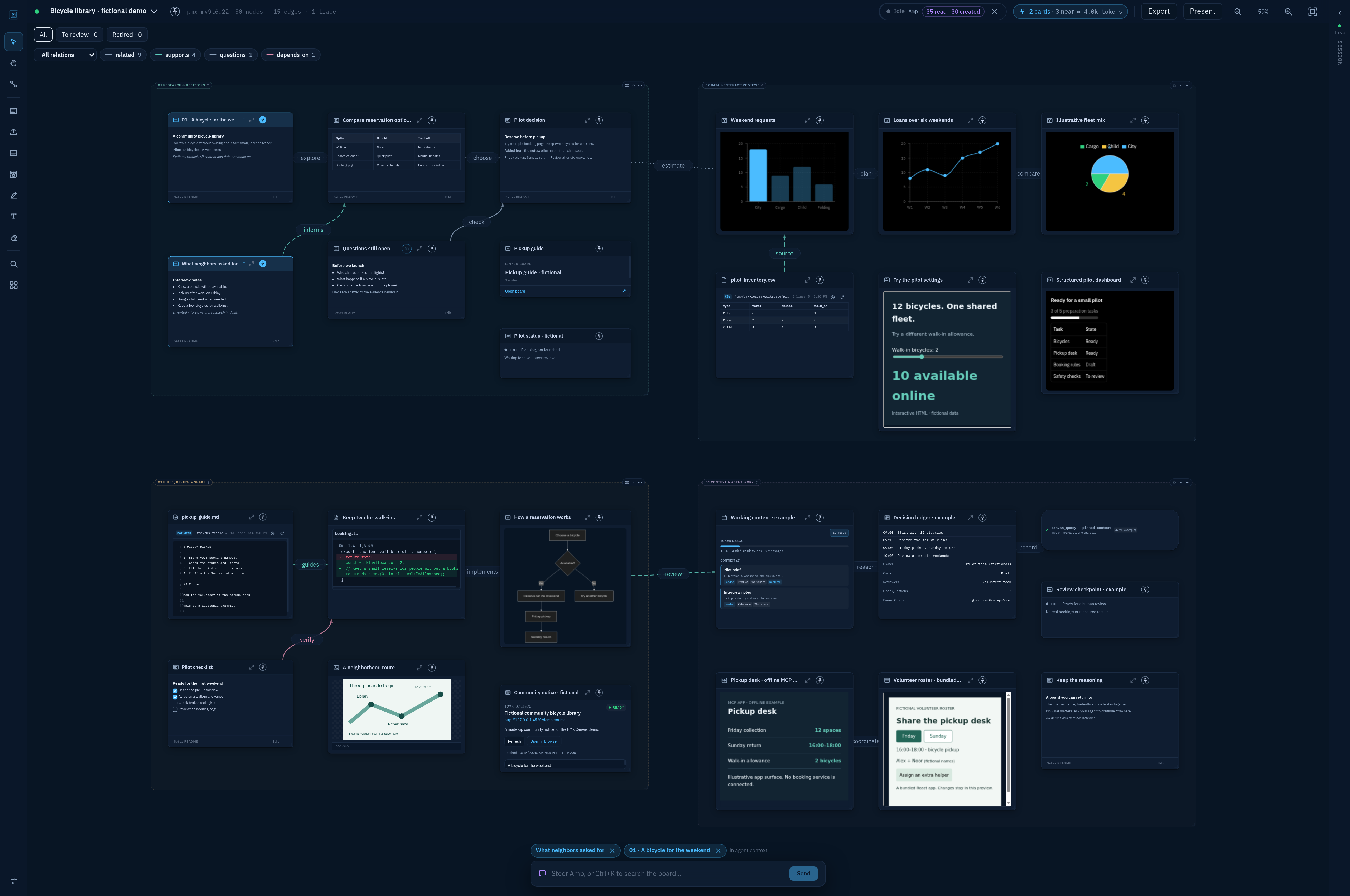
Harbor, the dark theme.
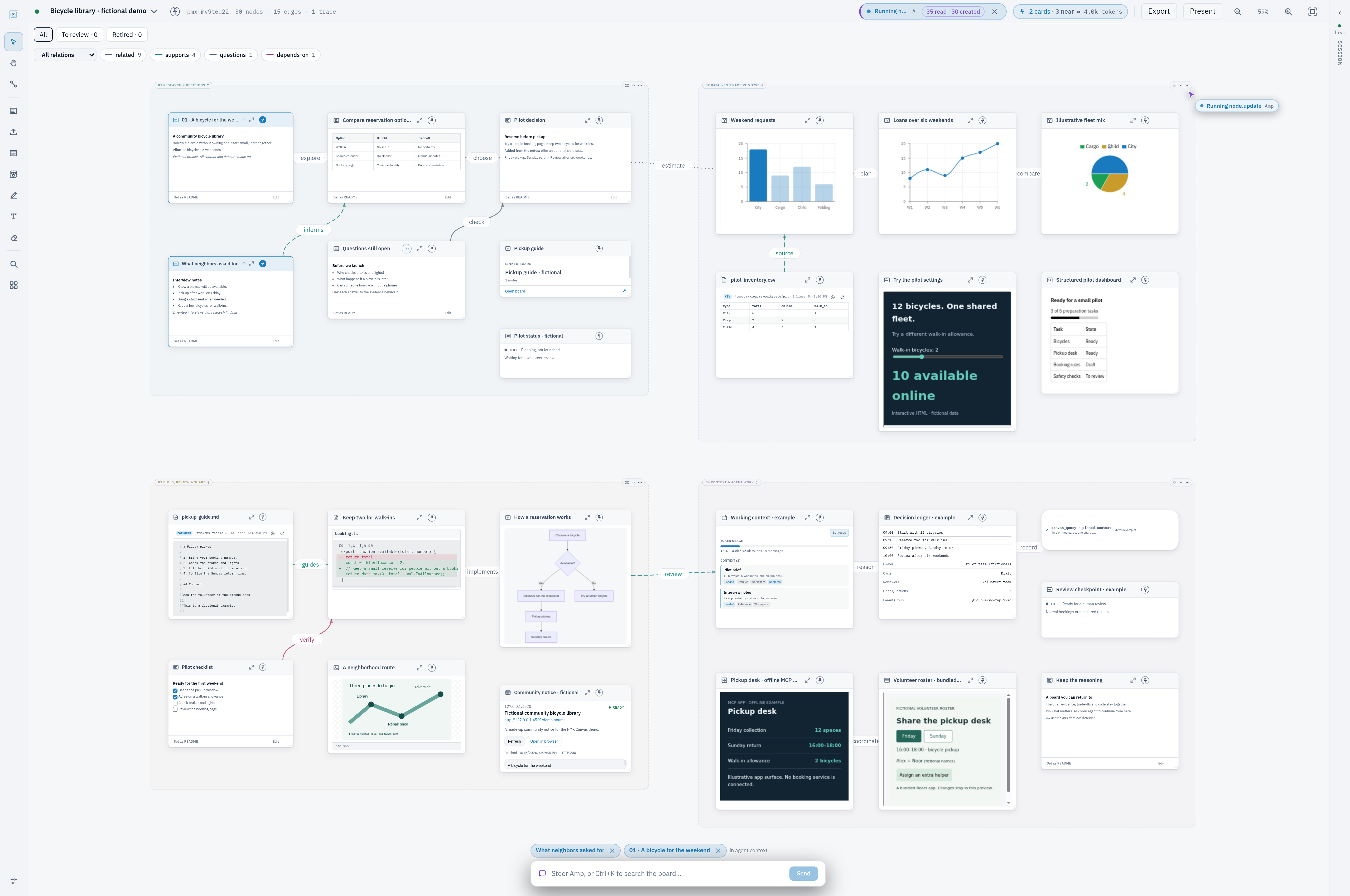
Daylight, the light theme. Both screenshots show the working app with fictional
content and data.
A moldable canvas
Put notes, files, web pages, images, charts, code diffs, and diagrams side by
side on an infinite canvas. Ask your agent to build a dashboard, comparison,
or interactive view on the board as you work. You can open a rich view in its
own tab when you need more space.
- Organize your work. Move and group cards, draw annotations, and connect
ideas with labeled links. Use folders, search, and the board map to find
earlier work. - Work with agents. Ask one or several agents to add material, track
tasks, and update the board. Review their changes and send instructions
from the canvas when your agent connection supports it. - Keep knowledge useful. Link conclusions to evidence, set review dates,
and see which dependent cards need checking when a source changes. - Save and share. Use undo, snapshots, and backups. Present a board as a
tour or export it as a self-contained HTML file.
Install and start
With your agent (recommended)
Install Node.js (LTS), which includes npm and npx.
Then install the PMX Canvas skill and choose your agent if prompted:
npx skills add pskoett/pmx-canvas/skills/pmx-canvas
Then ask your agent:
Use the pmx-canvas skill to install and set up PMX Canvas for this project.
Start the canvas, check that you can connect to it, and give me the link to open it.
The skill gives your agent instructions for installing PMX Canvas, connecting
to it, and working on boards. It doesn't install the app by itself; your agent
walks you through setup and any permissions it needs. No repository clone is needed.
Run it yourself
Install Bun 1.4.2 or newer, then run this command from the
folder where you want to keep your boards:
bunx pmx-canvas
The command starts the canvas and opens it in your browser. To explore a
sample board first, run bunx pmx-canvas --demo in an empty folder.
For a permanent installation:
bun add -g pmx-canvas
pmx-canvas
Connect your agent
PMX Canvas works with Claude Code, Codex, GitHub Copilot, Amp, and other agents
through MCP, the protocol agents use to call tools. If your agent handled setup
above, you're ready to make your first board. Otherwise,
use a plugin or configure MCP directly. You don't need both for the same agent.
Plugins
The PMX Canvas plugin follows the open
Agent Plugins 1.0 standard. Use it in any client
that supports the standard's MCP stdio connections. Bun must be installed;
a global PMX Canvas installation isn't required.
In GitHub Copilot, you can install directly from GitHub:
copilot plugin install pskoett/pmx-canvas:plugins/pmx-canvas
Copilot currently accepts this command, but warns that direct GitHub installs
are deprecated and a future release will require a marketplace. If your version
no longer accepts it, use the MCP setup below.
Enable it, start a new project session, and open PMX Canvas. Copilot also
gets a native canvas panel; that panel is not part of the portable standard.
Other apps have their own plugin install commands or UI. See the
PMX plugin guide. There is no single install command
for every client.
MCP setup
Without a plugin, add a server to your agent's MCP settings with commandbunx and arguments pmx-canvas, --mcp. Clients that use an mcpServers
configuration accept:
{
  "mcpServers": {
    "canvas": {
      "command": "bunx",
      "args": ["pmx-canvas", "--mcp"]
    }
  }
}
Start your agent in the same project folder as the canvas, then enable or
approve the connection in your agent app. The MCP server can also start the
canvas on its first tool call.
Settings differ by app. Follow the setup guide
for your client, including Amp and orbs.
Make your first board
Ask your connected agent:
Create a PMX Canvas board with an overview of the recent projects and
threads we've been working on together. Group related work, summarize the
decisions and open questions, and link back to the threads and files you
can access. Show what's in progress and what we could pick up next. Tell
me if you're missing context rather than guessing.
Open the board, move related cards together, and pin the ones you want the
agent to use. Then ask it to read the pinned cards and help you continue the work.
You can also add notes and files yourself. Press ? on the board for keyboard
shortcuts.
Boards auto-save in .pmx-canvas/canvas.db inside your project folder.
Use the same folder when you return. Autosave isn't a backup; see the
backup commands to keep a separate copy.
PMX Canvas runs locally and has no built-in multi-user accounts. Connected
agents share the same open board. Content you ask an agent to read goes
through that agent's tools and model provider; web content and hosted apps
also use their external services.
Documentation and development
- Setup guide and plugin guide
- Cards and views
- CLI, MCP, HTTP API, and Bun SDK
- Environment settings and changelog
To run from source:
git clone https://github.com/pskoett/pmx-canvas.git
cd pmx-canvas
bun install
bun run build
bun run dev
See AGENTS.md for contributor guidance. Report bugs or suggest
features in GitHub issues, or
use Bug and feedback in the canvas toolbar.
Reviews (0)
Sign in to leave a review.
Leave a reviewNo results found