KnowledgeX
Health Uyari
- License — License: MIT
- Description — Repository has a description
- Active repo — Last push 0 days ago
- Low visibility — Only 6 GitHub stars
Code Gecti
- Code scan — Scanned 12 files during light audit, no dangerous patterns found
Permissions Gecti
- Permissions — No dangerous permissions requested
Bu listing icin henuz AI raporu yok.
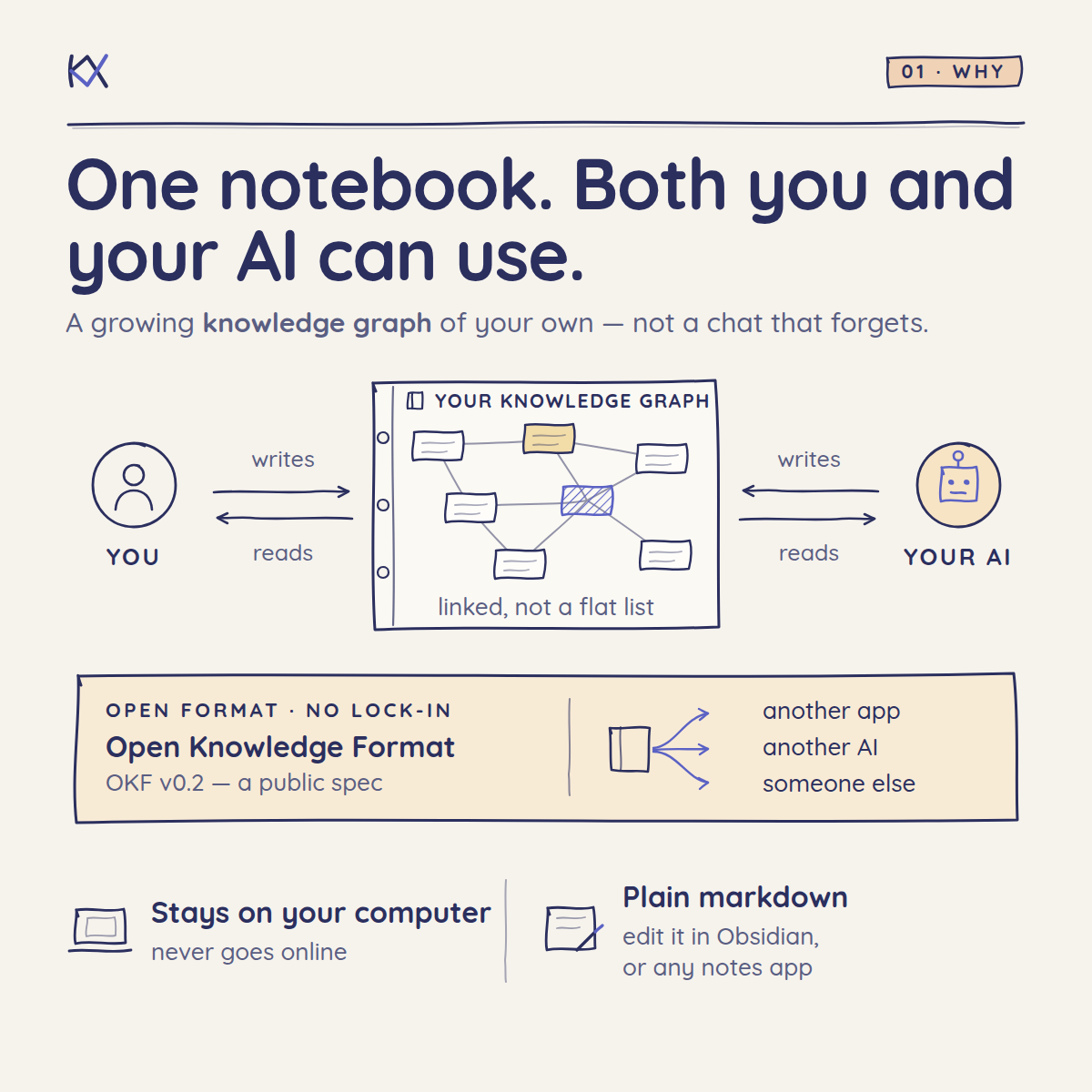
A personal knowledge library you and your AI build together: plain markdown notes that link into a knowledge graph, growing one conversation at a time.
KnowledgeX
A personal knowledge library you and your AI build together.
What you know ends up scattered: in chat histories that disappear, in notes you never reread, and in your own head. AI assistants don't fix that. They start from nothing every conversation, or they save everything until the pile is too unreliable to use.
KnowledgeX gives you both one library to work from. When something worth keeping comes up, your AI offers to save it, such as a decision and the reason for it, a preference, a lesson, or a person you work with, and saves only what you approve. Each note links to the ones it relates to, so the library grows into a knowledge graph of what you know, one conversation at a time.
It's plain markdown in a folder on your computer. Read, edit and rearrange it in any editor, such as Obsidian; your AI reads and writes the same files. When it answers from a note, it says which note, whether you confirmed it, and whether it might be out of date.
Status: early (v0.3). Things may still change.
How it works, in pictures
Get started
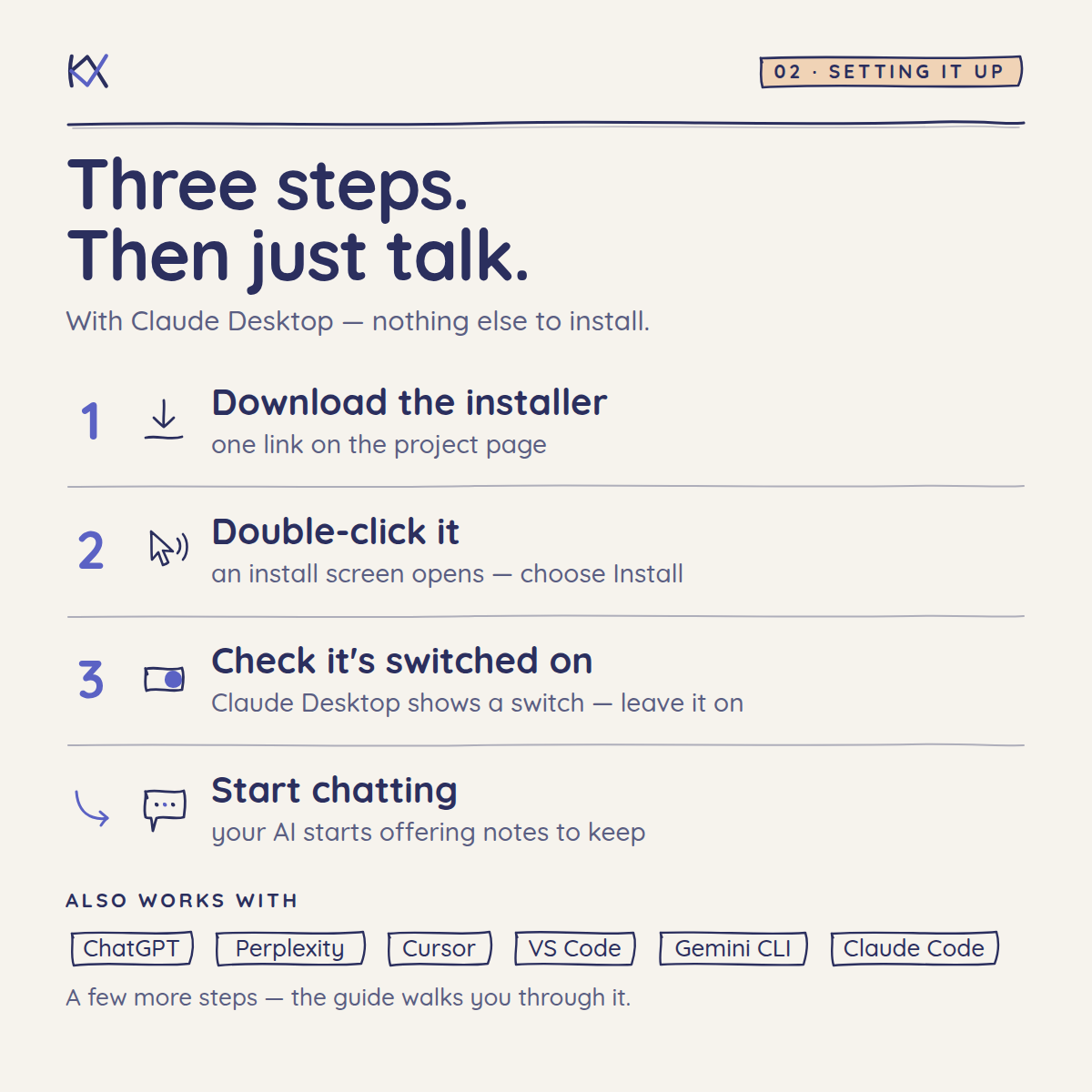
KnowledgeX works with any AI app that can run a local MCP server (MCP is the standard way to give an AI new tools). Find your app below. After setup, talk to your AI as usual; see what using it looks like.
- Claude Desktop needs nothing else installed.
- Every other app runs KnowledgeX with Node.js. Install version 22 or newer first; the installer from the website is the easiest way.
Your notes go in a KnowledgeX folder in your Documents. To use a different folder, set KX_BUNDLE in the app's MCP settings; the technical guide shows how.
Desktop AI apps
Claude Desktop (Mac and Windows)
- Download KnowledgeX.mcpb.
- Double-click the downloaded file. Claude Desktop opens an install screen. Click Install. You can pick a different notes folder on that screen.
- Start a new chat. The walkthrough shows what to expect, step by step.
ChatGPT desktop app
- Open Settings → MCP servers → Add server.
- Name it
KnowledgeXand choose STDIO. - Enter the command
npx, with the arguments-y knowledgex mcp. - Save, then select Restart.
This setup is shared with Codex, so KnowledgeX also works in the Codex CLI and IDE extension.
Perplexity (Mac)
- In Settings → Connectors, install the Perplexity helper app when asked. It lets Perplexity run local servers.
- Select Add Connector and stay on the Simple tab.
- Name it
KnowledgeX, enter the commandnpx -y knowledgex mcp, and save.
Gemini desktop app
Google has announced custom MCP support for Gemini Spark in the Gemini app for Mac, in beta for Google AI Ultra subscribers in the US. We haven't yet confirmed whether it can run local servers like KnowledgeX. Until then, Gemini users can use KnowledgeX through Gemini CLI.
Coding tools
Windsurf, Cursor, and Gemini CLI. Add KnowledgeX to the app's MCP settings file:
| App | Settings file |
|---|---|
| Windsurf | ~/.codeium/windsurf/mcp_config.json (also opens from the MCPs icon in the Cascade panel) |
| Cursor | ~/.cursor/mcp.json |
| Gemini CLI | ~/.gemini/settings.json |
{
    "mcpServers": {
        "knowledgex": {
            "command": "npx",
            "args": ["-y", "knowledgex", "mcp"]
        }
    }
}
If the file already exists, add the mcpServers section to it, or just the knowledgex entry if mcpServers is already there.
Code Puppy. Add KnowledgeX to ~/.code_puppy/mcp_servers.json, then run /mcp start knowledgex in Code Puppy:
{
    "mcp_servers": {
        "knowledgex": {
            "type": "stdio",
            "command": "npx",
            "args": ["-y", "knowledgex", "mcp"]
        }
    }
}
VS Code (GitHub Copilot). Run MCP: Open User Configuration from the Command Palette, and add:
{
    "servers": {
        "knowledgex": {
            "type": "stdio",
            "command": "npx",
            "args": ["-y", "knowledgex", "mcp"]
        }
    }
}
Claude Code:
claude mcp add --scope user knowledgex -- npx -y knowledgex mcp
Codex CLI (also adds it to the ChatGPT desktop app):
codex mcp add knowledgex -- npx -y knowledgex mcp
Any other app
Any app that can run a local MCP server can use KnowledgeX with the command npx -y knowledgex mcp. For apps without MCP, coding agents that run shell commands, and the kx command line, see the technical guide.
Make it automatic
After setup, KnowledgeX already works: the tools are there in every chat, your AI offers to save what's worth keeping when it comes up, and "remember this" or "what did we decide about X?" always works.
Two habits are worth making explicit. Unless your AI is told to, it may answer a question from the conversation alone and never look at your notes, and it may leave saving until the end, when details are easy to forget. Add this to your AI's standing instructions (in Claude Desktop, Settings → Profile → personal preferences, which applies to every chat):
I use KnowledgeX as my knowledge library. Search it when my past decisions or preferences matter, and offer to save anything worth keeping when it comes up. Save only what I approve.
Working on one client or project? Notes can live in their own notebook. Name it in that project's instructions, such as a Claude Project or a CLAUDE.md or AGENTS.md file in a repository:
Use the KnowledgeX notebook acme-case for this project. Search it before answering questions about this client, and save new notes there.
To go further and keep a connection to a single notebook, so nothing else is visible to it, see KX_NOTEBOOK in the technical guide.
What using it looks like
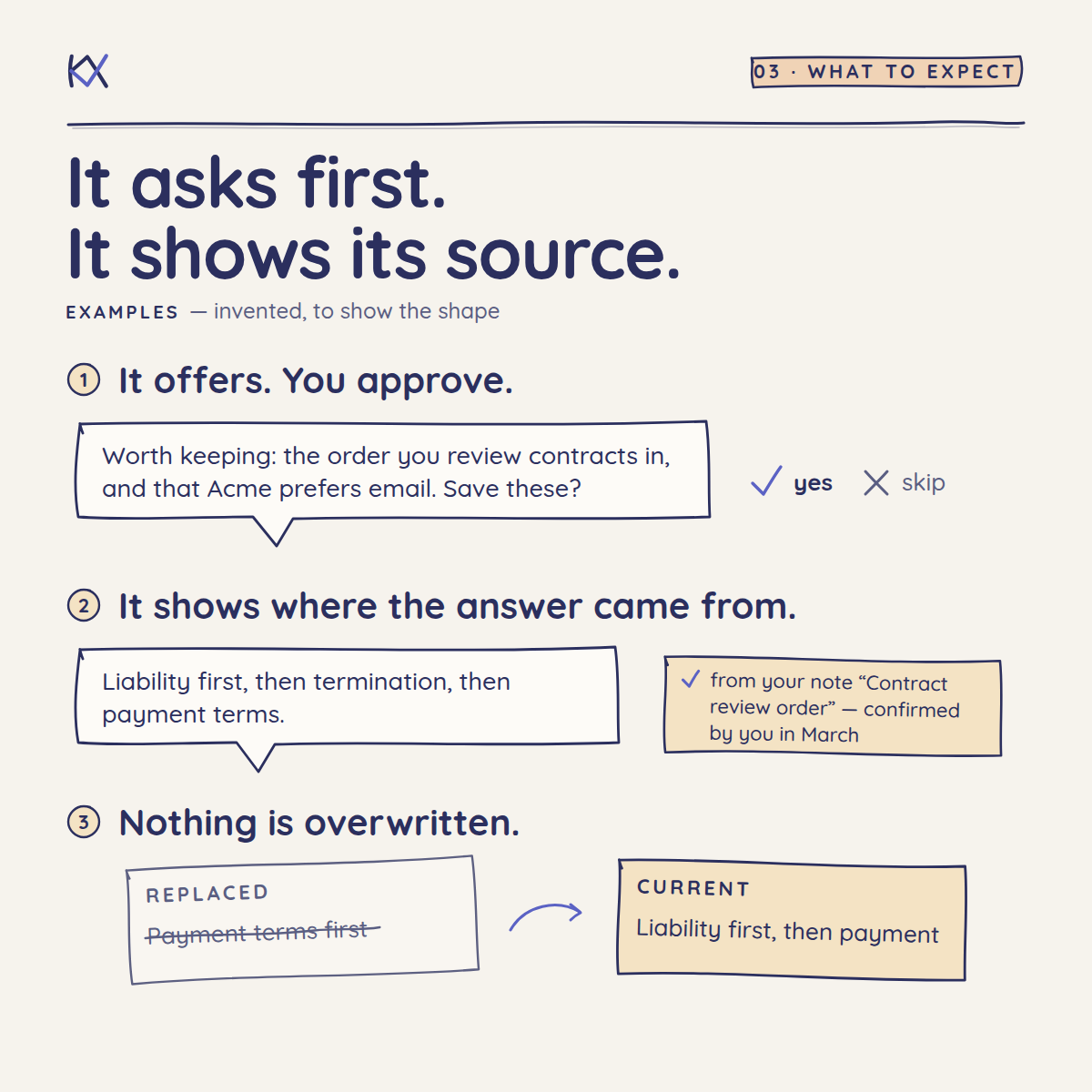
Keeping something. When you settle something worth keeping, such as a decision, a preference, or a correction, your AI offers to save it, often in the middle of the conversation. It answers you first, then adds one line at the end of its reply:
Worth keeping: you review liability clauses before payment terms, because that's where the risk is. Save it?
Say yes or no, or just carry on; it won't ask about the same thing twice. When you wrap up, it may offer anything you skipped past in one short list:
Before you go, I'd keep two things: your contract review order, and that the client prefers updates by email, not calls. I'd skip the draft wording we went back and forth on. Save these?
Most of the time nothing is worth keeping, and it says nothing. You can also just say "remember this".
Asking later.
You: How do we usually review supplier contracts?
Your AI: Liability and indemnity first, then termination, then payment terms. That's from your note "Contract review order", which you confirmed in March.
Confirming. When your AI saves a note, it asks whether it's right. Say yes, and the note is marked as confirmed by you. If the note is changed later, it needs confirming again.
Changing your mind. Tell your AI, and it saves the new decision and marks the old one as replaced. It never silently edits a past decision, so you keep the history.
A check-up. Ask "Do any of my notes need attention?" Your AI lists notes that may be out of date, conflict with each other, or were never confirmed, and suggests fixes.
Notebooks. Keep a client or project in its own notebook: say "start a notebook for the Acme case." Everything else goes in the general notebook. To share a notebook, send its folder. To add one you received, drop the folder into your notes folder. Notes someone else confirmed start unconfirmed for you, until you confirm them yourself.
Your notes and your privacy
- Notes stay on your computer, as plain text files in the folder you chose. You can open, read, back up, or delete them like any other files.
- KnowledgeX itself never connects to the internet.
- When your AI uses a note, the note's text becomes part of your conversation, so it's handled like anything else you type into that app.
- Your AI is instructed never to save passwords or account numbers, and to ask before saving confidential client or personal information.
Technical users
The kx command line (npm install -g knowledgex) works for scripts and for coding agents that run shell commands. The technical guide covers it, along with settings, agent skills, and the full command reference.
How it works
- The notes folder holds notebooks, and each notebook is an OKF bundle: one markdown file per note, plus an index and a change log. Every note records who wrote it, who confirmed it, where its facts came from, and when it goes out of date.
- The agent guides tell the AI what's worth keeping, how to write it, how to look things up, and how to keep notes current. Read them in
guides/. - The MCP server and
kxcommand do the bookkeeping, so notes stay consistent whichever AI writes them.
The notes are ordinary markdown files, so you can also browse them in Obsidian, VS Code, or any markdown editor, and edit them there. A note you edit yourself counts as confirmed by you.
What's next
KnowledgeX is early, and these are the known gaps. The design document has the longer roadmap.
Measuring judgment
- Run the evals against a strong model and tune the guides on what fails. The only baseline so far is a small local model.
- Retrieval cases stop at whether the AI looked before answering. Checking that its answer names the note and says how far to trust it needs a second turn, where the search results come back to it.
- No case covers choosing a notebook: saving to the right one, and asking when it isn't sure.
Using it every day
- Search ranks results within each notebook, not across notebooks.
- Bring existing notes in, from a folder or another notes app: sort them through the five gates, keep what passes, and leave private folders out.
- Connectors for Notion and Confluence (publishing first), and importing from Evernote and OneNote.
- For teams: one notebook per team in git, where changes arrive as pull requests.
Trust and safety
- A symlink inside a notebook can point outside it; the folder check compares paths as text and doesn't follow links.
- Anything that can write to the notes folder counts as the user, including another agent with file access.
- An independent check that notebooks are valid OKF, written in TypeScript so it needs nothing else installed.
- How a bundle inside another bundle should behave isn't covered by the Open Knowledge Format spec, and is worth proposing upstream.
Rough edges
- Claude Desktop warns that an extension has access to everything on your computer, which is true of any local extension. Submitting KnowledgeX to Anthropic's extension directory would remove the "not verified" part.
- The extension has no icon.
- The Perplexity steps and the Gemini desktop note need checking in the apps themselves.
Learn more
- Walkthrough: step by step, from install to your first notes
- Technical guide: other AI apps, coding agents, and the
kxcommand reference - Design: goals, architecture, decisions, and roadmap
- Judgment evals: how we measure whether an AI keeps the right things
Contributing
Issues and pull requests are welcome. You need Node.js 22 or newer and pnpm. Running corepack enable once gives you the exact pnpm version the project uses.
pnpm install
pnpm test
To build the Claude Desktop extension (KnowledgeX.mcpb):
pnpm run pack:mcpb
Changes to the guides should be checked against the judgment evals. New eval cases are especially welcome.
Tests run automatically on every pull request, on macOS, Windows, and Linux.
Releasing. Set the new version in package.json, manifest.json, and VERSION in src/bundle.ts (the tests check they match), merge to main, then tag and push. The release workflow publishes the package to npm (with provenance, through trusted publishing, so no npm token is stored) and publishes KnowledgeX.mcpb as a GitHub release, which the download links in this README point to. Re-running a failed release skips the steps that already succeeded.
git tag v0.3.0 && git push origin v0.3.0
A tag with a suffix, such as v0.3.0-rc.1 (with the same version in the three files), is published as a pre-release on GitHub and under npm's next tag, so the download links and npm install knowledgex keep pointing at the last stable version.
License
Yorumlar (0)
Yorum birakmak icin giris yap.
Yorum birakSonuc bulunamadi