claude-playbooks
Health Warn
- License — License: MIT
- Description — Repository has a description
- Active repo — Last push 0 days ago
- Low visibility — Only 7 GitHub stars
Code Pass
- Code scan — Scanned 8 files during light audit, no dangerous patterns found
Permissions Pass
- Permissions — No dangerous permissions requested
No AI report is available for this listing yet.
Isolated Claude Code instances to keep things separated and clean.
Claude Playbooks

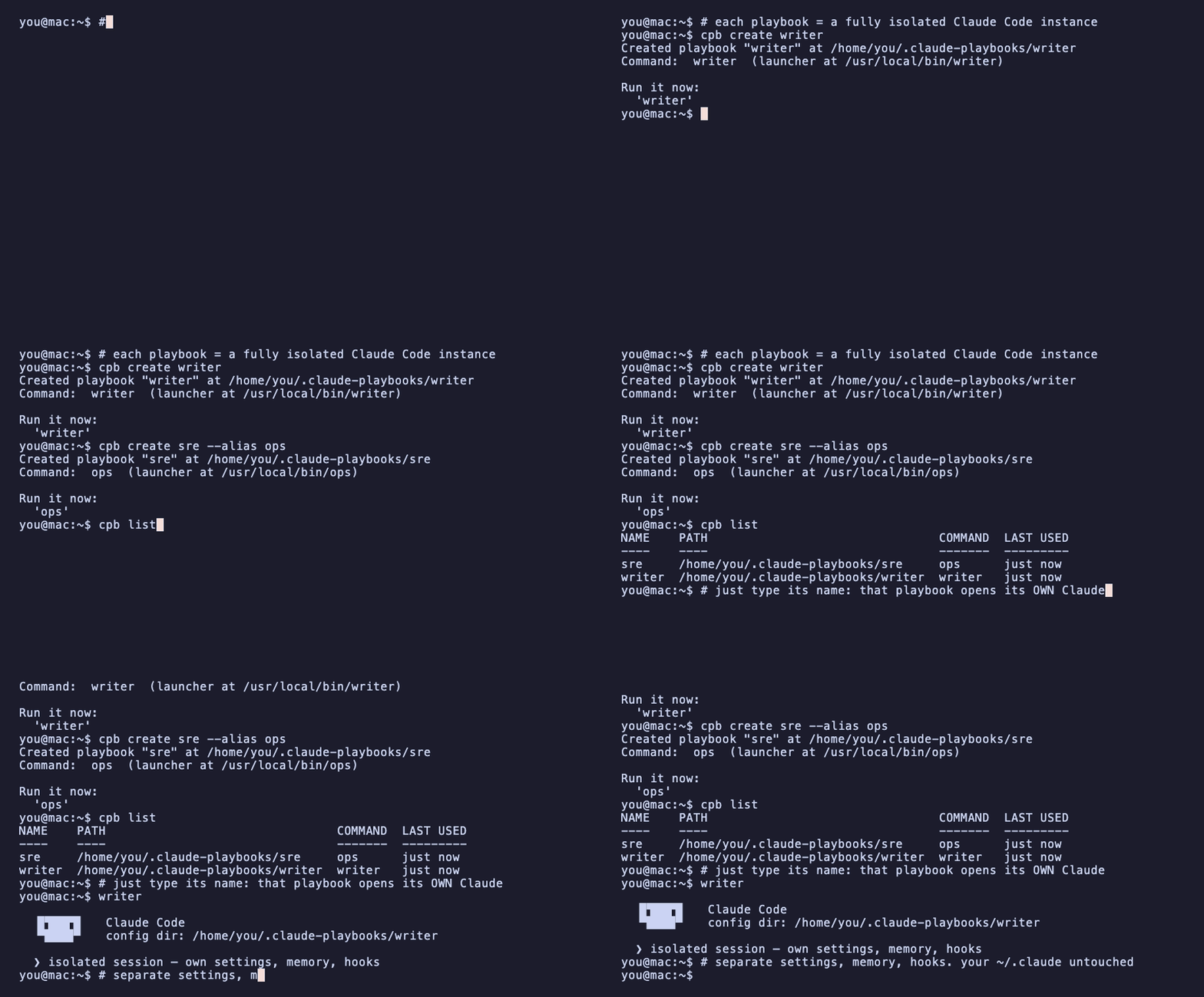
A Claude Playbook is an isolated instance of Claude Code.
That's it. Each playbook has its own configuration, settings, hooks, memory, and task history -- completely separate from your default ~/.claude installation and from every other playbook.
Why would I need this?
Claude Code stores everything in ~/.claude/: your settings, conversation history, permissions, hooks, MCP servers. If you want to try something -- a different model, a custom hook, a new CLAUDE.md behavior -- you have to touch your main setup. One wrong change and your daily workflow breaks.
Playbooks solve this by giving each experiment (or workflow) its own isolated directory.
Common use cases:
- Test a new hook or setting without risking your main
~/.claude - Separate work and personal configurations that don't interfere
- Run two Claude Code instances concurrently on different tasks with different personalities
- Authenticate with different accounts concurrently (e.g., keep one playbook authenticated with your corporate account and another with your personal account)
- Share a configuration with your team by putting the playbook in a Git repo
- Consume a repository containing one or more playbook configurations (e.g. via subdirectories)
How isolation works
Claude Code reads its configuration from the directory set in CLAUDE_CONFIG_DIR (defaults to ~/.claude). Change that variable, and you get a completely fresh, independent instance:
# Your normal Claude Code (uses ~/.claude)
claude

# An isolated playbook (uses ~/.claude-playbooks/experiment)
CLAUDE_CONFIG_DIR=~/.claude-playbooks/experiment claude
That's all a playbook is under the hood. claude-playbook just makes creating, sharing, and managing them easy.
~/.claude-playbooks/                Launcher commands (on PATH):

├── experiment/                     ◄── ~/.local/bin/experiment -> claude-playbook
│   ├── CLAUDE.md                       (typing `experiment` runs this playbook)
│   └── settings.json
│
└── awesome/                        ◄── ~/.local/bin/ap -> claude-playbook
    ├── .playbook                       (marker + metadata; `alias = "ap"` names the command)
    └── CLAUDE.md

Each playbook directory is a completely isolated Claude Code instance.
A directory is a playbook if it exists under the playbooks root. A .playbook manifest file is optional and used for storing metadata (like version, author, description).
Installation
curl -fsSL https://raw.githubusercontent.com/ramazanpolat/claude-playbooks/main/install.sh | sh
The script detects your OS and architecture, downloads the right binary from the latest GitHub Release, verifies it against the release's SHA256SUMS, and installs it to /usr/local/bin (or ~/.local/bin if that's not writable). Linux and macOS, amd64/arm64 (no native Windows — WSL works).
Verify:
claude-playbook --version
The installer also creates a cpb symlink -- a shorter name for the same
binary:
cpb --version
Want a different command name? Use a shell alias (alias pb=claude-playbook)
or a hard link (ln "$(command -v claude-playbook)" ~/.local/bin/pb — works
for both install locations). Do not use a symlink: a symlink to the binary
under any other name is treated as a playbook launcher and dispatched
accordingly.
The installer never edits your shell rc files. To enable completions
(optional), add one line to your rc file yourself:
echo 'source <(cpb completion zsh)'  >> ~/.zshrc     # zsh
echo 'source <(cpb completion bash)' >> ~/.bashrc    # bash
You can also clone the repo and run the installer locally:
git clone https://github.com/ramazanpolat/claude-playbooks.git
cd claude-playbooks
./install.sh
Uninstall only the binary:
curl -fsSL https://raw.githubusercontent.com/ramazanpolat/claude-playbooks/main/uninstall.sh | sh
Or run the local uninstaller from a clone:
./uninstall.sh
The script delegates to claude-playbook self-uninstall --binary-only, so
one implementation owns all cleanup: the binary, its cpb sibling, launcher
symlinks, and any completion lines you added. Every launcher the tool creates
is recorded in a registry (~/.local/state/claude-playbook/launchers), so
launchers are removed wherever they were created — including custom--launcher-dir locations — while a link you renamed or repointed yourself
is left alone. Playbooks are untouched, and ~/.claude-playbooks is never
deleted.
Uninstalling claude-playbook itself
To remove the tool, all its installed playbooks, their launcher commands,
the completion lines in your rc files, and the binary in one step:
claude-playbook self-uninstall          # prompts for confirmation
claude-playbook self-uninstall -y       # skip prompt
claude-playbook self-uninstall -y --keep-data     # keep ~/.claude-playbooks
claude-playbook self-uninstall -y --keep-binary   # keep the binary
claude-playbook self-uninstall --dry-run          # preview without removing
If the binary can't be removed (e.g. installed to /usr/local/bin and you're
not root), the command prints a sudo rm <path> hint and continues cleaning up
everything else.
Manual fallback (if you can't run the binary):
# 1. Remove launcher symlinks pointing at the binary
#    (in the binary's directory and ~/.local/bin: ls -l | grep claude-playbook)
# 2. Remove any `source <(claude-playbook completion ...)` lines from your
#    shell config (~/.zshrc or ~/.bashrc)
# 3. rm -rf ~/.claude-playbooks
# 4. sudo rm /usr/local/bin/claude-playbook   # or wherever the binary lives
Build from source (requires Go 1.21+):
git clone https://github.com/ramazanpolat/claude-playbooks.git
cd claude-playbooks
./build.sh
mv claude-playbook /usr/local/bin/
Usage
Most workflows start with either create, install, or link.
claude-playbook tries to reuse your existing Claude Code authentication for newly created, installed, and linked playbooks. That means a new playbook should normally open Claude Code directly instead of asking you to log in again.
If you want to use different accounts concurrently, you can enable authentication isolation for any playbook. Simply set isolate_auth = true in the playbook's .playbook manifest file, or run the playbook with the environment variable CLAUDE_PLAYBOOKS_ISOLATE_AUTH=true. This isolates that playbook's login session and prevents it from sharing or auto-syncing credentials with your other playbooks or global settings.
Create and run your own playbook
Use create when you want a fresh isolated Claude Code setup.
claude-playbook create experiment
experiment
This creates ~/.claude-playbooks/experiment, drops in a starter CLAUDE.md that introduces the playbook concept to the Claude Code session opened inside it, syncs Claude auth metadata, and registers a launcher command named experiment — a symlink to the claude-playbook binary on your PATH. It works immediately, in every shell, with no rc-file edit and no reload. A .playbook manifest is only written when you pick a custom command name with --alias.
You can also run it without the launcher:
claude-playbook run experiment
Pass Claude Code flags after the playbook name:
claude-playbook run experiment --model claude-opus-4-6 --permission-mode auto
Use a custom command name, or skip launcher creation:
claude-playbook create backend --alias be
claude-playbook create scratch --no-alias
See what is installed
claude-playbook list
NAME           PATH                                            COMMAND  LAST USED
experiment     ~/.claude-playbooks/experiment                  exp      2 days ago
awesome        ~/.claude-playbooks/awesome                     ap       2 hours ago
Install a shared playbook repo
Use install when the playbook is in a Git repo or local directory and you want a copied install under ~/.claude-playbooks.
Install a repo:
claude-playbook install https://github.com/ramazanpolat/awesome-playbooks
Override the install name or launcher command:
claude-playbook install https://github.com/user/awesome --name team-tools --alias tt
Install a local directory by copying it:
claude-playbook install ~/dev/my-playbook
Install one playbook from a larger repo
Use a GitHub tree URL when you want only one subdirectory:
claude-playbook install https://github.com/user/awesome/tree/main/playbooks/dba
Or pass the subdirectory explicitly:
claude-playbook install https://github.com/user/awesome --subdir playbooks/dba
Cherry-picked installs are flat top-level playbooks.
Branch names containing / are resolved against the repository's remote refs. You can also make the boundary explicit with --branch feature/name.
Customize the name and alias:
claude-playbook install https://github.com/user/awesome --subdir playbooks/dba --name dba --alias ap-dba
Develop a playbook in place
Use link when you are actively editing a playbook outside ~/.claude-playbooks and want live changes.
claude-playbook link ~/dev/my-playbook
link creates a symlink under the playbooks root.
claude-playbook link ~/dev/my-playbook --name scratch --alias sc
claude-playbook link ~/dev/my-playbook --no-alias
Deleting a linked playbook removes only the symlink. The source directory is preserved.
Launcher commands
create, install, and link register each playbook as a launcher command: a symlink to the claude-playbook binary placed next to it (falling back to ~/.local/bin when that directory is not writable):
~/.local/bin/experiment -> /usr/local/bin/claude-playbook
When invoked through the link, the binary sees the link's name in argv[0] and behaves as claude-playbook run <name> — the multicall pattern used by busybox and git. The name resolves against the live playbook registry (directory name first, then the .playbook manifest's alias) at invocation time, so the launcher carries no state that can go stale. Unlike shell aliases, launchers work identically from any shell, are available immediately with no rc-file edit or reload, and are visible to scripts and cron.
delete and rename never silently remove a launcher another playbook (or another playbooks root) might still be using: a name that no longer resolves is kept with an explicit rm <path> hint, and invoking a stale launcher fails loudly with "unknown playbook". rename registers the new name; a launcher named by a manifest alias keeps working across renames untouched.
Manage aliases
A playbook is addressed by its directory name and, optionally, one alias — an alternate command name recorded in its .playbook manifest and materialized as a launcher, so cpb alias experiment exp makes both experiment and exp work as commands:
claude-playbook alias                    # list every playbook's alias
claude-playbook alias experiment         # show one
claude-playbook alias experiment exp     # set (replaces any previous alias + launcher)
claude-playbook alias experiment --remove
claude-playbook dealias experiment       # same as --remove
Renaming with cpb rename keeps names, aliases, and launchers consistent automatically; a launcher named by the alias keeps working across renames untouched.
Temporary sessions
Use start for a one-off Claude Code config directory without registering a playbook:
claude-playbook start /tmp/scratch
claude-playbook start /tmp/scratch --model claude-opus-4-6
claude-playbook start /tmp/scratch --delete
--delete removes the directory when the session ends, which is useful for disposable experiments.
Rename, delete, and update
Rename a playbook:
claude-playbook rename experiment lab
claude-playbook rename lab experiment --alias exp
Delete a playbook:
claude-playbook delete experiment      # prompts for confirmation
claude-playbook delete awesome -y      # skip confirmation
uninstall and unlink are command aliases for delete:
claude-playbook uninstall awesome
claude-playbook unlink my-linked-playbook
Update first delegates to a playbook-provided script:
claude-playbook update awesome
If ~/.claude-playbooks/awesome/bin/update-playbook.sh exists, it is run from inside the playbook directory. A Git-backed playbook might ship:
#!/bin/sh
set -e
cd "$(dirname "$0")/.."
git pull --ff-only
Git installs also record their repository, branch, and selected subdirectory in .playbook. If no update script exists, a flat, non-linked install can update natively from that source. Native update stages a full backup, overlays new source files while preserving local Claude state and credentials, and atomically activates the result. Linked playbooks and legacy manifests with subdir require a delegated update script.
With no name, update self-updates the claude-playbook binary itself to the latest GitHub release:
claude-playbook update            # download + install the latest release
claude-playbook update --check    # report the latest version without installing
claude-playbook update --force    # reinstall even if already on the latest
It downloads the release asset for your OS/architecture, verifies it, and atomically replaces the running binary (resolving the cpb symlink so the real binary is updated). If the install directory needs elevated privileges to write, it says so.
Use temporary config locations
For tests or demos, keep playbooks away from your real files:
CLAUDE_PLAYBOOKS_DIR=/tmp/playbooks claude-playbook create demo
The equivalent flag is:
claude-playbook --playbooks-dir /tmp/playbooks create demo
Launcher commands are only managed for the default playbooks root
(~/.claude-playbooks), so a temporary root never touches your PATH or shell
files — the command prints how to run the playbook with an explicit--playbooks-dir instead.
Add a playbook's bin directory to PATH
Some playbooks ship CLI tools in a bin/ directory. Add them to your PATH manually:
# In ~/.zshrc
export PATH="$HOME/.claude-playbooks/experiment/bin:$PATH"
Relationship to CLAUDE.md
Every playbook can have a CLAUDE.md file in its root directory. Claude Code loads this file as standing instructions at the start of every session -- your rules, protocols, and context that apply to every conversation in that playbook.
This is separate from project-level CLAUDE.md files (which live in your project directories and describe the project itself). Both are loaded simultaneously; the playbook's CLAUDE.md defines how you work, the project's CLAUDE.md defines what you're working on.
Example: role-focused playbooks
To install a specific role configuration from a repository containing multiple playbooks (like awesome-playbooks):
# Install the DBA playbook flat under your playbooks root:
claude-playbook install https://github.com/ramazanpolat/awesome-playbooks --subdir playbooks/dba --name dba --alias ap-dba

# Or install the SRE playbook:
claude-playbook install https://github.com/ramazanpolat/awesome-playbooks --subdir playbooks/sre --name sre --alias ap-sre
Release process
GitHub releases are created from v* tags only when the tagged commit is already on main. Tags pushed from feature branches are ignored by the release workflow.
git checkout main
git pull --ff-only
git tag -a vX.Y.Z -m vX.Y.Z
git push origin vX.Y.Z
License
MIT
Reviews (0)
Sign in to leave a review.
Leave a reviewNo results found