piclaw
Health Gecti
- License — License: MIT
- Description — Repository has a description
- Active repo — Last push 0 days ago
- Community trust — 414 GitHub stars
Code Gecti
- Code scan — Scanned 12 files during light audit, no dangerous patterns found
Permissions Gecti
- Permissions — No dangerous permissions requested
Bu listing icin henuz AI raporu yok.
I'm going to build my own OpenClaw, with blackjack... and bun!
piclaw — a web-first sandbox for pi

PiClaw packages the Pi Coding Agent into a self-hosted Debian sandbox with a streaming web UI, persistent sessions, scheduled tasks, workspace tooling, and optional WhatsApp support.
It is built for people who want a practical, stateful agent they can run locally or in a container without stitching together half a dozen separate services.
Inspired by agentbox and nanoclaw.
Why PiClaw
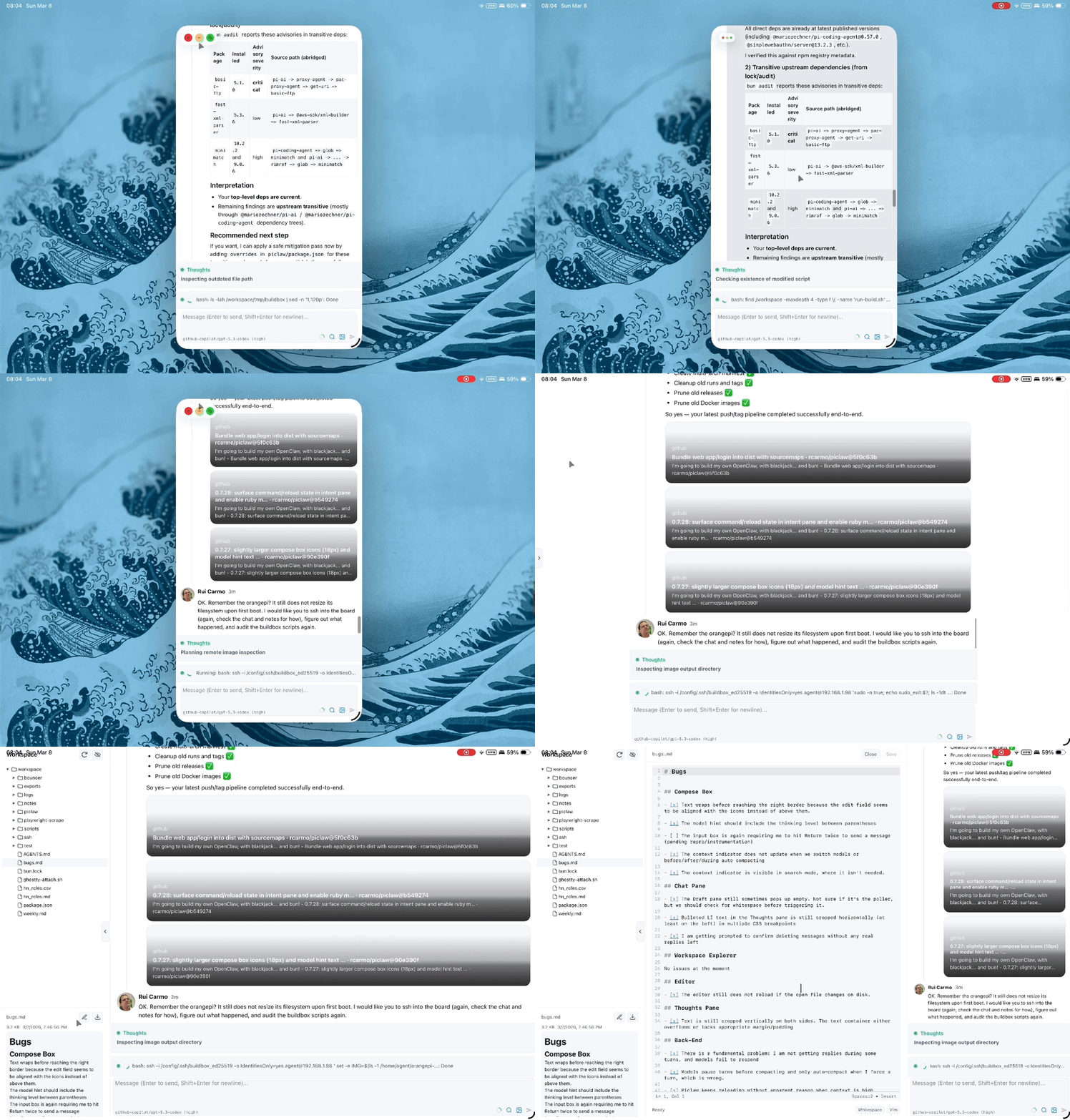
- Streaming web UI — real-time chat with Markdown, KaTeX, Mermaid, and Adaptive Cards
- Persistent agent state — SQLite-backed messages, media, tasks, token usage, and encrypted keychain
- Workspace-native workflow — browse files, preview documents, upload attachments, edit code, and reference files in prompts
- Built-in tools — Ghostty-based terminal, code editor, Office/PDF/CSV/image/video viewers, draw.io, kanban board and mindmap editors, VNC client, Chromium CDP browser automation, and Windows UI automation
- Agent control features — steering, queued follow-ups, threading, side prompts, autoresearch experiment loops, and scheduled tasks
- Optional auth and channels — passkeys/TOTP for the web UI, plus optional WhatsApp integration
Quick start
[!IMPORTANT]
The supported runtime path is the published image:ghcr.io/rcarmo/piclaw.Source builds are mainly for development. If something looks wrong in production, validate it against GHCR first.
Run with Docker
mkdir -p ./home ./workspace

docker run -d \
  --name piclaw \
  --restart unless-stopped \
  -p 8080:8080 \
  -e PICLAW_WEB_PORT=8080 \
  -v "$(pwd)/home:/config" \
  -v "$(pwd)/workspace:/workspace" \
  ghcr.io/rcarmo/piclaw:latest
Open http://localhost:8080.
[!NOTE]
If you plan to use SSHFS (sshfsinside the container), start with FUSE-enabled permissions:docker run -d \ --name piclaw \ --restart unless-stopped \ -p 8080:8080 \ --device /dev/fuse \ --cap-add SYS_ADMIN \ -e PICLAW_WEB_PORT=8080 \ -v "$(pwd)/home:/config" \ -v "$(pwd)/workspace:/workspace" \ ghcr.io/rcarmo/piclaw:latestDepending on host/container security policy,
--security-opt apparmor:unconfinedmay also be required.
To use pi interactively inside the container:
docker exec -u agent -it piclaw bash
cd /workspace && pi
| Mount | Container path | Contents |
|---|---|---|
| Home | /config |
Agent home (.pi/, .gitconfig, .bashrc) |
| Workspace | /workspace |
Projects, notes, and piclaw state |
[!WARNING]
Never delete/workspace/.piclaw/store/messages.db. It contains chat history, media, and task state.
Install directly from the repo with Bun
[!NOTE]
This is the Docker-free install path.Experimental for now: Bun-first, Linux/macOS, and intended to avoid a manual build step, but not yet positioned as the main production install route or a generally supported deployment target.
It also runs directly on Windows — with native desktop automation via Win32 FFI — but Windows is not officially supported. It technically works, but you're on your own.
One reason this path exists is to support people who want to run PiClaw on low-end ARM SBCs, lightweight VMs, or other sandboxed environments where Docker is not the best fit or is not available.
bun add -g github:rcarmo/piclaw
A postinstall script runs automatically to fetch the draw.io viewer (~35 MB),
which is too large to commit to git. All other vendored assets and web bundles
are committed and available immediately.
If postinstall is skipped (e.g. --ignore-scripts), run manually:
bun run build:vendor:drawio
For a full development rebuild (requires devDependencies):
bun install               # includes devDependencies
bun run build:web         # rebuild web bundles from source
bun run build             # recompile TypeScript (optional — Bun runs .ts directly)
See docs/install-from-repo.md for scope and caveats.
Configure models
Type /login in the web chat to configure providers and models. The terminal (pi /login) is also available as a fallback.
[!IMPORTANT]
You do not need to set provider API keys in piclaw environment variables.
PiClaw reuses provider credentials configured in Pi Agent settings.
The web terminal is disabled by default. Set PICLAW_WEB_TERMINAL_ENABLED=1 to enable it. See docs/configuration.md for details.
[!NOTE]
The/logincard flow works with GitHub Copilot, Codex, and standard OpenAI providers. For providers that need manual configuration, usepi /loginin the terminal.
Web UI
PiClaw is single-user, mobile-friendly, and streams updates over SSE.
Chat features
- Thought and draft panels during streaming
- Live steering and queued follow-ups
- Adaptive Cards with persisted submissions
/btwside conversations- File attachments and downloads
- Link previews
- Threaded follow-up turns
- Themes and tinting via
/themeand/tint - Mobile-friendly layout with webapp manifest
Workspace explorer
The sidebar shows /workspace with auto-refresh.
- Preview files
- Add file-reference pills to prompts
- Upload files by drag-and-drop
- View folder sizes in the starburst explorer
Editor
Open the built-in editor from a text-file preview.
- CodeMirror 6
- Search and replace
- Save with dirty-state tracking
- Line wrapping, numbers, active-line highlight
- Syntax highlighting for JS/TS, Python, Go, JSON, CSS, HTML, YAML, SQL, XML/SVG, Markdown, and Shell
- Lazy-loaded local bundle; no CDN dependency
Browser and desktop automation
cdp_browser— bundled Chromium/Edge/Chrome automation via the Chrome DevTools Protocol for tab listing, navigation, JS evaluation, DOM clicking, and screenshotswin_*tools — bundled Windows-only desktop automation viabun:ffi+ IAccessible for window enumeration, screenshots, tree inspection, clicking, typing, and graceful/forced close
The Windows desktop tools are safe to ship cross-platform because they no-op off Windows, while cdp_browser works across Linux, macOS, and Windows when a Chromium-based browser is available.
Windows support (experimental)
PiClaw runs natively on Windows via bun install. The bundled win_* tools provide full desktop automation through bun:ffi calling directly into Win32 system DLLs — no PowerShell, no compiled helpers, nothing for Defender to flag:
win_list_windows— enumerate visible windows with titles, PIDs, boundswin_screenshot— capture any window to BMP/PNG (works through lock screen)win_find_elements— discover UI elements via IAccessible/MSAA (sees inside Edge, VS Code, WPF, UWP)win_click— click by coordinates or element namewin_type— send keystrokes with Unicode supportwin_tree— dump the full accessibility tree for a windowwin_kill— close or force-kill windows by title
These tools no-op on non-Windows platforms. Not officially supported. Works anyway.
Viewers
- Draw.io — self-hosted editor with SVG/PNG/XML export back to workspace
- Office documents —
.docx,.xlsx,.pptx,.odt,.ods,.odp - CSV/TSV — dedicated table viewer
- PDF — inline viewer
- Images — inline image viewer
- Video — dedicated tab-based viewer
- Kanban boards —
*.kanban.mdfiles open in a drag-and-drop board editor (Obsidian Kanban compatible) - Mindmaps —
*.mindmap.yamlfiles open in a D3/SVG visual editor - VNC remote display — connect to remote machines from a tab (experimental)
Configuration
Key environment variables:
| Variable | Default | Purpose |
|---|---|---|
PICLAW_WEB_PORT |
8080 |
Web UI port |
PICLAW_WEB_TERMINAL_ENABLED |
0 |
Enable the authenticated web terminal |
PICLAW_WEB_TOTP_SECRET |
(empty) | Base32 TOTP secret; enables login gate (or leave unset and initialize with /totp) |
PICLAW_WEB_PASSKEY_MODE |
totp-fallback |
totp-fallback, passkey-only, or totp-only |
PICLAW_ASSISTANT_NAME |
PiClaw |
Display name in the UI |
PICLAW_KEYCHAIN_KEY |
(empty) | Master key for encrypted secret storage |
PICLAW_TRUST_PROXY |
0 |
Enable when behind a reverse proxy or tunnel |
For the full list, auth setup (TOTP/passkeys), and reverse proxy configuration, see docs/configuration.md.
Documentation
- Configuration
- Reverse proxy / Cloudflare Tunnel
- Architecture
- Development
- Extension UI contract
- Web pane extensions
- Storage model
- Runtime flows
- Tools and skills
- Keychain
- Cross-instance interop
- Release process
Credits
- rcarmo/agentbox
- qwibitai/nanoclaw
- badlogic/pi-mono
- davebcn87/pi-autoresearch — autonomous experiment loop by Tobi Lutke and David Cortés (vendored under
runtime/vendor/autoresearch/)
Licence
MIT
Yorumlar (0)
Yorum birakmak icin giris yap.
Yorum birakSonuc bulunamadi