brightspace-mcp-server
Health Gecti
- License — License: MIT
- Description — Repository has a description
- Active repo — Last push 0 days ago
- Community trust — 10 GitHub stars
Code Uyari
- network request — Outbound network request in src/api/client.ts
- network request — Outbound network request in src/api/version-discovery.ts
Permissions Gecti
- Permissions — No dangerous permissions requested
This tool is a Model Context Protocol (MCP) server that connects AI clients (like Claude, ChatGPT, and Cursor) directly to a university's D2L Brightspace platform. It allows users to ask the AI to fetch, summarize, and interact with their personal academic data, such as grades, assignments, and syllabi.
Security Assessment
Overall risk: Medium. This server accesses highly sensitive personal data, requiring your Brightspace login credentials and handling Multi-Factor Authentication (MFA) during the setup process. The codebase makes expected outbound network requests to the Brightspace APIs (in `client.ts` and `version-discovery.ts`) to fetch your course data. The automated scan found no hardcoded secrets, and the tool does not request dangerous system permissions. However, because you must authenticate through this third-party package, the risk is Medium; users are inherently trusting the developer with their active academic session cookies or tokens.
Quality Assessment
The project is actively maintained, with its most recent code push happening just today. It utilizes the highly permissive MIT license and features a clear, detailed README. Community trust is currently low but growing, as indicated by its 10 GitHub stars. It is written in TypeScript, which is generally considered a safe and inspectable language for this type of integration.
Verdict
Use with caution: the code itself appears safe, clean, and well-maintained, but granting third-party academic credentials requires trusting the author with your university session data.
MCP server for Brightspace (D2L). Check grades, due dates, assignments, announcements, rosters, syllabus & course content via Claude, ChatGPT, Cursor, Windsurf, or any MCP client. Works with any school. npm: npx brightspace-mcp-server@latest
Brightspace MCP Server
By Rohan Muppa, ECE @ Purdue
Talk to your Brightspace courses with AI. Ask about grades, due dates, announcements, and more. Works with Claude, ChatGPT, Cursor, and Windsurf.
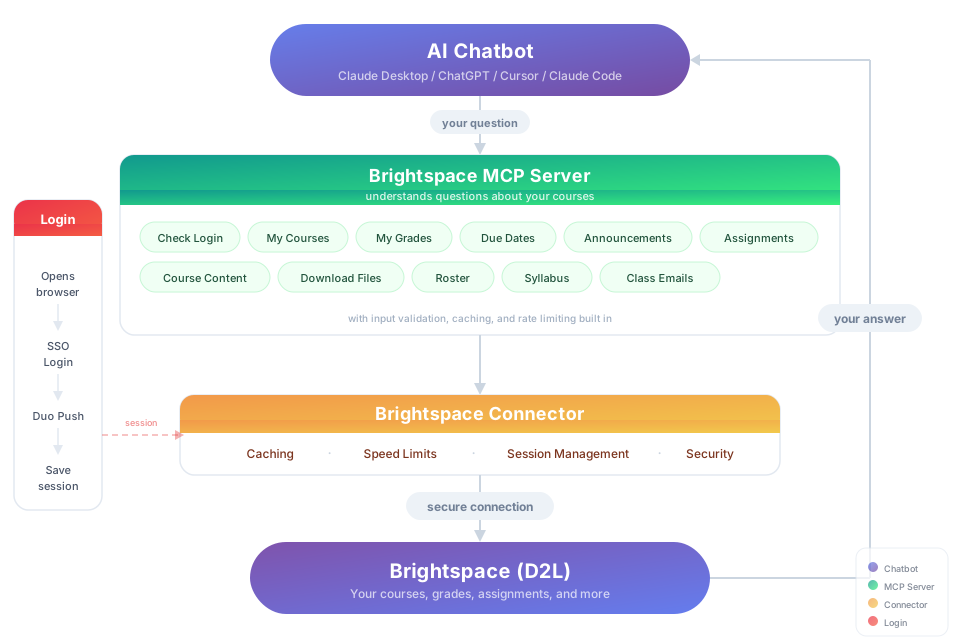
This is an MCP (Model Context Protocol) server that connects your AI to D2L Brightspace so it can pull your grades, assignments, syllabus, and course content on demand.
Works with any school that uses D2L Brightspace, including Purdue, USC, and hundreds more.
Try It
"Download my lecture slides and turn them into interactive flashcards"
"Grab every assignment rubric and build me a visual dashboard of what I need to hit for an A"
Install
You need: Node.js 18+ (download the LTS version)
Option 1: Let your AI do it
Paste this into Claude Code, Cursor chat, Windsurf, Copilot, Codex, or any AI coding assistant:
I want to connect my Brightspace LMS to this AI client using the brightspace-mcp-server package on npm. Here's the repo: https://github.com/RohanMuppa/brightspace-mcp-server

Do everything needed to get it working:

1. First, check if Node.js 18+ is installed. If not, tell me how to install it and stop.

2. Run the setup wizard to save my Brightspace credentials:
   npx brightspace-mcp-server setup
   (If I'm a Purdue student, use: npx brightspace-mcp-server setup --purdue)
   This will open a browser for login and MFA. Let me complete that before continuing.

3. After setup finishes, configure this AI client to use the MCP server.
   The server command is: npx -y brightspace-mcp-server@latest
   Search the internet for how to configure MCP servers in general for
   whatever client I'm using. Every client has a different config format
   and file path. On Windows, npx must be wrapped with cmd /c.

4. Tell me to restart this AI client so it picks up the new MCP server.
Option 2: Run it yourself
npx brightspace-mcp-server setup
Purdue students can add --purdue to skip entering the school URL:
npx brightspace-mcp-server setup --purdue
The wizard walks you through login, MFA, and auto configures Claude Desktop and Cursor. Restart your AI client when it finishes.
Using a different client? Configure it manually.Search your client's docs for how to add an MCP server. The server command to register is:
npx -y brightspace-mcp-server@latest
On Windows, npx must be wrapped: cmd /c npx -y brightspace-mcp-server@latest
You still need to run npx brightspace-mcp-server setup first to save your credentials.
Session Expired?
Sessions re-authenticate automatically. If auto-reauth fails (e.g., you missed the Duo push):
npx brightspace-mcp-server auth
What You Can Ask About
| Topic | Examples |
|---|---|
| Grades | "Am I passing all my classes?" · "Compare my grades across all courses" |
| Assignments | "What's due in the next 48 hours?" · "Summarize every assignment I haven't turned in yet" |
| Announcements | "Did any professor post something important today?" · "What did my CS prof announce this week?" |
| Course content | "Find the midterm review slides" · "Download every PDF from Module 5" |
| Roster | "Who are the TAs for ECE 264?" · "Get me my instructor's email" |
| Discussions | "What are people saying in the final project thread?" · "Summarize the latest discussion posts" |
| Planning | "Build me a study schedule based on my upcoming due dates" · "Which class needs the most attention right now?" |
Troubleshooting
"Not authenticated" → Run npx brightspace-mcp-server auth
AI client not responding → Quit and reopen it completely (not just close the window)
Need to redo setup → Run npx brightspace-mcp-server setup again
Config location → ~/.brightspace-mcp/config.json (you can edit this directly)
Browser launch times out (Windows) → Open Task Manager, end all Chromium/Chrome processes, and try again. If it persists, add the Playwright Chromium folder to your antivirus exclusion list.
Auth fails in WSL or Docker → Chromium dependencies may be missing. Run npx playwright install-deps chromium to install them. The server automatically adds --no-sandbox for these environments.
Headless login fails (Windows) → SSO login flows can fail in headless mode on Windows. The default is headed (a browser window opens). If you set D2L_HEADLESS=true and auth fails, switch back to headed mode.
Security
- Credentials stay on your machine at
~/.brightspace-mcp/config.json(restricted permissions) - Session tokens are encrypted (AES-256-GCM)
- All traffic to Brightspace is HTTPS
- Nothing is sent anywhere except your school's login page
Contributing & Forking
Want to add your school, build a new tool, or fix something? Fork the repo, make your changes, and open a pull request. If it gets merged, it ships to every user automatically.
git clone https://github.com/RohanMuppa/brightspace-mcp-server.git
cd brightspace-mcp-server
npm install
npm run dev
Add your school: Add a preset to SCHOOL_PRESETS in src/setup.ts. If your school's login flow is different, add a handler in src/auth/.
Add a new tool: Create a file in src/tools/, add the schema in schemas.ts, export it in src/tools/index.ts, and register it in src/index.ts. Use any existing tool as a template.
Run your own version: You can also fork and run it independently. Clone it, build it, and point your AI client to the local build/index.js instead of using npx. No npm needed. Just know that forks don't receive updates from this repo automatically. If your changes could help others, consider opening a PR.
Licensed under the MIT License.
Updates
Automatic. Every time your AI client starts a session, it runs npx brightspace-mcp-server@latest which pulls the newest version from npm. No action needed.
If you ever suspect you're on an old version, run npm cache clean --force to clear the cache.
Proudly made for Boilermakers by Rohan Muppa 🚂
Report a bug · MIT · Copyright 2026 Rohan Muppa
Yorumlar (0)
Yorum birakmak icin giris yap.
Yorum birakSonuc bulunamadi