scrunny
Health Warn
- License — License: MIT
- Description — Repository has a description
- Active repo — Last push 0 days ago
- Low visibility — Only 7 GitHub stars
Code Fail
- rm -rf — Recursive force deletion command in build.sh
- rm -rf — Recursive force deletion command in scripts/create-signing-identity.sh
- rm -rf — Recursive force deletion command in scripts/make-dmg.sh
- rm -rf — Recursive force deletion command in scripts/render-demos.sh
Permissions Pass
- Permissions — No dangerous permissions requested
No AI report is available for this listing yet.
Native macOS screenshots for you and your agents. ⌘⇧4 copies a framed capture, and AI agents take, find and organize screenshots over MCP. On-device, MIT.





English · Português
Press the shortcut, select an area, paste. The image is already framed on your clipboard.
Every capture is kept in a library of plain folders on your Mac, sorted by app and site.
Website · Install · Shortcuts · Privacy · Follow the build · ☕ Support
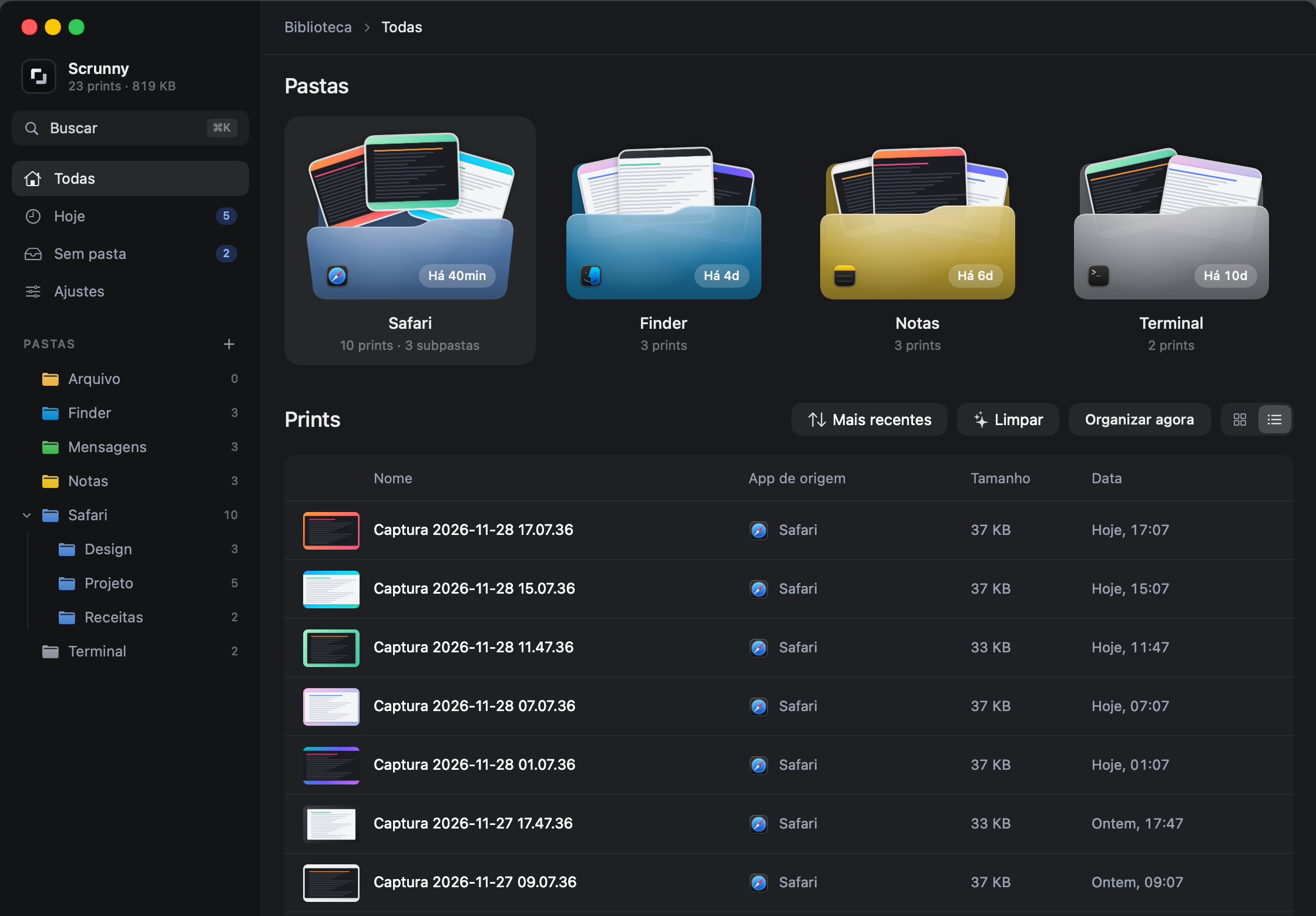
The library with sample data. The app is in English and Portuguese (Brazil), with a language picker in Settings.
🎬 Features
Select, and it is already framedPress the shortcut and drag over an area. The framed image is on the clipboard and a thumbnail shows up in the corner without taking focus. Paste it anywhere. |
 |
Point at what mattersArrows, rectangles, ellipses, pen, highlighter, text and pixelate. Every annotation stays editable after you close the editor. |
 |
A frame that fitsEight built-in backgrounds or your own color, gradient or image. Margin and corners update live. |
 |
Ready for a postPick a canvas (16:9, 4:3, 1:1, 4:5, 9:16 or Carrossel X) and place the screenshot freely: drag, scale or use a preset like Sangrar à direita to push it off an edge. Add your own PNG figures, such as a logo, in front of or behind the window, then move, turn or hide them. Dividir para o X cuts the image into 2, 3 or 4 numbered slices. |
 |
Every capture, keptFolders per app, opened with a fan of the latest captures. Grid or list, search with ⌘K. |
 |
Sorts itselfCaptures go to a folder for their source app, and a subfolder for the site in browsers. Organizar agora sorts what is left, with a preview and undo. |
 |
Clean up without fearDelete a selection or everything older than 7 or 30 days. It all goes to the macOS Trash, with Desfazer. |
 |
Rendered frame by frame from the app's own views with sample data. The desktop, the dashboard and the chat around them are mocks.
🚀 Install
Terminal
curl -fsSL scrunny.runelay.com/install | sh
Download
- Download Scrunny.dmg, open it and drag Scrunny to Applications.
- Open Scrunny. macOS blocks the first open, because the app is signed with a self-signed certificate, not an Apple Developer ID, and it is not notarized.
- macOS 15 and later: open System Settings → Privacy & Security, scroll to the message about Scrunny and click Open Anyway.
- macOS 13 and 14: right-click Scrunny in Applications, choose Open, then Open again.
- Or in Terminal:
xattr -dr com.apple.quarantine /Applications/Scrunny.appremoves the download flag that makes Gatekeeper check the app.
Releases are signed with the maintainer's local certificate, the same one every time, so the Screen Recording permission survives updates downloaded from releases. A build from source is signed with your own certificate instead, so switching between the two asks for the permission again.
There is no Homebrew formula yet.
Build from source
You need Xcode or the Command Line Tools (xcode-select --install) with the macOS 15 SDK or newer.
git clone https://github.com/runelay/scrunny.git
cd scrunny
./scripts/create-signing-identity.sh
./build.sh
open /Applications/Scrunny.app
build.sh compiles with swiftc for arm64 and x86_64, assembles build/Scrunny.app, signs it and copies it to /Applications, replacing any Scrunny already there. To build without installing, run SKIP_INSTALL=1 ./build.sh.
To update a build from source, quit Scrunny, then run git pull and ./build.sh. A downloaded release updates itself, see Updates. ./scripts/make-dmg.sh builds the same DMG that is published in releases.
Why a signing identity
macOS ties the Screen Recording permission to the app's signature. An ad-hoc signature changes on every build, so macOS would forget the permission each time. build.sh signs with a certificate named Scrunny Local and stops if it is missing.
scripts/create-signing-identity.sh creates that certificate once:
- self-signed, valid for code signing only, for 10 years
- stored with its private key in your login keychain, usable by
/usr/bin/codesign - no trust settings added, so nothing else on your Mac starts trusting it
- temporary files live in a private folder that is removed when the script ends
- if the identity already exists, it does nothing
The first time it signs, macOS may ask for your login password so codesign can use the key. This certificate is local to your Mac. It is not an Apple Developer ID and the app is not notarized.
To remove it:
security delete-identity -c "Scrunny Local"
Uninstall
- If Scrunny uses ⌘⇧4, open Ajustes (⌘,) and click Devolver ⌘⇧4 ao macOS first. Otherwise the system shortcut stays off.
- Turn off Abrir na inicialização in Ajustes and quit from the menu bar icon.
- Delete
/Applications/Scrunny.appand remove the certificate as above. - Your captures stay in
~/Pictures/Scrunny. Delete that folder only if you no longer want them.
Compatibility
| Tested | One Apple silicon MacBook Air, macOS 26 |
| Built for, untested | macOS 13 and 14, Intel Macs |
| Building | Only Swift 6.4 was tried. Apple does not ship the macOS 15 SDK tools for macOS 13, so build on a newer Mac. |
| Language | English and Portuguese (Brazil), picked in Settings |
👋 First run
A guided setup opens. Each step checks itself and moves on.
- Start: click Configurar. "Abrir na inicialização" (open at login) is turned on here. Switch it off on the same screen if you do not want it.
- Screen Recording: Permitir adds Scrunny to the list and opens System Settings. You flip the switch. If it is on and still does not work, Já liguei e não funcionou offers a reset of Scrunny's permission only (
tccutil reset ScreenCapture com.andersonbr.scrunny). - Shortcut: take ⌘⇧4 from macOS or record another one.
- Test: a real capture with the shortcut, then pick the default background.
- Done: the library opens.
Scrunny → Refazer configuração runs it again. If a permission or the shortcut breaks later, the app shows only that step.
What taking ⌘⇧4 does
⌘⇧4 belongs to macOS. Two apps cannot own the same shortcut, so the button Usar ⌘⇧4 no Scrunny changes a system preference. It only happens when you click.
- It turns off one entry, number 30 of
AppleSymbolicHotKeysincom.apple.symbolichotkeys. This is the same checkbox as System Settings → Keyboard → Keyboard Shortcuts → Screenshots. - The previous value of that entry is saved first. If the backup fails, nothing is changed.
- The other entries are compared before and after the write.
- To apply it without a logout, Scrunny runs
activateSettings -u, a tool inside a private macOS framework. If that fails, it opens Keyboard settings so you can do it by hand. - Ajustes → Devolver ⌘⇧4 ao macOS restores the saved value and moves Scrunny to ⌃⇧4.
If you would rather not touch it, record any other shortcut.
🖥️ Menu bar and appearance
Scrunny lives in the menu bar, with no Dock icon. It shows up in the Dock and in ⌘Tab only while the library, an editor, Ajustes, the setup or Sobre o Scrunny is open, and goes back to the menu bar when you close the last one. The thumbnail after a capture never brings it to the Dock. Ajustes → Mostrar no Dock keeps the icon there all the time. A launch at login stays silent.
The menu bar icon has Capturar área, Abrir biblioteca, Ajustes…, Sobre o Scrunny, Procurar atualizações… and Sair.
Ajustes → Aparência follows the system by default, or stays on Claro (light) or Escuro (dark). It changes every window at once. The background of your captures and the images you copy or save never change with it.
🔄 Updates
Once a day at most, Scrunny asks GitHub's public API which release is the latest (api.github.com/repos/runelay/scrunny/releases/latest). When there is a newer one, the menu bar menu shows Atualizar para 0.x.y, and Ajustes and Sobre o Scrunny show the release notes with an Atualizar button.
Atualizar downloads Scrunny.dmg from that release and checks it before touching anything: a valid signature (codesign --verify --strict --deep), the same bundle identifier, the version of the release, and a signature from the same certificate as the running app. If any check fails it stops and says why. Then it moves the old app to the Trash, puts the new one in /Applications and reopens. Open editors are saved first.
Ajustes → Procurar atualizações automaticamente turns the daily check off. Procurar agora still checks when you click it.
🎯 Shortcuts
| Anywhere | |
|---|---|
| ⌘⇧4, or the one you recorded | Capture. Drag for an area, Space for a window, Esc to cancel |
| Library | |
|---|---|
| ⌘K | Search by name, folder or date |
| Click, ⌘-click, ⇧-click, ⌘A | Select |
| Double click, Return | Open in the editor |
| ⌘C | Copy framed |
| ⌘S | Save to the Desktop |
| Delete | Move to the Trash |
| ⌘Z | Undo the last move, delete or organize |
| ⌘0 · ⌘, | Open the library · Settings |
| Editor | |
|---|---|
| V · A · R · O | Select · arrow · rectangle · ellipse |
| P · H · T · B | Pen · highlighter · text · pixelate |
| M | Position: drag the screenshot or a figure, scroll or pinch to scale, ⌥-scroll or rotate to turn a figure, double click resets |
| ⇧ while drawing | Arrow snaps to 45°, shapes stay square |
| ⌘Z · ⌘⇧Z | Undo · redo |
| Delete | Remove the selected annotation or figure |
| ⌘C | Copy and close |
| ⌘S | Save to the Desktop |
| Esc | Close |
Edits go back to the library on copy, save and close.
📸 After a capture
The framed image is on the clipboard and the thumbnail shows up. It goes away after 6 seconds or when you click elsewhere, and waits while the pointer is over it. In Ajustes you can open the editor right away instead, or copy without the frame.
Sorting uses the app under the pointer when the selection ends. For browsers, the site is guessed from the window title. Rules in Ajustes ("title contains", "app") are checked first. Captures you moved by hand are left alone. Organizar agora sorts what is in Sem pasta (unfiled), with a preview and undo.
📁 Where captures live
~/Pictures/Scrunny/
  Captura 2026-11-28 15.42.10.scrunny/   one folder per capture
    original.png                         untouched
    .meta.json                           annotations, background, margin, corners, date, source app
    .thumb-2.jpg                         framed thumbnail (up to 640 px)
  Safari/                                a folder (up to 2 levels)
    .scrunny-folder                      folder color and app
    Captura ….scrunny/
  .scrunny/                              settings.json, backgrounds/, incoming/
The framed image is rendered when you copy, save or drag. If .meta.json is missing or broken, the capture stays in the library with the default background.
🤖 Agents (MCP)
Claude Code, Codex, Cursor and any other MCP client can take, find, read, name and organize your screenshots. The agent starts Scrunny --mcp, a small bridge that talks to the running app over a local socket (~/Pictures/Scrunny/.scrunny/agent.sock, readable only by you), so captures use the app's Screen Recording permission and the library updates live. If Scrunny is closed, the bridge opens it in the background.
Setup. In Ajustes → Agentes, click Conectar ao Claude Code, or run:
claude mcp add scrunny -- /Applications/Scrunny.app/Contents/MacOS/Scrunny --mcp
For Cursor, Codex and other clients that take a JSON config:
{
  "mcpServers": {
    "scrunny": {
      "command": "/Applications/Scrunny.app/Contents/MacOS/Scrunny",
      "args": ["--mcp"]
    }
  }
}
Tools.
| Tool | What it does |
|---|---|
take_screenshot |
Capture the screen, an app's window, a region or a selection you drag; saves it in the library and returns the image |
list_screenshots |
Browse by folder, app, date or name, newest first |
search_screenshots |
Find screenshots by the text in them (on-device OCR, Portuguese and English) and by name |
get_screenshot |
Metadata, OCR text and the image, original or framed |
rename_screenshot |
Give a capture a descriptive name |
move_screenshots |
Move captures to a folder like Safari/Design, created if missing |
list_folders · create_folder |
The folder tree with counts, and new folders |
delete_screenshots |
Move captures to the macOS Trash |
organize_library |
File unfiled captures by app and site |
copy_screenshot |
Put a capture on the clipboard |
Example prompts.
- "Take a screenshot of the Safari window and tell me what's wrong with the layout."
- "Find the screenshot with the error message from yesterday and explain it."
- "Rename today's screenshots to describe what's in them and move the Figma ones to Design/Mockups."
- "Capture the simulator, then copy it framed so I can paste it in the PR."
Text is recognized with Apple's Vision framework after each capture, at low priority, and stored as text in .meta.json. Older captures are read when a search needs them, a few at a time. Captures taken by an agent are marked with "origin": "agent" in their source.
🔒 Privacy
- One network request: the update check, a GET to GitHub's public API at most once a day, with a plain
Scrunny/<version>user agent and no cookies. It sends no captures, file names or personal data, only what any HTTPS request carries (your IP address). Turn it off in Ajustes. Downloading an update happens only when you click Atualizar. - No account, telemetry or crash reports.
- Agents (MCP) talk to the app over a local socket only, readable by your user alone, and add no network request. Once you connect an agent, it can capture your screen without asking each time, so connect only agents you trust.
- Text recognition (OCR) runs on the Mac with Apple's Vision framework.
- The only permission it asks for is Screen Recording. It does not ask for Accessibility. macOS may ask for access to the Desktop folder when Scrunny saves there.
- The capture itself is taken by macOS (
/usr/sbin/screencapture). - The source app and its window title are read at capture time to sort the file, and stored only in
.meta.json. A window title can hold private text, so keep that in mind before sharing a.scrunnyfolder. - Pixelate covers the image you export, not the original.
original.pngstays untouched on disk. Share the copied or saved image, not the folder. - While the thumbnail is visible, Scrunny listens for mouse clicks to know when to hide it. It stops when the thumbnail goes away.
⚡ Performance
Measured on one Apple silicon MacBook Air. Expect different numbers on other machines.
| App size, 0.1.1 | 3.5 MB, both architectures |
| CPU when idle, over 30 s, 0.1.1 | 0.0% |
| Memory when idle in the menu bar, 0.1.1 | 50 MB, after opening and closing the library |
| Memory, library open with 6 captures | 43 MB, measured before 0.1.1 |
| Memory, test library with 1,200 captures, not scrolled | 83 MB, measured before 0.1.1 |
🗺️ Roadmap
- Rename captures
- Create subfolders by hand
- Drop captures onto folder cards
- Signed and notarized release
- Homebrew tap
- Testing on macOS 13, macOS 14 and Intel
Want to help? See CONTRIBUTING.md.
🧰 More open source
- runelay: open-source, self-hosted MCP gateway. One MCP endpoint for every account, skill and memory your agents use. runelay.com
- speech.md: on-device voice transcription for macOS. Dictation, meetings and audio files, nothing leaves your Mac.
☕ Support Scrunny
Scrunny is free, MIT licensed and built by one person. If it saves you time, sponsoring it on GitHub keeps it alive: github.com/sponsors/Andsu-dev.
MIT · made by @andersonbrdev. Follow the build on X.
Reviews (0)
Sign in to leave a review.
Leave a reviewNo results found