limpet
Health Uyari
- No license — Repository has no license file
- Description — Repository has a description
- Active repo — Last push 0 days ago
- Community trust — 12 GitHub stars
Code Basarisiz
- rm -rf — Recursive force deletion command in app/scripts/setup-local-backdrop.sh
- spawnSync — Synchronous process spawning in app/scripts/setup-node-pty.js
- process.env — Environment variable access in app/scripts/setup-node-pty.js
- fs module — File system access in app/scripts/show-backdrop-demo.js
- exec() — Shell command execution in app/src/accounts.js
- child_process — Shell command execution capability in app/src/agent-scan.js
- exec() — Shell command execution in app/src/agent-scan.js
- process.env — Environment variable access in app/src/agent-scan.js
- fs module — File system access in app/src/agent-scan.js
- child_process — Shell command execution capability in app/src/backdrop.js
- process.env — Environment variable access in app/src/backdrop.js
- fs module — File system access in app/src/backdrop.js
- child_process — Shell command execution capability in app/src/codex-import.js
- os.homedir — User home directory access in app/src/codex-import.js
- process.env — Environment variable access in app/src/codex-import.js
- fs module — File system access in app/src/codex-import.js
Permissions Gecti
- Permissions — No dangerous permissions requested
Bu listing icin henuz AI raporu yok.
Terminal app for AI coding agents on macOS, Windows and Linux: run multiple Claude Code, Codex, GitHub Copilot and OpenCode accounts with usage limits, switch account mid-chat, SSH that auto-reconnects, inline images.

limpet
A terminal for AI coding agents on macOS, Windows and Linux.
Run any number of Claude Code, Codex, GitHub Copilot and OpenCode accounts side by side,
see each subscription's usage, switch account mid-chat, and keep SSH sessions alive.



Download for Mac (Apple silicon and Intel .dmg) · Windows (.exe installer) · Linux (AppImage)
limpet is a free, open-source tabbed terminal app (Electron + xterm.js) built
for people who live in coding agents. Every Claude Code, Codex, Copilot CLI and
Antigravity login gets its own command (claude1, codex2, ...), the account
menu shows each one's 5-hour and weekly limits, and a conversation can move to
another account or agent when one runs out. Around that: xssh, an SSH client
that reconnects itself after Wi-Fi drops or sleep; peek for images inline in
the terminal; drag-and-drop upload over SSH; and on Windows, PowerShell that
understands Linux commands. On macOS it looks and behaves like a native app:
tabs in the title bar, SF Mono, Terminal-style menus and shortcuts.
Named after the mollusc that stays stuck to its rock no matter
how hard the waves hit, which is basically what xssh does. Type
limpet in the shell to meet the mascot.
Windows (PowerShell) and, since the macOS port, macOS and Linux (zsh or bash): see macOS and Linux.
Linux muscle memory, PowerShell underneath
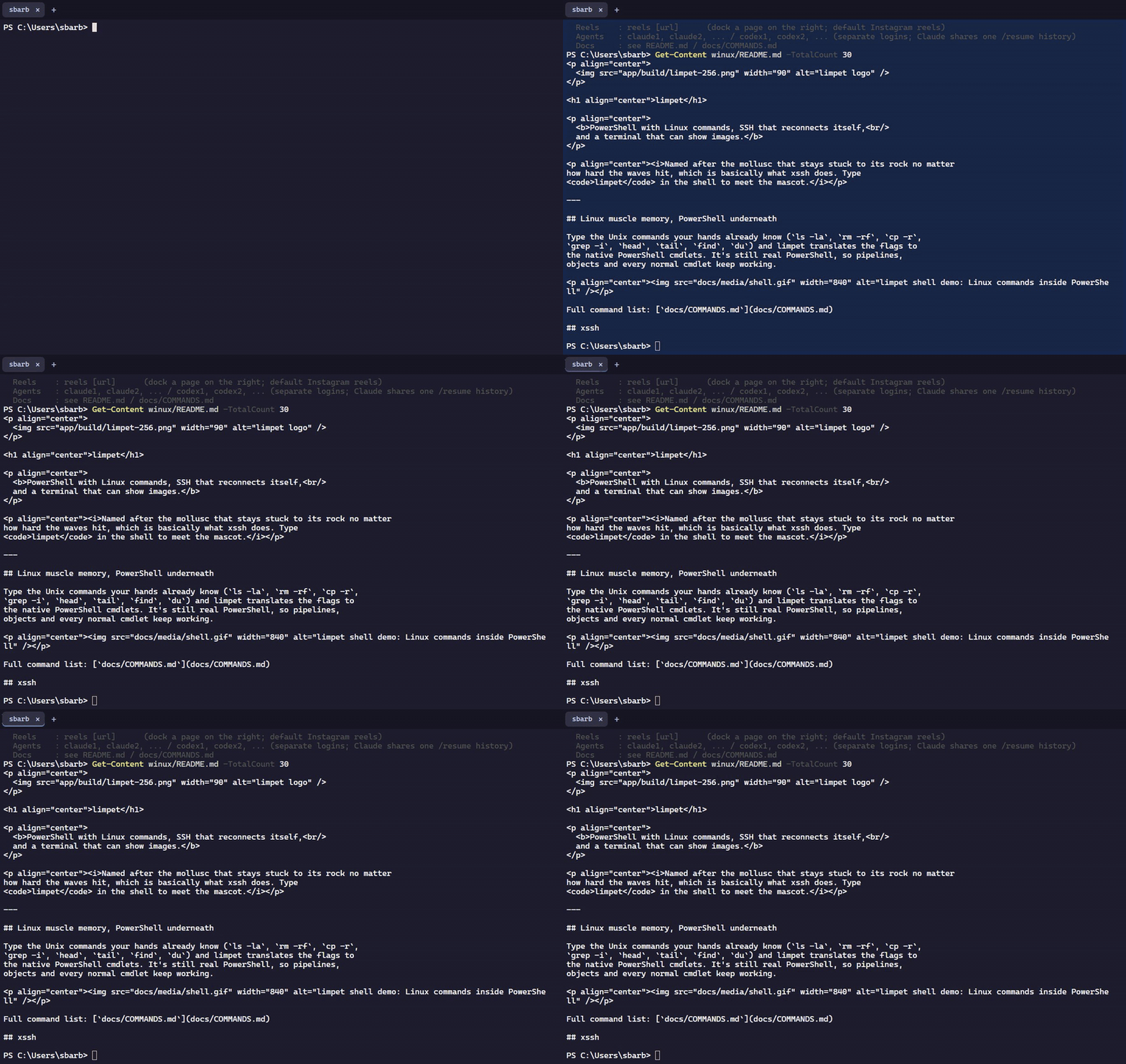
Type the Unix commands your hands already know (ls -la, rm -rf, cp -r,grep -i, head, tail, find, du) and limpet translates the flags to
the native PowerShell cmdlets. It's still real PowerShell, so pipelines,
objects and every normal cmdlet keep working.
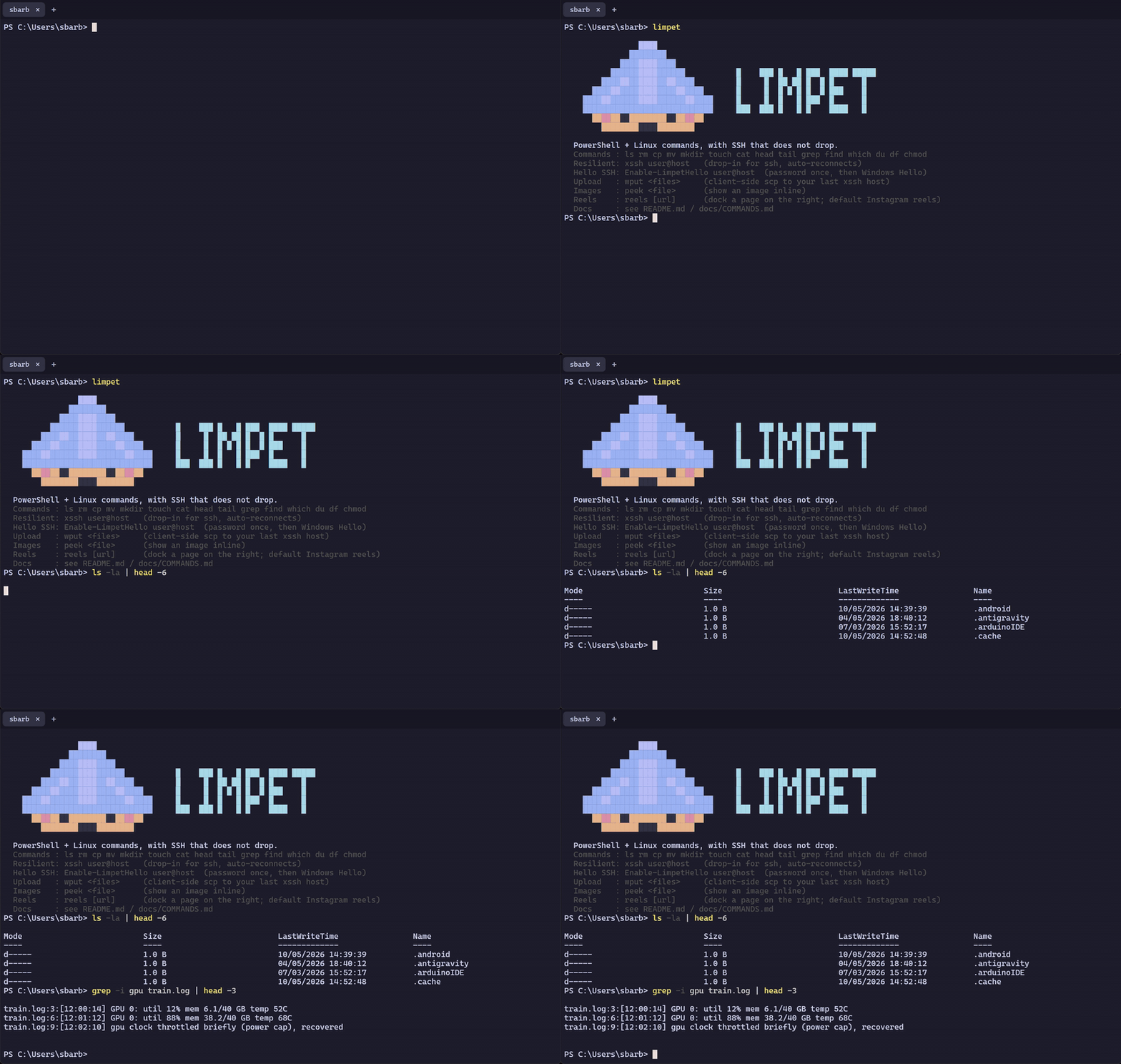
Full command list: docs/COMMANDS.md
xssh
A drop-in for ssh that reconnects with your key when the link drops. British train Wi-Fi, a sleeping laptop, a flaky VPN: instead of a dead terminal you
get a short pause and then your session back. Pair it with remote tmux and
your programs survive too.
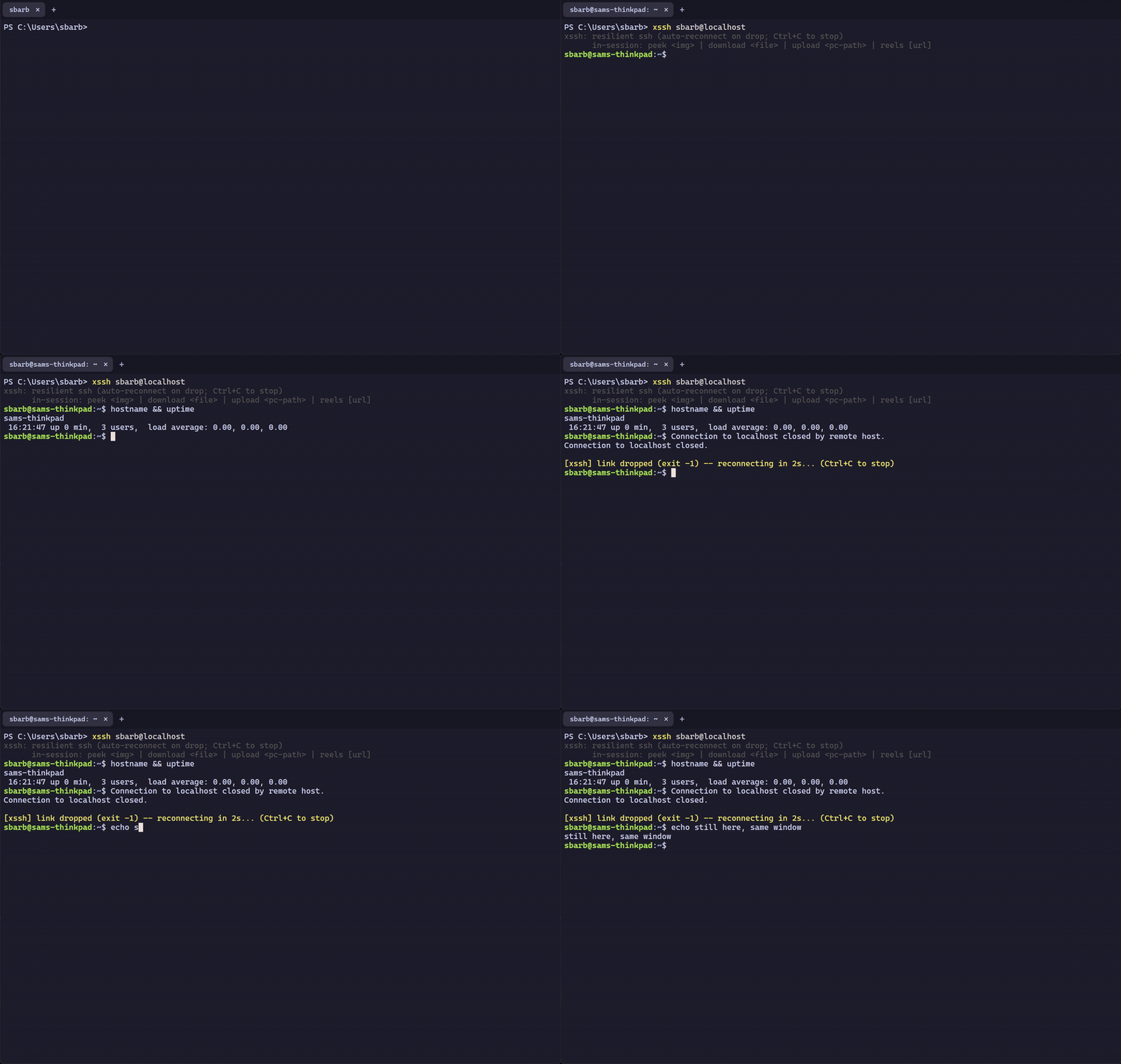
xssh user@host             # use it exactly like ssh
xssh -NoResume user@host   # reconnect to a fresh shell instead of the live one
The reconnect is entirely client-side, nothing to install on the server. If
your machine itself goes offline (lid closed, network change), xssh waits
for the network to come back and drops you into the exact shell you left,
running processes and scrollback intact. That relies on tmux existing on the
host; without it, or with -NoResume, you get a plain fresh shell.
peek
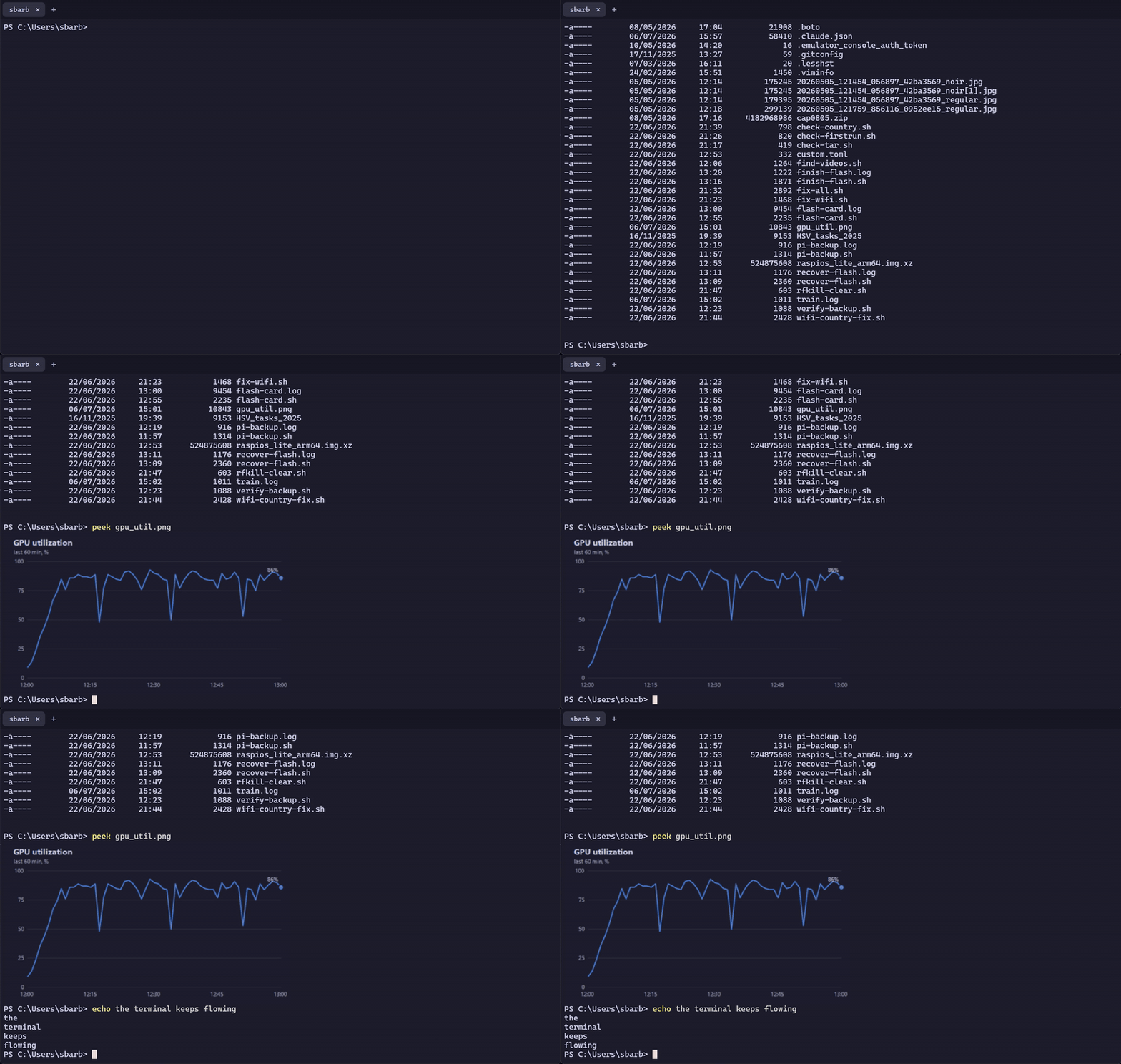
peek <file> renders an image inline in the terminal. It scrolls away like
text and doesn't break your prompt. Works at the local prompt and inside anxssh session, where the remote only needs base64.
download and upload
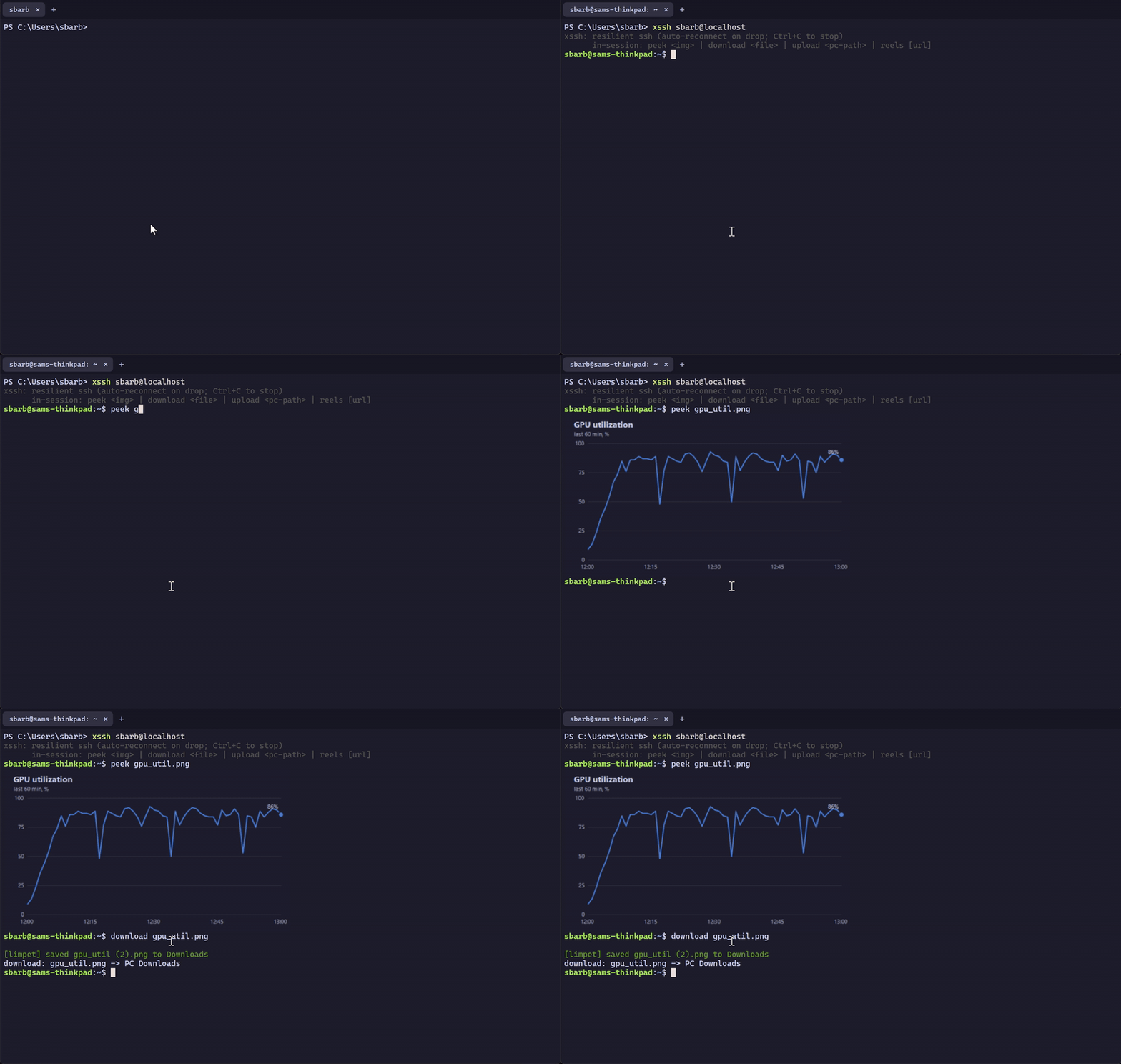
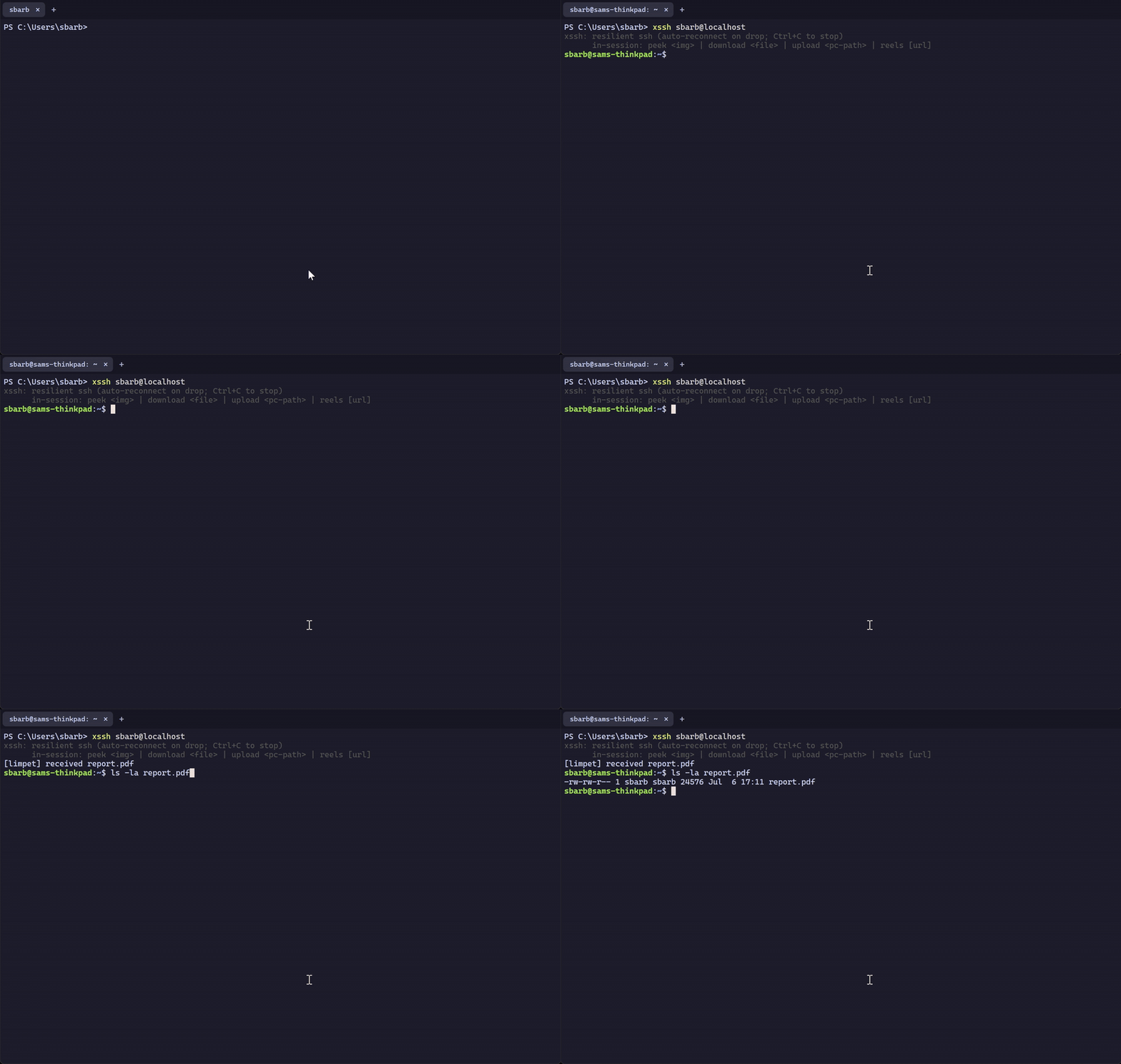
Inside any xssh session you also get download and upload. download file sends the file to your PC's Downloads folder through the connection
you're already typing over; download folder sends a whole folder (streamed
as a tar and unpacked on arrival). It streams in chunks, so a big file or a
10 GB folder goes through fine without holding anything whole in memory.
There's no agent and no rsync, and nothing is left on the server; the helpers
are injected fresh on each connect.
They only exist in xssh sessions, plain ssh won't have them. They survivetmux, nested bash and srun. To reach a second machine (say login node to
compute node), hop with xssh next-host instead of ssh next-host and they
come along.
Drag and drop
Drop files or folders onto an xssh tab to copy them to its reported remote
working directory. Limpet previews the host, directory and filenames before
sending, and explains that existing names will be replaced. Every size uses a
separate scp process, so dropping a file never types its contents into a
running command or coding agent.
A transfer card shows the destination and result, with Cancel, Retry and
Dismiss. Byte progress is not available from this copy process. Cancellation
can leave partial files remotely; retry confirms the current destination again.
Copies need key or SSH-agent authentication. Unsupported paths, nested hops,
and tabs without a known xssh destination explain the limitation; use wput
from the client for those cases.
Windows Hello for SSH
Type a host's password once:
Enable-LimpetHello user@host
limpet installs a dedicated key whose passphrase is sealed by the TPM behind
Windows Hello. From then on xssh user@host is a face, fingerprint or PIN
prompt, reconnects included. No password again.
reels
Because sometimes the build takes a while. reels docks a vertical feed
(Instagram Reels by default, or any URL you pass) on the right side of the
terminal. reels again to dismiss.
Settings
Ctrl+, in the app (or Settings… in a tab's right-click menu) opens a
settings page: font, size, line height, cursor, scrollback, predictive echo,
copy on select, the reels page, the backdrop pace and the keyboard shortcuts.
Changes apply live to every tab. Details in app/README.md.
Finding your way around
On Windows and Linux, the toolbar exposes Accounts, Find, Settings and ? help.
On macOS, the tabs sit in the title bar and + opens one; use Shell → Accounts… or Find…, limpet → Settings…, and Help → Getting Started…
in the menu bar. Right-clicking a tab also opens accounts and settings. Search
terminal output with Ctrl+Shift+F (or Cmd+F on macOS), move between
matches, or jump to the bottom. Tabs scroll when there are too many to fit;
keyboard users can navigate tabs and account choices with arrow keys.
On macOS, closing a tab or window and quitting the app takes effect immediately.
Windows and Linux ask before closing live sessions. When a shell exits, its output and exit code
stay visible with Restart shell, Copy output and Close controls.
On the next launch, Limpet offers to restore saved tab labels and local
working directories. This starts fresh shells: it does not restore running
programs, SSH connections or terminal output.
Backgrounds
Right-click a tab and pick a background: the standard limpet colour (the
default), a handful of other dark colours, or Generative, which paints each
tab with a small pixel-art scene of whatever that tab is working on. The scene
is made by a local image model, so nothing about your terminal leaves the
machine; it updates as the conversation moves on. The first time you pick
Generative, limpet offers to download that model (about 675 MB, once) and shows
the progress; npm run setup:backdrop in app/ does the same from a prompt.
Any number of Claude, Codex, Antigravity and Copilot accounts
Keep as many Claude Code,
Codex, Antigravity (agy) and
GitHub Copilot CLI logins as you have
subscriptions, each behind its own command, and share each agent's session
history across all of its accounts.
claude         # your usual account       (config in ~/.claude)
claude1        # another Claude login     (~/.claude-1)
claude2        # and another              (~/.claude-2)
claude7        # any number works         (~/.claude-7, created on first run)
codex          # your usual Codex         (~/.codex)
codex1         # another Codex login      (~/.codex-1)
agy1           # another Antigravity login (kept in ~/.agy-1)
copilot1       # another Copilot login    (~/.copilot-1)
claudeN runs Claude Code with CLAUDE_CONFIG_DIR pointed at ~/.claude-N;codexN runs Codex with CODEX_HOME at ~/.codex-N; copilotN runs Copilot
with COPILOT_HOME at ~/.copilot-N. Each holds a separate login: /login
once in each and it stays signed in. There is no list to edit.
Antigravity has no such setting: agy keeps a single login in Windows
Credential Manager. So limpet keeps each agyN account's login in ~/.agy-N
(encrypted for your Windows user) and swaps it in for the length of the
launch, setting plain agy's own login aside in ~/.agy and putting it back
when agyN exits. Sign in once inside agy1 and it stays signed in. Because
Credential Manager holds one login at a time, a second agy account is refused
while one is running (the same account in two tabs is fine), and plain agy
goes through limpet too, so it always gets its own login back. If a tab is
closed while agyN runs, plain agy's login is put back the next time a tab
opens or agy starts. Every agy account already shares one chat history,
since agy keeps all of it in ~/.gemini.
Type a number that doesn't exist yet and limpet creates the directory and runs
the agent there (a numbered command whose directory already exists is a real
function, so it tab-completes). Any arguments pass straight through
(claude3 --resume, codex2 resume <id>, claude1 -p "...").
All Claude accounts' session transcripts live in one shared store (limpet
junctions each config's projects/ folder to ~/.claude-shared/projects), so/resume lists the same conversations whichever account you're in. Start
something on one account, pick it up on another, and back again. Transcripts
are named by a unique id, so the accounts can run side by side without ever
colliding. The wiring is created automatically whenever a numbered claude
command runs (or by hand with Sync-LimpetClaudeHistory): any pre-existingprojects/ folder, plain claude's included, is folded into the shared store
file by file, never overwritten. A folder that a running session still has
open is left alone and picked up on the next launch.
Only the transcripts are shared. The up-arrow prompt history stays per account,
because Claude Code refuses to read that file through a link.
Codex accounts share plain codex's history the same way: every ~/.codex-N
gets its sessions/, archived_sessions/ and thread-writer-locks/ junctioned
to ~/.codex's, its session_index.jsonl (the thread names) hard-linked to~/.codex's, and sqlite_home in its config.toml pointed at ~/.codex
(Codex's thread index, which /resume lists from), so /resume in codex1
lists the same threads, names included, as plain codex. Sharing the writer
locks keeps Codex's own guard working across accounts: a thread that is open
in one account can't be opened for writing in another at the same time.~/.codex stays where it is (the Codex app and editor extensions keep using it
directly); a numbered home's own threads are folded into it on the first sync
and indexed there, and a thread copied to another account and continued there
keeps the longer copy. The wiring happens whenever a numbered codex command
runs (or by hand with Sync-LimpetCodexHistory); a home with a chat open is
left until a later launch. Logins, the rest of the config and the up-arrow
history stay per account.
Copilot accounts share plain copilot's the same way: each ~/.copilot-N gets
its session-state/ (one folder per chat, which Copilot's resume list is built
from) junctioned to ~/.copilot's.
OpenCode is also available as a single opencode entry when its CLI is on
PATH. Numbered OpenCode accounts are not supported; it uses its own provider
configuration, and usage is shown as unavailable. Limpet supports the OpenCode
1.x export <sessionID> command.
To move an existing OpenCode conversation to another agent, launch it withopencode --session ses_… in a Limpet tab. Plain launches, --continue, and
changing conversations inside the TUI cannot reliably identify the active chat;
exit and explicitly resume the desired session before moving it. A launch note
records the requested session, not proof that the TUI still has that chat open.
Switch account, or agent, mid-chat
In the limpet app, choose Accounts (or right-click a tab) to see every account that is signed in,
of every agent, Claude and Codex ones with how much of their 5-hour and weekly
limit is left (5h 88% · wk 70%, hover for the reset times; green, amber and
red as it runs out; agy and Copilot show usage n/a). The account the tab's
chat is running on is marked. Accounts that aren't signed in are left out, and
the footer names the commands to run to add one (Sign in to more: claude3, codex1). An agy account counts once its login is kept (plain agy once agy
has been used) and a Copilot one once Copilot has run in its home, since both
keep their tokens where limpet can't look. Pick another and limpet exits the
running agent and brings the same conversation up under the pick, in the same
shell:
- Between accounts of one agent: the same chat, resumed by id
(claude1 --resume,codex2 resume,agy1 --conversation,copilot2 --resume). Nothing is copied; the history is shared (into a Codex
home that isn't wired up yet, the rollout file is copied first). - Claude to Codex: Codex's own importer turns the transcript into a thread
in that Codex account, then<account> resume <thread id>. - Anything to Claude: limpet writes the chat out as a Claude transcript and
resumes it, so Claude remembers it natively. - Anything else (to agy or Copilot, or from them to Codex), or a
conversion that fails: the chat is rendered to a Markdown handoff file and
the new agent starts with a one-line "continue from here" prompt pointing at
it.
OpenCode follows that handoff path when receiving a chat. When moving away
from OpenCode, Limpet uses opencode export to carry its conversation
into Claude or a Markdown handoff for Codex, Copilot or Antigravity. If export
fails, the running OpenCode session is left open so the conversation is safe.
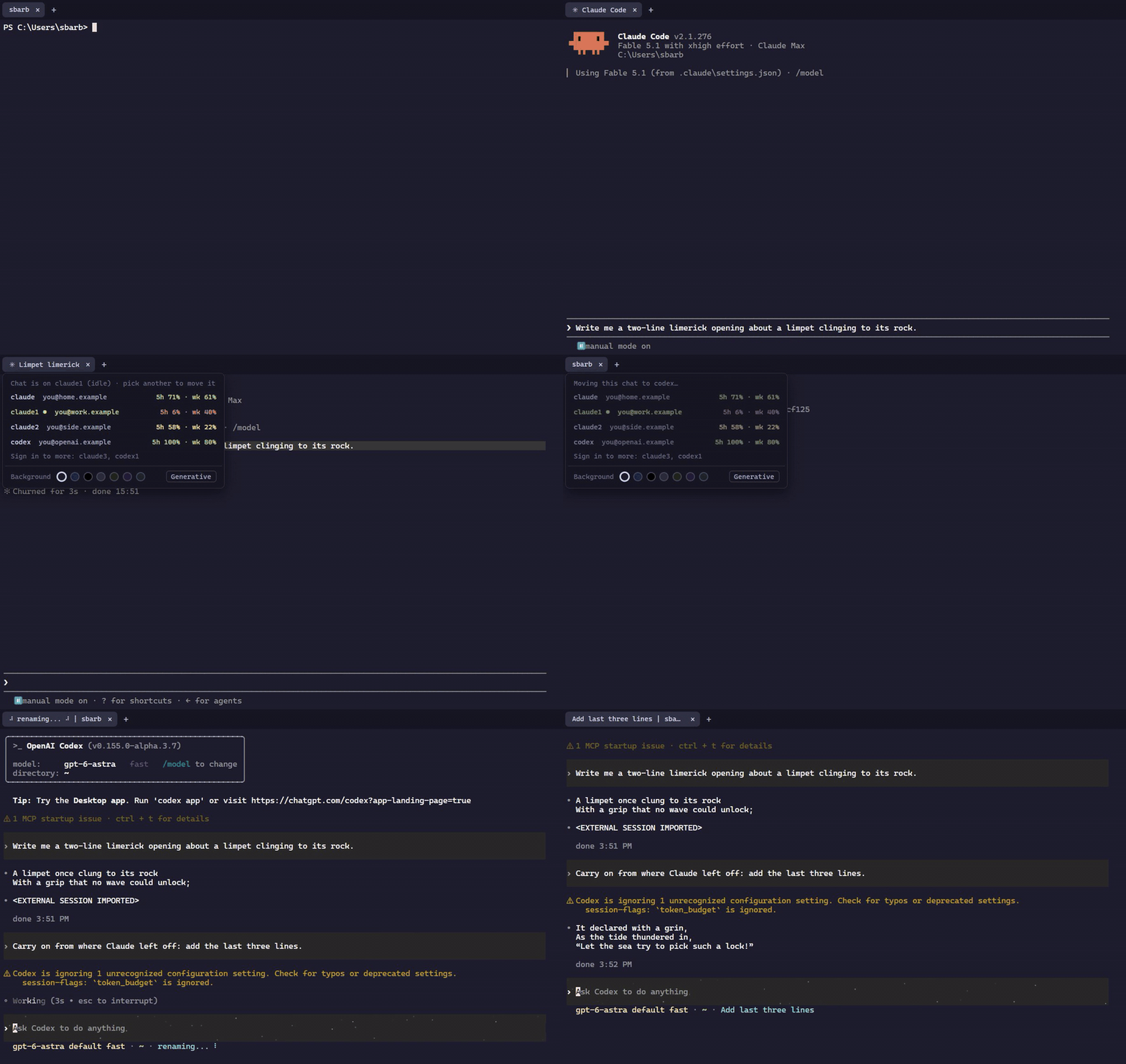
Handy when one subscription hits its limit: the usage column shows which one
still has room. With nothing running in the tab, picking an account just
starts it there. Moving to Codex sends the conversation to OpenAI once Codex
replies, so pick with that in mind. Usage is read with each account's own
stored login, from the same endpoints /usage (Claude) and /status (Codex)
use, and nothing is written back; an expired login shows Sign in required until you
run that account again.
limpet also notices on its own. When the agent in a tab prints its limit
message (Claude Code's You've hit your session limit · resets 3pm, Codex'sYou've hit your usage limit), or the tab's account shows 0% left when usage
is read, a small banner in the tab's corner offers the best other account:claude1 hit its 5-hour limit (resets 3:00 pm). Move this chat to claude2 (5h 88% left)? Move is the same move as picking it in the menu; Not now
or Esc hides it until the next limit. It prefers another account of the same
agent with the most left on the window that ran out, then another agent's,
and only then one whose usage limit can't be read (agy, Copilot: usage unknown). The banner never takes the keyboard from the terminal. In the
settings page (Ctrl+,), When an account runs out switches between this
offer, moving the chat automatically, or doing nothing. Automatic moves stay with the
same provider by default; settings can restrict them to named accounts. A move
to another provider always explains where the conversation goes and asks first.
An unverified launch stays visibly unverified; it is not reported as a resumed chat.
Install
All downloads are on the latest release. Git and Node.js are not needed to use an installer.
- macOS:
limpet-<version>-arm64.dmg(Apple silicon) orlimpet-<version>-x64.dmg(Intel). Drag limpet to Applications. The builds aren't notarized yet, so the first time macOS blocks it: open System Settings → Privacy & Security and choose Open Anyway. From 0.1.3 on, the Mac app updates itself. - Windows:
limpet-Setup-<version>.exe. Run it, then open limpet from the Start Menu. - Linux:
limpet-<version>-x86_64.AppImageor-arm64.AppImage.chmod +xit and run it.
If an asset is missing for your platform, use the source instructions below. Features on the main branch may be newer than the published installer.
Your first session
- Open ? in the tab bar for getting-started help and read-only setup checks. These report SSH, SCP and optional coding-agent tools on the app's PATH; they do not install anything or read your logins.
- Try a local command, then connect with
xssh user@hostusing your own SSH login. You need an SSH client locally and access to the host. Runtmux -Von the remote host to check session protection: reconnecting without remote tmux starts a new shell. - Inside xssh, try
peek image.pngordownload report.txtusing a file on that host. Use Settings to adjust text size and shortcuts. - To use coding agents, install the desired agent CLI separately and sign in once for each account. Other terminal features work without any agent installed.
Installed builds check GitHub Releases for updates; source checkouts do not auto-update. See update behaviour and platform restrictions. Updating the app is separate from preserving running local processes.
Windows source setup
For development or integration in other terminals:
git clone https://github.com/samuelwbarber/limpet
cd limpet
.\install.ps1          # wires the module into your PowerShell profile

cd app                 # the limpet terminal app (peek/download/drop live here)
npm run setup
npm start              # or launch "limpet" from the Start Menu after install.ps1
- To get a normal Windows installer instead, run
npm run distinapp/: it
writes a per-userlimpet-Setup-<version>.exe(with the module bundled) toapp\dist, and the installed app keeps itself up to date from GitHub
Releases. See app/README.md. - The shell module (
shell/) works in any terminal: Windows Terminal,
WezTerm, VS Code.install.ps1adds it to your profile and creates a Start
Menu entry for the app. - The limpet app (
app/) is the tabbed Electron terminal that renders inline
images and catchesdownload,uploadand drag and drop. - SSH keys:
.\setup-ssh.ps1generates a key, loadsssh-agent, and can
install it on a host (-RemoteHost user@host).
macOS and Linux
The source tree supports Mac (Apple silicon or Intel) and Linux with platform-specific limitations: the app runs your login shell (zsh, or bash) with limpet's
integration loaded, so xssh, peek, reels, wput, drag and drop, the
agent accounts and the account menu all behave as on Windows. The Linux
command shims aren't needed (the shell is Unix already), Windows Hello becomes
the login Keychain on macOS, and junctions become symlinks. On Linux, SSH enrollment keeps the key passphrase in a local mode-0600 file; it is not sealed by a system keychain.
For source setup, install Node.js 22.12 or newer. Linux also needs Python,
make and a C++ compiler to build the terminal module (sudo apt install python3 make g++
on Ubuntu/Debian).
git clone https://github.com/samuelwbarber/limpet
cd limpet
./install.sh           # adds limpet to ~/.zshrc (and ~/.bashrc), installs the app
open app               # or: cd app && npm start
- The app. Look for your platform in the latest release assets, or build with
npm run dist:macornpm run dist:linuxinapp/. Usenpm startafter source setup to run without an installer. macOS assets uselimpet-<version>-arm64.dmg(Apple silicon) orlimpet-<version>-x64.dmg(Intel); Linux uses AppImage. See packaging instructions for signing and platform requirements. The bundled shell integration works inside the app;install.shalso makes it available in other terminals. - The shell integration (
shell/limpet.sh) is one file that zsh and bash
both source. It addsxssh(same flags,-NoResume/--no-resume,-Raw/--raw),peek,reels,wput,download/upload(the same
helpersxsshsends to remote hosts), thelimpetbanner, and everyclaudeN/codexN/agyN/copilotNaccount command. - Password once, then local enrollment. Instead of
Enable-LimpetHello, runlimpet-enroll user@host: limpet makes a dedicated~/.ssh/limpet_ed25519
key with a random passphrase kept in your login Keychain on macOS (a
mode-0600 local file on Linux), installs it on
the host (you type that host's password this one time) and from then onxssh user@hostconnects, and reconnects, without asking.limpet-forget
andlimpet-statusgo with it. Hosts that only take a password still get
the reconnect cache:xsshasks once per session and replays it. - Agent accounts are identical:
claude1runs Claude Code withCLAUDE_CONFIG_DIR=~/.claude-1,codex2withCODEX_HOME=~/.codex-2, and so
on, with the shared/resumehistory wired by symlinks. One macOS detail:
Claude Code keeps its login in the Keychain there (itemClaude Code-credentials, suffixed per config directory), which is where the
account menu reads the signed-in state and usage from. Antigravity's login
swap is best effort on macOS: it moves theagyKeychain item and hasn't
been verified against a real Antigravity install yet. - Shortcuts follow the platform: ⌘T new tab, ⌘W close tab, ⌘⇧] / ⌘⇧[ next
and previous tab, ⌘, settings, ⌘C / ⌘V copy and paste (Ctrl+C stays the
interrupt). All rebindable in Settings. - Generative backgrounds need the local image model, which the pinned
generator only ships for Apple silicon Macs (and x86_64 Linux); on an Intel
Mac the picker says so.npm run setup:backdrop:unixinapp/is the
command-line install.
How it fits together
| Layer | Job | What provides it |
|---|---|---|
| Terminal | tabs, rendering, inline images, drop target | limpet app (app/) |
| Session | survive bad links without re-auth | xssh (client-side) plus optional remote tmux |
| Shell | ls -la, grep, wput, peek |
Limpet module (shell/Limpet.psm1) on Windows; shell/limpet.sh in zsh/bash on macOS and Linux |
In-session peek, download and upload talk to the app over private
terminal escape sequences, so they tunnel through SSH with no server-side
setup. Anything printed to the terminal could contain those sequences (acat-ed file, a hostile host), so the app only acts on download, upload
and reels requests that carry a per-install secret, which xssh hands to
the helpers it injects. upload also asks you to confirm each file before
it leaves your PC, and a downloaded folder always unpacks into a new folder
in Downloads, never over existing files.
Repo layout
shell/       Limpet PowerShell module + limpet-remote.sh (in-session helpers) + Hello auth
             limpet.sh (the zsh/bash integration) + rc/ (how the app loads it into your shell)
app/         tabbed Electron terminal (xterm.js + node-pty: ConPTY on Windows, a pty elsewhere)
install.ps1  idempotent setup on Windows (profile, Start Menu shortcut)
install.sh   idempotent setup on macOS/Linux (~/.zshrc, ~/.bashrc, the app)
setup-ssh.ps1  SSH key setup helper
tests/       Test-Limpet.ps1 / Test-Xssh.ps1 (PowerShell), test-limpet-sh.sh (zsh + bash), test-remote-sh.sh
tools/demo/  scripts that record the README GIFs
docs/        COMMANDS.md reference, PORTING.md (how the macOS port is built), demo media
Test
CI runs all of these on every push (see .github/workflows/ci.yml):
.\tests\Test-Limpet.ps1    # every shell command + peek/reels protocol + Hello helpers
.\tests\Test-Xssh.ps1      # xssh bootstrap variants + reconnect policy (ssh stubbed)
bash tests/test-remote-sh.sh   # remote helpers + the real xssh bootstrap templates (Linux/WSL)
zsh tests/test-limpet-sh.sh    # the zsh/bash integration: accounts, history sync, xssh, peek (macOS/Linux)
bash tests/test-limpet-sh.sh   # the same suite under bash

cd app
npm test                   # terminal-protocol + account-switch unit tests (node --test)
npm run test:e2e           # launches the real app: peek, resize survival, reels, download, tab detach, account switch
The e2e drivers run on Windows and macOS (CI runs both); setLIMPET_E2E_USER_DATA=<folder> to keep a local run off your real limpet
profile.
Yorumlar (0)
Yorum birakmak icin giris yap.
Yorum birakSonuc bulunamadi